Note
Access to this page requires authorization. You can try signing in or changing directories.
Access to this page requires authorization. You can try changing directories.
Note
This article was originally written in 2021, and some content might not reflect the current version of PIX. It will be updated in the future.
GPU Captures in PIX on Windows can collect hardware-specific counters on AMD, Intel, and NVIDIA GPUs. Several PIX features show hardware counter values in different ways, as described in this article.
Each hardware vendor chooses which counters PIX supports. To request support for more hardware counters, contact the PIX team or your representative at the hardware vendor.
Supported hardware
| GPU | Timing analysis | Events view counters | High-frequency counters |
|---|---|---|---|
| AMD | ✓ | ✓ | ✓ |
| Intel | ✓ | ✓ | ✓ |
| NVIDIA | ✓ | ✓ | ✓ |
Collect counters in the Events view
In the Events view, open the Counters panel to choose individual counters to collect. After you select counters and collect timing data, PIX shows a value for each counter next to each event.
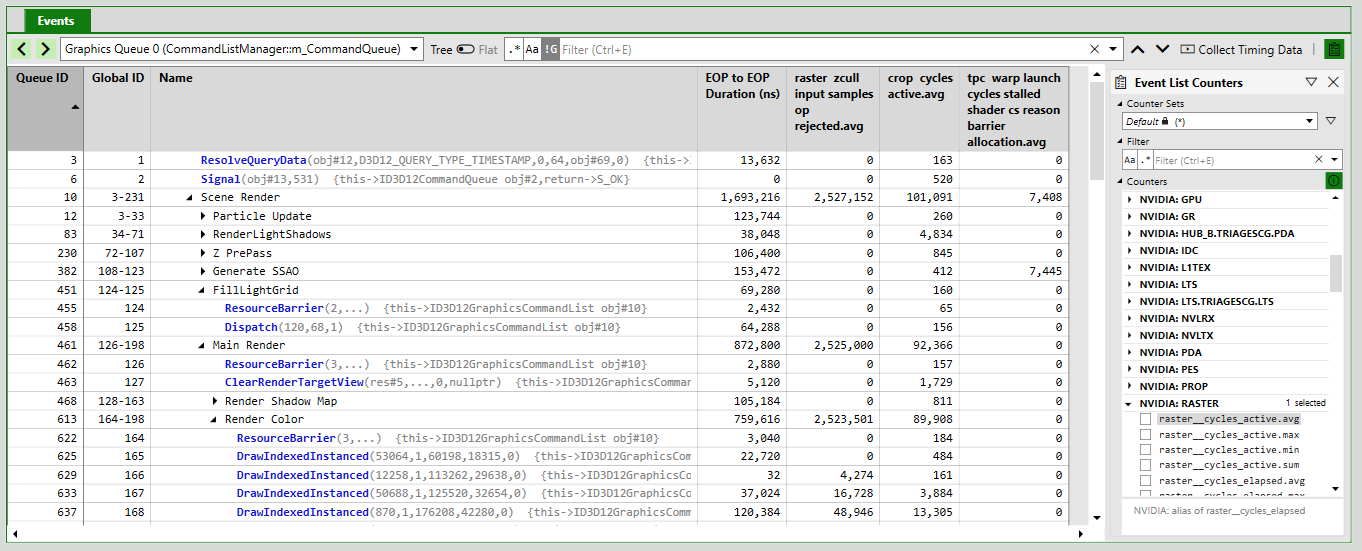
PIX also shows counter values for each PIX marker region that the application defines with WinPixEventRuntime APIs such as PIXBeginEvent. These rolled-up values aren't necessarily the sum or average of the values for the individual events in the region. Instead, PIX performs repeated playbacks, called rounds, to collect the counters at each level of the PIX marker hierarchy.
Select a counter to see more information about it.
To get this data programmatically, call IPixGpuCaptureAnalysis::GetGpuCounters, and then IPixGpuCaptureCounters::CollectCounters. Call IPixGpuCaptureCounterData::GetEventData for each event's value, and IPixGpuCaptureCounter::GetDescription for a counter's description.
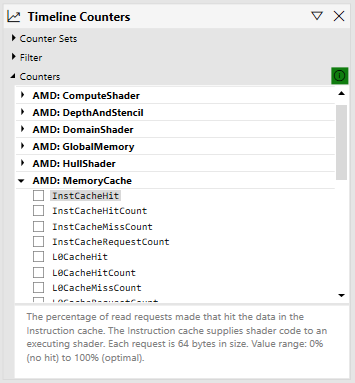
Graph counters in the Timeline view
In the Timeline view, open the Counters panel to choose counters to graph. After you select counters and collect timing data, PIX shows graphs of the selected counters' values over time.
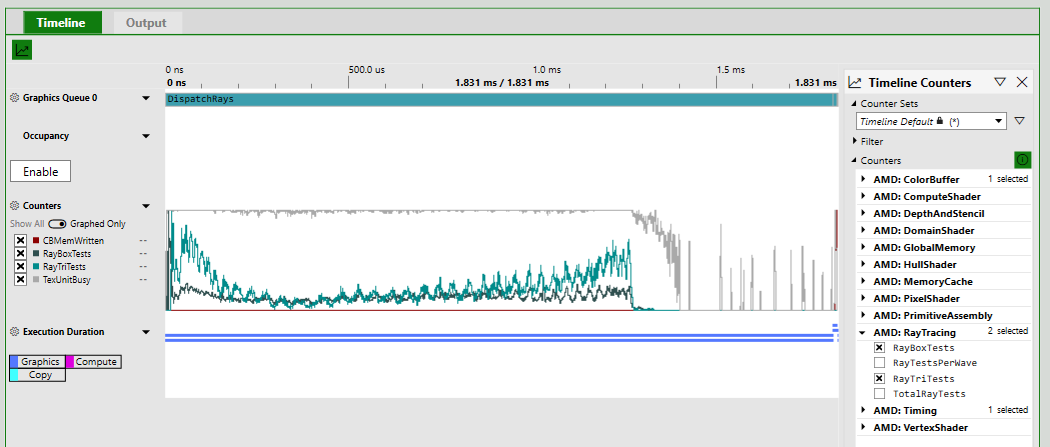
When possible, PIX collects the selected counters together during a single playback. If hardware limitations prevent that, PIX collects the counters during separate playbacks.
The counters available in the Timeline view are often similar to the counters in the Events view, but they might not be identical. Some counters make sense, or are technically possible, in only one of the views.
To get this data programmatically, call IPixGpuCaptureAnalysis::GetHighFrequencyCounters. Choose counters with IPixGpuCaptureHighFrequencyCounters::CreateGpuCounterSet, and then call CollectCounterData. IPixGpuCaptureHighFrequencyCounterData::GetSamples returns the values over time.
Occupancy
PIX provides two ways to understand GPU occupancy: occupancy counter graphs defined by each hardware vendor, and the Occupancy lane.
Occupancy counter graphs
On AMD, Intel, and NVIDIA GPUs, the Timeline view includes predefined counter graphs that help you understand your GPU's occupancy. These graphs use high-frequency counters, and each one contains a set of counters chosen by the hardware vendor. To view a graph, collect timing data, and then select Click here on the graph to enable counter graph collection.
To get these graphs' counters programmatically, call IPixGpuCaptureHighFrequencyCounters::GetGpuCounterSets, and pass the sets to CollectCounterData.

Occupancy lane
GPUs are usually constructed as a hierarchy of repeated blocks, where each level might share a resource. For example, an imaginary GPU might be structured like this:
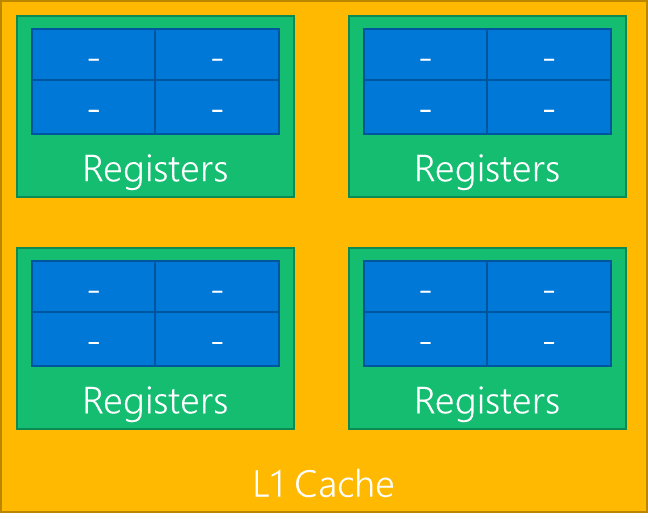
GPUs execute shaders by breaking up the shader work into waves, which are also called warps or wavefronts. In this diagram, each blue block can execute one wave, and each green block can execute up to four waves.
The blue blocks in a green block share a single set of registers. If a workload needs all the registers, only one wave at a time can execute in the green block. In that case, the occupancy of the green block is 1, out of a total possible occupancy of 4.
At any time, the green blocks might be executing different numbers of waves. Of the four green blocks, one might be executing 3 waves, another 2 waves, and the remaining ones 1 wave. PIX reduces this data to a single value, the maximum occupancy, which is 3 in this example.
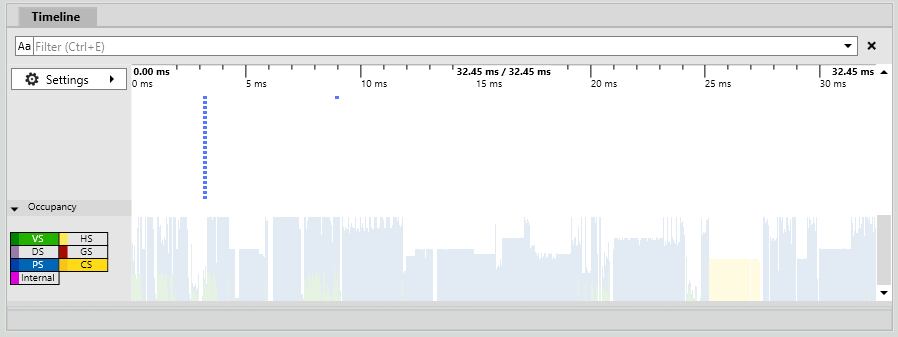
The Occupancy lane in the Timeline view shows the maximum occupancy, separated by shader stage. It indicates how much work the GPU can do in parallel: higher bars show better GPU utilization. This example is from a relatively large capture:
When you select an event, PIX overlays the maximum occupancy for that event. This example is from a small capture with only a couple of draws:
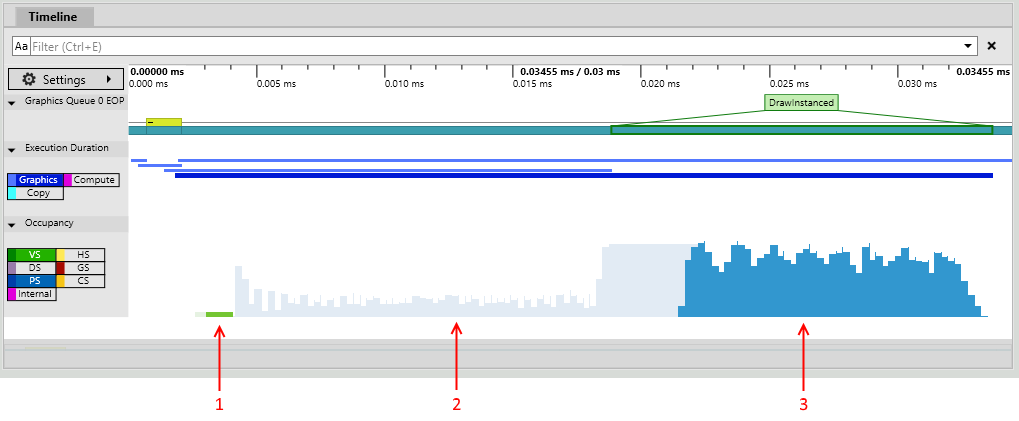
The annotations in this image show:
- Vertex shader work for the selected event.
- Pixel shader work for other events.
- Pixel shader work for the selected event.
To get occupancy programmatically, call IPixGpuCaptureAnalysis::GetOccupancy, and then IPixGpuCaptureOccupancy::CollectOccupancy. If you collected occupancy with timing data, call IPixGpuCaptureTiming::GetOccupancyData instead. IPixGpuCaptureOccupancyData::GetPoints returns the occupancy for the whole capture, and GetEventPoints returns it for one event.
AMD counters
To see a description of an AMD counter, select it in the Counters panel. The rest of this section describes the Wave Distribution and Wave Occupancy Limiters graphs.
Wave Distribution and Wave Occupancy Limiters graphs
The Wave Distribution graphs are supported on AMD Radeon RX 5000 and 6000 Series GPUs. These are the graphs and their counters:
- Wave Distribution graph:
WaveOccupancyPct: The percentage of the maximum wavefront occupancy that is currently being used.
- Wave Occupancy Limiters graph:
LSHSLimitedByVgpr: The percentage of LS and HS wave scheduling requests that are limited by VGPR availability.LSHSLimitedByLds: The percentage of LS and HS wave scheduling requests that are limited by LDS availability.LSHSLimitedByScratch: The percentage of LS and HS wave scheduling requests that are limited by scratch space availability.HSLimitedByBarriers: The percentage of HS wave scheduling requests that are limited by barriers.ESGSLimitedByVgpr: The percentage of ES and GS wave scheduling requests that are limited by VGPR availability.ESGSLimitedByLds: The percentage of ES and GS wave scheduling requests that are limited by LDS availability.ESGSLimitedByScratch: The percentage of ES and GS wave scheduling requests that are limited by scratch space availability.VSLimitedByVgpr: The percentage of VS wave scheduling requests that are limited by VGPR availability.VSLimitedByScratch: The percentage of VS wave scheduling requests that are limited by scratch space availability.VSLimitedByExport: The percentage of cycles that VS Waves are stalled due to export space availability.PSLimitedByLds: The percentage of PS wave scheduling requests that are limited by LDS availability.PSLimitedByVgpr: The percentage of PS wave scheduling requests that are limited by VGPR availability.PSLimitedByScratch: The percentage of PS wave scheduling requests that are limited by scratch space availability.CSLimitedByLds: The percentage of CS wave scheduling requests that are limited by LDS availability.CSLimitedByVgpr: The percentage of CS wave scheduling requests that are limited by VGPR availability.CSLimitedByScratch: The percentage of CS wave scheduling requests that are limited by scratch space availability.CSLimitedByBarriers: The percentage of CS wave scheduling requests that are limited by barriers.CSLimitedByThreadGroupLimit: The percentage of CS wave scheduling requests that are limited by the thread group limit.
Interpret the graphs
With a workload large enough to use all the wave slots on the hardware, WaveOccupancyPct should be at 100%. However, the workload might also need resources with limited availability, such as VGPRs, LDS, scratch memory, barriers, or export space. As these resources are allocated to scheduled waves, more waves might not be able to be scheduled. The Wave Occupancy Limiters graph shows which shader types couldn't be scheduled, and which resources caused the limitation.
| Scenario | Probable cause |
|---|---|
WaveOccupancyPct = 100% |
This is the theoretical ideal case. |
WaveOccupancyPct < 100%, and one or more Wave Occupancy Limiters counters are nonzero. |
The nonzero counters indicate the resources that prevent specific wave types from being scheduled. |
WaveOccupancyPct < 100%, and all Wave Occupancy Limiters counters are zero. |
All waves of the workload have been scheduled, and resource availability isn't a limiting factor. |
Wave types and API shader types
DirectX 12 shaders can execute as different wave types, depending on the functionality that the pipeline uses. In particular, the application's vertex shader can execute as a VS, ESGS, or LSHS wave type, depending mainly on whether the pipeline uses tessellation or geometry shaders.
| AMD hardware wave type | DirectX 12 shader types |
|---|---|
| LSHS | Vertex and hull shaders (with tessellation only) |
| ESGS | Vertex shader (sometimes), vertex and geometry shaders, domain shader, or domain and geometry shaders |
| VS | Vertex shader (sometimes) |
| PS | Pixel shader |
| CS | Compute shader |
Reduce resource limitations
A shader's resource requirements depend on the shader code. You might be able to simplify or restructure the shader or its data formats to reduce resource requirements and improve occupancy. Improving occupancy doesn't necessarily improve performance.
| Resource | How to reduce limitations |
|---|---|
| VGPR | Vector general-purpose registers. Reducing vector operations in the shader might reduce VGPR usage. |
| LDS | Local data store. Reduce the amount of data that's shared across work items in the wave. |
| Scratch | Scratch memory. Reduce the number of temporary variables that the shader uses. |
| Barriers | Barriers might be allocated because the shader needs to synchronize the entire thread group, or because of specific instructions. |
| Export | Export space. Vertex attributes require export space, and scheduling of VS waves might be limited if the export space is fully allocated. Backpressure from the export space might also prevent more waves from being scheduled. |
| ThreadGroupLimit | Thread group limit. If the shader's thread group size isn't an even divisor of the thread group limit, more thread groups might not be able to be scheduled. This limit applies only to compute shaders. |
Intel occupancy graphs
On Intel Graphics Technology adapters, the hardware threads on each execution unit (EU) can be in one of three states:
- Loaded: A Thread State Register File (TSRF) slot is allocated for the thread on an EU. Each EU has a maximum of 7 or 8 TSRF slots, depending on the GPU generation.
- Active: At least one instruction from the loaded thread is executing on one of the two floating-point units: FPU 0 and FPU 1, also called EM (Extended Math unit).
- Stalled: The thread's next instruction is blocked until an existing data dependency is resolved.
These metrics describe how efficiently the EUs are used:
- EU Thread Occupancy: The average percentage of loaded threads relative to the total number of TSRF slots on the GPU over the measured interval. A low value indicates one of the following:
- There's a bottleneck in the GPU front end, such as command parsing, vertex fetching, or rasterization.
- For compute shaders, more threads can't be loaded on the EUs. The cause is either high shared local memory (SLM) usage per thread group, or compilation to a lower SIMD width (for example, SIMD8 instead of SIMD16) because of high temporary register usage.
- EU Stall: The percentage of EUs that are stalled, relative to the total number of EUs on the GPU over the measured interval. An EU is stalled if it has one or more loaded threads and all of them are stalled. A high value means that many EUs are waiting for data dependencies. Check the Sampler and Memory (GTI) metrics to investigate further.
- FPU0 Active & FPU1 (EM) Active: The percentage of time that the FPU0 or FPU1 (EM) pipeline was executing instructions from a loaded thread. Low values indicate that EUs are either stalled or have low occupancy; see EU Stall and EU Thread Occupancy. A large imbalance between the two pipelines usually indicates heavy use of extended math instructions such as
log,sqrt, andcos. Reduce extended math instruction usage to resolve it.
NVIDIA counter terms
These definitions cover common acronyms and terms in NVIDIA counters in PIX on Windows:
| Term | Definition |
|---|---|
| ALU | Arithmetic Logic Unit. The ALU is responsible for execution of most bit manipulation and logic instructions. It also executes integer instructions, excluding IMAD and IMUL. On NVIDIA Ampere architecture chips, the ALU pipeline performs fast FP32-to-FP16 conversion. |
| CROP | Color Raster Operation is the portion of D3D Output Merger that performs blending and color write. |
| CTA | Cooperative Thread Array, another name for HLSL thread groups in compute shaders. |
| DRAM | Memory controller for dedicated VRAM. |
| DRAMC | DRAM Controller for dedicated VRAM. |
| FBPA | Frame Buffer Partition connects the L2 cache to DRAM controllers. |
| FBSP | Frame Buffer Subpartitions contain the DRAM controllers. |
| FE | Front End unit receives GPU commands and sends them to the graphics and compute engines. |
| FMA | Fused Multiply Add/Accumulate. The FMA pipeline processes most FP32 arithmetic (FADD, FMUL, FMAD). It also performs integer multiplication operations (IMUL, IMAD), and as well as integer dot products. On NVIDIA Ampere GA10x architecture cards such as an RTX 3080, FMA is a logical pipeline that indicates peak FP32 and FP16x2 performance. It is composed of the FMAHeavy and FMALite physical pipelines. |
| FMALite | FMALite performs FP32 arithmetic (FADD, FMUL, FMA) and FP16 arithmetic (HADD2, HMUL2, HFMA2). |
| FMAHeavy | FMAHeavy performs FP32 arithmetic (FADD, FMUL, FMAD), FP16 arithmetic (HADD2, HMUL2, HFMA2), and integer dot products. |
| GPC | Graphics Processor Cluster (GPC) contains most of the graphics and compute processing units, including PES, PROP, RASTER, and TPCs. |
| GPU | Graphics Processor Unit |
| GR | GR is the unified graphics and compute engine. |
| Host | The Host unit fetches and dispatches commands for all GPU engines. |
| Hub | The Hub area of the GPU contains the central logic for all engines, the Host unit, PCIe, and NVLINK connections. |
| IDC | The InDexed Constant Cache is a subunit of the SM responsible for caching constants that are dynamically indexed with a register. |
| L1TEX | L1 Data Cache and Texture Unit handles global, local, shared, texture and surface operations from the SM, and certain kinds of texture copies. |
| LSU | Load Store Unit. The LSU pipeline issues load, store, atomic, and reduction instructions to the L1TEX unit for global, local, and shared memory. It also issues special register reads (S2R), shuffles, and CTA-level arrive/wait barrier instructions to the L1TEX unit. |
| LTS | L2 Cache Slice is the basic building block of the L2 cache. |
| PCI/PCIE | PCI Express endpoint, connecting the GPU to the rest of the system. |
| PDA | Primitive Distributor is part of the D3D Input Assembler. |
| PES | Primitive Engine Shared implements the D3D StreamOut functionality. |
| PROP | Pre-Raster Operation is the portion of D3D Output Merger in the GPC that connects RASTER, SM, CROP, and ZROP. |
| RASTER | Raster implements the rasterization portion of the D3D Rasterizer stage, including ZCULL. |
| ROP | Raster Operation unit, containing the CROP and ZROP units. |
| SM | Streaming Multiprocessor is the unified shader processing unit in the GPU. |
| SMSP | Streaming Multiprocessor Sub-Partition contains a warp scheduler, register file, and instruction pipelines. |
| TPC | Texture Processor Cluster contains SMs and Primitive Engine Local, including VAF. |
| VAF | Vertex Attribute Fetch implements part of the D3D Input Assembler, fetching data for Vertex Shaders. Part of the Primitive Engine hardware. |
| VPC | Viewport Clip Cull is the last stage of primitive processing before rasterization. VPC implements the first part of the D3D Rasterizer stage. |
| VTG | Vertex, Tessellation, and Geometry shader stages. |
| XU | Transcendental and Data Type Conversion Unit. The XU pipeline is responsible for special functions such as sin, cos, and reciprocal square root. It is also responsible for int-to-float, and float-to-int type conversions. |
| ZROP | Z Raster Operation is the portion of D3D Output Merger that performs the Depth (Z) and Stencil test and modification. |
These definitions cover common NVIDIA counters:
| Counter | Definition |
|---|---|
| Issue Active | Activity of the SM's instruction issue stages. |
| Unallocated Warps in Active SMs | Unallocated warp slots within SMs that have at least one allocated warp. These warp slots might not be available to accept more shader threads, if an SM resource is fully utilized by the allocated warps. SM resources are registers, 3D attribute memory, compute shared memory, and CTA slots (compute thread group slots). |