Note
Access to this page requires authorization. You can try signing in or changing directories.
Access to this page requires authorization. You can try changing directories.
PIX shows how the tiles of reserved resources and heaps are mapped at any point in a GPU Capture. Use it to:
- Find tiles that aren't mapped.
- See which heap and heap offset a tile is mapped to.
- Find aliased tiles: tiles from more than one reserved resource that map to the same heap location, and so share the same memory.
- See how
UpdateTileMappingsandCopyTileMappingscalls change the mappings over the course of a capture.
Tile mappings appear in two places:
- The Mapping Details panel in the Texture Viewer, for the reserved resource that you're viewing.
- The Resource Mappings and Heap Mappings views, for any reserved resource or heap in the capture.
These views apply only to captures of apps that create reserved resources with ID3D12Device::CreateReservedResource. For background, see D3D12_TILED_RESOURCES_TIER.
Mapping events
PIX tracks tile mappings as a series of mapping events. Each event changes the mappings of one or more resources or heaps:
InitialMappings: the mappings at the start of the capture.ID3D12CommandQueue::UpdateTileMappingscalls.ID3D12CommandQueue::CopyTileMappingscalls.
When you select any event in a capture, PIX shows the mappings that are in effect at that event.
View tile mappings in the Texture Viewer
When you view a reserved resource in the Texture Viewer, select Mapping Details on the Texture Viewer toolbar to open the Mapping Details panel. Select a pixel in the texture to select the tile that contains it.
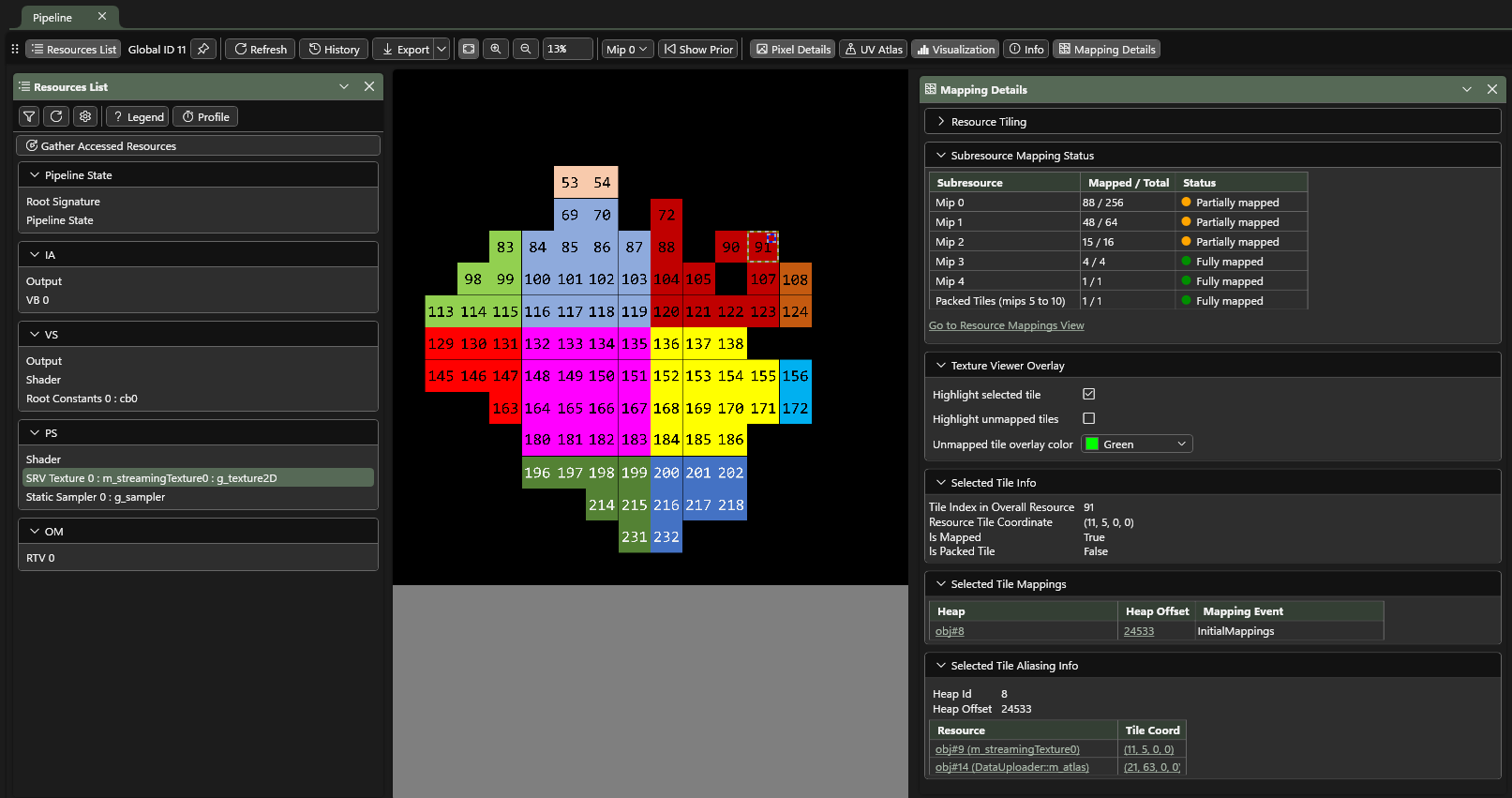
The Mapping Details panel has these sections:
- Resource Tiling: the tiling information for the resource. This is the same information that ID3D12Device::GetResourceTiling returns. It includes the packed mips: the smallest mip levels, which Direct3D 12 packs together into a shared set of tiles.
- Subresource Mapping Status: the number of mapped tiles out of the total for each subresource, and whether it's Fully mapped, Partially mapped, or Unmapped. Packed mips appear as a single row, or one row per array slice for texture arrays.
- Texture Viewer Overlay: options for the overlay that PIX draws on the displayed mip and slice:
- Highlight selected tile outlines the selected tile. It's on by default.
- Highlight unmapped tiles shades the unmapped tiles. It's off by default. If the packed mips are unmapped, PIX shades the whole packed mip.
- Unmapped tile overlay color sets the shading color to Red, Green, or Blue.
- Selected Tile Info: the tile index in the overall resource, the tile coordinate in the resource, and whether the tile is mapped and whether it's a packed tile.
- Selected Tile Mappings: the heap, heap offset, and mapping event for the selected tile. Select the heap to open it in the API object view, or select the heap offset to open that location in the Heap Mappings view.
- Selected Tile Aliasing Info: every resource tile that's mapped to the same heap location as the selected tile, including the selected tile itself. More than one entry means that the tile is aliased.
For example, to find out why a reserved texture samples incorrect data:
Open the texture in the Texture Viewer, and then select Mapping Details.
Select Highlight unmapped tiles to see which tiles aren't mapped at the selected event.
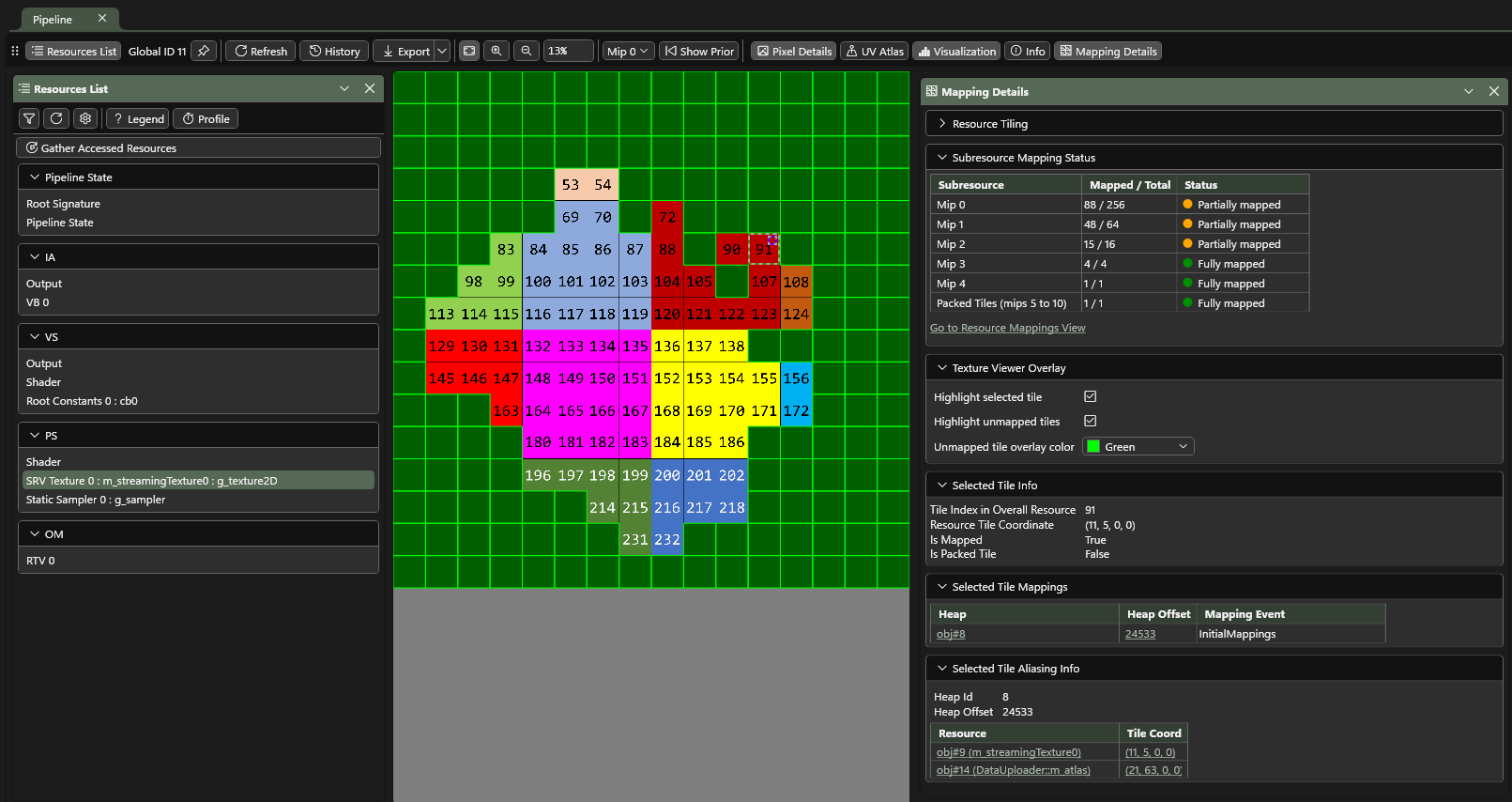
Select the pixel that looks wrong.
If the tile is unmapped, open the Resource Mappings view to find the mapping event that unmapped it or should have mapped it.
If the tile is mapped, check Selected Tile Aliasing Info to see whether another resource shares its heap location.
View tile mappings in the Resource Mappings and Heap Mappings views
The Resource Mappings and Heap Mappings views show the mappings for a reserved resource or heap. In the default GPU Capture layout, both views are on the Mappings tab. If you've changed your layout, select Views in the upper-right corner of PIX and add Resource Mappings or Heap Mappings. For more information, see Configure PIX.
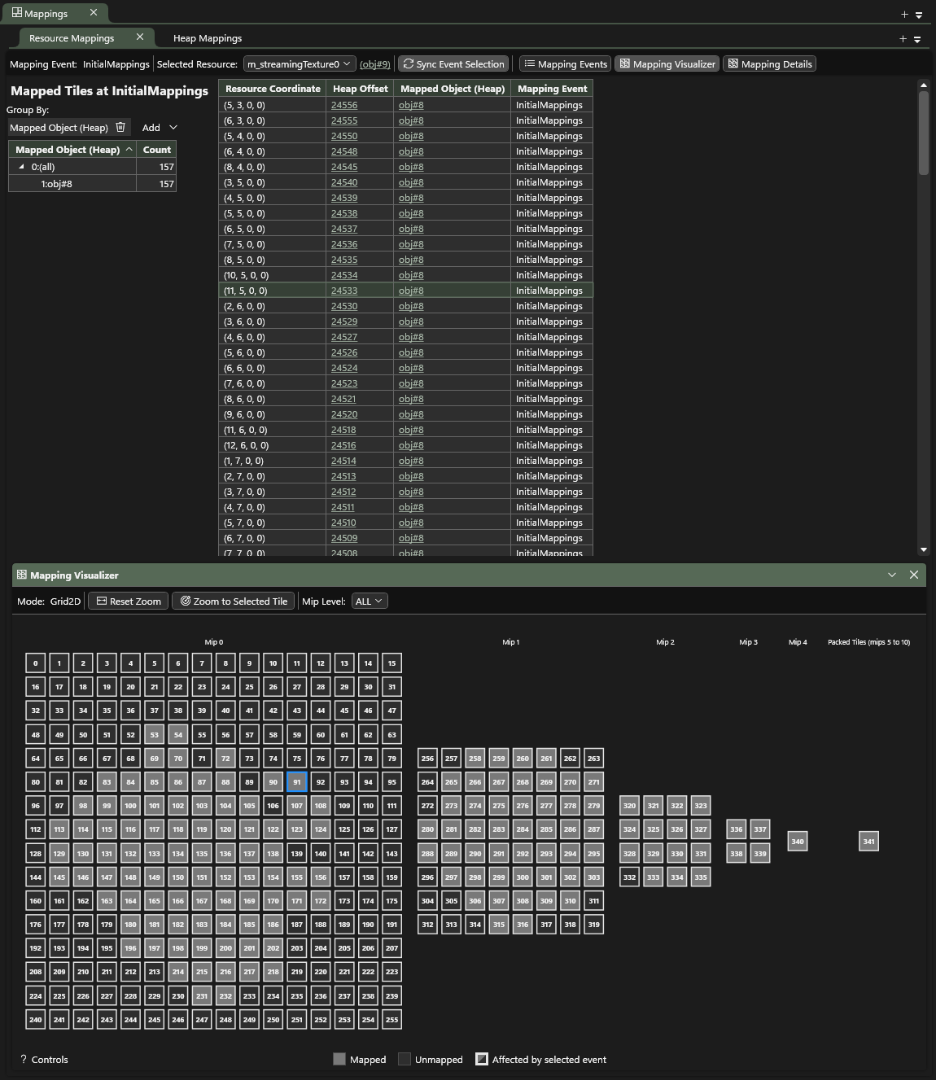
To view mappings:
- In the Resource Mappings view, select a reserved resource from the Selected Resource list. In the Heap Mappings view, select a heap from the Selected Heap list.
- Select an event in the Mapping Events panel or in the Events view.
The view toolbar has these controls:
- Mapping Event: the mapping event whose mappings are shown.
- Selected Resource or Selected Heap: the object to show. The object link next to it opens the object in the API object view.
- Sync Event Selection: when this option is on, which it is by default, the view follows the event that's selected in the Events view, and selecting a mapping event in the view also selects it in the Events view. Turn it off to explore mappings at other events without changing the selection in the Events view. When you turn it back on, the view returns to the event that's selected in the Events view.
- Mapping Events, Mapping Visualizer, and Mapping Details: show or hide each panel.
Mapping Events panel
The Mapping Events panel lists the mapping events for the selected resource or heap. It's hidden by default; select Mapping Events on the view toolbar to show it. The Global ID column is the event's ID in the Events view. Select an event to show the mappings at that event.
Mapped tiles table
The Mapped Tiles at table lists the mapped tiles at the selected mapping event. Unmapped tiles appear only in the Mapping Visualizer. Use Group By to group tiles by:
- The mapped object, which is the default: the heap for a resource, or the resource for a heap.
- Mapping Event: the event that last mapped the tile.
- Subresource Index.
Select a group to list its tiles. For each tile, the table shows the resource coordinate, heap offset, mapped object, and mapping event. Select a tile row to select that tile in the other panels. In the Resource Mappings view, select a heap offset to open that location in the Heap Mappings view. In the Heap Mappings view, select a resource coordinate to open that tile in the Resource Mappings view.
Mapping Visualizer panel
The Mapping Visualizer panel draws each tile as a cell:
- The fill color shows whether the tile is mapped or unmapped.
- Tiles that the selected mapping event affected have a highlighted border.
- The legend under the visualizer shows the colors.
- Select a cell to select that tile in the other panels.
PIX picks the visualizer Mode from the type of the resource or heap:
| Object type | Mode | Extra controls |
|---|---|---|
| Buffer or heap | Linear | Column Count sets the number of tiles per row: 8, 16, 32, or 64. |
| 2D texture | Grid2D | Mip Level |
| 2D texture array | Grid2DArray | Mip Level and Array Slice |
| 3D texture | Grid3D | Mip Level and Depth Slice |
Mip Level appears only for resources with more than one mip level. Set it to a single mip level or to the packed mips. For 2D textures and 2D texture arrays, you can also select ALL to show every mip level at once.
To move around the visualizer:
- Scroll with the mouse wheel.
- Zoom with Ctrl + mouse wheel.
- Pan by dragging with the right mouse button.
- Select Reset Zoom to fit the grid to the panel, or Zoom to Selected Tile to zoom in on the selected tile.
PIX remembers the visualizer's mip level, slice, selected tile, and zoom for each resource and heap.
Mapping Details panel
In the Resource Mappings view, the Mapping Details panel shows the same information as in the Texture Viewer, without the overlay options. Select a subresource in Subresource Mapping Status to show it in the Mapping Visualizer.
In the Heap Mappings view, the Mapping Details panel shows:
- Heap Snapshot Summary: the heap's total and free tile counts, and, for each reserved resource that's mapped to the heap, its total, mapped, and aliased tile counts.
- Selected Tile Mappings: the heap offset of the selected heap tile, and each resource tile that's mapped to it, with its resource coordinate and mapping event. More than one entry means that the heap tile is aliased.
- Placed Resources: the placed resources in the heap and their heap offsets.
Access tile mappings with the PIX API
You can also read tile mappings programmatically with the PIX API:
- IPixReservedD3D12Resource returns an IPixResourceTileMappings for a reserved resource.
- IPixD3D12Heap returns an IPixHeapTileMappings for a heap.
- Both derive from IPixTileMappings, which returns the mapping events, and the mapping event that's in effect at any event in the capture.
- IPixTileMappingsSnapshot returns the mapped tiles at a mapping event.