Note
Access to this page requires authorization. You can try signing in or changing directories.
Access to this page requires authorization. You can try changing directories.
Use static shader profiling to inspect the GPU assembly (ISA) generated from your HLSL and understand instruction dependencies and register usage.
Shader Explorer compiles a shader pipeline for your selected GPU architecture without running a workload on a GPU. You do not need a GPU capture or the target GPU available to perform static profiling.
To get this data programmatically, call IPixFactory::OpenShaderProfilingDocument.
Static profiling complements live shader profiling.
Create a project
Start with a template to explore new shader code, or export a pipeline from a GPU capture to analyze shaders with their corresponding pipeline state.
From a default template
Select File > New, then select from the available project types. Each template provides starter shaders, compilation options, and pipeline state.
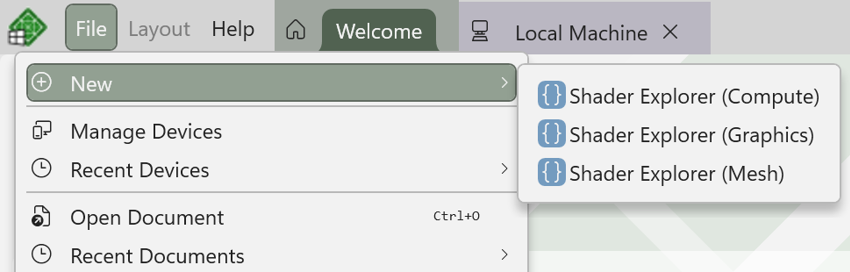
For graphics and mesh pipeline projects, use the stage tabs in the top toolbar to switch between shaders. Select an unused stage to create a shader from a template or add an existing source file.

From a GPU capture
Start analysis in the GPU capture, select a draw or dispatch, and select Profile in the Pipeline view. In the Profile Shader Pipeline dialog, choose a destination and select Open in Shader Explorer.

If the analysis GPU supports live profiling, you can collect live data before exporting. For collection steps, see Shader profiling in GPU captures.
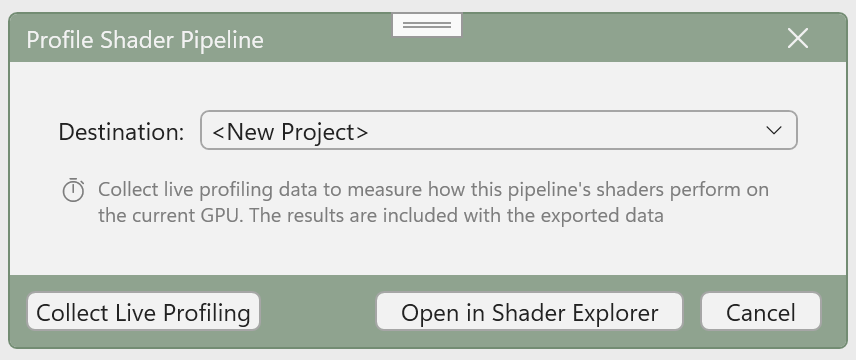
The exported pipeline includes shader source, compilation options, pipeline state, and optional live profiling data.
Modify the project
Modify shaders and compilation options
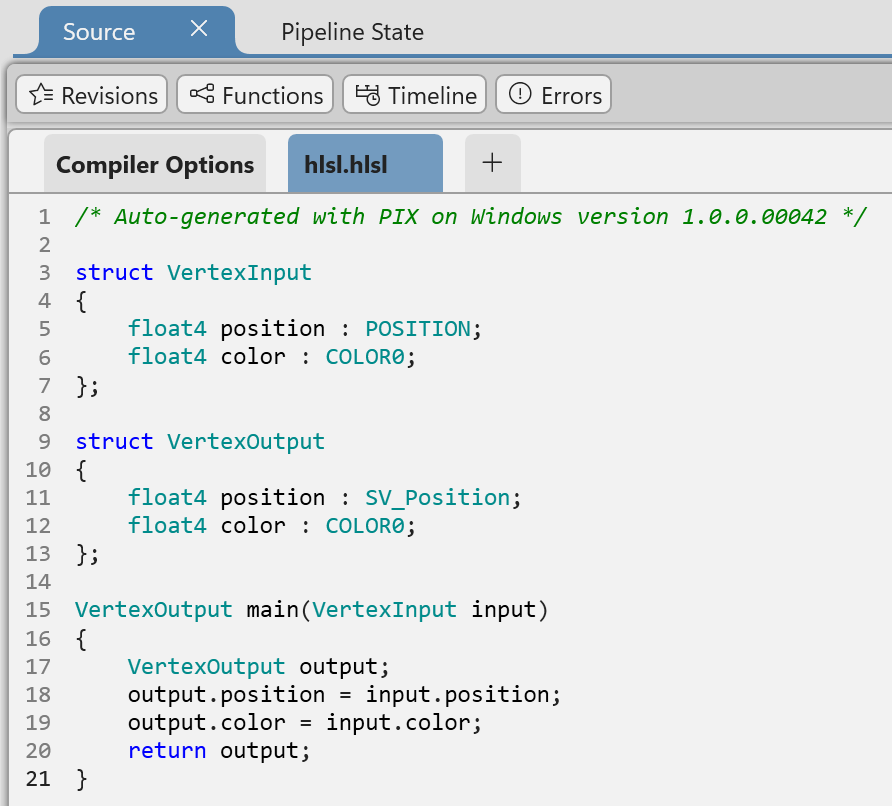
Select a stage, then edit its HLSL in the Source view.
To add source files, including files referenced by #include, click the '+' button next to the sources list and select Add New File or Add Existing File.
Each stage has a Compiler Options tab with the following fields:
| Field | Purpose |
|---|---|
| Target | Set the shader profile, such as cs_6_0. |
| Entry | Set the entry-point function name. |
| Flags | Set compiler arguments. |
| Defines | Set preprocessor definitions, such as -DUSE_FEATURE=1. |
Modify pipeline state
Edit fields in the Pipeline State view to match the intended pipeline. For example, make sure the root signature covers the resources your shaders use, and that the input layout and render-target formats match your graphics pipeline.
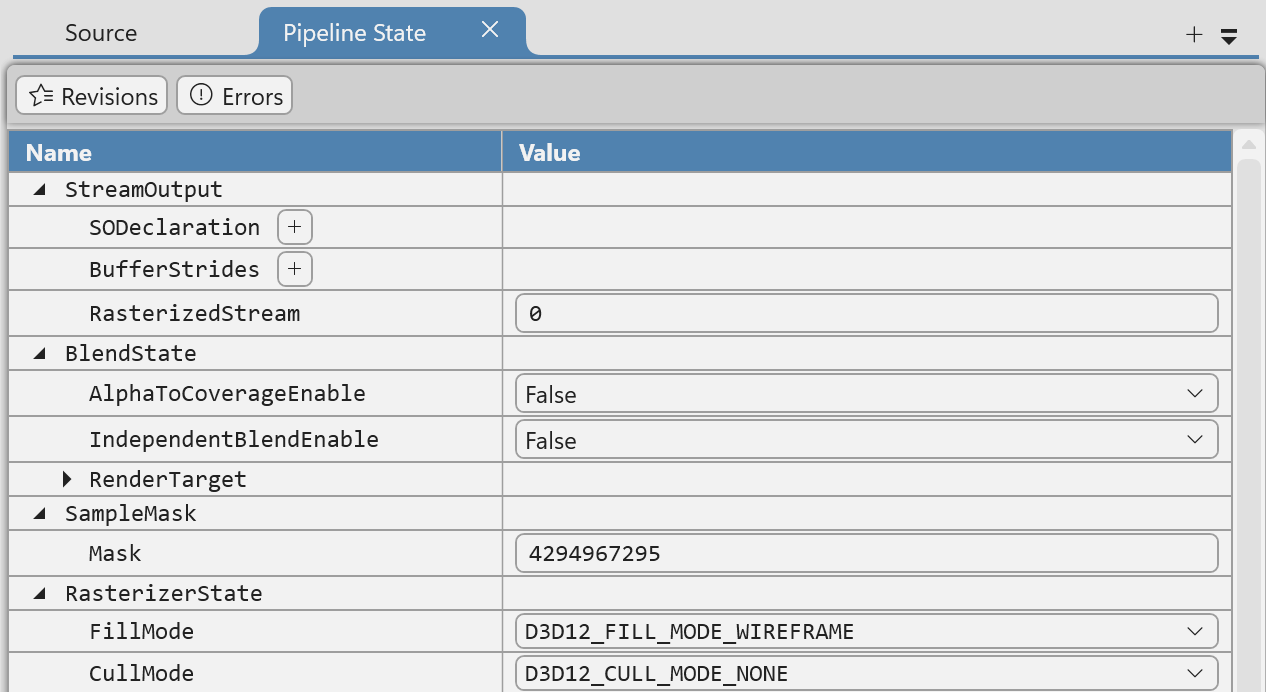
Pipeline state is part of the compilation input, not just project metadata. If you change a shader's resource bindings or stage interfaces, update the corresponding pipeline state before compiling.
Compile the pipeline
Select a compiler and GPU architecture family in the top toolbar, then select Compile.


PIX compiles the HLSL with DXCompiler, the DXIL and pipeline state with the selected GPU backend compiler, and uses the GPU's PIX plugin to produce static profiling data.
If compilation fails, review the Errors panel. Select an error with a source location to navigate to it.
To compile programmatically, choose an adapter from IPixShaderProfilingDocument::GetAdapters, and then call CompilePipelineState. On the IPixShaderProfilingCompilation that it returns, call GetCompilerOutput for errors, or GetResult for the static profiling data.

Keep the compiler and architecture family the same when comparing code changes across revisions. Otherwise, a difference in generated code could come from the compilation target rather than your edits.
Understand static profiling data
After compiling, select a pipeline stage and inspect the Disassembly view. Use the source mappings, control flow, dependencies, and register visualizations together to investigate how your HLSL compiles.
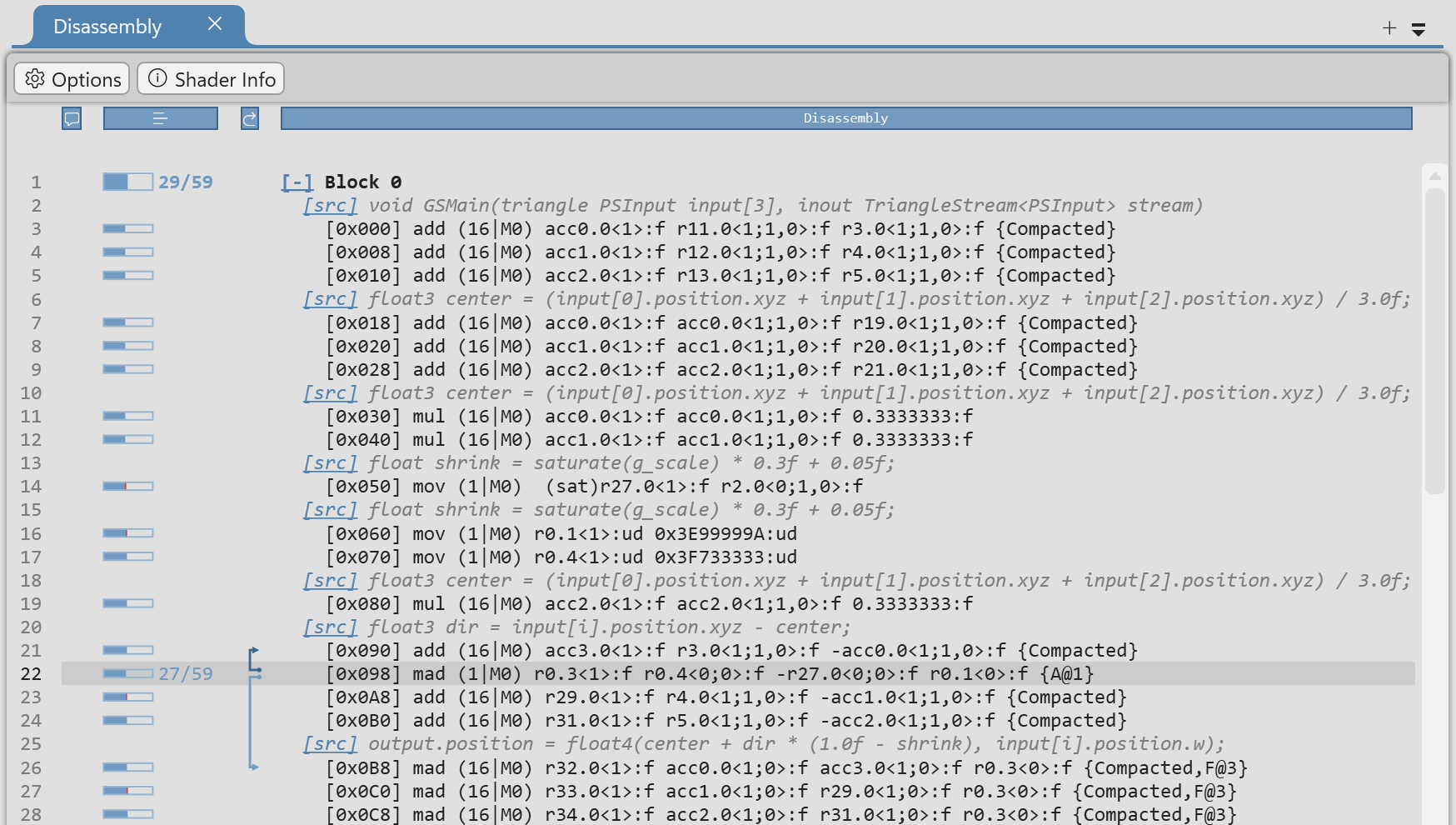
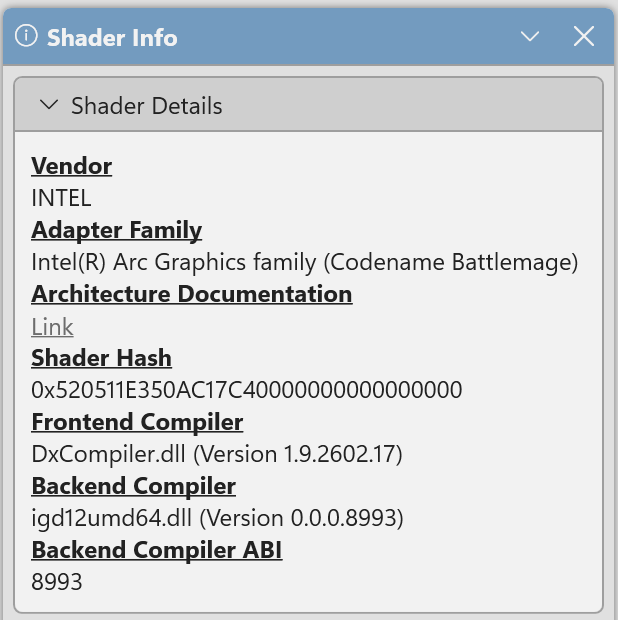
The Shader Info panel shows the target architecture, compiler versions, and shader details supplied by the GPU plugin.
To get this data programmatically, use the IPixShaderProfilingStaticResult from the compilation:
GetAdapterFamily,GetFrontendCompiler, andGetBackendCompilerreturn the architecture and compilers.GetShadersreturns eachIPixShaderProfilingStaticShader. ItsGetInforeturns the shader details, andGetBlocksreturns the disassembly.
Correlate ISA with HLSL
ISA is the GPU's instruction set architecture. Use the source correlation to understand how generated instructions map to the HLSL that produced them.
Select an instruction to highlight its HLSL location. Select an HLSL line to highlight its correlated instructions. Right-click an HLSL line and select Go to first correlated instruction to navigate to the disassembly.
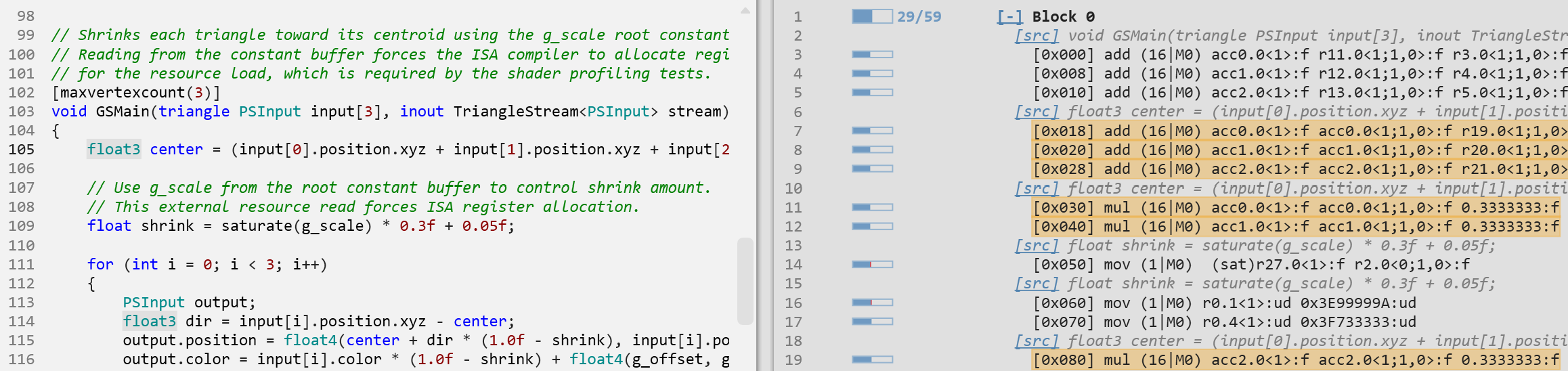
Enable Inline Source in the Options panel to display HLSL alongside the instructions. Inline source is enabled by default.
Instruction mappings are not necessarily one-to-one. An HLSL expression can produce several instructions, and compiler optimizations can combine, move, or remove code. Some instructions have no source mapping, so a source line alone does not explain every instruction in the shader.
To get an instruction's source location programmatically, call IPixShaderProfilingStaticInstruction::GetSourceLocation, which returns a location ID. To resolve it, enumerate the shader's locations with IPixShaderProfilingStaticShader::GetSourceLocationCount and GetSourceLocation, and find the one with a matching Id.
Navigate inline source callstack
When Inline Source is enabled, comments in the disassembly show the corresponding HLSL locations.
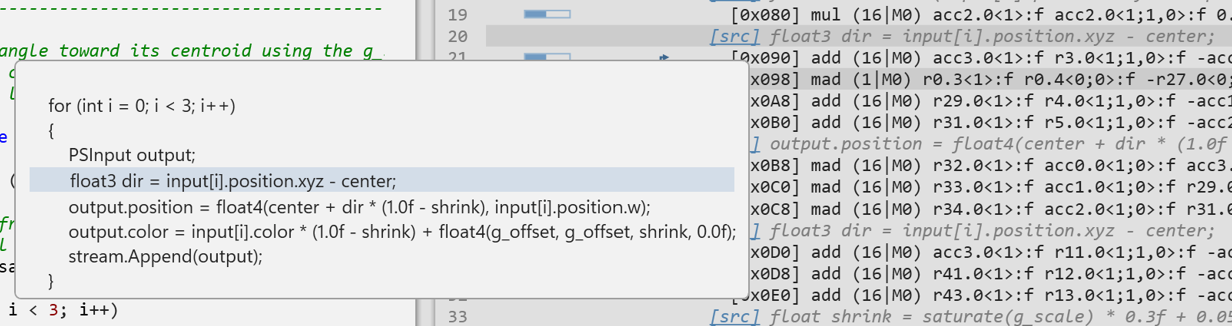
Hover over a [src] or [inl] link to preview the HLSL, or select the link to navigate to it in the Source view.
The [src] link identifies the innermost source location.
Successive [inl] links identify its callers in the inlined call hierarchy.
Use these links to distinguish which call site produced an instruction when a function is inlined in several places.
Inspect control flow
A basic block is a sequence of instructions with no branches inside it; a branch can end the block.
Shader Explorer groups the disassembly into blocks so you can focus on one section at a time.
Select the [-] or [+] link to collapse or expand a block, or right-click the disassembly to collapse or expand all blocks.

Each block links to its successors after the block name. Hover over a successor to see the branch type, or select it to navigate to the next block on that path. Follow these links to inspect branches and loops rather than assuming execution always continues to the next displayed block.
To get a block's successors programmatically, call IPixShaderProfilingStaticBlock::GetSuccessor and GetSuccessorBranchType.
Inspect instruction dependencies
The Instruction Dependencies visualization draws connections for the selected instruction. It shows the instructions it depends on and those that depend on it.
To get dependencies programmatically, call IPixShaderProfilingStaticInstruction::GetDependency.
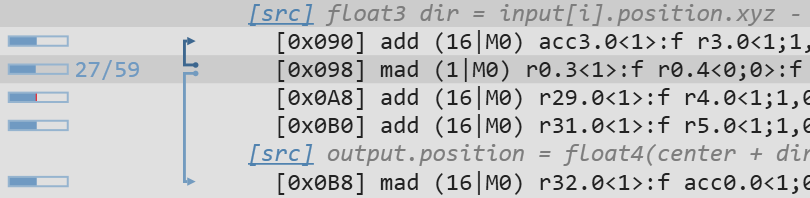
Use these connections to trace a chain of dependent operations, especially near a hotspot found through live profiling. A dependency identifies an ordering constraint. It does not by itself show that the GPU stalled during execution.
Inspect register pressure
Register pressure is the number of registers whose values must remain live at a point in the shader. A value remains live if a later instruction still needs to reference it.
The registers allocated to a shader can limit occupancy: the number of shader waves that can run concurrently. High register pressure can contribute to that allocation, but reducing the live count at one point does not necessarily reduce the shader's allocation or improve performance. For runtime occupancy, see GPU counters and occupancy.
In the Options panel, select a Register Type, then select Go to Max Register Pressure to find the point of highest register pressure in the shader. The Register Pressure visualization shows the live count at each instruction and the peak for each block. Hover over it to compare the count with the registers allocated to the shader.
To get this data programmatically, call IPixShaderProfilingStaticInstruction::GetRegisterLive for each instruction, and IPixShaderProfilingStaticShader::GetRegisterAllocatedCount for the allocation.

The pressure peak is a starting point, not necessarily the place to edit. Use register lifetimes to trace where overlapping live values are produced and last used.
Inspect register lifetimes
Register lifetimes show where register values must remain available for later instructions. When more values need to remain live at the same time, the compiler needs more register storage. Registers can be reused after their values are no longer needed; allocation is determined during compilation, not by dynamically allocating a register each time an instruction executes.
The Lifetimes visualization shows registers as columns and instructions as rows. Its cells distinguish where a register is live, read, or written. Hover over a cell to inspect that register's usage in the instruction and block.
To get this data programmatically, call these methods on each IPixShaderProfilingStaticInstruction:
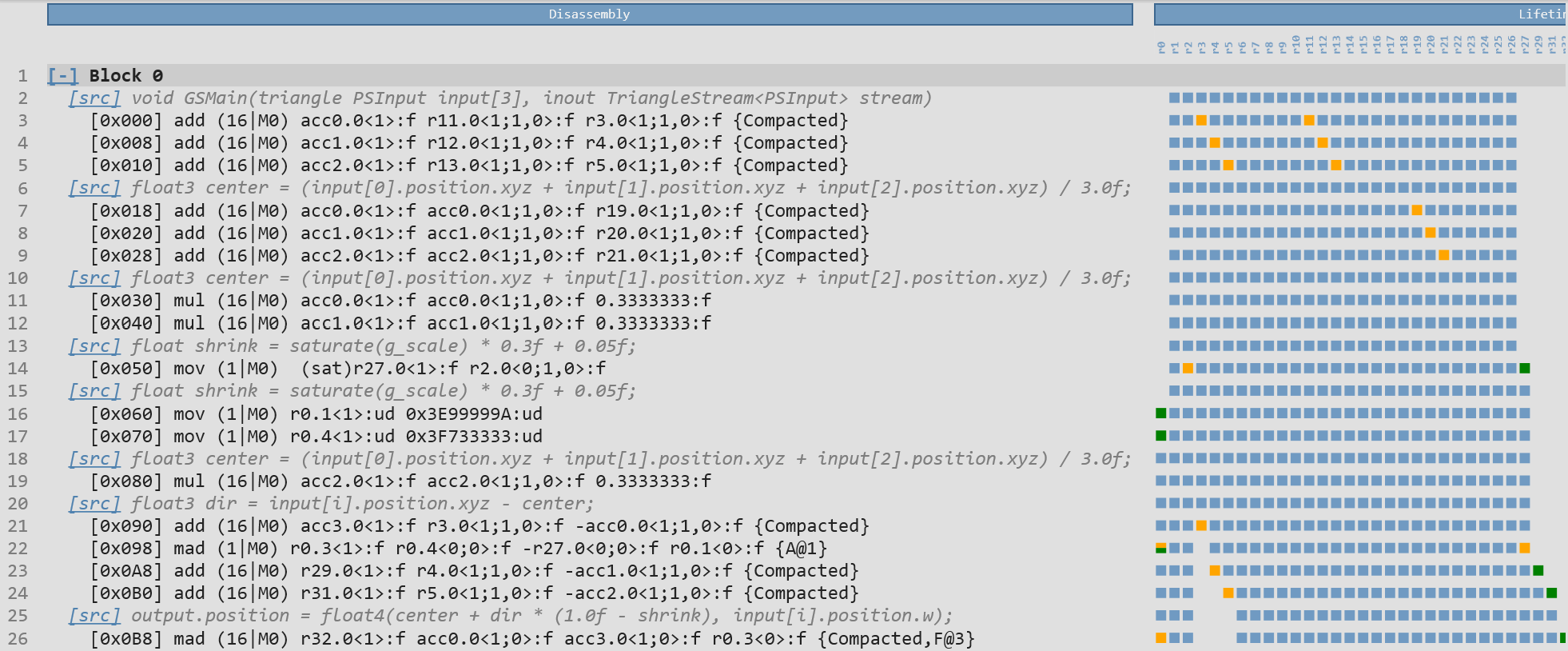
Double-click a register column to pin it at the left of the visualization. Double-click it again to unpin it, or right-click and select Unpin All Registers.
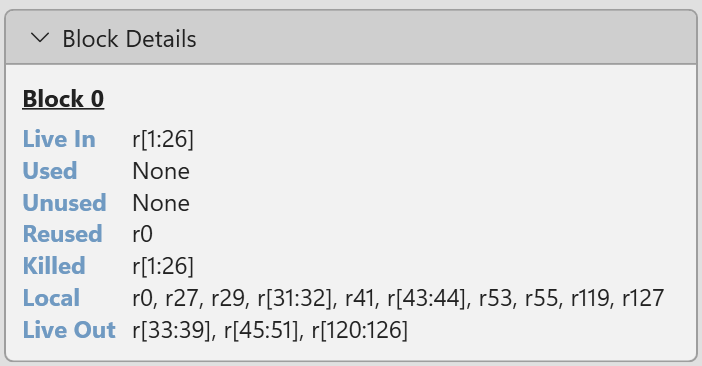
Use this view to understand what keeps registers live around a pressure peak. The Block Details section of the Shader Info panel also identifies registers that are live into or out of the selected block, used, unused within that block, reused, killed, or local to the block. Live In and Live Out identify values needed at the block's entry and exit. Killed identifies incoming values used in the block but no longer needed at its exit; Local identifies values produced in the block that are not needed outside it. A register that is unused in one block can still be needed by a later block.
To get a block's Live In and Live Out registers programmatically, call IPixShaderProfilingStaticBlock::GetRegisterLiveIn and GetRegisterLiveOut.
Re-order or hide disassembly visualization
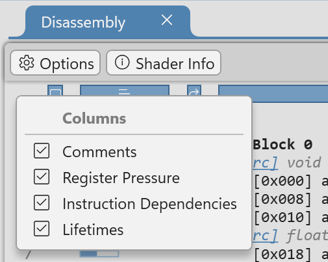
The visualizations in the Disassembly view can be re-ordered or hidden according to preference. To move a visualization, drag its header horizontally and drop it in its new position. To hide or show a visualization, right click on any of the visualization headers.
Integrate live profiling data
Live profiling adds runtime analysis data to the static analysis data. For collection instructions, see Shader profiling in GPU captures.
Iterate on a shader
In the Revisions panel, select Create New to copy the current revision. Double click on the revision name to edit the name. Hover over the revision name for an option to delete it.
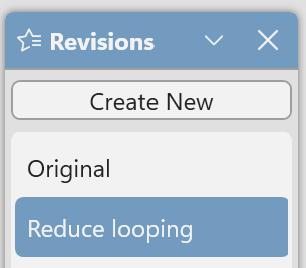
Each revision has its own sources, compilation options, pipeline state, and compilation result.
Switch between revisions to compare instructions, dependencies, and register usage. Recompile after editing, as existing disassembly and register data describe the last successful compilation, not the current edits.
Save a project
Select File > Save or press Ctrl+S. The project saves all revisions, their sources and compilation options, pipeline state, and any static or live results you have collected.
Known issues and limitations
Static shader profiling is currently available only for AMD and Intel GPUs. Available architecture targets and profiling details depend on the GPU compiler and GPU plugin.
Mesh pipeline profiling is not supported on Intel GPUs.
Raytracing and other state-object pipelines are not supported on any GPUs yet.
Captured shaders originally compiled with FXC are retargeted to Shader Model 6.0 with
-HV 2018for DXC compilation. Review the resulting code and validate its behavior rather than assuming it is identical to the original shader.