Note
Access to this page requires authorization. You can try signing in or changing directories.
Access to this page requires authorization. You can try changing directories.
Use live shader profiling to find costly instructions and stalls based on runtime profiling on the analysis GPU.
To get this data programmatically, call IPixGpuCaptureAnalysis::GetShaderProfiling, and then IPixShaderProfilingLive::ProfilePipeline. Its IPixShaderProfilingLiveResult contains the profiled shaders, and IPixShaderProfilingLiveShader::GetInstructions returns their instructions.
Live profiling complements static shader profiling.
Prerequisites
Make sure shader source information is available for the pipeline you want to profile. Generate shader PDBs and configure PIX to locate them.
Live profiling support depends on the GPU plugin for the analysis adapter.
If support is not available, the Profile Shader Pipeline dialog shows the reason.
To check support programmatically, call IPixShaderProfilingLive::IsSupported.
You can still export the pipeline for static profiling.
Profile a shader pipeline
Choose a draw or dispatch worth investigating using frame timing and GPU counters, then collect and export its profiling data.
Collect live profiling data
- Open the GPU capture and start analysis on the GPU you want to profile.
- Select the draw or dispatch in the Events view.
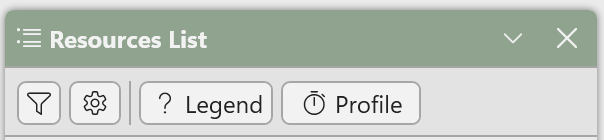
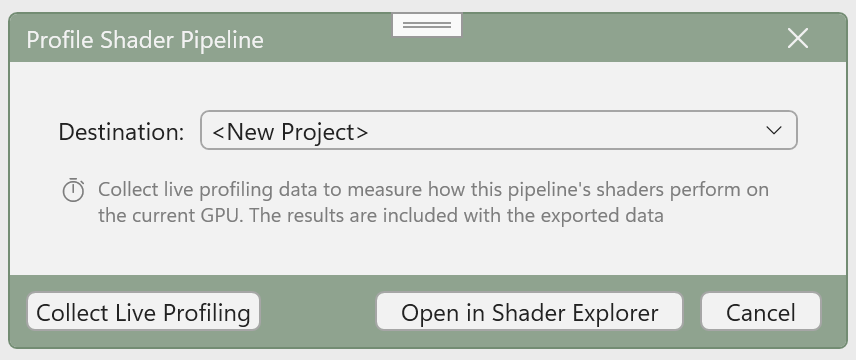
- In the Pipeline view, select Profile to open Profile Shader Pipeline.
- Select Collect Live Profiling and wait for collection to finish. Avoid other GPU work while collection runs.
If collection succeeds but produces no instruction samples, try again or select an event with more GPU work. A short event, or an individual shader stage within it, might not produce any samples.
Export to Shader Explorer
In Destination, choose <New Project> or an open Shader Explorer project with the same pipeline type, then select Open in Shader Explorer. Exporting to an existing project adds a new revision. The export includes the pipeline's source, compilation options, pipeline state, and any successfully collected live profiling data. To use static profiling alone, skip collection and export the pipeline directly.
In Shader Explorer, PIX selects the GPU architecture family matching the live profiling data by default when a compatible compiler is available. Select Compile before editing the exported revision to generate the static data needed to display live costs alongside the ISA and HLSL.


Resolve a shader mismatch
PIX matches live-profiled and statically profiled shaders by pipeline stage and shader hash. If the compiled shader does not match the live-profiled shader, PIX shows a mismatch message. To match them programmatically, compare IPixShaderProfilingLiveShader::GetHash with IPixShaderProfilingStaticShader::GetHash.
Changes to the source, compilation options, pipeline state, target architecture, or compiler version can produce different GPU code and prevent a match.
PIX uses the GPU compilers shipped with PIX. If PIX reports Live profiling data is available but requires compiling with backend ABI version {version}, update or roll back the GPU driver to a version compatible with the compiler ABI shipped with your PIX release. To compare the versions programmatically, call IPixShaderProfilingLiveResult::GetBackendAbiVersion and IPixShaderProfilingStaticResult::GetBackendAbiVersion.
Contact the PIX team if you run into any difficulties. This workflow will be simplified in a future release of PIX.
Interpret live profiling data
Instruction costs are accumulated across shader waves and loop iterations in the profiled event.
A high cost can come from frequent execution, expensive work, or stalls. It does not tell you how long a single execution takes. For example, an inexpensive instruction inside a frequently executed loop can accumulate more cost than an expensive instruction that runs only once per wave.
Use a high cost to identify where to investigate, then inspect the instruction's source, dependencies, and stall data to understand why it contributes so much.

Find costly instructions
In Shader Explorer's Disassembly view, use the Instruction Cost visualization. In the Options panel, select Go to Max Cost to jump to the instruction with the highest cost.
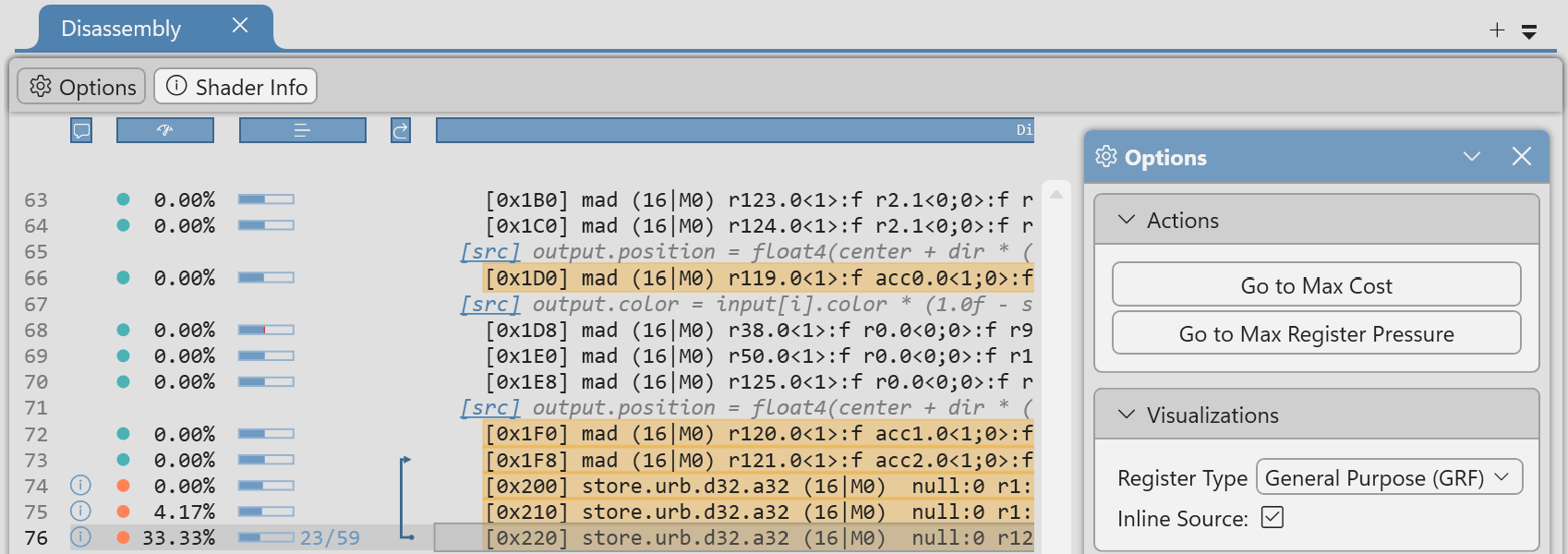
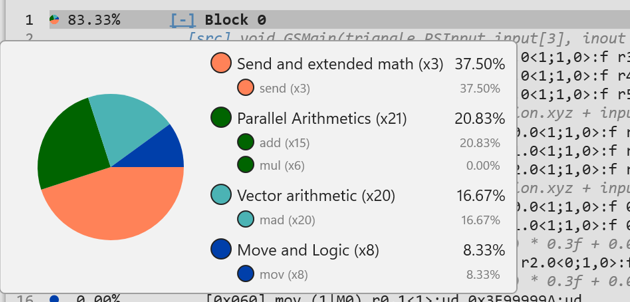
Hover over a block's cost to see its mix of instructions.
Hover over an instruction's cost to see its active and stall samples and any reported stall categories.
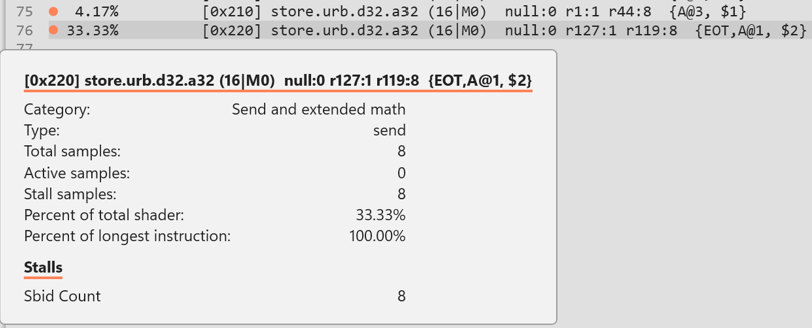
Use the Metric option in the Options panel to select how costs are displayed.
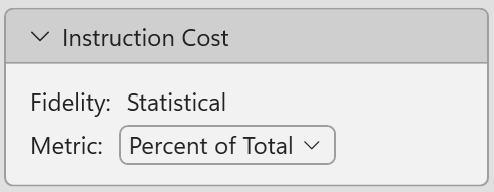
| Metric | Meaning |
|---|---|
| Percent of Total | The instruction's share of the total instruction cost for that shader. |
| Samples | The relative cost attributed to the instruction. The units depend on the GPU plugin's collection method; they are not elapsed time or instruction execution counts. |
Percentages are relative to the selected shader, not the whole event or frame. A large percentage identifies a hotspot within that shader; it does not establish how much of the frame the shader consumes.
An instruction's Percent of Total can rise simply because other instructions became cheaper, even if that instruction's own cost did not increase. Do not use a percentage change alone as evidence of a speedup or regression.
Understand active and stall cost
Total samples for an instruction include active samples and stall samples.
Active samples represent cost while the instruction is issuing or executing.
Stall samples represent cost while it waits, such as for a dependency or a busy resource.
The GPU plugin supplies the stall categories specific to the hardware.
To get these samples programmatically, call IPixShaderProfilingLiveInstruction::GetSampleCount and GetStall. IPixShaderProfilingLiveResult::GetStallType describes the stall categories.
A stall is attributed to the waiting instruction. Trace its instruction dependencies to investigate what it is waiting for rather than assuming the marked instruction is the root cause.
Find costly source code
In the Source view's Functions panel, use Mode to choose Callstacks, Functions, or Source Lines. These views group instruction costs by call context, function, or source line. Select an entry to investigate its HLSL and correlated instructions.
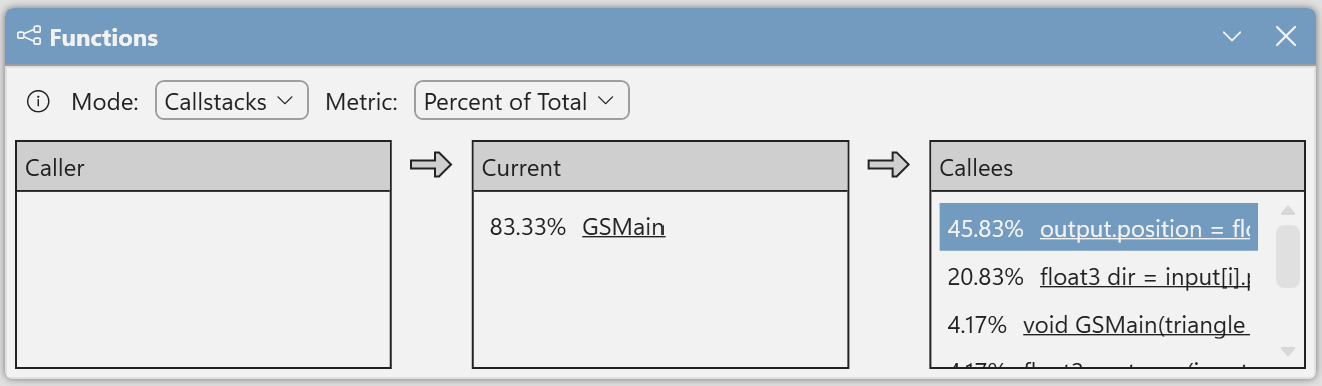

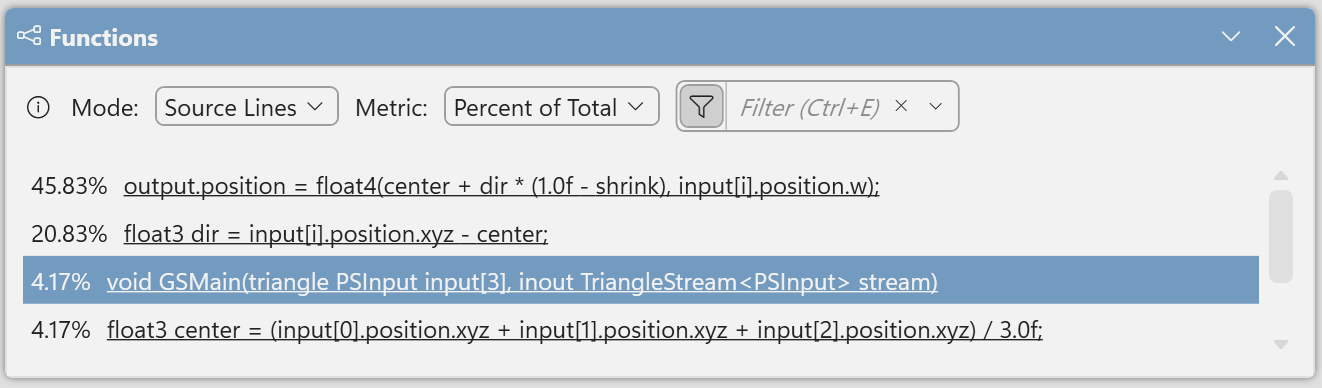
Not every GPU instruction maps to source code, so source-level costs might not add up to 100% of the shader cost.
Editing source invalidates the source-level correlation because the source no longer necessarily matches the compiled shader. Restore the source to view the baseline's costs, or measure the modified shader to collect new live data.
Account for sampling
Collection can be statistically sampled or exhaustive, depending on the GPU plugin. To check which programmatically, call IPixShaderProfilingLiveResult::GetFidelity.
Statistical sampling observes shader execution at intervals, so instruction costs are estimates.
Low sample counts are less reliable, and a zero count does not prove that an instruction never executes.

If you get few or no samples, try an event with more GPU work that exercises the relevant code, but keep in mind the results can differ based on different workloads, so an optimization to one workload may not apply to another.
If your workload has a low sample count, you can check whether a hotspot is consistent by profiling the same event several times without changing the shader or workload. Look for the same instructions or source regions to remain costly and treat one-off differences as inconclusive.
Exhaustive collection does not have statistical sampling uncertainty.
Measure changes
Keep the exported baseline unchanged and create a revision in Shader Explorer to investigate an optimization. Compiling the edited revision generates new static data, not new live measurements.
To evaluate the change:
- Apply it in your application and take a new capture, or use shader edit and continue in the existing capture.
- Recollect frame timing to compare GPU duration and check rendering or compute results for correctness.
- Collect live profiling data again and export to the same Shader Explorer project to add a new revision.
- Repeat the baseline and modified measurements on the same GPU with the same workload.
A future PIX update will enable importing changes from Shader Explorer directly back into your GPU capture, simplifying the process of re-profiling your changes on the GPU in the context of your workload.
Instruction costs in Shader Explorer help show where the work changed, and GPU duration in the GPU capture indicates whether performance improved across the entire workload.
A lower relative instruction cost or register count alone does not establish a speedup. Use both types of measurement together to experiment, test, and verify changes.
Known issues and limitations
- Live shader profiling is currently available only for AMD and Intel GPUs.
- Mesh pipeline profiling is not supported on Intel GPUs.
- Raytracing and other state-object pipelines are not supported on any GPUs yet.
- PIX recompiles shaders with its shipped compilers before live profiling so the results can be correlated with static profiling data. The generated code is not necessarily identical to the code in the original capture. Removing this recompilation step in favor of finding and loading the compiler used to produce the original shader will happen in a future PIX release.
- Importing modified shaders and pipeline state from Shader Explorer into a GPU capture is planned. For now, apply shader changes in your application or through shader edit and continue in a GPU capture, then collect live data again.