Note
Access to this page requires authorization. You can try signing in or changing directories.
Access to this page requires authorization. You can try changing directories.
PIX Timing Captures include an option to collect data on your title's use of DirectStorage for Windows. Timing Captures show when each IO operation was enqueued, when a batch of work was submitted to the storage device, and when that work completed. You can use DirectStorage data in Timing Captures to analyze the latency of IO requests made through DirectStorage queues. PIX helps you analyze different aspects of latency that are related to your DirectStorage requests, including:
- The time between enqueue and submit
- The time between submit and fence signaling
- Contention due to multiple queues submitting IO requests simultaneously
If your title packages individual assets into a composite archive file, PIX can show which assets within the composite file were accessed if you provide a mapping file.
Capturing DirectStorage data
To capture DirectStorage data, select the File accesses check box when starting a Timing Capture as shown in the following figure.
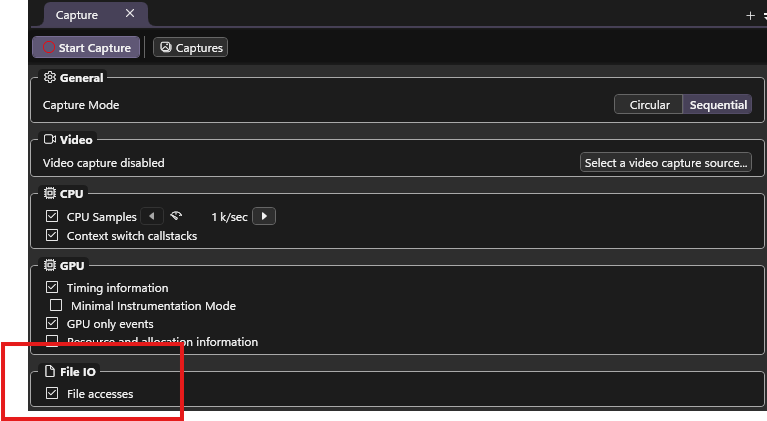
The File accesses check box also causes PIX to collect and analyze file accesses made by using Win32 APIs such as ReadFile. For information on using PIX to optimize your file accesses by using the Win32 APIs, see Analyzing Win32 File IO Performance.
Analyzing DirectStorage data in Timing Captures
Timeline visualization
PIX creates one lane in the Timeline for every DirectStorage queue that your title creates, and identifies each queue by name.
Each DirectStorage lane consists of two sublanes. The top sublane contains markers that indicate the point in time when certain DirectStorage APIs were called. The API calls shown on the Timeline are either enqueues or submits. An enqueue can be a file IO, status, fence, or set event enqueue. The bottom sublane contains blocks that indicate regions of time when the storage device is processing a submitted batch (or batches) of IO requests as shown in the following figure.
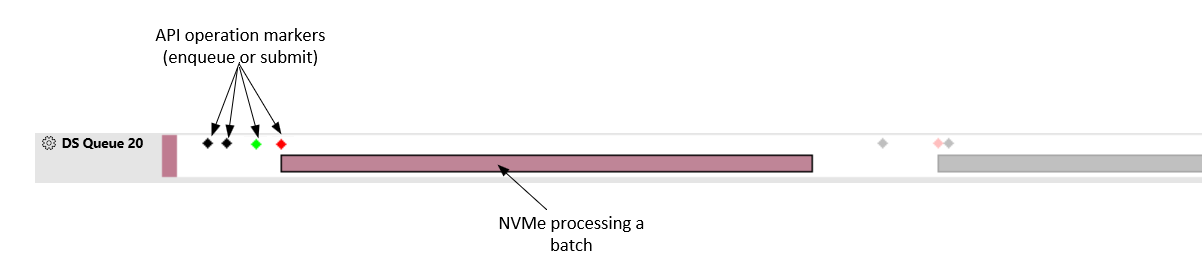
The color of the marker indicates the API call that was made as shown in the following table.
| Display | Description |
|---|---|
 |
Enqueue file IO request |
 |
Enqueue status, fence, or set event |
 |
Submit |
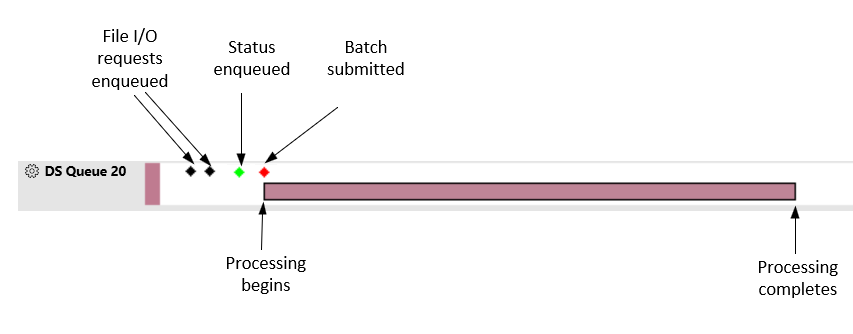
The Timeline shows the latency of each batch of work submitted to the storage device. To see this latency, look at the difference in time between the submit marker and the end of the box that represents the processing of the batch. If the device has available processing capacity, the processing of a batch begins when the batch is submitted. When this occurs, the beginning of the box in the lower sublane corresponds with the indication of the submit in the top sublane. The following figure shows a common flow, in which some number of file IO requests are enqueued, then a status is enqueued, then the batch is submitted. Batch processing is complete when the box representing the work is closed.
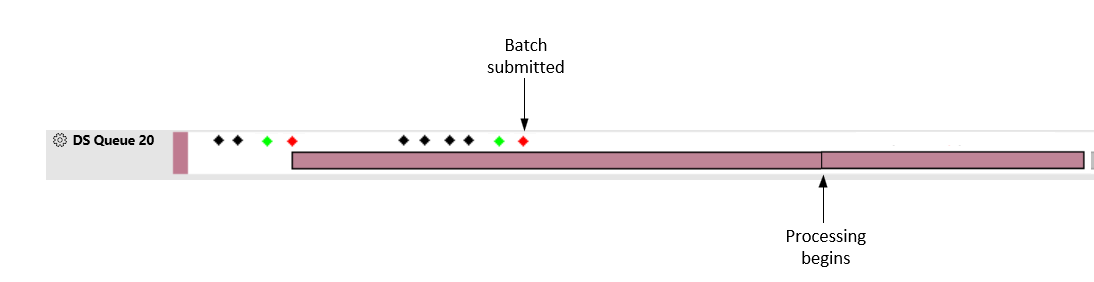
Depending on processing capacity, the storage device can't always process a batch at the time it's submitted. If the device is fully loaded, it can't process a given batch until it finishes processing a batch that was previously submitted. The following figure shows an example of a batch that was processed some time after it was submitted.
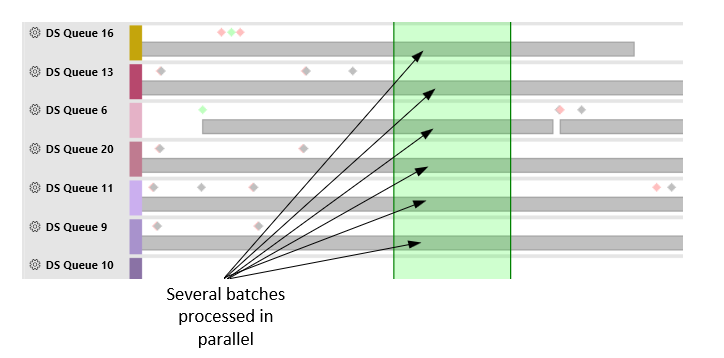
The storage device interleaves simultaneous requests from multiple queues so they're processed in parallel. This parallelism is visible in the Timeline when several queues have batches processing at the same time. The following figure shows an example. Parallel processing might contribute to greater latency in the processing of your batches, especially if processing is occurring on a higher priority queue.
Selection
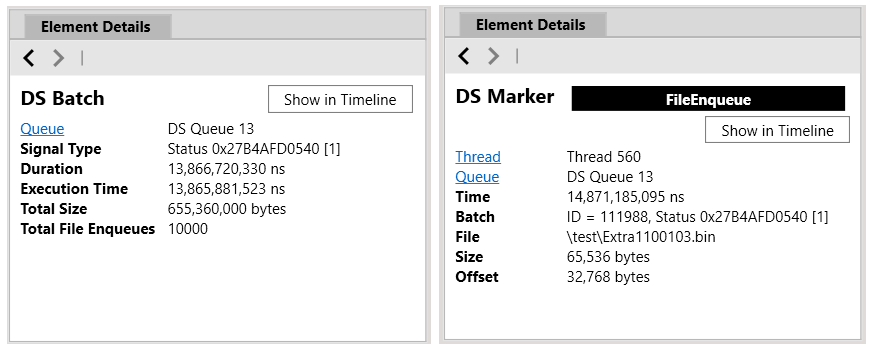
You can select individual API calls and batches of work in the Timeline. When you select an item, the Element Details view displays information about the selection, as shown in the following figure. When you select a batch, Element Details shows information such as the queue that executed the work, the amount of time it took to complete, and the number of file IO operations the batch contained. When you select an API marker, Element Details shows information such as the batch the operation belongs to, the thread that made the API call, and the queue it ran on. For file IO enqueues, it also shows the file, offset, and size of the read operation.
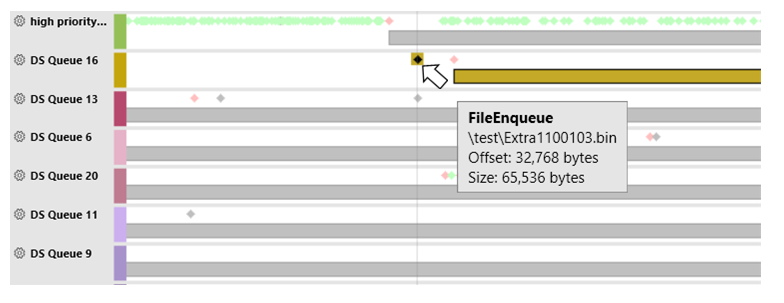
When you select a batch or API call in the Timeline, the other elements associated with the selection are highlighted. This selection behavior makes it easy to see which API calls are associated with which batches and vice versa. For example, in the following figure, the batch associated with the selected file enqueue is highlighted.
Range Details
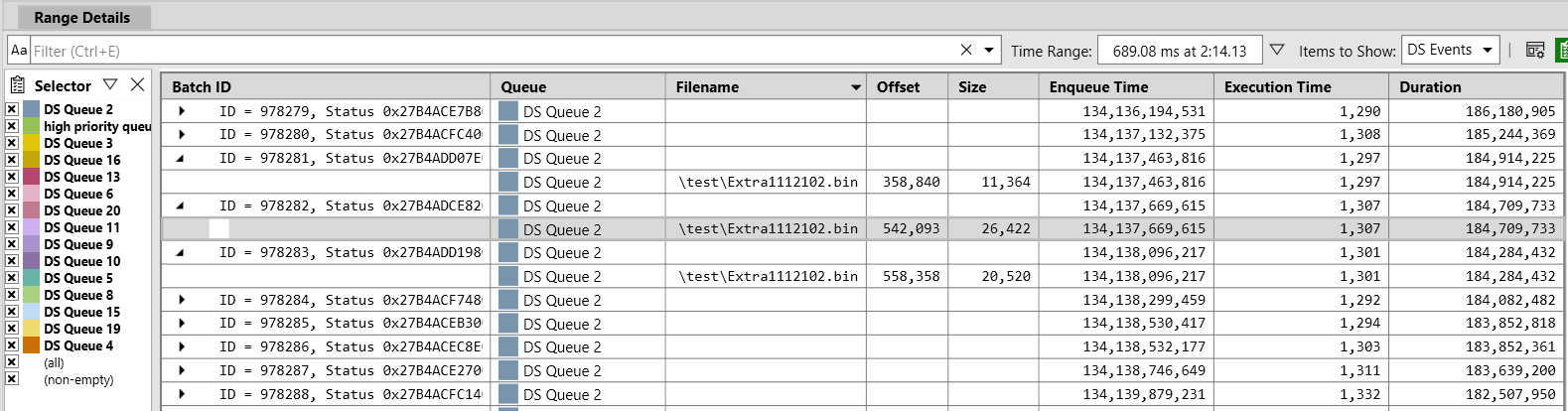
When you select a range of time in the Timeline, the Range Details view displays the data contained in all lanes for the selected time range. Use the DS Events option in the Items to Show drop-down list to view data from all DirectStorage queues for the selected time range. Use the Selector panel on the left side of the view to filter the data shown in Range Details to a subset of the queues.
Range Details contains one row for every batch that falls within the selected time range, as shown in the following figure. You can expand batches to see individual operations within a batch. Selecting the column headings sorts the data in the view by that column. Common uses of column sorting are to sort by Execution Time and Duration to see which operations are taking the longest.
DirectStorage lane configurations
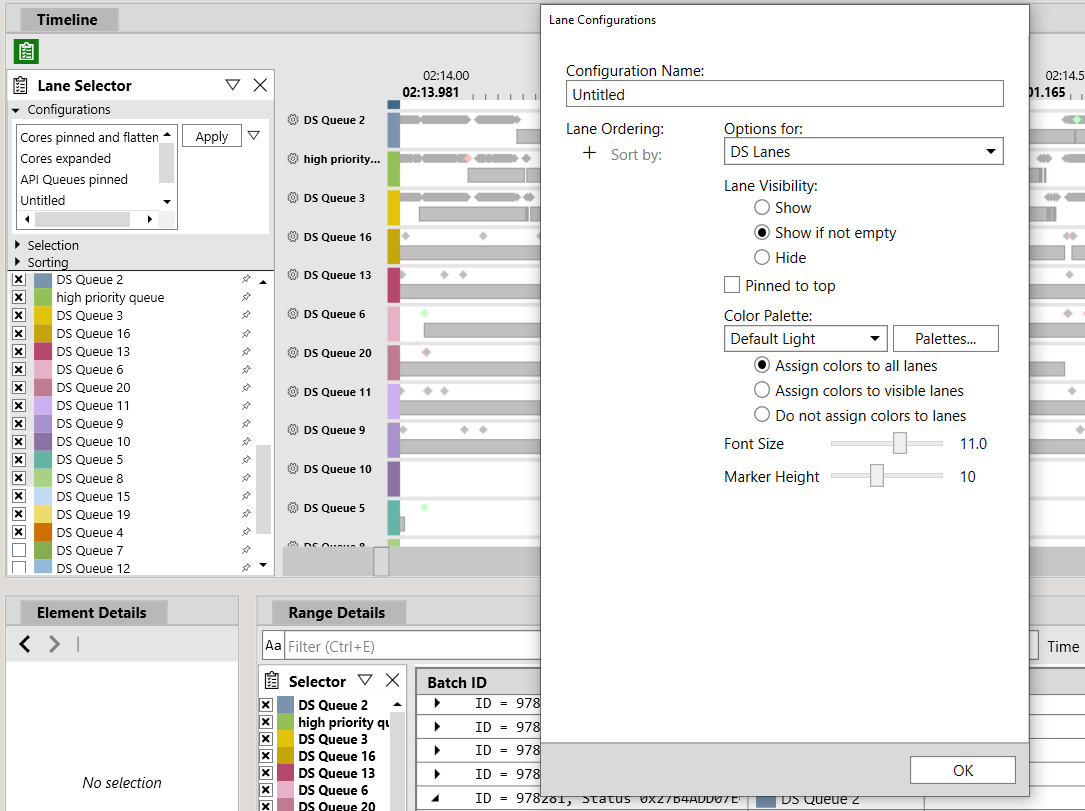
Use the Lane Selector panel and the Lane Configurations list box to customize the appearance of DirectStorage queue lanes, as shown in the following figure. You can reorder lanes, display or hide specific lanes, adjust the color and marker height, and change other options.
Analyzing file accesses that occur within archive files
If your title packages individual assets into a composite archive file, PIX can show which assets within the composite file were accessed by using a mapping file. For more information, see Analyzing file accesses that occur within archive files.