Note
Access to this page requires authorization. You can try signing in or changing directories.
Access to this page requires authorization. You can try changing directories.
This article describes how to use PIX to analyze the performance of Win32 file IO operations. PIX Timing Captures can collect data on your title's use of the Win32 file IO APIs to access files. The data collected for calls to APIs such as ReadFile and WriteFile includes the name of the file being accessed and the offset, size, and duration of the access itself. Full call stacks for each file access are also recorded. If your title packages individual assets into a composite archive file, PIX can show which assets within the composite file were accessed if a mapping file is provided.
When you collect file IO data, PIX also computes storage device bandwidth and utilization metrics. You can view file IO data in the Timeline, Range Details, Element Details, and Metrics views in Timing Captures.
If you're using the DirectStorage APIs for file access, see Analyzing DirectStorage performance for information about using PIX to optimize your use of DirectStorage.
Capturing Win32 file IO data
To capture data on Win32 file accesses, select the File accesses check box before starting a Timing Capture, as shown in figure 1.
Figure 1. File accesses check box in the Options pane.
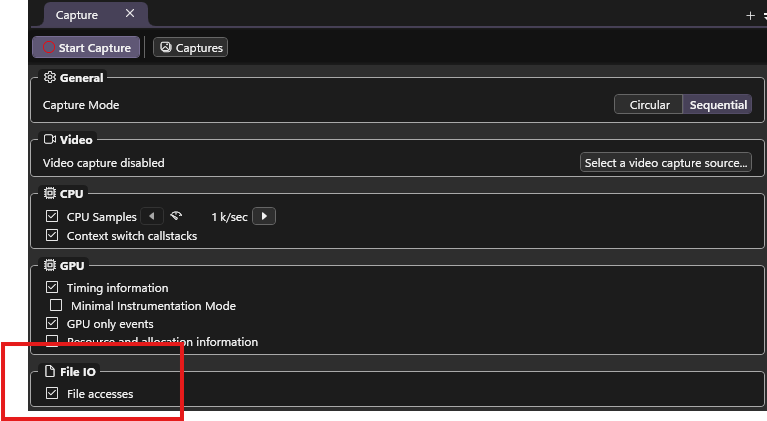
When you select the File accesses check box, PIX also collects and analyzes file accesses that use the DirectStorage APIs.
Analyzing Win32 file IO data in Timing Captures
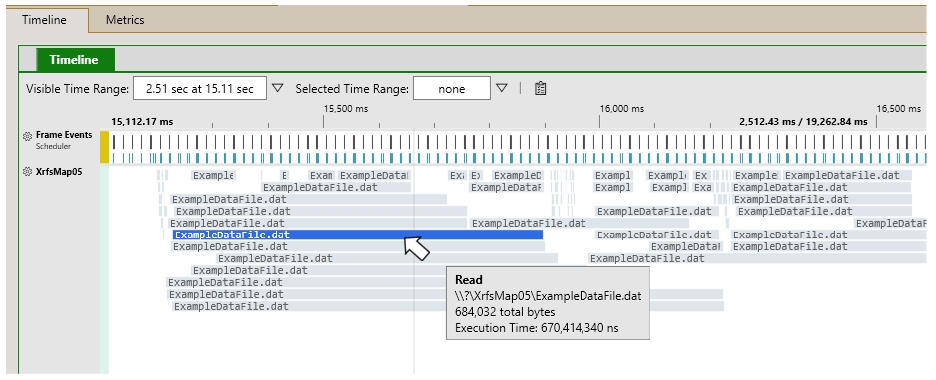
PIX creates an IO lane in the Timeline view for each drive on the PC. A colored rectangle represents each file access and displays the name of the file that was accessed. The left end of the rectangle represents the start time of the access. The length represents the duration of the access. A tooltip provides details for each access.
Figure 2 shows several reads of a file. Several rectangles indicating accesses of the same file overlap in time and so are stacked. This visualization represents several concurrent reads of the file.
Figure 2. A file IO lane in the Timeline view.
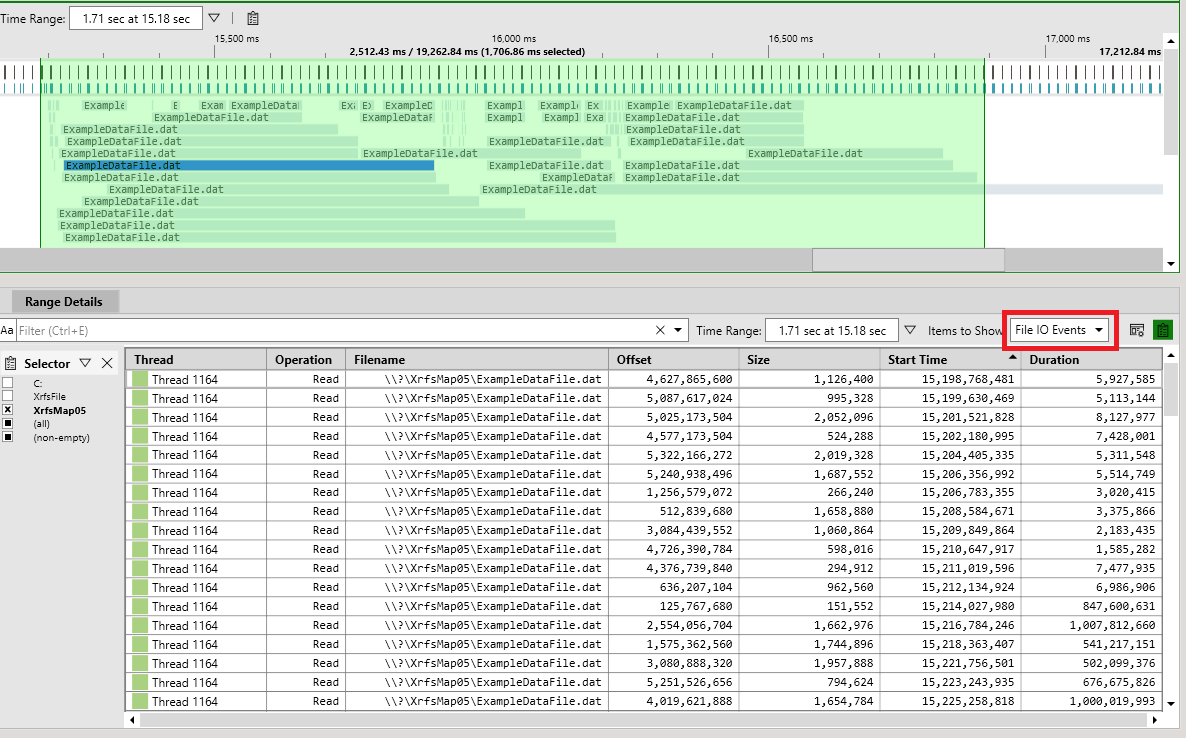
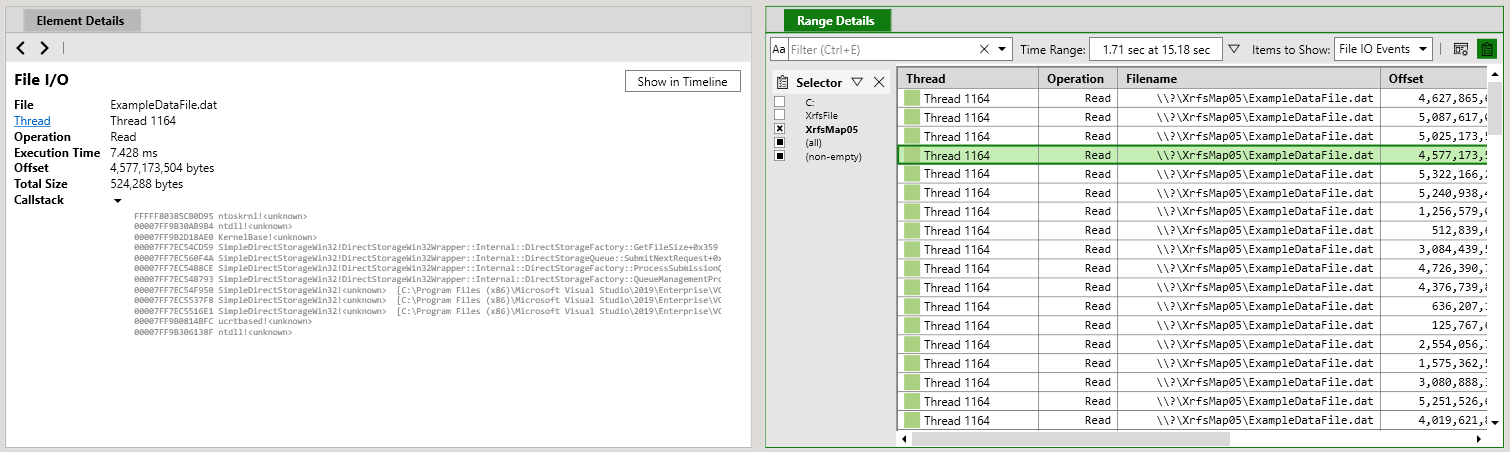
To view Win32 file IO data in a table, select a range of time in the Timeline view. In the Range Details view, open the Items to Show menu, and then choose File IO Events (figure 3). Viewing timing data in a table is useful for scenarios such as sorting the table by the file accesses that took the longest time to complete.
Figure 3. Viewing file IO data in a table.
Select a row in Range Details to populate the Element Details view with more detailed data about the file access, including the call stack in your title that initiated the access (figure 4). Use the Show in Timeline button to scroll the Timeline to the point when the access occurred.
Figure 4. Details about a selected file access.
Analyzing file accesses that occur within archive files
If your title packages individual assets into a composite archive file, PIX can show which assets within the composite file were accessed by using a mapping file. For more information, see Analyzing file accesses that occur within archive files.
Storage device bandwidth and utilization metrics
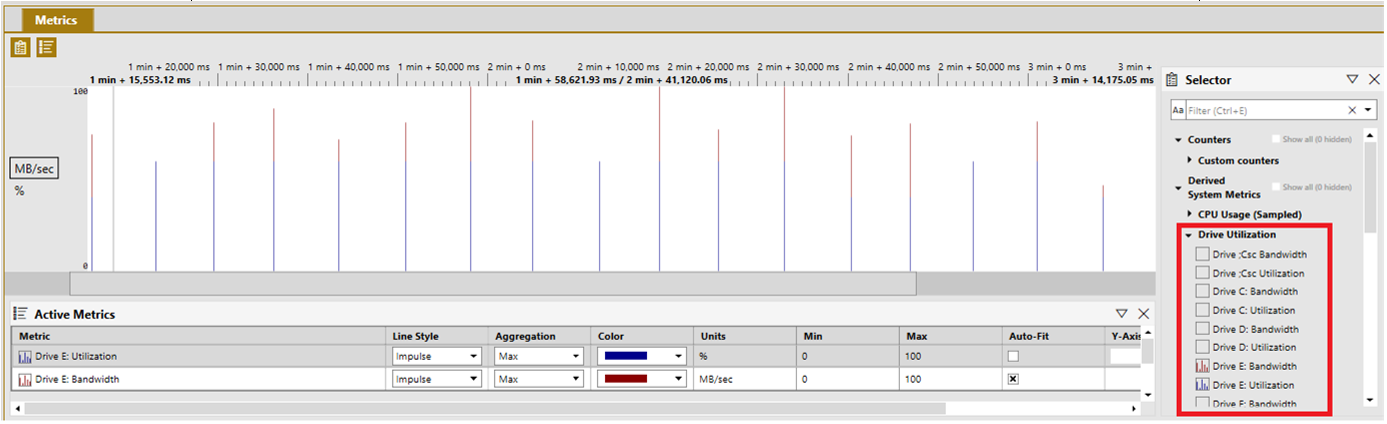
When you collect file IO data, PIX computes drive utilization and bandwidth counters for each storage device on the PC. You can find these counters under the Derived System Metrics/Drive Utilization node in the Metrics view Selector Panel.
Figure 5. Drive utilization and bandwidth counters in the Metrics view.
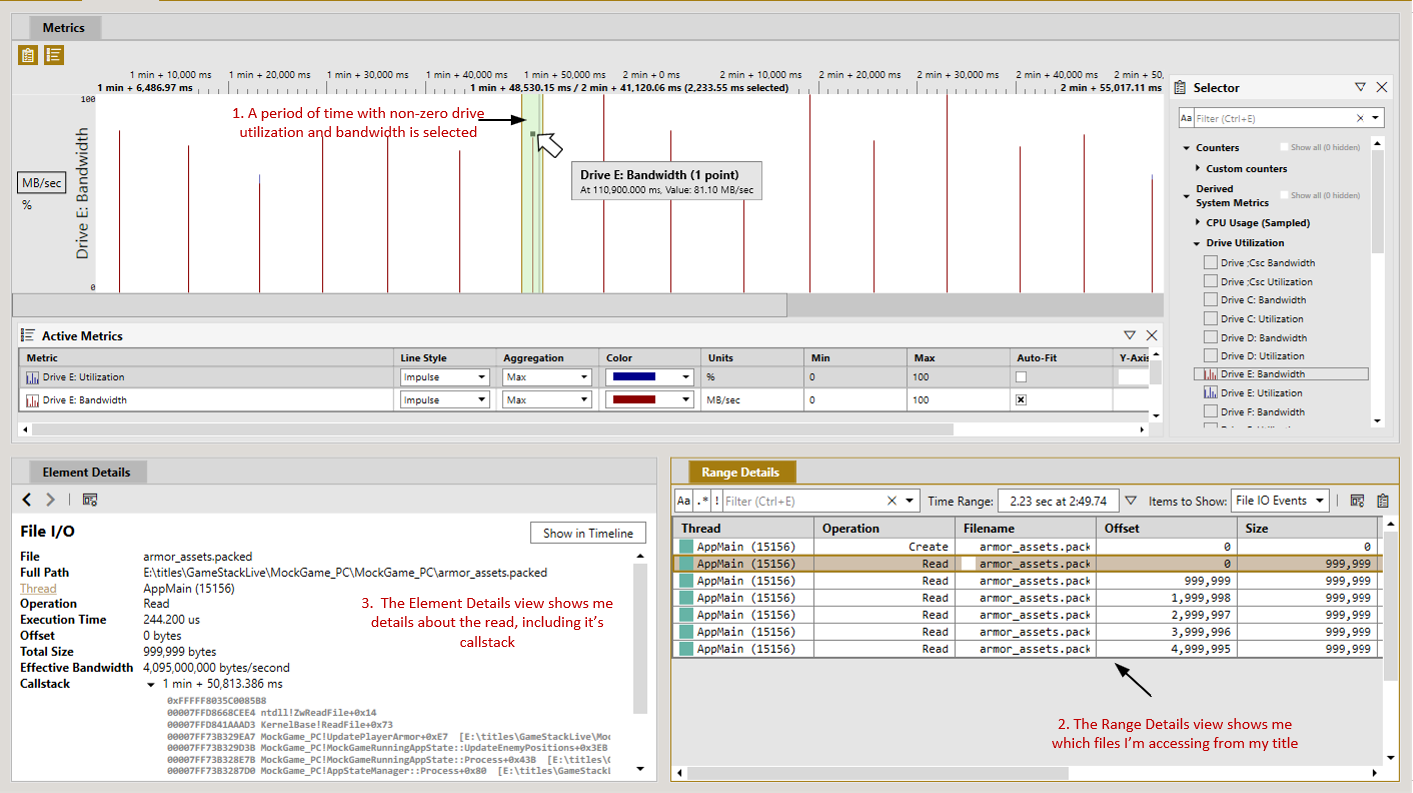
The integration between views in PIX makes it easy to draw correlations between the disk metrics and the data on individual reads. The following picture shows a custom layout that combines a Metrics view, a Range Details view, and an Element Details view. The Range Details view is configured to display data corresponding to the selected time range in the Metrics view.
Select a period of time in the Metrics view that corresponds to spikes in drive utilization and bandwidth. Selecting File IO Events from the Items to Show dropdown in Range Details view populates the table with the set of file accesses the title made during that period of time. Selecting an individual access populates the Element Details view with details about that access, including the call stack of title code that initiated the access.
Figure 6. Correlating storage device utilization and bandwidth with individual file accesses.
Win32 file IO lane configurations
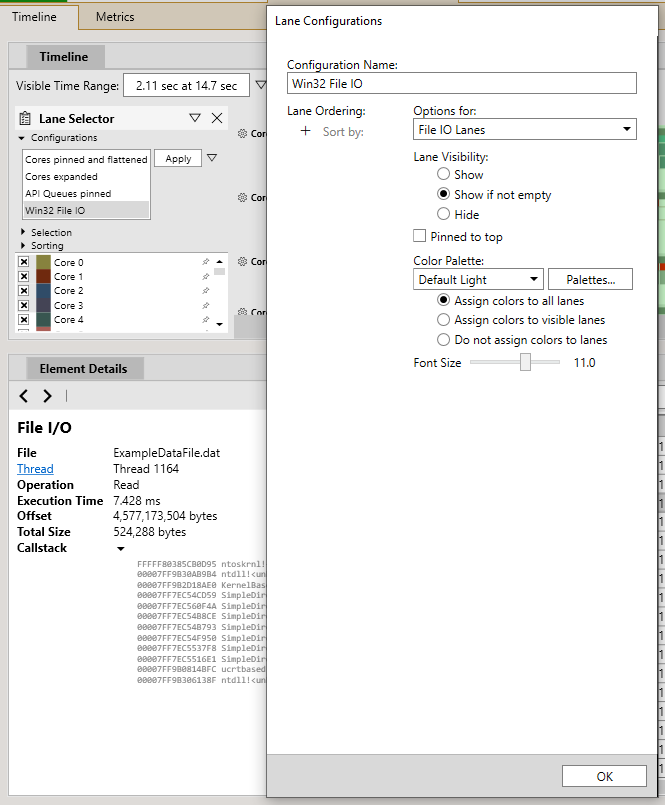
Use the Lane Selector panel and the Lane Configurations dialog box to customize the appearance of IO lanes (figure 7). Options include reordering lanes, displaying or hiding individual lanes, and adjusting the color and marker height.
Figure 7. The Lane Selector panel and the Lane Configurations dialog box.