Note
Access to this page requires authorization. You can try signing in or changing directories.
Access to this page requires authorization. You can try changing directories.
By default, PIX shows file and DirectStorage accesses as the underlying file system sees them. If your title packages individual assets into a composite archive file, Timing Captures can show which assets within the composite file were accessed. To enable this feature, you must provide extra information in the form of a mapping file. PIX uses this mapping file to decode accesses that occur within archive files. A mapping file consists of a list of entries, where each entry specifies the size of a specific asset, along with its offset from the beginning of the archive file. You must also provide a description for each asset. PIX uses the offset and size information to identify which specific asset, or set of assets, was read. It then maps those accesses to the corresponding entries in the archive. It uses the description you supply for each asset to identify it in various places in the Timeline, Range Details, and Element Details views in Timing Captures.
Mapping file format
Mapping files use the .csv format. You can create this format manually or generate it from the part of your build system that composes the archives.
The first line of the mapping file must be the file name of the archive file to which the rest of the entries in the mapping file apply.
Example first line:
c:\MockGame_PC\assets\armor_assets.packed
The remaining lines in the mapping file identify the individual assets within the archive. Each asset entry specifies the byte offset within the archive file where the asset is stored, the size of the asset in bytes, and a description of the asset. The format of an asset line is:
<offset>,<size>,<description>
Example asset line:
0x000000000001FA0, 8096, armor\body\helmet.s
You can specify the offset and size values on an asset line as either hex or decimal numbers.
Mapping files can contain lines that are comments. PIX ignores these lines when processing the mapping file. Comment lines start with a #.
Example comment line: # this line is a comment. Ignored by PIX.
The following example shows a complete mapping file:
armor_assets.packed
0x000000000000000, 8096, armor\weapons\sword.s
0x000000000001FA0, 8096, armor\body\helmet.s
0x000000000003F40, 8096, armor\weapons\sabre.s
# this line is a comment, ignored by PIX
0x000000000005EE0, 8096, armor\body\mail.s
0x000000000007E80, 8096, armor\body\gloveR.s
0x000000000009E20, 8096, armor\weapons\chain.s
Working with mapping files
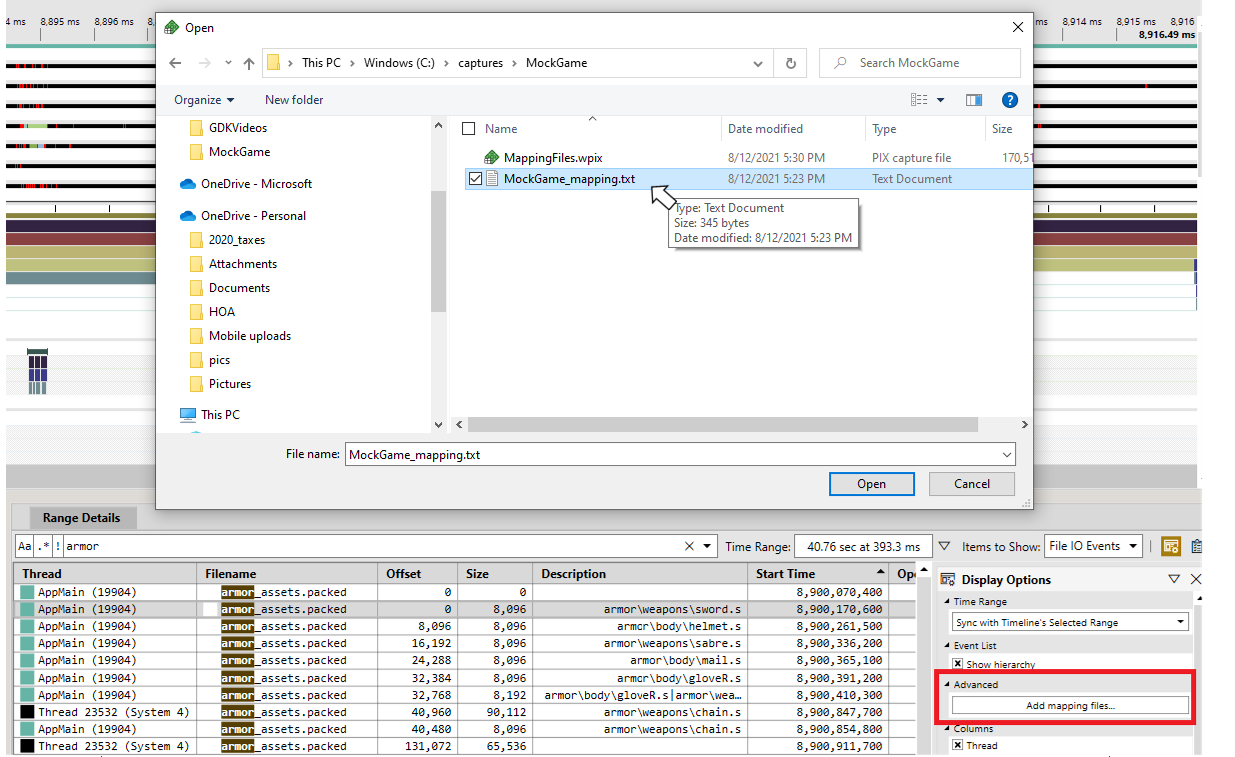
The Display Options panel in the Range Details view of Timing Captures includes an Add Mapping Files… button when you select File IO Events or DS Events from the Items to Show dropdown. When you select Add Mapping Files…, a dialog appears where you can select your mapping files.
Figure 1. The Add Mapping File dialog.
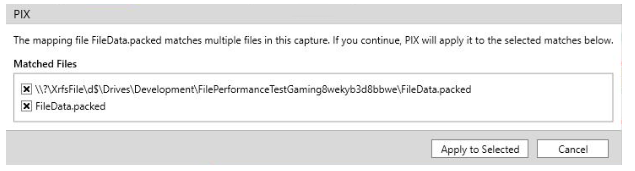
The mapping file you add might apply to more than one archive file in your game. When this situation occurs, PIX displays a dialog for you to select which archive files the mapping file should apply to.
Figure 2. The status dialog when a mapping file applies to more than one archive file.
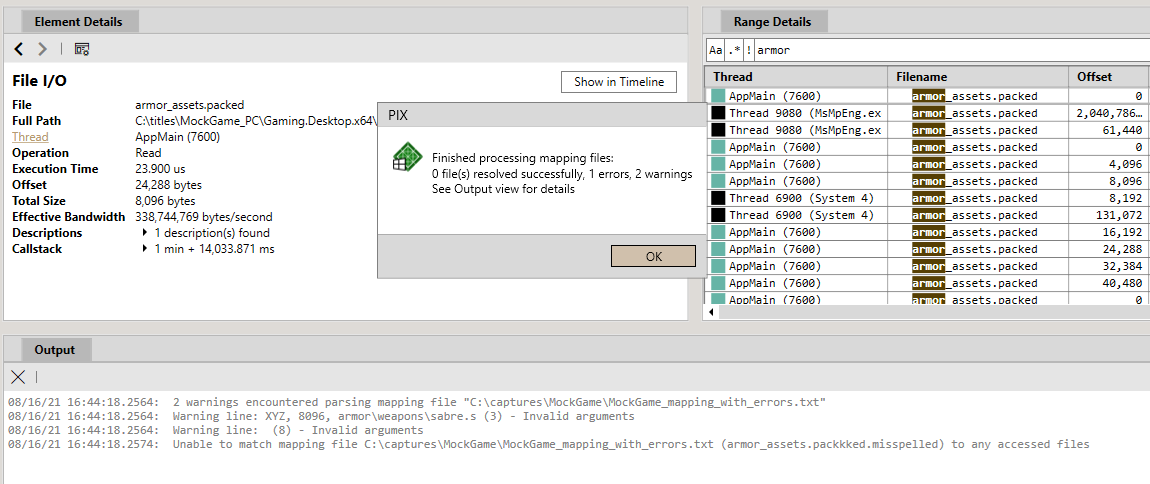
When PIX finishes processing the mapping files, it displays a dialog indicating whether it encountered any warnings or errors. The Output view contains a description of each warning and error. Malformed lines in a mapping file are considered warnings, not errors. PIX skips any malformed lines and continues processing the mapping file. The following figure shows the status dialog and contents of the Output view when errors and warnings are found.
Figure 3. The status dialog after one or more mapping files are added.
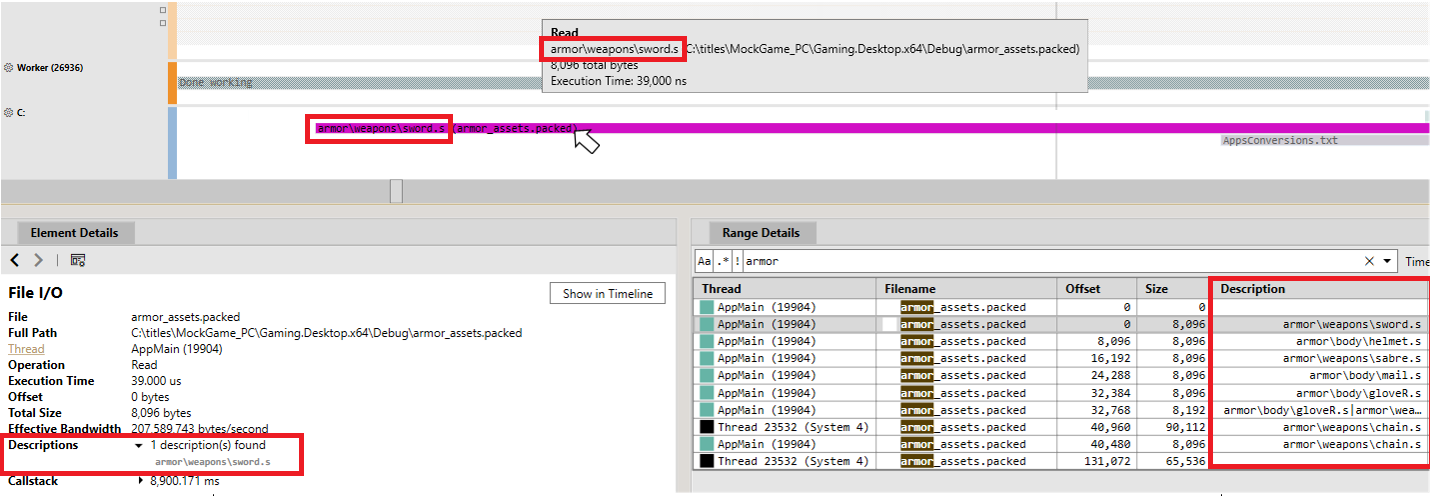
The Timeline layout updates with the asset names for each line in the mapping file where the offset and size match a file access that occurred when the capture was running. The Range Details, Element Details, and Timeline views all update with asset names.
Figure 4. Asset names displayed in the Timeline layout.