Note
Access to this page requires authorization. You can try signing in or changing directories.
Access to this page requires authorization. You can try changing directories.
Data seeding is the process of populating a database with an initial set of data. The SAP Procurement apps and flows require that the SAP Administrator model-driven app add and manage key seed data. Adding seed data ensures an efficient and localized integration with SAP.
Manage menu options
You can manage the menu options for one or more of the following apps that are part of the SAP Procurement template:
- SAP Vendor Management
- SAP Purchase Requisitions
- SAP Purchase Order Management
By managing the menu options, you can determine which users can view and access specific navigation items in the deployed canvas apps.
You need to have Data.
You can store and manage menu items in Dataverse and associate them with configured Dataverse Group Teams to control access and visibility to apps and components.
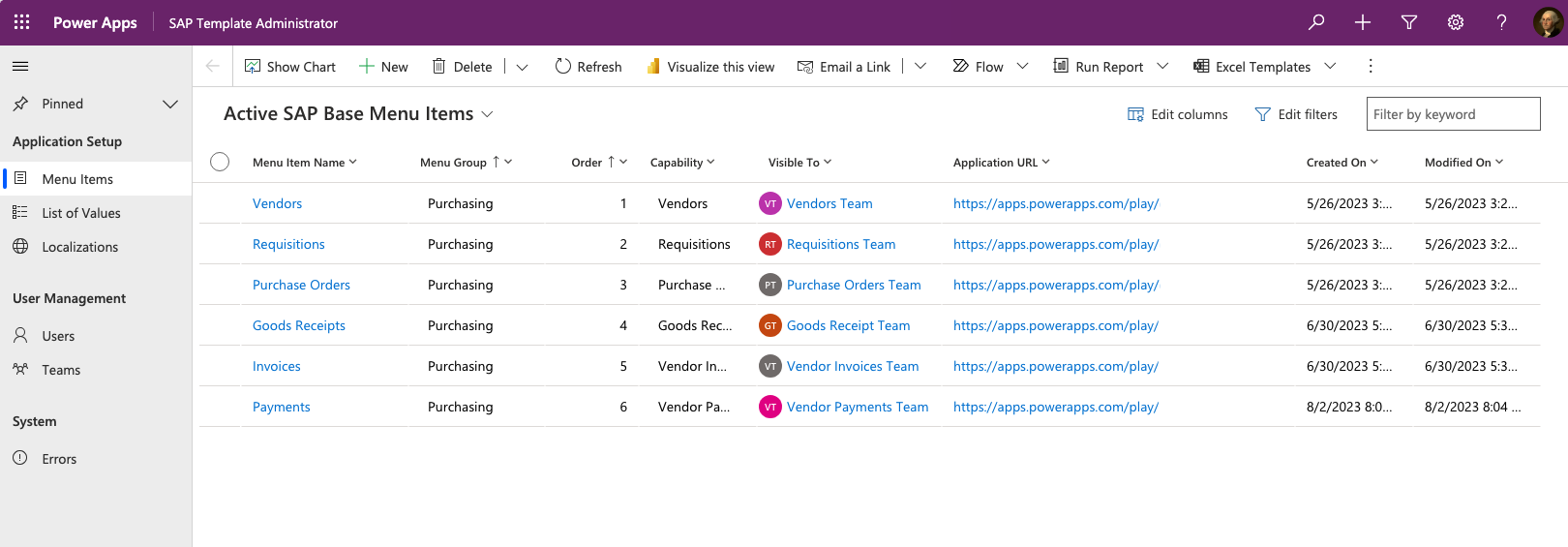
Set up application menus
Follow these steps to set up application menus:
- Open the SAP Administrator app that was part of the SAP Administrator Base solution.
- Select Menu Items.
- Select +New.
- Fill in the fields.
To help you set up application menus, the following table provides a list of the fields with examples and descriptions.
| Field | Examples | Description |
|---|---|---|
| Menu Item Name | "Vendors", "Requisitions", "Purchase Orders" | The short descriptive name of the menu item. |
| Used By Team | "Vendor Management Team", "Requisition Management Team", "Purchase Orders Team" | The Dataverse group that you previously set up. Select the appropriate group. |
| Menu Group | "Purchasing" | A logical grouping of menu items. Typically, this grouping is a process domain area. |
| Order | 1, 2, 3, 4 | The order in which the menu items appear. |
| Capability | "Vendors", "Requisitions", "Purchase Orders" | The capability or app that corresponds to each menu item. |
| Launch URL | apps.powerapps.com/play | The URL of the corresponding app to launch when the menu item is selected. You get it by copying the Web link value from the respective app details page. Note, this URL example is incomplete. Your unique URL has additional identifying information. |
| Menu Icon | Purchase Orders Menu Icon | The icon to display with the menu item in the app. You can select your own icon or use the one contained in the SAP Procurement solution located under web resources. |
Apply SAP's list of values
SAP requires a constrained list of values on transactions. Seed and administer these values in the apps so you can bind them to the combobox or dropdown controls. This setup enables your users to make selections from the list of available values.
The constrained list of values varies according to what business process is being implemented. Work with your SAP admin and functional analyst to:
- Identify the necessary values from SAP.
- Extract the values from SAP and import them through the SAP Administrator app.
Tip
The Export to Excel Online capability available in the administrator app is the most efficient way to load and maintain these values in bulk.
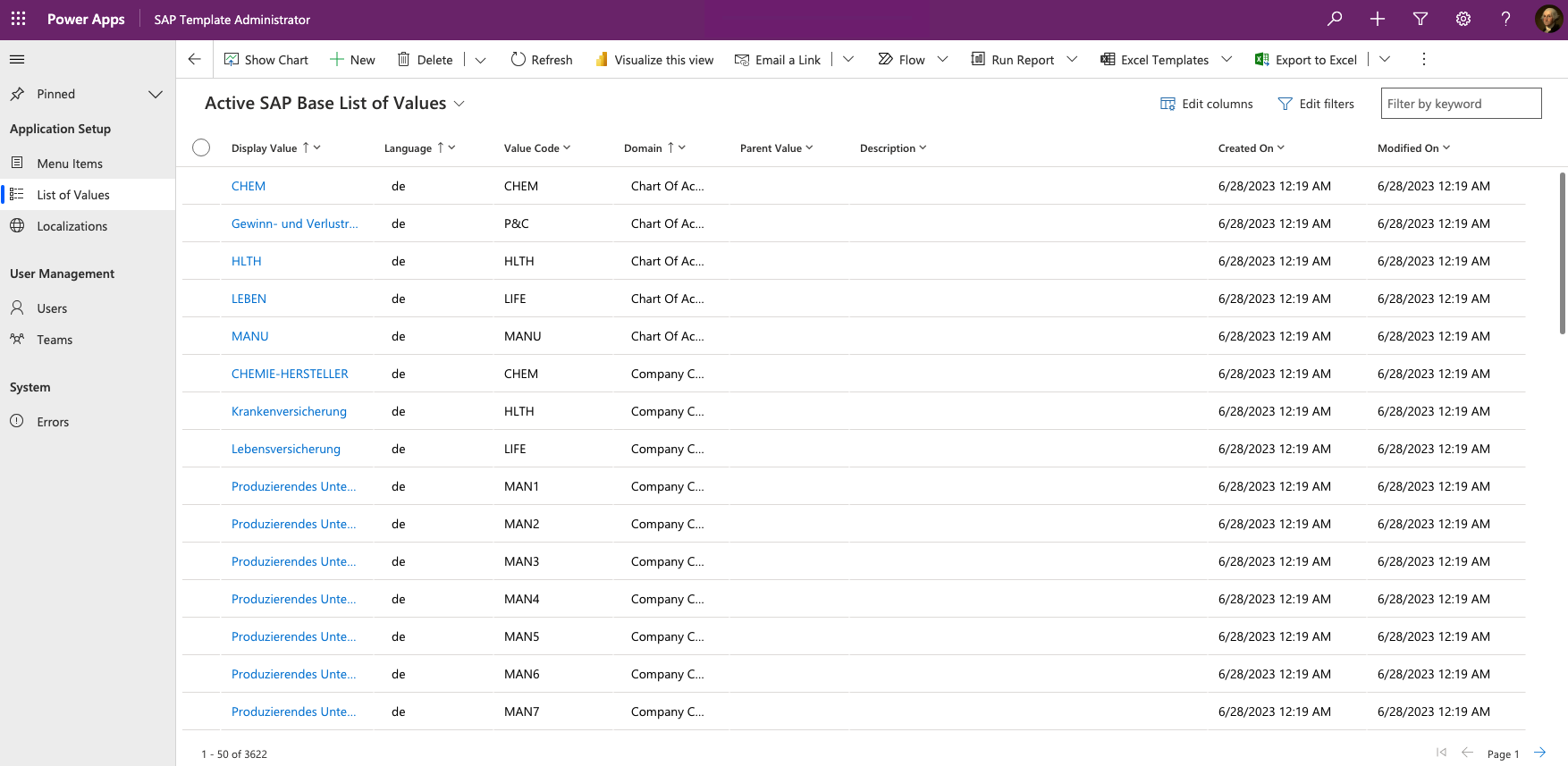
Create and manage list of values
Open the SAP Administrator app that you installed as part of the SAP Base solution.
Select List of Values.
Select Export to Excel | Open in Excel Online.
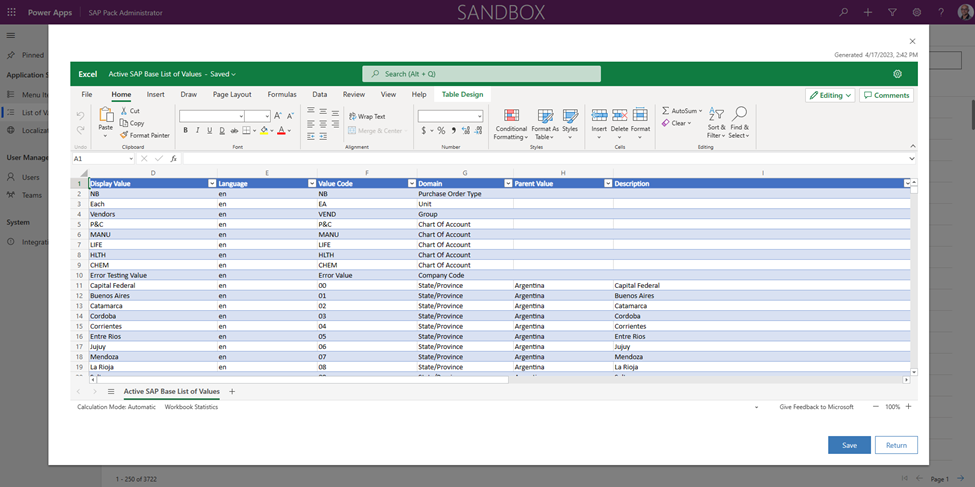
To help you create and manage the list of values, this table provides a list of fields with examples and descriptions.
Field Examples Description Display Value "United States", "German", "Mexico" The localized version of the display value the user sees in combo box app controls. Language "en", "de", "es" The language code of the display value. The app combo box controls filter the appropriate values based on the user's browser language from the app. You can create more languages by extending the Dataverse choice values. Value Code "US", "DE", "MX" The language independent code that SAP expects within the API. Domain "Country", "State", "Payment Terms" Constrained value representing the domain that the list of values is mapped to. The app combo box controls filter the appropriate values based on mapped domain. You can add more domains by extending the Dataverse choice values. Parent Value Allows for parent-child relationships of values. For example, specific state/province domain values can be parented to a single country/region domain value. Description General description of what the value represents. Select Save and monitor the import progress.
More information: Open your app data in Excel Online
Note
If you need more domains, extend the SAP List of Value Dataverse entity by adding possible values to the domain choices list.
Tip
When a value is no longer in use, a best practice is to deactivate a list-of-value record rather than delete it. The app combo box controls only show Active status values for selections going forward.
String localization administration
All strings in the canvas apps default to English. However, the canvas apps are localization ready. This feature means all Text, Accessible Label, Tool Tip, HintText, InputPlaceHolderText, and Notifications use Power Fx functions to check whether a localized string is present for the user's logged-in browser language code. You administer and maintain these strings through the SAP Solution Administrator app. To load and maintain these values most efficiently, use the Export to Excel Online capability available in the administrator app to handle bulk updates rather than entering each value manually.
For more information, see Localization and global app support.
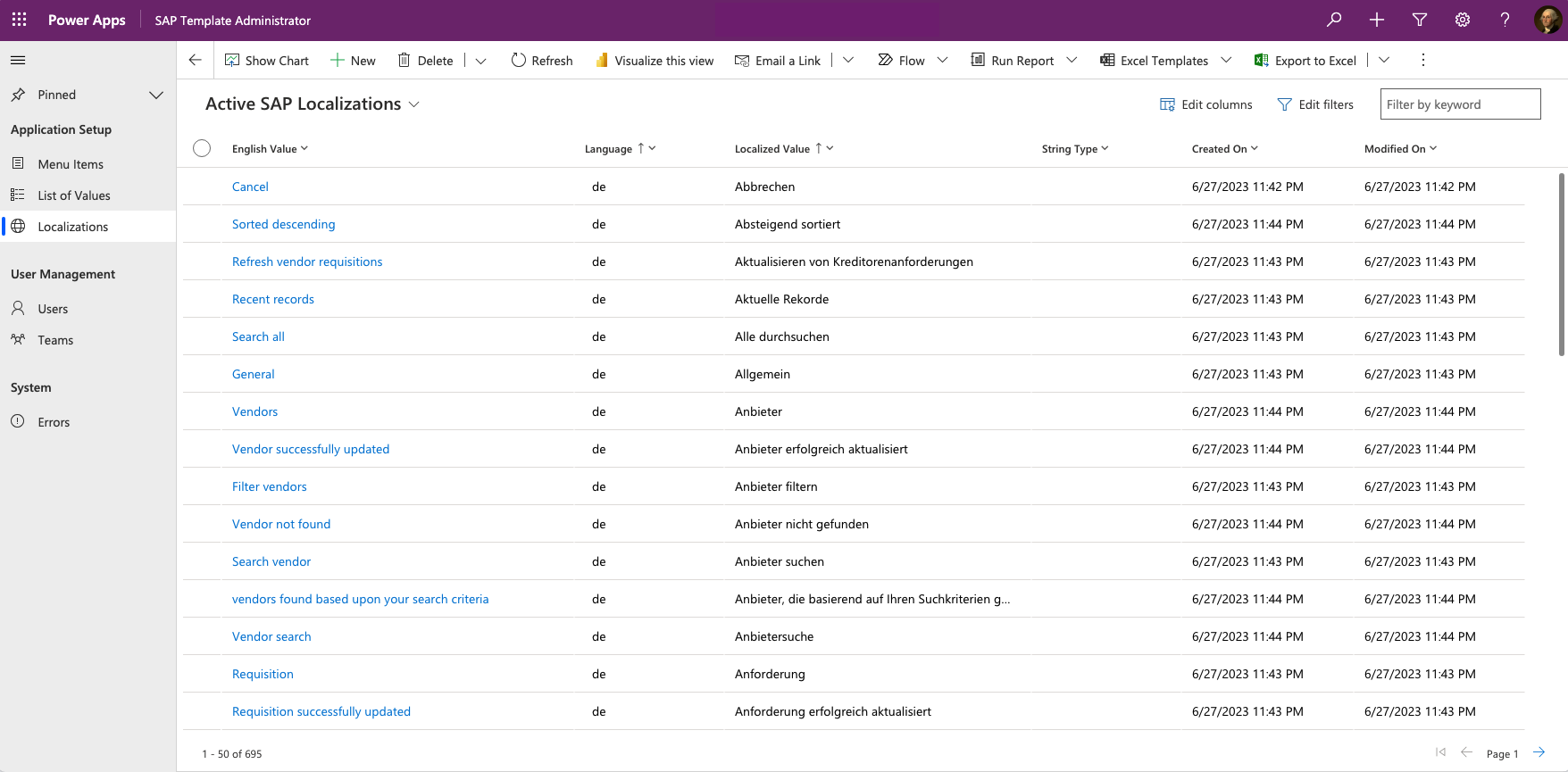
Create localization strings
Open the SAP Administrator app that you installed as part of the SAP Base solution.
Select Localizations.
Select Export to Excel | Open in Excel Online.
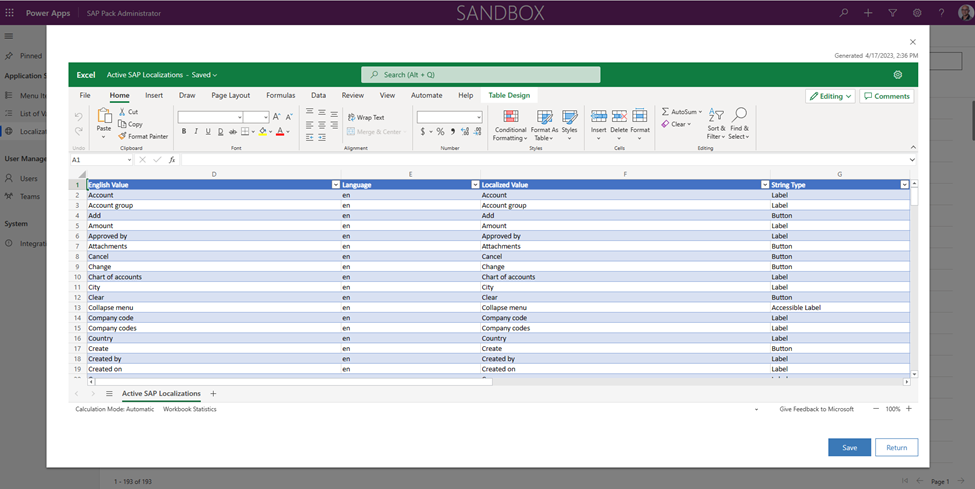
Create or update rows with the following attributes:
Field Examples Description English Value Cancel The English version of the string that serves as the string key. The application always looks up this key to see if there's a corresponding localized value to display. Language de The language ISO code of the display value. The apps automatically look up to see if there are localized strings to display based on the user's browser language code. Localized Value Abbrechen The localized string value to display for the given English value. String Type Label Not required, but helps categorize what control or property the string is. One localization entry can support multiple property types, so just choose the primary property type in that situation.
Note
List of Values localizations aren't impacted by these strings because combo box items behave differently than standard strings. To administer localized dropdown values, see the List of values section.
Import default English strings
To help you quickly identify localization strings you need to prepare for your required language, access a CSV file available on GitHub that contains all the app default English strings. You can import the CSV file into your environment by using the Import data capability that's part of the SAP Administrator app.
To further accelerate the string localization creation process, create a cloud flow to trigger off of Dataverse English imported localization records selected in the SAP Administrator app. This flow can use AI Builder action steps to automatically translate the English records to your target language and directly load them into the SAP Localizations table.
More information: Use text translation pre-built model in Power Automate
Next step
Customize the SAP Procurement solutions