Märkus.
Juurdepääs sellele lehele nõuab autoriseerimist. Võite proovida sisse logida või kausta vahetada.
Juurdepääs sellele lehele nõuab autoriseerimist. Võite proovida kausta vahetada.
Use Microsoft Intune to create and manage Windows driver update policies for your devices. These policies let you view available driver updates for targeted devices, approve or pause individual updates, and send assignments to Windows Update, which installs updates based on your configuration.
Before you begin
- Ensure your environment meets the requirements in Windows driver updates overview.
- Policies for Windows update rings and policies that use the settings catalog can include configurations that block the installation of Windows driver updates. To ensure driver updates aren't blocked, review your policies for configurations that can block the installation.
- Windows update ring policy: Ensure the Windows driver setting is set to Allow.
- Settings catalog policy: In the Windows Update client policies category, ensure that Exclude WU Drivers in Quality Update is set to Allow Windows Update drivers.
Plan for driver updates
Before creating Windows driver update policies, plan how driver and firmware updates will be evaluated, approved, and deployed across your organization. A well‑defined plan helps reduce deployment risk and ensures that updates are reviewed and released in a controlled manner. When planning your driver update strategy, consider the following areas:
- Approval responsibilities: Identify the individuals or teams responsible for reviewing and approving driver and firmware updates. Determine which updates can be approved automatically and which require manual review based on device role, hardware criticality, and organizational risk tolerance.
- Phased deployments: Plan a staged rollout strategy that deploys driver updates to test groups of devices before broader deployment. Phased deployments help surface compatibility or stability issues early and provide time to pause or block updates before they reach additional devices.
- Alignment with update cadences: Consider aligning driver update availability with existing quality and feature update schedules where possible. Coordinating update timing can reduce the frequency of restarts and minimize disruption for end users.
- Policy assignment strategy: Ensure that each device is targeted by only one driver update policy. Assigning a device to multiple driver update policies can result in conflicting approvals or unintended installations.
For general guidance on planning update deployments, see Create a deployment plan in the Windows deployment documentation.
Understand driver update approval behavior
Windows driver update policies let you control which driver updates are allowed to install on managed devices. You can choose between automatic approval of recommended drivers or require manual review for every update.
Automatic approval of recommended drivers
When automatic approval is enabled, the policy automatically approves and deploys each new recommended driver version for devices assigned to the policy. Recommended drivers are typically the latest versions published by the OEM and marked as required. Other available driver versions remain optional and appear as other drivers.
- When a newer recommended driver becomes available, Intune automatically adds it to the policy and moves the previously recommended version to the other drivers list. Previously approved drivers remain approved.
- If multiple approved versions exist, Windows Update installs only the latest approved version that is newer than the one currently installed.
- When devices are managed by Windows Autopatch, if the latest approved version is paused, Autopatch offers the next most recent approved version to ensure a previously approved, known‑good driver remains available for installation.
Manual approval of drivers
When manual approval is required, administrators must explicitly approve each driver update before it can be deployed. Newly available driver versions are automatically added to the policy but remain inactive until approved.
- When a new recommended driver becomes available, the policy indicates that drivers are pending review, prompting you to decide whether to approve deployment.
Manage approved drivers
You can edit a driver update policy at any time to manage which drivers are approved. Individual driver updates can be paused to stop deployment to new devices and later reapproved to resume installation.
Regardless of approval mode, only approved drivers can install, and Windows Update installs only the latest available approved version that is newer than the currently installed driver.
Create Windows driver update policies
In the Microsoft Intune admin center, select Devices > Windows updates
Select the Driver updates tab, and select Create profile.
On the Basics page, enter the following properties:
- Name: Enter a descriptive name for the profile. Name profiles so you can easily identify them later.
- Description: Enter a description for the profile. This setting is optional but recommended.
On Settings, configure the approval method for device updates in this policy. Select one of the following options:
Manually approve and deploy driver updates: With this option, each new driver update that is added to the policy has its status set to Needs review. An admin must edit the policy to change the status of each individual update to Approved before that update can deploy to applicable devices.
When you manually approve an update, you can specify a date on which it becomes available for Windows Update to install on applicable devices. This date is distinct from the deferral period that is required for automatically approved updates in policies that use automatic approvals.
Automatically approve all recommended driver updates: With this option, all new recommended driver updates that are added to the policy are added with a status of Approved and begin to install on applicable devices without having to be reviewed or approved by an admin.
Use an automatic approval policy when you want to ensure the drivers on your devices remain current with an OEMs latest recommended update.
All other updates that aren't a recommended driver update are added to the policies other driver list with a status of Needs review. Like updates added to a policy that use manual approval, before Windows Update can install them, an admin must explicitly assign these updates a status of Approved and can set a start date.
When you set a policy for automatic approvals, you must configure the following setting that creates a deferral period for the automatically approved updates:
- Make updates available after (days): This setting is a deferral period that delays when Windows Update begins to deploy and install the new recommended update that was automatically added to the policy with a status of Approved. The delay supports from zero to 30 days and starts from the day the update is added to the policy, not from the date the update was made available or published by the OEM. The deferral is intended to provide you with time to identify and if necessary, pause deployment of the new recommended update.
For example, consider a driver update policy that uses automatic approvals and has a deferral of three days. On June 1, Windows Autopatch identifies a new recommended driver update that applies to devices with this policy and adds the update to the policy as approved. Due to the deferral period of three days, Windows Update waits to offer this update to any device until June 4, three days after it was added to the policy. If the deferral was set to zero days, Windows Update would begin installing the update on devices immediately.
Tip
After a policy is created, you won't be able to edit the policy to change the approval type. If the approval type is automatic, you can edit the value for Make updates available after (days).
On Scope tags, select any desired scope tags to apply.
On Assignments, select the groups that receive the policy. For more information on assigning profiles, see Assign user and device profiles. Devices must be assigned to this policy and the policy saved before Windows Autopatch can identify the applicable driver updates to add to this policies driver list.
Tip
We recommend that a device be assigned a single policy for driver update policies. Assignment of a device to only one policy helps to prevent the installation of a driver update that is declined in one policy but approved in a second policy. Keep in mind that policies for Windows driver updates don't support options to remove or roll-back driver updates.
On Review + create, review the policy configuration, and then select Create. When you select Create, your changes are saved, and the profile is assigned. The profile is also shown in the policy list.
Manage and maintain driver update policies
Over time, the list of driver updates available in a Windows driver update policy can change. The following events can introduce changes to the available driver updates:
Device assignments: If the device assignment for a policy changes, the driver updates that are available through the policy can change to reflect the devices now assigned to the policy. Changing device assignments can add driver updates or new versions of updates to the policy and remove updates from the policy when they no longer apply to any device assigned to that policy.
Driver updates age out: After all applicable devices install a driver update version, that version is no longer applicable to install on a device with that policy, and the update is removed from the policies driver lists.
New driver update versions are available: When an OEM releases a driver update version that supersedes a driver update found in a policy, the new update is added to that policy.
For policies with automatic approval:
- All new recommended driver updates are automatically approved but don't deploy until the policies deferral period for new updates is reached. The previously recommended update, which is now an older version, moves to the other drivers list and remains approved.
- New updates that aren't a recommended driver update are added to the other drivers list of the policy and have their status set Needs review. These updates must be manually approved before they can be deployed to a device.
For policies with manual approvals, all new driver updates are added to the policy with a status of Needs review. This status applies to updates added to both the recommended drivers and other drivers lists. An admin must approve all updates in a manual approval policy before they can deploy to devices.
When viewing the list of Windows driver update policies, policies with new driver updates that need manual approval show a yellow warning icon and a count of updates 'to review'. This warning appears in the Drivers to review column of the policy list. To learn more about managing driver updates, see Identify policies with newly added driver updates in this article.
Plan to periodically review your device driver update policies to identify policies with new drivers added.
For more information on manually approving updates, see Manage the status of driver updates later in this article.
Identify policies with newly added driver updates
When you review the list of driver update policies in the admin center, you can identify policies with new drivers added to them by reviewing the Drivers to review column for indications of new updates that need review.
Note
An exception is new recommended driver updates that are added to a policy set for automatic approval. Recommended driver updates that are the newest or latest are added to the policy and approved automatically, and their status is never set to Needs review.
To look for policies that have new driver updates pending a review:
In the Microsoft Intune admin center, select Devices > Windows updates
Select the Driver updates tab
In the list of Windows driver update policies, review the Drivers to review column for entries that indicate there are new updates that have been added to the policy that you might want to review and approve for deployment. In the following screen capture of the Driver updates page, two policies have new driver updates. One displays 1 to review while another displays that it has 3 to review:
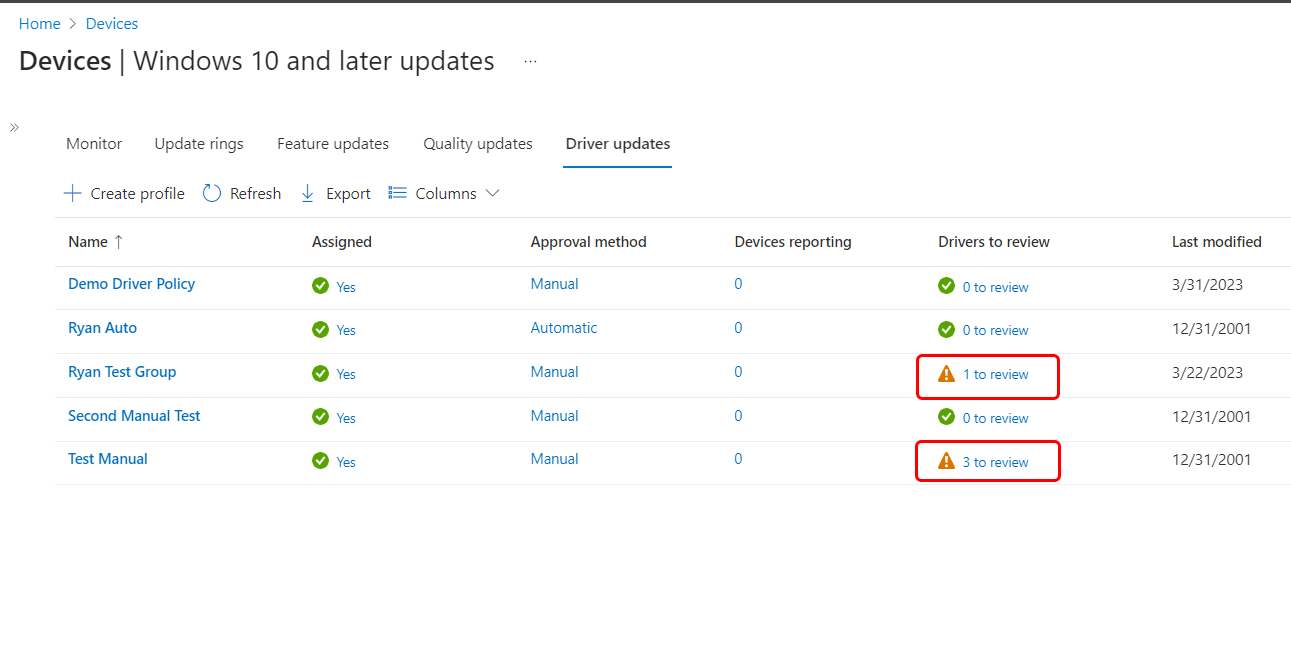
The two policies that have new driver updates won't deploy those new updates until an admin explicitly approves them. You can also review the other policies that haven't received new updates should you seek to modify the approved updates for those policies.
Policies continue to display a count of new updates until each update has been approved or declined. After all the current updates are managed, the count drops to zero (0) until new updates are identified and added to the policy.
Policy properties and the driver list
While viewing the Windows driver update policy list, you can view details about a policy by selecting the policy name or any of its values. Policy details are available through three tabs.
- The first tab displays the policies Properties, where you can review and edit the policy configuration.
- The other two tabs comprise the policies driver list.
You can use the driver list to review the driver updates that Windows Autopatch identifies as applicable for one or more devices that receive that policy. From the list, you can view and manage the approval status of each update.
Tip
The driver list isn't a record of the driver versions currently installed on devices assigned to the policy. Instead, it's a list of driver updates identified by and collected by Windows Autopatch, which can be installed on devices to upgrade their existing drivers to a newer version. Intune doesn't collect an inventory of installed drivers.
The driver list is divided into two tabs:
Recommended drivers: Recommended drivers are the best match for the 'required' driver updates that Windows Update can identify for a device. To be a recommended update, the OEM or driver publisher must mark the update as required and the update must be the most recent update version marked as required. These updates are the same ones available through Windows Update and are almost always the most current update version for a driver.
When an OEM releases a newer update version that qualifies to be the new recommended driver, it replaces the previous update as the recommended driver update. If the older update version is still applicable to a device in the policy, it's moved to the Other drivers tab. If the older version was previously approved, it remains approved.
Other drivers: Other driver updates are updates that are available from the original equipment manufacturer (OEM) aside from the current recommended driver update. These updates remain in a policy as long as they're newer than the driver version that's installed on at least one device with the policy.
These updates can include:
- A previously recommended update was superseded by a newer update version
- Firmware updates
- Optional driver updates, or updates that the OEM doesn't intend to be installed on all devices by default
These updates can be managed and deployed through policies for Windows driver updates, but not through classic client Windows Update client policies.
Tip
When a driver update is no longer needed by any device in the policy, that update version is removed from the driver list, and the policy. Policies retain only the driver update versions that can be used to update a driver on a device with that policy.
In the following screen capture, we've opened the policy namedTest Manual and selected the Recommended drivers tab:
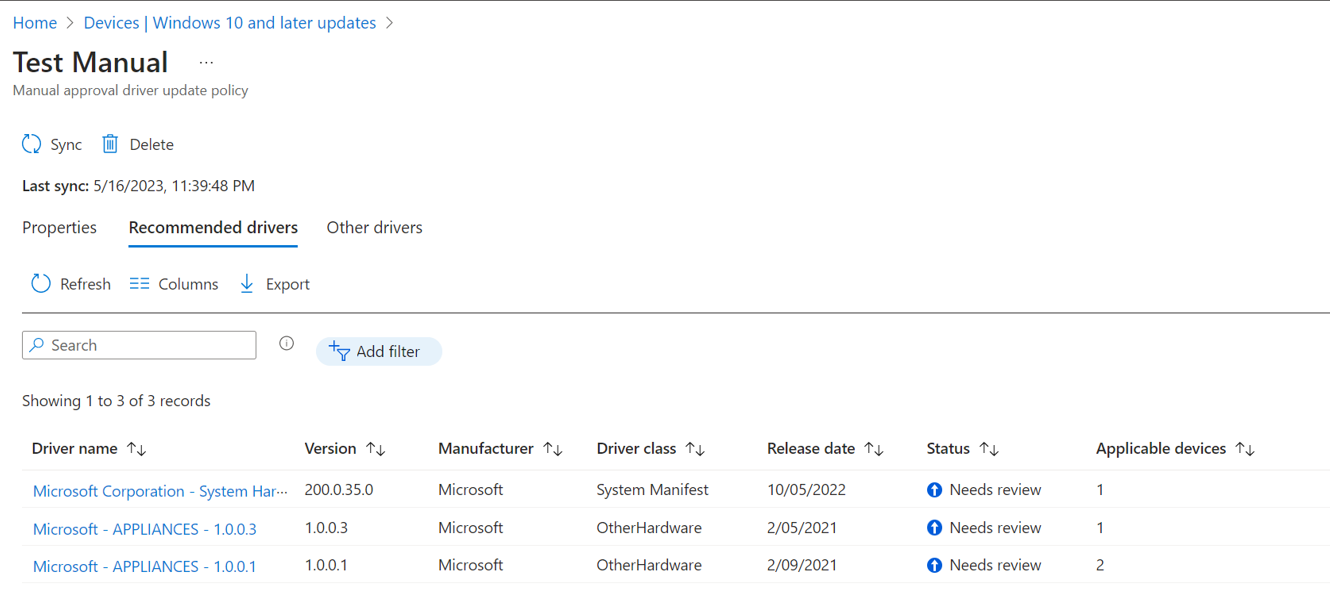
This policy requires manual approval, and currently has three driver updates that are pending review.
For comparison, the following screen capture shows the contents of the Other drivers tab for this same policy.
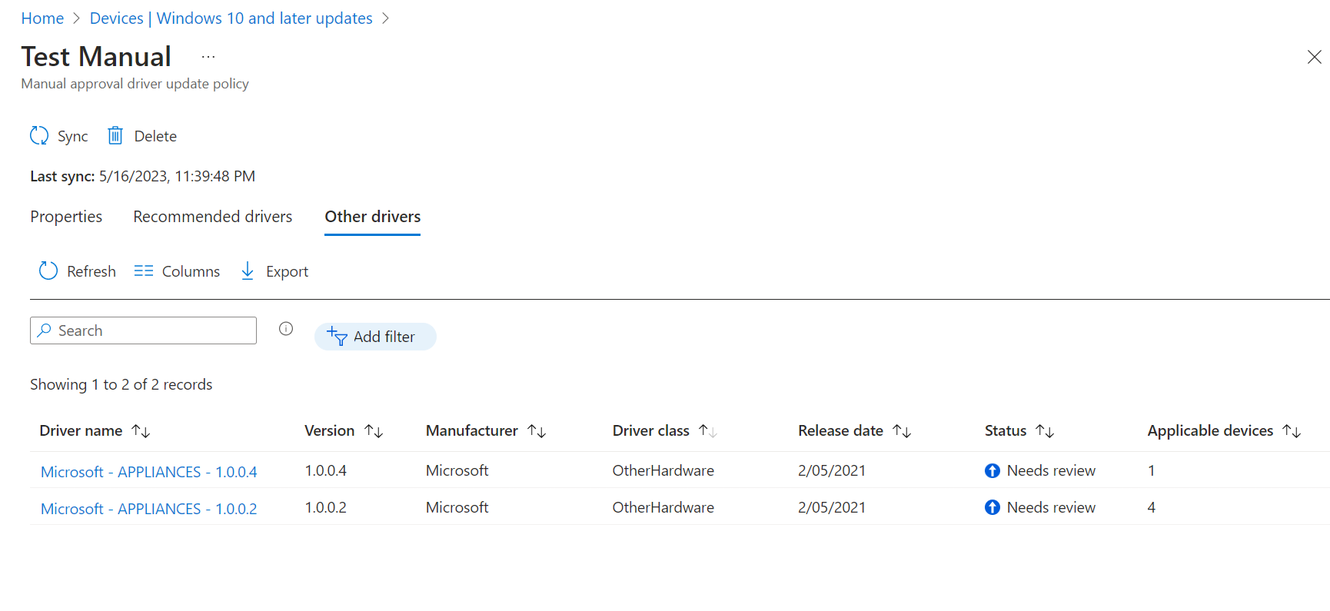
Each driver list displays the following details for updates in the policy. Most of the following details are based on information obtained from the driver update from the OEM or driver manufacturer:
Driver name: The driver update name. It's not uncommon for subsequent versions of an update from an OEM or manufacturer to have identical names. Use the update Version and Release date to differentiate between update instances.
Version: The update version as provided by the OEM or manufacturer.
Manufacturer: The manufacturer of the driver update.
Driver class: The driver class is determined from the details authored by the driver publisher, and usually represents the drivers hardware class. This information isn't always easily determined or consistent across updates from different OEM sources or manufacturers. When a driver's class can't be identified, it's assigned to the Other hardware class.
Release date: The date the OEM made this driver update available.
Status: The current status of the driver update in this policy. You can modify the status for individual updates by selecting the name of the driver update from the list. There are four status options available for updates:
- Needs review
- Approved
- Declined
- Paused
For more information about these four status types and how to manage them in a policy, see Manage the status of updates in this article.
Applicable devices: This number indicates how many devices can install a certain version of an update. The same device can be reported for multiple versions of a driver update from both the Recommended drivers and Other drivers tabs. Devices report multiple times when there's more than one newer version available for a driver that is still being used by the device.
Manage the status of driver updates
While viewing a policy driver list, you can select individual updates to review and modify their status.
Manage the status of a driver update:
Select the update from the driver list to open its Manage driver pane. In the following screen capture, we've selected the first driver update. That driver's Manage driver pane is open on the right side.
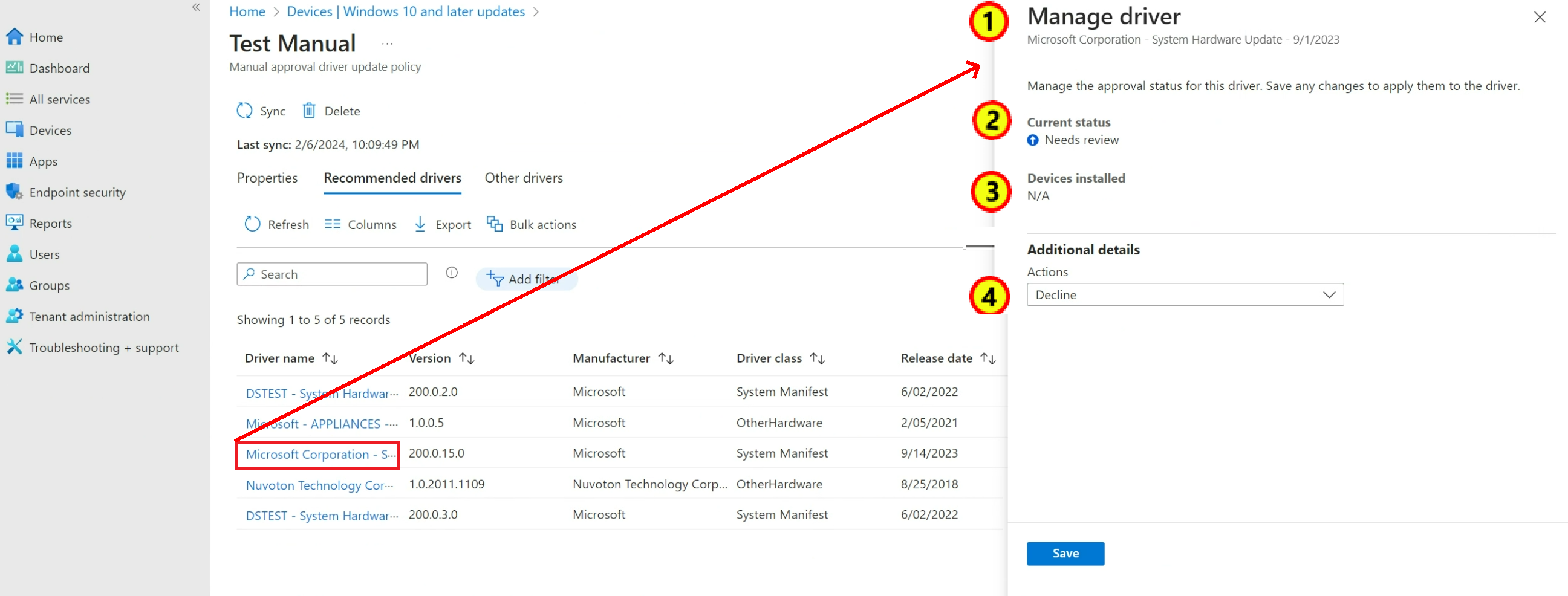
On the Manage driver pane, you can:
- Confirm the name of the driver update.
- View the update's status. The update in the screen capture has a status of Needs review.
- View a count of devices that have installed this update version. Because this driver update version isn't yet approved and hasn't been installed on devices, this count displays N/A for Not applicable.
- Select the dropdown box for Actions where you can choose an action to change the update's status. The options for a new driver update include Declined and Approve.
The following are rules for managing the status of a driver update:
- Only new driver updates can be assigned the status Needs review. However, a new recommended update that is added to a policy set for Automatic approval is added as Approved.
- A driver update that Needs review can be Approved or Declined.
- An Approved update can be Paused.
- A Paused update can be Approved.
- After an update is Approved, it can never be Declined, but you can Pause it indefinitely.
The following are details about each status:
Needs review: This status is used to identify new drivers that have been added to a policy.
For policies that use manual approval, Needs review applies to both new recommended drivers and new other drivers. Unless an admin explicitly approves the new updates, they won't deploy to devices.
For policies that use automatic approval:
- A new recommended driver is automatically approved and doesn't trigger the display of Needs review.
- A new update that isn't the recommended driver update is added to the Other drivers list and flagged with Needs review. The update remains as Needs review until an admin manually approves it.
Approved: This status identifies an update that is approved for installation on applicable devices.
Tip
Windows Update will only install a driver update on a device if the updates version is newer than the version of the driver that's currently on the device. So, there's no risk of a policy installing an older version of a driver and downgrading a device's driver version.
The following rules apply to the setting of Approved for an update:
Policies with automatic approval: All new Recommended driver updates are automatically configured as Approved and replace any existing Recommended driver updates for the same driver. After being automatically approved, the update is subject to the deferral period of the policy before it can be installed on a device.
When a new recommended update replaces an older recommended driver update, the older driver update is moved to the other drivers list but remains approved. This change of driver list location is important to remember as Windows Update only deploys the latest approved version of any driver update in a policy. However, if the latest approved version is paused, then Windows Update deploys the next most recent version of the driver update that remains approved and applicable to a device.
Policies with manual approval: For policies that require manual approval, you must edit the policy and manage new updates to configure them as Approved. Once set to Approved, you can configure a setting called Make available in Windows Update. Here, you must specify a date that indicates when the update is available for installation on applicable devices. If you leave this field blank, the update is approved for installation on devices immediately.
Important
Any time a driver update's status is manually changed to Approved, the availability of that update (which is when Windows Update begins to deploy it to devices) is defined by the date you assign for Make available in Windows Update.
This behavior applies when manually setting an update as Approved in policies with manual approval, and in policies with automatic approval. In policies with automatic approval, this includes the manual approval of an update on the other updates list, or when reapproving a recommended update that was paused.
Paused: When an update is set to Paused, it's put on hold and isn't deployed to any more devices through this policy until its status is manually changed back to Approved. Pausing an update doesn't roll back a completed installation of the update but can stop an active install of an update that is currently underway.
When you pause the most recent version of an approved update, Windows Update no longer makes that update available to devices the next time they scan for updates. However, if the policy has an earlier update version for the same driver that remains approved, Windows Update begins to install that older version on applicable devices.
Consider the following scenario: You have a policy with automatic approvals, for which the recommended update for the device's printer is version 3. This driver update is successful on all devices where it's installed and has been available for longer than the policies new driver deferral period.
Before all devices install the version 3 update, a newer version of the update is released, which is version 4. The new driver update version 4 is a recommended driver, which is automatically approved in the policy.
When version 4 becomes the new recommended driver, the version 3 update is moved to the other drivers list but remains approved. Because version 4 is the newest version, this policy deploys version 4 to devices, and begins to do so when the policies deferral period for new drivers ends. Until that deferral period is reached to allow deployment of version 4, the previous update version that remains approved continues to deploy to devices.
Later, you choose to pause the version 4 update. Windows Update stops deploying version 4 immediately and starts to deploy version 3 to devices that don't yet have the driver update version 3 or later version. This deployment happens because version 3 remains approved and is now the latest approved version of the print driver in the policy. Deployment of version 3 doesn't need to wait for a deferral period to end as it was previously approved for longer than the policies' current deferral configuration.
Declined: You can configure a driver update to be declined, which removes it from appearing as a new driver that needs review.
Setting an update to declined doesn't remove it from the policy, and you can change it back to Approved if you would like the update to deploy to applicable devices.
Bulk driver updates
Bulk driver updates allow the user to approve, pause, or decline multiple drivers for devices at once.
How to use bulk driver updates
In the Microsoft Intune admin center, select Devices > Windows updates
Select the Driver updates tab, and select an existing policy. If you need to create a new policy, see Create Windows driver update policies.
In the Driver Updates page, select Bulk actions.
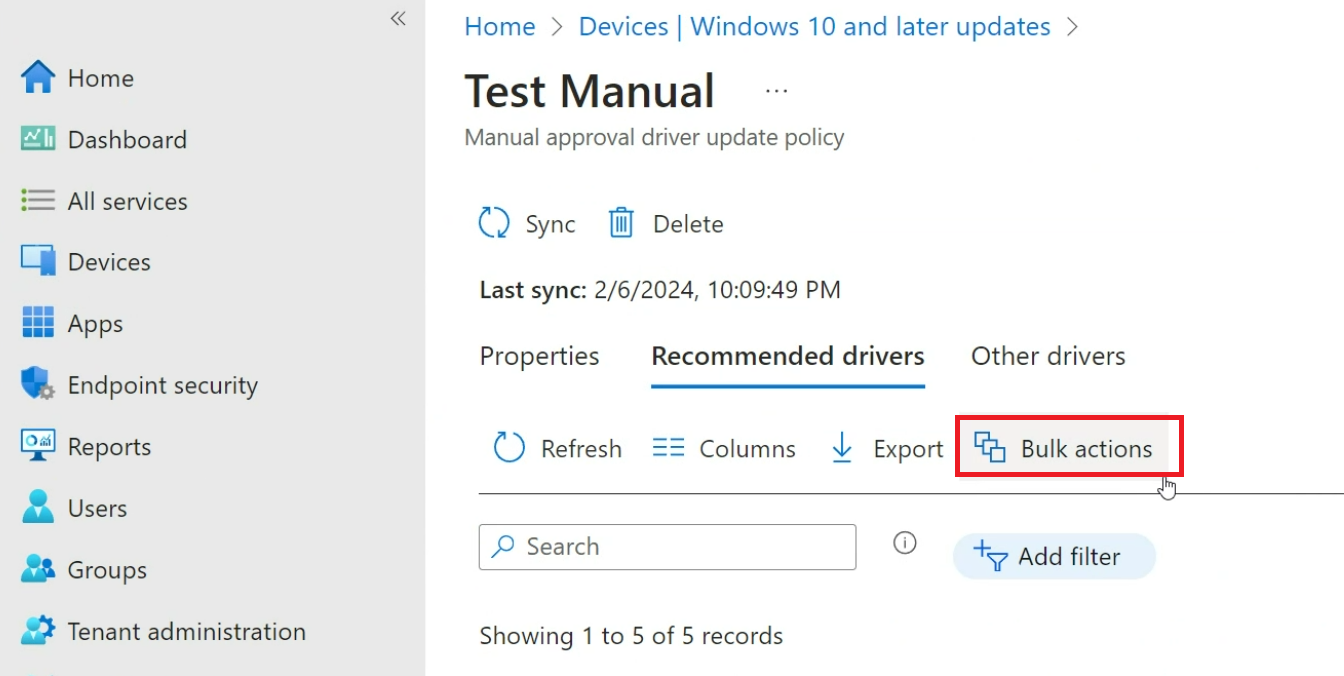
In the Select action tab, select one of the actions from the Driver actions drop-down list; Approve, Pause or Decline multiple drivers.
If you select an action that needs further information, for example, if you select Approve, then you also need to select the start date using Make available in Windows update. Select Next.
In the Select drivers tab, use Select drivers to include to see and select the available drivers. The Select available drivers fly-out appears. The displayed list includes drivers that are able to be approved. For example, drivers that have a status of Paused or Needs Review. This is because you can (re)approve drivers that are Paused or have status as Needs Review. Drivers that are already approved are filtered out.
In the Select available drivers fly-out you can also bulk select the drivers.
Note
You can only select up to 100 drivers at a time. If you select more than a 100 and select Save, an error message is displayed.
Select Save and then Next.
In the Review +Save tab, you can review and save the changes you made.
Note
You can't mix actions. For example, you can't Pause and Approve a set in one action. You must go through each action separately.
Benefits of bulk driver updates
The bulk driver updates can help the user to manage the driver updates more efficiently and conveniently. For example, the user can approve all the drivers together before a regular monthly security release and schedule them to start on that day.
Review and approve new driver updates
After you create driver update policies, plan to review them regularly for newly added driver updates. Recommended driver updates that are added to policies that support automatic approvals start to deploy without any intervention. However, any other new updates added to your policies aren't installed until an admin manually approves them.