Märkus.
Juurdepääs sellele lehele nõuab autoriseerimist. Võite proovida sisse logida või kausta vahetada.
Juurdepääs sellele lehele nõuab autoriseerimist. Võite proovida kausta vahetada.
Applies to:  SQL Server
Azure SQL Database
Azure SQL Managed Instance
Azure Synapse Analytics
Analytics Platform System (PDW)
SQL analytics endpoint in Microsoft Fabric
Warehouse in Microsoft Fabric
SQL database in Microsoft Fabric
SQL Server Management Studio is a suite of administrative tools for managing the components belonging to SQL Server. With this integrated environment, you can perform various tasks, such as backing up data, editing queries, and automating common functions within a single interface.
SQL Server Management Studio includes the following tools:
Code Editor is a rich script editor for writing and editing scripts. SQL Server Management Studio provides four versions of the Code Editor: the Database Engine Query Editor for Transact-SQL scripts, the DMX Query Editor, the MDX Query Editor, and the XML/A Query Editor.
Object Explorer for locating, modifying, scripting, or running objects belonging to instances of SQL Server.
Template Explorer for locating and scripting templates.
Solution Explorer for organizing and storing related scripts as parts of a project.
Properties Window for displaying the current properties of selected objects.
SQL Server Management Studio supports efficient work processes by providing:
Disconnected access. You can write and edit scripts without connecting to an instance of SQL Server.
Scripting from any dialog box. You can create a script from any dialog box so that you can read, modify, store, and reuse the scripts after you create them.
Nonmodal dialog boxes. When you access a UI dialog box, you can browse other resources in SQL Server Management Studio without closing the dialog box.
Script projects in SSMS
A database script project is an organized set of scripts, connection information, and templates that are all associated with a database or one part of a database. SQL Server provides SQL Server Management Studio for administering and designing SQL Server databases within the context of a script project. SQL Server Management Studio includes designers, editors, guides, and wizards to assist you in developing, deploying, and maintaining databases.
When you save a script in a script project, you can:
- Maintain version control on scripts.
- Store results options with a script.
- Organize related scripts in a single script project.
- Save connection information with scripts.
SQL database projects in SSMS
A SQL database project is a local representation of SQL objects that comprise the schema for a single database, such as tables, stored procedures, or functions. The development cycle of a SQL database project helps you integrate database development into continuous integration and continuous deployment (CI/CD) workflows that are familiar as development best practices. In SSMS, you can use Microsoft.Build.Sql projects to help you implement, manage, and collaborate on database changes, by providing a local definition of the database objects.
When a SQL project builds, it validates the relationships between objects. For example, a view definition can't contain a table or columns that don't exist in the SQL project. The output file (the .dacpac) is a powerful, reusable, and declarative artifact. With this file, you can apply your database code to a database using SSMS, the SqlPackage CLI, or other SQL projects tools. The publish process also calculates the difference between a source .dacpac and a target database before determining what steps it needs to take to update that database.
SQL database projects are a great fit for teams that are looking to integrate database development into a CI/CD workflow. The declarative nature of SQL projects allows for a single source of truth for the database schema, and the build and publish process provides a repeatable and reliable way to deploy changes to databases. For more information about SQL database projects, see What are SQL Database Projects?.
Prerequisites
The following prerequisites apply to SQL database projects, not script projects or the DACPAC and BACPAC wizards.
Create a new project
To work with SQL database projects in SSMS, you need a local folder containing your project files. You can start a project by extracting objects from an existing database or by creating new object files from scratch.
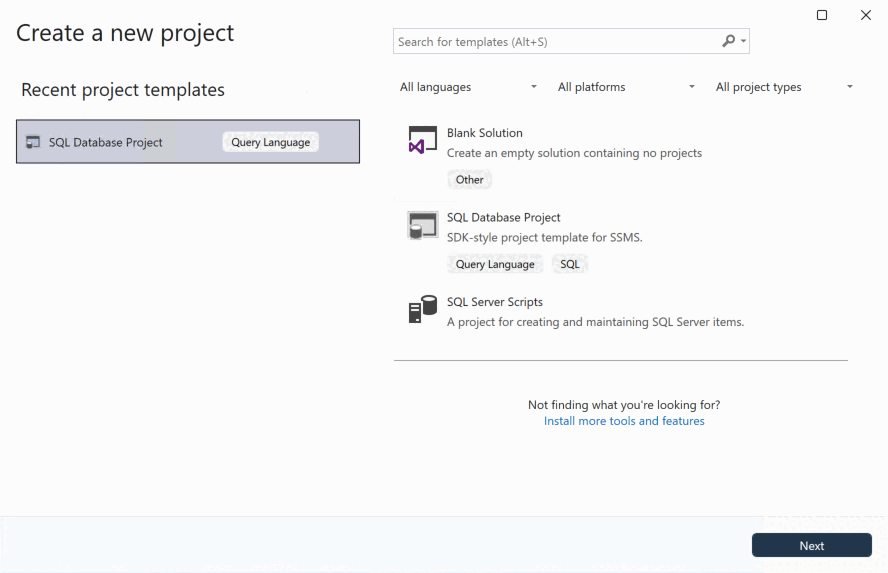
Note
SSMS might prompt you to connect to a server when opening a file from Solution Explorer. You can perform SQL database project development offline without connecting to a database.
Add objects from an existing database
Use SqlPackage to extract the schema from an existing database into individual .sql files organized by object type. Run the following command to create a folder structure with your database objects:
sqlpackage /Action:Extract /SourceConnectionString:"<connection-string>" /TargetFile:"<temp-folder>" /p:ExtractTarget=SchemaObjectType
The /p:ExtractTarget=SchemaObjectType parameter organizes the extracted files into subfolders based on schema and object type (for example, dbo/Tables, dbo/StoredProcedures). Extract to a temporary folder outside of your project directory, and then use Windows Explorer to copy the desired contents into your project folder.
For more information about SqlPackage extract options, see SqlPackage extract.
Create new objects
Add new database objects to your project by creating .sql files in the project folder. Each file should contain a single CREATE statement for one database object. For example, a table definition:
CREATE TABLE [dbo].[Products]
(
    [ProductId] INT NOT NULL PRIMARY KEY,
    [ProductName] NVARCHAR (100) NOT NULL,
    [Price] DECIMAL (10, 2) NOT NULL
);
Organize files by schema and object type using subfolders, such as dbo/Tables or Sales/StoredProcedures. This structure matches the output of SqlPackage extract and makes it easier to locate objects as your project grows. The SQL project build process includes all .sql files in the project folder and its subfolders by default.
SSMS provides templates for common items to help you get started. To add a new item, right-click the project in Solution Explorer, select Add > New Item, and choose from the list of SQL object templates.
Open existing projects
To open an existing SQL database project in SSMS, select File > Open > Project/Solution and navigate to the .sqlproj file.
Important
SSMS supports SDK-style Microsoft.Build.Sql projects only. The minimum supported SDK version is 2.1.0. If you have an original SQL project created in Visual Studio, you must convert it to the SDK-style format before opening it.
For guidance on converting original SQL projects to the SDK-style format, see Convert an original SQL project to an SDK-style project.
Build projects and deploy changes
The SQL project workflow consists of two main steps: building the project to validate and compile the schema, and deploying the compiled output to a target database.
Project build
Building a SQL project validates the relationships between objects and checks the T-SQL syntax against the specified target platform. The build process produces a .dacpac file, which contains a compiled model of the database schema.
To build a project in SSMS, right-click the project in Solution Explorer and select Build.
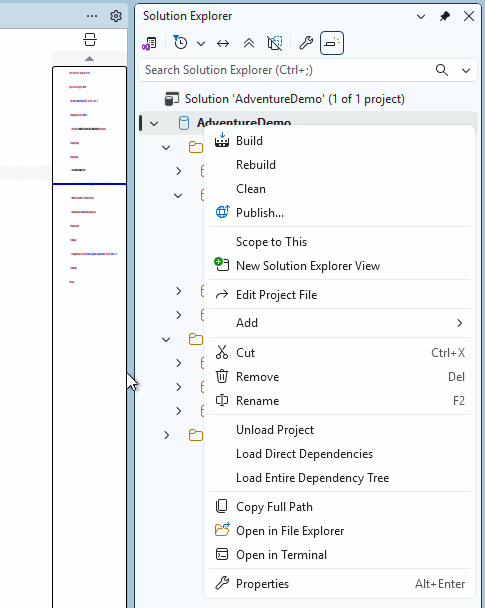
The build output displays any errors or warnings. Errors indicate issues that prevent deployment, such as a view referencing a table that doesn't exist. Warnings highlight potential issues like inconsistent casing in object names.
On a successful build, the .dacpac file is created in the bin\Debug folder within your project directory.
For more information about troubleshooting build issues, see Troubleshoot SQL project build errors.
Deploy changes
After building your project, deploy the .dacpac to a target database using the Publish dialog in SSMS. The deployment process compares the .dacpac to the target database and generates the necessary CREATE, ALTER, or DROP statements to synchronize the database with your project.
To deploy, right-click the project in Solution Explorer and select Publish. In the Publish dialog, configure your target database connection and select Publish to apply changes or Generate Script to review the deployment script before execution.
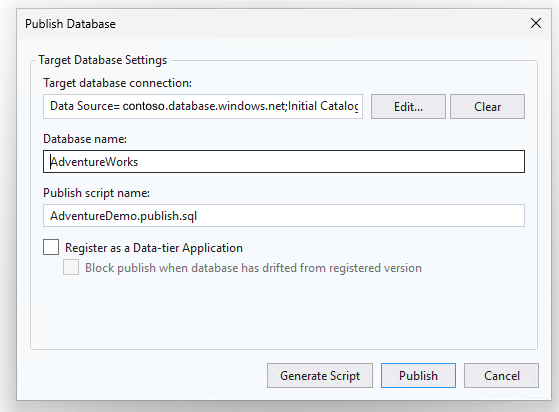
The publish process is idempotent, so you can deploy the same .dacpac multiple times without causing issues. This approach enables you to deploy to multiple environments (development, staging, production) by using the same compiled artifact.
For detailed information about deployment options and configuration, see Get started with SQL database projects.
Solutions and projects
SQL Server Management Studio shares the concept of solutions and projects with Microsoft Visual Studio. A solution is a container for one or more projects, along with window settings and any miscellaneous files that aren't associated with a particular project.
Solution Explorer is a tool window in SSMS that you use to store and reopen database solutions. If you created applications with Visual Studio, Solution Explorer is familiar.
If you don't see the Solution Explorer tool window, you can open it from the SSMS menu bar by using View > Solution Explorer, or by selecting Ctrl+Alt+L.
Related content
- What is SQL Server Management Studio (SSMS)?
- Solutions (SQL Server Management Studio)
- Solution Explorer (Visual Studio)
- SQL database projects
- Get started with SQL database projects
- SqlPackage extract
- Modify SQL Server Management Studio workloads, components, and language packs
- SQL projects roadmap
- Apply a DACPAC or BACPAC to an existing database
- Schema Compare in SQL Server Management Studio