Muistiinpano
Tämän sivun käyttö edellyttää valtuutusta. Voit yrittää kirjautua sisään tai vaihtaa hakemistoa.
Tämän sivun käyttö edellyttää valtuutusta. Voit yrittää vaihtaa hakemistoa.
The Egnyte Microsoft 365 Copilot connector allows your organization to index files stored in Egnyte so users can retrieve them through Microsoft 365 Copilot and Microsoft Search. This article describes the Egnyte service configuration that Egnyte admins must complete before your organization can deploy the Egnyte connector. These steps ensure that Microsoft 365 can authenticate with your Egnyte domain, access required APIs, and ingest content securely.
For information about how to deploy the connector in Microsoft 365, see
Deploy the Egnyte connector.
Setup checklist
The following checklist lists the steps involved in configuring the environment and setting up the connector prerequisites.
Note
You must have an Egnyte admin role in your organization's Egnyte domain to complete these steps.
| Task | Role |
|---|---|
| Register an Egnyte developer account | Egnyte admin |
| Create a new app for the Egnyte connector | Egnyte admin |
| Get the client ID (API key) and secret | Egnyte admin |
| Request an API rate increase | Egnyte admin |
| Enable API access | Egnyte admin |
Register an Egnyte developer account
To create the API key and secret required for the connector, you need an Egnyte developer account. To register an Egnyte developer account:
- Go to the Egnyte developer portal.
- Register with an admin email for your Egnyte domain.
Create a new app for the Egnyte connector
To register the connector app:
Sign in to the developer portal with your Egnyte developer account, and from the account menu, open Apps.
In My Apps, select + NEW APP.
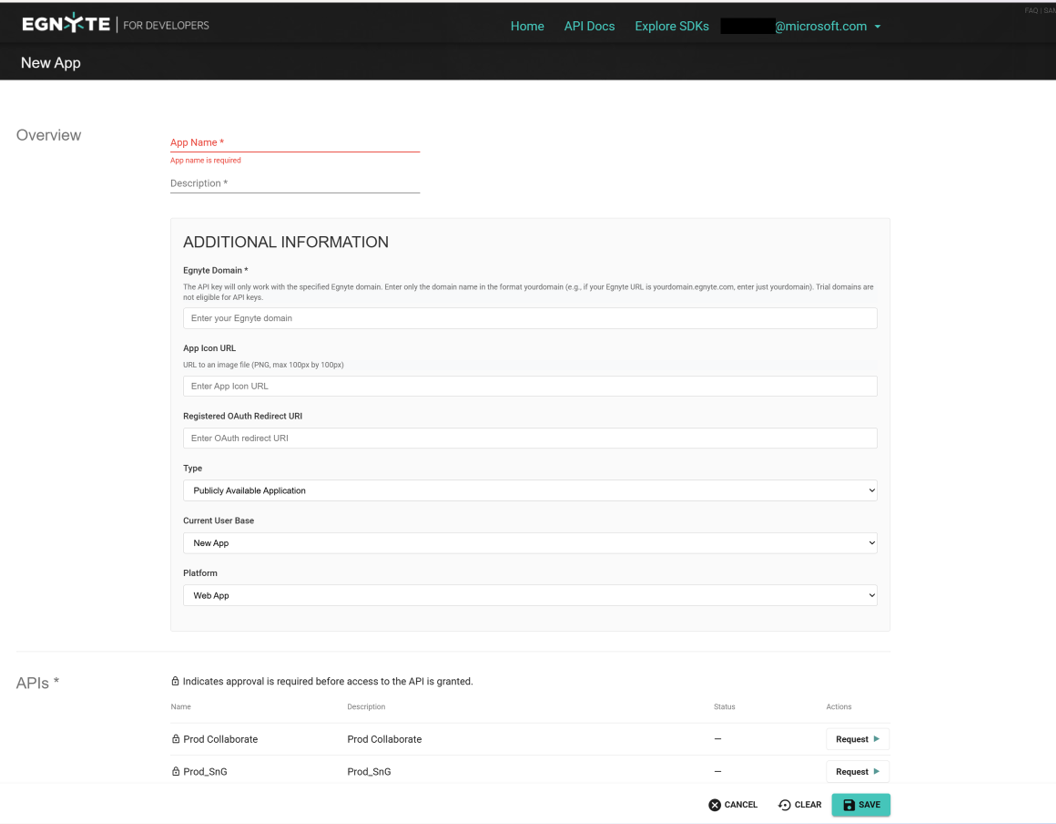
Complete the required app registration fields:
- Egnyte Domain: Enter only the domain prefix (for example, if your Egnyte URL is
https://<your-domain>.egnyte.com, enteryour-domain). - Registered OAuth Redirect URI:
- Microsoft 365 Enterprise:
https://gcs.office.com/v1.0/admin/oauth/callback - Microsoft 365 Government:
https://gcsgcc.office.com/v1.0/admin/oauth/callback
- Microsoft 365 Enterprise:
- Application Type: Select Publicly Available Application (required for authentication from the Microsoft 365 admin center).
- APIs: Enable the APIs required for your scenario:
- Prod Collaborate: Egnyte Public REST API
- Prod_SnG: Egnyte Secure and Govern Public API
- Egnyte Domain: Enter only the domain prefix (for example, if your Egnyte URL is
Get the client ID (key) and secret
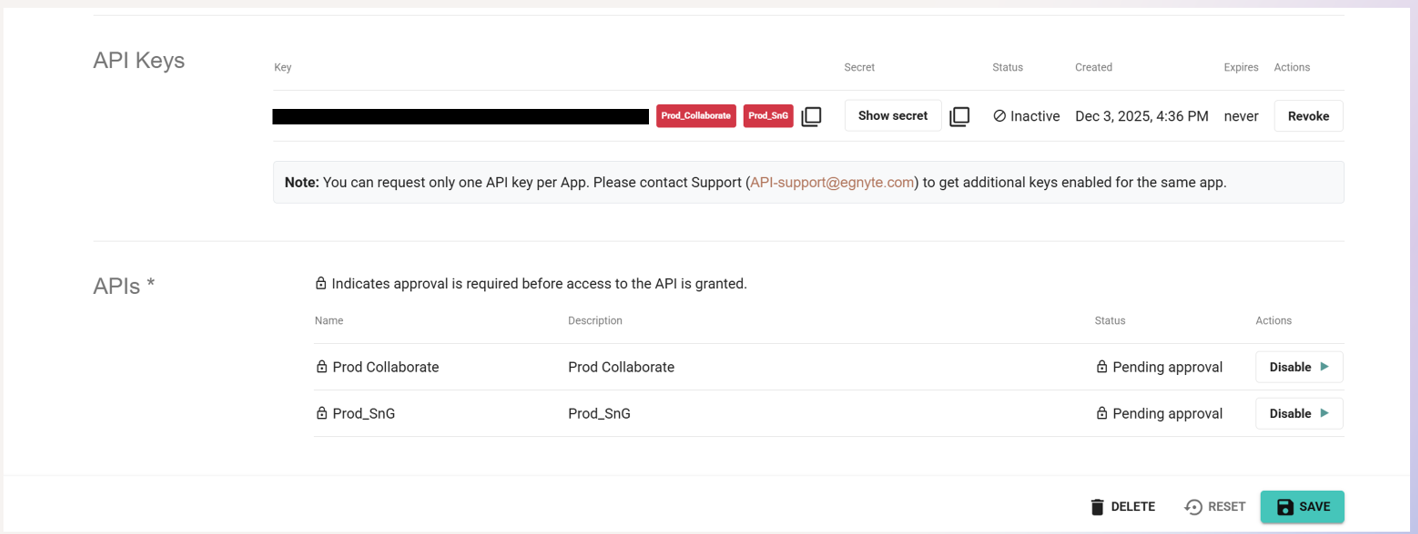
After Egnyte approves your API settings:
- In the Egnyte developer portal, go to API Keys.
- Copy the Client ID (Key) and Secret.
Use these credentials when you configure the connector in the Microsoft 365 admin center.
Request a rate increase from Egnyte
The connector syncs data from Egnyte to Microsoft Graph. Egnyte imposes API rate limits that vary by plan.
To avoid ingestion failures:
- Sign in to your Egnyte developer account and check your current API rate limits.
- Review the Public API usage restrictions for Egnyte.
- If you need higher limits, contact Egnyte support.
Enable API access and confirm required settings
To ensure that your connector can authenticate and crawl Egnyte data:
- API access: Confirm that the required APIs are enabled for your app.
- Domain configuration: Make sure that the domain in the developer app matches your Egnyte tenant.
- Redirect URIs: Verify that your redirect URI matches the appropriate Microsoft 365 environment.
- Application type: Make sure that Publicly Available Application is selected.