Muistiinpano
Tämän sivun käyttö edellyttää valtuutusta. Voit yrittää kirjautua sisään tai vaihtaa hakemistoa.
Tämän sivun käyttö edellyttää valtuutusta. Voit yrittää vaihtaa hakemistoa.
Microsoft Defender for Endpoint uses endpoint security and network system extensions to protect macOS devices. If macOS doesn't approve or start an extension, real-time protection, network event inspection, or related features might be unavailable.
Use the symptoms and commands in this article to identify extension and profile problems. Then use the deployment-specific guidance to correct the configuration.
Identify system extension symptoms
The Microsoft Defender shield in the macOS menu bar might display an x badge when Defender for Endpoint requires attention.

Select the shield to open the Defender menu. The Action needed option indicates that Defender requires configuration or user approval.
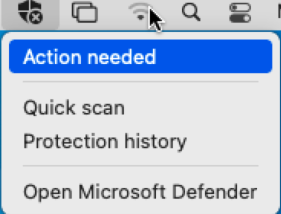
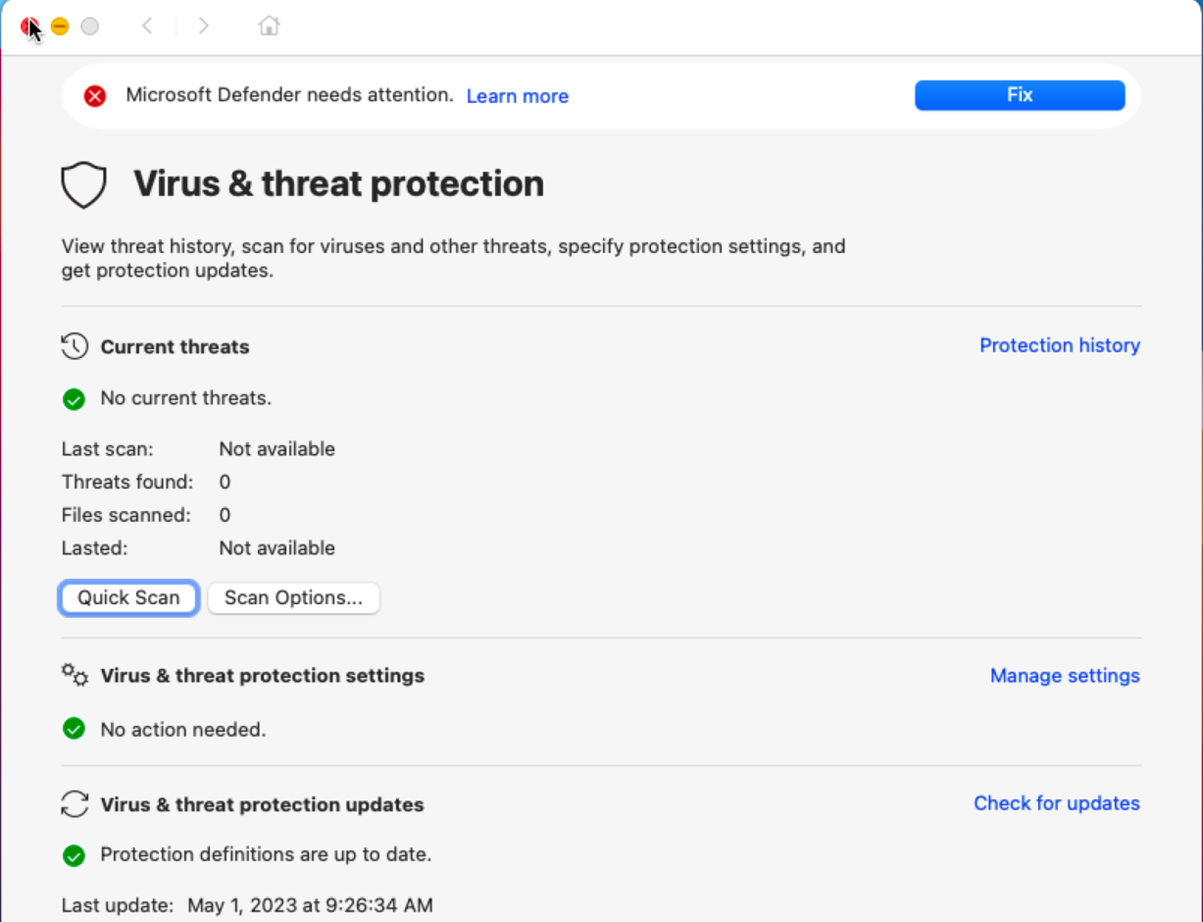
Select Action needed to open the Virus & threat protection page. The page might display Microsoft Defender needs attention and a Fix button.
Run the following command in Terminal to review the overall Defender health state:
mdatp health
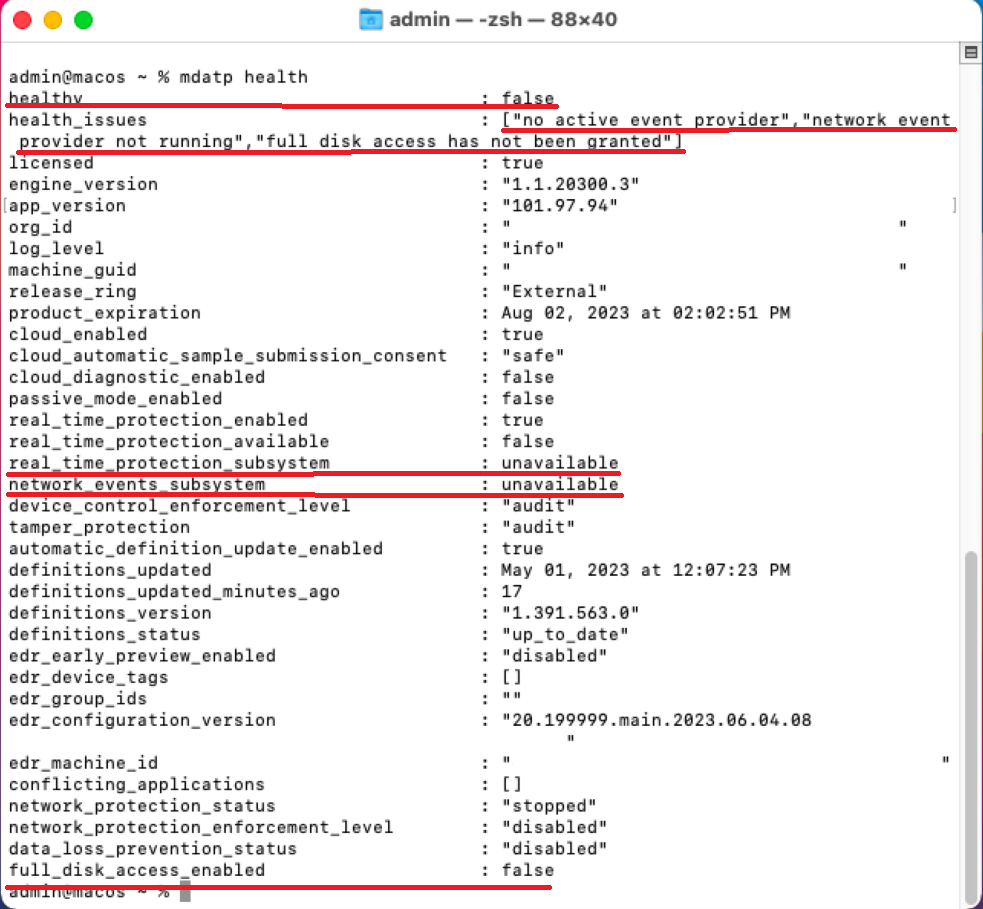
When extensions or permissions aren't ready, the output can report an unhealthy state, unavailable protection, or missing Full Disk Access:
healthy                            : false
health_issues                    : ["no active event provider", "network event provider not running", "full disk access has not been granted"]
...
real_time_protection_enabled    : true
real_time_protection_available: false
...
full_disk_access_enabled        : false
The following screenshot shows an unhealthy result with unavailable protection subsystems and Full Disk Access disabled:
For descriptions of the health fields, see Troubleshoot agent health issues with Defender for Endpoint on macOS.
Diagnose the system extensions
On supported macOS versions, a mobile device management (MDM) profile or a local administrator must approve system extensions before they can run. Defender for Endpoint uses Microsoft Team ID UBF8T346G9 and the following system extensions:
- Endpoint security extension:
com.microsoft.wdav.epsext. - Network extension:
com.microsoft.wdav.netext.
Use the following commands to determine whether the extensions are installed, approved, and running:
List the registered system extensions:
systemextensionsctl list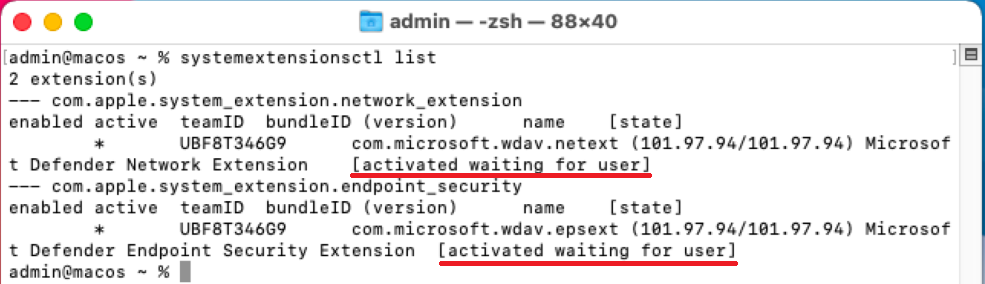
The
[activated waiting for user]state indicates that macOS installed the extensions but is waiting for local approval. A healthy active extension reports[activated enabled].Review the Defender-specific system extension health details:
mdatp health --details system_extensionsWhen the extensions are installed but not approved or ready, the output can resemble the following example:
network_extension_enabled                 : false
network_extension_installed                 : true
endpoint_security_extension_ready           : false
endpoint_security_extension_installed        : true
The following screenshot shows both extensions installed, but the network extension isn't enabled and the endpoint security extension isn't ready:

The extension health result doesn't identify every required macOS permission. For example, mdatp health can separately report that Full Disk Access isn't granted. Review the system extensions and macOS permissions required for your enabled Defender and Microsoft Purview features.
Resolve extension and permission issues
Use the procedure for your deployment method to approve the extensions and grant the required permissions:
- Microsoft Intune: Approve Defender for Endpoint system extensions in Intune. New policies must use the settings catalog because the older macOS Extensions template is deprecated. For general settings catalog guidance, see Use the Intune settings catalog to configure settings. For the complete deployment sequence, see Approve System Extensions.
- Jamf Pro: Configure Defender for Endpoint system extensions using Jamf Pro.
- Another MDM solution: Deploy Defender for Endpoint with another MDM solution.
- Manual deployment: Approve system extensions and permissions manually.
For managed deployments, deploy system configuration profiles before the Defender application package. This sequence allows macOS to approve the extensions and permissions without relying on user prompts.
Verify profile delivery
Before troubleshooting individual profiles, review the shared Defender for Endpoint on macOS prerequisites.
Check MDM profile delivery
Use your MDM solution to confirm that the required device-level profiles are assigned and successfully delivered to the affected Mac device. On the device, open System Settings, select General, and then select Device Management to review installed profiles.
If you use Jamf Pro, sudo jamf policy triggers applicable policies. For information about Jamf policy triggers and execution, see Policy Management.
Note
Use recognizable names for Defender configuration profiles so you can identify their purpose and deployment ring. For example, use FullDiskAccess (piloting) - macOS - Default - MDE.
Verify the required profiles
Download current Microsoft-maintained profiles instead of manually recreating payloads. This approach prevents typing errors in bundle identifiers, Team IDs, code requirements, and payload values.
For the profile list and purpose of each payload, see Review maintained Defender profiles.
In Terminal, use the following syntax to download a profile to the current directory:
curl -O https://URL
For example, download the maintained system extensions profile:
curl -O https://raw.githubusercontent.com/microsoft/mdatp-xplat/master/macos/mobileconfig/profiles/sysext.mobileconfig
Review maintained Defender profiles
The Defender for Endpoint macOS profile repository contains these relevant profiles:
- System extension approval:
sysext.mobileconfigapprovescom.microsoft.wdav.epsextandcom.microsoft.wdav.netextfor Team IDUBF8T346G9. - Network filter:
netfilter.mobileconfigconfigures the network extension as the Microsoft Defender Content Filter. - Full Disk Access:
fulldisk.mobileconfiggrants access to the required Defender components. - Background services:
background_services.mobileconfigallows Defender services to run in the background. - Notifications:
notif.mobileconfigconfigures Defender and Microsoft AutoUpdate notifications. - Accessibility:
accessibility.mobileconfiggrants Accessibility access to the Microsoft Purview data loss prevention daemon when that capability is used.
Don't use the presence of files under /Library/Managed Preferences as the only test for these Apple payloads. Verify profile delivery through the MDM solution, inspect the installed configuration profiles, and review the Defender health output.
Analyze installed profiles
The Microsoft analyze_profiles.py script compares installed configuration payloads with the maintained Defender profile template. It reports missing, duplicate, or mismatched payloads and checks for onboarding and Defender preference profiles.
Review the script in the Defender for Endpoint macOS MDM tools directory.
Select Raw to open https://raw.githubusercontent.com/microsoft/mdatp-xplat/master/macos/mdm/analyze_profiles.py.
From the directory where you want to save
analyze_profiles.py, download the script by running the following command in Terminal:curl -O https://raw.githubusercontent.com/microsoft/mdatp-xplat/master/macos/mdm/analyze_profiles.pyRun the script with elevated permissions by using one of the following methods:
Run the downloaded script:
cd ~/Downloads

sudo python3 analyze_profiles.py
Or
Run the script directly from the web:
curl -sS https://raw.githubusercontent.com/microsoft/mdatp-xplat/master/macos/mdm/analyze_profiles.py | sudo python3 -
Review every reported issue in the context of your deployment. The script might report intentional profile choices that don't require changes.
Related content
- Microsoft Defender for Endpoint on macOS
- Deploy Microsoft Defender for Endpoint on macOS with Jamf Pro
- Deploy Defender for Endpoint configuration profiles with Jamf Pro
- Set up Jamf Pro device groups
Submit feedback
To submit product feedback from the Defender app, open Help, and then select Send feedback.
On the Microsoft Defender portal at https://security.microsoft.com, select Give feedback.