Note
Kailangan ng pahintulot para ma-access ang page na ito. Maaari mong subukang mag-sign in o magpalit ng mga direktoryo.
Ang pag-access sa pahinang ito ay nangangailangan ng pahintulot. Maaari mong subukang baguhin ang mga direktoryo.
Applies to:
Note
Try our new APIs using MS Graph security API. Find out more at: Use the Microsoft Graph security API - Microsoft Graph | Microsoft Learn.
Important
Some information in this article relates to a prereleased product which may be substantially modified before it's commercially released. Microsoft makes no warranties, expressed or implied, with respect to the information provided here.
Before you begin
Before you start, complete the following prerequisites:
- Create a Storage account in your tenant.
- Sign in to the Azure portal, and go to Subscriptions > Your subscription > Resource Providers > Register to Microsoft.Insights.
Add contributor permissions
After the storage account is created, assign the Contributor role to the account that will configure the Streaming API settings.
Go to Storage Account > Access control (IAM), and then select Add.
Verify that the account you assigned the Contributor role to is listed under Role assignments.
Enable raw data streaming
Note
When using the Streaming API to an Azure Storage account, ensure the option Allow trusted Microsoft services to access this storage account is enabled in the storage account settings to allow for data to be streamed from Microsoft Defender for Endpoint.
Go to the Microsoft Defender portal and sign in using an account with at least Security Administrator permissions.
Go to Settings > Microsoft Defender XDR > Streaming API. To go directly to the Streaming API page, use the Streaming API settings page.
Select Add.
In the Add new Streaming API settings flyout that appears, configure the following settings:
- Name: Choose a name for your new settings.
- Select Forward events to Azure Storage.
To display the Azure Resource Manager resource ID for a storage account in the Azure portal, follow these steps:
Navigate to your storage account in the Azure portal.
In the Overview page, in the Essentials section, select the JSON View link.
The resource ID for the storage account is displayed at the top of the page. Copy the text under Storage Account Resource ID.
In the Add new Streaming API settings flyout, choose the Event types that you want to stream.
When you're finished, select Submit.
Event schema in the storage account
A blob container is created for each event type:
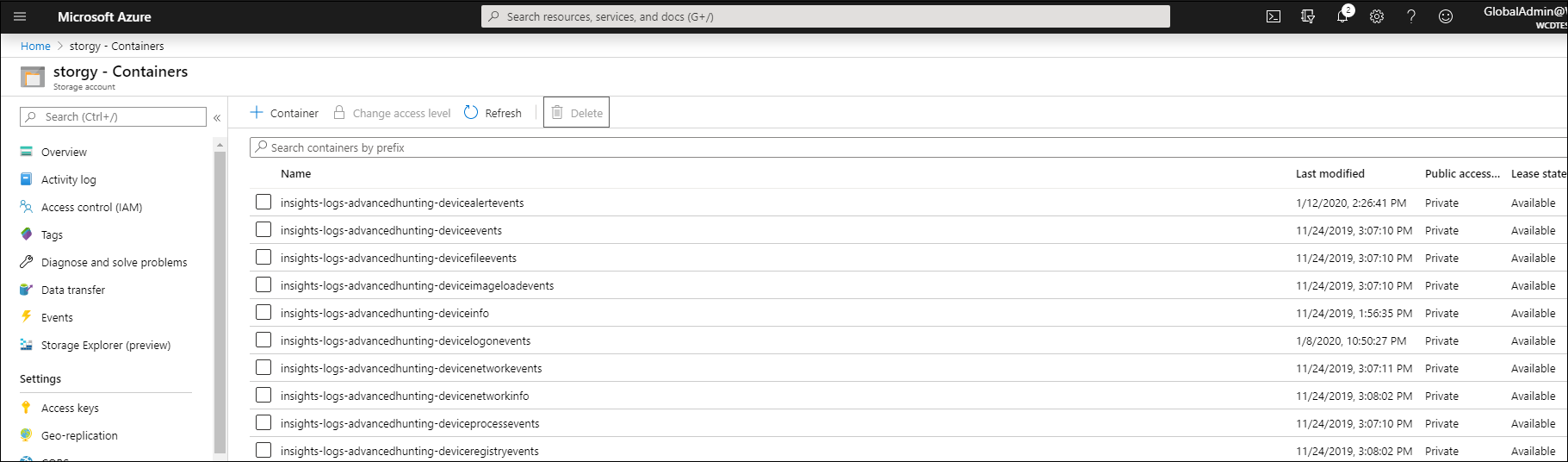
The schema of each row in a blob is the following JSON:
{
        "time": "<The time Microsoft Defender XDR received the event>"
        "tenantId": "<Your tenant ID>"
        "category": "<The Advanced Hunting table name with 'AdvancedHunting-' prefix>"
        "properties": { <Microsoft Defender XDR Advanced Hunting event as Json> }
}
Each blob contains multiple rows.
Each row contains the event name, the time Defender for Endpoint received the event, the tenant it belongs (you'll only get events from your tenant), and the event in JSON format in a property called "properties".
For more information about the schema of Microsoft Defender XDR events, see Advanced Hunting overview.
Data type mappings
To get the data types for events properties, follow these steps:
Go to the Microsoft Defender portal and sign in.
Go to Hunting > Advanced hunting. To go directly to the Advanced hunting page, use the Advanced hunting page.
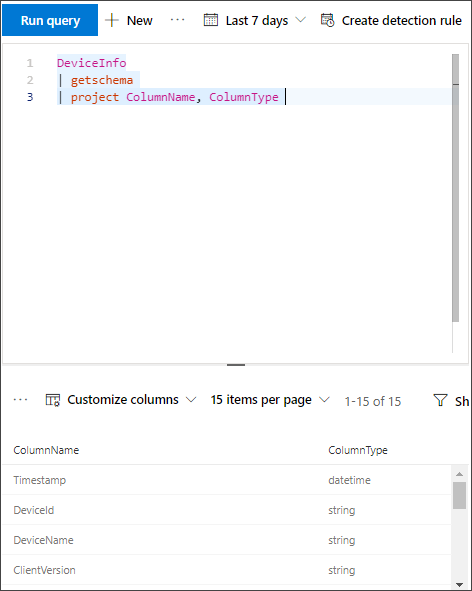
On the Query tab, run the following Kusto query template to retrieve the schema for a specific event type. Replace
{EventType}with the Advanced Hunting table name you want to inspect (for example,DeviceInfo):{EventType} | getschema | project ColumnName, ColumnTypeThe following example shows the column names and data types returned for a DeviceInfo event, so you can map event properties to their schema:
Monitoring created resources
You can monitor the Azure Storage export resources and related diagnostics by using Azure Monitor. For more information, see Monitor destinations - Azure Monitor.
Related content
- Use the Microsoft Graph security API - Microsoft Graph | Microsoft Learn
- Overview of Advanced Hunting
- Microsoft Defender XDR Streaming API
- Stream Microsoft Defender XDR events to your Azure storage account
- Azure Storage Account documentation
Tip
Do you want to learn more? Engage with the Microsoft Security community in our Tech Community: Microsoft Defender XDR Tech Community.