הערה
הגישה לדף זה מחייבת הרשאה. באפשרותך לנסות להיכנס או לשנות מדריכי כתובות.
הגישה לדף זה מחייבת הרשאה. באפשרותך לנסות לשנות מדריכי כתובות.
Microsoft Defender for Endpoint on Windows uses separate proxy settings for the endpoint detection and response (EDR) sensor and Microsoft Defender Antivirus. When devices must use a proxy to reach their respective cloud services, use this guidance to configure automatic discovery, component-specific static proxy settings, or a system-wide WinHTTP proxy. The guidance also covers proxy configuration for devices that use the Microsoft Monitoring Agent (MMA).
Important
Defender for Endpoint requires IPv4 connectivity. For an IPv6-only network, use a transition mechanism such as DNS64/NAT64 to provide end-to-end IPv4 connectivity. For more information, see Minimum requirements for Microsoft Defender for Endpoint.
Configure separate proxy settings for the following components:
Use the proxy guidance for the operating system that you manage:
- For Windows devices, use Configure device proxy and internet connectivity settings, beginning with Choose a Windows proxy configuration method.
- For Linux devices, see Configure Microsoft Defender for Endpoint on Linux for static proxy discovery.
- For macOS devices, see Microsoft Defender for Endpoint on macOS.
Choose a Windows proxy configuration method
The Defender for Endpoint sensor runs in the LocalSystem context and uses Windows HTTP Services (WinHTTP) to report sensor data and communicate with Defender for Endpoint. The WinHTTP configuration is independent of Windows Internet (WinINet) proxy settings. For more information, see WinINet versus WinHTTP.
Tip
If you use forward proxies as a gateway to the internet, you can use network protection to investigate connection events that occur behind forward proxies.
Use one of the following proxy configuration methods:
Automatic discovery:
- Transparent proxy.
- Web Proxy Auto-Discovery Protocol (WPAD).
If your network uses a transparent proxy or WPAD, the sensor doesn't require a component-specific static proxy setting.
EDR sensor static proxy: Configure
TelemetryProxyServerthrough Group Policy when the sensor can't use automatic discovery or the system-wide WinHTTP proxy.System-wide WinHTTP proxy: Configure a static proxy by using
netsh winhttp. This setting affects all applications and services that use the default WinHTTP proxy configuration. A system-wide static proxy is best suited to devices in a stable network topology.
Microsoft Defender Antivirus uses separate proxy policies for cloud-delivered protection. Configure those policies in Configure a static proxy for Microsoft Defender Antivirus.
Configure an EDR sensor static proxy by using Group Policy
Configure a registry-based static proxy when the EDR sensor can't connect directly or use proxy discovery. Enter only the proxy host and port in TelemetryProxyServer. Don't include spaces.
Note
Install the latest Defender for Endpoint updates before you configure the static proxy.
Configure both settings in the Group Policy object (GPO) that applies to the target devices.
On your Group Policy management computer, open the Group Policy Management Console (GPMC).
In the GPMC console tree, expand Group Policy Objects in the forest and domain containing the GPO you want to edit.
Right-click the GPO, and then select Edit.
In the Group Policy Management Editor, go to Computer Configuration > Policies > Administrative Templates > Windows Components > Data Collection and Preview Builds.
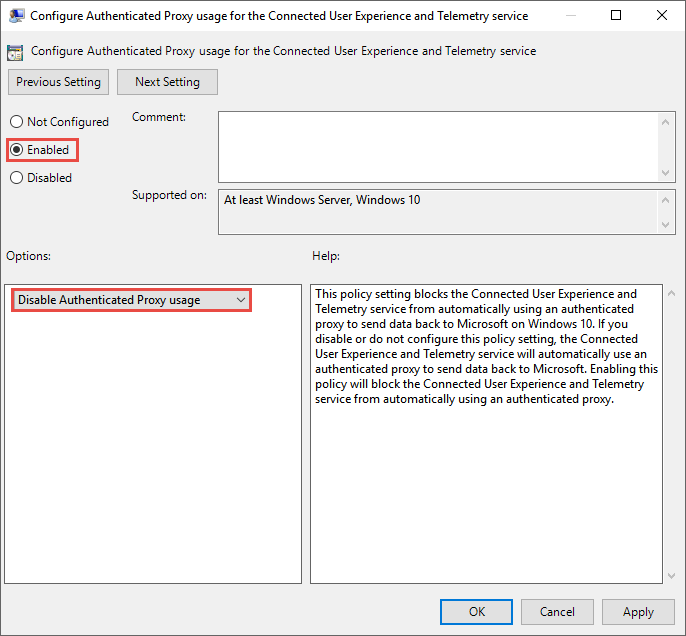
Open Configure Authenticated Proxy usage for the Connected User Experience and Telemetry Service, select Enabled, and then select Disable Authenticated Proxy usage.
Open Configure connected user experiences and telemetry, enter the proxy as
<server-name-or-ip>:<port>, and then select OK.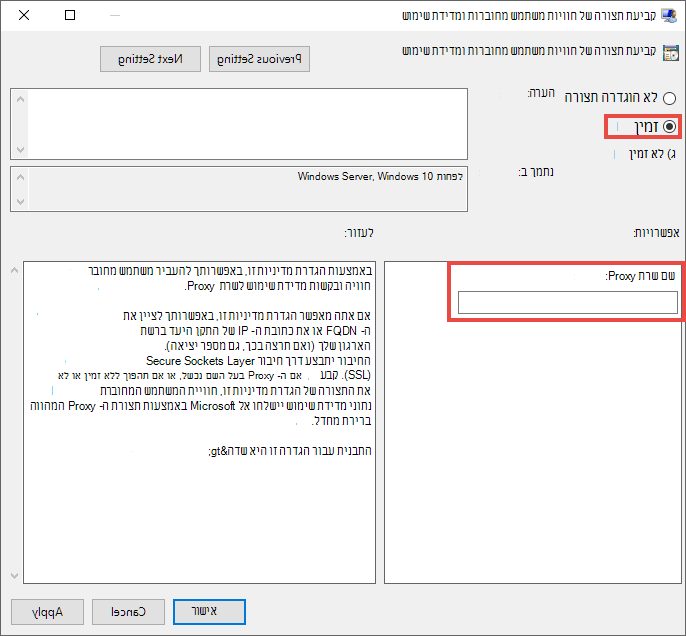
The policies configure the following registry values:
| Group Policy | Registry path | Registry value | Value data |
|---|---|---|---|
| Configure authenticated proxy usage for the Connected User Experience and Telemetry service | HKLM\Software\Policies\Microsoft\Windows\DataCollection |
DisableEnterpriseAuthProxy |
1 (REG_DWORD) |
| Configure connected user experiences and telemetry | HKLM\Software\Policies\Microsoft\Windows\DataCollection |
TelemetryProxyServer |
<server-name-or-ip>:<port> (REG_SZ), for example, 10.0.0.6:8080 |
Note
Don't deploy TelemetryProxyServer through mobile device management (MDM). The EDR sensor reads TelemetryProxyServer from the Group Policy registry location.
On devices that can't use the default WinHTTP proxy for certificate revocation lists or Windows Update, set PreferStaticProxyForHttpRequest to 1 to make a compatible EDR sensor prefer TelemetryProxyServer. Create the value under HKEY_LOCAL_MACHINE\SOFTWARE\Policies\Microsoft\Windows Advanced Threat Protection.
The following command creates the registry value:
reg add "HKLM\SOFTWARE\Policies\Microsoft\Windows Advanced Threat Protection" /v PreferStaticProxyForHttpRequest /t REG_DWORD /d 1 /f
PreferStaticProxyForHttpRequest applies to supported sensor branches beginning with MsSense.exe version 10.8210.* or 10.8049.*. It doesn't apply to the previous MMA-based solution.
Configure Microsoft Defender Antivirus proxy settings
Microsoft Defender Antivirus cloud-delivered protection provides near-instant, automated protection against new and emerging threats. Cloud connectivity is required for custom indicators when Microsoft Defender Antivirus is your active anti-malware solution. It's also required for endpoint detection and response (EDR) in block mode, which provides a fallback when a non-Microsoft solution doesn't block a threat.
Note
Prefer a system-wide WinHTTP proxy that allows Windows to retrieve certificate revocation lists. If that configuration isn't possible, setting SSLOptions to 2 under HKEY_LOCAL_MACHINE\SOFTWARE\Policies\Microsoft\Windows Defender\Spynet disables certificate revocation checks for Microsoft Defender Antivirus cloud protection. Disabling revocation checks reduces certificate-validation protection and isn't a best practice. For the available values and risks, see Configure and validate Microsoft Defender Antivirus network connections.
Microsoft Defender Antivirus caches the last known working proxy. Don't use TLS inspection for Defender cloud connections because inspection breaks the secure connection.
Microsoft Defender Antivirus doesn't use the static proxy to connect to Windows Update or Microsoft Update for downloading updates. Instead, it uses a system-wide proxy when configured to use Windows Update, or it uses the configured internal update source according to the Microsoft Defender Antivirus protection update fallback order.
Configure proxy settings by using Group Policy
Use the procedure in Configure Microsoft Defender Antivirus using Group Policy to open and edit a GPO that applies to the target devices. Then, configure the proxy-specific policy:
In the Group Policy Management Editor, go to Computer Configuration > Policies > Administrative Templates > Windows Components > Microsoft Defender Antivirus.
Open Define proxy server for connecting to the network, select Enabled, and define the proxy server. Include
http://orhttps://. Keep the Defender Antivirus platform current as described in Manage Microsoft Defender Antivirus updates.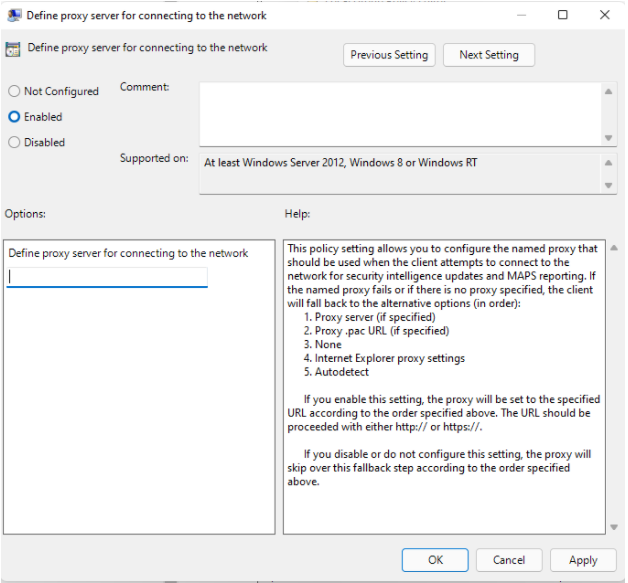
The policy creates the ProxyServer string value under HKLM\Software\Policies\Microsoft\Windows Defender. Use the following format:
<protocol>://<server-name-or-ip>:<port>
For example, http://10.0.0.6:8080.
To use a proxy auto-configuration (PAC) file, configure Define proxy auto-config (.pac) for connecting to the network. To bypass the proxy for specific destinations, configure Define addresses to bypass proxy server.
Configure proxy settings by using PowerShell
Use Microsoft Defender Antivirus cmdlets in an elevated PowerShell session on the local device (a PowerShell window you opened by selecting Run as administrator).
Configure a static proxy server or a PAC file:
Configure a static proxy server: Use the following syntax:
Set-MpPreference -ProxyServer "<protocol>://<server-name-or-ip>:<port>"For example:
Set-MpPreference -ProxyServer "http://10.0.0.6:8080"Configure a PAC file: Use the following syntax**:
Set-MpPreference -ProxyPacUrl "<pac-file-url>"For example:
Set-MpPreference -ProxyPacUrl "https://proxy.contoso.com/proxy.pac"
Bypass the proxy for specific destinations: Use the following syntax:
Set-MpPreference -ProxyBypass "<address-1>","<address-2>"For example:
Set-MpPreference -ProxyBypass "intranet.contoso.com","updates.fabrikam.com"Verify the configuration:
Get-MpPreference | Select-Object ProxyServer, ProxyPacUrl, ProxyBypass
For more information, see Use PowerShell cmdlets to configure and run Microsoft Defender Antivirus and Set-MpPreference.
Configure a system-wide static proxy by using netsh
On devices in a stable network topology, open Command Prompt by selecting Run as administrator, and use netsh winhttp to configure a system-wide static proxy.
Note
The configuration affects all applications and Windows services that use the default WinHTTP proxy configuration.
Use the following syntax:
netsh winhttp set proxy <proxy>:<port>
The following example configures the proxy server at 10.0.0.6 to use port 8080:
netsh winhttp set proxy 10.0.0.6:8080
To remove the current WinHTTP proxy configuration and return to direct connectivity, run the following command:
netsh winhttp reset proxy
To display the current configuration, configure bypass addresses, or use advanced WinHTTP proxy settings, see netsh winhttp. For general netsh conventions, see Netsh command syntax, contexts, and formatting.
Configure proxy settings for devices that use MMA
Windows 8.1 devices remain dependent on MMA for Defender for Endpoint. Windows 7 SP1, Windows Server 2008 R2 SP1, Windows Server 2012 R2, and Windows Server 2016 devices should use the newer Defender for Endpoint agent. For migration guidance, see Update MMA on Windows devices.
For Windows 8.1 and any other devices that temporarily continue to use MMA, configure a system-wide proxy, or configure MMA to connect through a proxy or Log Analytics gateway:
- Proxy: Configure the Log Analytics agent to use a proxy.
- Gateway: Download the Log Analytics gateway.
For onboarding guidance, see Onboard previous versions of Windows.
Related content
The following articles provide more information about proxy configuration, connectivity, onboarding, and troubleshooting for Defender for Endpoint:
- Verify client connectivity to Microsoft Defender for Endpoint service URLs
- Microsoft Defender for Endpoint streamlined connectivity URLs for commercial environments
- Disconnected environments, proxies, and Microsoft Defender for Endpoint
- Use Group Policy settings to configure and manage Microsoft Defender Antivirus
- Onboard client devices running Windows or macOS
- Troubleshoot Microsoft Defender for Endpoint onboarding issues
- Onboard devices without Internet access to Microsoft Defender for Endpoint