Napomena
Za pristup ovoj stranici potrebna je autorizacija. Možete se pokušati prijaviti ili promijeniti direktorije.
Za pristup ovoj stranici potrebna je autorizacija. Možete pokušati promijeniti direktorije.
Note
This article describes features used in agents or agent flows powered by the standard harness.
Use the Monitor page in Copilot Studio to review your conversational agent's effectiveness across analytics sessions. Identify where conversations succeed or break down, review user feedback, and find opportunities to improve answers and tool use.
Review the following areas:
- The Summary, Overview, and Savings areas show key insights, key performance indicators (KPIs), and estimated time and cost savings.
- The Custom metrics (preview) section lets you define business-specific metrics for your agent's use cases.
- The Effectiveness section helps you evaluate the quality of user experiences by showing where conversations succeed, where they break down, and how users feel about outcomes.
- The Use section helps you improve operational performance by showing how well your agent answers questions, how reliably tools and knowledge sources support those answers, and where targeted updates can increase coverage and consistency.
You can view analytics for events that occurred in the last 360 days.
Custom metrics (preview)
[This section is prerelease documentation and is subject to change.]
The Custom metrics section lets you define up to three business-specific metrics in natural language and track how often each outcome appears across sampled sessions. Use these metrics to complement your standard analytics insights with indicators that reflect your agent's goals and business use.
Important
This article contains Microsoft Copilot Studio preview documentation and is subject to change.
Preview features aren't meant for production use and may have restricted functionality. These features are available before an official release so that you can get early access and provide feedback.
If you're building a production-ready agent, see Microsoft Copilot Studio Overview.
Users with the Bot Transcript Viewer privilege can drill down to a list of customer sessions filtered based on the selected segment of the donut chart. Select an individual session to see the reasoning behind the metric and access its transcript.
Learn more about creating, testing, and refining metrics in Monitor your agent with custom metrics (preview).
Effectiveness
The Effectiveness section shows user feedback gathered from reactions, agent responses, survey results, and sentiment score for a session. Effectiveness is split across many subsections:
- Conversation outcomes: Knowing the end result of a conversation helps you begin to identify where your agent is succeeding and where it needs improvement.
- Reactions: User responses including thumbs up/thumbs down feedback and user comments for specific agent responses.
- Customer satisfaction: Display of customer satisfaction (CSAT) score.
- Sentiment (preview): An AI-based sentiment analysis for the entire session.
- Agents: See call volume metrics, success rates, and current status for child and connected agents.
The system stores feedback data in the conversation transcript table in Dataverse.
Conversation outcomes
The Conversation outcomes section shows a chart that tracks the type of outcome for each session between your agent and users.

The chart displays a stacked histogram or stacked area chart of session outcomes. Resolved, Escalated, Abandoned, and Unengaged each have a corresponding color in the legend. The y-axis indicates the number of sessions.
To view metrics for an outcome on a specific day, use the chart legend to identify the outcome, and then hover over its segment for that day.
To download conversation outcome data, open the chart menu and select Download CSV.
Note
If you remove any outcomes from the chart when you download, their data doesn't appear in the CSV.
To open a side panel with detailed information about conversation outcomes, select See details on the chart. The Conversation outcomes side panel includes:
- A pie chart breakdown of session outcomes, showing relative weighting (expressed as a percent) of Resolved, Escalated, and Abandoned outcomes.
- A stacked bar graph showing the relative weighting (expressed as a percent) of Resolved confirmed and Resolved implied outcome reasons describing all resolved session outcomes.
- A stacked bar graph showing the relative weighting (expressed as a percent) of System intended, System unintended, and User requested outcome reasons describing all escalated session outcomes.
- The top topics that led to each outcome.
Note
To see a tooltip with raw count information, hover over any of the pie chart or stacked bar chart segments.
A session falls into one of the following two states:
Unengaged: A session starts when a user interacts with your agent or the agent sends a proactive message to the user. The session begins in an unengaged state.
Engaged: The user actively interacts with the agent. There's a difference in behavior based on the agent's orchestration mode.
Classic orchestration: A session becomes engaged when one of the following topics is triggered:
- Custom topic directly triggered by the user
- Escalate topic
- Fallback topic
- Conversational boosting topic
Generative AI orchestration: A session becomes engaged when a user directly triggers a plan and includes one of the following elements:
- Nonsystem topic
- Escalate topic
- Fallback topic
- A Knowledge Source
- A tool
An engaged session has one of the following outcomes:
| Outcome category | Outcome | Description |
|---|---|---|
| Resolved | A session ends successfully. There are two types of resolved sessions: Resolved confirmed and Resolved implied. | |
| Resolved confirmed | A session is considered Resolved confirmed when the End of Conversation topic is triggered and the user confirms that the interaction was a success. | |
| Resolved implied | A session is Resolved implied when the session is completed without user confirmation but instead based on the agent's logic. The Resolved implied state depends on whether your agent uses Classic or Generative AI orchestration: - Classic orchestration: A session is considered Resolved implied when the End of Conversation topic is triggered, and the user lets the session time out without providing a confirmation. - Generative AI orchestration: A session is considered Resolved implied when a session times out and there are no remaining active plans. An active plan is a plan that's waiting for a user's input. |
|
| Escalated | A session ends but is considered Escalated when the Escalate topic is triggered or a Transfer to agent node is run (the current analytics session ends, whether the conversation transfers to a live agent or not). There are three types of escalated sessions: System intended, System unintended, and User requested. | |
| System intended | A session is escalated automatically as a result of an automatic business rule set by a maker. The escalation is an expected outcome of the conversation and isn't something needing investigation or change. Example: A user would like to transfer more than $25,000 to a third party. This amount exceeds a threshold in a business rule and the session is automatically escalated as a result. |
|
| System unintended | An escalation occurs automatically as a result of a session exceeding one or more thresholds set by a maker. Usually, this outcome indicates that the user is stuck in the conversation and needs assistance. Example: A session is escalated after three failures to do a particular task. |
|
| User requested | A session is escalated because there was an explicit user request during the conversation. Example: A user enters Transfer me to an agent. |
|
| Abandoned | A session ends and is considered Abandoned when an engaged session times out after 30 minutes and didn't reach a resolved or escalated state. |
You can also set the outcome for tools with the conversationOutcome parameter using the tool code editor. For example, conversationOutcome: ResolvedConfirmed for confirmed success or conversationOutcome: ResolvedImplied for implied success.
Reactions
The Reactions section shows user feedback gathered from reactions to agent responses. The chart counts the number of times users selected either the thumbs up (positive) or thumbs down (negative) buttons available on each response they received from your agent.
Note
- Agents published to the Microsoft Copilot channel require admin consent in the Microsoft 365 admin center to share user feedback, including reactions and comments. You can view this feedback on the Monitor page. Learn more in Agent settings in the Microsoft 365 admin center.
- Reactions from the Microsoft Copilot channel aren't aggregated or counted in the Reactions column in the Themes and Knowledge source use sections.
- To view comments, you must have the Bot Transcript Viewer security role.
The Reactions feature is On by default for all channels except the Microsoft Copilot channel. You can turn off this feature, if desired. You can also add or edit a disclaimer for users about how their feedback is used:
Open the agent, go to Settings, and find the User feedback section.
Turn Collect user reactions to agent messages either On or Off.
Add or edit a disclaimer so users know how their feedback is used. You can also provide privacy information and tips.
Users with the Bot Transcript Viewer privilege can drill down to agent responses for individual reactions and filter by user comments.
See reaction trends over time
Select See details on the Reactions tile to open the Reactions side panel. The panel shows how positive and negative reactions (from Thumbs up and Thumbs down) trend over time.
Customer satisfaction
The Customer satisfaction section shows information about user satisfaction based on user survey results:
Satisfaction score: A score out of 5 calculated from the average customer satisfaction (CSAT) scores for sessions in which users responded to end-of-session requests to take a survey.
Note
Scores of
1and2map to Dissatisfied, a score of3is considered Neutral, and scores of4and5map to Satisfied.Satisfaction by session: A stacked bar chart that visualizes the relative weighting for each of the survey's score categories, being
Dissatisfied,Neutral, andSatisfied. Hover over each segment of the chart to see the size of the sample and the numerical value of the weighting of each score category. For users with the Bot Transcript Viewer privilege, you can drill down to a list of customer sessions filtered based on the portion of the bar segment selected.
Select See details to view the Satisfaction score trend over the selected time period.
Sentiment (preview)
[This section is prerelease documentation and is subject to change.]
Sentiment analysis uses AI to analyze user messages from a sample of sessions to evaluate an overall user sentiment for the agent. The numerical value represents the percentage of sessions with negative user sentiment.
Important
This article contains Microsoft Copilot Studio preview documentation and is subject to change.
Preview features aren't meant for production use and may have restricted functionality. These features are available before an official release so that you can get early access and provide feedback.
If you're building a production-ready agent, see Microsoft Copilot Studio Overview.
Select See details to view the sentiment data for the relative weighting of each of the sentiment categories (being Positive, Neutral, and Negative).
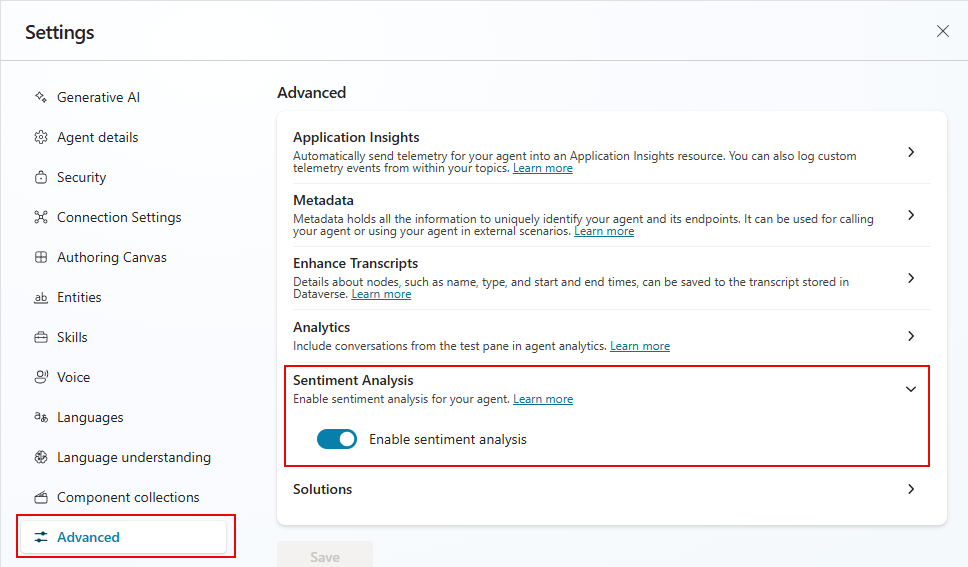
You can turn on and turn off sentiment analysis for your agent under Settings. When sentiment analysis is turned off, user sentiment isn't analyzed during sessions.
Go to Settings and select Advanced.
Turn Sentiment Analysis on or off.
Agents
The Agents list displays high-level volume, performance, and status metrics for connected and child agents of your main agent. The list identifies the relationship type the listed agent has to your main agent in the Type column. If an agent is a child agent, its type is Child. Connected agents have a listed type that reflects where they were created (for example, Copilot Studio, Azure AI Foundry). The Calls metric for each listed agent describes the volume of calls from the main agent to the connected or child agent. Success rate reflects the proportion of calls (as a % of all calls) that completed successfully. Status indicates the individual administrative status for each connected and child agent.
By default, the Agents list displays the top five connected and child agents of your main agent, ranked from highest to lowest total number of questions. If there are more than five agents, select See all to display all agents.
Note
The See all button is visible only if there are more than five connected or child agents to your main agent.
Use
The Use section helps you understand how users interact with your agent and where to improve answer reliability. Use is split across many subsections:
- Themes: Themes help you gain analytics insights by clustering user questions into AI-suggested categories.
- Generated answer rate and quality: Identify when your agent struggles to answer questions and how it uses knowledge sources to improve its answer rate and quality.
- Tool use: Learning how often tools are used and how often they succeed can help you understand if those tools are useful and successful for users.
- Knowledge source use: Learning how often individual knowledge sources are used and how often they return errors helps you improve the quality and coverage of your agent's answers.
Generated answer rate and quality
With generative answers, your agent can use AI to generate answers to user queries by using knowledge sources and the instructions you provide. However, your agent might not be able to answer all user queries. The Generated answer rate and quality section tracks, organizes, and analyzes unanswered queries and answer quality to give you guidance for improving your agent's answering performance.

The Answer rate shows the number of answered and unanswered questions within the selected time period and the percentage change over time.
Answer quality measures the quality of answers using AI. Copilot Studio analyzes a sample of answered questions for completeness, relevance, and groundedness. If an answer meets a set standard, Copilot Studio labels it as Good quality. Answers that don't meet that standard are labeled Poor quality. For Poor answers, Copilot Studio assigns a reason for the quality rating and shows the percentage of answers assigned to each category.
Hover over any segment of a bar in the chart to see the relative weighting of an individual reason for either a Good or Poor quality label. The tooltip also indicates the number of answers sampled to arrive at the calculated percent value.
In the legend below the chart, hover over any of the quality label reasons to highlight that reason in the chart.
Select a segment of the bar chart to open a page of user questions filtered on that response quality. Select See questions to view an unfiltered list of all questions within the configured time period.
Tool use
The Tool use section shows a chart and metrics that track how often your tools start over time, and how often your agent uses those tools successfully. It also shows trend indicators for how often your agent uses each tool and the percentage of called tools used successfully.
The chart displays the top five tools used over the date period defined at the top of the Monitor page.
In the legend under the chart, hover over any of the tools to highlight that tool in the chart.
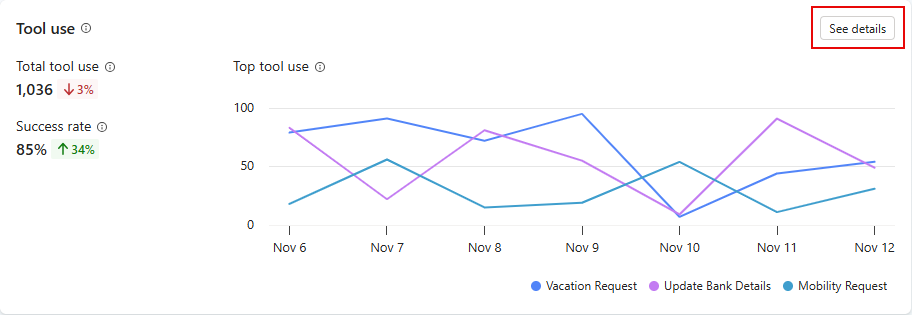
To open a side panel with a list of all tools used in the specified time period, along with trend indicators, select See details on the chart. On the Tool use panel, you can display calculations of the percentage of questions used for each tool. If your agent has child agents, you can choose to display calculations for both the main agent and child agents (All), the Main agent only, or the Child agent only.
Knowledge source use
The Knowledge source use section provides insight into how your agent uses its knowledge sources and how often those sources return errors. Learn more in Knowledge source use.