Napomena
Za pristup ovoj stranici potrebna je autorizacija. Možete se pokušati prijaviti ili promijeniti direktorije.
Za pristup ovoj stranici potrebna je autorizacija. Možete pokušati promijeniti direktorije.
Note
This article describes features used in agents or agent flows powered by the standard harness.
Use analytics to understand how well your agent is performing and to identify areas for improvement.
The Monitor page in Copilot Studio summarizes key metrics and provides usage analytics for your agent's components. Open individual metrics to explore the underlying data.
The Monitor experience is tailored for conversational agents and for autonomous agents.
Monitoring is available in all geographies. Monitor data is available for up to 360 days. Session details and transcript information are available for the last 28 days. Time-and-date stamps in analytics are in Coordinated Universal Time (UTC). The time-and-date stamps include day start and end times, session times, and any other time markers in your agent's data.
Note
The Monitor page doesn't show analytics for activity you complete when you test your agent in Copilot Studio by using the test panel.
Grant limited view-only access to analytics
If you're the agent owner, share the agent with the Analytics Viewer sharing role to grant access only to its Monitor page. To access conversation transcript information, the person must also have the Bot Transcript Viewer security role.
Learn more in Share an agent's analytics.
Important
As an agent owner, you can only share the Analytics viewer role with individuals and not with groups of users.
To access the Monitor page of your agent:
- Open your agent in Copilot Studio.
- Select Monitor on the top menu bar.
Summary
The Summary area uses Copilot to generate an AI summary of key analytics insights about your agent. Select View More to see the full summarized list of insights.
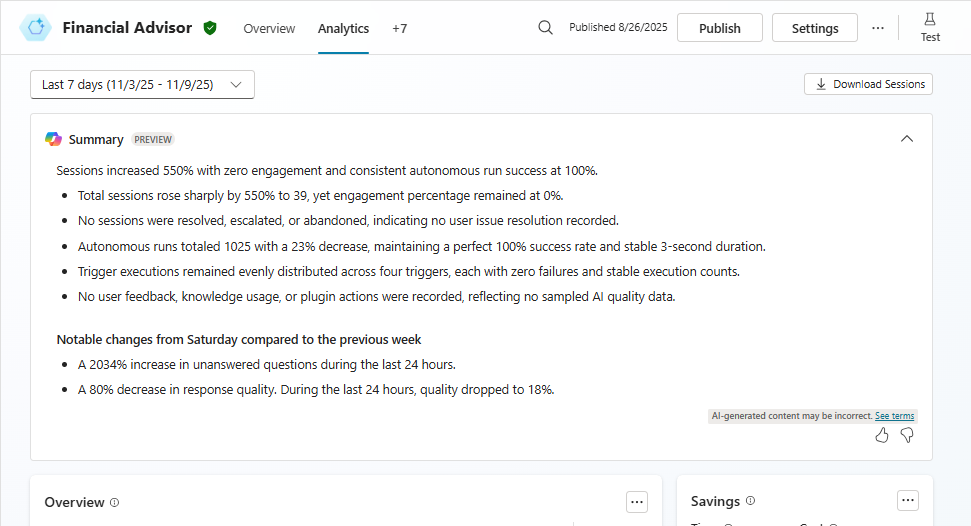
It helps you quickly understand common themes and metrics and identify areas for improvement for your agent by summarizing them in a bulleted list for the selected reporting period. This list can include engagement metrics, customer sentiment and feedback, and trends since the last reporting period.
Customer comments summary (preview)
[This section is prerelease documentation and is subject to change.]
The customer comments summary helps you understand high-level customer sentiment about the agent from feedback and comments. Insights are prioritized based on both the volume of related comments and their overall significance. The summary filters out low-value or irrelevant comments, and groups related feedback together.
Important
This article contains Microsoft Copilot Studio preview documentation and is subject to change.
Preview features aren't meant for production use and may have restricted functionality. These features are available before an official release so that you can get early access and provide feedback.
If you're building a production-ready agent, see Microsoft Copilot Studio Overview.
To provide feedback to Microsoft about this section, select Thumbs up or Thumbs down. Use the Submit feedback to Microsoft panel to add a comment and choose whether to share related files.
- On the Submit feedback to Microsoft panel, describe in natural language your likes or dislikes, depending on which icon you selected to open the panel.
- Choose whether to share prompt, generated response, relevant content samples, and extra log files.
- Select Submit.
Overview
Check a high-level performance summary in the Overview area, then explore individual metrics in more detail.
Active users
Active user metrics show adoption of a conversational agent and how it changes over time. An active user is a unique user who interacted with the conversational agent at least once during the report's period. The Monitor page displays daily active users (DAU) and monthly active users (MAU). The daily count covers a full 24-hour day in UTC. The monthly count follows the calendar month in UTC.
Important
The Active user metrics feature is only supported if you set your agent to require authentication under Settings > Security > Authentication.
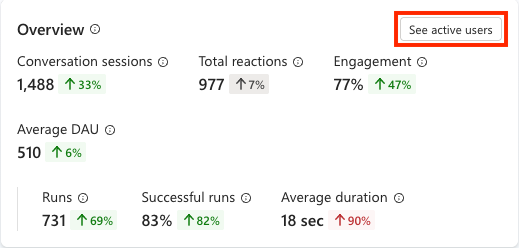
The average DAU for the selected period, plus its percent change from the previous period, appears as a key performance indicator (KPI) in the Overview section.
Note
The formula for the average DAU calculated metric is: (sum of all full-day active user counts in the period) / (count of full days in the period).
To see more details about daily and monthly active user counts as they trend over time, select the See active users button in the top right corner of the overview panel.
Conversational sessions only
Analytics for conversational agents in Copilot Studio track user engagement with your agent and try to capture how well your agent handles user tasks.
Conversational analytics uses the following concepts and terms:
Conversations are an ongoing interaction between a specific user, or group of users, on a channel and your agent.
Conversations can pause and resume later, or be transferred to a customer service representative. The conversation might be one-way, either from the customer to the agent, or from the agent to the customer, but it's more commonly a back-and-forth interaction between the customer and the agent.
A conversation times out after 30 minutes of inactivity.
For agents published to the Telephony channel, conversations time out 3 minutes after an End Conversation event.
A single conversation can contain one or more analytics sessions.
An analytics session powered by the Standard harness is associated with the last custom topic triggered by a user. If the session doesn't include custom topics, it's the last system topic triggered directly by the user.
Event trigger sessions only
An autonomous agent is an agent with an event trigger. These agents support only analytics for agents with triggers.
An analytics session for agents with triggers tracks from when an agent receives a payload from a trigger through any actions the agent runs in response. These analytics sessions capture what your agent is responding to, and how well your agent performs.
Note
If a trigger fails and the agent doesn't receive a trigger payload, an analytics session can't begin. Analytics tracks only successfully triggered runs.
Hybrid view - both conversational and event-triggered sessions
When your agent's data includes sessions for at least one conversation and at least one trigger-based run in the report's period, the Monitor page displays a hybrid view of relevant metrics for both conversational and autonomous sessions. In this view, the Overview and Effectiveness sections show metrics side by side for both the conversational and event-triggered sessions. The Use section allows you to select between Conversations or Runs, which displays only relevant data. Selecting All shows all use-related data. The Satisfaction section displays satisfaction metrics for conversational sessions.
Learn more in:
Monitor conversational agent effectiveness for conversational session metrics
Monitor autonomous agent health for event-triggered session metrics
Download conversational transcripts
You can download session transcripts in Copilot Studio for periods within the last 28 days. It can take up to an hour after an analytics session ends before the related data appears on the analytics dashboard. Learn more about availability, permissions, and download steps in Download conversation transcripts in Copilot Studio.
Dataverse transcript retention is separate from the 28-day session-data window in Copilot Studio. Learn more in Download conversation transcripts in Power Apps.
Topic usage analytics
In Copilot Studio, a topic defines how an agent conversation progresses and represents a portion of a conversation between a user and an agent. The topic Monitor pane shows how an individual topic is performing, including how often it's triggered, how sessions that include it resolve, and how satisfied users are with those sessions. Use these insights to identify topics that frequently escalate or are abandoned, then prioritize them for improvement. Learn more in Create and edit topics.
Note
Topic Monitor is only available for agents powered by the Standard harness and for topics associated with a session. If your agent uses generative orchestration, use conversation outcomes and themes on the Monitor page instead.
To view the topic Monitor panel:
Go to your agent's Topics page in Copilot Studio.
Select the topic you want to analyze. If no topics are available, see Create and edit topics.
In the upper-right corner of the Topics page, select More (...) > Monitor.
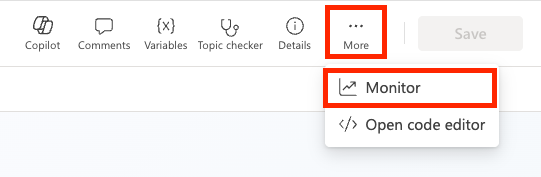
The topic Monitor panel shows:
- Topic outcomes: A chart of session outcomes,
Escalated,Resolved, andAbandoned, for sessions where this topic was triggered. Use this chart to quickly assess topic health. A high proportion ofEscalatedorAbandonedoutcomes can mean the topic needs improvement. - Total topic use: A chart of the topic outcomes trend over time. Use this to detect regressions, for example, a spike in Abandoned sessions after a topic was edited or to confirm that recent changes improved resolution rates.
- Customer satisfaction score: A score based on user survey responses from sessions associated with this topic.
- Satisfaction score trend: A chart that shows how the satisfaction score changes over time. Use this trend to identify periods where user sentiment declined or improved.
To change the time range, select the time range dropdown at the top of the topic Monitor panel.
Related information
Measure the return on investment (ROI) and business value of AI agents