Megjegyzés
Az oldalhoz való hozzáféréshez engedély szükséges. Megpróbálhat bejelentkezni vagy módosítani a címtárat.
Az oldalhoz való hozzáféréshez engedély szükséges. Megpróbálhatja módosítani a címtárat.
Ez a második része annak a teljes útmutatónak, amely bemutatja, hogyan használhatja a Windows Hello alternatívaként a hagyományos felhasználónév- és jelszó-hitelesítési rendszerek helyett a csomagolt Windows-alkalmazásokban. Ez a cikk az 1. rész Windows Hello bejelentkezési alkalmazás kikapcsolt helyét veszi fel, és kiterjeszti a funkciót, hogy bemutassuk, hogyan integrálható Windows Hello a meglévő alkalmazásba.
A project létrehozásához szüksége lesz némi tapasztalatra a C# és az XAML használatával kapcsolatban. A Visual Studio 2026-ot Windows 10 vagy Windows 11 rendszerű gépen is használnia kell. A fejlesztési környezet beállításával kapcsolatos utasításokért tekintse meg a WinUI 3-projekt létrehozását és futtatását .
1. gyakorlat: Kiszolgálóoldali logika
Ebben a gyakorlatban az első tesztkörnyezetben létrehozott Windows Hello alkalmazással kell kezdenie, és létre kell hoznia egy helyi mintakiszolgálót és adatbázist. Ez a laborgyakorlat arra szolgál, hogy megtanítsa, hogyan integrálható Windows Hello egy meglévő rendszerbe. A modellkiszolgáló és a modelladatbázis használatával sok nem kapcsolódó beállítás megszűnik. A saját alkalmazásaiban le kell cserélnie a modellobjektumokat a valós szolgáltatásokra és adatbázisokra.
Először nyissa meg a WindowsHelloLogin megoldást az első Windows Hello Hands On Labról.
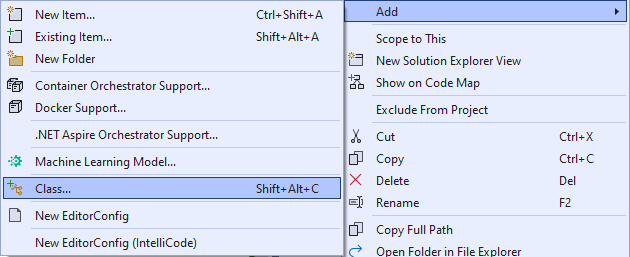
Első lépésként implementálja a modellkiszolgálót és a modelladatbázist. Hozzon létre egy új mappát "AuthService" néven. A Megoldáskezelő kattintson a jobb gombbal a WindowsHelloLogin project elemre, és válassza a Add>Új mappa lehetőséget.
Hozzon létre UserAccount és WindowsHelloDevices osztályokat, amelyek modellként szolgálnak a modelladatbázisban mentendő adatokhoz. A UserAccount hasonló lesz a hagyományos hitelesítési kiszolgálón implementált felhasználói modellhez. Kattintson a jobb gombbal az AuthService mappára, és adjon hozzá egy "UserAccount" nevű új osztályt.
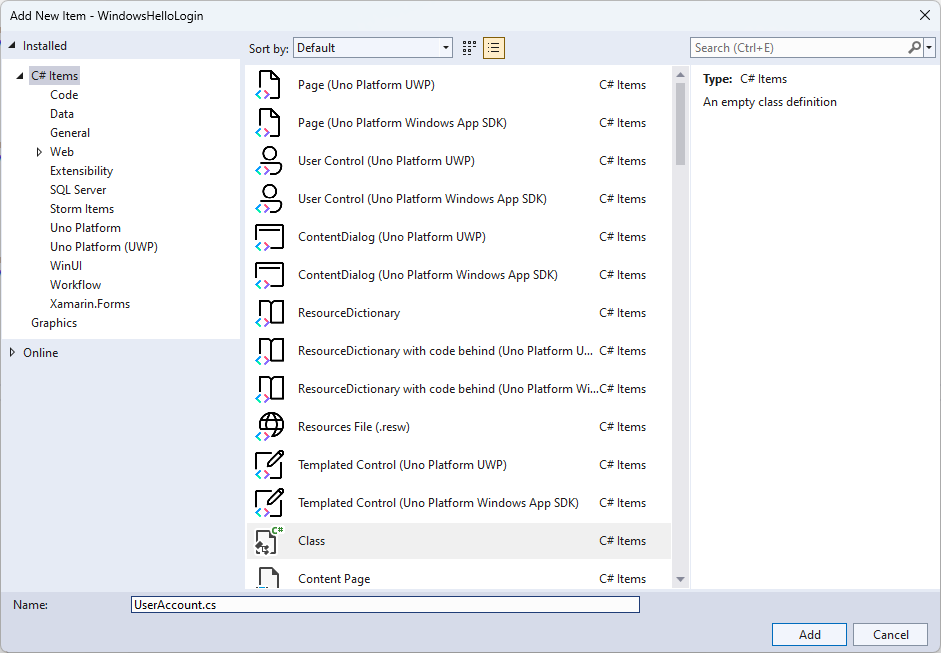
Módosítsa az osztály hatókörét nyilvánosra, és adja hozzá a Következő nyilvános tulajdonságokat a UserAccount osztályhoz. A
System.ComponentModel.DataAnnotationsnévtérhez hozzá kell adnia egy using utasítást.using System; using System.ComponentModel.DataAnnotations; namespace WindowsHelloLogin.AuthService { public class UserAccount { [Key, Required] public Guid UserId { get; set; } [Required] public string Username { get; set; } public string Password { get; set; } // public List<WindowsHelloDevice> WindowsHelloDevices = new(); } }Előfordulhat, hogy észrevette a WindowsHelloDevices kommentként kihagyott listáját. Ezt a módosítást egy meglévő felhasználói modellen kell elvégeznie az aktuális implementációban. A WindowsHelloDevices listája tartalmaz egy deviceID, a Windows Hello-ből készült nyilvános kulcsot, valamint egy KeyCredentialAttestationResult. Ehhez a gyakorlathoz implementálnia kell a keyAttestationResult, mivel csak tPM-chippel (megbízható platformmodulokkal) rendelkező eszközökön Windows Hello biztosítja őket. A KeyCredentialAttestationResult több tulajdonság kombinációja, ezért az adatbázissal való mentéshez és betöltéséhez fel kell osztani őket.
Hozzon létre egy új osztályt a "WindowsHelloDevice.cs" nevű AuthService mappában. Ez a modell a Windows Hello-eszközökhöz, ahogyan azt fent tárgyaltuk. Módosítsa az osztály hatókörét nyilvánosra, és adja hozzá a következő tulajdonságokat.
using System;

namespace WindowsHelloLogin.AuthService
{
    public class WindowsHelloDevice
    {
        // These are the new variables that will need to be added to the existing UserAccount in the Database
        // The DeviceName is used to support multiple devices for the one user.
        // This way the correct public key is easier to find as a new public key is made for each device.
        // The KeyAttestationResult is only used if the User device has a TPM (Trusted Platform Module) chip,
        // in most cases it will not. So will be left out for this hands on lab.
        public Guid DeviceId { get; set; }
        public byte[] PublicKey { get; set; }
        // public KeyCredentialAttestationResult KeyAttestationResult { get; set; }
    }
}
Térjen vissza a UserAccount.cs fájlhoz, és szüntesse meg a Windows Hello eszközök listájának kikommentelését.
using System.Collections.Generic;

namespace WindowsHelloLogin.AuthService
{
    public class UserAccount
    {
        [Key, Required]
        public Guid UserId { get; set; }
        [Required]
        public string Username { get; set; }
        public string Password { get; set; }
        public List<WindowsHelloDevice> WindowsHelloDevices = new();
    }
}
A UserAccount és a WindowsHelloDevice modelljével létre kell hoznia egy új osztályt az AuthService mappában, amely mintaadatbázisként fog működni, mivel ez egy makettadatbázis, ahonnan helyileg menti és betölti a felhasználói fiókok listáját. A valós világban ez lenne az adatbázis implementálása. Hozzon létre egy új osztályt a "MockStore.cs" nevű AuthService mappában. Módosítsa az osztály hatókörét nyilvánosra.
Mivel a maketttároló helyileg menti és betölti a felhasználói fiókok listáját, az XmlSerializer használatával megvalósíthatja a lista mentésére és betöltésére szolgáló logikát. A fájlnévre és a mentési helyre is emlékeznie kell. MockStore.cs fájlban hajtsa végre a következőket:
using System.Collections.Generic;
using System;
using System.IO;
using System.Linq;
using System.Text;
using System.Threading.Tasks;
using System.Xml.Serialization;
using Windows.Storage;

namespace WindowsHelloLogin.AuthService
{
    public class MockStore
    {
        private const string USER_ACCOUNT_LIST_FILE_NAME = "userAccountsList.txt";
        // This cannot be a const because the LocalFolder is accessed at runtime
        private string _userAccountListPath = Path.Combine(
            ApplicationData.Current.LocalFolder.Path, USER_ACCOUNT_LIST_FILE_NAME);
        private List<UserAccount> _mockDatabaseUserAccountsList;

#region Save and Load Helpers
        /// <summary>
        /// Create and save a useraccount list file. (Replacing the old one)
        /// </summary>
        private async Task SaveAccountListAsync()
        {
            string accountsXml = SerializeAccountListToXml();

            if (File.Exists(_userAccountListPath))
            {
                StorageFile accountsFile = await StorageFile.GetFileFromPathAsync(_userAccountListPath);
                await FileIO.WriteTextAsync(accountsFile, accountsXml);
            }
            else
            {
                StorageFile accountsFile = await ApplicationData.Current.LocalFolder.CreateFileAsync(USER_ACCOUNT_LIST_FILE_NAME);
                await FileIO.WriteTextAsync(accountsFile, accountsXml);
            }
        }

        /// <summary>
        /// Gets the useraccount list file and deserializes it from XML to a list of useraccount objects.
        /// </summary>
        /// <returns>List of useraccount objects</returns>
        private async Task LoadAccountListAsync()
        {
            if (File.Exists(_userAccountListPath))
            {
                StorageFile accountsFile = await StorageFile.GetFileFromPathAsync(_userAccountListPath);

                string accountsXml = await FileIO.ReadTextAsync(accountsFile);
                DeserializeXmlToAccountList(accountsXml);
            }

            // If the UserAccountList does not contain the sampleUser Initialize the sample users
            // This is only needed as it in a Hand on Lab to demonstrate a user being migrated.
            // In the real world, user accounts would just be in a database.
            if (!_mockDatabaseUserAccountsList.Any(f => f.Username.Equals("sampleUsername")))
            {
                //If the list is empty, call InitializeSampleAccounts and return the list
                //await InitializeSampleUserAccountsAsync();
            }
        }

        /// <summary>
        /// Uses the local list of accounts and returns an XML formatted string representing the list
        /// </summary>
        /// <returns>XML formatted list of accounts</returns>
        private string SerializeAccountListToXml()
        {
            var xmlizer = new XmlSerializer(typeof(List<UserAccount>));
            var writer = new StringWriter();
            xmlizer.Serialize(writer, _mockDatabaseUserAccountsList);
            return writer.ToString();
        }

        /// <summary>
        /// Takes an XML formatted string representing a list of accounts and returns a list object of accounts
        /// </summary>
        /// <param name="listAsXml">XML formatted list of accounts</param>
        /// <returns>List object of accounts</returns>
        private List<UserAccount> DeserializeXmlToAccountList(string listAsXml)
        {
            var xmlizer = new XmlSerializer(typeof(List<UserAccount>));
            TextReader textreader = new StreamReader(new MemoryStream(Encoding.UTF8.GetBytes(listAsXml)));
            return _mockDatabaseUserAccountsList = (xmlizer.Deserialize(textreader)) as List<UserAccount>;
        }
#endregion
    }
}
A LoadAccountListAsync metódusban észre vehették, hogy az InitializeSampleUserAccountsAsync metódus ki lett kommentelve. Ezt a metódust a MockStore.cs-ben kell létrehoznia. Ez a módszer feltölti a felhasználói fiókok listáját, hogy bejelentkezést hajthassunk létre. A valós világban a felhasználói adatbázis már fel lett töltve. Ebben a lépésben létrehoz egy konstruktort is, amely inicializálja a felhasználói listát, és meghívja a LoadAccountListAsyncet.
namespace WindowsHelloLogin.AuthService
{
    public class MockStore
    {
        private const string USER_ACCOUNT_LIST_FILE_NAME = "userAccountsList.txt";
        // This cannot be a const because the LocalFolder is accessed at runtime
        private string _userAccountListPath = Path.Combine(
            ApplicationData.Current.LocalFolder.Path, USER_ACCOUNT_LIST_FILE_NAME);
        private List<UserAccount> _mockDatabaseUserAccountsList;

        public MockStore()
        {
            _mockDatabaseUserAccountsList = new List<UserAccount>();
            _ = LoadAccountListAsync();
        }

        private async Task InitializeSampleUserAccountsAsync()
        {
            // Create a sample Traditional User Account that only has a Username and Password
            // This will be used initially to demonstrate how to migrate to use Windows Hello

            var sampleUserAccount = new UserAccount()
            {
                UserId = Guid.NewGuid(),
                Username = "sampleUsername",
                Password = "samplePassword",
            };

            // Add the sampleUserAccount to the _mockDatabase
            _mockDatabaseUserAccountsList.Add(sampleUserAccount);
            await SaveAccountListAsync();
        }
    }
}
Most, hogy az InitializeSampleUserAccountsAsync metódus létezik, szüntesse meg a megjegyzést a LoadAccountListAsync metódus hívásánál.
private async Task LoadAccountListAsync()
{
    if (File.Exists(_userAccountListPath))
    {
        StorageFile accountsFile = await StorageFile.GetFileFromPathAsync(_userAccountListPath);

        string accountsXml = await FileIO.ReadTextAsync(accountsFile);
        DeserializeXmlToAccountList(accountsXml);
    }

    // If the UserAccountList does not contain the sampleUser Initialize the sample users
    // This is only needed as it in a Hand on Lab to demonstrate a user migrating
    // In the real world user accounts would just be in a database
    if (!_mockDatabaseUserAccountsList.Any(f => f.Username.Equals("sampleUsername")))
            {
        //If the list is empty InitializeSampleUserAccountsAsync and return the list
        await InitializeSampleUserAccountsAsync();
    }
}
A mock store felhasználói fiókok listája mostantól menthető és betölthető. Az alkalmazás más részeinek access kell rendelkezniük ehhez a listához, hogy legyen néhány módszer az adatok lekérésére. Az InitializeSampleUserAccountsAsync metódus alatt adja hozzá az alábbi metódusokat az adatok lekéréséhez. Lehetővé teszik egy felhasználói azonosító, egy felhasználó, egy adott Windows Hello eszköz felhasználóinak listáját, valamint egy adott eszközön lévő felhasználó nyilvános kulcsának lekérését.
public Guid GetUserId(string username)
{
    if (_mockDatabaseUserAccountsList.Any())
    {
        UserAccount account = _mockDatabaseUserAccountsList.FirstOrDefault(f => f.Username.Equals(username));
        if (account != null)
        {
            return account.UserId;
        }
    }
    return Guid.Empty;
}

public UserAccount GetUserAccount(Guid userId)
{
    return _mockDatabaseUserAccountsList.FirstOrDefault(f => f.UserId.Equals(userId));
}

public List<UserAccount> GetUserAccountsForDevice(Guid deviceId)
{
    var usersForDevice = new List<UserAccount>();

    foreach (UserAccount account in _mockDatabaseUserAccountsList)
    {
        if (account.WindowsHelloDevices.Any(f => f.DeviceId.Equals(deviceId)))
        {
            usersForDevice.Add(account);
        }
    }

    return usersForDevice;
}

public byte[] GetPublicKey(Guid userId, Guid deviceId)
{
    UserAccount account = _mockDatabaseUserAccountsList.FirstOrDefault(f => f.UserId.Equals(userId));
    if (account != null)
    {
        if (account.WindowsHelloDevices.Any())
        {
            return account.WindowsHelloDevices.FirstOrDefault(p => p.DeviceId.Equals(deviceId)).PublicKey;
        }
    }
    return null;
}
A következő implementálási módszerek egyszerű műveleteket kezelnek egy fiók hozzáadásához, egy fiók eltávolításához és egy eszköz eltávolításához. Az eszköz eltávolítására azért van szükség, mert Windows Hello eszközspecifikus. Minden olyan eszköz esetében, amelyre bejelentkezik, egy új nyilvános és titkos kulcspárt hoz létre a Windows Hello. Ez olyan, mintha minden egyes eszközhöz más-más jelszóval kellene bejelentkeznie, az egyetlen dolog, hogy nem kell emlékeznie ezekre a jelszavakra; a kiszolgáló igen. Adja hozzá a következő metódusokat a MockStore.cs.
public async Task<UserAccount> AddAccountAsync(string username)
{
    UserAccount newAccount = null;
    try
    {
        newAccount = new UserAccount()
        {
            UserId = Guid.NewGuid(),
            Username = username,
        };

        _mockDatabaseUserAccountsList.Add(newAccount);
        await SaveAccountListAsync();
    }
    catch (Exception)
    {
        throw;
    }
    return newAccount;
}

public async Task<bool> RemoveAccountAsync(Guid userId)
{
    UserAccount userAccount = GetUserAccount(userId);
    if (userAccount != null)
    {
        _mockDatabaseUserAccountsList.Remove(userAccount);
        await SaveAccountListAsync();
        return true;
    }
    return false;
}

public async Task<bool> RemoveDeviceAsync(Guid userId, Guid deviceId)
{
    UserAccount userAccount = GetUserAccount(userId);
    WindowsHelloDevice deviceToRemove = null;
    if (userAccount != null)
    {
        foreach (WindowsHelloDevice device in userAccount.WindowsHelloDevices)
        {
            if (device.DeviceId.Equals(deviceId))
            {
                deviceToRemove = device;
                break;
            }
        }
    }

    if (deviceToRemove != null)
    {
        //Remove the WindowsHelloDevice
        userAccount.WindowsHelloDevices.Remove(deviceToRemove);
        await SaveAccountListAsync();
    }

    return true;
}
A MockStore osztályban adjon hozzá egy metódust, amely Windows Hello kapcsolódó információkat ad hozzá egy meglévő UserAccount. Ezt a metódust "WindowsHelloUpdateDetailsAsync" néven fogjuk használni, és paraméterekkel azonosítja a felhasználót és a Windows Hello részleteit. A KeyAttestationResult ki lett kommentelve a WindowsHelloDevice létrehozásakor; egy valós alkalmazásban erre szükség lenne.
using System.Threading.Tasks;
using Windows.Security.Credentials;

public async Task WindowsHelloUpdateDetailsAsync(Guid userId, Guid deviceId, byte[] publicKey,
    KeyCredentialAttestationResult keyAttestationResult)
{
    UserAccount existingUserAccount = GetUserAccount(userId);
    if (existingUserAccount != null)
    {
        if (!existingUserAccount.WindowsHelloDevices.Any(f => f.DeviceId.Equals(deviceId)))
        {
            existingUserAccount.WindowsHelloDevices.Add(new WindowsHelloDevice()
            {
                DeviceId = deviceId,
                PublicKey = publicKey,
                // KeyAttestationResult = keyAttestationResult
            });
        }
    }
    await SaveAccountListAsync();
}
A MockStore osztály befejeződött, mivel ez azt az adatbázist jelöli, amelyet privátnak kell tekinteni. A MockStore eléréséhez szükség van egy AuthService osztályra az adatbázisadatok kezeléséhez. Az AuthService mappában hozzon létre egy "AuthService.cs" nevű új osztályt. Módosítsa az osztály hatókörét nyilvánosra, és adjon hozzá egy szingleton mintát, hogy csak egy példányt hozzon létre.
namespace WindowsHelloLogin.AuthService
{
    public class AuthService
    {
        // Singleton instance of the AuthService
        // The AuthService is a mock of what a real world server and service implementation would be
        private static AuthService _instance;
        public static AuthService Instance
        {
            get
            {
                if (null == _instance)
                {
                    _instance = new AuthService();
                }
                return _instance;
            }
        }

        private AuthService()
        { }
    }
}
A AuthService osztálynak létre kell hoznia a MockStore osztály egy példányát, és access kell adnia a MockStore objektum tulajdonságainak.
namespace WindowsHelloLogin.AuthService
{
    public class AuthService
    {
        //Singleton instance of the AuthService
        //The AuthService is a mock of what a real world server and database implementation would be
        private static AuthService _instance;
        public static AuthService Instance
        {
            get
            {
                if (null == _instance)
                {
                    _instance = new AuthService();
                }
                return _instance;
            }
        }

        private AuthService()
        { }

        private MockStore _mockStore = new();

        public Guid GetUserId(string username)
        {
            return _mockStore.GetUserId(username);
        }

        public UserAccount GetUserAccount(Guid userId)
        {
            return _mockStore.GetUserAccount(userId);
        }

        public List<UserAccount> GetUserAccountsForDevice(Guid deviceId)
        {
            return _mockStore.GetUserAccountsForDevice(deviceId);
        }
    }
}
Az AuthService osztály metódusaira van szüksége ahhoz, hogy hozzáférjen a MockStore objektum Windows Hello részletek metódusainak hozzáadásához, eltávolításához és frissítéséhez. Az AuthService osztálydefiníció végén adja hozzá a következő metódusokat.
using System.Threading.Tasks;
using Windows.Security.Credentials;

public async Task RegisterAsync(string username)
{
    await _mockStore.AddAccountAsync(username);
}

public async Task<bool> WindowsHelloRemoveUserAsync(Guid userId)
{
    return await _mockStore.RemoveAccountAsync(userId);
}

public async Task<bool> WindowsHelloRemoveDeviceAsync(Guid userId, Guid deviceId)
{
    return await _mockStore.RemoveDeviceAsync(userId, deviceId);
}

public async Task WindowsHelloUpdateDetailsAsync(Guid userId, Guid deviceId, byte[] publicKey,
    KeyCredentialAttestationResult keyAttestationResult)
{
    await _mockStore.WindowsHelloUpdateDetailsAsync(userId, deviceId, publicKey, keyAttestationResult);
}
Az AuthService osztálynak meg kell adnia egy metódust a hitelesítő adatok ellenőrzéséhez. Ez a módszer felhasználónevet és jelszót használ, és ellenőrzi, hogy létezik-e a fiók, és hogy a jelszó érvényes-e. Egy meglévő rendszernek ezzel egyenértékű módszere lenne, amely ellenőrzi, hogy a felhasználó jogosult-e rá. Adja hozzá a következő Hitelesítő adatok érvényesítése metódust a AuthService.cs fájlhoz.
public bool ValidateCredentials(string username, string password)
{
    if (!string.IsNullOrEmpty(username) && !string.IsNullOrEmpty(password))
    {
        // This would be used for existing accounts migrating to use Windows Hello
        Guid userId = GetUserId(username);
        if (userId != Guid.Empty)
        {
            UserAccount account = GetUserAccount(userId);
            if (account != null)
            {
                if (string.Equals(password, account.Password))
                {
                    return true;
                }
            }
        }
    }
    return false;
}
Az AuthService osztálynak szüksége van egy kérés-kihívási metódusra, amely egy kihívást ad vissza az ügyfélnek annak ellenőrzéséhez, hogy a felhasználó az-e, akinek állítja magát. Ezután egy másik metódusra van szükség az AuthService osztályban az aláírt kihívás ügyféltől való visszaküldés fogadásához. Ebben a gyakorlati laborban a módszer, amellyel megállapíthatja, hogy az aláírt kihívás befejeződött-e, hiányos maradt. A Windows Hello minden implementációja egy meglévő hitelesítési rendszerbe kissé eltérő lesz. A kiszolgálón tárolt nyilvános kulcsnak meg kell egyeznie azzal az eredménnyel, amit az ügyfél visszaadott a kiszolgálónak. Adja hozzá ezt a két metódust a AuthService.cs.
using Windows.Security.Cryptography;
using Windows.Storage.Streams;

public IBuffer WindowsHelloRequestChallenge()
{
    return CryptographicBuffer.ConvertStringToBinary("ServerChallenge", BinaryStringEncoding.Utf8);
}

public bool SendServerSignedChallenge(Guid userId, Guid deviceId, byte[] signedChallenge)
{
    // Depending on your company polices and procedures this step will be different
    // It is at this point you will need to validate the signedChallenge that is sent back from the client.
    // Validation is used to ensure the correct user is trying to access this account.
    // The validation process will use the signedChallenge and the stored PublicKey
    // for the username and the specific device signin is called from.
    // Based on the validation result you will return a bool value to allow access to continue or to block the account.

    // For this sample validation will not happen as a best practice solution does not apply and will need to
       // be configured for each company.
    // Simply just return true.

    // You could get the User's Public Key with something similar to the following:
    byte[] userPublicKey = _mockStore.GetPublicKey(userId, deviceId);
    return true;
}
2. gyakorlat: Ügyféloldali logika
Ebben a gyakorlatban az ügyféloldali nézeteket és a segédosztályokat fogja módosítani az első tesztkörnyezetből az AuthService osztály használatára. A valós világban az AuthService lenne a hitelesítési kiszolgáló, és a web API-k használatával kellene adatokat küldenie és fogadnia a kiszolgálóról. Ehhez a gyakorlati laboratóriumhoz a kliens és a kiszolgáló is helyi, hogy a dolgok egyszerűek maradjanak. A cél az Windows Hello API-k használatának elsajátítása.
A MainPage.xaml.cs eltávolíthatja az AccountHelper.LoadAccountListAsync metódushívást a betöltött metódusból, mivel az AuthService osztály létrehozza a MockStore egy példányát a fióklista betöltéséhez. A
Loadedmetódusnak most az alábbi kódrészlethez hasonlóan kell kinéznie. Vegye figyelembe, hogy az aszinkron metódus definíciója el lesz távolítva, mivel nem vár semmire.private void MainPage_Loaded(object sender, RoutedEventArgs e) { Frame.Navigate(typeof(UserSelection)); }Frissítse a bejelentkezési oldal felületét, hogy jelszó megadását követelje meg. Ez a tesztkörnyezet bemutatja, hogyan migrálható egy meglévő rendszer a Windows Hello használatára, és a meglévő fiókok felhasználónévvel és jelszóval rendelkeznek. Frissítse az XAML alján található magyarázatot is, hogy tartalmazza az alapértelmezett jelszót. Frissítse a következő XAML-t a Login.xaml fájlban.
<Grid>
  <StackPanel>
    <TextBlock Text="Login" FontSize="36" Margin="4" TextAlignment="Center"/>

    <TextBlock x:Name="ErrorMessage" Text="" FontSize="20" Margin="4" Foreground="Red" TextAlignment="Center"/>

    <TextBlock Text="Enter your credentials below" Margin="0,0,0,20"
               TextWrapping="Wrap" Width="300"
               TextAlignment="Center" VerticalAlignment="Center" FontSize="16"/>

    <StackPanel Orientation="Horizontal" HorizontalAlignment="Center">
      <!-- Username Input -->
      <TextBlock x:Name="UserNameTextBlock" Text="Username: "
                 FontSize="20" Margin="4" Width="100"/>
      <TextBox x:Name="UsernameTextBox" PlaceholderText="sampleUsername" Width="200" Margin="4"/>
    </StackPanel>

    <StackPanel Orientation="Horizontal" HorizontalAlignment="Center">
      <!-- Password Input -->
      <TextBlock x:Name="PasswordTextBlock" Text="Password: "
                 FontSize="20" Margin="4" Width="100"/>
      <PasswordBox x:Name="PasswordBox" PlaceholderText="samplePassword" Width="200" Margin="4"/>
    </StackPanel>

    <Button x:Name="LoginButton" Content="Login" Background="DodgerBlue" Foreground="White"
            Click="LoginButton_Click" Width="80" HorizontalAlignment="Center" Margin="0,20"/>

    <TextBlock Text="Don't have an account?"
               TextAlignment="Center" VerticalAlignment="Center" FontSize="16"/>
    <TextBlock x:Name="RegisterButtonTextBlock" Text="Register now"
               PointerPressed="RegisterButtonTextBlock_OnPointerPressed"
               Foreground="DodgerBlue"
               TextAlignment="Center" VerticalAlignment="Center" FontSize="16"/>

    <Border x:Name="WindowsHelloStatus" Background="#22B14C"
            Margin="0,20" Height="100">
      <TextBlock x:Name="WindowsHelloStatusText" Text="Windows Hello is ready to use!"
                 Margin="4" TextAlignment="Center" VerticalAlignment="Center" FontSize="20"/>
    </Border>

    <TextBlock x:Name="LoginExplanation" FontSize="24" TextAlignment="Center" TextWrapping="Wrap"
               Text="Please Note: To demonstrate a login, validation will only occur using the default username 'sampleUsername' and default password 'samplePassword'"/>
  </StackPanel>
</Grid>
A Bejelentkezési osztály kód mögötti fájljában módosítania kell az
Accountosztály tetején lévő privát változótUserAccount. Módosítsa az eseménytOnNavigateToúgy, hogy a típus egyUserAccountlegyen. A következő 'using' utasításra is szüksége lesz.using WindowsHelloLogin.AuthService; namespace WindowsHelloLogin.Views { public sealed partial class Login : Page { private UserAccount _account; private bool _isExistingAccount; public Login() { this.InitializeComponent(); } protected override async void OnNavigatedTo(NavigationEventArgs e) { //Check Windows Hello is setup and available on this machine if (await WindowsHelloHelper.WindowsHelloAvailableCheckAsync()) { if (e.Parameter != null) { _isExistingAccount = true; //Set the account to the existing account being passed in _account = (UserAccount)e.Parameter; UsernameTextBox.Text = _account.Username; await SignInWindowsHelloAsync(); } } } private async void LoginButton_Click(object sender, RoutedEventArgs e) { ErrorMessage.Text = ""; await SignInWindowsHelloAsync(); } } }Mivel a bejelentkezési lap az előző
UserAccountobjektum helyett egyAccountobjektumot használ, a WindowsHelloHelper.cs frissíteni kell, hogy paramétertípusként használhassaUserAccountaz egyes metódusokat. A CreateWindowsHelloKeyAsync, a RemoveWindowsHelloAccountAsync és a GetWindowsHelloAuthenticationMessageAsync metódushoz a következő paramétereket kell módosítania. Mivel azUserAccountosztály rendelkezikGuiduserId azonosítóval, az azonosítót több helyen fogja használni, hogy pontosabb legyen.public static async Task<bool> CreateWindowsHelloKeyAsync(Guid userId, string username) { KeyCredentialRetrievalResult keyCreationResult = await KeyCredentialManager.RequestCreateAsync(username, KeyCredentialCreationOption.ReplaceExisting); return true; } public static async Task RemoveWindowsHelloAccountAsync(UserAccount account) { } public static async Task<bool> GetWindowsHelloAuthenticationMessageAsync(UserAccount account) { KeyCredentialRetrievalResult openKeyResult = await KeyCredentialManager.OpenAsync(account.Username); //Calling OpenAsync will allow the user access to what is available in the app and will not require user credentials again. //If you wanted to force the user to sign in again you can use the following: //var consentResult = await Windows.Security.Credentials.UI.UserConsentVerifier.RequestVerificationAsync(account.Username); //This will ask for the either the password of the currently signed in Microsoft Account or the PIN used for Windows Hello. if (openKeyResult.Status == KeyCredentialStatus.Success) { //If OpenAsync has succeeded, the next thing to think about is whether the client application requires access to backend services. //If it does here you would Request a challenge from the Server. The client would sign this challenge and the server //would check the signed challenge. If it is correct it would allow the user access to the backend. //You would likely make a new method called RequestSignAsync to handle all this //for example, RequestSignAsync(openKeyResult); //Refer to the second Windows Hello sample for information on how to do this. //For this sample there is not concept of a server implemented so just return true. return true; } else if (openKeyResult.Status == KeyCredentialStatus.NotFound) { //If the _account is not found at this stage. It could be one of two errors. //1. Windows Hello has been disabled //2. Windows Hello has been disabled and re-enabled cause the Windows Hello Key to change. //Calling CreateWindowsHelloKeyAsync and passing through the account will attempt to replace the existing Windows Hello Key for that account. //If the error really is that Windows Hello is disabled then the CreateWindowsHelloKeyAsync method will output that error. if (await CreateWindowsHelloKeyAsync(account.UserId, account.Username)) { //If the Windows Hello Key was again successfully created, Windows Hello has just been reset. //Now that the Windows Hello Key has been reset for the account retry sign in. return await GetWindowsHelloAuthenticationMessageAsync(account); } } // Can't use Windows Hello right now, try again later return false; }A SignInWindowsHelloAsync metódust Login.xaml.cs fájlban frissíteni kell az AuthService használatához a AccountHelper helyett. A hitelesítő adatok érvényesítése az AuthService szolgáltatáson keresztül történik. Ehhez a gyakorlati laboratóriumhoz az egyetlen konfigurált fiók a "sampleUsername". Ez a fiók az InitializeSampleUserAccountsAsync metódusban jön létre MockStore.cs. Frissítse a SignInWindowsHelloAsync metódust a Login.xaml.cs fájlban úgy, hogy tükrözze az alábbi kódrészletet.
private async Task SignInWindowsHelloAsync()
{
    if (_isExistingAccount)
    {
        if (await WindowsHelloHelper.GetWindowsHelloAuthenticationMessageAsync(_account))
        {
            Frame.Navigate(typeof(Welcome), _account);
        }
    }
    else if (AuthService.AuthService.Instance.ValidateCredentials(UsernameTextBox.Text, PasswordBox.Password))
    {
        Guid userId = AuthService.AuthService.Instance.GetUserId(UsernameTextBox.Text);

        if (userId != Guid.Empty)
        {
            //Now that the account exists on server try and create the necessary details and add them to the account
            if (await WindowsHelloHelper.CreateWindowsHelloKeyAsync(userId, UsernameTextBox.Text))
            {
                Debug.WriteLine("Successfully signed in with Windows Hello!");
                //Navigate to the Welcome Screen.
                _account = AuthService.AuthService.Instance.GetUserAccount(userId);
                Frame.Navigate(typeof(Welcome), _account);
            }
            else
            {
                //The Windows Hello account creation failed.
                //Remove the account from the server as the details were not configured
                await AuthService.AuthService.Instance.WindowsHelloRemoveUserAsync(userId);

                ErrorMessage.Text = "Account Creation Failed";
            }
        }
    }
    else
    {
        ErrorMessage.Text = "Invalid Credentials";
    }
}
Mivel Windows Hello minden eszközön más-más nyilvános és titkos kulcspárt hoz létre, a Welcome lapnak meg kell jelenítenie a bejelentkezett fiók regisztrált eszközeinek listáját, és engedélyeznie kell, hogy mindegyik feledésbe merüljön. A Welcome.xaml fájlban adja hozzá a következő XAML-t a
ForgetButtonalá. Ez egy felejtőeszköz-gombot, egy hibaszöveg-területet és egy listát fog implementálni az összes eszköz megjelenítéséhez.<Grid> <StackPanel> <TextBlock x:Name="Title" Text="Welcome" FontSize="40" TextAlignment="Center"/> <TextBlock x:Name="UserNameText" FontSize="28" TextAlignment="Center"/> <Button x:Name="BackToUserListButton" Content="Back to User List" Click="Button_Restart_Click" HorizontalAlignment="Center" Margin="0,20" Foreground="White" Background="DodgerBlue"/> <Button x:Name="ForgetButton" Content="Forget Me" Click="Button_Forget_User_Click" Foreground="White" Background="Gray" HorizontalAlignment="Center"/> <Button x:Name="ForgetDeviceButton" Content="Forget Device" Click="Button_Forget_Device_Click" Foreground="White" Background="Gray" Margin="0,40,0,20" HorizontalAlignment="Center"/> <TextBlock x:Name="ForgetDeviceErrorTextBlock" Text="Select a device first" TextWrapping="Wrap" Width="300" Foreground="Red" TextAlignment="Center" VerticalAlignment="Center" FontSize="16" Visibility="Collapsed"/> <ListView x:Name="UserListView" MaxHeight="500" MinWidth="350" Width="350" HorizontalAlignment="Center"> <ListView.ItemTemplate> <DataTemplate> <Grid Background="Gray" Height="50" Width="350" HorizontalAlignment="Center" VerticalAlignment="Stretch" > <TextBlock Text="{Binding DeviceId}" HorizontalAlignment="Center" TextAlignment="Center" VerticalAlignment="Center" Foreground="White"/> </Grid> </DataTemplate> </ListView.ItemTemplate> </ListView> </StackPanel> </Grid>A Welcome.xaml.cs fájlban az osztály tetején lévő privát
Accountváltozót privátUserAccountváltozóként kell módosítania. Ezután frissítse a metódust azOnNavigatedToAuthService használatára, és kérje le az aktuális fiók adatait. Ha rendelkezik a fiók adataival, beállíthatja, hogy aItemsSourcelista megjelenítse az eszközöket. Hozzá kell adnia egy hivatkozást az AuthService névtérhez.using WindowsHelloLogin.AuthService; namespace WindowsHelloLogin.Views { public sealed partial class Welcome : Page { private UserAccount _activeAccount; public Welcome() { InitializeComponent(); } protected override void OnNavigatedTo(NavigationEventArgs e) { _activeAccount = (UserAccount)e.Parameter; if (_activeAccount != null) { UserAccount account = AuthService.AuthService.Instance.GetUserAccount(_activeAccount.UserId); if (account != null) { UserListView.ItemsSource = account.WindowsHelloDevices; UserNameText.Text = account.Username; } } } } }Mivel a fiók eltávolításakor az AuthService szolgáltatást fogja használni, a metódusban található
Button_Forget_User_ClickAccountHelperre mutató hivatkozás eltávolítható. A metódusnak most az alábbi módon kell kinéznie.private async void Button_Forget_User_Click(object sender, RoutedEventArgs e) { //Remove it from Windows Hello await WindowsHelloHelper.RemoveWindowsHelloAccountAsync(_activeAccount); Debug.WriteLine($"User {_activeAccount.Username} deleted."); //Navigate back to UserSelection page. Frame.Navigate(typeof(UserSelection)); }A WindowsHelloHelper metódus nem az AuthService használatával távolítja el a fiókot. Meg kell hívnia az AuthService szolgáltatást , és át kell adnia a userId azonosítót.
public static async Task RemoveWindowsHelloAccountAsync(UserAccount account)
{
    //Open the account with Windows Hello
    KeyCredentialRetrievalResult keyOpenResult = await KeyCredentialManager.OpenAsync(account.Username);

    if (keyOpenResult.Status == KeyCredentialStatus.Success)
    {
        // In the real world you would send key information to server to unregister
        await AuthService.AuthService.Instance.WindowsHelloRemoveUserAsync(account.UserId);
    }

    //Then delete the account from the machines list of Windows Hello Accounts
    await KeyCredentialManager.DeleteAsync(account.Username);
}
Mielőtt befejezené az üdvözlőlap implementálását, létre kell hoznia egy metódust WindowsHelloHelper.cs, amely lehetővé teszi az eszköz eltávolítását. Hozzon létre egy új metódust, amely meghívja a WindowsHelloRemoveDeviceAsyncot az AuthService szolgáltatásban.
public static async Task RemoveWindowsHelloDeviceAsync(UserAccount account, Guid deviceId)
{
    await AuthService.AuthService.Instance.WindowsHelloRemoveDeviceAsync(account.UserId, deviceId);
}
Az Welcome.xaml.cs implementálja a Button_Forget_Device_Click eseménykezelőt. Ez az eszközlistából kiválasztott eszközt fogja használni, és a Windows Hello segéd használatával hívja meg az eltávolítási eszközt. Ne feledje, hogy az eseménykezelő aszinkron legyen.
private async void Button_Forget_Device_Click(object sender, RoutedEventArgs e)
{
    WindowsHelloDevice selectedDevice = UserListView.SelectedItem as WindowsHelloDevice;
    if (selectedDevice != null)
    {
        //Remove it from Windows Hello
        await WindowsHelloHelper.RemoveWindowsHelloDeviceAsync(_activeAccount, selectedDevice.DeviceId);

        Debug.WriteLine($"User {_activeAccount.Username} deleted.");

        if (!UserListView.Items.Any())
        {
            //Navigate back to UserSelection page.
            Frame.Navigate(typeof(UserSelection));
        }
    }
    else
    {
        ForgetDeviceErrorTextBlock.Visibility = Visibility.Visible;
    }
}
A következő frissíteni kívánt lap a UserSelection oldal. A UserSelection lapnak az AuthService használatával kell lekérnie az aktuális eszköz összes felhasználói fiókját. Jelenleg nincs mód arra, hogy eszközazonosítót kapjon az AuthService-nek való továbbításhoz, hogy az visszaadhassa az adott eszköz felhasználói fiókjait. A Utils mappában hozzon létre egy "Helpers.cs" nevű új osztályt. Módosítsa az osztály hatókörét nyilvános statikusra, majd adja hozzá a következő metódust, amely lehetővé teszi az aktuális eszközazonosító lekérését.
using System;
using Windows.Security.ExchangeActiveSyncProvisioning;

namespace WindowsHelloLogin.Utils
{
    public static class Helpers
    {
        public static Guid GetDeviceId()
        {
            //Get the Device ID to pass to the server
            var deviceInformation = new EasClientDeviceInformation();
            return deviceInformation.Id;
        }
    }
}
A UserSelection laposztályban csak a mögöttes kódnak kell megváltoznia, a felhasználói felületnek nem. A UserSelection.xaml.cs frissítse a UserSelection_Loaded metódust és a UserSelectionChanged metódust az
UserAccountosztály helyett azAccountosztály használatára. Az eszköz összes felhasználóját az AuthService használatával is le kell kérni.using System.Linq; using WindowsHelloLogin.AuthService; namespace WindowsHelloLogin.Views { public sealed partial class UserSelection : Page { public UserSelection() { InitializeComponent(); Loaded += UserSelection_Loaded; } private void UserSelection_Loaded(object sender, RoutedEventArgs e) { List<UserAccount> accounts = AuthService.AuthService.Instance.GetUserAccountsForDevice(Helpers.GetDeviceId()); if (accounts.Any()) { UserListView.ItemsSource = accounts; UserListView.SelectionChanged += UserSelectionChanged; } else { //If there are no accounts navigate to the Login page Frame.Navigate(typeof(Login)); } } /// <summary> /// Function called when an account is selected in the list of accounts /// Navigates to the Login page and passes the chosen account /// </summary> private void UserSelectionChanged(object sender, RoutedEventArgs e) { if (((ListView)sender).SelectedValue != null) { UserAccount account = (UserAccount)((ListView)sender).SelectedValue; if (account != null) { Debug.WriteLine($"Account {account.Username} selected!"); } Frame.Navigate(typeof(Login), account); } } } }A WindowsHelloRegister oldalnak frissítenie kell a kód mögötti fájlt. A felhasználói felületnek nincs szüksége módosításokra. A WindowsHelloRegister.xaml.cs távolítsa el a privát
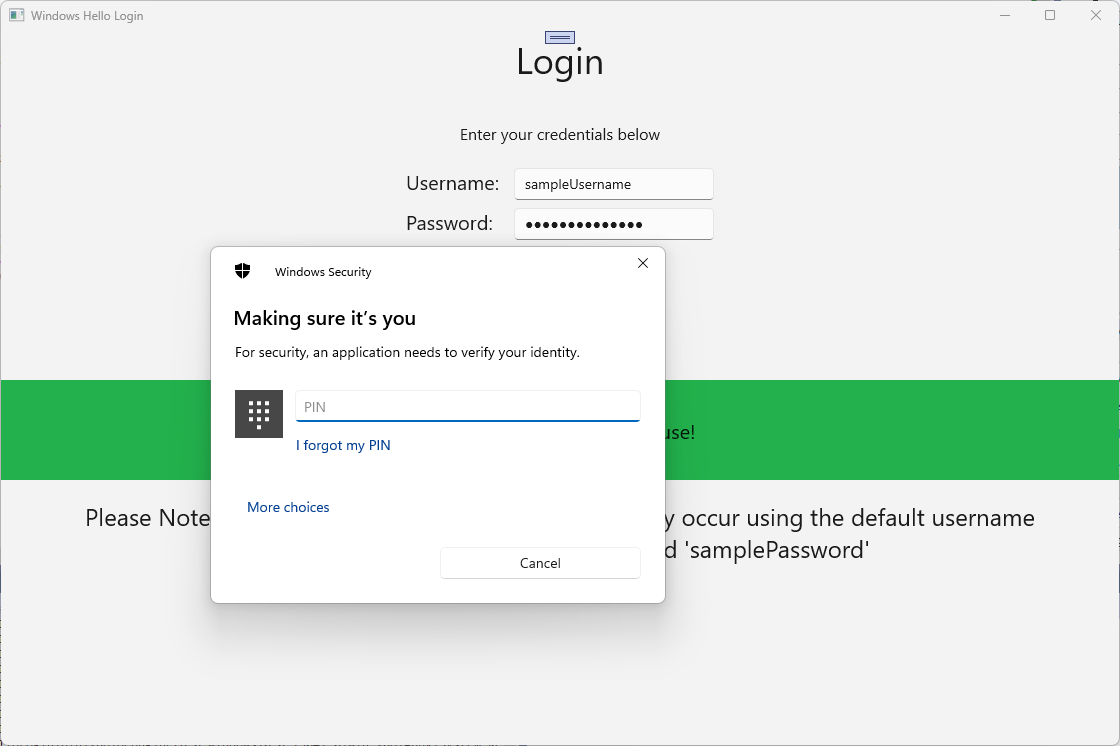
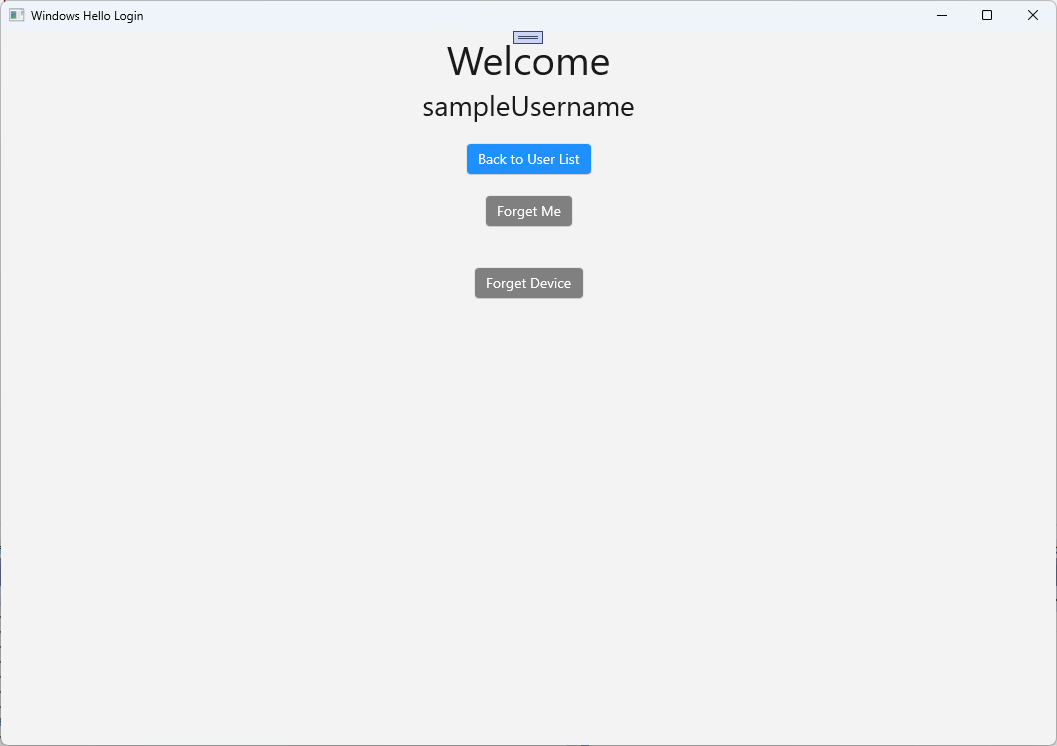
Accountváltozót az osztály tetején, mivel már nincs rá szükség. Frissítse a RegisterButton_Click_Async eseménykezelőt az AuthService használatára. Ez a metódus létrehoz egy új UserAccount-fiókot , majd megpróbálja frissíteni a fiók részleteit. Ha Windows Hello nem tud kulcsot létrehozni, a rendszer eltávolítja a fiókot, mert a regisztrációs folyamat meghiúsult.private async void RegisterButton_Click_Async(object sender, RoutedEventArgs e) { ErrorMessage.Text = ""; //Validate entered credentials are acceptable if (!string.IsNullOrEmpty(UsernameTextBox.Text)) { //Register an Account on the AuthService so that we can get back a userId await AuthService.AuthService.Instance.RegisterAsync(UsernameTextBox.Text); Guid userId = AuthService.AuthService.Instance.GetUserId(UsernameTextBox.Text); if (userId != Guid.Empty) { //Now that the account exists on server try and create the necessary details and add them to the account if (await WindowsHelloHelper.CreateWindowsHelloKeyAsync(userId, UsernameTextBox.Text)) { //Navigate to the Welcome Screen. Frame.Navigate(typeof(Welcome), AuthService.AuthService.Instance.GetUserAccount(userId)); } else { //The Windows Hello account creation failed. //Remove the account from the server as the details were not configured await AuthService.AuthService.Instance.WindowsHelloRemoveUserAsync(userId); ErrorMessage.Text = "Account Creation Failed"; } } } else { ErrorMessage.Text = "Please enter a username"; } }Hozza létre és futtassa az alkalmazást. Jelentkezzen be a minta felhasználói fiókba a "sampleUsername" és a "samplePassword" hitelesítő adatokkal. Az üdvözlőképernyőn láthatja, hogy megjelenik az Eszközök elfelejtése gomb, de nincsenek eszközök. Amikor létrehoz vagy migrál egy felhasználót, hogy a Windows Hello-val működjön, a fiókadatok nem kerülnek leküldésre a AuthService-be.
A Windows Hello fiók adatainak a AuthService való lekéréséhez frissíteni kell a WindowsHelloHelper.cs. A CreateWindowsHelloKeyAsync metódusban ahelyett, hogy csak a sikeres esetben tér vissza
true, egy új metódust kell meghívnia, amely megpróbálja lekérni a KeyAttestation metódust. Bár ez a gyakorlati labor nem rögzíti ezeket az információkat az AuthService-ben, megtudhatja, hogyan szerezheti be ezt az információt az ügyféloldalon. Frissítse a CreateWindowsHelloKeyAsync metódust az alábbiak szerint:public static async Task<bool> CreateWindowsHelloKeyAsync(Guid userId, string username) { KeyCredentialRetrievalResult keyCreationResult = await KeyCredentialManager.RequestCreateAsync(username, KeyCredentialCreationOption.ReplaceExisting); switch (keyCreationResult.Status) { case KeyCredentialStatus.Success: Debug.WriteLine("Successfully made key"); await GetKeyAttestationAsync(userId, keyCreationResult); return true; case KeyCredentialStatus.UserCanceled: Debug.WriteLine("User cancelled sign-in process."); break; case KeyCredentialStatus.NotFound: // User needs to setup Windows Hello Debug.WriteLine($"Windows Hello is not set up!{Environment.NewLine}Please go to Windows Settings and set up a PIN to use it."); break; default: break; } return false; }A WindowsHelloHelper.cs fájlban hozzon létre egy GetKeyAttestationAsync metódust. Ez a módszer bemutatja, hogyan szerezheti be a Windows Hello által egy adott eszközön található összes fiókhoz szükséges információkat.
using Windows.Storage.Streams;

private static async Task GetKeyAttestationAsync(Guid userId, KeyCredentialRetrievalResult keyCreationResult)
{
    KeyCredential userKey = keyCreationResult.Credential;
    IBuffer publicKey = userKey.RetrievePublicKey();
    KeyCredentialAttestationResult keyAttestationResult = await userKey.GetAttestationAsync();
    IBuffer keyAttestation = null;
    IBuffer certificateChain = null;
    bool keyAttestationIncluded = false;
    bool keyAttestationCanBeRetrievedLater = false;
    KeyCredentialAttestationStatus keyAttestationRetryType = 0;

    if (keyAttestationResult.Status == KeyCredentialAttestationStatus.Success)
    {
        keyAttestationIncluded = true;
        keyAttestation = keyAttestationResult.AttestationBuffer;
        certificateChain = keyAttestationResult.CertificateChainBuffer;
        Debug.WriteLine("Successfully made key and attestation");
    }
    else if (keyAttestationResult.Status == KeyCredentialAttestationStatus.TemporaryFailure)
    {
        keyAttestationRetryType = KeyCredentialAttestationStatus.TemporaryFailure;
        keyAttestationCanBeRetrievedLater = true;
        Debug.WriteLine("Successfully made key but not attestation");
    }
    else if (keyAttestationResult.Status == KeyCredentialAttestationStatus.NotSupported)
    {
        keyAttestationRetryType = KeyCredentialAttestationStatus.NotSupported;
        keyAttestationCanBeRetrievedLater = false;
        Debug.WriteLine("Key created, but key attestation not supported");
    }

    Guid deviceId = Helpers.GetDeviceId();

    //Update the Windows Hello details with the information we have just fetched above.
    //await UpdateWindowsHelloDetailsAsync(userId, deviceId, publicKey.ToArray(), keyAttestationResult);
}
Előfordulhat, hogy észrevette a nemrég hozzáadott GetKeyAttestationAsync metódusban, hogy az utolsó sor ki van kommentelve. Ez az utolsó sor egy új metódus lesz, amely az összes Windows Hello információt elküldi a AuthService-nek. A valós világban ezt egy webes API-val kell elküldenie egy tényleges kiszolgálónak.
using System.Runtime.InteropServices.WindowsRuntime;
using System.Threading.Tasks;

public static async Task<bool> UpdateWindowsHelloDetailsAsync(Guid userId, Guid deviceId, byte[] publicKey, KeyCredentialAttestationResult keyAttestationResult)
{
    //In the real world, you would use an API to add Windows Hello signing info to server for the signed in account.
    //For this tutorial, we do not implement a Web API for our server and simply mock the server locally.
    //The CreateWindowsHelloKey method handles adding the Windows Hello account locally to the device using the KeyCredential Manager

    //Using the userId the existing account should be found and updated.
    await AuthService.AuthService.Instance.WindowsHelloUpdateDetailsAsync(userId, deviceId, publicKey, keyAttestationResult);
    return true;
}
Bontsa ki a GetKeyAttestationAsync metódus utolsó sorát, hogy a Windows Hello információ a AuthService részére legyen elküldve.
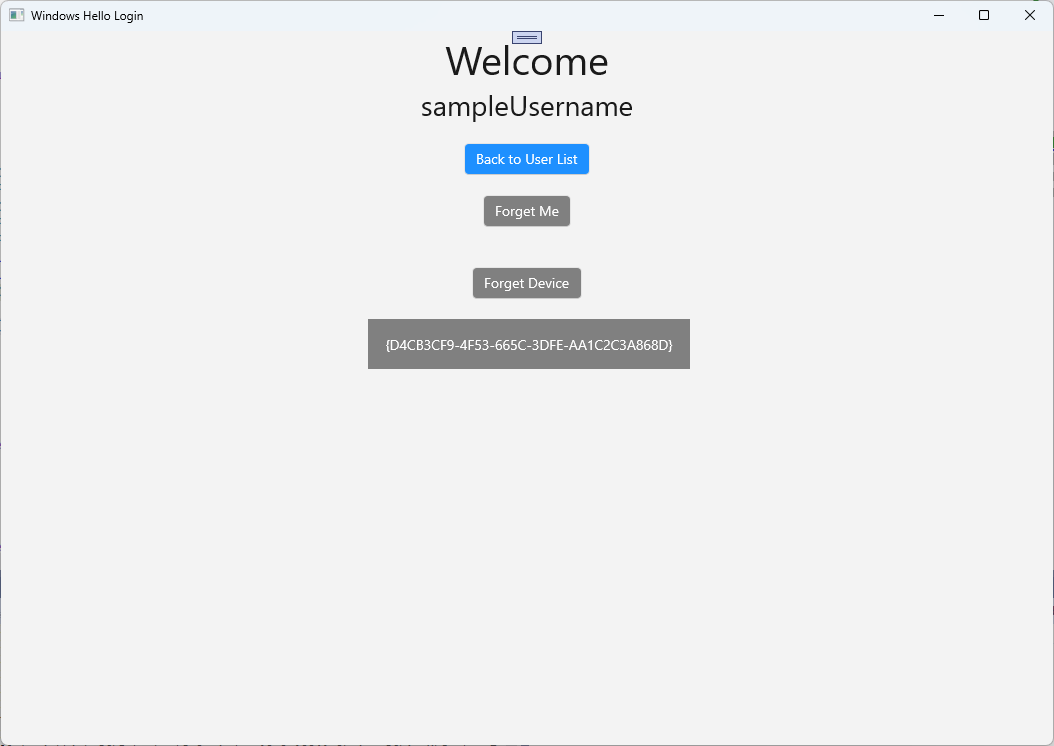
Hozza létre és futtassa az alkalmazást, és jelentkezzen be az alapértelmezett hitelesítő adatokkal a korábbiakhoz hasonlóan. Az üdvözlőlapon megjelenik az eszközazonosító. Ha egy másik eszközön jelentkezett be, amely szintén itt jelenik meg (ha rendelkezik felhőben üzemeltetett hitelesítési szolgáltatással). Ebben a gyakorlati laborban a tényleges eszközazonosító jelenik meg. Egy valós implementációban egy olyan felhasználóbarát nevet szeretne megjeleníteni, amelyet egy személy megérthet és használhat az egyes eszközök azonosítására.
A praktikus labor befejezéséhez szüksége van egy kérésre és kihívásra a felhasználó számára, amikor kiválasztanak egy lehetőséget a felhasználó kiválasztási oldalán, és újra bejelentkeznek. Az AuthService két metódussal rendelkezik, amelyeket egy kihívás igényléséhez hozott létre, amelyek aláírt kihívást használnak. A WindowsHelloHelper.cs hozzon létre egy RequestSignAsync nevű új metódust. Ez egy challenge-et fog kérni a AuthService-től, majd a helyszínen aláírja a challenge-et egy Windows Hello API használatával, és elküldi az aláírt challenge-et a AuthService-nek. Ebben a gyakorlati laborban az AuthService megkapja az aláírt kihívást, és visszatér
true. A tényleges megvalósítás során egy ellenőrzési mechanizmust kell implementálnia annak megállapításához, hogy a kihívást a megfelelő felhasználó írta-e alá a megfelelő eszközön. Adja hozzá a lent található metódust a WindowsHelloHelper.cs fájlhoz.private static async Task<bool> RequestSignAsync(Guid userId, KeyCredentialRetrievalResult openKeyResult) { // Calling userKey.RequestSignAsync() prompts the uses to enter the PIN or use Biometrics (Windows Hello). // The app would use the private key from the user account to sign the sign-in request (challenge) // The client would then send it back to the server and await the servers response. IBuffer challengeMessage = AuthService.AuthService.Instance.WindowsHelloRequestChallenge(); KeyCredential userKey = openKeyResult.Credential; KeyCredentialOperationResult signResult = await userKey.RequestSignAsync(challengeMessage); if (signResult.Status == KeyCredentialStatus.Success) { // If the challenge from the server is signed successfully // send the signed challenge back to the server and await the servers response return AuthService.AuthService.Instance.SendServerSignedChallenge( userId, Helpers.GetDeviceId(), signResult.Result.ToArray()); } else if (signResult.Status == KeyCredentialStatus.UserCanceled) { // User cancelled the Windows Hello PIN entry. } else if (signResult.Status == KeyCredentialStatus.NotFound) { // Must recreate Windows Hello key } else if (signResult.Status == KeyCredentialStatus.SecurityDeviceLocked) { // Can't use Windows Hello right now, remember that hardware failed and suggest restart } else if (signResult.Status == KeyCredentialStatus.UnknownError) { // Can't use Windows Hello right now, try again later } return false; }A WindowsHelloHelper osztályban hívja meg a RequestSignAsync metódust a GetWindowsHelloAuthenticationMessageAsync metódusból.
public static async Task<bool> GetWindowsHelloAuthenticationMessageAsync(UserAccount account)
{
    KeyCredentialRetrievalResult openKeyResult = await KeyCredentialManager.OpenAsync(account.Username);
    // Calling OpenAsync will allow the user access to what is available in the app and will not require user credentials again.
    // If you wanted to force the user to sign in again you can use the following:
    // var consentResult = await Windows.Security.Credentials.UI.UserConsentVerifier.RequestVerificationAsync(account.Username);
    // This will ask for the either the password of the currently signed in Microsoft Account or the PIN used for Windows Hello.

    if (openKeyResult.Status == KeyCredentialStatus.Success)
    {
        //If OpenAsync has succeeded, the next thing to think about is whether the client application requires access to backend services.
        //If it does here you would Request a challenge from the Server. The client would sign this challenge and the server
        //would check the signed challenge. If it is correct it would allow the user access to the backend.
        //You would likely make a new method called RequestSignAsync to handle all this
        //for example, RequestSignAsync(openKeyResult);
        //Refer to the second Windows Hello sample for information on how to do this.

        return await RequestSignAsync(account.UserId, openKeyResult);
    }
    else if (openKeyResult.Status == KeyCredentialStatus.NotFound)
    {
        //If the _account is not found at this stage. It could be one of two errors.
        //1. Windows Hello has been disabled
        //2. Windows Hello has been disabled and re-enabled cause the Windows Hello Key to change.
        //Calling CreateWindowsHelloKeyAsync and passing through the account will attempt to replace the existing Windows Hello Key for that account.
        //If the error really is that Windows Hello is disabled then the CreateWindowsHelloKeyAsync method will output that error.
        if (await CreateWindowsHelloKeyAsync(account.UserId, account.Username))
        {
            //If the Windows Hello Key was again successfully created, Windows Hello has just been reset.
            //Now that the Windows Hello Key has been reset for the _account retry sign in.
            return await GetWindowsHelloAuthenticationMessageAsync(account);
        }
    }

    // Can't use Windows Hello right now, try again later
    return false;
}
A gyakorlat során frissítette az ügyféloldali alkalmazást az AuthService használatára. Ezzel meg tudta szüntetni a Fiókosztály és az AccountHelper osztály szükségességét. Törölje a Fiókosztályt , a Modellek mappát és az AccountHelper osztályt a Utils mappából. A megoldás sikeres létrehozása előtt el kell távolítania a
WindowsHelloLogin.Modelsnévtérre mutató összes hivatkozást az alkalmazás teljes területén.Hozza létre és futtassa az alkalmazást, és élvezze a Windows Hello használatát a modellszolgáltatással és az adatbázissal.
Ebben a tesztkörnyezetben megtanulta, hogyan lehet a Windows Hello API-k használatával lecserélni a jelszavak szükségességét a Windows rendszerű gépekről történő hitelesítéskor. Ha figyelembe veszi, hogy mennyi energiát szabadít fel a jelszavakat fenntartó és a meglévő rendszerekben elveszett jelszavakat támogató személyek, látnia kell az új Windows Hello hitelesítési rendszerre való áttérés előnyeit.
A szolgáltatás és a kiszolgáló oldalán végzett hitelesítés implementálásának részleteit gyakorlatként hagytuk el. A fejlesztők többsége várhatóan meglévő rendszerekkel fog rendelkezni, amelyeket migrálni kell a Windows Hello használatának megkezdéséhez. Az egyes rendszerek részletei eltérőek lesznek.
Kapcsolódó témakörök
Dolgozzon együtt velünk a GitHubon
A tartalom forrása a GitHubon található, ahol létrehozhat és áttekinthet problémákat és lekéréses kérelmeket is. További információért tekintse meg a közreműködői útmutatónkat.

Windows developer