DrawingGroup.Transform Properti
Definisi
Penting
Beberapa informasi terkait produk prarilis yang dapat diubah secara signifikan sebelum dirilis. Microsoft tidak memberikan jaminan, tersirat maupun tersurat, sehubungan dengan informasi yang diberikan di sini.
Mendapatkan atau mengatur Transform yang diterapkan ke ini DrawingGroup.
public:
 property System::Windows::Media::Transform ^ Transform { System::Windows::Media::Transform ^ get(); void set(System::Windows::Media::Transform ^ value); };
public System.Windows.Media.Transform Transform { get; set; }member this.Transform : System.Windows.Media.Transform with get, setPublic Property Transform As TransformNilai Properti
Transformasi yang akan diterapkan ke ini DrawingGroup. Defaultnya adalah null.
Contoh
Contoh ini menunjukkan cara menerapkan Transform ke Drawing. Untuk mengubah Drawing objek, Anda menambahkannya ke DrawingGroup dan mengatur Transform properti DrawingGroup objek.
Kelas DrawingGroup adalah satu-satunya jenis Drawing objek yang mendukung transformasi. Untuk menerapkan beberapa transformasi ke satu DrawingGroup, gunakan TransformGroup.
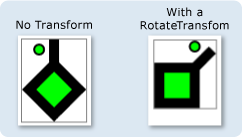
Contoh berikut menggunakan DrawingGroup untuk menggabungkan beberapa GeometryDrawing objek lalu mengubahnya dengan menggunakan RotateTransform.
Ilustrasi menunjukkan DrawingGroup sebelum dan sesudah RotateTransform diterapkan.
 yang
yang
using System;
using System.Windows;
using System.Windows.Controls;
using System.Windows.Media;
using System.Windows.Media.Animation;
using System.Windows.Shapes;

namespace SDKSample
{
    public class TransformExample : Page
    {

        public TransformExample()
        {

            //
            // Create a GeometryDrawing.
            //

            // Define the drawing's contents.
            PathFigure pLineFigure = new PathFigure();
            pLineFigure.StartPoint = new Point(25, 25);
            PolyLineSegment pLineSegment = new PolyLineSegment();
            pLineSegment.Points.Add(new Point(0, 50));
            pLineSegment.Points.Add(new Point(25, 75));
            pLineSegment.Points.Add(new Point(50, 50));
            pLineSegment.Points.Add(new Point(25, 25));
            pLineSegment.Points.Add(new Point(25, 0));
            pLineFigure.Segments.Add(pLineSegment);
            PathGeometry pGeometry = new PathGeometry();
            pGeometry.Figures.Add(pLineFigure);

            GeometryDrawing drawing1 = new GeometryDrawing(
                    Brushes.Lime,
                    new Pen(Brushes.Black, 10),
                    pGeometry
                );

            //
            // Create another GeometryDrawing.
            //
            GeometryDrawing drawing2 = new GeometryDrawing(
                    Brushes.Lime,
                    new Pen(Brushes.Black, 2),
                    new EllipseGeometry(new Point(10, 10), 5, 5)
                );

            // Create the DrawingGroup and add the
            // geometry drawings.
            DrawingGroup aDrawingGroup = new DrawingGroup();
            aDrawingGroup.Children.Add(drawing1);
            aDrawingGroup.Children.Add(drawing2);

            //
            // Create a RotateTransform and apply it to the
            // drawing group.
            //
            RotateTransform rotation = new RotateTransform(
                45, // Angle
                50, // CenterX
                75  // CenterY
                );
            aDrawingGroup.Transform = rotation;

            // Use an Image control and a DrawingImage to
            // display the drawing.
            DrawingImage aDrawingImage = new DrawingImage(aDrawingGroup);

            // Freeze the DrawingImage for performance benefits.
            aDrawingImage.Freeze();

            Image anImage = new Image();
            anImage.Source = aDrawingImage;
            anImage.Stretch = Stretch.None;
            anImage.HorizontalAlignment = HorizontalAlignment.Left;

            // Create a border around the images and add it to the
            // page.
            Border imageBorder = new Border();
            imageBorder.BorderBrush = Brushes.Gray;
            imageBorder.BorderThickness = new Thickness(1);
            imageBorder.VerticalAlignment = VerticalAlignment.Top;
            imageBorder.HorizontalAlignment = HorizontalAlignment.Left;
            imageBorder.Margin = new Thickness(20);
            imageBorder.Child = anImage;

            this.Background = Brushes.White;
            this.Margin = new Thickness(20);
            this.Content = imageBorder;
        }
    }
}
<Page
  xmlns="http://schemas.microsoft.com/winfx/2006/xaml/presentation"
  xmlns:x="http://schemas.microsoft.com/winfx/2006/xaml"
  xmlns:PresentationOptions="http://schemas.microsoft.com/winfx/2006/xaml/presentation/options"
  xmlns:mc="http://schemas.openxmlformats.org/markup-compatibility/2006"
  mc:Ignorable="PresentationOptions"
  Background="White" Margin="20">

  <Border BorderBrush="Gray" BorderThickness="1"
    HorizontalAlignment="Left" VerticalAlignment="Top"
    Margin="20">
    <Image Stretch="None" HorizontalAlignment="Left">
      <Image.Source>
        <DrawingImage PresentationOptions:Freeze="True">
          <DrawingImage.Drawing>

            <!-- A drawing group with a RotateTransform. -->
            <DrawingGroup>
              <GeometryDrawing Brush="Lime" Geometry="M 25,25 L 0,50 25,75 50,50 25,25 25,0">
                <GeometryDrawing.Pen>
                  <Pen Thickness="10" Brush="Black" />
                </GeometryDrawing.Pen>
              </GeometryDrawing>
              <GeometryDrawing Brush="Lime">
                <GeometryDrawing.Geometry>
                  <EllipseGeometry Center="10,10" RadiusX="5" RadiusY="5" />
                </GeometryDrawing.Geometry>
                <GeometryDrawing.Pen>
                  <Pen Thickness="2" Brush="Black" />
                </GeometryDrawing.Pen>
              </GeometryDrawing>

              <!-- Rotate the drawing 45 degrees about (50,75). -->
              <DrawingGroup.Transform>
                <RotateTransform CenterX="50" CenterY="75" Angle="45" />
              </DrawingGroup.Transform>

            </DrawingGroup>
          </DrawingImage.Drawing>
        </DrawingImage>
      </Image.Source>
    </Image>
  </Border>


</Page>
Keterangan
Untuk menerapkan beberapa transformasi ke satu DrawingGroup, gunakan TransformGroup.
DrawingGroup operasi diterapkan dalam urutan berikut:
Informasi Properti Dependensi
| Item | Nilai |
|---|---|
| Bidang pengidentifikasi | TransformProperty |
Properti metadata diatur ke true |
Tidak |
