VisualBrush.AutoLayoutContent Properti
Definisi
Penting
Beberapa informasi terkait produk prarilis yang dapat diubah secara signifikan sebelum dirilis. Microsoft tidak memberikan jaminan, tersirat maupun tersurat, sehubungan dengan informasi yang diberikan di sini.
Mendapatkan atau menetapkan nilai yang menentukan apakah ini VisualBrush akan menjalankan tata letaknya Visual.
public:
 property bool AutoLayoutContent { bool get(); void set(bool value); };
public bool AutoLayoutContent { get; set; }member this.AutoLayoutContent : bool with get, setPublic Property AutoLayoutContent As BooleanNilai Properti
true jika Brush ini harus menjalankan tata letak pada Visual; jika tidak, false. Defaultnya adalah true.
Contoh
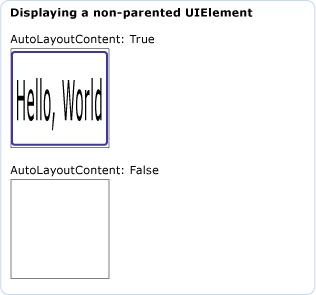
Contoh berikut menunjukkan efek AutoLayoutContent properti pada non-induk UIElement.
StackPanel myStackPanel = new StackPanel();
myStackPanel.Margin = new Thickness(20, 0, 0, 0);
TextBlock myTextBlock = new TextBlock();
myTextBlock.Margin = new Thickness(0, 10, 0, 0);
myTextBlock.Text = "AutoLayoutContent: True";
myStackPanel.Children.Add(myTextBlock);

Rectangle myRectangle = new Rectangle();
myRectangle.Width = 100;
myRectangle.Height = 100;
myRectangle.Stroke = Brushes.Black;
myRectangle.StrokeThickness = 1;

// Create the Fill for the rectangle using a VisualBrush.
VisualBrush myVisualBrush = new VisualBrush();
myVisualBrush.AutoLayoutContent = true;

// This button is used as the visual for the VisualBrush.
Button myButton = new Button();
myButton.Content = "Hello, World";

myVisualBrush.Visual = myButton;

// Set the fill of the Rectangle to the Visual Brush.
myRectangle.Fill = myVisualBrush;

myStackPanel.Children.Add(myRectangle);

TextBlock myTextBlock2 = new TextBlock();
myTextBlock2.Margin = new Thickness(0, 10, 0, 0);
myTextBlock2.Text = "AutoLayoutContent: False";
myStackPanel.Children.Add(myTextBlock2);

Rectangle myRectangle2 = new Rectangle();
myRectangle2.Width = 100;
myRectangle2.Height = 100;
myRectangle2.Stroke = Brushes.Black;
myRectangle2.StrokeThickness = 1;

// Create the Fill for the rectangle using a VisualBrush.
VisualBrush myVisualBrush2 = new VisualBrush();
myVisualBrush2.AutoLayoutContent = false;

// This button is used as the visual for the VisualBrush.
Button myButton2 = new Button();
myButton2.Content = "Hello, World";
myButton2.Width = 100;
myButton2.Height = 100;

myVisualBrush2.Visual = myButton2;

// Set the fill of the Rectangle to the Visual Brush.
myRectangle2.Fill = myVisualBrush2;

myStackPanel.Children.Add(myRectangle2);
Dim myStackPanel As New StackPanel()
myStackPanel.Margin = New Thickness(20, 0, 0, 0)
Dim myTextBlock As New TextBlock()
myTextBlock.Margin = New Thickness(0, 10, 0, 0)
myTextBlock.Text = "AutoLayoutContent: True"
myStackPanel.Children.Add(myTextBlock)

Dim myRectangle As New Rectangle()
myRectangle.Width = 100
myRectangle.Height = 100
myRectangle.Stroke = Brushes.Black
myRectangle.StrokeThickness = 1

' Create the Fill for the rectangle using a VisualBrush.
Dim myVisualBrush As New VisualBrush()
myVisualBrush.AutoLayoutContent = True

' This button is used as the visual for the VisualBrush.
Dim myButton As New Button()
myButton.Content = "Hello, World"

myVisualBrush.Visual = myButton

' Set the fill of the Rectangle to the Visual Brush.
myRectangle.Fill = myVisualBrush

myStackPanel.Children.Add(myRectangle)

Dim myTextBlock2 As New TextBlock()
myTextBlock2.Margin = New Thickness(0, 10, 0, 0)
myTextBlock2.Text = "AutoLayoutContent: False"
myStackPanel.Children.Add(myTextBlock2)

Dim myRectangle2 As New Rectangle()
myRectangle2.Width = 100
myRectangle2.Height = 100
myRectangle2.Stroke = Brushes.Black
myRectangle2.StrokeThickness = 1

' Create the Fill for the rectangle using a VisualBrush.
Dim myVisualBrush2 As New VisualBrush()
myVisualBrush2.AutoLayoutContent = False

' This button is used as the visual for the VisualBrush.
Dim myButton2 As New Button()
myButton2.Content = "Hello, World"
myButton2.Width = 100
myButton2.Height = 100

myVisualBrush2.Visual = myButton2

' Set the fill of the Rectangle to the Visual Brush.
myRectangle2.Fill = myVisualBrush2

myStackPanel.Children.Add(myRectangle2)
<StackPanel  Margin="20,0,0,0">
  <TextBlock Margin="0,10,0,0">AutoLayoutContent: True</TextBlock>
  <Rectangle
    Width="100"
    Height="100"
    Stroke="Black"
    StrokeThickness="1">
    <Rectangle.Fill>
      <VisualBrush AutoLayoutContent="True">
        <VisualBrush.Visual>
          <Button Content="Hello, World" />
        </VisualBrush.Visual>
      </VisualBrush>
    </Rectangle.Fill>
  </Rectangle>

  <TextBlock Margin="0,10,0,0">AutoLayoutContent: False</TextBlock>
  <Rectangle
    Width="100"
    Height="100"
    Stroke="Black"
    StrokeThickness="1">
    <Rectangle.Fill>
      <VisualBrush AutoLayoutContent="False">
        <VisualBrush.Visual>
          <Button Content="Hello, World" Width="100" Height="100" />
        </VisualBrush.Visual>
      </VisualBrush>
    </Rectangle.Fill>
  </Rectangle>
</StackPanel>
Ilustrasi berikut menunjukkan output contoh:
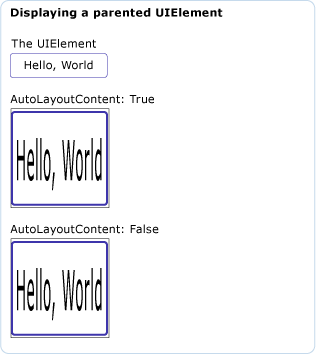
Contoh berikutnya menunjukkan efek AutoLayoutContent properti pada induk UIElement.
// Create a name scope for the page.
NameScope.SetNameScope(this, new NameScope());

StackPanel myStackPanel = new StackPanel();
myStackPanel.Margin = new Thickness(20, 0, 0, 0);
TextBlock myTextBlock = new TextBlock();
myTextBlock.Margin = new Thickness(0, 10, 0, 0);
myTextBlock.Text = "The UIElement";
myStackPanel.Children.Add(myTextBlock);

Button myButton = new Button();
myButton.Content = "Hello, World";
myButton.Width = 70;
this.RegisterName("MyButton", myButton);
myStackPanel.Children.Add(myButton);

TextBlock myTextBlock2 = new TextBlock();
myTextBlock2.Margin = new Thickness(0, 10, 0, 0);
myTextBlock2.Text = "AutoLayoutContent: True";
myStackPanel.Children.Add(myTextBlock2);

Rectangle myRectangle = new Rectangle();
myRectangle.Width = 100;
myRectangle.Height = 100;
myRectangle.Stroke = Brushes.Black;
myRectangle.StrokeThickness = 1;

// Create the Fill for the rectangle using a VisualBrush.
VisualBrush myVisualBrush = new VisualBrush();
myVisualBrush.AutoLayoutContent = true;
Binding buttonBinding = new Binding();
buttonBinding.ElementName = "MyButton";
BindingOperations.SetBinding(myVisualBrush, VisualBrush.VisualProperty, buttonBinding);

// Set the fill of the Rectangle to the Visual Brush.
myRectangle.Fill = myVisualBrush;

// Add the first rectangle.
myStackPanel.Children.Add(myRectangle);

TextBlock myTextBlock3 = new TextBlock();
myTextBlock3.Margin = new Thickness(0, 10, 0, 0);
myTextBlock3.Text = "AutoLayoutContent: False";
myStackPanel.Children.Add(myTextBlock3);

Rectangle myRectangle2 = new Rectangle();
myRectangle2.Width = 100;
myRectangle2.Height = 100;
myRectangle2.Stroke = Brushes.Black;
myRectangle2.StrokeThickness = 1;

// Create the Fill for the rectangle using a VisualBrush.
VisualBrush myVisualBrush2 = new VisualBrush();
myVisualBrush2.AutoLayoutContent = false;
Binding buttonBinding2 = new Binding();
buttonBinding2.ElementName = "MyButton";
BindingOperations.SetBinding(myVisualBrush2, VisualBrush.VisualProperty, buttonBinding2);

// Set the fill of the Rectangle to the Visual Brush.
myRectangle2.Fill = myVisualBrush2;

myStackPanel.Children.Add(myRectangle2);
' Create a name scope for the page.
NameScope.SetNameScope(Me, New NameScope())

Dim myStackPanel As New StackPanel()
myStackPanel.Margin = New Thickness(20, 0, 0, 0)
Dim myTextBlock As New TextBlock()
myTextBlock.Margin = New Thickness(0, 10, 0, 0)
myTextBlock.Text = "The UIElement"
myStackPanel.Children.Add(myTextBlock)

Dim myButton As New Button()
myButton.Content = "Hello, World"
myButton.Width = 70
Me.RegisterName("MyButton", myButton)
myStackPanel.Children.Add(myButton)

Dim myTextBlock2 As New TextBlock()
myTextBlock2.Margin = New Thickness(0, 10, 0, 0)
myTextBlock2.Text = "AutoLayoutContent: True"
myStackPanel.Children.Add(myTextBlock2)

Dim myRectangle As New Rectangle()
myRectangle.Width = 100
myRectangle.Height = 100
myRectangle.Stroke = Brushes.Black
myRectangle.StrokeThickness = 1

' Create the Fill for the rectangle using a VisualBrush.
Dim myVisualBrush As New VisualBrush()
myVisualBrush.AutoLayoutContent = True
Dim buttonBinding As New Binding()
buttonBinding.ElementName = "MyButton"
BindingOperations.SetBinding(myVisualBrush, VisualBrush.VisualProperty, buttonBinding)

' Set the fill of the Rectangle to the Visual Brush.
myRectangle.Fill = myVisualBrush

' Add the first rectangle.
myStackPanel.Children.Add(myRectangle)

Dim myTextBlock3 As New TextBlock()
myTextBlock3.Margin = New Thickness(0, 10, 0, 0)
myTextBlock3.Text = "AutoLayoutContent: False"
myStackPanel.Children.Add(myTextBlock3)

Dim myRectangle2 As New Rectangle()
myRectangle2.Width = 100
myRectangle2.Height = 100
myRectangle2.Stroke = Brushes.Black
myRectangle2.StrokeThickness = 1

' Create the Fill for the rectangle using a VisualBrush.
Dim myVisualBrush2 As New VisualBrush()
myVisualBrush2.AutoLayoutContent = False
Dim buttonBinding2 As New Binding()
buttonBinding2.ElementName = "MyButton"
BindingOperations.SetBinding(myVisualBrush2, VisualBrush.VisualProperty, buttonBinding2)

' Set the fill of the Rectangle to the Visual Brush.
myRectangle2.Fill = myVisualBrush2

myStackPanel.Children.Add(myRectangle2)
<StackPanel Margin="20,0,0,0">

  <TextBlock Margin="0,10,0,0">The UIElement</TextBlock>
  <Button Name="MyButton" Content="Hello, World" />

  <TextBlock Margin="0,10,0,0">AutoLayoutContent: True</TextBlock>
  <Rectangle
        Width="100"
        Height="100"
        Stroke="Black"
        StrokeThickness="1">
    <Rectangle.Fill>
      <VisualBrush Visual="{Binding ElementName='MyButton'}" />
    </Rectangle.Fill>
  </Rectangle>

  <TextBlock Margin="0,10,0,0">AutoLayoutContent: False</TextBlock>
  <Rectangle
    Width="100"
    Height="100"
    Stroke="Black"
    StrokeThickness="1">
    <Rectangle.Fill>
      <VisualBrush Visual="{Binding ElementName='MyButton'}"
                   AutoLayoutContent="False"/>
    </Rectangle.Fill>
  </Rectangle>
</StackPanel>
Ilustrasi berikut menunjukkan output contoh:
Keterangan
Mengatur properti ini untuk true memiliki efek hanya ketika kuas Visual ini adalah non-induk UIElement.
Informasi Properti Dependensi
| Item | Nilai |
|---|---|
| Bidang pengidentifikasi | AutoLayoutContentProperty |
Properti metadata diatur ke true |
Tidak |
