Nóta
Aðgangur að þessari síðu krefst heimildar. Þú getur prófað aðskrá þig inn eða breyta skráasöfnum.
Aðgangur að þessari síðu krefst heimildar. Þú getur prófað að breyta skráasöfnum.
Power Apps component framework enables professional developers and app makers to create code components for model-driven and canvas apps. These code components can provide an enhanced experience for users working with data on forms, views, and dashboards. More about Power Apps component framework overview.
Power Pages now support controls built for model-driven apps created using Power Apps component framework. To use code components in Power Pages site webpages:
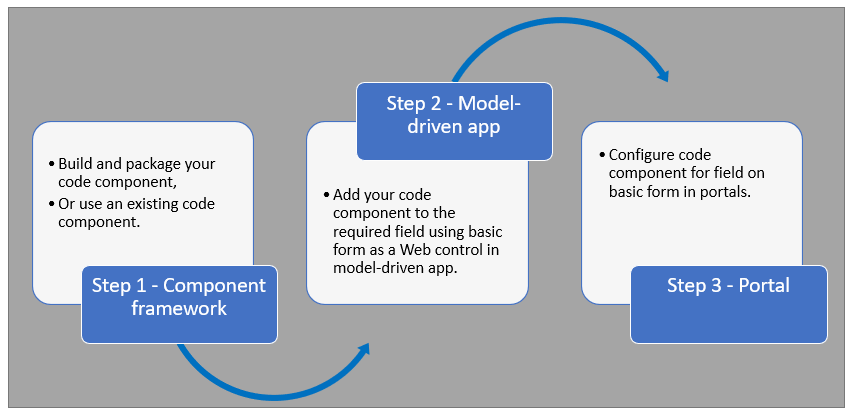
After completing these steps, users can interact with the code component using the webpage that has the respective form component.
Prerequisites
- You need system administrator privileges to enable the code component feature in the environment.
- Your Power Pages site version needs to be 9.3.3.x or higher.
- Your starter site package needs to be 9.2.2103.x or higher.
Create and package code component
To learn about creating and packaging code components in Power Apps component framework, go to Create your first component.
Supported field types and formats
Power Pages supports restricted field types and formats for using code components. The following table lists all supported field data types and formats:
Currency
DateAndTime.DateAndTime
DateAndTime.DateOnly
Decimal
Enum
Floating Point Number
Multiple
OptionSet
SingleLine.Email
SingleLine.Phone
SingleLine.Text
SingleLine.TextArea
SingleLine.Ticker
SingleLine.URL
TwoOptions
Whole
For more information, see Attributes list and descriptions.
Unsupported code components in Power Pages
- The following code component APIs aren’t supported:
- The uses-feature element must not be set to true.
- Value elements not supported by Power Apps component framework.
- Power Apps Component Framework (PCF) controls bound to multiple fields in a form isn't supported.
Add a code component to a field in a model-driven app
To learn how to add a code component to a field in a model-driven app, go to Add a code component to a field.
Important
Code components for Power Pages are available for web browsers using the client option of Web.
You can also add a code component to a form using Data workspace.
When editing a Dataverse form in the Data workspace form designer, select a field.
Choose + Component and select an appropriate component for the field.
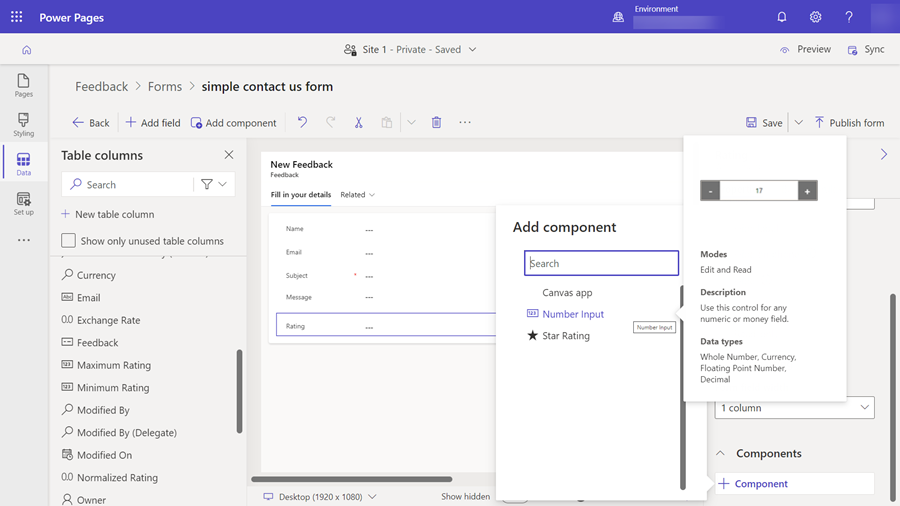
Select Save and Publish form.
Configure Power Pages site for code component
After the code component is added to a field in a model-driven app, you can configure Power Pages to use the code component on a form.
There are two methods to enable the code component.
Enable code component in design studio
To enable a code component on a form using the design studio.
After you add the form to a page, select the field where you added the code component and select Edit field.
Select the Enable custom component field.

When you preview the site, you should see the custom component enabled.
Enable code component in Portals Management app
To add a code component to a basic form by using the Portals Management app:
Open the Portals Management app.
On the left pane, select Basic Forms.
Select the form to which you want to add the code component.
Select Related.
Select Basic Form Metadata.
Select New Basic Form Metadata.
Select Type as Attribute.
Select Attribute Logical Name.
Enter Label.
For Control Style, select Code Component.
Save and close the form.
Code components using the portal Web API
A code component can be built and added to a webpage that can use the portal Web API to perform create, retrieve, update, and delete actions. This feature allows greater customization options when developing portal solutions. For more information, see Implement a sample portal Web API component.
Next steps
Tutorial: Use code components in portals