Azure Synapse は、データ ウェアハウスとビッグ データ分析システム全体で分析情報を得る時間を短縮する統合分析サービスです。 データの視覚化は、データに関する分析情報を得るための重要な要素です。 これは、人間が理解しやすい大小のデータを作成するのに役立ちます。 また、データのグループ内のパターン、傾向、外れ値の検出も容易になります。
Azure Synapse Analytics で Apache Spark を使用する場合、Synapse ノートブック グラフ オプション、一般的なオープンソース ライブラリへのアクセス、Synapse SQL および Power BI との統合など、データを視覚化するのに役立つさまざまな組み込みオプションがあります。
ノートブック グラフのオプション
Azure Synapse ノートブックを使用する場合は、グラフ オプションを使用して、表形式の結果ビューをカスタマイズされたグラフに変換できます。 ここでは、コードを記述しなくてもデータを視覚化できます。
display(df) 関数
display関数を使用すると、SQL クエリと Apache Spark データフレームと RDD を豊富なデータ視覚化に変換できます。
display関数は、PySpark、Scala、Java、R、および .NET で作成されたデータフレームまたは RDD で使用できます。
グラフオプションにアクセスするには:
%%sqlマジック コマンドの出力は、レンダリングされたテーブル ビューに既定で表示されます。 Spark DataFrames または Resilient Distributed Datasets (RDD) 関数でdisplay(df)を呼び出して、レンダリングされたテーブル ビューを生成することもできます。レンダリングされたテーブル ビューを作成したら、グラフ ビューに切り替えます。
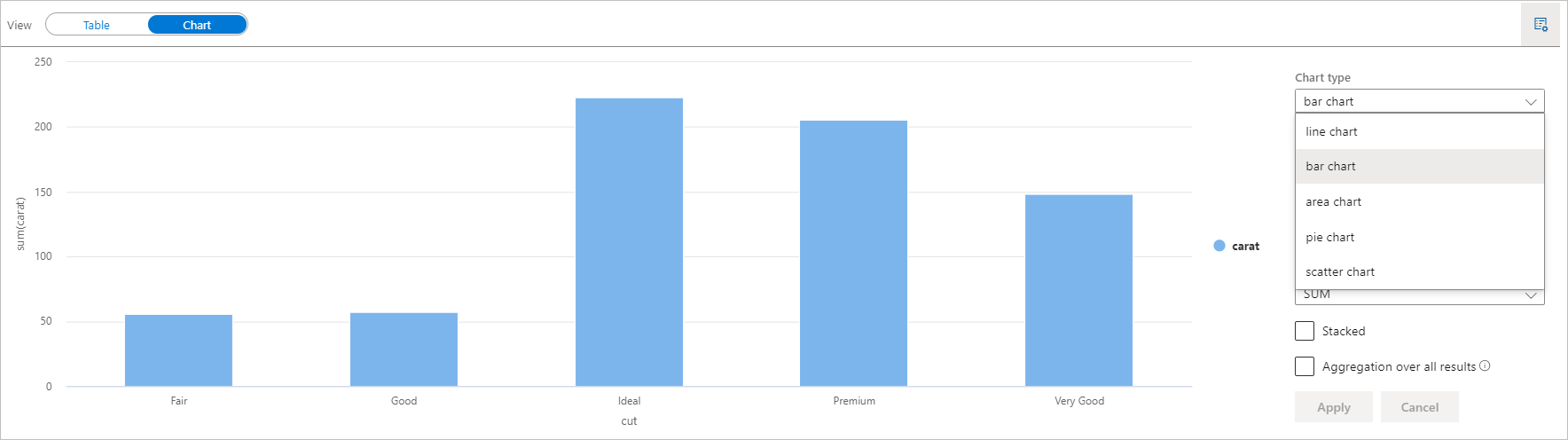
次の値を指定して、視覚化をカスタマイズできるようになりました。
コンフィギュレーション 説明 [グラフの種類] display関数は、横棒グラフ、散布図、折れ線グラフなど、さまざまな種類のグラフをサポートしています鍵 x 軸の値の範囲を指定する 価値 y 軸の値の範囲を指定する 系列グループ 集計のグループを決定するために使用されます 集約 視覚化内のデータを集計する方法 注
既定では、
display(df)関数はデータの最初の 1,000 行のみを取得してグラフをレンダリングします。 すべての結果の集計を確認し、[適用] ボタンをクリックすると、データセット全体からグラフの生成が適用されます。 グラフの設定が変更されると、Spark ジョブがトリガーされます。 計算が完了し、グラフがレンダリングされるまでに数分かかる場合があることに注意してください。完了したら、最終的な視覚化を表示して操作できます。
display(df) 統計情報の詳細
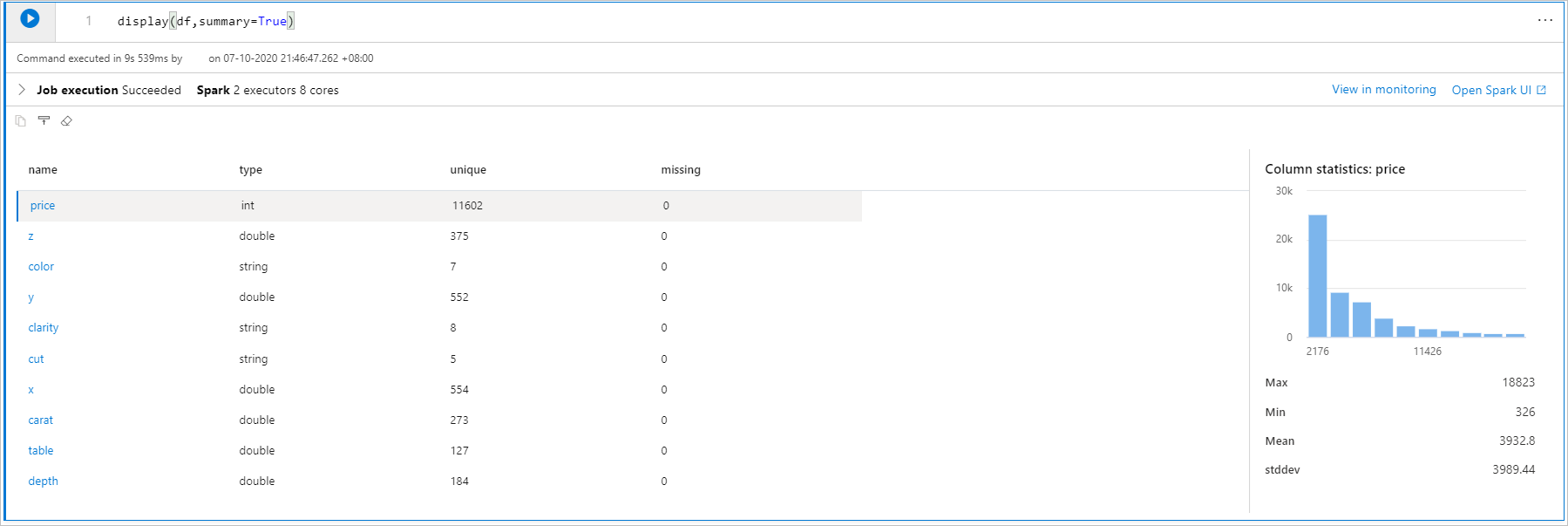
display(df, summary = true)を使用して、列名、列の種類、一意の値、および各列の欠損値を含む、特定の Apache Spark DataFrame の統計情報の概要を確認できます。 また、特定の列を選択して、その最小値、最大値、平均値、標準偏差を確認することもできます。
displayHTML()オプション
Azure Synapse Analytics ノートブックでは、 displayHTML 関数を使用した HTML グラフィックスがサポートされています。
次の図は、D3.js を使用して視覚化を作成する例です。
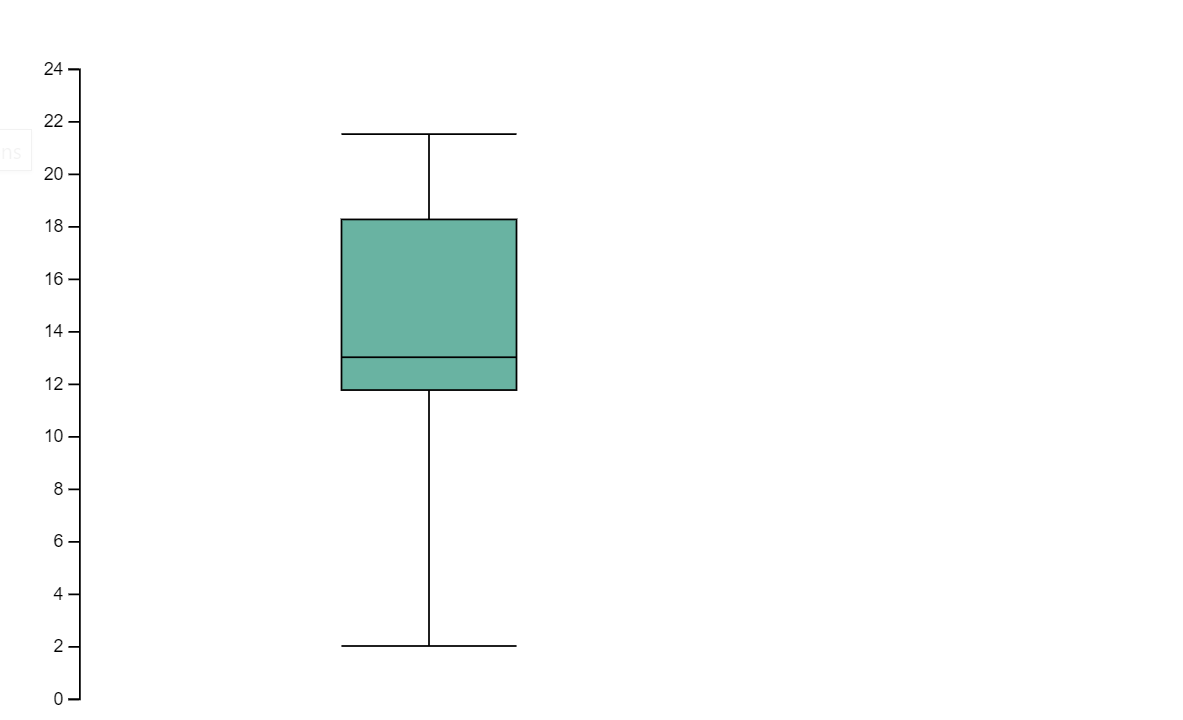
上の視覚化を作成するには、次のコードを実行します。
displayHTML("""<!DOCTYPE html>
<meta charset="utf-8">

<!-- Load d3.js -->
<script src="https://d3js.org/d3.v4.js"></script>

<!-- Create a div where the graph will take place -->
<div id="my_dataviz"></div>
<script>

// set the dimensions and margins of the graph
var margin = {top: 10, right: 30, bottom: 30, left: 40},
  width = 400 - margin.left - margin.right,
  height = 400 - margin.top - margin.bottom;

// append the svg object to the body of the page
var svg = d3.select("#my_dataviz")
.append("svg")
  .attr("width", width + margin.left + margin.right)
  .attr("height", height + margin.top + margin.bottom)
.append("g")
  .attr("transform",
        "translate(" + margin.left + "," + margin.top + ")");

// Create Data
var data = [12,19,11,13,12,22,13,4,15,16,18,19,20,12,11,9]

// Compute summary statistics used for the box:
var data_sorted = data.sort(d3.ascending)
var q1 = d3.quantile(data_sorted, .25)
var median = d3.quantile(data_sorted, .5)
var q3 = d3.quantile(data_sorted, .75)
var interQuantileRange = q3 - q1
var min = q1 - 1.5 * interQuantileRange
var max = q1 + 1.5 * interQuantileRange

// Show the Y scale
var y = d3.scaleLinear()
  .domain([0,24])
  .range([height, 0]);
svg.call(d3.axisLeft(y))

// a few features for the box
var center = 200
var width = 100

// Show the main vertical line
svg
.append("line")
  .attr("x1", center)
  .attr("x2", center)
  .attr("y1", y(min) )
  .attr("y2", y(max) )
  .attr("stroke", "black")

// Show the box
svg
.append("rect")
  .attr("x", center - width/2)
  .attr("y", y(q3) )
  .attr("height", (y(q1)-y(q3)) )
  .attr("width", width )
  .attr("stroke", "black")
  .style("fill", "#69b3a2")

// show median, min and max horizontal lines
svg
.selectAll("toto")
.data([min, median, max])
.enter()
.append("line")
  .attr("x1", center-width/2)
  .attr("x2", center+width/2)
  .attr("y1", function(d){ return(y(d))} )
  .attr("y2", function(d){ return(y(d))} )
  .attr("stroke", "black")
</script>

"""
)
Python ライブラリ
データの視覚化に関して言えば、Python には、さまざまな機能を多数備えた複数のグラフ ライブラリが用意されています。 既定では、Azure Synapse Analytics 内のすべての Apache Spark プールには、一連のキュレーションされた一般的なオープンソース ライブラリが含まれています。 Azure Synapse Analytics ライブラリ管理機能を使用して、ライブラリとバージョンを追加または管理することもできます。
Matplotlib
各ライブラリの組み込みのレンダリング関数を使用すれば、Matplotlib のような標準のプロット ライブラリをレンダリングすることができます。
次の図は、Matplotlib を使用して横棒グラフを作成する例を示しています。
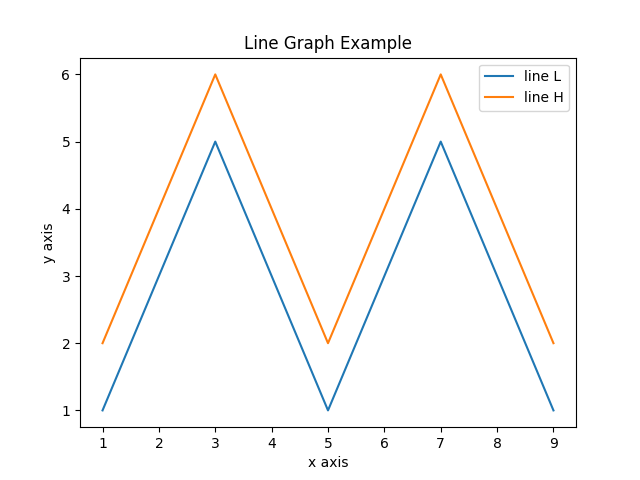
上の画像を描画するには、次のサンプル コードを実行します。
# Bar chart

import matplotlib.pyplot as plt

x1 = [1, 3, 4, 5, 6, 7, 9]
y1 = [4, 7, 2, 4, 7, 8, 3]

x2 = [2, 4, 6, 8, 10]
y2 = [5, 6, 2, 6, 2]

plt.bar(x1, y1, label="Blue Bar", color='b')
plt.bar(x2, y2, label="Green Bar", color='g')
plt.plot()

plt.xlabel("bar number")
plt.ylabel("bar height")
plt.title("Bar Chart Example")
plt.legend()
plt.show()
Bokeh
を使用して、displayHTML(df)などの HTML または対話型ライブラリをレンダリングできます。
次の図は、ボケを使用して、マップ上にグリフをプロットする例です。
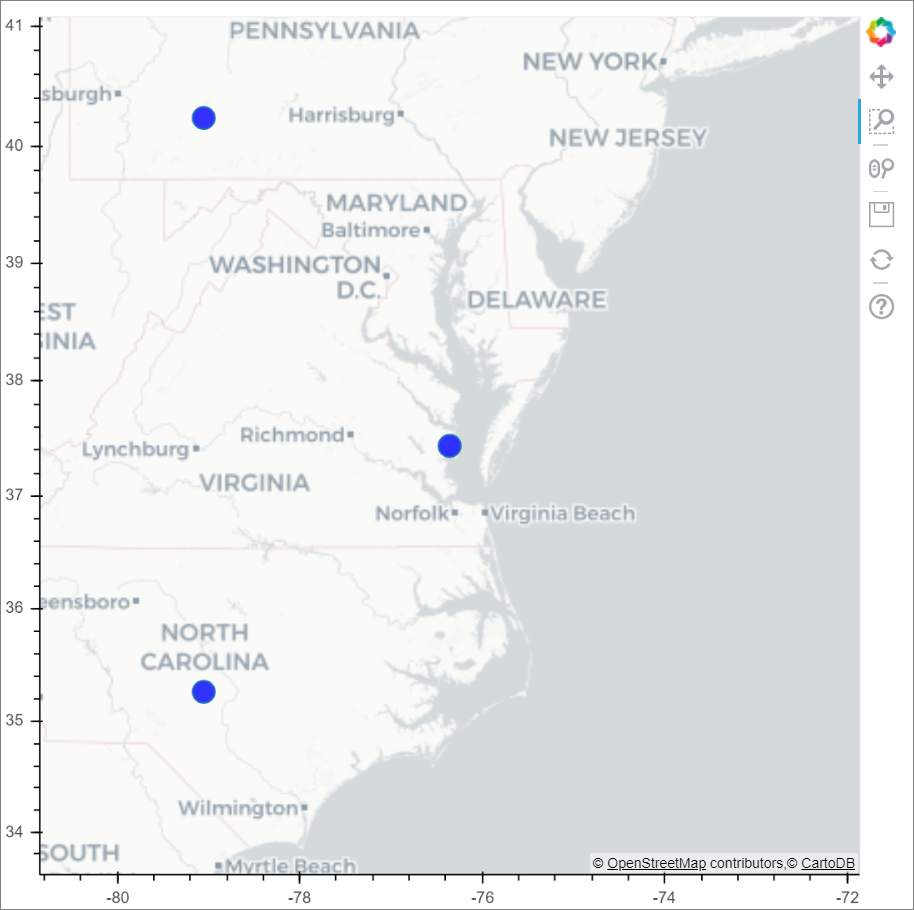
上の画像を描画するには、次のサンプル コードを実行します。
from bokeh.plotting import figure, output_file
from bokeh.tile_providers import get_provider, Vendors
from bokeh.embed import file_html
from bokeh.resources import CDN
from bokeh.models import ColumnDataSource

tile_provider = get_provider(Vendors.CARTODBPOSITRON)

# range bounds supplied in web mercator coordinates
p = figure(x_range=(-9000000,-8000000), y_range=(4000000,5000000),
           x_axis_type="mercator", y_axis_type="mercator")
p.add_tile(tile_provider)

# plot datapoints on the map
source = ColumnDataSource(
    data=dict(x=[ -8800000, -8500000 , -8800000],
              y=[4200000, 4500000, 4900000])
)

p.circle(x="x", y="y", size=15, fill_color="blue", fill_alpha=0.8, source=source)

# create an html document that embeds the Bokeh plot
html = file_html(p, CDN, "my plot1")

# display this html
displayHTML(html)
Plotly
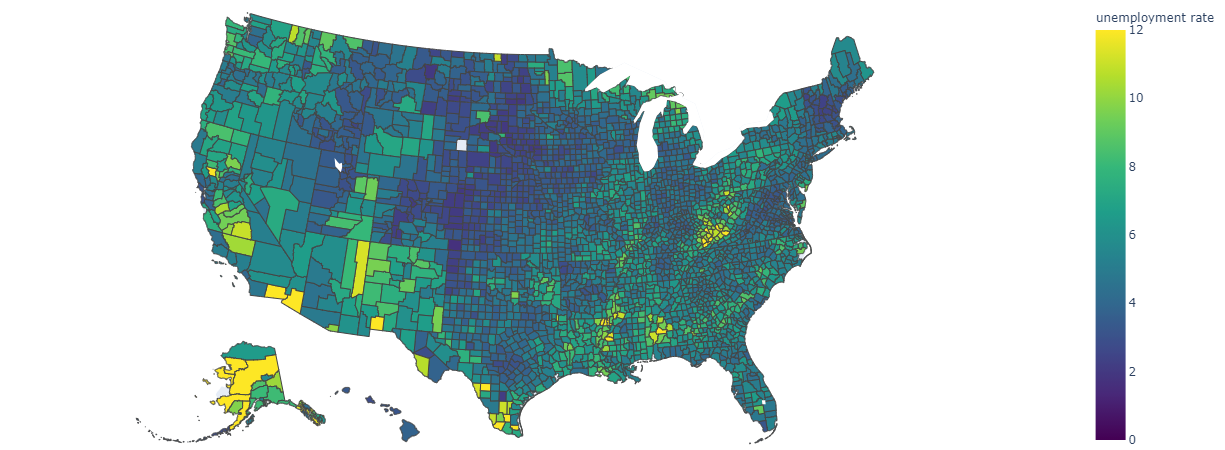
displayHTML() を使用して、HTML または対話型のライブラリ (Plotly など) をレンダリングすることができます。
次のサンプル コードを実行して、次の画像を描画します。
from urllib.request import urlopen
import json
with urlopen('https://raw.githubusercontent.com/plotly/datasets/master/geojson-counties-fips.json') as response:
    counties = json.load(response)

import pandas as pd
df = pd.read_csv("https://raw.githubusercontent.com/plotly/datasets/master/fips-unemp-16.csv",
                   dtype={"fips": str})

import plotly
import plotly.express as px

fig = px.choropleth(df, geojson=counties, locations='fips', color='unemp',
                           color_continuous_scale="Viridis",
                           range_color=(0, 12),
                           scope="usa",
                           labels={'unemp':'unemployment rate'}
                          )
fig.update_layout(margin={"r":0,"t":0,"l":0,"b":0})

# create an html document that embeds the Plotly plot
h = plotly.offline.plot(fig, output_type='div')

# display this html
displayHTML(h)
Pandas
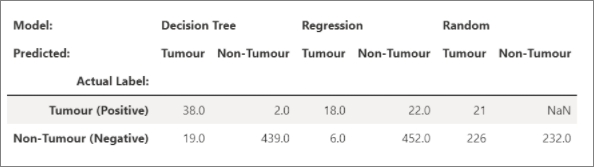
pandas データフレームの HTML 出力を既定の出力として表示できます。ノートブックにはスタイル設定された html コンテンツが自動的に表示されます。
import pandas as pd
import numpy as np

df = pd.DataFrame([[38.0, 2.0, 18.0, 22.0, 21, np.nan],[19, 439, 6, 452, 226,232]],

                  index=pd.Index(['Tumour (Positive)', 'Non-Tumour (Negative)'], name='Actual Label:'),

                  columns=pd.MultiIndex.from_product([['Decision Tree', 'Regression', 'Random'],['Tumour', 'Non-Tumour']], names=['Model:', 'Predicted:']))

df
その他のライブラリ
これらのライブラリ以外にも、Azure Synapse Analytics Runtime には、データの視覚化によく使用される次のライブラリのセットも含まれています。
使用可能なライブラリとバージョンに関する最新情報については、Azure Synapse Analytics Runtime のドキュメント を参照してください。
R ライブラリ (プレビュー)
R エコシステムには、さまざまな機能が収められた複数のグラフ作成ライブラリが用意されています。 既定では、Azure Synapse Analytics 内のすべての Apache Spark プールには、一連のキュレーションされた一般的なオープンソース ライブラリが含まれています。 Azure Synapse Analytics ライブラリ管理機能を使用して、ライブラリとバージョンを追加または管理することもできます。
ggplot2
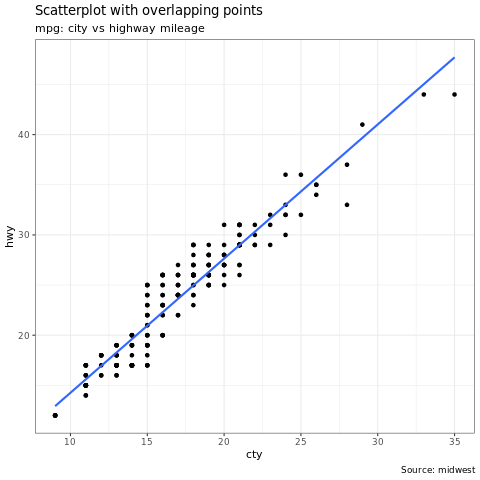
ggplot2 ライブラリは、データの視覚化と探索的なデータ分析で人気があります。
library(ggplot2)
data(mpg, package="ggplot2")
theme_set(theme_bw())

g <- ggplot(mpg, aes(cty, hwy))

# Scatterplot
g + geom_point() +
  geom_smooth(method="lm", se=F) +
  labs(subtitle="mpg: city vs highway mileage",
       y="hwy",
       x="cty",
       title="Scatterplot with overlapping points",
       caption="Source: midwest")
rBokeh
rBokeh は、Bokeh 視覚化ライブラリによってサポートされる対話型グラフィックスを作成するためのネイティブ R プロット ライブラリです。
rBokeh をインストールするには、次のコマンドを使用します。
install.packages("rbokeh")
インストールしたら、rBokeh を利用して対話型の視覚化を作成できます。
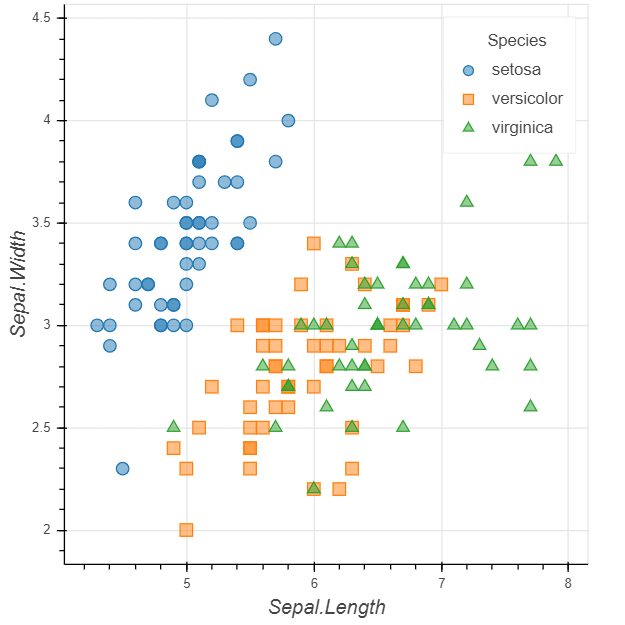
library(rbokeh)
p <- figure() %>%
  ly_points(Sepal.Length, Sepal.Width, data = iris,
    color = Species, glyph = Species,
    hover = list(Sepal.Length, Sepal.Width))
R Plotly
Plotly の R グラフ ライブラリは、対話型のパブリケーション品質のグラフを作成します。
Plotly をインストールするには、次のコマンドを使用します。
install.packages("plotly")
インストールが完了したら、Plotly を利用して対話型の視覚化を作成できます。
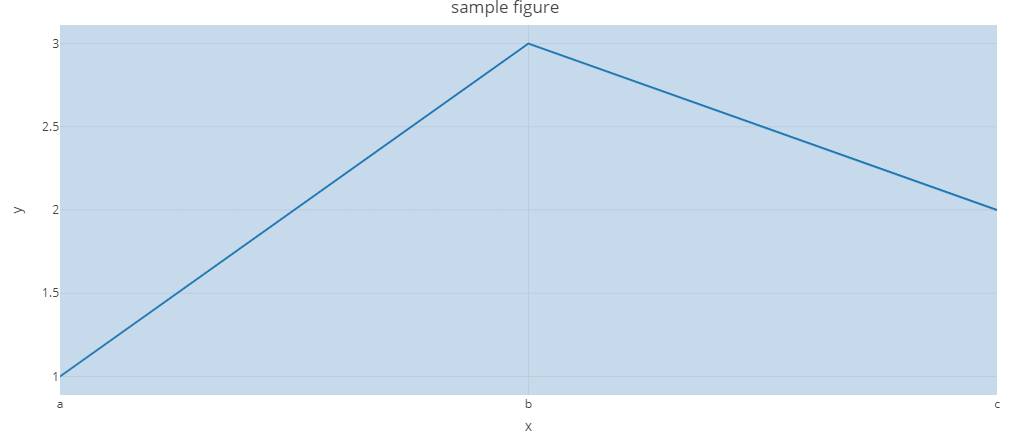
library(plotly)

fig <- plot_ly() %>%
  add_lines(x = c("a","b","c"), y = c(1,3,2))%>%
  layout(title="sample figure", xaxis = list(title = 'x'), yaxis = list(title = 'y'), plot_bgcolor = "#c7daec")

fig
Highcharter
Highcharter は、Highcharts JavaScript ライブラリとそのモジュールの R ラッパーです。
Highcharter をインストールするには、次のコマンドを使用します。
install.packages("highcharter")
インストールが完了したら、Highcharter を利用して対話型の視覚化を作成できます。
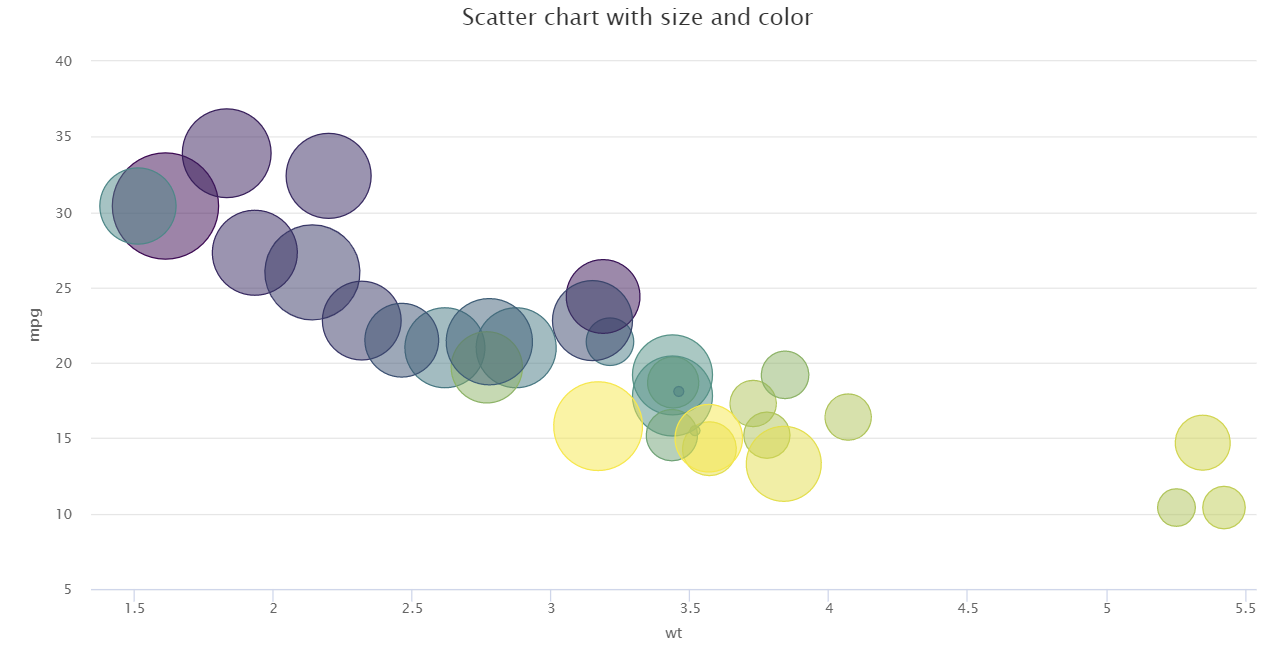
library(magrittr)
library(highcharter)
hchart(mtcars, "scatter", hcaes(wt, mpg, z = drat, color = hp)) %>%
  hc_title(text = "Scatter chart with size and color")
Apache Spark と SQL オンデマンドを使用して Power BI に接続する
Azure Synapse Analytics は Power BI と深く統合されているため、データ エンジニアは分析ソリューションを構築できます。
Azure Synapse Analytics を使用すると、さまざまなワークスペースコンピューティング エンジンで、Spark プールとサーバーレス SQL プールの間でデータベースとテーブルを共有できます。 共有メタデータ モデルを使用すると、SQL オンデマンドを使用して Apache Spark テーブルに対してクエリを実行できます。 完了したら、SQL オンデマンド エンドポイントを Power BI に接続して、同期された Spark テーブルに簡単にクエリを実行できます。
次のステップ
- Spark SQL DW コネクタを設定する方法の詳細については、Synapse SQL コネクタを参照してください。
- 既定のライブラリを確認します: Azure Synapse Analytics ランタイム