現在、コンテンツ セキュリティ ポリシー (CSP) は、モデル駆動型、キャンバス型、コード アプリでサポートされています。 この記事では、モデル駆動型アプリとキャンバス アプリ用に CSP を構成する方法について説明します。 コード アプリ CSP については、 コード アプリのドキュメントを参照してください。 管理者は、CSP ヘッダーを送信するかどうか、およびその内容をある程度制御できます。 設定は環境レベルです。つまり、オンにすると、環境内のすべてのアプリに適用されます。
Note
コンテンツ セキュリティ ポリシーは、Dataverse を使用している環境のみに適用されます。
CSP ヘッダー値の各コンポーネントは、ダウンロードできる資産を制御します。 Mozilla Developer Network (MDN) では、より詳細な説明が提供されます。 既定値は次のとおりです:
| ディレクティブ | 既定値 | カスタマイズ可能 |
|---|---|---|
| script-src | * 'unsafe-inline' 'unsafe-eval' blob: |
No |
| worker-src | 'self' blob: |
No |
| style-src | * 'unsafe-inline' blob: |
No |
| font-src | * data: |
No |
| frame-ancestors | 'self' https://*.powerapps.com |
Yes |
この構成では、既定の CSP は script-src * 'unsafe-inline' 'unsafe-eval' blob: ; worker-src 'self' blob:; style-src * 'unsafe-inline' blob:; font-src * data:; frame-ancestors 'self' https://*.powerapps.com; になります。
厳格モード
[厳密な CSP] トグルでは、ワイルドカードや安全でないディレクティブ ( unsafe-inlineなど) をほとんど含まない CSP が作成されます。 Strict CSP を有効にすると、上記のディレクティブは、このセクションで詳しく説明する次のディレクティブになります。
<platform>表記は、プラットフォーム ドメインが製品の必要に応じて提供されることを意味します。 このセクションのドメインは、製品の成長に合わせて時間の経過と同時に変化する可能性があります。
| ディレクティブ | 既定値 (モデル駆動型) | 既定値 (キャンバス) | カスタマイズ可能 |
|---|---|---|---|
| script-src | 'self' blob: <platform>' |
'self' <platform>' |
Yes |
| worker-src | 'self' blob: |
'self' blob: |
No |
| style-src | 'self' 'unsafe-inline' blob: <platform> |
'self' 'unsafe-inline' <platform> |
Yes |
| font-src | 'self' data: <platform> |
'self' data: <platform> |
Yes |
| frame-ancestors | 'self' https://*.powerapps.com |
'self' https://*.powerapps.com |
Yes |
| img-src | 'self' blob: data: <platform> |
'self' data: <platform> |
Yes |
| connect-src | 'self' blob: data: wss: <platform> |
'self' blob: <platform> |
Yes |
| frame-src | 'self' blob: <platform> |
'self' <platform> |
Yes |
| base-uri | 'none' |
N/A | No |
| form-action | <platform> |
N/A | Yes |
| default-src | 'self' |
'self' |
No |
前提条件
Dynamics 365カスタマー エンゲージメント アプリやその他のモデル駆動型アプリの場合、CSP はオンライン環境と、Dynamics 365カスタマー エンゲージメント (オンプレミス) バージョン 9.1 以降の組織でのみ使用できます。
CSP の構成
CSP の切り替えと構成は、Power Platform 管理センターで行うことができます。 CSP を有効にすると、ポリシーに違反した場合にシナリオがブロックされる可能性があるため、最初に開発/テスト環境を有効にすることが重要です。 また、管理センターでは レポート専用 モードもサポートされ、運用環境での立ち上げが容易になります。
CSP を構成するには、次の手順を実行します。
- Power Platform 管理センターにサインインします。
- ナビゲーション ウィンドウで、[管理] を選択 します。 管理ウィンドウで環境を選択します。
- 環境ページで、環境を選択します。
- コマンド バーで、設定を選択します。
- 製品を展開し、プライバシー + セキュリティ を選択します。
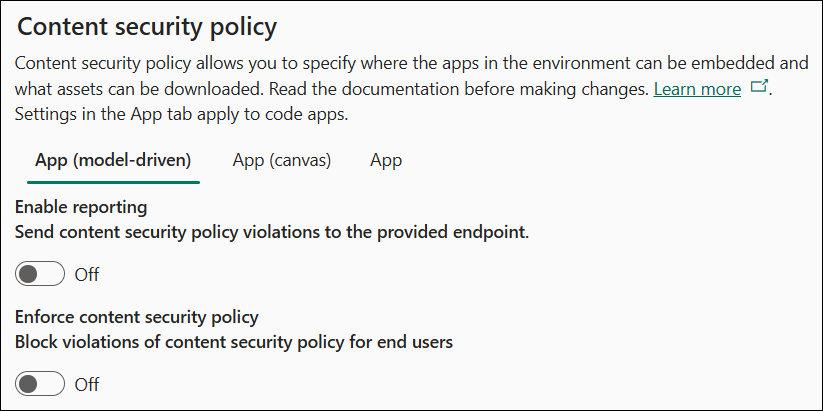
次の図は、設定の既定の状態を示しています。
レポーティング
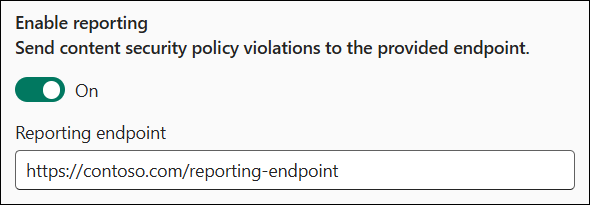
レポートを有効にするトグルは、モデル駆動型アプリとキャンバスアプリが違反レポートを送信するかどうかを制御します。 有効にするには、エンドポイントを指定します。 アプリは、CSP が適用されているかどうかに関係なく、このエンドポイントに違反レポートを送信します。 CSP が適用されていない場合、アプリはレポート専用モードを使用します。 詳細については、レポート ドキュメント を参照してください。
強制
CSP の実行は、モデル駆動型アプリとキャンバス アプリで独立して制御され、ポリシーのきめ細かい制御を実現します。 モデル駆動型/キャンバス ピボットを使用して、目的のアプリ タイプを変更します。
[ コンテンツ セキュリティ ポリシーの適用 ] トグルは、特定のアプリの種類に適用する既定のポリシーをオンにします。 このトグルをオンにすると、この環境でのアプリの動作がポリシーに準拠するように変更されます。 そのため、次の推奨される有効化フローに従ってください。
- 開発環境またはテスト環境にポリシーを適用します。
- 本番環境でレポート専用モードを有効にします。
- 違反が報告されない場合は、運用環境でポリシーを適用します。
ディレクティブを構成する
[ ディレクティブの構成] セクションでは、ポリシー内の個々のディレクティブを制御できます。 現時点では、 frame-ancestors ディレクティブのみをカスタマイズできます。
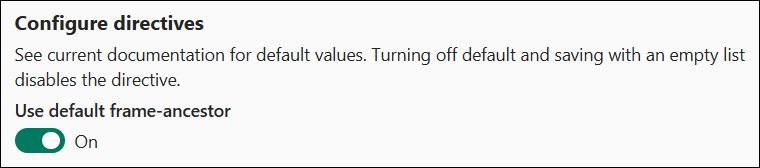
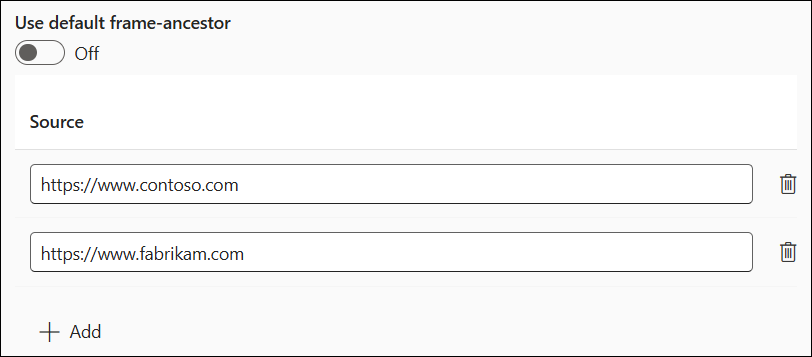
既定のディレクティブをオンのままにした場合は、テーブルで指定された既定値を使用 します。 トグルをオフにした場合は、ディレクティブのカスタム値を指定し、既定値に追加できます。 次の例では、 frame-ancestorsのカスタム値を設定します。 ディレクティブは、この例では frame-ancestors: 'self' https://*.powerapps.com https://www.foo.com https://www.bar.com に設定されています。 この設定は、アプリを同じ配信元、 https://*.powerapps.com、 https://www.foo.com、 https://www.bar.comでホストできることを意味しますが、他の配信元ではホストできません。
追加ボタンを使用してエントリをリストに追加し、削除アイコンを使用してエントリを削除します。
一般的な構成
Dynamics 365 アプリ を使用したMicrosoft Teams統合の場合は、frame-ancestors に次のコードを追加します。
https://teams.microsoft.com/https://teams.cloud.microsoft/https://msteamstabintegration.dynamics.com/
Dynamics 365 App for Outlookの場合は、次を frame-ancestors に追加します。
- Outlook Web アプリのホームページの起源
https://outlook.office.comhttps://outlook.office365.com
Power BI レポートにPower Appsを埋め込むには、次を frame-ancestors に追加します。
https://app.powerbi.comhttps://ms-pbi.pbi.microsoft.com
重要な考慮事項
既定ののディレクティブをオフにし、空のリストで保存すると、ディレクティブが完全にオフになり、CSP 応答ヘッダの一部として送信されなくなります。
CSP 構成の例
CSP 構成の例をいくつか次に示します。
例 1 - レポートがオフになっている
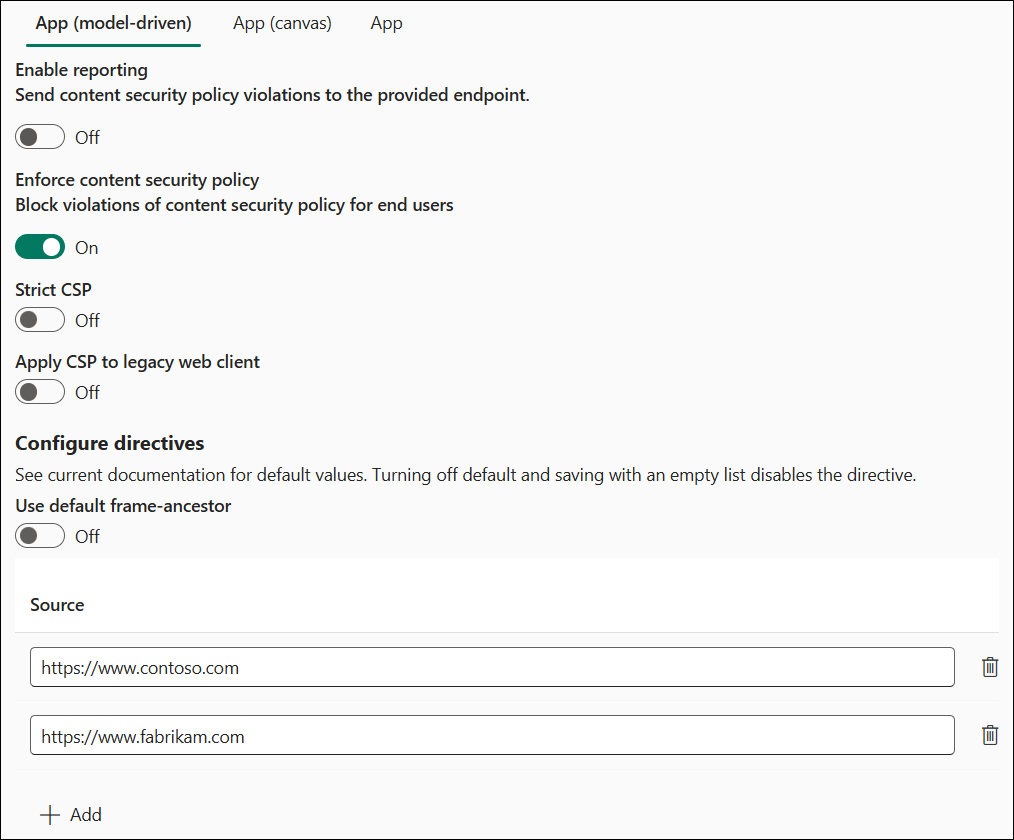
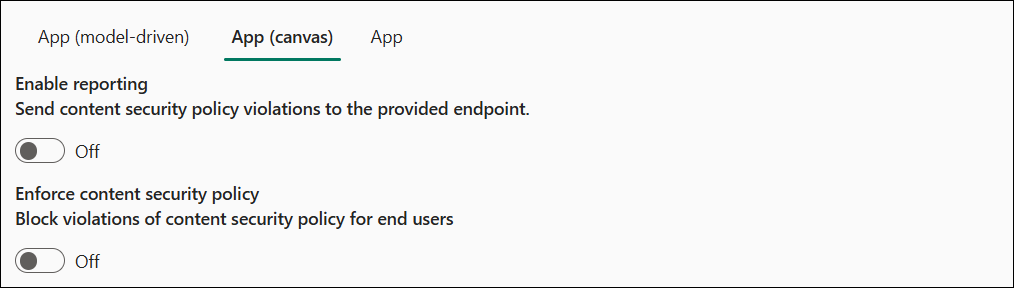
この例では、次のようになります。
- レポートはオフになっています。
- モデル駆動型の適用が有効になっています。
-
frame-ancestorsは、https://www.contoso.comとhttps://www.fabrikam.comに合わせてカスタマイズされます。
-
- キャンバスの適用は無効になっています。
有効なヘッダーは次のとおりです。
- モデル駆動型アプリ:
Content-Security-Policy: script-src * 'unsafe-inline' 'unsafe-eval' blob: data:; worker-src 'self' blob: data:; style-src * 'unsafe-inline' :blob; font-src * data:; frame-ancestors https://www.contoso.com https://www.fabrikam.com; - キャンバス アプリ: CSP ヘッダーは送信されません。
例 2: 有効化されたレポート
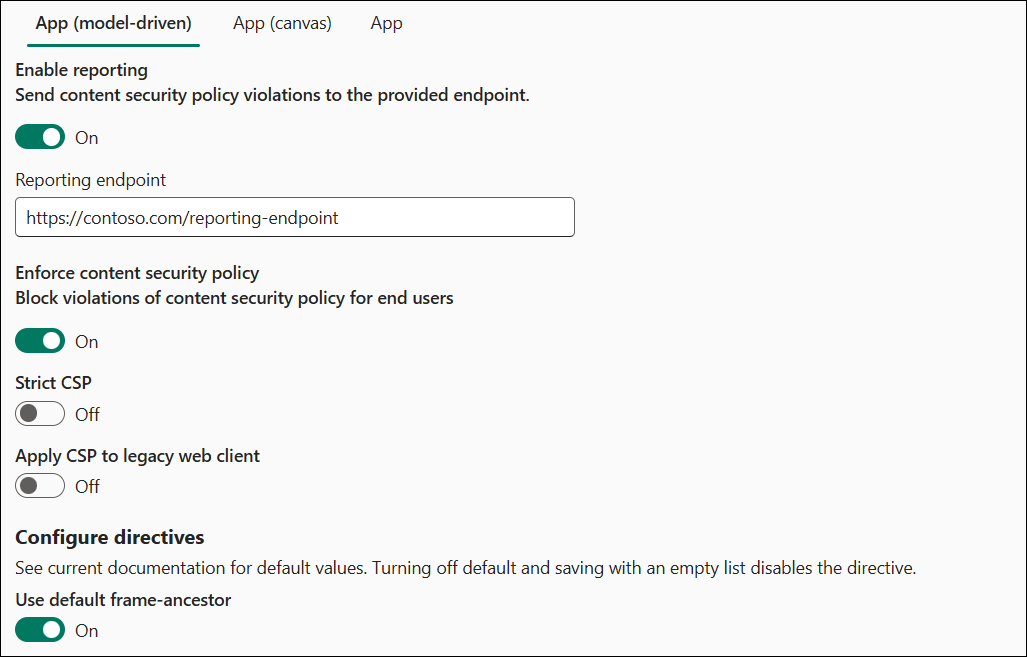
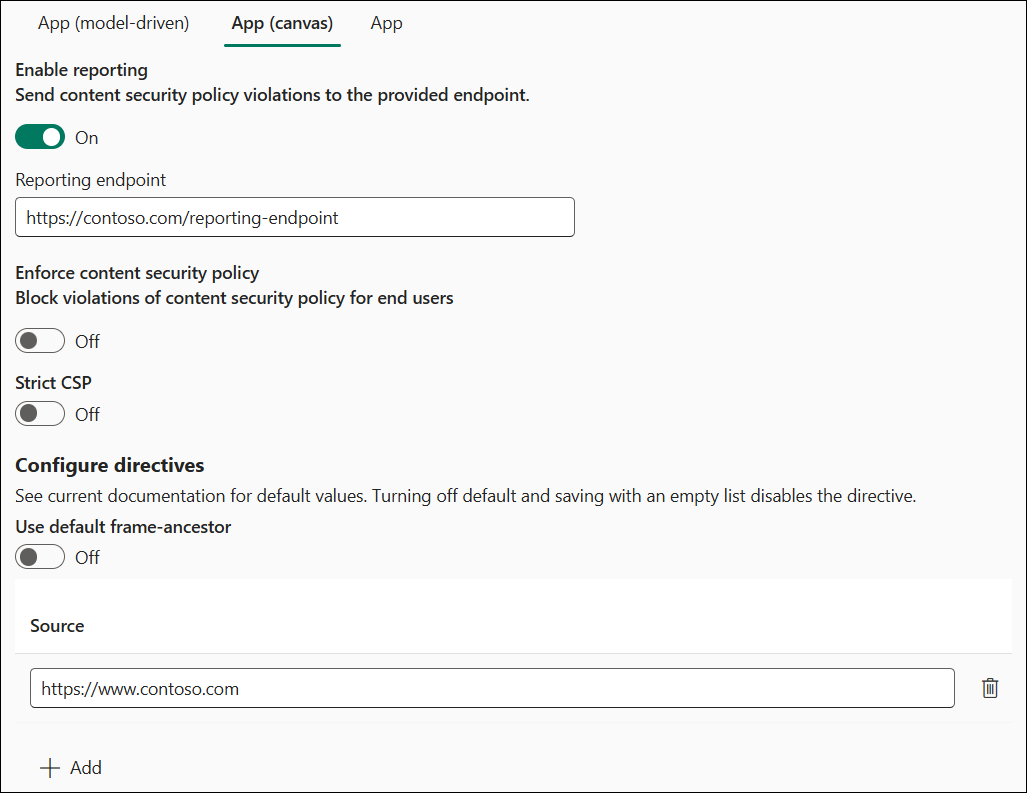
この例では、次のようになります。
- レポートはオンになっています。
- レポート エンドポイントは、
https://contoso.com/reporting-endpointにセットされています
- レポート エンドポイントは、
- モデル駆動型の適用が有効になっています。
-
frame-ancestorsは既定のままです
-
- キャンバスの適用は無効になっています。
-
frame-ancestorsはhttps://www.contoso.comにカスタマイズされています
-
有効な CSP 値は次のとおりです。
- モデル駆動型アプリ:
Content-Security-Policy: script-src * 'unsafe-inline' 'unsafe-eval' blob:; worker-src 'self' blob:; style-src * 'unsafe-inline' blob:; font-src * data:; frame-ancestors 'self' https://*.powerapps.com; report-uri https://contoso.com/reporting-endpoint; - キャンバス アプリ:
Content-Security-Policy-Report-Only: script-src * 'unsafe-inline' 'unsafe-eval'; worker-src 'self' blob:; style-src * 'unsafe-inline'; font-src * data:; frame-ancestors https://www.contoso.com; report-uri https://contoso.com/reporting-endpoint;
組織の設定を直接変更する
これらの組織設定を直接変更することで、UI を使用せずに CSP を構成できます。
IsContentSecurityPolicyEnabled は、モデル駆動型アプリで Content-Security-Policy ヘッダが送信されるかどうかを制御します。
ContentSecurityPolicyConfiguration は、フレーム先祖部分の値を制御します (前述のように、
'self'が設定されていない場合はContentSecurityPolicyConfigurationに設定されます)。 次の構造の JSON オブジェクト ({ "Frame-Ancestor": { "sources": [ { "source": "foo" }, { "source": "bar" } ] } }) を使用して、この設定を定義します。 この構成は、script-src * 'unsafe-inline' 'unsafe-eval'; worker-src 'self' blob:; style-src * 'unsafe-inline' blob:; font-src * data:; frame-ancestors 'foo' 'bar';に変換されます- (MDN から) HTTP コンテンツ セキュリティー ポリシー (CSP) の frame-ancestors ディレクティブは、
<frame>、<iframe>、<object>、<embed>、<applet>を使用してページを埋め込むことができる有効な親を指定します。
- (MDN から) HTTP コンテンツ セキュリティー ポリシー (CSP) の frame-ancestors ディレクティブは、
IsContentSecurityPolicyEnabledForCanvas は、キャンバス アプリで Content-Security-Policy ヘッダが送信されるかどうかを制御します。
ContentSecurityPolicyConfigurationForCanvas は、
ContentSecurityPolicyConfigurationで説明したものと同じプロセスを使用して、キャンバスのポリシーを制御します。ContentSecurityPolicyReportUri は、レポートを使用するかどうかを制御します。 この設定は、モデル駆動型アプリとキャンバスアプリの両方で使用されます。 有効な文字列は、指定されたエンドポイントに違反レポートを送信し、
IsContentSecurityPolicyEnabled/IsContentSecurityPolicyEnabledForCanvasがオフになっている場合はレポート専用モードを使用します。 空の文字列はレポートを無効にします。 詳細については、レポート ドキュメント を参照してください。
UI を使用しない CSP の構成
特に、オンプレミス構成など Power Platform 管理センター外の環境では、管理者はスクリプトを使用して CSP を設定し、設定を直接変更するケースも想定されます。
UI なしで CSP を有効にする
UI なしで CSP を有効にするには、次の手順を実行します。
- 組織エンティティの更新権限を持つユーザー (システム管理者は良い選択です) としてモデル駆動型アプリを使用し、ブラウザの開発ツールを起動します。
- 以下のスクリプトをコンソールに貼り付けて実行します。
- CSP を有効にする場合は既定の構成を渡します -
enableFrameAncestors(["'self'"]) - アプリを埋め込む追加オリジンを有効化する例として -
enableFrameAncestors(["*.powerapps.com", "'self'", "abcxyz"])
async function enableFrameAncestors(sources) {
    const baseUrl = Xrm.Utility.getGlobalContext().getClientUrl();

    if (!Array.isArray(sources) || sources.some(s => typeof s !== 'string')) {
        throw new Error('sources must be a string array');
    }

    const orgResponse = await fetch(`${baseUrl}/api/data/v9.1/organizations`);
    if (!orgResponse.ok) throw new Error('Failed to retrieve org info');
    const orgs = await orgResponse.json();
    const { organizationid, contentsecuritypolicyconfiguration, iscontentsecuritypolicyenabled } = orgs.value[0];

    console.log(`Organization Id: ${organizationid}`);
    console.log(`CSP Enabled?: ${iscontentsecuritypolicyenabled}`);
    console.log(`CSP Config: ${contentsecuritypolicyconfiguration}`);

    const orgProperty = prop => `${baseUrl}/api/data/v9.1/organizations(${organizationid})/${prop}`;

    console.log('Updating CSP configuration...')
    const config = {
        'Frame-Ancestor': {
            sources: sources.map(source => ({ source })),
        },
    };
    const cspConfigResponse = await fetch(orgProperty('contentsecuritypolicyconfiguration'), {
        method: 'PUT',
        headers: { 'Content-Type': 'application/json' },
        body: JSON.stringify({
            value: JSON.stringify(config),
        }),
    });

    if (!cspConfigResponse.ok) {
        throw new Error('Failed to update csp configuration');
    }
    console.log('Successfully updated CSP configuration!')

    if (iscontentsecuritypolicyenabled) {
        console.log('CSP is already enabled! Skipping update.')
        return;
    }

    console.log('Enabling CSP...')
    const cspEnableResponse = await fetch(orgProperty('iscontentsecuritypolicyenabled'), {
        method: 'PUT',
        headers: { 'Content-Type': 'application/json' },
        body: JSON.stringify({
            value: true,
        }),
    });

    if (!cspEnableResponse.ok) {
        throw new Error('Failed to enable csp');
    }
    console.log('Successfully enabled CSP!')
}
UI なしで CSP を無効にする
UI なしで CSP を無効にするには、次の手順を実行します。
- 組織エンティティの更新権限を持つユーザー (システム管理者は良い選択です) としてモデル駆動型アプリを使用し、ブラウザの開発ツールを起動します。
- 以下のスクリプトをコンソールに貼り付けて実行します。
- CSP を無効化する場合はコンソールに貼り付けます:
disableCSP()
async function disableCSP() {
    const baseUrl = Xrm.Utility.getGlobalContext().getClientUrl();

    const orgResponse = await fetch(`${baseUrl}/api/data/v9.1/organizations`);
    if (!orgResponse.ok) throw new Error('Failed to retrieve org info');
    const orgs = await orgResponse.json();
    const { organizationid, iscontentsecuritypolicyenabled } = orgs.value[0];

    console.log(`Organization Id: ${organizationid}`);
    console.log(`CSP Enabled?: ${iscontentsecuritypolicyenabled}`);

    const orgProperty = prop => `${baseUrl}/api/data/v9.1/organizations(${organizationid})/${prop}`;

    if (!iscontentsecuritypolicyenabled) {
        console.log('CSP is already disabled! Skipping update.')
        return;
    }

    console.log('Disabling CSP...')
    const cspEnableResponse = await fetch(orgProperty('iscontentsecuritypolicyenabled'), {
        method: 'PUT',
        headers: { 'Content-Type': 'application/json' },
        body: JSON.stringify({
            value: false,
        }),
    });

    if (!cspEnableResponse.ok) {
        throw new Error('Failed to disable csp');
    }
    console.log('Successfully disabled CSP!')
}