ScrollView は、コンテンツをスクロールできるレイアウトです。 ScrollView クラスは Layout クラスから派生し、既定ではコンテンツを垂直方向にスクロールします。 ScrollView は子を 1 つだけ持つことができますが、他のレイアウトでもかまいません。
警告
ScrollView オブジェクトは入れ子にしないでください。 さらに、ScrollView オブジェクトは、CollectionView、ListView、WebView などのスクロールを提供する他のコントロールと入れ子にしないでください。
ScrollView には、次のプロパティが定義されています。
View型のContentは、ScrollViewで表示するコンテンツを表します。Size型のContentSizeは、コンテンツのサイズを表します。 これは、読み取り専用プロパティです。ScrollBarVisibility型のHorizontalScrollBarVisibilityは、水平スクロール バーが表示されるタイミングを表します。ScrollOrientation型のOrientationは、ScrollViewのスクロール方向を表します。 このプロパティの既定値はVerticalです。double型のScrollXは、現在の X スクロール位置を示します。 この読み取り専用プロパティの既定値は 0です。double型のScrollYは、現在の Y スクロール位置を示します。 この読み取り専用プロパティの既定値は 0です。ScrollBarVisibility型のVerticalScrollBarVisibilityは、垂直スクロール バーが表示されるタイミングを表します。
これらのプロパティは BindableProperty オブジェクトが基になっています。Content プロパティは例外です。つまり、これらは、データ バインディングの対象にすることができ、スタイルを設定できます。
Content プロパティは ScrollView クラスの ContentProperty であるため、XAML から明示的に設定する必要はありません。
ヒント
可能な限り最適なレイアウト パフォーマンスを得るために、「レイアウトのパフォーマンスを最適化する」のガイドラインに従ってください。
ルート レイアウトとしての ScrollView
ScrollView には 1 つの子しか含められず、他のレイアウトにすることもできます。 そのため、ScrollView がページのルート レイアウトになるのが一般的です。 子コンテンツをスクロールするのに、ScrollView はコンテンツの高さとそれ自体の高さの差を計算します。 その違いは、ScrollView がコンテンツをスクロールできる量です。
StackLayout は、多くの場合、ScrollView の子になります。 このシナリオでは、ScrollView は StackLayout が子の高さの合計と同じ高さになるようにします。 次に、ScrollView はコンテンツをスクロールできる量を決定できます。 StackLayout の詳細については、「Xamarin.Forms StackLayout」を参照してください。
注意
垂直方向 ScrollView では、VerticalOptions プロパティを Start、Center、または End に設定しないでください。 そうすることで、ScrollView が必要なだけの高さとなり、それがゼロになる可能性があります。 Xamarin.Forms はこのような最終的な結果から保護されますが、起きてほしくないことを示唆するようなコードは避けることをお勧めします。
次の XAML の例では、ページ上のルート レイアウトとして ScrollView があります。
<ContentPage xmlns="http://xamarin.com/schemas/2014/forms"
             xmlns:x="http://schemas.microsoft.com/winfx/2009/xaml"
             xmlns:local="clr-namespace:ScrollViewDemos"
             x:Class="ScrollViewDemos.Views.ColorListPage"
             Title="ScrollView demo">
    <ScrollView>
        <StackLayout BindableLayout.ItemsSource="{x:Static local:NamedColor.All}">
            <BindableLayout.ItemTemplate>
                <DataTemplate>
                    <StackLayout Orientation="Horizontal">
                        <BoxView Color="{Binding Color}"
                                 HeightRequest="32"
                                 WidthRequest="32"
                                 VerticalOptions="Center" />
                        <Label Text="{Binding FriendlyName}"
                               FontSize="24"
                               VerticalOptions="Center" />
                    </StackLayout>
                </DataTemplate>
            </BindableLayout.ItemTemplate>
        </StackLayout>
    </ScrollView>
</ContentPage>
この例では、ScrollView のコンテンツが StackLayout に設定されています。これはバインド可能なレイアウトを使用して、Xamarin.Forms で定義された Color フィールドを表示します。 既定では、ScrollView が垂直方向にスクロールすると、より多くのコンテンツが表示されます。
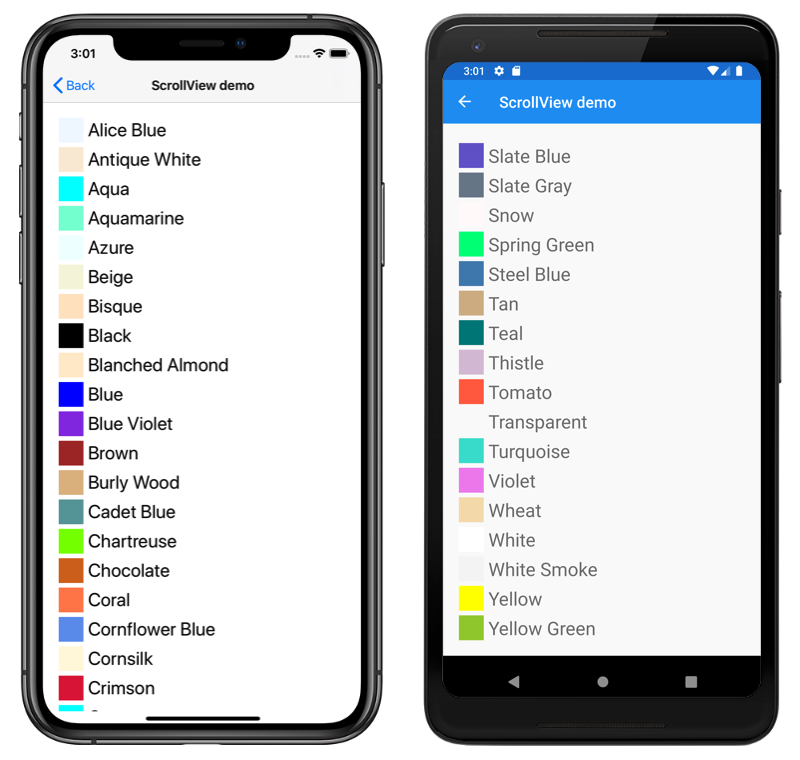
同等の C# コードを次に示します。
public class ColorListPageCode : ContentPage
{
    public ColorListPageCode()
    {
        DataTemplate dataTemplate = new DataTemplate(() =>
        {
            BoxView boxView = new BoxView
            {
                HeightRequest = 32,
                WidthRequest = 32,
                VerticalOptions = LayoutOptions.Center
            };
            boxView.SetBinding(BoxView.ColorProperty, "Color");

            Label label = new Label
            {
                FontSize = 24,
                VerticalOptions = LayoutOptions.Center
            };
            label.SetBinding(Label.TextProperty, "FriendlyName");

            StackLayout horizontalStackLayout = new StackLayout
            {
                Orientation = StackOrientation.Horizontal,
                Children = { boxView, label }
            };
            return horizontalStackLayout;
        });

        StackLayout stackLayout = new StackLayout();
        BindableLayout.SetItemsSource(stackLayout, NamedColor.All);
        BindableLayout.SetItemTemplate(stackLayout, dataTemplate);

        ScrollView scrollView = new ScrollView { Content = stackLayout };

        Title = "ScrollView demo";
        Content = scrollView;
    }
}
バインド可能なレイアウトの詳細については、「Xamarin.Forms のバインド可能なレイアウト」を参照してください。
子レイアウトとしての ScrollView
ScrollView は、別の親レイアウトに対する子レイアウトにすることができます。
ScrollView は、多くの場合、StackLayout の子になります。 ScrollView では、コンテンツの高さとそれ自体の高さの差を計算するために特定の高さが必要です。その差は、ScrollView がコンテンツをスクロールできる量です。 ScrollView が StackLayout の子である場合、特定の高さを受け取りません。 StackLayout は ScrollView をできるだけ低くする必要があります。それは ScrollView コンテンツの高さか 0 です。 このシナリオを処理するには、ScrollView の VerticalOptions プロパティを FillAndExpand に設定する必要があります。 これにより、StackLayout は ScrollView に他の子が必要としていない余分なスペースをすべて与え、その後、ScrollView は特定の高さになります。
次の XAML の例では、StackLayout の子レイアウトとして ScrollView を使用します。
<ContentPage xmlns="http://xamarin.com/schemas/2014/forms"
             xmlns:x="http://schemas.microsoft.com/winfx/2009/xaml"
             x:Class="ScrollViewDemos.Views.BlackCatPage"
             Title="ScrollView as a child layout demo">
    <StackLayout Margin="20">
        <Label Text="THE BLACK CAT by Edgar Allan Poe"
               FontSize="Medium"
               FontAttributes="Bold"
               HorizontalOptions="Center" />
        <ScrollView VerticalOptions="FillAndExpand">
            <StackLayout>
                <Label Text="FOR the most wild, yet most homely narrative which I am about to pen, I neither expect nor solicit belief. Mad indeed would I be to expect it, in a case where my very senses reject their own evidence. Yet, mad am I not -- and very surely do I not dream. But to-morrow I die, and to-day I would unburthen my soul. My immediate purpose is to place before the world, plainly, succinctly, and without comment, a series of mere household events. In their consequences, these events have terrified -- have tortured -- have destroyed me. Yet I will not attempt to expound them. To me, they have presented little but Horror -- to many they will seem less terrible than barroques. Hereafter, perhaps, some intellect may be found which will reduce my phantasm to the common-place -- some intellect more calm, more logical, and far less excitable than my own, which will perceive, in the circumstances I detail with awe, nothing more than an ordinary succession of very natural causes and effects." />
                <!-- More Label objects go here -->
            </StackLayout>
        </ScrollView>
    </StackLayout>
</ContentPage>
この例には StackLayout オブジェクトが 2 つあります。 1 つ目の StackLayout は、Label オブジェクトとその子としての ScrollView を持つルート レイアウト オブジェクトです。 ScrollView にはコンテンツとして StackLayout があり、StackLayout には複数の Label オブジェクトが含まれています。 この配置により、最初の Label が常に画面上に表示されます。他の Label オブジェクトによって表示されるテキストは、スクロールできるようになります。
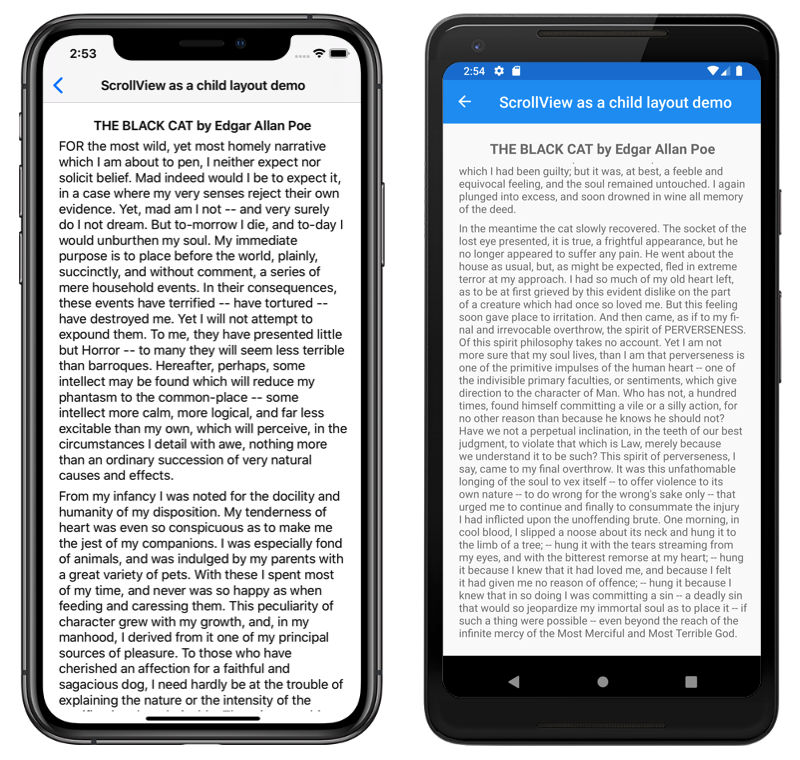
同等の C# コードを次に示します。
public class BlackCatPageCS : ContentPage
{
    public BlackCatPageCS()
    {
        Label titleLabel = new Label
        {
            Text = "THE BLACK CAT by Edgar Allan Poe",
            // More properties set here to define the Label appearance
        };

        ScrollView scrollView = new ScrollView
        {
            VerticalOptions = LayoutOptions.FillAndExpand,
            Content = new StackLayout
            {
                Children =
                {
                    new Label
                    {
                        Text = "FOR the most wild, yet most homely narrative which I am about to pen, I neither expect nor solicit belief. Mad indeed would I be to expect it, in a case where my very senses reject their own evidence. Yet, mad am I not -- and very surely do I not dream. But to-morrow I die, and to-day I would unburthen my soul. My immediate purpose is to place before the world, plainly, succinctly, and without comment, a series of mere household events. In their consequences, these events have terrified -- have tortured -- have destroyed me. Yet I will not attempt to expound them. To me, they have presented little but Horror -- to many they will seem less terrible than barroques. Hereafter, perhaps, some intellect may be found which will reduce my phantasm to the common-place -- some intellect more calm, more logical, and far less excitable than my own, which will perceive, in the circumstances I detail with awe, nothing more than an ordinary succession of very natural causes and effects.",
                    },
                    // More Label objects go here
                }
            }
        };

        Title = "ScrollView as a child layout demo";
        Content = new StackLayout
        {
            Margin = new Thickness(20),
            Children = { titleLabel, scrollView }
        };
    }
}
オリエンテーション
ScrollView には、ScrollView のスクロール方向を表す Orientation プロパティがあります。 このプロパティは ScrollOrientation 型であり、次のメンバーを定義します。
Verticalは、ScrollViewが垂直方向にスクロールすることを示します。 このメンバーは、Orientationプロパティの既定値です。Horizontalは、ScrollViewが水平方向にスクロールすることを示します。Bothは、ScrollViewが水平方向と垂直方向にスクロールすることを示します。Neitherは、ScrollViewがスクロールしないことを示します。
ヒント
Orientation プロパティを Neither に設定すると、スクロールを無効にできます。
スクロールの検出
ScrollView は、Scrolled イベントを定義します。これはスクロールが発生したことを示すために発生します。 Scrolled イベントに付随する ScrolledEventArgs オブジェクトには、ScrollX と ScrollY のプロパティがあり、両方とも double 型です。
重要
ScrolledEventArgs.ScrollX プロパティと ScrolledEventArgs.ScrollY プロパティは、ScrollView の先頭までバック スクロールするときに発生するバウンス効果により、負の値を持つ可能性があります。
次の XAML の例は、Scrolled イベントのイベント ハンドラーを設定する ScrollView を示しています。
<ScrollView Scrolled="OnScrollViewScrolled">
		...
</ScrollView>
同等の C# コードを次に示します。
ScrollView scrollView = new ScrollView();
scrollView.Scrolled += OnScrollViewScrolled;
この例では、Scrolled イベントが発生したときに OnScrollViewScrolled イベント ハンドラーが実行されます。
void OnScrollViewScrolled(object sender, ScrolledEventArgs e)
{
    Console.WriteLine($"ScrollX: {e.ScrollX}, ScrollY: {e.ScrollY}");
}
この例では、OnScrollViewScrolled イベント ハンドラーは、イベントに付随する ScrolledEventArgs オブジェクトの値を出力します。
Note
Scrolled イベントは 、ユーザーが開始したスクロールとプログラムによるスクロールに対して発生します。
プログラムによるスクロール
ScrollView は、ScrollView を非同期的にスクロールする 2 つの ScrollToAsync メソッドを定義します。 オーバーロードの 1 つは ScrollView 内の指定された位置にスクロールし、もう 1 つは指定された要素をスクロールして表示します。 どちらのオーバーロードにも、スクロールをアニメーション化するかどうかを示すために使用できる追加の引数があります。
重要
ScrollView.Orientation プロパティが Neither に設定されている場合、ScrollToAsync メソッドはスクロールしません。
位置をスクロールして表示する
ScrollView 内の位置は、double x とy の引数を受け取る ScrollToAsync メソッドを使用してスクロールさせることができます。 次の例は、scrollView という名前の垂直 ScrollView オブジェクトを指定して、ScrollView の上部からデバイスに依存しない 150 単位までスクロールする方法を示しています。
await scrollView.ScrollToAsync(0, 150, true);
ScrollToAsync の 3 番目の引数は、animated 引数です。これは、プログラムで ScrollView をスクロールするときに、スクロール アニメーションを表示するかどうかを決定します。
要素をスクロールして表示する
ScrollView 内の要素は、Element 引数と ScrollToPosition 引数を受け入れる ScrollToAsync メソッドを使用して、スクロールして表示できます。 次の例は、scrollView という名前の垂直 ScrollView と、label という名前の Label を指定して、要素をスクロールして表示する方法を示しています。
await scrollView.ScrollToAsync(label, ScrollToPosition.End, true);
ScrollToAsync の 3 番目の引数は、animated 引数です。これは、プログラムで ScrollView をスクロールするときに、スクロール アニメーションを表示するかどうかを決定します。
要素をスクロールして表示する場合、スクロール完了後の要素の正確な位置は、ScrollToAsync メソッドの 2 番目の引数である position で設定できます。 この引数は、ScrollToPosition 列挙メンバーを受け入れます。
MakeVisibleは、要素がScrollViewに表示されるまでスクロールする必要があることを示します。Startは、要素をScrollViewの先頭までスクロールする必要があることを示します。Centerは、要素をScrollViewの中央までスクロールする必要があることを示します。Endは、要素をScrollViewの最後までスクロールする必要があることを示します。
スクロール バーの表示
ScrollView は、バインド可能なプロパティによってサポートされる HorizontalScrollBarVisibility プロパティと VerticalScrollBarVisibility プロパティを定義します。 これらのプロパティは、水平スクロール バーと垂直スクロール バーのどちらを表示するかを表す、ScrollBarVisibility 列挙値を取得または設定します。 ScrollBarVisibility 列挙型には、次のメンバーが定義されています。
Defaultは、プラットフォームの既定のスクロール バーの動作を示し、HorizontalScrollBarVisibilityおよびVerticalScrollBarVisibilityプロパティの既定値です。Alwaysは、コンテンツがビューに収まる場合でもスクロール バーが表示されることを示します。Neverは、コンテンツがビューに収まらない場合でもスクロール バーが表示されないことを示します。