Windows アプリケーションでプログラムによってフォーカスを移動するには、 FocusManager.TryMoveFocus メソッドまたは FindNextElement メソッドを使用します。
TryMoveFocus は、フォーカスのある要素から指定した方向の次のフォーカス可能な要素にフォーカスを変更しようとしますが、 FindNextElement は、指定されたナビゲーション方向に基づいてフォーカスを受け取る要素 ( DependencyObject として) を取得します (方向ナビゲーションのみ、タブ ナビゲーションをエミュレートするために使用できません)。
注
FindNextFocusableElement は UIElement を取得するため、FindNextFocusableElement の代わりに FindNextElement メソッドを使用することをお勧めします。これは、次のフォーカス可能な要素が UIElement (Hyperlink オブジェクトなど) でない場合に null を返します。
スコープ内でフォーカス候補を検索する
特定の UI ツリー内で次のフォーカス候補を検索したり、特定の要素を考慮から除外したりするなど、 TryMoveFocus と FindNextElement の両方のフォーカス ナビゲーション動作をカスタマイズできます。
この例では、TicTacToe ゲームを使用して 、TryMoveFocus メソッドと FindNextElement メソッドを示します。
<StackPanel Orientation="Horizontal"
                VerticalAlignment="Center"
                HorizontalAlignment="Center" >
    <Button Content="Start Game" />
    <Button Content="Undo Movement" />
    <Grid x:Name="TicTacToeGrid" KeyDown="OnKeyDown">
        <Grid.ColumnDefinitions>
            <ColumnDefinition Width="50" />
            <ColumnDefinition Width="50" />
            <ColumnDefinition Width="50" />
        </Grid.ColumnDefinitions>
        <Grid.RowDefinitions>
            <RowDefinition Height="50" />
            <RowDefinition Height="50" />
            <RowDefinition Height="50" />
        </Grid.RowDefinitions>
        <myControls:TicTacToeCell
            Grid.Column="0" Grid.Row="0"
            x:Name="Cell00" />
        <myControls:TicTacToeCell
            Grid.Column="1" Grid.Row="0"
            x:Name="Cell10"/>
        <myControls:TicTacToeCell
            Grid.Column="2" Grid.Row="0"
            x:Name="Cell20"/>
        <myControls:TicTacToeCell
            Grid.Column="0" Grid.Row="1"
            x:Name="Cell01"/>
        <myControls:TicTacToeCell
            Grid.Column="1" Grid.Row="1"
            x:Name="Cell11"/>
        <myControls:TicTacToeCell
            Grid.Column="2" Grid.Row="1"
            x:Name="Cell21"/>
        <myControls:TicTacToeCell
            Grid.Column="0" Grid.Row="2"
            x:Name="Cell02"/>
        <myControls:TicTacToeCell
            Grid.Column="1" Grid.Row="2"
            x:Name="Cell22"/>
        <myControls:TicTacToeCell
            Grid.Column="2" Grid.Row="2"
            x:Name="Cell32"/>
    </Grid>
</StackPanel>
private void OnKeyDown(object sender, KeyRoutedEventArgs e)
{
    DependencyObject candidate = null;

    var options = new FindNextElementOptions ()
    {
        SearchRoot = TicTacToeGrid,
        XYFocusNavigationStrategyOverride = XYFocusNavigationStrategyOverride.Projection
    };

    switch (e.Key)
    {
        case Windows.System.VirtualKey.Up:
            candidate =
                FocusManager.FindNextElement(
                    FocusNavigationDirection.Up, options);
            break;
        case Windows.System.VirtualKey.Down:
            candidate =
                FocusManager.FindNextElement(
                    FocusNavigationDirection.Down, options);
            break;
        case Windows.System.VirtualKey.Left:
            candidate = FocusManager.FindNextElement(
                FocusNavigationDirection.Left, options);
            break;
        case Windows.System.VirtualKey.Right:
            candidate =
                FocusManager.FindNextElement(
                    FocusNavigationDirection.Right, options);
            break;
    }
    // Also consider whether candidate is a Hyperlink, WebView, or TextBlock.
    if (candidate != null && candidate is Control)
    {
        (candidate as Control).Focus(FocusState.Keyboard);
    }
}
FindNextElementOptions を使用して、フォーカス候補の識別方法をさらにカスタマイズします。 このオブジェクトには、次のプロパティがあります。
- SearchRoot - フォーカス ナビゲーション候補の検索範囲を、この DependencyObject の子に設定します。 Null は、ビジュアル ツリーのルートから検索を開始することを示します。
Important
方向領域の外側に配置する SearchRoot の子孫に 1 つ以上の変換が適用されている場合、これらの要素は引き続き候補と見なされます。
- ExclusionRect - フォーカス ナビゲーション候補は、重複するすべてのオブジェクトがナビゲーション フォーカスから除外される "架空の" 境界四角形を使用して識別されます。 この四角形は計算にのみ使用され、ビジュアル ツリーには追加されません。
- HintRect - フォーカス ナビゲーション候補は、フォーカスを受け取る可能性が最も高い要素を識別する "架空の" 外接する四角形を使用して識別されます。 この四角形は計算にのみ使用され、ビジュアル ツリーには追加されません。
- XYFocusNavigationStrategyOverride - フォーカスを受け取る最適な候補要素を識別するために使用されるフォーカス ナビゲーション戦略。
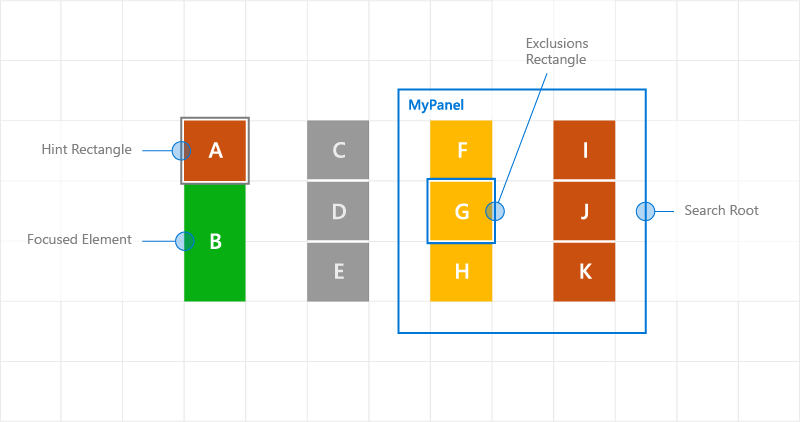
次の図は、これらの概念の一部を示しています。
要素 B にフォーカスがある場合、FindNextElement は右に移動するときに I をフォーカス候補として識別します。 その理由は次のとおりです。
- A の HintRect のため、開始参照は B ではなく A です
- MyPanel が SearchRoot として指定されているため、C は候補ではありません
- ExclusionRect が重複しているため、F は候補ではありません
ナビゲーション ヒントを使用したカスタム フォーカス ナビゲーション動作
ナビゲーション フォーカス イベント
NoFocusCandidateFound イベント
UIElement.NoFocusCandidateFound イベントは、タブキーまたは方向キーが押され、指定された方向にフォーカス候補がない場合に発生します。 このイベントは、 TryMoveFocus では発生しません。
これはルーティング イベントであるため、フォーカスされた要素から、オブジェクト ツリーのルートに向かって次々と親オブジェクトを介して伝播します。 これにより、適切な場所でイベントを処理できます。
ここでは、ユーザーが最もフォーカス可能なコントロールの左側にフォーカスを移動しようとしたときに Grid が SplitView を開く方法を示します ( 「Xbox とテレビの設計」を参照)。
<Grid NoFocusCandidateFound="OnNoFocusCandidateFound">
...
</Grid>
private void OnNoFocusCandidateFound (
    UIElement sender, NoFocusCandidateFoundEventArgs args)
{
    if(args.NavigationDirection == FocusNavigationDirection.Left)
    {
        if(args.InputDevice == FocusInputDeviceKind.Keyboard ||
        args.InputDevice == FocusInputDeviceKind.GameController )
            {
                OpenSplitPaneView();
            }
        args.Handled = true;
    }
}
GotFocus イベントと LostFocus イベント
UIElement.GotFocus イベントと UIElement.LostFocus イベントは、要素がフォーカスを取得するか、フォーカスを失ったときに発生します。 このイベントは、 TryMoveFocus では発生しません。
これらはルーティング イベントであるため、フォーカスされた要素から連続する親オブジェクトを介してオブジェクト ツリーのルートまで伝播します。 これにより、適切な場所でイベントを処理できます。
GettingFocus および LosingFocus イベント
UIElement.GettingFocus イベントと UIElement.LosingFocus イベントは、それぞれの UIElement.GotFocus イベントと UIElement.LostFocus イベントの前に発生します。
これらはルーティング イベントであるため、フォーカスされた要素から連続する親オブジェクトを介してオブジェクト ツリーのルートまで伝播します。 これはフォーカスの変更が行われる前に行われるため、フォーカスの変更をリダイレクトまたは取り消すことができます。
GettingFocus と LosingFocus は同期イベントであるため、これらのイベントがバブルしている間はフォーカスは移動されません。 ただし、 GotFocus と LostFocus は非同期イベントです。つまり、ハンドラーが実行される前にフォーカスが再び移動しないという保証はありません。
Control.Focus の呼び出しでフォーカスが移動すると、呼び出し中に GettingFocus が発生し、GotFocus は呼び出し後に発生します。
フォーカス ナビゲーション ターゲットは、フォーカスが移動する前の GettingFocus イベントと LosingFocus イベント中に、GettingFocusEventArgs.NewFocusedElement プロパティを通じて変更できます。 ターゲットが変更された場合でも、イベントはバブルを発生させ、ターゲットを再度変更できます。
再入の問題を防ぐため、これらのイベントがバブリングしている最中にフォーカスを移動しようとすると (TryMoveFocus または Control.Focus を使用して)、例外がスローされます。
これらのイベントは、フォーカスが移動する理由 (タブ ナビゲーション、方向ナビゲーション、プログラムによるナビゲーションなど) に関係なく発生します。
フォーカス イベントの実行順序を次に示します。
- LosingFocus フォーカスが失われるフォーカス要素にリセットされた場合、または TryCancel が成功した場合、それ以上のイベントは発生しません。
- GettingFocus フォーカスが失われた要素にフォーカスが戻されるか、TryCancel が成功した場合、それ以上のイベントは発生しません。
- LostFocus
- GotFocus
次の図は、A から右に移動するときに XYFocus が B4 を候補として選択する方法を示しています。 B4 は、GettingFocus イベントを発火し、ListView が B3 にフォーカスを再割り当てする機会を得ます。
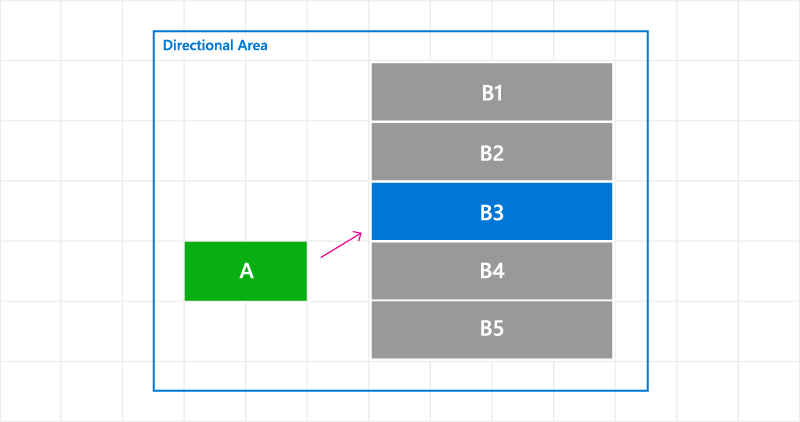
GettingFocus イベントのフォーカス ナビゲーション ターゲットの変更
ここでは、 GettingFocus イベントを処理し、フォーカスをリダイレクトする方法を示します。
<StackPanel Orientation="Horizontal">
    <Button Content="A" />
    <ListView x:Name="MyListView" SelectedIndex="2" GettingFocus="OnGettingFocus">
        <ListViewItem>LV1</ListViewItem>
        <ListViewItem>LV2</ListViewItem>
        <ListViewItem>LV3</ListViewItem>
        <ListViewItem>LV4</ListViewItem>
        <ListViewItem>LV5</ListViewItem>
    </ListView>
</StackPanel>
private void OnGettingFocus(UIElement sender, GettingFocusEventArgs args)
{
    //Redirect the focus only when the focus comes from outside of the ListView.
    // move the focus to the selected item
    if (MyListView.SelectedIndex != -1 &&
        IsNotAChildOf(MyListView, args.OldFocusedElement))
    {
        var selectedContainer =
            MyListView.ContainerFromItem(MyListView.SelectedItem);
        if (args.FocusState ==
            FocusState.Keyboard &&
            args.NewFocusedElement != selectedContainer)
        {
            args.TryRedirect(
                MyListView.ContainerFromItem(MyListView.SelectedItem));
            args.Handled = true;
        }
    }
}
ここでは、CommandBar の LosingFocus イベントを処理し、メニューが閉じられたときにフォーカスを設定する方法を示します。
<CommandBar x:Name="MyCommandBar" LosingFocus="OnLosingFocus">
     <AppBarButton Icon="Back" Label="Back" />
     <AppBarButton Icon="Stop" Label="Stop" />
     <AppBarButton Icon="Play" Label="Play" />
     <AppBarButton Icon="Forward" Label="Forward" />

     <CommandBar.SecondaryCommands>
         <AppBarButton Icon="Like" Label="Like" />
         <AppBarButton Icon="Share" Label="Share" />
     </CommandBar.SecondaryCommands>
 </CommandBar>
private void OnLosingFocus(UIElement sender, LosingFocusEventArgs args)
{
    if (MyCommandBar.IsOpen == true &&
        IsNotAChildOf(MyCommandBar, args.NewFocusedElement))
    {
        if (args.TryCancel())
        {
            args.Handled = true;
        }
    }
}
最初と最後のフォーカス可能な要素を検索する
FocusManager.FindFirstFocusableElement メソッドと FocusManager.FindLastFocusableElement メソッドは、オブジェクトのスコープ内の最初または最後のフォーカス可能な要素 (UIElement の要素ツリーまたは TextElement のテキスト ツリー) にフォーカスを移動します。 スコープは呼び出しで指定されます (引数が null の場合、スコープは現在のウィンドウです)。
スコープ内でフォーカス候補を識別できない場合は、null が返されます。
ここでは、CommandBar のボタンが方向を折り返すように指定する方法を示します ( キーボード操作を参照)。
<CommandBar x:Name="MyCommandBar" LosingFocus="OnLosingFocus">
    <AppBarButton Icon="Back" Label="Back" />
    <AppBarButton Icon="Stop" Label="Stop" />
    <AppBarButton Icon="Play" Label="Play" />
    <AppBarButton Icon="Forward" Label="Forward" />

    <CommandBar.SecondaryCommands>
        <AppBarButton Icon="Like" Label="Like" />
        <AppBarButton Icon="ReShare" Label="Share" />
    </CommandBar.SecondaryCommands>
</CommandBar>
private void OnLosingFocus(UIElement sender, LosingFocusEventArgs args)
{
    if (IsNotAChildOf(MyCommandBar, args.NewFocussedElement))
    {
        DependencyObject candidate = null;
        if (args.Direction == FocusNavigationDirection.Left)
        {
            candidate = FocusManager.FindLastFocusableElement(MyCommandBar);
        }
        else if (args.Direction == FocusNavigationDirection.Right)
        {
            candidate = FocusManager.FindFirstFocusableElement(MyCommandBar);
        }
        if (candidate != null)
        {
            args.NewFocusedElement = candidate;
            args.Handled = true;
        }
    }
}
関連資料
GitHub で Microsoft と共同作業する
このコンテンツのソースは GitHub にあります。そこで、issue や pull request を作成および確認することもできます。 詳細については、共同作成者ガイドを参照してください。

Windows developer