Note
ამ გვერდზე წვდომა ავტორიზაციას მოითხოვს. შეგიძლიათ სცადოთ შესვლა ან დირექტორიების შეცვლა.
ამ გვერდზე წვდომა ავტორიზაციას მოითხოვს. შეგიძლიათ სცადოთ დირექტორიების შეცვლა.
Important
This feature is in Beta. Account admins can manage access to this feature from the account console Previews page. See Manage account-level previews.
The Databricks Genie app in Microsoft Teams brings Genie into Microsoft Teams so users can ask data questions and get answers without leaving the Microsoft Teams workspace. Users can chat with the app in a direct message or mention @Databricks Genie in a Microsoft Teams channel or group chat. Channel owners can pin a specific Genie Agent to a channel for consistent, use-case-specific answers. Otherwise, questions route through Genie.
The Databricks Genie app in Microsoft Teams relies on the Genie One API and uses the same model providers and trust and safety guarantees as Genie. See Hosting provider used when partner-powered AI features setting is enabled and disabled and Databricks AI assistive features trust and safety.
This page describes how to download, set up, and use the Databricks Genie app in Microsoft Teams.
Important
Azure Databricks AI agents may generate inaccurate responses. Verify before acting on agent output.
Prerequisites
Before installing the Databricks Genie app in Microsoft Teams:
- An account admin must enable the Azure Databricks Microsoft Teams App preview in the account console.
- If your workspace uses an IP access list, add the outbound IPs of the Azure Databricks control plane in the East US 2 region. See the Outbound IPs in the Azure Databricks documentation.
- If you are installing using a custom app, download the Microsoft Teams app using the following link. Microsoft Teams app.
Install the Databricks Genie app in Microsoft Teams
A Microsoft 365 admin installs the Databricks Genie app in Microsoft Teams from the Microsoft marketplace:
- In the Microsoft marketplace, search for and find Databricks Genie.
- Install the app.
- Approve the app permissions when prompted during installation.
The admin can grant consent manually after installation, if needed:
- Go to Microsoft Entra portal > Enterprise apps.
- Search for the Databricks Genie app in Microsoft Teams.
- Click Permissions > Grant admin consent on the
User.ReadBasic.Allpermission.
After installation, users can start using the app.
Use the Databricks Genie app in Microsoft Teams
You can use the Databricks Genie app in Microsoft Teams through direct messages or in channel conversations on your Microsoft Teams workspace, or from Microsoft 365 Copilot.
Direct message
To directly message the Databricks Genie app in Microsoft Teams:
- In Microsoft Teams, click Apps in the left sidebar and open the Databricks Genie app in Microsoft Teams.
- Enter your question. If you are not signed in, the Databricks Genie app in Microsoft Teams prompts you to sign in.
- Your question is routed to the most appropriate Genie Agent and returns an answer with sources and suggested follow-up prompts.
To configure the workspace and Genie Agent scope for all subsequent direct message conversations, open the Databricks Genie app in Microsoft Teams home page and adjust the settings.
Channel conversation
You can add the Databricks Genie app in Microsoft Teams to a channel. Using config, channel owners can configure settings for all members of a channel and individual users can configure personal settings. Channel owner configurations override personal configurations.
To configure the Databricks Genie app in Microsoft Teams in a channel:
In the desired channel, type
@Databricks Genie.If prompted, add the Databricks Genie app in Microsoft Teams to the channel.
Type
config.Select the connected workspace, the message visibility, and the Genie Agent scope (a specific space or Chat in Genie).
If no Genie Agent is configured, the channel defaults to Chat in Genie.
After configuration, all
@Databricks Geniementions in the channel route to the configured agent and workspace.
Configuration levels and overrides
Run config in a channel to open the configuration window. The following settings are configurable:
- Workspace Selection: The Azure Databricks workspace the Databricks Genie app in Microsoft Teams connects to for answering questions.
- Message visibility: Whether
@Databricks Genieresponses in channels are visible to all channel members or only to the user who asked. By default, responses are public. If a workspace admin sets message visibility to private, the workspace supports only direct messages, not channels or group chats. - Genie Agent scope: A specific Genie Agent or all Genie Agents. Pin a single space for consistent, use-case-specific answers.
Message visibility settings can be set at three levels. Higher levels override lower levels:
| Level | How to set it | Applies to | Precedence |
|---|---|---|---|
| Workspace | Azure Databricks workspace admin configures from workspace security settings using the Allow connection to collaboration platforms and Allow public messages in collaboration platforms fields. If Allow public messages in collaboration platforms is off, channel and group messages do not work and only direct messages are supported. | All channels in the Microsoft Teams workspace | Highest — overrides channel and personal configurations |
| Channel | Channel owner sends config in the channel and selects Save as channel-wide setting |
All members in that channel | Overrides personal configurations |
| Personal | Individual user sends config in the channel |
That user's own @Databricks Genie mentions in the channel |
Used when no channel-wide configuration is set |
Troubleshooting
"Need admin approval" message on log in
The following "Need admin approval" message appears when you log in to your Azure Databricks workspace because the Microsoft Entra tenant is blocking user consent for the Azure Databricks application. If administrator consent is not granted, Microsoft Entra ID continues to block the login flow even if you have direct workspace access.
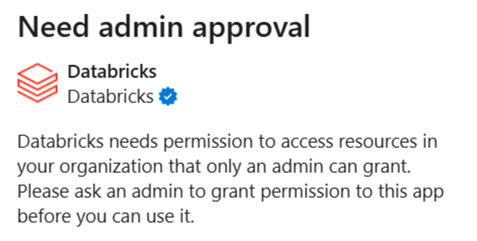
To resolve this, a Microsoft Entra user with appropriate administrator roles must grant tenant-wide administrator consent to the Azure Databricks enterprise application.
Ask the Microsoft Entra admin to visit the following link. Replace {TENANT_ID} with your Microsoft Entra tenant ID:
https://login.microsoftonline.com/{TENANT_ID}/adminconsent?client_id=aaec40b0-c0ae-4211-a98b-6fc160abb71b
If the link fails, the admin can grant consent manually:
- In the Microsoft Entra admin center, go to Entra ID > Enterprise apps > All applications and find the Azure Databricks enterprise application used for single sign-on. To identify the application, search for the Application ID
aaec40b0-c0ae-4211-a98b-6fc160abb71b. - Grant admin consent for the permissions requested by the Azure Databricks enterprise app:
- Under Security, click Permissions.
- Click Grant admin consent.
For detailed instructions, see the Microsoft documentation.
Limitations
- You cannot specify which compute (SQL warehouse) the Databricks Genie app in Microsoft Teams uses. Azure Databricks automatically selects a SQL warehouse that the user is authorized to access.
- PrivateLink is not supported.
- The following features are not supported:
- Visualizing charts
- Sending Azure Databricks notifications to Teams
- Triggering actions in Azure Databricks from Teams
Additional resources
- Use Genie One
- Chat in Genie One
- Use Genie One
- For support, see the Databricks help center.