Note
ამ გვერდზე წვდომა ავტორიზაციას მოითხოვს. შეგიძლიათ სცადოთ შესვლა ან დირექტორიების შეცვლა.
ამ გვერდზე წვდომა ავტორიზაციას მოითხოვს. შეგიძლიათ სცადოთ დირექტორიების შეცვლა.
You can purchase capacity add-ons for various business applications products. The following content describes the process of allocating add-ons, where applicable. Microsoft Dataverse storage capacity add-ons don't require allocation at an environment level because all storage capacity add-ons accrue to tenant-level storage entitlements. For more information, see legacy model storage or new model storage.
There are three stages for using capacity add-ons:
- Purchase: you buy individual capacity add-ons. For purchasing information, see the Power Apps and Power Automate Licensing Guide.
- Allocate: assign the purchased add-ons to an environment.
- Consume: once allocated, consume the capacity add-ons.
Tip
Consider purchasing Power Apps per app plans which allow individual users to run one application or one portal. See About Power Apps per app plans.
View capacity add-ons in Power Platform admin center
If your organization purchases capacity add-ons, an Add-ons tab appears on the Capacity page in the Power Platform admin center.
- Sign in to the Power Platform admin center.
- In the navigation pane, select Licensing.
- In the Licensing pane, select Capacity add-ons.
- In the Capacity page, select the Add-ons tab.
The Add-ons tab shows summary information about the capacity add-ons that your organization has.
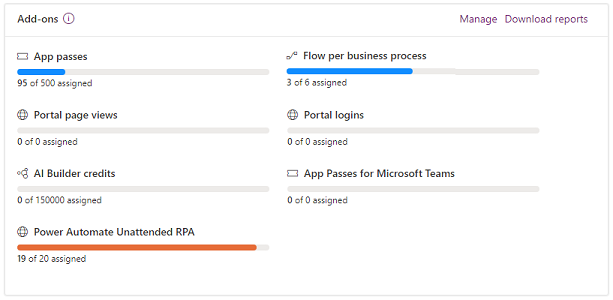
Each capacity has a usage gauge that shows how many units you assigned compared to the available capacity. Capacities are measured in different ways depending on the product. For example, App passes are assigned individually, while AI Builder capacity is measured in credits. Refer to the product documentation for more information about metering.
Allocate or change capacity in an environment
To allocate capacity to an environment:
- Sign in to the Power Platform admin center.
- On the navigation pane, select Licensing.
- In the Licensing pane, select Capacity add-ons.
- On the Capacity page, select the Summary tab.
On the Summary tab, do one of the following steps to open the Manage add-ons screen:
- Scroll down to the Add-ons section, and select Manage.
- Select the Add-ons tab. Select + Assign to an environment in the menu bar.
- Select the Add-ons tab. Select an environment, and then select Manage add-ons.
You can also select Download reports to download usage reports for various capacities.
On the Manage add-ons panel, select the environment where you want to add capacity from the Environment drop-down menu, and then allocate from your available capacity. The following are some example scenarios:
If you have 10 users who are going to use one app each, assign 10 app passes to the app environment.
If you want to create five flows in an environment that are going to be used for business process flows, assign a capacity of 5 for flow per business process.
If a company creates a portal and anticipates 50,000 views of the portal, they should allocate 50,000 portal page views.
Note
If you want to update many add-on allocations across environments at scale, see Tutorial: Allocate add-ons to environments (preview) for more information.
Control who can allocate add-on capacity
As an admin, you can restrict who can allocate add-on capacity to environments.
- Sign in to the Power Platform admin center.
- In the title bar, select the Settings icon.
- Select Power Platform settings.
- On the Tenant settings page, select Add-on capacity assignments, and then select Only specific admins.
- Select Save to apply the changes.
The following admins will be able to allocate add-on capacity in the Power Platform admin center:
- Dynamics 365 admins
- Power Platform admins
Related content
About Power Apps per app plans AI Builder consumption report