중요
Azure Communication Services의 이 기능은 현재 미리 보기 상태입니다. 미리 보기의 기능은 공개적으로 사용할 수 있으며 모든 신규 및 기존 Microsoft 고객이 사용할 수 있습니다.
미리 보기 API 및 SDK는 서비스 수준 계약 없이 제공됩니다. 프로덕션 워크로드에는 사용하지 않는 것이 좋습니다. 특정 기능이 지원되지 않거나 기능이 제한될 수 있습니다.
자세한 내용은 Microsoft Azure Preview에 대한 추가 사용 약관을 참조하세요.
Azure Communication Services UI 라이브러리는 기업과 고객 간의 보다 원활한 커뮤니케이션을 지원하기 위해 UI 라이브러리를 사용하여 다양한 플랫폼에서 솔루션을 시도해 볼 수 있는 JavaScript 번들을 제공합니다. 이 자습서는 UI 라이브러리와 Teams를 사용하여 통화에 참여하는 가장 빠른 방법을 보여 줍니다.
이 자습서에 따라 다음을 수행합니다.
- 고객을 사용자의 비즈니스에 연결하는 모든 웹 페이지에 통화 환경을 배치할 수 있음
- React 이외의 플랫폼에서 통화 환경 만들기
필수 구성 요소
전체 환경을 완료하려면 먼저 이 단계를 완료해야 합니다. Teams Voice 애플리케이션이나 Teams 테넌트 페더레이션 설정에 대한 질문이 있으면 Teams 관리자에게 문의하세요.
- 지원되는 플랫폼 중 하나인 Visual Studio Code.
-
Node.js 활성 LTS 및 유지 관리 LTS 버전 Node 20 LTS가 권장됩니다.
node --version명령을 사용하여 버전을 확인합니다. - Azure Communication Services 리소스. 통신 리소스 만들기.
- Azure Communication Services 리소스와의 상호 운용을 위해 Teams 테넌트 설정 완료
- Teams 통화 큐 및 Azure Communication Services를 사용합니다.
- Teams 자동 전화 교환 및 Azure Communication Services를 사용합니다.
노드 및 VS Code 확인
이 명령을 사용하면 노드가 올바르게 설치되었는지 확인할 수 있습니다.
node -v
출력은 설치된 버전을 알려 주며, 노드가 설치되지 않고 PATH에 추가되지 않으면 실패합니다. 노드와 마찬가지로 이 명령을 사용하여 Visual Studio Code가 설치되어 있는지 확인할 수 있습니다.
code --version
노드와 마찬가지로, 컴퓨터에 VS Code를 설치하는 데 문제가 있으면 이 명령은 실패합니다.
시작
이 프로젝트는 4개의 간단한 단계를 거쳐 만들어졌습니다.
1. 프로젝트 만들기
시작하려면 프로젝트를 위한 새 폴더를 만들고 터미널이나 명령 프롬프트에서 다음 명령을 실행합니다.
명령 프롬프트를 사용하는 Windows의 경우 다음 명령을 사용합니다.
mkdir ui-library-js-test-application; cd ui-library-js-test-application
터미널을 사용하는 macOS의 경우 다음 명령을 사용합니다.
mkdir ui-library-js-test-application && cd ui-library-js-test-application
이 스크립트는 새로운 폴더를 만들고 사용자를 그 폴더로 이동합니다.
다음으로 index.html이라는 새 파일을 만들려고 합니다. 여기는 통화 환경을 첨부하는 웹 페이지입니다.
2. 코드 가져오기
먼저, 아웃바운드 통화 복합 JavaScript 파일에서 JavaScript 번들을 다운로드합니다. 이 번들을 index.html과 같은 디렉터리에 넣습니다.
다음으로 VS Code에서 index.html을 열고 다음 코드 조각을 추가합니다.
<!DOCTYPE html>

<head>
  <meta charset="utf-8" />
  <title>Embedded call composite basic example</title>
  <style>
    /* These styles are something we provide for the calling experience, please update for your needs */
    /* these apply to the calling experience you will need to style your button how your desire */
    #outbound-call-composite-container-ready {
      height: 22rem;
      width: 32rem;
      position: absolute;
      bottom: 1rem;
      right: 1rem;
      box-shadow: 0 0 0.5rem 0;
      border-radius: 1rem;
      padding: 0.5rem;
      z-index: 5;
    }
  </style>
</head>

<body>
  <div id="outbound-call-composite-container"></div>
  <button id="start-call-button">Your calling button</button>
  <!-- replace with https://github.com/Azure/communication-ui-library/releases/latest/download/outboundCallComposite.js for development and prototyping -->
  <script src="./outboundCallComposite.js"></script>
  <script type="module">
    const createCallingExperience = async () => {
      const userId = { communicationUserId: "<Add your ACS ID here>" };
      const token = "<Enter your ACS token>";
      const displayName = "Enter the DisplayName for your user";

      const callAdapter = await outboundCallComposite.loadCallComposite(
        {
          userId: userId,
          token: token,
          displayName: displayName,
          targetCallees: [
            { teamsAppId: "<Enter your Teams voice application Resource Account ID here>", cloud: "public" },
          ], // Provide the identifier you want to call, can be flat as a string.
        },
        document.getElementById("outbound-call-composite-container"),
        {
          options: {
            callControls: {
              cameraButton: true,
              screenShareButton: false,
              moreButton: true,
              peopleButton: false,
              raiseHandButton: false,
              displayType: "compact",
            },
            localVideoTile: { position: "floating" },
          },
        }
      );

      window.onbeforeunload = () => {
        callAdapter.dispose();
      };
      // Update the container id to trigger the styles we set above
      const container = document.getElementById("outbound-call-composite-container");
      container.setAttribute("id", "outbound-call-composite-container-ready");
    };
    const startCallButton = document.getElementById("start-call-button");
    startCallButton.onclick = createCallingExperience;
  </script>
</body>
중요
이 파일의 가져오기 내용을 편집하지 않으려면 index.html 파일과 JavaScript 번들 outboundCallComposite.js가 같은 폴더에 있어야 한다는 점에 유의해야 합니다.
3. Azure Communication Services 및 Teams Voice 애플리케이션 설정
다음으로 로컬 사용자의 ID를 만들어 로컬 사용자를 인증하고 통화를 시작하려고 합니다. 사용자의 id 및 token에 대한 값을 얻은 후에는 앞서 만든 index.html 파일에서 몇 가지 편집을 해야 합니다.
const userId = { communicationUserId: "<Add your ACS ID here>" };
const token = "<Enter your ACS token>";
const displayName = "Enter the DisplayName for your user";
Azure Portal 또는 Azure CLI에서 가져온 userId 및 token으로 이 정보를 업데이트하려고 합니다.
displayName도 설정해야 합니다.
다음으로, Azure Communication Services 리소스를 페더레이션된할 때 가져온 Teams Voice 애플리케이션의 리소스 계정 ID를 설정하기 위해 편집하려고 합니다. 이 작업이 수행되지 않은 경우 Teams 관리자에게 문의하세요.
const callAdapter = await outboundCallComposite.loadCallComposite(
    {
        userId: userId,
        token: token,
        displayName: displayName,
        targetCallees: [
        { teamsAppId: "<Enter your Teams voice application Resource Account ID here>", cloud: "public" }, // <- update this teamsAppId value.
        ],
    },
    document.getElementById("outbound-call-composite-container")
);
4. 애플리케이션 실행
이제 모든 설정을 마쳤으니 애플리케이션을 실행할 차례입니다.
해당 디렉터리에서 터미널이나 명령 프롬프트 창을 열고 다음 명령을 실행합니다.
npx http-server@latest -p 3000
노드를 사용하는 이 스크립트는 HTTP 서버를 시작하고 index.html 파일과 JavaScript 번들을 호스팅합니다. 브라우저에서 http://localhost:3000. 열기 단추가 있는 흰색 페이지가 표시되고, 이를 클릭하면 다음 화면이 표시됩니다.
중요
로컬 호스트를 사용하지 않고 페이지로 이동하려고 하면 보안상의 이유로 통화가 불가능합니다.
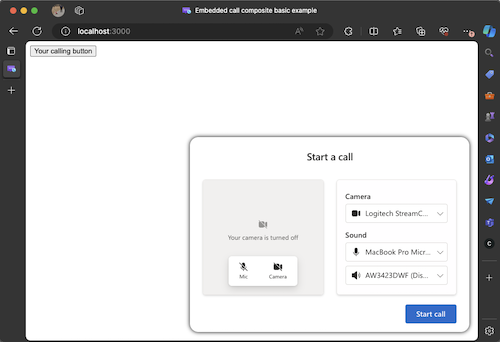
Teams Voice 앱으로 통화를 시작하려면 start call에 표시된 CallComposite 단추를 클릭합니다.
프로덕션으로 전환
현재 이 자습서와 JS 번들은 공개 미리 보기 단계에 있습니다. 클릭투콜에 관심이 있고 오늘 CallComposite를 사용하여 제품에 대한 클릭투콜 환경을 만드는 방법을 알아보려면 GitHub 리포지토리에 다른 노드 프레임워크에 UI 라이브러리를 통합하는 방법을 보여 주는 토론 게시물을 참조하세요. 방금 수행한 자습서의 단계는 React 외의 다른 프레임워크에서 UI 라이브러리 합성을 로드하는 방법에 대한 이 쇼 앤 텔에 설명된 내용으로 직접 변환됩니다.
다음 단계
Teams Voice 애플리케이션에 대한 자세한 내용은 Teams 자동 전화 교환 및 Teams 통화 큐에 대한 설명서를 확인합니다. 또는 React를 사용하여 보다 완벽한 환경을 빌드하는 방법에 대한 자습서를 참조하세요.
빠른 시작: Azure Communication Services UI 라이브러리를 사용하여 Teams 통화 큐 및 자동 전화 교환에 전화 걸기 시작