Pastaba.
Prieigai prie šio puslapio reikalingas įgaliojimas. Galite bandyti prisijungti arba pakeisti katalogus.
Prieigai prie šio puslapio reikalingas įgaliojimas. Galite bandyti pakeisti katalogus.
The Fabric user data function programming model defines the patterns and concepts for authoring functions in Fabric.
The fabric-user-data-functions SDK implements this programming model, providing the necessary functionality to author and publish runnable functions. The SDK also allows you to seamlessly integrate with other items in the Fabric ecosystem, such as Fabric data sources. This library is publicly available in PyPI and is pre-installed in your user data functions items.
This article explains how to use the SDK to build functions that can be invoked from the Fabric portal, other Fabric items, or external applications using the REST API. You learn the programming model and key concepts with practical examples.
Tip
For complete details on all classes, methods, and parameters, see the SDK reference documentation.
Getting started with the SDK
This section introduces the core components of the user data functions SDK and explains how to structure your functions. You learn about the required imports, decorators, and the types of input and output data your functions can handle.
User data functions SDK
The fabric-user-data-functions SDK provides the core components you need to create user data functions in Python.
Required imports and initialization
Every user data functions file must import the fabric.functions module and initialize the execution context:
import datetime
import fabric.functions as fn
import logging

udf = fn.UserDataFunctions()
The @udf.function() decorator
Functions marked with the @udf.function() decorator can be invoked from the Fabric portal, another Fabric item, or an external application. Functions with this decorator must specify a return type.
Example:
@udf.function()
def hello_fabric(name: str) -> str:
    logging.info('Python UDF trigger function processed a request.')
    logging.info('Executing hello fabric function.')

    return f"Welcome to Fabric Functions, {name}, at {datetime.datetime.now()}!"
Helper functions
Python methods without the @udf.function() decorator can't be invoked directly. They can only be called from decorated functions and serve as helper functions.
Example:
def uppercase_name(name: str) -> str:
    return name.upper()
Supported input types
You can define input parameters for the function such as primitive data types like str, int, float, etc. The supported input data types are:
| JSON Type | Python Data type |
|---|---|
| String | str |
| Datetime string | datetime |
| Boolean | bool |
| Numbers | int, float |
| Array | list[], example list[int] |
| Object | dict |
| Object | pandas DataFrame |
| Object or Array of Objects | pandas Series |
Note
To use pandas DataFrame and Series types, go to the Fabric portal, find your workspace, and open your user data functions item. Select Library management, search for the fabric-user-data-functions package, and update it to version 1.0.0 or later.
Example of request body for input types supported:
{
  "name": "Alice",                          // String (str)
  "signup_date": "2025-11-08T13:44:40Z",    // Datetime string (datetime)
  "is_active": true,                        // Boolean (bool)
  "age": 30,                                // Number (int)
  "height": 5.6,                            // Number (float)
  "favorite_numbers": [3, 7, 42],           // Array (list[int])
  "profile": {                              // Object (dict)
    "email": "alice@example.com",
    "location": "Sammamish"
  },
  "sales_data": {                           // Object (pandas DataFrame)
    "2025-11-01": {"product": "A", "units": 10},
    "2025-11-02": {"product": "B", "units": 15}
  },
  "weekly_scores": [                        // Object or Array of Objects (pandas Series)
    {"week": 1, "score": 88},
    {"week": 2, "score": 92},
    {"week": 3, "score": 85}
  ]
}
Supported output types
The supported output data types are:
| Python Data type |
|---|
| str |
| datetime |
| bool |
| int, float |
| list[data-type], for example list[int] |
| dict |
| None |
| pandas Series |
| pandas DataFrame |
Writing functions
Syntax requirements and limitations
When writing user data functions, follow specific syntax rules to ensure your functions work correctly.
Parameter naming
- Use camelCase: Parameter names must use camelCase naming convention and can't contain underscores. For example, use
productNameinstead ofproduct_name. - Reserved keywords: You can't use reserved Python keywords or the following Fabric-specific keywords as parameter names or function names:
req,context, andreqInvocationId.
Parameter requirements
Type annotations required: All parameters must include type annotations (for example,
name: str).Default values: Default parameter values are supported. You can define default arguments in Fabric user data functions to make your code easier to call and maintain. Parameters with default values are optional at invocation time; parameters without defaults are required. The following types are supported as default values:
Default type Notes String Any JSON-serializable string. Datetime string Specify as a string in the function signature. The runtime parses the string to datetimeat invocation time. Use ISO 8601 format (for example,2025-12-31T23:59:59Z) for consistent, unambiguous parsing.Boolean TrueorFalse.Integer Any integer value. Float Any floating-point value. List Must be JSON-serializable. Prefer Nonein the signature and assign the real default inside the function to avoid shared mutable defaults.Dictionary Must be JSON-serializable. Prefer Nonein the signature and assign the real default inside the function.pandas DataFrame Provided as a JSON object that the SDK converts to a pandas type. Requires fabric-user-data-functionsversion 1.0.0 or later.pandas Series Provided as a JSON array of objects that the SDK converts to a pandas type. Requires fabric-user-data-functionsversion 1.0.0 or later.Syntax
@udf.function()
def function_name(
    requiredParam: str,
    optionalStr: str = "hello",
    optionalDate: datetime.datetime = "2025-01-01T00:00:00Z",  # specify as a string; the runtime parses it to datetime at invocation time
    optionalBool: bool = True,
    optionalInt: int = 10,
    optionalFloat: float = 1.5,
    optionalList: list | None = None,   # assign real default inside the function
    optionalDict: dict | None = None,   # assign real default inside the function
) -> dict:
    optionalList = optionalList or [1, 2, 3]
    optionalDict = optionalDict or {"key": "value"}
    return {"param": requiredParam}
Defaults must be JSON-serializable (sets and tuples aren't supported). For list or dictionary defaults, use
Nonein the signature and assign the real default inside the function to avoid shared mutable defaults. Use ISO 8601 format (for example,2025-12-31T23:59:59Z) for datetime defaults. Using pandas DataFrame or Series as a default requiresfabric-user-data-functionsversion 1.0.0 or later.
Function requirements
- Return type required: Functions with the
@udf.function()decorator must specify a return type annotation (for example,-> str). - Required imports: The
import fabric.functions as fnstatement andudf = fn.UserDataFunctions()initialization are required for your functions to work.
Example of correct syntax
@udf.function()
def process_order(orderNumber: int, customerName: str, orderDate: str) -> dict:
    return {
        "order_id": orderNumber,
        "customer": customerName,
        "date": orderDate,
        "status": "processed"
    }
How to write an async function
Add async decorator with your function definition in your code. With an async function you can improve responsiveness and efficiency of your application by handling multiple tasks at once. They're ideal for managing high volumes of I/O-bound operations. This example function reads a CSV file from a lakehouse using pandas. Function takes file name as an input parameter.
import pandas as pd

# Replace the alias "<My Lakehouse alias>" with your connection alias.
@udf.connection(argName="myLakehouse", alias="<My Lakehouse alias>")
@udf.function()
async def read_csv_from_lakehouse(myLakehouse: fn.FabricLakehouseClient, csvFileName: str) -> str:

    # Connect to the Lakehouse
    connection = myLakehouse.connectToFilesAsync()

    # Download the CSV file from the Lakehouse
    csvFile = connection.get_file_client(csvFileName)

    downloadFile = await csvFile.download_file()
    csvData = await downloadFile.readall()

    # Read the CSV data into a pandas DataFrame
    from io import StringIO
    df = pd.read_csv(StringIO(csvData.decode('utf-8')))

    # Display the DataFrame
    result=""
    for index, row in df.iterrows():
        result=result + "["+ (",".join([str(item) for item in row]))+"]"

    # Close the connection
    csvFile.close()
    connection.close()

    return f"CSV file read successfully.{result}"
Working with data
Data connections to Fabric data sources
The SDK allows you to reference data connections without the need for writing connection strings in your code. The fabric.functions library provides two ways to handle data connections:
- fabric.functions.FabricSqlConnection: Allows you to work with SQL databases in Fabric, including SQL Analytics endpoints and Fabric warehouses.
- fabric.functions.FabricLakehouseClient: Lets you work with Lakehouses, with a way to connect to both Lakehouse tables and Lakehouse files.
To reference a connection to a data source, you need to use the @udf.connection decorator. You can apply it in any of the following formats:
@udf.connection(alias="<alias for data connection>", argName="sqlDB")@udf.connection("<alias for data connection>", "<argName>")@udf.connection("<alias for data connection>")
The arguments for @udf.connection are:
argName, the name of the variable the connection uses in your function.alias, the alias of the connection you added with the Manage connections menu.- If
argNameandaliashave the same value, you can use@udf.connection("<alias and argName for the data connection>").
Example
# Where demosqldatabase is the argument name and the alias for my data connection used for this function
@udf.connection("demosqldatabase")
@udf.function()
def read_from_sql_db(demosqldatabase: fn.FabricSqlConnection)-> list:
  # Connect to the SQL database
  connection = demosqldatabase.connect()
  cursor = connection.cursor()

  # Replace with the query you want to run
  query = "SELECT * FROM (VALUES ('John Smith', 31), ('Kayla Jones', 33)) AS Employee(EmpName, DepID);"

  # Execute the query
  cursor.execute(query)

  # Fetch all results
  results = cursor.fetchall()

  # Close the cursor and connection
  cursor.close()
  connection.close()

  return results
Generic connections for Fabric items or Azure resources
The SDK supports generic connections that you can use to create connections to Fabric items or Azure resources by using your user data functions item owner identity. This feature generates a Microsoft Entra ID token with the item owner's identity and a provided audience type. Use this token to authenticate with Fabric items or Azure resources that support that audience type. This approach provides a similar programming experience to using managed connections objects from the Manage Connections feature but only for the provided audience type in the connection.
This feature uses the @udf.generic_connection() decorator with the following parameters:
| Parameter | Description | Value |
|---|---|---|
argName |
The name of the variable that is passed to the function. The user needs to specify this variable in the arguments of their function and use the type of fn.FabricItem for it |
For example, if the argName=CosmosDb, then the function should contain this argument cosmosDb: fn.FabricItem |
audienceType |
The type of audience that the connection is created for. This parameter is associated with the type of Fabric item or Azure service and determines the client used for the connection. | The allowed values for this parameter are CosmosDb or KeyVault. |
Connect to Cosmos DB in Fabric container using a generic connection
Generic connections support native Cosmos DB databases in Fabric by using the CosmosDB audience type. The included user data functions SDK provides a helper method called get_cosmos_client that fetches a singleton Cosmos DB client for every invocation.
You can connect to a Cosmos DB database in Fabric using a generic connection by following these steps:
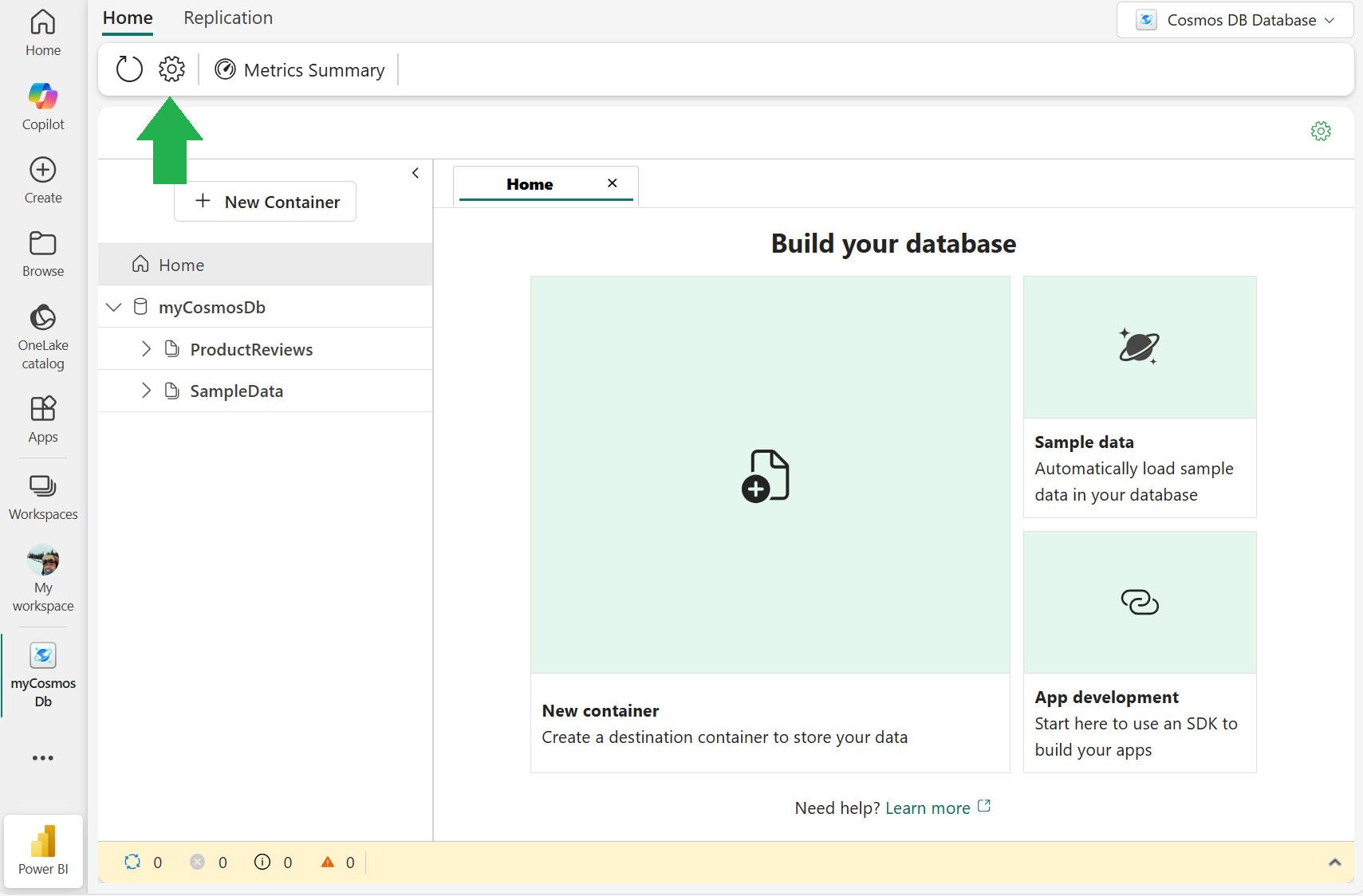
Go to the Fabric portal, find your workspace, and open your user data functions item. Select Library management, search for the
azure-cosmoslibrary, and install it. For more information, see Manage libraries.Go to your Cosmos DB in Fabric item settings.
Retrieve your Cosmos DB in Fabric endpoint URL.
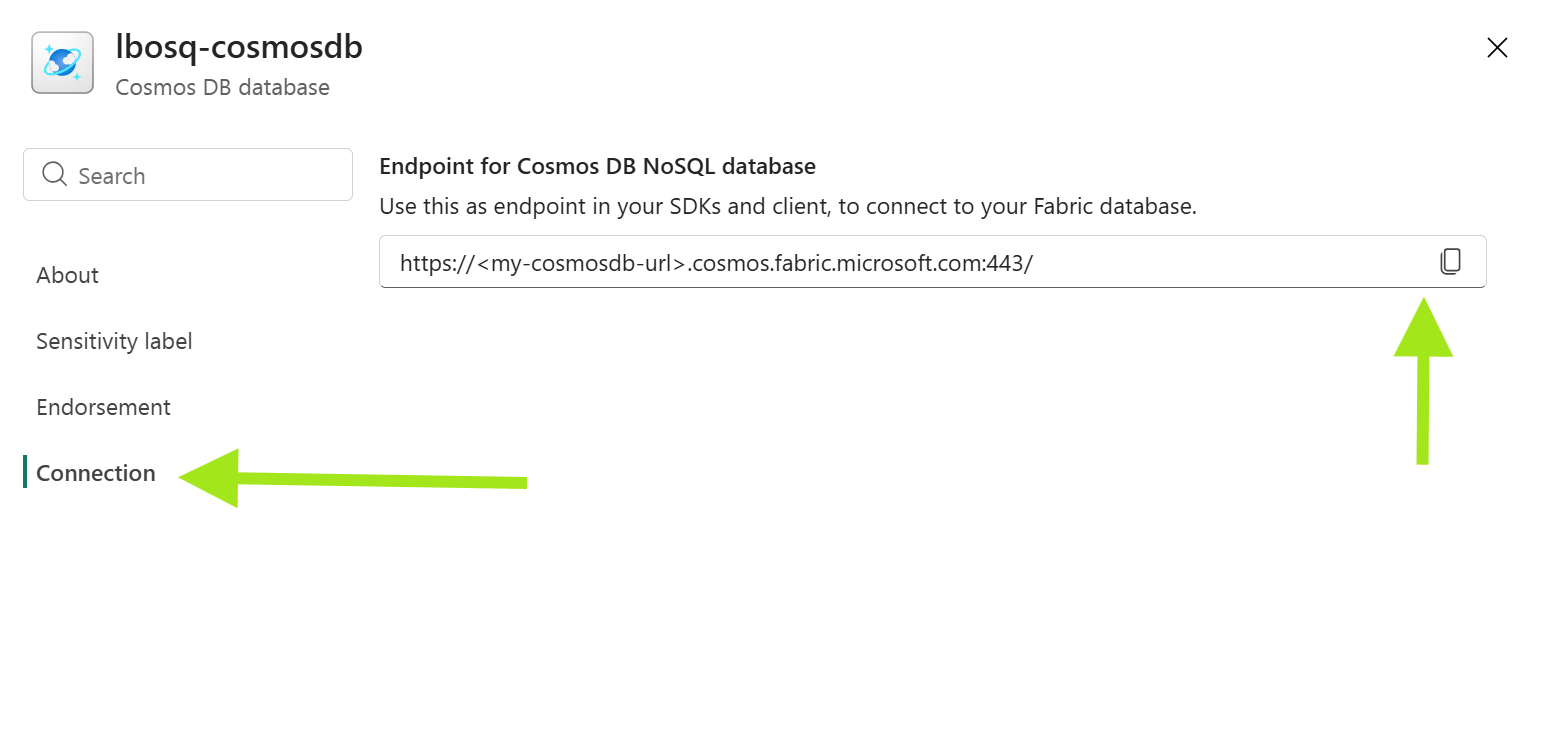
Go to your user data functions item. Use the following sample code to connect to your Cosmos DB in Fabric container and run a read query using the Cosmos DB sample dataset. Replace the values of the following variables:
COSMOS_DB_URIwith your Cosmos DB in Fabric endpoint.DB_NAMEwith the name of your Cosmos DB database item.
from fabric.functions.cosmosdb import get_cosmos_client
import json

@udf.generic_connection(argName="cosmosDb", audienceType="CosmosDB")
@udf.function()
def get_product_by_category(cosmosDb: fn.FabricItem, category: str) -> list:

    COSMOS_DB_URI = "YOUR_COSMOS_DB_URL"
    DB_NAME = "YOUR_COSMOS_DB_NAME" # Note: This is the Fabric item name
    CONTAINER_NAME = "SampleData" # Note: This is your container name. In this example, we are using the SampleData container.

    cosmosClient = get_cosmos_client(cosmosDb, COSMOS_DB_URI)

    # Get the database and container
    database = cosmosClient.get_database_client(DB_NAME)
    container = database.get_container_client(CONTAINER_NAME)

    query = 'select * from c WHERE c.category=@category' #"select * from c where c.category=@category"
    parameters = [
        {
            "name": "@category", "value": category
        }
    ]
    results = container.query_items(query=query, parameters=parameters)
    items = [item for item in results]

    logging.info(f"Found {len(items)} products in {category}")

    return json.dumps(items)
Test or run this function by providing a category name, such as
Accessoryin the invocation parameters.
Note
You can also use these steps to connect to an Azure Cosmos DB database using the account URL and database names. The user data functions owner account needs access permissions to that Azure Cosmos DB account.
Connect to Azure Key Vault using a generic connection
Generic connections support connecting to an Azure Key Vault by using the KeyVault audience type. This type of connection requires that the Fabric user data functions owner has permissions to connect to the Azure Key Vault. You can use this connection to retrieve keys, secrets, or certificates by name.
You can connect to Azure Key Vault to retrieve a client secret to call an API using a generic connection by following these steps:
Go to the Fabric portal, find your workspace, and open your user data functions item. Select Library management, then search for and install the
requestsandazure-keyvault-secretslibraries. For more information, see Manage libraries.Go to your Azure Key Vault resource in the Azure portal and retrieve the
Vault URIand the name of your key, secret, or certificate.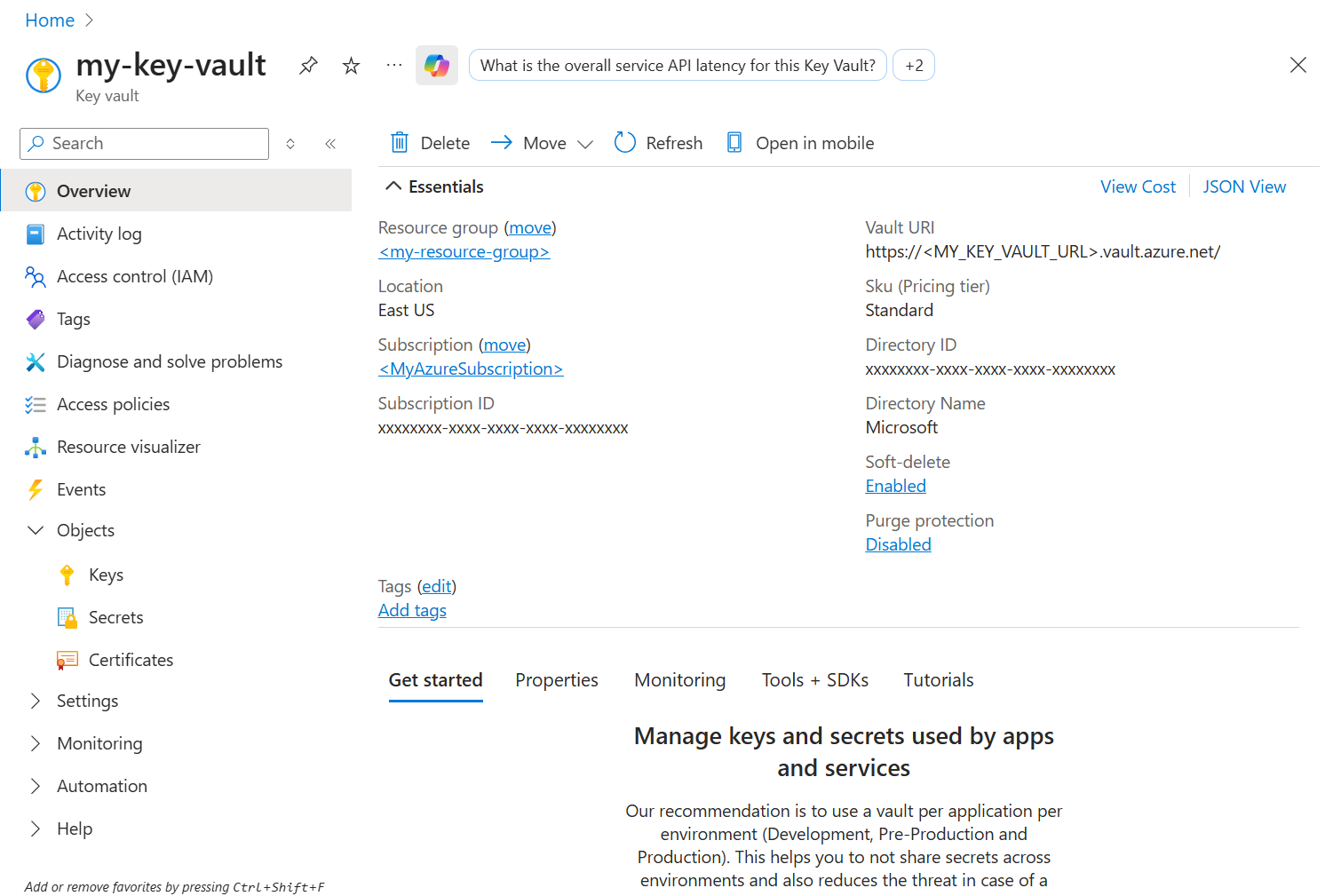
Go back to your Fabric user data functions item and use this sample. In this sample, you retrieve a secret from Azure Key Vault to connect to a public API. Replace the value of the following variables:
KEY_VAULT_URLwith theVault URIyou retrieved in the previous step.KEY_VAULT_SECRET_NAMEwith the name of your secret.API_URLvariable with the URL of the API you'd like to connect to. This sample assumes that you're connecting to a public API that accepts GET requests and takes the following parametersapi-keyandrequest-body.
from azure.keyvault.secrets import SecretClient
from azure.identity import DefaultAzureCredential
import requests

@udf.generic_connection(argName="keyVaultClient", audienceType="KeyVault")
@udf.function()
def retrieveNews(keyVaultClient: fn.FabricItem, requestBody:str) -> str:
    KEY_VAULT_URL = 'YOUR_KEY_VAULT_URL'
    KEY_VAULT_SECRET_NAME= 'YOUR_SECRET'
    API_URL = 'YOUR_API_URL'

    credential = keyVaultClient.get_access_token()

    client = SecretClient(vault_url=KEY_VAULT_URL, credential=credential)

    api_key = client.get_secret(KEY_VAULT_SECRET_NAME).value

    api_url = API_URL
    params = {
        "api-key": api_key,
        "request-body": requestBody
    }

    response = requests.get(api_url, params=params)

    data = ""

    if response.status_code == 200:
        data = response.json()
    else:
        print(f"Error {response.status_code}: {response.text}")

    return f"Response: {data}"
Test or run this function by providing a request body in your code.
Advanced features
The programming model defines advanced patterns that give you greater control over your functions. The SDK implements these patterns through classes and methods that allow you to:
- Access invocation metadata about who called your function and how
- Handle custom error scenarios with structured error responses
- Integrate with Fabric variable libraries for centralized configuration management
Note
User data functions have service limits for request size, execution timeout, and response size. For details on these limits and how they're enforced, see Service details and limitations.
Get invocation properties using UserDataFunctionContext
The SDK includes the UserDataFunctionContext object. This object contains the function invocation metadata and can be used to create specific app logic for different invocation mechanisms (such as portal invocation versus REST API invocation).
The following table shows the properties for the UserDataFunctionContext object:
| Property Name | Data Type | Description |
|---|---|---|
| invocation_id | string | The unique GUID tied to the invocation of the user data functions item. |
| executing_user | object | Metadata of the user's information used to authorize the invocation. |
The executing_user object contains the following information:
| Property Name | Data Type | Description |
|---|---|---|
| Oid | string (GUID) | The user's object ID, which is an immutable identifier for the requester. This is the verified identity of the user or service principal used to invoke this function across applications. |
| TenantId | string (GUID) | The ID of the tenant that the user is signed into. |
| PreferredUsername | string | The preferred username of the invoking user, as set by the user. This value is mutable. |
To access the UserDataFunctionContext parameter, you must use the following decorator at the top of the function definition: @udf.context(argName="<parameter name>")
Example
@udf.context(argName="myContext")
@udf.function()
def getContext(myContext: fabric.functions.UserDataFunctionContext)-> str:
    logging.info('Python UDF trigger function processed a request.')
    return f"Hello oid = {myContext.executing_user['Oid']}, TenantId = {myContext.executing_user['TenantId']}, PreferredUsername = {myContext.executing_user['PreferredUsername']}, InvocationId = {myContext.invocation_id}"
Throw a handled error with UserThrownError
When developing your function, you can throw an expected error response by using the UserThrownError class available in the SDK. One use of this class is managing cases where the user-provided inputs fail to pass business validation rules.
Example
import datetime

@udf.function()
def raise_userthrownerror(age: int)-> str:
    if age < 18:
        raise fn.UserThrownError("You must be 18 years or older to use this service.", {"age": age})

    return f"Welcome to Fabric Functions at {datetime.datetime.now()}!"
The UserThrownError class constructor takes two parameters:
Message: This string is returned as the error message to the application that's invoking this function.- A dictionary of properties is returned to the application that's invoking this function.
Get variables from Fabric variable libraries
A variable library in Fabric is a centralized repository for managing variables that you can use across different items within a workspace. It allows developers to customize and share item configurations efficiently. If you don't have a variable library yet, see Create and manage variable libraries.
To use a variable library in your functions, you add a connection to it from your user data functions item. Variable libraries appear in the OneLake catalog alongside data sources like SQL databases and lakehouses.
Follow these steps to use variable libraries in your functions:
- In your user data functions item, add a connection to your variable library. In the OneLake catalog, find and select your variable library, then select Connect. Note the Alias that Fabric generates for the connection.
- Add a connection decorator for the variable library item. For example,
@udf.connection(argName="varLib", alias="<My Variable Library Alias>")and replace alias to the newly added connection for the variable library item. - In the function definition, include an argument with type
fn.FabricVariablesClient. This client provides methods you need to work with variables library item. - Use
getVariables()method to get all the variables from the variable library. - To read the values of the variables use, either
["variable-name"]or.get("variable-name").
Example
In this example, you simulate a configuration scenario for a production and a development environment. This function sets a storage path depending on the selected environment by using a value retrieved from the variable library. The variable library contains a variable called ENV where users can set a value of dev or prod.
@udf.connection(argName="varLib", alias="<My Variable Library Alias>")
@udf.function()
def get_storage_path(dataset: str, varLib: fn.FabricVariablesClient) -> str:
    """
    Description: Determine storage path for a dataset based on environment configuration from Variable Library.

    Args:
        dataset_name (str): Name of the dataset to store.
        varLib (fn.FabricVariablesClient): Fabric Variable Library connection.

    Returns:
        str: Full storage path for the dataset.
    """
    # Retrieve variables from Variable Library
    variables = varLib.getVariables()

    # Get environment and base paths
    env = variables.get("ENV")
    dev_path = variables.get("DEV_FILE_PATH")
    prod_path = variables.get("PROD_FILE_PATH")

    # Apply environment-specific logic
    if env.lower() == "dev":
        return f"{dev_path}{dataset}/"
    elif env.lower() == "prod":
        return f"{prod_path}{dataset}/"
    else:
        return f"incorrect settings define for ENV variable"