Nota
L-aċċess għal din il-paġna jeħtieġ l-awtorizzazzjoni. Tista’ tipprova tidħol jew tibdel id-direttorji.
L-aċċess għal din il-paġna jeħtieġ l-awtorizzazzjoni. Tista’ tipprova tibdel id-direttorji.
This page explains how to set up and manage a Genie Space, a chat interface for business users to ask natural-language questions about their data.
Technical requirements and limits
The following requirements and limits apply when using Genie Spaces:
- Unity Catalog: The data for the Genie Space must be registered to Unity Catalog. You can add up to 30 tables or views to a Genie Space.
- Compute: Genie Spaces require a pro or serverless SQL warehouse. When you create or configure a Genie Space, you must have at least CAN USE permission on the selected warehouse. Your compute credentials are embedded into the Genie Space and used to process all queries for all users.
- Throughput: Each workspace can handle up to 20 questions per minute across all Genie Spaces when accessed though the Azure Databricks UI. When accessing Genie Spaces using the Genie API free tier (Public Preview), throughput is limited to a best effort five questions per minute per workspace, across all Genie Spaces. These default limits are in place to prevent abuse. To scale beyond, please contact your Databricks account team.
- Capacity: Each Genie Space can support up to 10,000 conversations, and each conversation can include up to 10,000 messages.
Required permissions
To create or edit a Genie Space, you must have the following permissions and entitlements:
- Entitlements: You must have the Databricks SQL workspace entitlement. See Manage entitlements.
- Compute: CAN USE access on at least one pro or serverless SQL warehouse.
- Data access:
SELECTprivileges on the data used in the space. - Genie Space ACLs: At least CAN EDIT permissions on the Genie Space. Genie Space creators automatically have CAN MANAGE permissions on spaces they create. See Genie Space ACLs.
Note
Configuring data and compute access requires elevated permissions, generally restricted to an administrator. See Create a SQL warehouse and Manage privileges in Unity Catalog.
Manage Genie access
Genie uses partner-powered AI features, which must be enabled at the account and workspace levels. To learn how to manage these features for your account, see Partner-powered AI features.
Note
You must be an account administrator to manage access to this feature. If you disable Partner-powered AI features, users with the Databricks SQL entitlement can still click the Genie Spaces icon in the sidebar, but they cannot access any Genie Spaces.
Create a Genie Space
To create a Genie Space:
- Click Genie Spaces in the sidebar.
- Click New in the upper-right corner of the screen.
- Choose the data sources that you want to include in your Genie Space. Then, click Create.
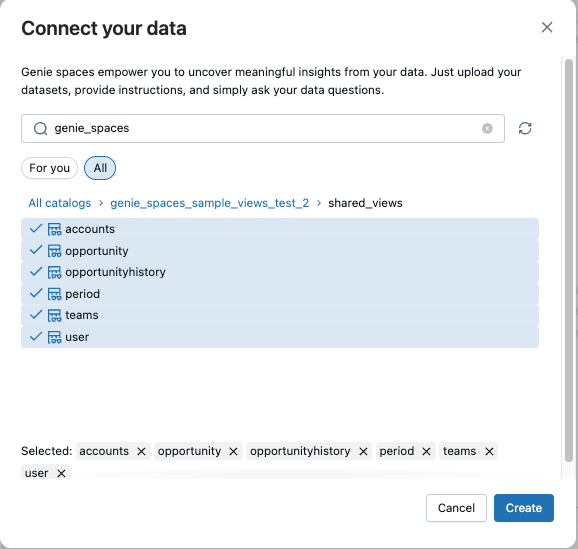
Before sharing the space with users, Databricks recommends building a knowledge store and adding example SQL queries and instructions to improve response accuracy. See Add SQL examples and instructions to a Genie Space and Build a knowledge store for more reliable Genie Spaces.
Review query suggestions
To learn about your space's data, Genie accesses information in your workspace to better understand relationships between tables and your business semantics. When you add data assets to a space, Genie automatically searches for relevant popular workspace queries associated with those assets. Your user credentials are used to find relevant queries for which you have at least CAN VIEW permissions. If the search returns queries, a notification appears in the Data tab of the Instructions panel. Click Review to see the suggested queries.
For more information about query access permissions, see Query ACLs.
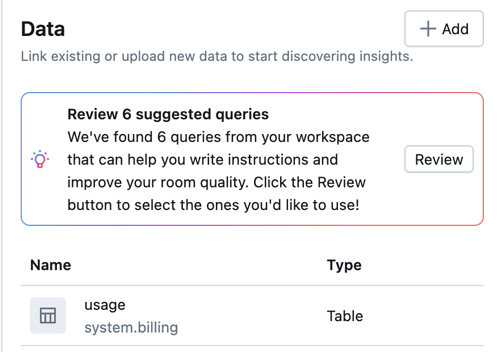
Use the Review Suggested Queries dialog to review, edit, accept, or reject the suggested queries. Other users with at least CAN EDIT access on the Genie Space can review queries, provided they have at least CAN VIEW access on the query itself.
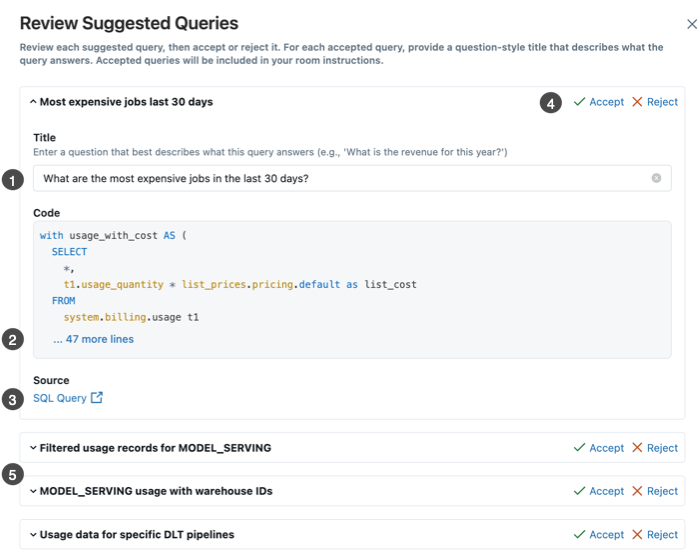
- The Title text is prepopulated with a question. Revise or edit the question by typing in the Title field.
- The Code field contains the complete text of the suggested SQL query. This field is not editable. To view the full query, click ... more lines.
- If you have sufficient permissions on the query, you can click SQL query to open the query in the Query history UI. See View query history.
- After you determine whether the query is relevant for your space, click Accept or Reject to add it to your space or dismiss the suggestion accordingly.
- Click the other suggestions to expand and review.
Accepted queries appear in the SQL Queries context for the space. After they are added to the space, the suggested queries and associated questions are fully editable. See Add example SQL queries and functions.
If no suggested queries are returned:
- You might not have sufficient access to relevant queries.
- There might be no relevant data. If queries have not run on your included tables, the search might not return results.
- Queries irrelevant to the Genie Space are not considered. For example, queries that only perform basic write operations on the included assets are not considered relevant examples for Genie.
- Genie does not suggest queries on tables that are not added to the space. If you've created joined tables or views specifically for the Genie Space, but relevant Databricks SQL queries typically run against a different source table, Genie does not return those queries in the results.
Manage data objects
To manage which data objects are included in a Genie Space, click Configure > Data. Click the Add button to add more tables. Click the  to the right of the table name to remove a table from the space.
To view details about a data object, click the object name. The data object view shows two tabs:
- Overview: Shows the columns in the data object, including column names, data types, and descriptions.
- Sample data: Shows sample data from the table to help you understand the context and content of the data.
Note
Genie can query tables beyond those explicitly added to a space. Access is controlled by Unity Catalog permissions, not by the Genie Space itself. While Genie uses the attached tables and views by default, users can query other tables by prompting for joins or editing SQL directly. Similarly, if instructions or metadata reference tables outside the space, Genie can include them in generated queries.
Configure settings
Customize your Genie Space by configuring additional settings. Click Configure > Settings to access the following settings:
- Title: The title appears in the workspace browser with other workspace objects. Choose a title that will help end users discover your Genie Space.
- Default warehouse: This compute resource powers the SQL statements generated in the Genie Space. When you save a warehouse selection, your compute credentials are embedded into the Genie Space and used to process all Genie queries for all users. You must have at least CAN EDIT permissions on the space to change the warehouse. If a different author changes the warehouse later, their compute credentials are embedded instead. A Genie Space can use a pro or serverless SQL warehouse. For optimal performance, Databricks recommends using a serverless SQL warehouse.
- Tags: Use tags to organize and categorizeGenie Spaces for easier management. See Add tags.
- Thumbnail: Add a thumbnail image to the Genie Space. Thumbnails appear on the Genie Space's initial chat page and in Genie.
- Description: Users see the description when they open the Genie Spacee. Use this text area to describe the space's purpose. The description field supports Markdown formatting so that you can style your text and supply links to helpful context and references. For more information on markdown syntax, see the Markdown Guide cheat sheet.
- Common questions: Common questions are optional. They appear in chats to provide examples of the types of questions users can ask. They can be added during creation or later from the space's Settings.
Expect to iterate on your Genie Space based on testing and usage. For guidance on best practices for creating and iterating on a space, see Curate an effective Genie Space.
Add tags
You must have at least CAN EDIT permissions on a Genie Space to add a tag. To add a governed tag, you must also have the ASSIGN permission on the governed tag. For more information on tags, see Apply tags to Unity Catalog securable objects.
Important
This feature is in Public Preview.
Click Configure > Settings.
Click General.
Under Tags, add or update a tag:
- If there are no tags, click the Add tags button.
- If there are tags, click the
 Add/Edit tags icon.
Select an existing tag Key and Value or enter a name of a new tag.
- Tags that are governed are in the Governed section header and have a lock icon
 .
. - Tag keys are required. Whether a tag value is required depends on the tag key.
- Tags that are governed are in the Governed section header and have a lock icon
Share a Genie Space
Note
Genie Spaces use embedded compute credentials from the author who configured the warehouse. All queries run using these embedded compute credentials. However, space end users have their own data credentials applied on queries, so they only see data they are supposed to see. Any question about data they can't access generates an empty response.
To restrict the data each user can see within the same Genie Space, apply row-level security to the underlying tables in Unity Catalog. Row filters and column masks defined in Unity Catalog are enforced per user automatically, regardless of how the Genie Space is shared. See Row filters and column masks.
When you share a Genie Space, users must have the following permissions to interact with the space:
- Entitlements: The consumer access or Databricks SQL workspace entitlement. See Manage entitlements.
- Compute: Queries run using the compute credentials embedded by the author who configured the warehouse. End users do not need direct warehouse permissions.
- Data access: At least
SELECTprivileges on all of the Unity Catalog data objects used in the space. Users only see data they have permission to access. - Genie Space ACLs: At least CAN VIEW/CAN RUN permissions on the Genie Space. See Genie Space ACLs.
New Genie Spaces are saved to your user folder by default. Like other workspace objects, they inherit permissions from their enclosing folder. You can use your workspace folder structure to share them with other users. See Workspace browser.
You can also specify certain users or groups (including all account users) to share with at a given permission level: CAN MANAGE, CAN EDIT, CAN RUN, and CAN VIEW.
To share with specific users or groups:
- Click Share.
- Enter the users or groups you want to share the space with. Then, click Add and set appropriate permission levels. Individual users and members of small groups receive an email notification confirming that the space has been shared.
- Use the Copy link button at the bottom of the Share dialog to get a shareable link to the Genie Space. Privileged users can click the link to open the Genie Space in a new tab and ask questions.
To share with all account users:
- Click Share.
- Select All account users.
- Set the appropriate permission level.
Space users can also share individual conversations. See Share a conversation.
Clone a Genie Space
Cloning a Genie Space creates a copy that includes all setup context and instructions. Cloning is useful when you want to test changes in a separate space or reuse the original context in a new one. After a space is cloned, the new space is independent of the original. You can make edits and adjustments without impacting the original.
The following elements are copied to a cloned Genie Space:
- Tables and settings
- General instructions
- Example SQL queries
- SQL functions
Existing chat threads and data from the Monitor tab are not copied to the new space.
To clone a Genie Space, do the following:
- Open the Genie Space you want to clone.
- Click the
 kebab menu in the upper-right corner of the space.
 - Click Clone.
- (Optional) In the Clone dialog, specify a new name and workspace folder location for the cloned Genie Space.
- Click Clone to create the new space.
Export a Genie Space as a metric view
You can export the context from a Genie Space as a metric view. This creates a metric view based on the data and semantic context configured in the space.
To export a Genie Space as a metric view, do the following:
- Open the Genie Space you want to export.
- Click the kebab menu in the upper-right corner of the space.
- Select Export to metric view.
- Select the path for the new metric view.
- Click Create.
Additional resources
- For guidance about best practices and help with troubleshooting issues, see Curate an effective Genie Space.
- To learn how to add SQL examples, instructions, and configure settings, see Add SQL examples and instructions to a Genie Space.
- To learn how to test, review responses, and monitor the space, see Test and monitor a Genie Space.
- To learn how to use audit logs to track activity and usage in a Genie Space, see Genie Space events.
- See Use the Genie API to integrate Genie into your applications to learn how to programmatically import and export Genie Spaces and use the Genie conversation API. Also see the Genie API reference.
- To learn how to create a multi-agent system using Mosaic AI Agent Framework, see Use Genie in multi-agent systems (Model Serving).