Nuta
Dostęp do tej strony wymaga autoryzacji. Możesz spróbować się zalogować lub zmienić katalog.
Dostęp do tej strony wymaga autoryzacji. Możesz spróbować zmienić katalogi.
The Confluence On-premises Microsoft 365 Copilot connector enables Microsoft 365 to index and retrieve content from self-hosted Confluence Data Center or Server instances. It brings enterprise wiki content into Microsoft Search and Copilot, enhancing visibility and usability within the Microsoft 365 ecosystem.
This article provides troubleshooting information for common errors that you might encounter when deploying or managing the Confluence On-premises connector.
To verify Confluence configuration information to help troubleshoot errors, see Set up the Confluence service for connector ingestion.
Troubleshoot common errors
The following table lists common errors that can occur with the Confluence On-premises connector and recommended troubleshooting steps.
| Error | Description | Resolution |
|---|---|---|
OAuth failed due to Invalid connection credentials |
Occurs when the Microsoft 365 admin isn't the Confluence admin. | Use InPrivate browsing. Share the OAuth popup link with the Confluence admin for approval. After approval, paste window.opener.postMessage({type: 'oauthFinish', isSuccess: true}, '*') in the console. |
| Plugin not installed or disabled | The required Confluence On-prem plugin is missing or disabled. | Go to Administration > Manage apps. If the plugin isn't installed, download it from the Atlassian Marketplace. If it's disabled, enable it. |
| Mobile Web Plugin missing | The Confluence Mobile Web Plugin is required for indexing. | Verify that the plugin is installed and enabled under System apps. If it's missing, download it from the Atlassian Marketplace. |
| Indexing issues | Users can't access indexed content due to identity mismatch. | Make sure that email IDs in Confluence match UPNs in Microsoft Entra ID. For non-Microsoft Entra ID users, configure regex mapping. |
| No content indexed | Connector shows zero indexed items. | Check space and page permissions. Validate that the service account has read access. Confirm that spaces aren't archived. |
| Incremental crawl not syncing permission updates | Changes to permissions aren't reflected in search results. | Use full crawl to sync permission updates. Incremental crawl doesn't support permission changes. |
| API throttling delays | Crawling is slow due to server-side throttling. | Review Confluence server API limits. If needed, request throttling adjustments via Microsoft support. |
| GCA offline | Connector fails to index when the Graph Connector Agent computer is turned off. | Make sure that the GCA computer is online during crawl operations. |
| Incorrect date filters | No pages indexed due to misconfigured date filters. | Make sure that the Last Created Date is earlier than Last Modified Date. If no dates are specified, all documents are indexed. |
Troubleshoot user permissions
If a user can't find Confluence Data Center pages in Microsoft 365 Copilot or Microsoft Search and the account should have access, use the following steps to troubleshoot.
Confirm that the user has permission to the Confluence Data Center page
- Make sure that the user has view permissions for the specific Confluence Data Center page. For more information, see Check who can view a page.
- Validate that the page, space, and any parent pages grant the appropriate access.
Verify that the user is correctly mapped to a Microsoft Entra identity
Incorrect user identity mapping prevents Copilot and Search from resolving permissions. To verify identity mapping:
- Review the mapping configuration based on your environment. For more information, see Map non-Entra ID identities and Map Microsoft Entra identities.
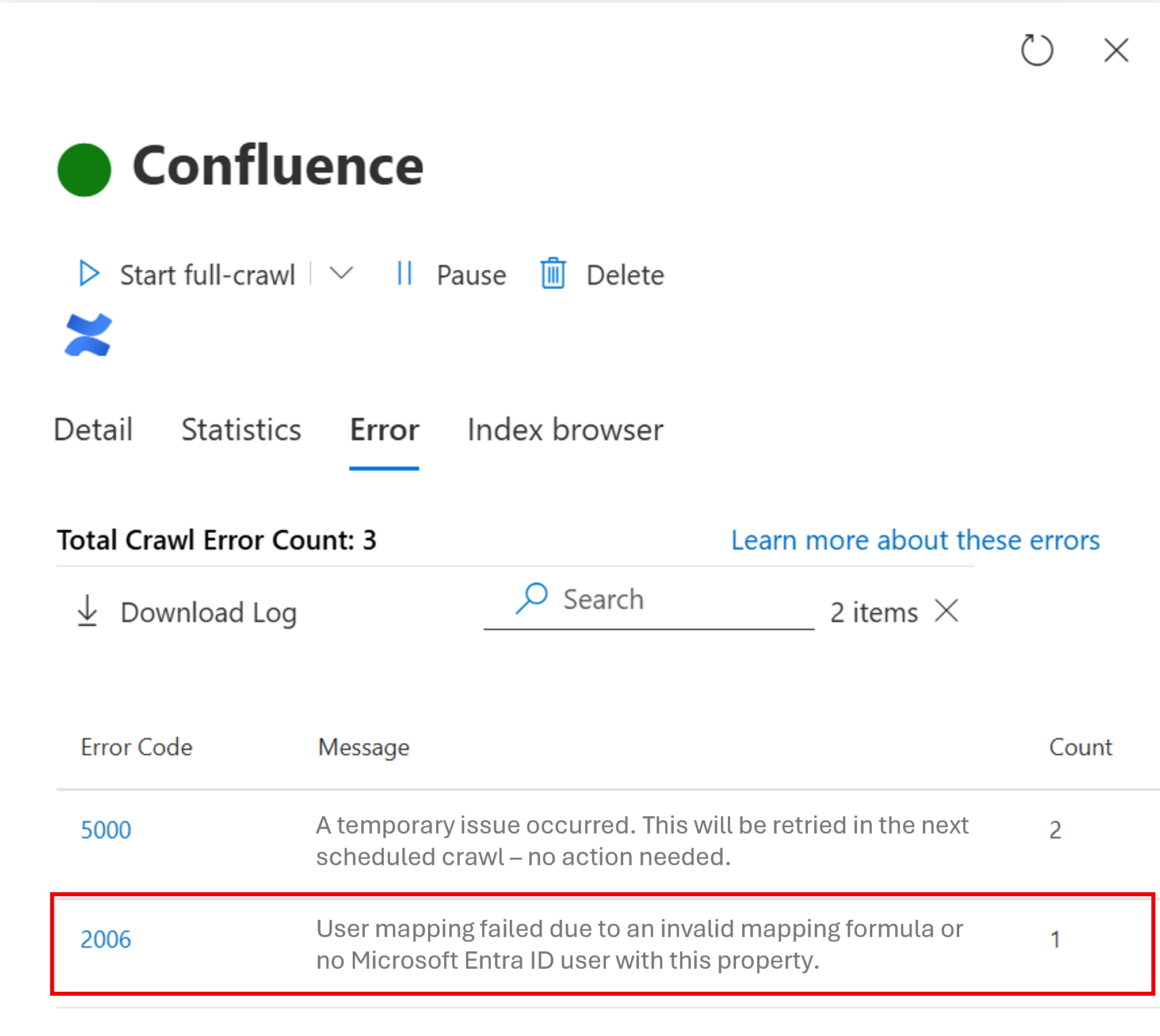
- Check the user mapping formula and update as needed. On the Error tab for the connector, mapping problems typically appear as a
2006 error.
Check for invalid characters in Confluence user or group names
Confluence Data Center has a known limitation for user and group names. When a user or group name contains a slash / or backslash \\ character, the Confluence Data Center fails when managing permissions with an "An unexpected error has occurred" error message. Atlassian has documented this behavior for Bamboo; the same limitation applies to Confluence Data Center environments. For more information, see If there is a slash character in the group or username in Bamboo, permission assignment fails.