Notatka
Dostęp do tej strony wymaga autoryzacji. Może spróbować zalogować się lub zmienić katalogi.
Dostęp do tej strony wymaga autoryzacji. Możesz spróbować zmienić katalogi.
Copilot Highlights in Viva Glint is an AI-powered feature that generates structured summaries of employee survey results directly within Viva Glint reports. It appears in a collapsible card at the top of supported reports and surfaces key insights, including strengths, opportunities, team-level differences, and trends, so managers, HR leaders, and organizational leaders can move from data to action faster.
Rather than manually reviewing scores, benchmarks, and breakdowns across report sections, users get an at-a-glance summary of the most notable findings based on built-in interpretation rules and quality controls.
Prerequisites
To access Copilot Highlights, the following requirements must be met:
License
See licensing requirements here.Copilot access
Microsoft Copilot in Viva Glint must be turned on for the user in the Microsoft 365 admin center.
View more information here.Dashboard access
The user must have a Glint User Role with permission to view dashboards, as configured by Viva Glint admins.
View more information here.
Copilot Highlights is automatically available when Copilot in Viva Glint is turned on. There's no separate toggle to configure.
Supported survey programs and reports
Copilot Highlights is available for the following:
Survey programs
Recurring and Ad hoc programs (latest two survey cycles)Report types
- Team Summary
- Executive Summary
Copilot Highlights appears whether these reports are loaded on the dashboard or opened directly outside the dashboard.
Important
Copilot Highlights isn’t available on custom report templates, including templates migrated from LinkedIn Glint, even if those templates were originally based on a supported default Viva Glint report.
What data Copilot Highlights uses
Copilot Highlights uses the same reporting data already visible in Viva Glint survey reports and dashboards, including:
- Response rates
- Key outcome scores
- Item scores
- Score changes over time
- Benchmark comparisons
- Strengths and Opportunities items
- Team and hierarchy breakdowns
Copilot Highlights doesn’t introduce new data sources. It interprets and summarizes existing report data only. Data is limited to the currently loaded report, with no cross-survey aggregation or external data sources.
Note
Copilot Highlights doesn’t display if the report is empty due to insufficient data or suppression.
What Copilot Highlights displays
Copilot Highlights provides up to three structured summary sections in a collapsible card at the top of supported reports. Sections or portions of sections may be hidden depending on data availability and interpretation thresholds.
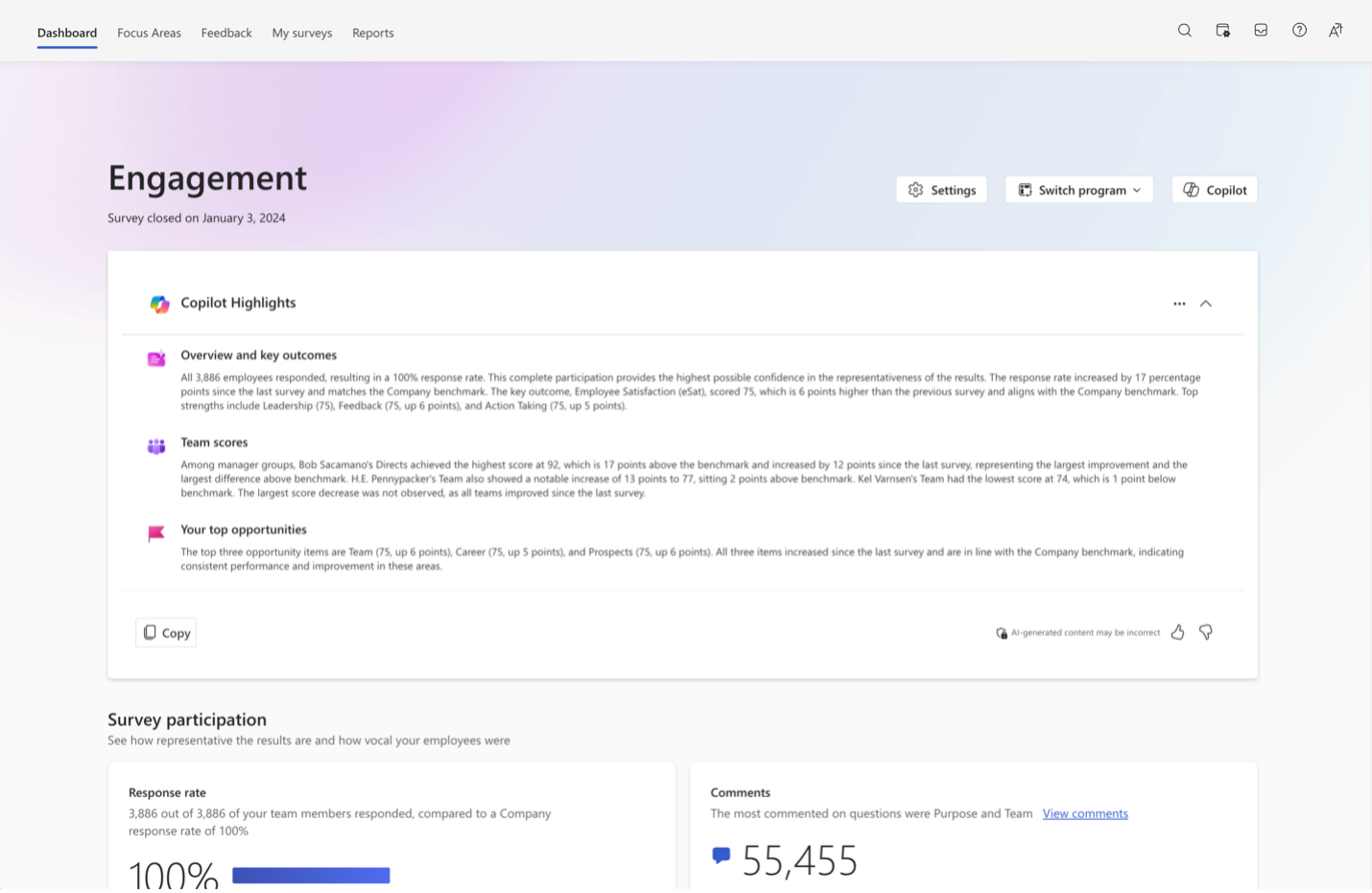
Overview and key outcomes
This section may include, depending on data availability and interpretation rules:
Response rate summary
Response rate, respondent count, team size, representativeness, change vs. the previous cycle, and comparison to the selected benchmarkKey outcome score
Current score, change since the last survey (and whether the change is notable), and benchmark comparisonTop strengths
Up to three strength items from the report
If Strengths and Opportunities items aren’t available on the report, only response rate and key outcome information is shown.
Team scores
This section may include:
- Breakdown by hierarchy or attribute configured on the report
- Score, direction of change, and whether the change is notable for each team
- Largest increases and decreases across teams
- Highest and lowest scoring teams
The section updates when the hierarchy attribute used for the breakdown changes.
Note
The Team scores section appears only when team breakdowns are available. Frontline managers with no subteams won’t see this section.
Your top opportunities
This section may include:
- Up to three opportunity items from the report’s Strengths and Opportunities ranking
- Score, benchmark comparison, and pattern classification (improvement, potential risk, or growing risk)
- Score change from the previous cycle as additional context
The section is hidden if opportunity items aren’t available.
Note
Copilot Highlights uses the same Strengths and Opportunities ranking algorithm as the report. Only items with High or Very High impact are eligible. Score changes aren’t a ranking factor and are shown only as context.
See Driver Impact Report for details.
How Copilot Highlights interprets survey data
Copilot Highlights uses built-in interpretation rules to surface only meaningful and actionable findings. Thresholds vary based on respondent group size.
Response rate confidence
| Group size | High confidence | Moderate confidence | Low confidence |
|---|---|---|---|
| Large (100+) | 50% or higher | 30–49% | Below 30% |
| Small (fewer than 100) | 60% or higher | 40–59% | Below 40% |
Notable score changes
| Group size | Minimum change |
|---|---|
| Large (100+) | One point or more |
| Medium (50–99) | Two points or more |
| Small (fewer than 50) | Five points or more |
Notable benchmark comparisons
| Group size | Minimum difference |
|---|---|
| Large (100+) | One point or more |
| Medium (50–99) | Two points or more |
| Small (fewer than 50) | Five points or more |
Important
Interpretation rules are applied automatically and can’t be customized. They determine which insights are surfaced and which metrics are omitted.
Multilingual support
Copilot Highlights summaries are generated in the language configured for the user’s Viva Glint dashboard experience. All Viva Glint supported languages are supported.
See Supported languages for details.
How Copilot Highlights processes data
Copilot Highlights uses the same data architecture as other Copilot in Viva Glint features. Instead of a user-entered prompt, it uses a system-generated prompt with built-in interpretation rules and quality controls.
See Copilot privacy for details.
Note
Copilot Highlights respects the same confidentiality thresholds and privacy protections as dashboards and reports. Suppressed or insufficient data isn’t included.
Key points:
- Operates within Viva Glint service boundaries
- Raw survey responses and user attributes aren’t used to train foundation models
- Only data visible in the loaded report is used
- No external data, cross-survey aggregation, or user prompts
- Summaries regenerate when filters, benchmarks, or settings change
Quality and accuracy
Copilot Highlights is designed around four quality principles:
- Accuracy – Matches underlying report data
- Completeness – Includes relevant context when available
- Rule adherence – Applies interpretation rules consistently
- Relevance – Prioritizes actionable insights
Copilot Highlights uses objective, professional language.
Tip
As with any AI-generated content, summaries may occasionally contain inaccuracies. Use the thumbs up/down feedback on the Copilot Highlights card to report issues.
Frequently asked questions
Who can access Copilot Highlights?
Users with Copilot in Viva Glint enabled and a Glint User Role with dashboard access.
Does Copilot Highlights work retroactively?
Yes, for the latest two survey cycles in Recurring and Ad hoc programs.
Can interpretation rules be customized?
No. Rules and sections are applied automatically.
What if a report has no data?
Copilot Highlights doesn’t display.
Does Copilot Highlights share data with Microsoft Copilot?
No. It uses Viva Glint–specific data boundaries.
How is it different from comment summarization?
Copilot Highlights summarizes quantitative survey data. Comment summarization analyses qualitative comments via Copilot chat.
Does it work with View As?
No.
Does it update with filters or settings?
Yes.
Does it slow report loading?
No. It loads in parallel with reports.
Does it summarize all report sections?
No. Only supported sections on Team Summary and Executive Summary reports.
Does it work on custom reports?
No.
How can I provide feedback?
Use the thumbs up/down controls on the Copilot Highlights card.