Idioma
Nota
O acesso a esta página requer autorização. Pode tentar iniciar sessão ou alterar os diretórios.
O acesso a esta página requer autorização. Pode tentar alterar os diretórios.
Table é um elemento de nível de bloco que suporta a apresentação baseada em grade do conteúdo do documento Flow. A flexibilidade deste elemento torna-o muito útil, mas também o torna mais complicado de compreender e utilizar corretamente.
Este tópico contém as seguintes seções.
[Tópicos relacionados]
Noções básicas de tabela
Qual é a diferença entre Tabela e Grade?
Table e Grid compartilham algumas funcionalidades comuns, mas cada uma é mais adequada para cenários diferentes. Um Table é projetado para uso dentro do conteúdo de fluxo (consulte Visão geral do documento de fluxo para obter mais informações sobre o conteúdo de fluxo). As grades são melhor usadas dentro de formulários (basicamente em qualquer lugar fora do conteúdo de fluxo). Dentro de um FlowDocument, o Table oferece suporte a comportamentos de fluxo de conteúdo, como paginação, refluxo de coluna e seleção de conteúdo, enquanto um Grid não. Um Grid por outro lado é melhor usado fora de um FlowDocument por muitos motivos, incluindo Grid adiciona elementos com base em um índice de linha e coluna, Table não o faz. O elemento Grid permite a criação de camadas de conteúdo filho, permitindo que mais de um elemento exista dentro de uma única "célula". Table não suporta camadas. Os elementos filho de um Grid podem ser posicionados de forma absoluta em relação à área das fronteiras da "célula". Table não suporta esse recurso. Finalmente, um Grid requer menos recursos do que um Table então considere usar um Grid para melhorar o desempenho.
Estrutura básica da tabela
Table Fornece uma apresentação baseada em grade que consiste em colunas (representadas por TableColumn elementos) e linhas (representadas por TableRow elementos). TableColumn elementos não hospedam conteúdo; eles simplesmente definem colunas e características de colunas. TableRow Os elementos devem ser hospedados em um TableRowGroup elemento , que define um agrupamento de linhas para a tabela. Os TableCell elementos que contêm o conteúdo real a ser apresentado pela tabela devem ser hospedados num TableRow elemento. TableCell só pode conter elementos que derivem de Block. Elementos filho válidos para uma TableCell inclusão.
Observação
TableCell elementos não podem hospedar diretamente o conteúdo de texto. Para obter mais informações sobre as regras de contenção para elementos de conteúdo de fluxo, como TableCell, consulte Visão geral do documento de fluxo.
Observação
Table é semelhante ao Grid elemento, mas tem mais capacidades e, portanto, requer maior sobrecarga de recursos.
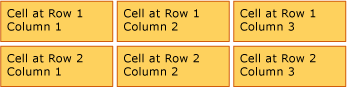
O exemplo a seguir define uma tabela 2 x 3 simples com XAML.
<!--
  Table is a Block element, and as such must be hosted in a container
  for Block elements.  FlowDocument provides such a container.
-->
<FlowDocument>
  <Table>
    <!--
      This table has 3 columns, each described by a TableColumn
      element nested in a Table.Columns collection element.
    -->
    <Table.Columns>
      <TableColumn />
      <TableColumn />
      <TableColumn />
    </Table.Columns>
    <!--
      This table includes a single TableRowGroup which hosts 2 rows,
      each described by a TableRow element.
    -->
    <TableRowGroup>
      <!--
        Each of the 2 TableRow elements hosts 3 cells, described by
        TableCell elements.
      -->
      <TableRow>
        <TableCell>
          <!--
            TableCell elements may only host elements derived from Block.
            In this example, Paragaph elements serve as the ultimate content
            containers for the cells in this table.
          -->
          <Paragraph>Cell at Row 1 Column 1</Paragraph>
        </TableCell>
        <TableCell>
          <Paragraph>Cell at Row 1 Column 2</Paragraph>
        </TableCell>
        <TableCell>
          <Paragraph>Cell at Row 1 Column 3</Paragraph>
        </TableCell>
      </TableRow>
      <TableRow>
        <TableCell>
          <Paragraph>Cell at Row 2 Column 1</Paragraph>
        </TableCell>
        <TableCell>
          <Paragraph>Cell at Row 2 Column 2</Paragraph>
        </TableCell>
        <TableCell>
          <Paragraph>Cell at Row 2 Column 3</Paragraph>
        </TableCell>
      </TableRow>
    </TableRowGroup>
  </Table>
</FlowDocument>
A figura a seguir mostra como este exemplo é renderizado.
Contenção de mesas
Table deriva do Block elemento e adere às regras comuns para Block elementos de nível. Um elemento pode ser contido por qualquer um Table dos seguintes elementos:
Agrupamentos de linhas
O TableRowGroup elemento fornece uma maneira de agrupar arbitrariamente linhas dentro de uma tabela, cada linha em uma tabela deve pertencer a um agrupamento de linhas. As linhas dentro de um grupo de linhas geralmente compartilham uma intenção comum e podem ser estilizadas como um grupo. Um uso comum para agrupamentos de linhas é separar linhas para fins especiais, como linhas de título, cabeçalho e rodapé, do conteúdo principal contido pela tabela.
O exemplo a seguir usa XAML para definir uma tabela com linhas de cabeçalho e rodapé com estilo.
<Table>
  <Table.Resources>
    <!-- Style for header/footer rows. -->
    <Style x:Key="headerFooterRowStyle" TargetType="{x:Type TableRowGroup}">
      <Setter Property="FontWeight" Value="DemiBold"/>
      <Setter Property="FontSize" Value="16"/>
      <Setter Property="Background" Value="LightGray"/>
    </Style>

    <!-- Style for data rows. -->
    <Style x:Key="dataRowStyle" TargetType="{x:Type TableRowGroup}">
      <Setter Property="FontSize" Value="12"/>
      <Setter Property="FontStyle" Value="Italic"/>
    </Style>
  </Table.Resources>

  <Table.Columns>
    <TableColumn/> <TableColumn/> <TableColumn/> <TableColumn/>
  </Table.Columns>

  <!-- This TableRowGroup hosts a header row for the table. -->
  <TableRowGroup Style="{StaticResource headerFooterRowStyle}">
    <TableRow>
      <TableCell/>
      <TableCell><Paragraph>Gizmos</Paragraph></TableCell>
      <TableCell><Paragraph>Thingamajigs</Paragraph></TableCell>
      <TableCell><Paragraph>Doohickies</Paragraph></TableCell>
    </TableRow>
  </TableRowGroup>

  <!-- This TableRowGroup hosts the main data rows for the table. -->
  <TableRowGroup Style="{StaticResource dataRowStyle}">
    <TableRow>
      <TableCell><Paragraph Foreground="Blue">Blue</Paragraph></TableCell>
      <TableCell><Paragraph>1</Paragraph></TableCell>
      <TableCell><Paragraph>2</Paragraph></TableCell>
      <TableCell><Paragraph>3</Paragraph> </TableCell>
    </TableRow>
    <TableRow>
      <TableCell><Paragraph Foreground="Red">Red</Paragraph></TableCell>
      <TableCell><Paragraph>1</Paragraph></TableCell>
      <TableCell><Paragraph>2</Paragraph></TableCell>
      <TableCell><Paragraph>3</Paragraph></TableCell>
    </TableRow>
    <TableRow>
      <TableCell><Paragraph Foreground="Green">Green</Paragraph></TableCell>
      <TableCell><Paragraph>1</Paragraph></TableCell>
      <TableCell><Paragraph>2</Paragraph></TableCell>
      <TableCell><Paragraph>3</Paragraph></TableCell>
    </TableRow>
  </TableRowGroup>

  <!-- This TableRowGroup hosts a footer row for the table. -->
  <TableRowGroup Style="{StaticResource headerFooterRowStyle}">
    <TableRow>
      <TableCell><Paragraph>Totals</Paragraph></TableCell>
      <TableCell><Paragraph>3</Paragraph></TableCell>
      <TableCell><Paragraph>6</Paragraph></TableCell>
      <TableCell>
        <Table></Table>
      </TableCell>
    </TableRow>
  </TableRowGroup>
</Table>
A figura a seguir mostra como este exemplo é renderizado.

Precedência de renderização em segundo plano
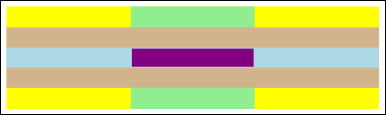
Os elementos da tabela são renderizados na seguinte ordem (ordem z do mais baixo para o mais alto). Esta ordem não pode ser alterada. Por exemplo, não há nenhuma propriedade "Z-order" para esses elementos que você possa usar para substituir essa ordem estabelecida.
Considere o exemplo a seguir, que define cores de plano de fundo para cada um desses elementos dentro de uma tabela.
<Table Background="Yellow">
  <Table.Columns>
    <TableColumn/>
    <TableColumn Background="LightGreen"/>
    <TableColumn/>
  </Table.Columns>
  <TableRowGroup>
    <TableRow>
      <TableCell/><TableCell/><TableCell/>
    </TableRow>
  </TableRowGroup>
  <TableRowGroup Background="Tan">
    <TableRow>
      <TableCell/><TableCell/><TableCell/>
    </TableRow>
    <TableRow Background="LightBlue">
      <TableCell/><TableCell Background="Purple"/><TableCell/>
    </TableRow>
    <TableRow>
      <TableCell/><TableCell/><TableCell/>
    </TableRow>
  </TableRowGroup>
  <TableRowGroup>
    <TableRow>
      <TableCell/><TableCell/><TableCell/>
    </TableRow>
  </TableRowGroup>
</Table>
A figura a seguir mostra como este exemplo é renderizado (mostrando apenas cores de plano de fundo).
Abrangência de linhas ou colunas
As células da tabela podem ser configuradas para abranger várias linhas ou colunas usando os RowSpan atributos ou ColumnSpan , respectivamente.
Considere o exemplo a seguir, no qual uma célula se estende por três colunas.
<Table>
  <Table.Columns>
    <TableColumn/>
    <TableColumn/>
    <TableColumn/>
  </Table.Columns>

  <TableRowGroup>
    <TableRow>
      <TableCell ColumnSpan="3" Background="Cyan">
        <Paragraph>This cell spans all three columns.</Paragraph>
      </TableCell>
    </TableRow>
    <TableRow>
      <TableCell Background="LightGray"><Paragraph>Cell 1</Paragraph></TableCell>
      <TableCell Background="LightGray"><Paragraph>Cell 2</Paragraph></TableCell>
      <TableCell Background="LightGray"><Paragraph>Cell 3</Paragraph></TableCell>
    </TableRow>
  </TableRowGroup>
</Table>
A figura a seguir mostra como este exemplo é renderizado.

Construindo uma tabela com código
Os exemplos a seguir mostram como criar programaticamente um Table e preenchê-lo com conteúdo. O conteúdo da tabela é dividido em cinco linhas (representadas por objetos TableRow contidos em um objeto RowGroups) e seis colunas (representadas por objetos TableColumn). As linhas são usadas para diferentes fins de apresentação, incluindo uma linha de título destinada a intitular a tabela inteira, uma linha de cabeçalho para descrever as colunas de dados na tabela e uma linha de rodapé com informações resumidas. Note que a noção de linhas de "título", "cabeçalho" e "rodapé" não é inerente à tabela; estas são apenas linhas com características diferentes. As células da tabela contêm o conteúdo real, que pode ser composto de texto, imagens ou praticamente qualquer outro elemento da interface do usuário (UI).
Primeiro, um FlowDocument é criado para hospedar o Tablee um novo Table é criado e adicionado ao conteúdo do FlowDocument.
// Create the parent FlowDocument...
flowDoc = new FlowDocument();

// Create the Table...
table1 = new Table();
// ...and add it to the FlowDocument Blocks collection.
flowDoc.Blocks.Add(table1);

// Set some global formatting properties for the table.
table1.CellSpacing = 10;
table1.Background = Brushes.White;
' Create the parent FlowDocument...
flowDoc = New FlowDocument()

' Create the Table...
table1 = New Table()

' ...and add it to the FlowDocument Blocks collection.
flowDoc.Blocks.Add(table1)


' Set some global formatting properties for the table.
table1.CellSpacing = 10
table1.Background = Brushes.White
Em seguida, seis objetos TableColumn são criados e adicionados à coleção de Columns da tabela, com alguma formatação aplicada.
Observação
Observe que a coleção de Columns da tabela usa indexação padrão baseada em zero.
// Create 6 columns and add them to the table's Columns collection.
int numberOfColumns = 6;
for (int x = 0; x < numberOfColumns; x++)
{
    table1.Columns.Add(new TableColumn());

    // Set alternating background colors for the middle colums.
    if(x%2 == 0)
        table1.Columns[x].Background = Brushes.Beige;
    else
        table1.Columns[x].Background = Brushes.LightSteelBlue;
}
' Create 6 columns and add them to the table's Columns collection.
Dim numberOfColumns = 6
Dim x
For x = 0 To numberOfColumns
    table1.Columns.Add(new TableColumn())

    ' Set alternating background colors for the middle colums.
    If x Mod 2 = 0 Then
        table1.Columns(x).Background = Brushes.Beige
    Else
        table1.Columns(x).Background = Brushes.LightSteelBlue
    End If
Next x
Em seguida, uma linha de título é criada e adicionada à tabela com alguma formatação aplicada. A linha de título contém uma única célula que abrange todas as seis colunas da tabela.
// Create and add an empty TableRowGroup to hold the table's Rows.
table1.RowGroups.Add(new TableRowGroup());

// Add the first (title) row.
table1.RowGroups[0].Rows.Add(new TableRow());

// Alias the current working row for easy reference.
TableRow currentRow = table1.RowGroups[0].Rows[0];

// Global formatting for the title row.
currentRow.Background = Brushes.Silver;
currentRow.FontSize = 40;
currentRow.FontWeight = System.Windows.FontWeights.Bold;

// Add the header row with content,
currentRow.Cells.Add(new TableCell(new Paragraph(new Run("2004 Sales Project"))));
// and set the row to span all 6 columns.
currentRow.Cells[0].ColumnSpan = 6;
' Create and add an empty TableRowGroup to hold the table's Rows.
table1.RowGroups.Add(new TableRowGroup())

' Add the first (title) row.
table1.RowGroups(0).Rows.Add(new TableRow())

' Alias the current working row for easy reference.
Dim currentRow As New TableRow()
currentRow = table1.RowGroups(0).Rows(0)

' Global formatting for the title row.
currentRow.Background = Brushes.Silver
currentRow.FontSize = 40
currentRow.FontWeight = System.Windows.FontWeights.Bold

' Add the header row with content,
currentRow.Cells.Add(new TableCell(new Paragraph(new Run("2004 Sales Project"))))
' and set the row to span all 6 columns.
currentRow.Cells(0).ColumnSpan = 6
Em seguida, uma linha de cabeçalho é criada e adicionada à tabela, e as células na linha de cabeçalho são criadas e preenchidas com conteúdo.
// Add the second (header) row.
table1.RowGroups[0].Rows.Add(new TableRow());
currentRow = table1.RowGroups[0].Rows[1];

// Global formatting for the header row.
currentRow.FontSize = 18;
currentRow.FontWeight = FontWeights.Bold;

// Add cells with content to the second row.
currentRow.Cells.Add(new TableCell(new Paragraph(new Run("Product"))));
currentRow.Cells.Add(new TableCell(new Paragraph(new Run("Quarter 1"))));
currentRow.Cells.Add(new TableCell(new Paragraph(new Run("Quarter 2"))));
currentRow.Cells.Add(new TableCell(new Paragraph(new Run("Quarter 3"))));
currentRow.Cells.Add(new TableCell(new Paragraph(new Run("Quarter 4"))));
currentRow.Cells.Add(new TableCell(new Paragraph(new Run("TOTAL"))));
' Add the second (header) row.
table1.RowGroups(0).Rows.Add(new TableRow())
currentRow = table1.RowGroups(0).Rows(1)

' Global formatting for the header row.
currentRow.FontSize = 18
currentRow.FontWeight = FontWeights.Bold

' Add cells with content to the second row.
currentRow.Cells.Add(new TableCell(new Paragraph(new Run("Product"))))
currentRow.Cells.Add(new TableCell(new Paragraph(new Run("Quarter 1"))))
currentRow.Cells.Add(new TableCell(new Paragraph(new Run("Quarter 2"))))
currentRow.Cells.Add(new TableCell(new Paragraph(new Run("Quarter 3"))))
currentRow.Cells.Add(new TableCell(new Paragraph(new Run("Quarter 4"))))
currentRow.Cells.Add(new TableCell(new Paragraph(new Run("TOTAL"))))
Em seguida, uma linha para dados é criada e adicionada à tabela, e as células nessa linha são criadas e preenchidas com conteúdo. A criação desta linha é semelhante à construção da linha de cabeçalho, com formatação ligeiramente diferente aplicada.
// Add the third row.
table1.RowGroups[0].Rows.Add(new TableRow());
currentRow = table1.RowGroups[0].Rows[2];

// Global formatting for the row.
currentRow.FontSize = 12;
currentRow.FontWeight = FontWeights.Normal;

// Add cells with content to the third row.
currentRow.Cells.Add(new TableCell(new Paragraph(new Run("Widgets"))));
currentRow.Cells.Add(new TableCell(new Paragraph(new Run("$50,000"))));
currentRow.Cells.Add(new TableCell(new Paragraph(new Run("$55,000"))));
currentRow.Cells.Add(new TableCell(new Paragraph(new Run("$60,000"))));
currentRow.Cells.Add(new TableCell(new Paragraph(new Run("$65,000"))));
currentRow.Cells.Add(new TableCell(new Paragraph(new Run("$230,000"))));

// Bold the first cell.
currentRow.Cells[0].FontWeight = FontWeights.Bold;
' Add the third row.
table1.RowGroups(0).Rows.Add(new TableRow())
currentRow = table1.RowGroups(0).Rows(2)

' Global formatting for the row.
currentRow.FontSize = 12
currentRow.FontWeight = FontWeights.Normal

' Add cells with content to the third row.
currentRow.Cells.Add(new TableCell(new Paragraph(new Run("Widgets"))))
currentRow.Cells.Add(new TableCell(new Paragraph(new Run("$50,000"))))
currentRow.Cells.Add(new TableCell(new Paragraph(new Run("$55,000"))))
currentRow.Cells.Add(new TableCell(new Paragraph(new Run("$60,000"))))
currentRow.Cells.Add(new TableCell(new Paragraph(new Run("$65,000"))))
currentRow.Cells.Add(new TableCell(new Paragraph(new Run("$230,000"))))

' Bold the first cell.
currentRow.Cells(0).FontWeight = FontWeights.Bold
Finalmente, uma linha de rodapé é criada, adicionada e formatada. Como a linha de título, o rodapé contém uma única célula que abrange todas as seis colunas da tabela.
table1.RowGroups[0].Rows.Add(new TableRow());
currentRow = table1.RowGroups[0].Rows[3];

// Global formatting for the footer row.
currentRow.Background = Brushes.LightGray;
currentRow.FontSize = 18;
currentRow.FontWeight = System.Windows.FontWeights.Normal;

// Add the header row with content,
currentRow.Cells.Add(new TableCell(new Paragraph(new Run("Projected 2004 Revenue: $810,000"))));
// and set the row to span all 6 columns.
currentRow.Cells[0].ColumnSpan = 6;
table1.RowGroups(0).Rows.Add(new TableRow())
currentRow = table1.RowGroups(0).Rows(3)

' Global formatting for the footer row.
currentRow.Background = Brushes.LightGray
currentRow.FontSize = 18
currentRow.FontWeight = System.Windows.FontWeights.Normal

' Add the header row with content,
currentRow.Cells.Add(new TableCell(new Paragraph(new Run("Projected 2004 Revenue: $810,000"))))
' and set the row to span all 6 columns.
currentRow.Cells(0).ColumnSpan = 6
Ver também
- Visão geral do documento de fluxo
- Definir uma Tabela com XAML
- Documentos em WPF
- Usar elementos de conteúdo de fluxo
Colabore connosco no GitHub
A origem deste conteúdo pode ser encontrada no GitHub, onde também pode criar e rever problemas e pedidos Pull. Para mais informações, consulte o nosso guia do contribuidor.

.NET Desktop feedback