Notă
Accesul la această pagină necesită autorizare. Puteți încerca să vă conectați sau să modificați directoarele.
Accesul la această pagină necesită autorizare. Puteți încerca să modificați directoarele.
In Dataflow Gen2, the Copilot module helps you start with data and describe the query you want to build in natural language. Use it when you can explain the result you need but want help turning that intent into Power Query steps.
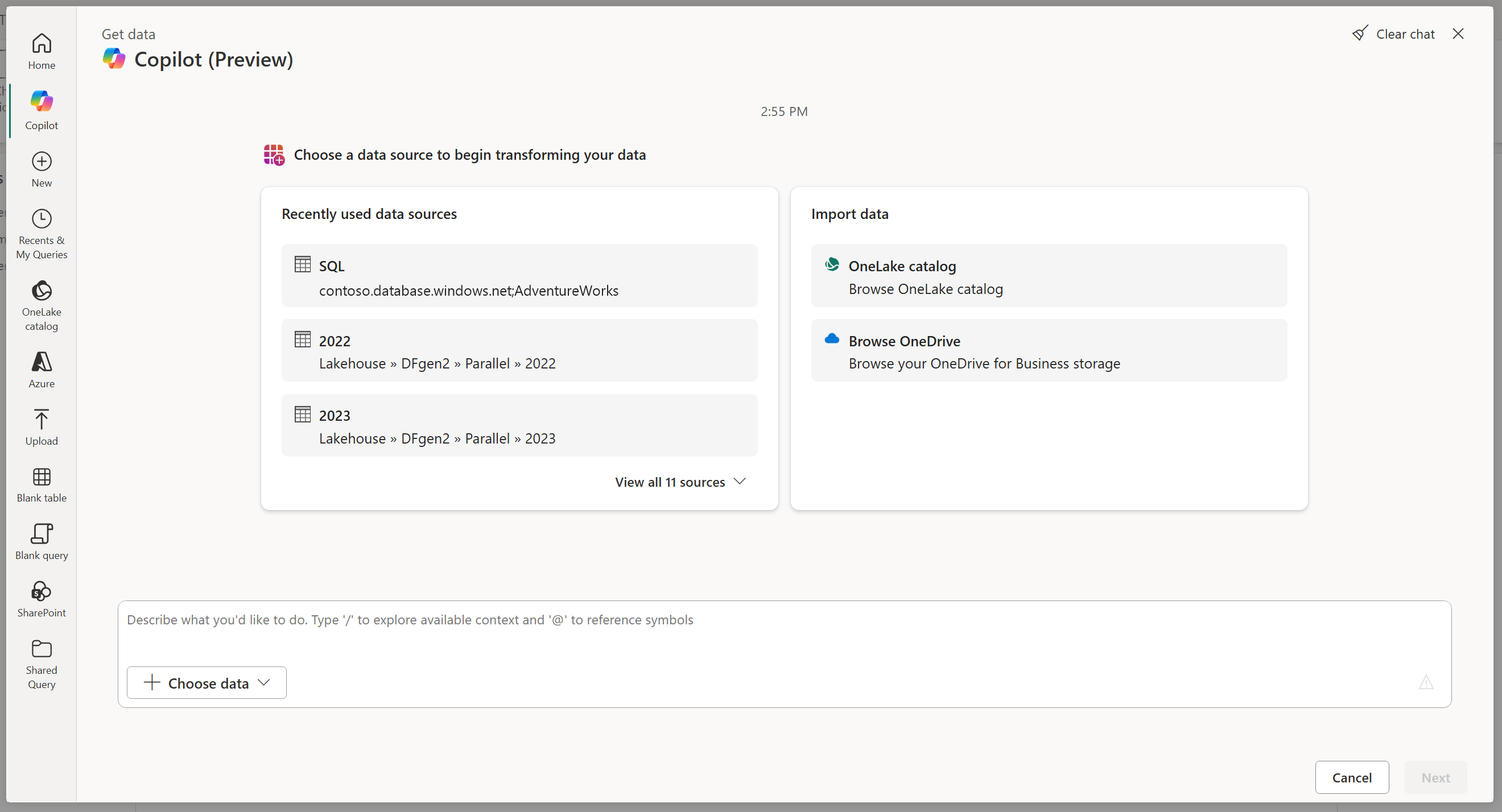
Choose data to work with, and then use chat to explore and transform it inside the get data experience. You can review the results before continuing your dataflow authoring. Copilot is also available in the Power Query editor, but that feature is a separate entry point.
When Copilot is a good fit
Copilot is most useful for focused tasks where you can describe both the input and the intended output.
| Use case | Example request | What to review |
|---|---|---|
| Filter a query to the records you need | For a query with a numeric Quantity column: "Keep only rows where Quantity is greater than 10." | Confirm the comparison, data type, and handling of null values. |
| Summarize a table | For an employee query with a City column: "Count the employees by City." | Confirm the grouping column and whether the count should represent rows or distinct employees. |
| Explore a table before deciding what to keep | For a customer table with a Title column: "Group by Title and count the rows in each group." | Inspect the groups and counts before asking for another filter. |
For a single operation you already know how to perform, such as changing a column's type, using the editor command directly might be simpler. Use the New data source module when you only need to select a connector and configure a connection.
Before you begin
Copilot availability depends on your Fabric capacity, region, and tenant settings. Your administrator must enable Copilot in Fabric. For current requirements, go to Copilot in Fabric in the Data Factory workload.
You also need access to the data source and the credentials required by its connector. Choosing Copilot doesn't replace the connection and authentication steps.
Choose your data
- In Get data, select Copilot in the left navigation bar.
- Select a recently used table, or use the data-selection control in the chat area to choose your context.
- Complete any connection and data selection steps required by the source.
- After the data loads, enter a prompt to explore or transform the selected table.
The illustrated version labels the data-selection control Choose data and also offers OneLake catalog and Browse OneDrive under Import data. The Dataflow Gen2 walkthrough describes a Choose context control for selecting recent tables. Follow the choices available in your version of the experience.
Until you select a data source, the module disables Next, as illustrated in the preceding screenshot.
Describe the result you want
Start with one table and a clear task. Name the columns involved, state the condition or calculation, and describe the expected output. For example, after selecting data that contains a numeric Quantity column:
Keep only rows where Quantity is greater than 10.
Review that change before asking for another one. If your next goal is a summary, specify the grouping and the calculation rather than asking Copilot to "analyze the data."
For example, on an employee query with one row per employee and a City column:
Group by City and count the rows in each group. Name the count column EmployeeCount.
Type @ in your prompt to show available column suggestions, then type part of a column name to narrow them down. Choosing a column suggestion helps you refer to the intended field; it doesn't filter the rows in your data.
You can explore iteratively by reviewing one result before requesting the next transformation. If you already know the operations you need, describe them together in a specific prompt.
Review and restore results in Get data
Check the displayed results after each request. Confirm that the intended columns, grouping, filters, and values match your requirements.
To return to an earlier point, select Restore beside that step. The data reverts to that point so you can try another approach. This dialog's Restore action is distinct from the editor's Undo behavior.
You can copy preview data for further review. A preview is a sample, so plausible-looking results alone don't establish that your query is correct for the entire source.
For the documented in-dialog exploration workflow, go to Chat with Copilot in the get data experience.
Review the generated query
When you continue authoring in the Power Query editor, review the query rather than relying only on the chat response:
- Inspect the Applied steps list to see which transformations were added.
- Review the formula bar or M code to confirm the columns, conditions, and calculations.
- Check the data preview for expected columns, types, errors, and representative values. A preview alone doesn't establish correctness across the full dataset.
- If you need help understanding the change, ask Copilot to explain the current query and compare its explanation with the actual steps.
Important
Copilot can produce incorrect results. Review generated code and validate the output against your requirements before using it.
Continue with Copilot in the editor
The editor's Copilot entry point supports additional tasks, including creating sample data and explaining a query. These tasks are useful after you move beyond choosing and exploring source data.
| Your goal in the editor | Example prompt |
|---|---|
| Prototype with fictional data | "Create a new query with fictional monthly sales data for three products, with Month, Product, and Sales columns." |
| Understand the selected query | "Explain my current query." |
Treat generated sample data as fictional, not factual business results. Compare explanations with the actual M code and Applied steps. For this separate workflow, go to Get started with Copilot for Dataflow Gen2.
Know the boundaries
Keep requests focused on the selected data. In the editor, Copilot doesn't support transforming or explaining every query in a dataflow in a single request, and it doesn't perform layout tasks such as organizing queries into groups.
Copilot can also misinterpret requests that depend on data outside the sampled preview. Be explicit about business rules and validate results against the source rather than assuming a plausible-looking answer is correct.
For current limitations and responsible-use guidance, go to Copilot in Fabric in the Data Factory workload.