หมายเหตุ
การเข้าถึงหน้านี้ต้องได้รับการอนุญาต คุณสามารถลอง ลงชื่อเข้าใช้หรือเปลี่ยนไดเรกทอรีได้
การเข้าถึงหน้านี้ต้องได้รับการอนุญาต คุณสามารถลองเปลี่ยนไดเรกทอรีได้
In this article, you learn how to enable vulnerability assessment so you can find and remediate database vulnerabilities. We recommend that you enable vulnerability assessment using the express configuration so you aren't dependent on a storage account. You can also enable vulnerability assessment using the classic configuration.
Important
Express Configuration is available in Preview for Azure SQL Managed Instance and Azure Synapse Analytics Workspaces. This extends the generally available Microsoft-managed experience for Azure SQL Database (GA), at no additional cost.
This release allows you to enable SQL VA without configuring a customer-managed storage account. Express Configuration is the recommended enablement mode and provides the same security value as Classic Configuration with a simplified setup.
A unified REST API (v2026-04-01-preview) manages SQL VA consistently across Azure SQL Database, SQL Managed Instance, Synapse Workspaces, and SQL on machines (Azure VM and Arc-enabled SQL).
Prerequisites
- Make sure that Microsoft Defender for Azure SQL is enabled so you can run scans on your Azure SQL databases.
- Make sure you've read and understand the differences between the express and classic configuration.
Enable vulnerability assessment express configuration
When you enable the Defender for Azure SQL plan in Defender for Cloud, Defender for Cloud automatically enables Advanced Threat Protection and vulnerability assessment with the express configuration for all Azure SQL databases in the selected subscription.
If you have Azure SQL databases with vulnerability assessment enabled in the classic configuration, you can enable the express configuration so that assessments don't require a storage account.
If you have Azure SQL databases with vulnerability assessment disabled, you can enable vulnerability assessment with the express configuration.
To enable vulnerability assessment without a storage account, using the express configuration:
Sign in to the Azure portal.
Open the specific Azure SQL Database resource.
Under the Security heading, select Defender for Cloud.
Enable the express configuration of vulnerability assessment:
If vulnerability assessment is not configured, select Enable in the notice that prompts you to enable the vulnerability assessment express configuration, and confirm the change.
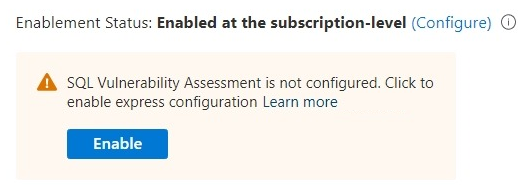
You can also select Configure and then select Enable in the Microsoft Defender for SQL settings:
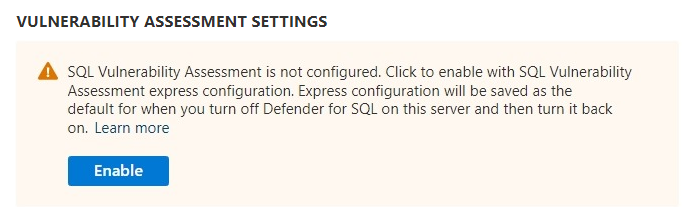
Select Enable to use the vulnerability assessment express configuration.
If vulnerability assessment is already configured, select Enable in the notice that prompts you to switch to express configuration, and confirm the change.
Important
Baselines and scan history are not migrated.
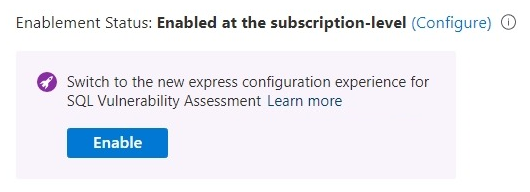
You can also select Configure and then select Enable in the Microsoft Defender for SQL settings:
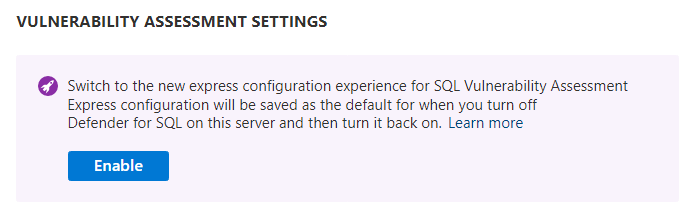
Now you can go to the SQL databases should have vulnerability findings resolved recommendation to see the vulnerabilities found in your databases. You can also run on-demand vulnerability assessment scans to see the current findings.
Note
Each database is randomly assigned a scan time on a set day of the week.
Enable express vulnerability assessment at scale
If you have SQL resources that don't have Advanced Threat Protection and vulnerability assessment enabled, you can use the SQL vulnerability assessment APIs to enable SQL vulnerability assessment with the express configuration at scale.
Related content
Learn more about: