หมายเหตุ
การเข้าถึงหน้านี้ต้องได้รับการอนุญาต คุณสามารถลอง ลงชื่อเข้าใช้หรือเปลี่ยนไดเรกทอรีได้
การเข้าถึงหน้านี้ต้องได้รับการอนุญาต คุณสามารถลองเปลี่ยนไดเรกทอรีได้
Foundry MCP Server (preview) tools automate read and write operations across Foundry resources, including deployments, datasets, evaluations, monitoring, and analytics. This guidance helps you verify intent, reduce risk, and apply security and governance practices before you run MCP tools.
In this article, you learn about:
- How to interpret MCP Server responses and verify accuracy
- The impact of write operations on Foundry resources
- Best practices for safe tool execution, resource management, and change tracking
- Security and governance controls, including identity, RBAC, Conditional Access, network isolation, and data residency
- Troubleshooting common issues
Note
This feature is currently in public preview. This preview is provided without a service-level agreement, and we don't recommend it for production workloads. Certain features might not be supported or might have constrained capabilities. For more information, see Supplemental Terms of Use for Microsoft Azure Previews.
Prerequisites
- An Azure account with an active subscription.
- A Foundry project with Contributor or higher role.
- To configure Conditional Access policies, you need the Conditional Access Administrator role in Microsoft Entra ID.
- Azure CLI (required only for the
az ad sp createcommand).
Interpreting the response
MCP Server provides output that is passed to the language model selected for your agent (for example, Visual Studio Code with GitHub Copilot). The language model combines this output with the conversation context to generate a final response based on its capabilities. Always verify the accuracy of the language model’s response. It may include details that are inferred or generated beyond the MCP Server’s original output.
Impact of write operations
Write operations have a critical impact on Foundry resources. Proceed with caution and proper planning when you interact with Foundry MCP Server, just as you would when using the portal, SDKs, or REST APIs. For example:
- Deployments: Immediately affect live apps and billing.
- Deletions: Permanently remove resources and can break dependent services.
- Evaluations: Consume compute quota and incur costs.
- Datasets: Can overwrite existing versions.
Examples of resource impact:
- Deleting a deployment breaks all applications using that endpoint.
- Large evaluations can consume significant quota allocation.
- New deployments start billing immediately.
- Overwriting a dataset affects evaluation reproducibility.
Best practices for safe execution
Follow these practices to make sure write operations run as you intend:
Tool execution verification
Verify tool selection: Confirm the correct MCP tool and parameters match your intention before execution.
Check parameters: Review all tool parameters (resource IDs, deployment names, dataset paths) for accuracy. Common parameter formats include:
Parameter type Format Where to find it Foundry resource ID /subscriptions/{subscription_id}/resourceGroups/{resource_group_name}/providers/Microsoft.CognitiveServices/accounts/{account_name}Azure portal Properties page for the account Project endpoint https://{account_name}.services.ai.azure.com/api/projects/{project_name}Foundry project details page Project resource ID /subscriptions/{subscription_id}/resourceGroups/{resource_group_name}/providers/Microsoft.CognitiveServices/accounts/{account_name}/projects/{project_name}Azure portal Properties page or Foundry project details page If you provide a project resource ID, the language model in your MCP host extracts the needed values and formulates the parameters to pass to MCP tools. Confirm before approval that the intended parameter values are passed to the MCP tools.
Check environment targeting: Make sure resource endpoints and project URLs point to the intended environment.
Resource management via MCP server
- Check dependencies: Use monitoring tools to make sure no app depends on a resource before you delete it.
- Check quota: Query quota status before you create new deployments or run large evaluations.
- Resource discovery: List existing deployments and datasets before making changes.
- Plan capacity: Check available quota and usage metrics before resource-intensive operations.
Safe MCP operation practices
- Test in nonproduction: Use development project endpoints first.
- Make incremental changes: Change one resource at a time instead of making bulk updates.
- Validate changes: Use read-only tools to confirm changes take effect.
- Handle errors: Monitor responses for errors or unexpected results.
Documentation and tracking
- Log operations: Use Azure resource Activity Logs to track affected resources.
- Back up configuration: Export current deployment and dataset configurations before you modify them.
- Track changes: Record MCP operation details for troubleshooting and rollback.
Security and governance
This section summarizes identity, access control, policy, network isolation, and data residency considerations to help you apply governance before MCP operations.
Identity and access management
Authenticate to Foundry MCP Server using a Microsoft Entra token scoped to https://mcp.ai.azure.com.
Azure role-based access control (RBAC) applies to all operations on Foundry resources supported by Foundry MCP Server. Operations run according to the authenticated user's permissions. The following table summarizes how RBAC roles map to MCP operation types:
| Operation type | Minimum required role | Examples |
|---|---|---|
| Read (list, get, query) | Reader | List deployments, get model details, query evaluation results |
| Write (create, update) | Contributor | Create deployments, update datasets, start evaluations |
| Delete | Contributor | Delete deployments, remove datasets |
| Manage access | Owner or User Access Administrator | Assign roles, manage permissions |
For more information on role assignments, see Role-based access control for Microsoft Foundry.
Control access with Conditional Access policies
Tenant admins can use Conditional Access policies to grant or block access to Foundry MCP Server for selected users or workload identities.
Materialize the service principal for the Foundry MCP Server application ID by running the following command:
az ad sp create --id fcdfa2de-b65b-4b54-9a1c-81c8a18282d9The application ID in this command represents Foundry MCP Server. You can verify this application ID by searching for "Foundry MCP Server" in the Entra ID enterprise applications list.
Find the enterprise application for Foundry MCP Server using the application ID. Open the Azure portal Entra ID page and search for the application ID
fcdfa2de-b65b-4b54-9a1c-81c8a18282d9.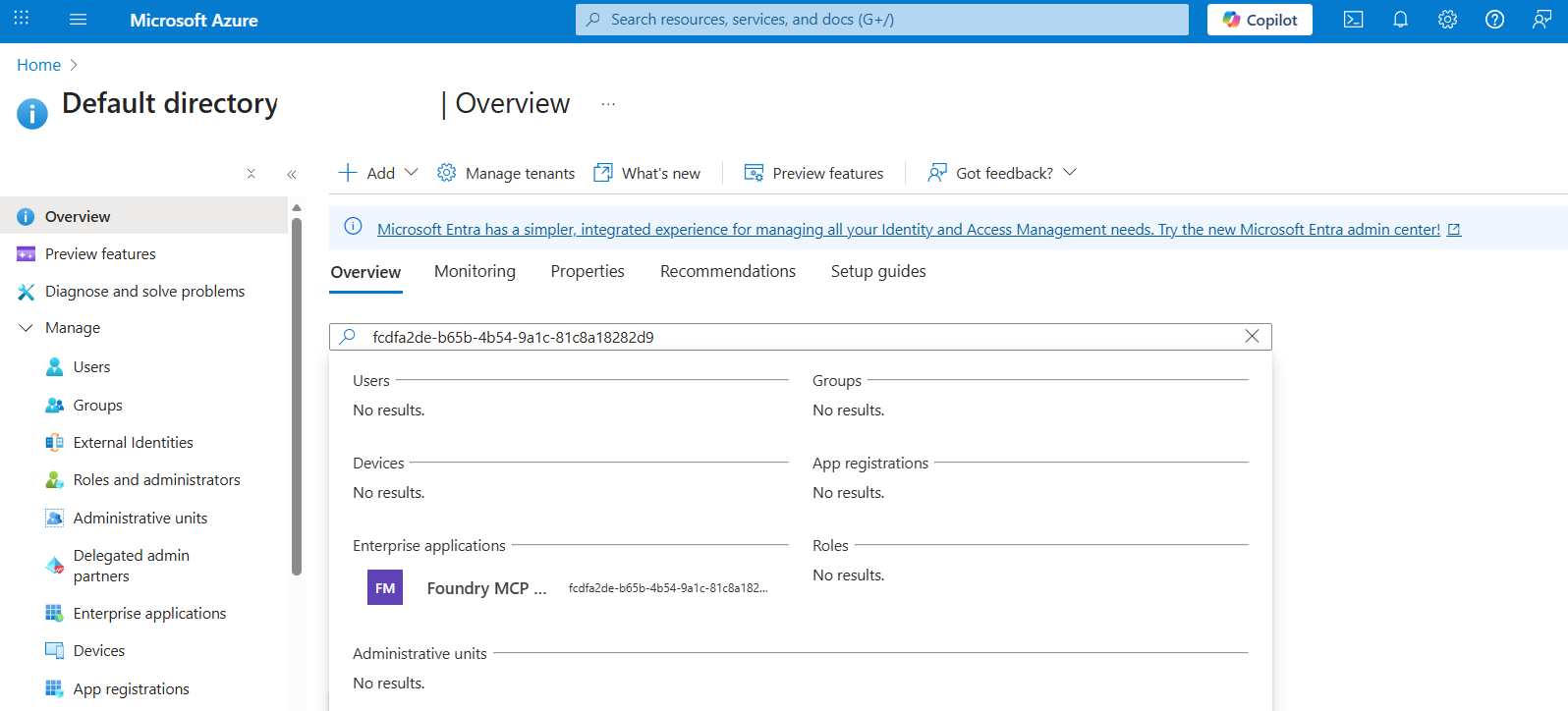
Select Conditional Access under Security on the left pane of the selected app, then select New Policy to configure access control.
- Under Users, select Specific users included and add the users or groups you want to restrict.
- Under Target resources, confirm the Foundry MCP Server application is selected.
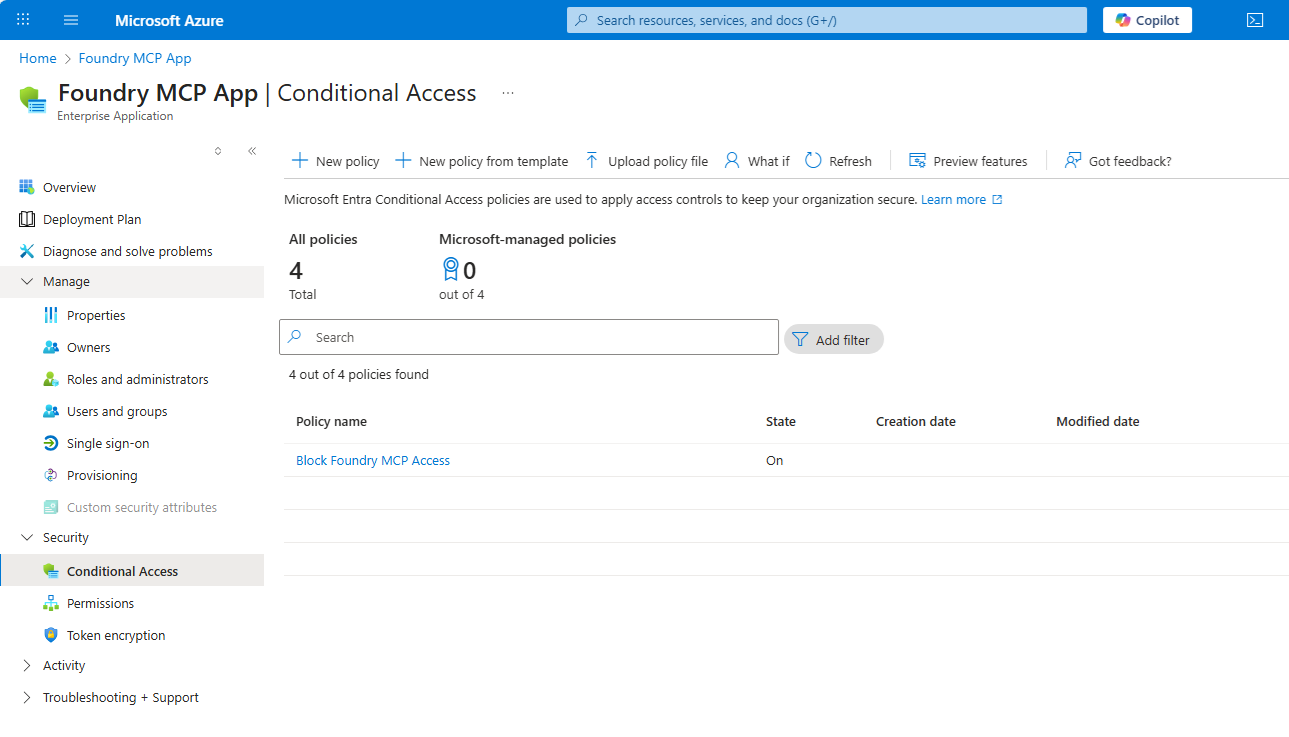
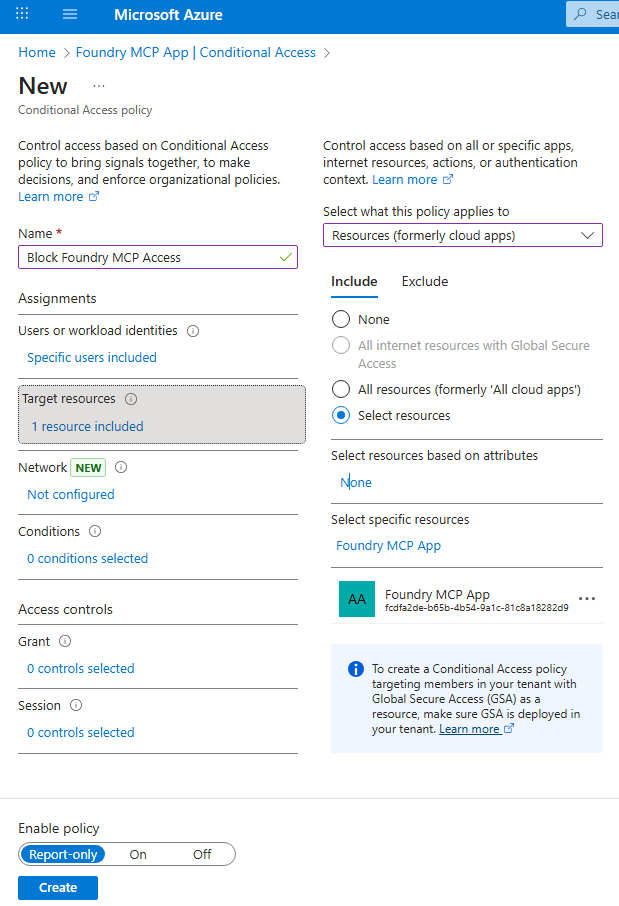
Select Grant, then choose Block access.
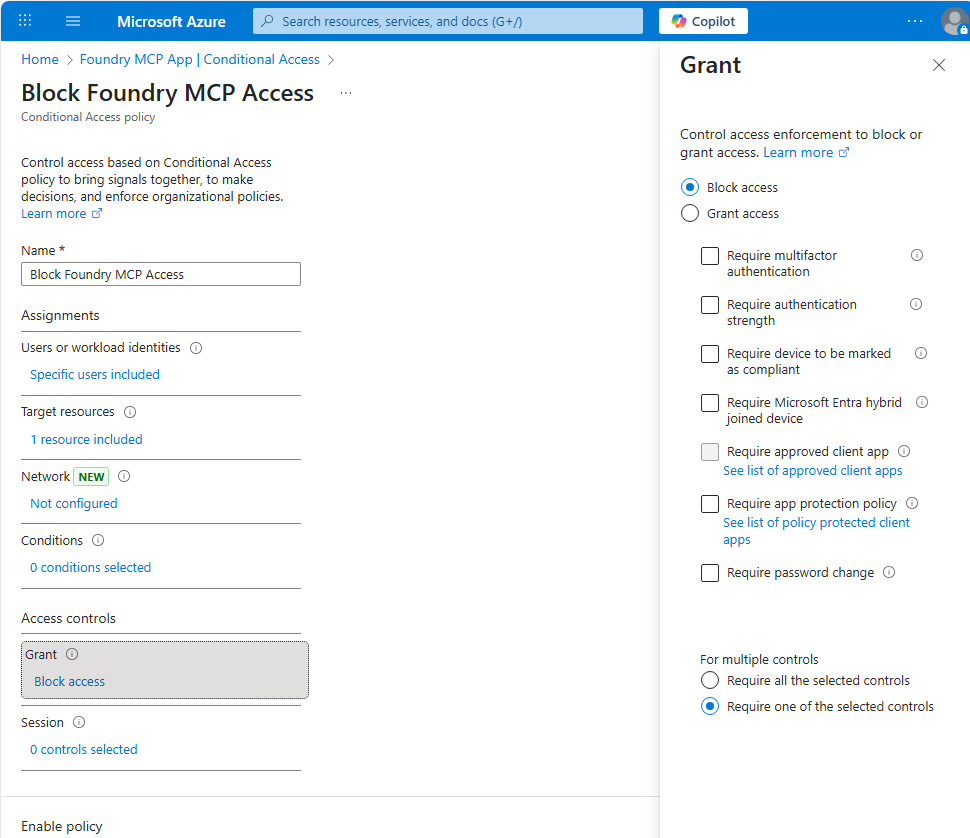
After the policy is in place, designated users and groups can't obtain the Entra token needed to connect.
Network isolation
Foundry MCP Server currently doesn't support network isolation. It exposes the public endpoint https://mcp.ai.azure.com that any MCP client can use. It connects to your Foundry resource through its public endpoint. If your Foundry resources use Azure Private Links, the server can't reach them and operations fail with a connectivity error.
Data residency
Foundry MCP Server uses a global stateless proxy architecture. Data created by backend services that interact with MCP Server stays encrypted at rest in the region you select. MCP Server itself doesn't store data. For performance and availability, requests and responses can be processed in data centers in the European Union (EU) or the United States (US), with all data encrypted in transit.
Important
By using this preview feature, you acknowledge and consent to any cross-region processing that might occur. For example, an EU resource accessed by a US user could be routed through US infrastructure. If your organization requires strict in-region processing, don't use Foundry MCP Server or restrict its use to scenarios that remain within your selected region.
Troubleshooting
Use this section to quickly diagnose common MCP Server issues.
Authentication failures
If you receive a 401 Unauthorized error or the sign-in prompt doesn't appear:
- Sign out of your Azure account in Visual Studio Code, or the tool that you're using.
- Sign back in with a Microsoft account that has access to your Azure subscription.
- Verify your access token is valid by running
az account get-access-token --resource https://mcp.ai.azure.comin the terminal.
If the token request fails, confirm your account has the required Entra ID permissions. For more information, see Manage users and authentication in Entra ID.
Permission errors
If you see 403 Forbidden or "Access denied" errors when running MCP tools:
- Open the Azure portal and navigate to your Foundry project.
- Select Access control (IAM) and verify your account has Contributor or higher role.
- If you recently received a role assignment, wait a few minutes for propagation and try again.
For more information, see Role-based access control for Microsoft Foundry.
Server connectivity issues
If the MCP server fails to start or times out:
- Verify your network allows outbound HTTPS connections to
https://mcp.ai.azure.com. - Check for proxy or firewall rules that might block the endpoint.
- Try opening
https://mcp.ai.azure.comin a browser to confirm reachability.
If your Foundry resources use Azure Private Links, MCP Server can't reach them through the public endpoint. Disable Private Link or use a different access method.
Tool discovery problems
If Foundry tools don't appear in the agent mode tools list:
- Open the Output view in Visual Studio Code and select the MCP server log channel.
- Verify the server shows a successful connection and tool registration.
- Restart Visual Studio Code or reload your workspace.
- If tools still don't appear, remove and re-add the server configuration.
Related content
- Review available tools and example prompts for Foundry MCP Server
- Get started with Foundry MCP Server
- Learn how to build your own MCP server