หมายเหตุ
การเข้าถึงหน้านี้ต้องได้รับการอนุญาต คุณสามารถลอง ลงชื่อเข้าใช้หรือเปลี่ยนไดเรกทอรีได้
การเข้าถึงหน้านี้ต้องได้รับการอนุญาต คุณสามารถลองเปลี่ยนไดเรกทอรีได้
This article explains how to set up geo detection and redirection for your e-commerce site in Microsoft Dynamics 365 Commerce.
Dynamics 365 Commerce lets you create shopping and purchasing experiences that are tailored to specific countries/regions. For example, you can define products, assortments, categories, pricing, fulfillment, and other aspects of the e-commerce experience for specific countries/regions.
The geo detection and redirection feature in Dynamics 365 Commerce detects your customers' geographic locations and uses that information to recommend the site that is most appropriate for the country/region where each customer lives.
You can choose one of two experiences for customers who request a site URL that isn't associated with the country/region where they're located:
- Use the country/region picker to prompt customers to select a site or sites that are associated with their location, or give them the option to proceed to the site that they originally requested.
- Automatically redirect customers to the site that is associated with their country/region.
For example, a customer in Canada requests a site that isn't associated with Canada. In this case, the country/region picker module shows a dialog box that lists the sites that are configured for Canada. In the example in the following illustration, the dialog box includes options for English and French sites for Canada.
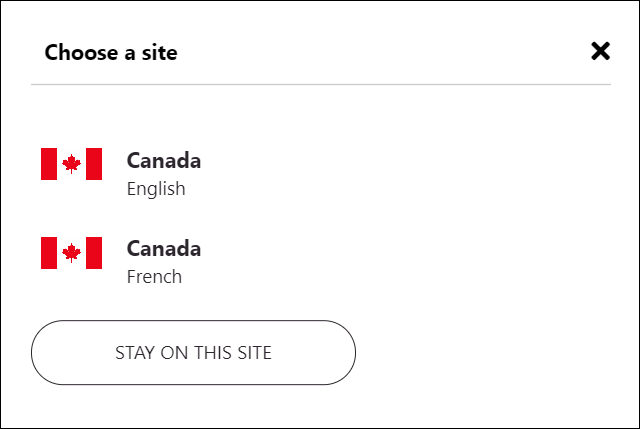
When the customer selects an option, they're redirected to that site. Alternatively, if automatic geo-redirection is enabled, the customer is automatically redirected to the locale that the online channel marks as the default locale.
The customer's site preference is also captured in a cookie. In this way, the customer isn't prompted to select a site the next time that they visit the site. Instead, they're automatically redirected to their preferred site.
Enable geo redirection features in Commerce site builder
To enable geo redirection for your site in Commerce site builder, go to Site settings > General, and turn on the Enable geo redirection features setting.
Important
Before you turn on the Enable geo redirection features setting, turn on the Enable location based store detection setting. For more information, see Enable location-based store detection.
Initialize the Commerce scheduler
To enable synchronization of the country and region data that you enter in Commerce headquarters, initialize the Commerce scheduler at Retail and Commerce > Headquarters setup > Commerce scheduler > Initialize Commerce scheduler. For more information about the Commerce scheduler, see Update configurations.
Note
As of the Commerce version 10.0.24 release, you can set the Commerce scheduler to run automatically after updates to Commerce headquarters. To enable this capability in Commerce headquarters, go to Workspaces > Feature management and enable the Run "Initialize commerce scheduler" after Headquarters is updated feature.
Associate countries/regions with online stores in Commerce headquarters
Associate countries/regions with online stores (also known as online channels) in Commerce headquarters. When you associate a country/region with an online store, you indicate that customers who reside in that country/region should view the site that is mapped to that online store. You can associate multiple countries and regions with an online store as you require.
To associate countries/regions with an online store, follow these steps:
- Go to Retail and Commerce > Channels > Online stores, or search for "online stores" in the search box.
- Open the online channel that you want to associate countries/regions with.
- On the Countries/Regions FastTab, select Add, and then, in the Country/region field, select the country/region.
- Repeat these steps for any other countries/regions that you want to associate with the online channel.

When you finish associating countries/regions with the online store, go to Retail and Commerce > Retail and Commerce IT, and then, in the Distribution schedule view, run job 1070 (Channel configuration). After that job completes, the countries/regions that you associated with the online store are available on the Channels page under Site settings in Commerce site builder.
Configure geo redirection rules in Commerce site builder
After the channel configuration job completes, you can map countries and regions to site URLs that you define on the Channels page under Site settings. When you map a country/region to a site URL, you declare that customers who live in that country/region should be offered that site URL if they request a URL that isn't mapped to the country/region where they live.
You can map countries/regions to URLs that are associated with either different channels or the same channel. Products, assortments, pricing, discounts, payment methods, delivery modes, and other aspects of a retail e-commerce experience are customized at the channel level. However, you can also differentiate some aspects of an e-commerce site in the same channel by locale.
Associate countries and regions with URLs
To associate countries/regions with site URLs, follow these steps:
- In Commerce site builder, go to Site settings > Channels.
- Select the channel name, and then select a locale.
- Select one or more countries/regions to associate with the URL that corresponds to the selected channel and locale combination.
- Select OK.
- Select Save and publish to save your changes and publish them.
Enable automatic redirection
You can choose to automatically redirect customers in specific countries/regions to a URL that you specify. This option removes the need for customers to select a URL in the country/region picker dialog box. For example, you might want customers who live in Japan to be automatically sent to the site that is mapped to the channel and language for Japan. In this case, turn on the Automatic auto redirection setting in the channel where that URL is configured. After you save and publish your change, customers in Japan are automatically taken to that URL and aren't shown the country/region picker dialog box.
You can associate more than one URL with a country/region. In this case, automatic redirection uses the URL for the locale that you specify as the default locale for the channel.
Geo detection and redirection logic
Geo detection and redirection in Dynamics 365 Commerce works by comparing a customer's country/region to the list of countries and regions that you map to URLs on the Channels page in Commerce site builder.
When a customer requests a URL for your site, the system redirection logic determines whether the customer's country/region is mapped to the requested URL. If it is, the customer continues to that URL. If it isn't, redirection logic finds the URLs that are mapped to the customer's country/region, and shows those URLs to the customer as recommended URLs. If automatic redirection is enabled for the customer's country/region, the customer is automatically redirected to the best URL for that country/region. For more information about how to define which URL is used for automatic redirection, see Configure automatic redirection.
The following workflow illustration shows the steps and decision points in the redirection logic.

Configure the country/region picker module
The country/region picker module that's included in the Commerce module library shows recommended URLs to customers who request a URL that isn't associated with their country/region. For information about how to configure the country/region picker module, see Country/region picker module.
Save customer site preferences
When you turn on the Enable geo redirection features setting in Commerce site builder, geo redirection saves your customers' site preferences. Before a customer who selects a recommended URL in the country/region picker dialog box is taken to that site, the selected URL is written to the _msdyn365___site_ cookie for the domain that the customer is currently in. Then, the next time that the customer requests the URL that previously caused the country/region picker dialog box to appear, they're automatically redirected to their preferred site.
Site selector module
After a customer performs an action that causes a site to be written to the _msdyn365___site_ cookie, they are automatically redirected to that site. In most cases, this behavior produces the correct e-commerce experience for the customer's country/region. However, some customers might want or need to select a different country/region-specific site. Therefore, we recommend that you also use the site selector module on your site, so that customers can override automatic redirection. The site selector module can be configured to show the same countries/regions as your country/region picker, together with their associated site URLs. When a customer selects a different country/region-specific site by using the site selector, the module also updates the _msdyn365___site_ cookie with the customer's site preference. The country/region picker respects that setting the next time that the customer visits.