หมายเหตุ
การเข้าถึงหน้านี้ต้องได้รับการอนุญาต คุณสามารถลอง ลงชื่อเข้าใช้หรือเปลี่ยนไดเรกทอรีได้
การเข้าถึงหน้านี้ต้องได้รับการอนุญาต คุณสามารถลองเปลี่ยนไดเรกทอรีได้
The Conditional Access Optimization Agent helps organizations improve their security posture by automatically analyzing sign-in patterns and suggesting policy optimizations. This Microsoft Security Copilot agent identifies unprotected users and applications, recommends policy improvements, and helps consolidate redundant policies.
To ensure transparency and maintain control over automated recommendations, Microsoft Entra ID provides comprehensive logging and metrics for all agent activities. This article explains how to monitor agent performance, review audit logs, and understand the metrics that help you measure the agent's effect on your security environment.
Prerequisites
- To view the Microsoft Entra audit logs, you need at least the Reports reader role.
- Global Reader and Security Reader roles can view the agent and any suggestions, but can't take any actions.
- Global Administrator, Security Administrator, and Conditional Access Administrator roles can view the agent and take action on the suggestions.
- For more information on roles for the Conditional Access Optimization Agent, see Assign Security Copilot access
- Review Privacy and data security in Microsoft Security Copilot
Agent summary
The Agent summary at the top of the Conditional Access Optimization Agent page provides a quick summary of what the agent discovered in the last 30 days. The total number of security compute units (SCU) consumed by the agent is also provided.
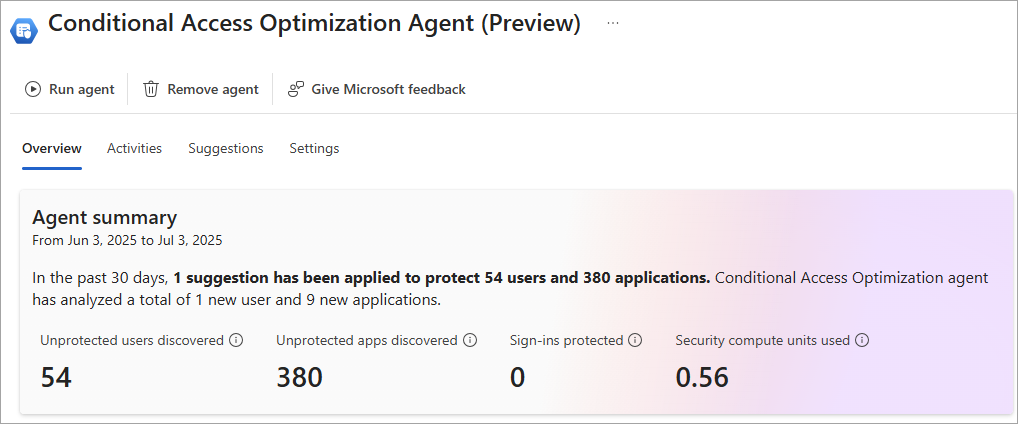
- Unprotected users discovered: The number of users identified by the agent and protected by a policy suggested by the agent.
- Unprotected apps discovered: The number of applications identified by the agent and protected by a policy suggested by the agent.
- Sign-ins protected: The number of sign-ins protected by a policy suggested by the agent.
- Security compute units consumed: The total number of SCUs consumed by the agent in the last 30 days.
The values in the agent summary reflect the activity after suggestions are applied. If you run the agent and don't apply any suggestions, the values in the agent summary won't change.
Insights dashboard (Preview)
The Conditional Access Optimization Agent includes an insights dashboard that provides data visualizations of the improvements made by applying agent suggestions. The dashboard is a great way to share progress with your leadership to demonstrate the value of Zero Trust investments without building custom reports.
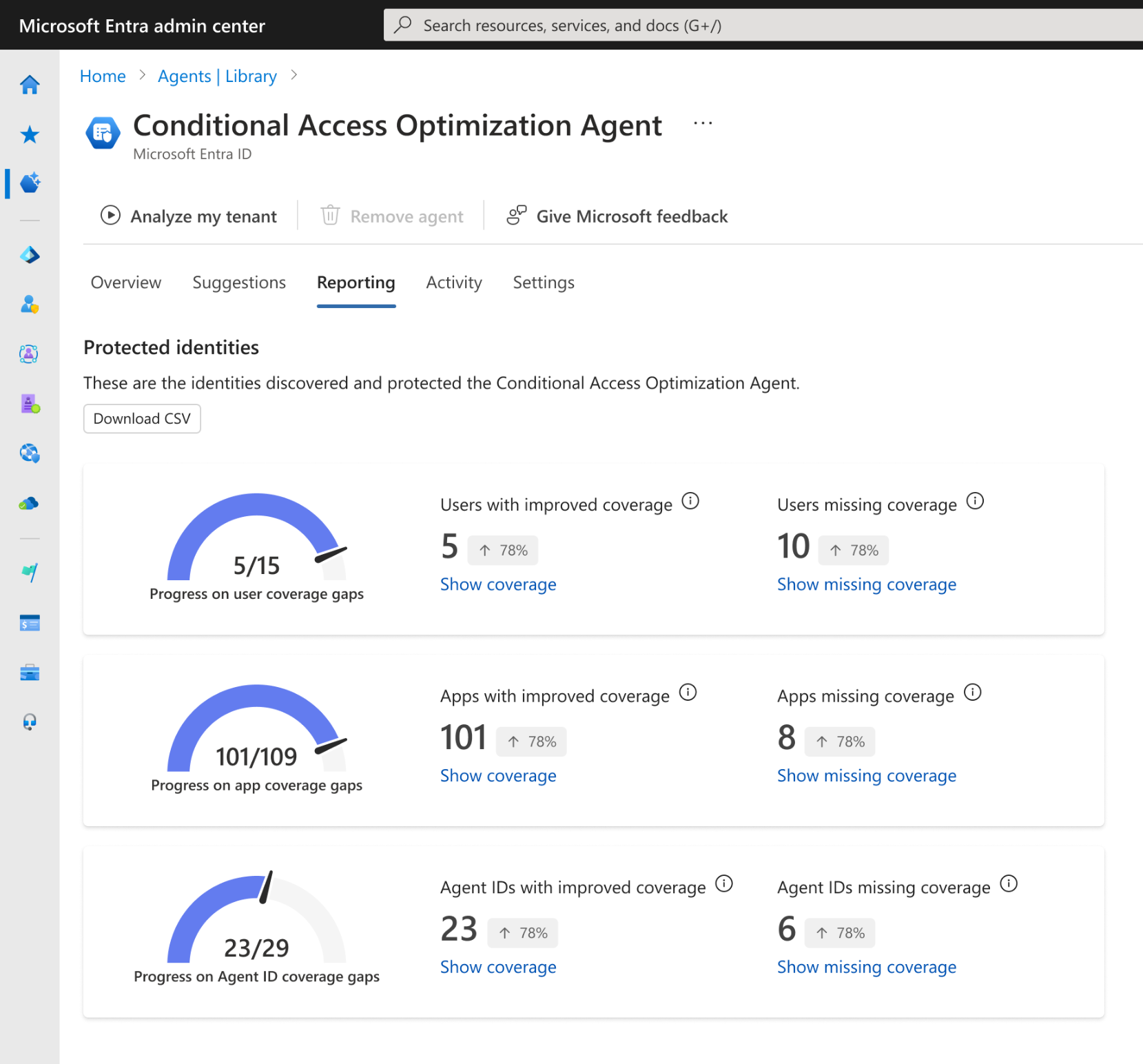
The insights dashboard provides the following metrics:
- Objects with improved coverage: Users, applications, or agent identities with critical policy gaps identified by the agent and are now covered by at least one new control in the past 30 days.
- Objects missing coverage: Users, applications, or agent identities currently missing coverage from one or more critical policies.
The dashboard provides links to drill down into specific metrics and an option to download the report as a CSV.
Audit logs
Activity associated with Security Copilot agents in Microsoft Entra appears in the Microsoft Entra audit logs and the Security Copilot audit logs in Microsoft Purview. Each service provides different information about the agent's activity.
The Microsoft Purview logs include tenant-level administrative actions and user interactions within the Security Copilot platform. For more information, see Access the Security Copilot audit logs.
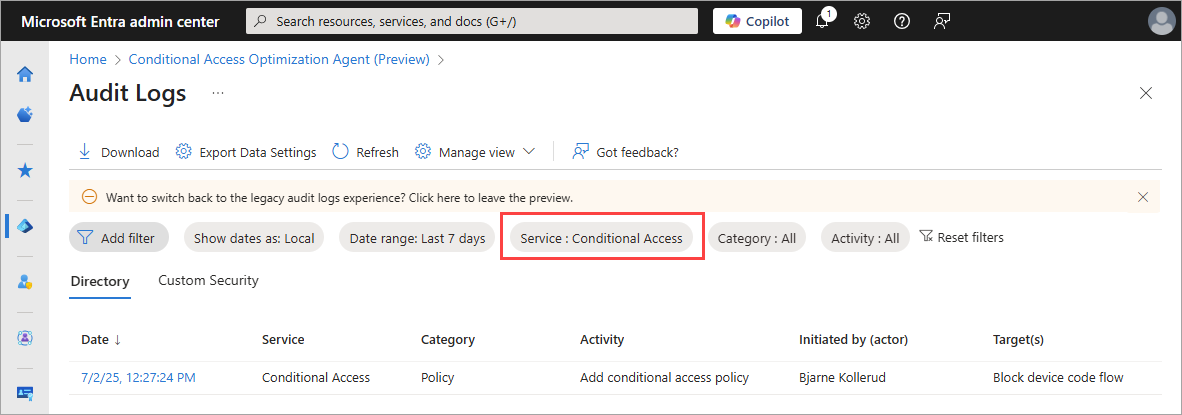
The Microsoft Entra audit logs include changes made by an agent to Microsoft Entra resources, such as Conditional Access policies. Policies created or modified by the agent are tagged with Conditional Access Optimization Agent in the Conditional Access policies pane.

In the Audit logs the Initiated by (actor) field show the name of the user who started the agent. To quickly see agent activity, filter to Service: Conditional Access.