หมายเหตุ
การเข้าถึงหน้านี้ต้องได้รับการอนุญาต คุณสามารถลอง ลงชื่อเข้าใช้หรือเปลี่ยนไดเรกทอรีได้
การเข้าถึงหน้านี้ต้องได้รับการอนุญาต คุณสามารถลองเปลี่ยนไดเรกทอรีได้
นําไปใช้กับ:✅ Fabric วิศวกรรมข้อมูลและวิทยาศาสตร์ข้อมูล
เรียนรู้วิธีส่งชุดงาน Spark โดยใช้ Livy API สําหรับ Fabric Data Engineering ขณะนี้ Livy API ไม่รองรับ Azure Service Principal (SPN)
ข้อกำหนดเบื้องต้น
Fabric Premium หรือ Trial capacity พร้อมเลคเฮาส์
ไคลเอ็นต์ระยะไกล เช่น Visual Studio Code ที่มี Jupyter Notebooks, PySpark และ Microsoft Authentication Library (MSAL) สําหรับ Python
จําเป็นต้องใช้โทเค็นแอป Microsoft Entra เพื่อเข้าถึง Fabric Rest API ลงทะเบียนใบสมัครกับ แพลตฟอร์มข้อมูลประจำตัวของ Microsoft
ข้อมูลบางอย่างในเลคเฮ้าส์ของคุณ ตัวอย่างนี้ใช้ แท็กซี่ NYC และ Limousine Commission green_tripdata_2022_08 ไฟล์ปาร์เกตที่โหลดไปยังเลคเฮาส์
Livy API กําหนดจุดสิ้นสุดแบบรวมสําหรับการดําเนินการ แทนที่พื้นที่ที่สํารองไว้ {Entra_TenantID}, {Entra_ClientID}, {Fabric_WorkspaceID} และ {Fabric_LakehouseID} ด้วยค่าที่เหมาะสมเมื่อคุณทําตามตัวอย่างในบทความนี้
กําหนดค่า Visual Studio Code สําหรับ Livy API Batch ของคุณ
เลือก การตั้งค่าเลคเฮาส์ ในเลคเฮาส์ Fabric ของคุณ

นําทางไปยังส่วน จุด สิ้นสุด Livy
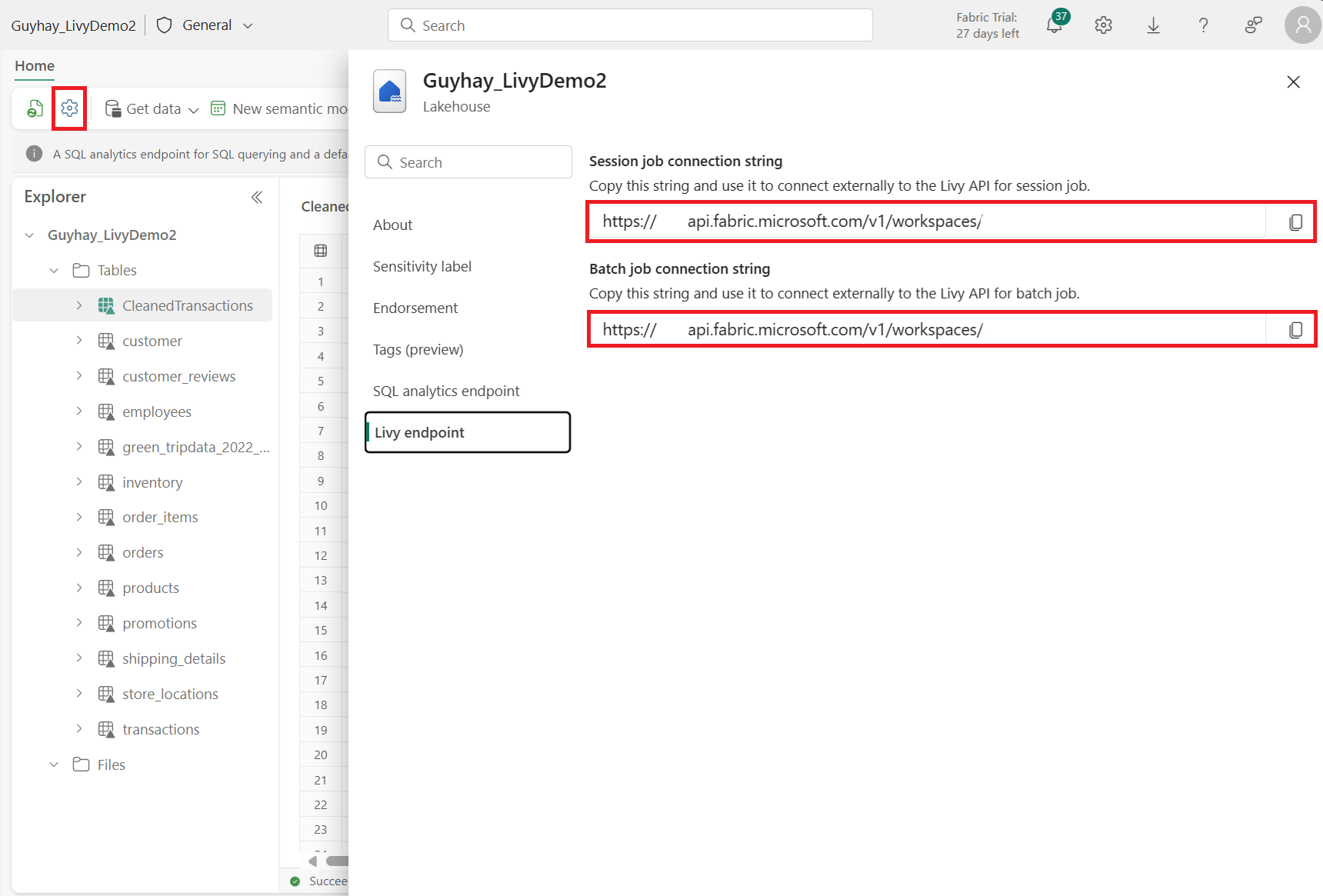
คัดลอก Batch job สายอักขระการเชื่อมต่อ (กล่องสีแดงที่สองในรูปภาพ) ไปยังโค้ดของคุณ
ไปที่ ศูนย์การจัดการ Microsoft Entra และคัดลอกทั้งรหัสแอปพลิเคชัน (ไคลเอ็นต์) และรหัสไดเรกทอรี (ผู้เช่า) ไปยังรหัสของคุณ


สร้างรหัสแบทช์ Spark และอัปโหลดไปยังเลคเฮาส์ของคุณ
สร้างสมุดบันทึก
.ipynbใน Visual Studio Code และแทรกรหัสต่อไปนี้import sys import os from pyspark.sql import SparkSession from pyspark.conf import SparkConf from pyspark.sql.functions import col if __name__ == "__main__": #Spark session builder spark_session = (SparkSession .builder .appName("batch_demo") .getOrCreate()) spark_context = spark_session.sparkContext spark_context.setLogLevel("DEBUG") tableName = spark_context.getConf().get("spark.targetTable") if tableName is not None: print("tableName: " + str(tableName)) else: print("tableName is None") df_valid_totalPrice = spark_session.sql("SELECT * FROM green_tripdata_2022 where total_amount > 0") df_valid_totalPrice_plus_year = df_valid_totalPrice.withColumn("transaction_year", col("lpep_pickup_datetime").substr(1, 4)) deltaTablePath = f"Tables/{tableName}CleanedTransactions" df_valid_totalPrice_plus_year.write.mode('overwrite').format('delta').save(deltaTablePath)บันทึกไฟล์ Python ในเครื่อง โค้ด Python นี้ประกอบด้วยคําสั่ง Spark สองคําสั่งที่ทํางานกับข้อมูลในบ้านพักริมทะเลสาบและต้องอัปโหลดไปยังบ้านพักริมทะเลสาบของคุณ คุณต้องใช้เส้นทาง ABFS (Azure Blob File System) ของ payload เพื่ออ้างอิงในงาน batch ของ Livy API ใน Visual Studio Code และชื่อตาราง lakehouse ใน
SELECTคําสั่ง SQL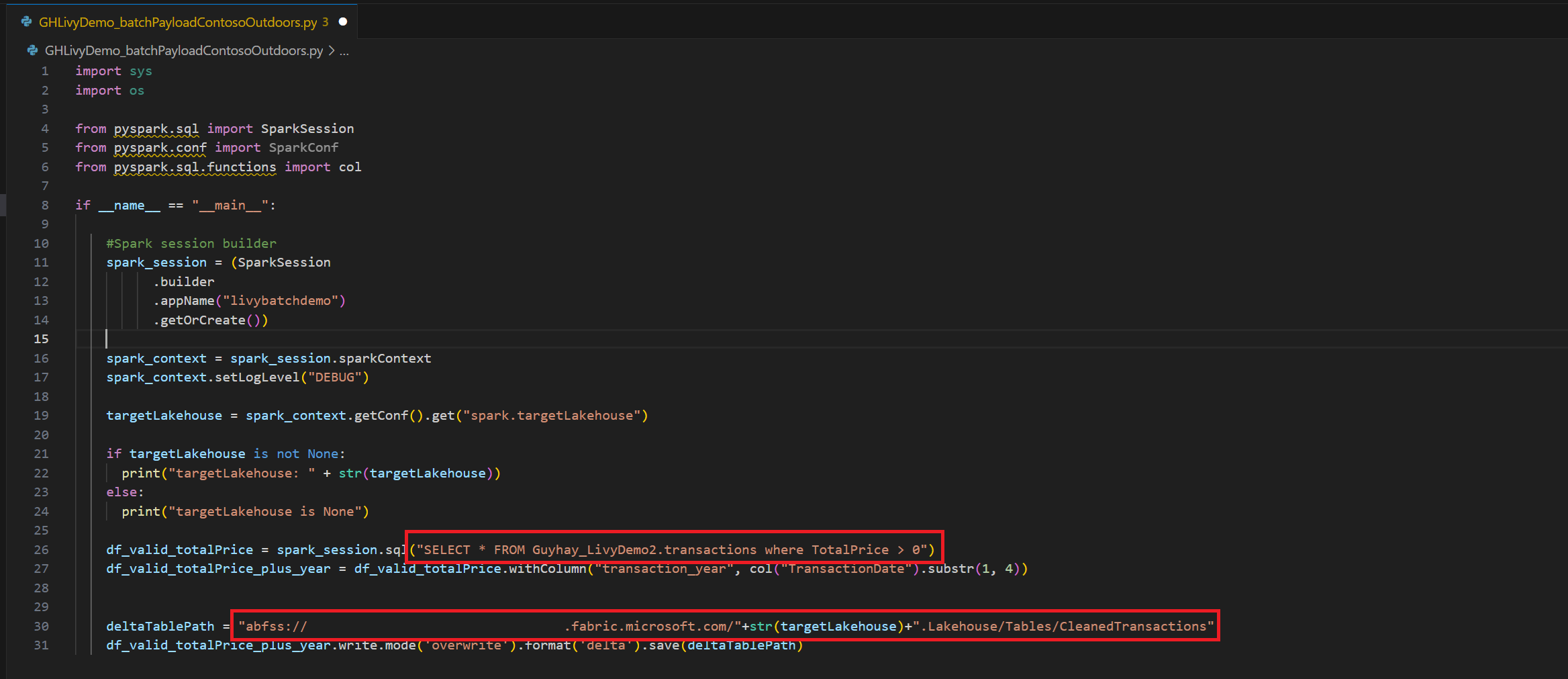
อัปโหลดเพย์โหลด Python ไปยังส่วนไฟล์ของ Lakehouse ของคุณ ในตัวสํารวจ Lakehouse ให้เลือก ไฟล์ จากนั้นเลือก>รับข้อมูล>อัปโหลดไฟล์ เลือกไฟล์ผ่านตัวเลือกไฟล์
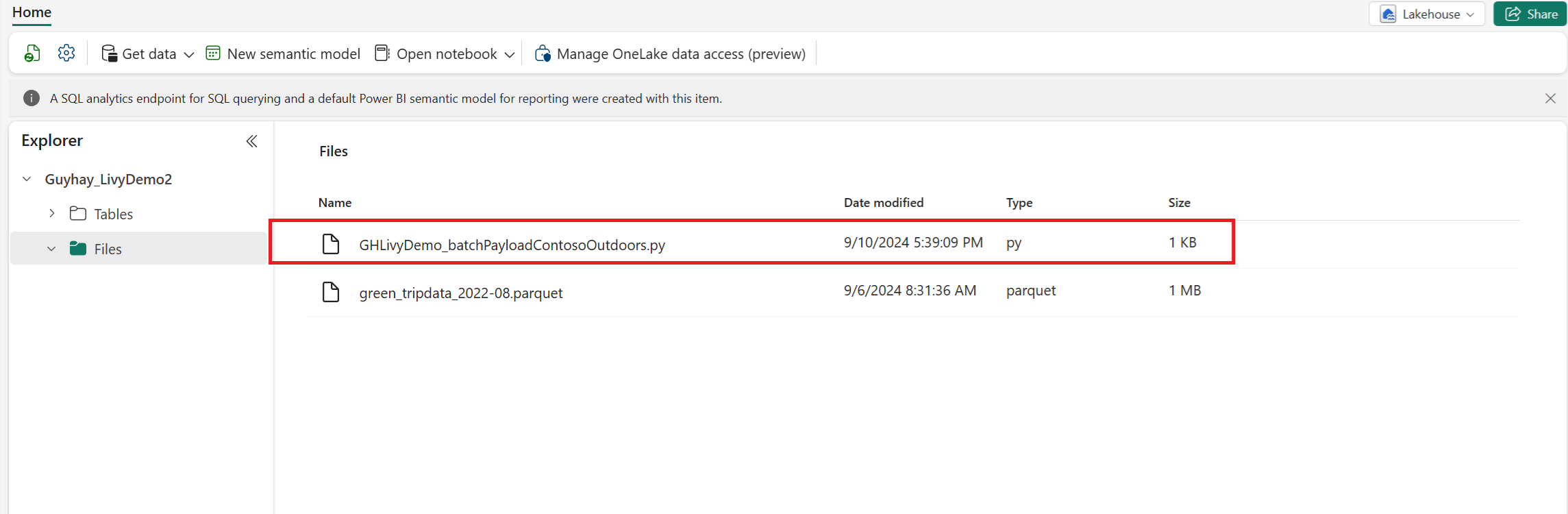
หลังจากไฟล์อยู่ในส่วน Files ของบ้านพักริมทะเลสาบแล้ว ให้เลือกจุดสามจุด (จุดไข่ปลา) ทางขวาของชื่อไฟล์เพย์โหลดแล้วเลือก Properties
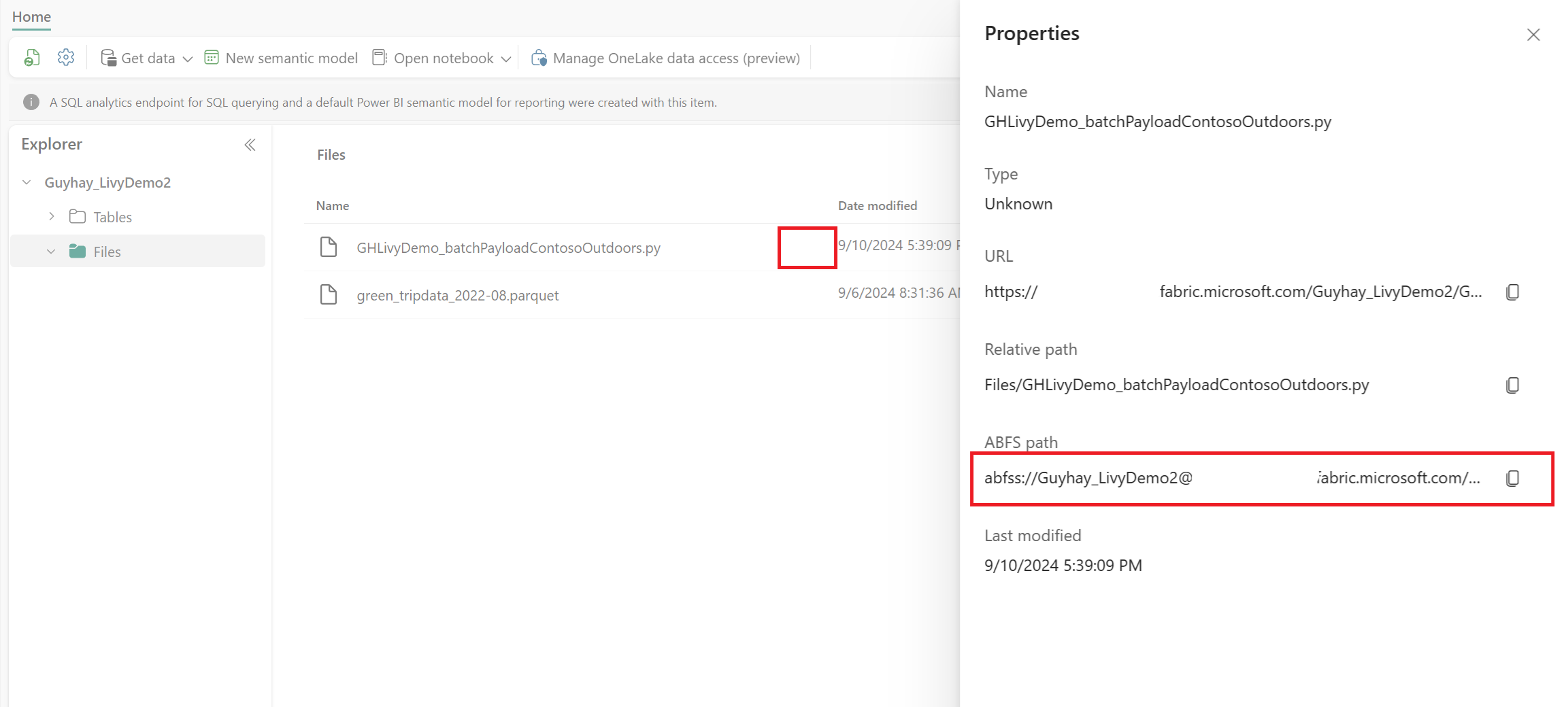
คัดลอกเส้นทาง ABFS นี้ไปยังเซลล์สมุดบันทึกของคุณในขั้นตอนที่ 1
รับรองความถูกต้องของเซสชันชุดงาน Livy API Spark โดยใช้โทเค็นผู้ใช้ Microsoft Entra หรือโทเค็น Microsoft Entra SPN
รับรองความถูกต้องของเซสชันชุดงาน Livy API Spark โดยใช้โทเค็น Microsoft Entra SPN
สร้างสมุดบันทึก
.ipynbใน Visual Studio Code และแทรกรหัสต่อไปนี้import sys from msal import ConfidentialClientApplication # Configuration - Replace with your actual values tenant_id = "Entra_TenantID" # Microsoft Entra tenant ID client_id = "Entra_ClientID" # Service Principal Application ID # Certificate paths - Update these paths to your certificate files certificate_path = "PATH_TO_YOUR_CERTIFICATE.pem" # Public certificate file private_key_path = "PATH_TO_YOUR_PRIVATE_KEY.pem" # Private key file certificate_thumbprint = "YOUR_CERTIFICATE_THUMBPRINT" # Certificate thumbprint # OAuth settings audience = "https://analysis.windows.net/powerbi/api/.default" authority = f"https://login.windows.net/{tenant_id}" def get_access_token(client_id, audience, authority, certificate_path, private_key_path, certificate_thumbprint=None): """ Get an app-only access token for a Service Principal using OAuth 2.0 client credentials flow. This function uses certificate-based authentication which is more secure than client secrets. Args: client_id (str): The Service Principal's client ID audience (str): The audience for the token (resource scope) authority (str): The OAuth authority URL certificate_path (str): Path to the certificate file (.pem format) private_key_path (str): Path to the private key file (.pem format) certificate_thumbprint (str): Certificate thumbprint (optional but recommended) Returns: str: The access token for API authentication Raises: Exception: If token acquisition fails """ try: # Read the certificate from PEM file with open(certificate_path, "r", encoding="utf-8") as f: certificate_pem = f.read() # Read the private key from PEM file with open(private_key_path, "r", encoding="utf-8") as f: private_key_pem = f.read() # Create the confidential client application app = ConfidentialClientApplication( client_id=client_id, authority=authority, client_credential={ "private_key": private_key_pem, "thumbprint": certificate_thumbprint, "certificate": certificate_pem } ) # Acquire token using client credentials flow token_response = app.acquire_token_for_client(scopes=[audience]) if "access_token" in token_response: print("Successfully acquired access token") return token_response["access_token"] else: raise Exception(f"Failed to retrieve token: {token_response.get('error_description', 'Unknown error')}") except FileNotFoundError as e: print(f"Certificate file not found: {e}") sys.exit(1) except Exception as e: print(f"Error retrieving token: {e}", file=sys.stderr) sys.exit(1) # Get the access token token = get_access_token(client_id, audience, authority, certificate_path, private_key_path, certificate_thumbprint)เรียกใช้เซลล์สมุดบันทึก คุณควรเห็นโทเค็น Microsoft Entra ถูกส่งคืน

รับรองความถูกต้องของเซสชัน Livy API Spark โดยใช้โทเค็นผู้ใช้ Microsoft Entra
สร้างสมุดบันทึก
.ipynbใน Visual Studio Code และแทรกรหัสต่อไปนี้from msal import PublicClientApplication import requests import time # Configuration - Replace with your actual values tenant_id = "Entra_TenantID" # Microsoft Entra tenant ID client_id = "Entra_ClientID" # Application ID (can be the same as above or different) # Required scopes for Livy API access scopes = [ "https://api.fabric.microsoft.com/Lakehouse.Execute.All", # Required — execute operations in lakehouses "https://api.fabric.microsoft.com/Lakehouse.Read.All", # Required — read lakehouse metadata "https://api.fabric.microsoft.com/Code.AccessFabric.All", # Required — general Fabric API access from Spark Runtime "https://api.fabric.microsoft.com/Code.AccessStorage.All", # Required — access OneLake and Azure storage from Spark Runtime ] # Optional scopes — add these only if your Spark jobs need access to the corresponding services: # "https://api.fabric.microsoft.com/Code.AccessAzureKeyvault.All" # Optional — access Azure Key Vault from Spark Runtime # "https://api.fabric.microsoft.com/Code.AccessAzureDataLake.All" # Optional — access Azure Data Lake Storage Gen1 from Spark Runtime # "https://api.fabric.microsoft.com/Code.AccessAzureDataExplorer.All" # Optional — access Azure Data Explorer from Spark Runtime # "https://api.fabric.microsoft.com/Code.AccessSQL.All" # Optional — access Azure SQL audience tokens from Spark Runtime def get_access_token(tenant_id, client_id, scopes): """ Get an access token using interactive authentication. This method will open a browser window for user authentication. Args: tenant_id (str): The Azure Active Directory tenant ID client_id (str): The application client ID scopes (list): List of required permission scopes Returns: str: The access token, or None if authentication fails """ app = PublicClientApplication( client_id, authority=f"https://login.microsoftonline.com/{tenant_id}" ) print("Opening browser for interactive authentication...") token_response = app.acquire_token_interactive(scopes=scopes) if "access_token" in token_response: print("Successfully authenticated") return token_response["access_token"] else: print(f"Authentication failed: {token_response.get('error_description', 'Unknown error')}") return None # Uncomment the lines below to use interactive authentication token = get_access_token(tenant_id, client_id, scopes) print("Access token acquired via interactive login")เรียกใช้เซลล์ของสมุดบันทึก ป็อปอัพควรปรากฏในเบราว์เซอร์ของคุณ เพื่อให้คุณสามารถเลือกข้อมูลประจําตัวที่จะลงชื่อเข้าใช้ได้
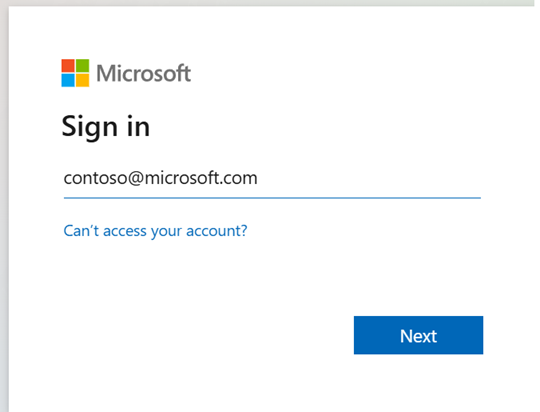
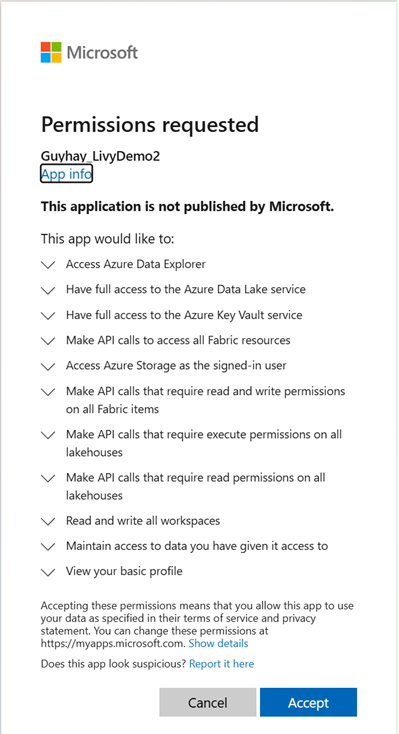
หลังจากที่คุณเลือกข้อมูลประจําตัวที่จะลงชื่อเข้าใช้แล้ว คุณจําเป็นต้องอนุมัติสิทธิ์ API การลงทะเบียนแอป Microsoft Entra
ปิดหน้าต่างเบราว์เซอร์หลังจากเสร็จสิ้นการรับรองความถูกต้อง

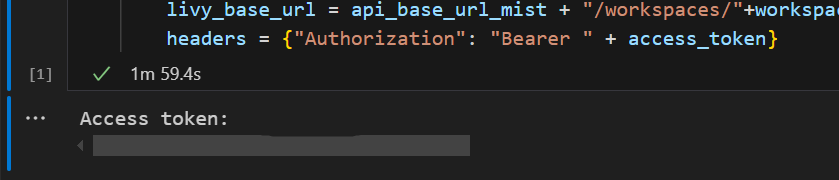
ใน Visual Studio Code คุณควรเห็นโทเค็น Microsoft Entra ถูกส่งกลับ
ทําความเข้าใจขอบเขต Code.* สําหรับ Livy API
เมื่องาน Spark ของคุณทํางานผ่าน Livy API ขอบเขตจะ Code.* ควบคุมบริการภายนอกที่ Spark Runtime สามารถเข้าถึงได้ในนามของผู้ใช้ที่ได้รับการรับรองความถูกต้อง จําเป็นต้องมีสองคน ส่วนที่เหลือเป็นทางเลือกขึ้นอยู่กับปริมาณงานของคุณ
ขอบเขตรหัสที่จําเป็น*
| ขอบเขต | คำอธิบาย |
|---|---|
Code.AccessFabric.All |
อนุญาตให้รับโทเค็นเข้าถึง Fabric ได้ จําเป็นสําหรับการดําเนินการ Livy API ทั้งหมด |
Code.AccessStorage.All |
อนุญาตให้รับโทเค็นการเข้าถึงที่เก็บข้อมูล OneLake และ Azure จําเป็นสําหรับการอ่านและเขียนข้อมูลในเลคเฮาส์ |
ขอบเขตรหัสเสริม*
เพิ่มขอบเขตเหล่านี้เฉพาะในกรณีที่งาน Spark ของคุณจําเป็นต้องเข้าถึงบริการ Azure ที่สอดคล้องกันในขณะรันไทม์
| ขอบเขต | คำอธิบาย | เมื่อใดควรใช้ |
|---|---|---|
Code.AccessAzureKeyvault.All |
อนุญาตให้รับโทเค็นการเข้าถึง Azure Key Vault | รหัส Spark ของคุณดึงข้อมูลลับ คีย์ หรือใบรับรองจาก Azure Key Vault |
Code.AccessAzureDataLake.All |
อนุญาตให้รับโทเค็นการเข้าถึง Azure Data Lake Storage รุ่น1 | โค้ด Spark ของคุณจะอ่านหรือเขียนไปยังบัญชี Azure Data Lake Storage รุ่น1 |
Code.AccessAzureDataExplorer.All |
อนุญาตให้รับโทเค็นการเข้าถึง Azure Data Explorer (Kusto) | โค้ด Spark ของคุณคิวรีหรือนําเข้าข้อมูลไปยัง/จากคลัสเตอร์ Azure Data Explorer |
Code.AccessSQL.All |
อนุญาตให้รับโทเค็นการเข้าถึง Azure SQL | รหัส Spark ของคุณต้องเชื่อมต่อกับฐานข้อมูล Azure SQL |
Note
Lakehouse.Execute.AllขอบเขตและLakehouse.Read.Allยังจําเป็น แต่ไม่ได้เป็นส่วนหนึ่งของตระกูลCode.* พวกเขาให้สิทธิ์ในการดําเนินการและอ่านข้อมูลเมตาจากเลคเฮาส์ของ Fabric ตามลําดับ
ส่งชุดงาน Livy และตรวจสอบชุดงาน
เพิ่มเซลล์สมุดบันทึกอีกเซลล์และแทรกโค้ดนี้
# submit payload to existing batch session

import requests
import time
import json

api_base_url = "https://api.fabric.microsoft.com/v1"  # Base URL for Fabric APIs

# Fabric Resource IDs - Replace with your workspace and lakehouse IDs
workspace_id = "Fabric_WorkspaceID"
lakehouse_id = "Fabric_LakehouseID"

# Construct the Livy Batch API URL
# URL pattern: {base_url}/workspaces/{workspace_id}/lakehouses/{lakehouse_id}/livyApi/versions/{api_version}/batches
livy_base_url = f"{api_base_url}/workspaces/{workspace_id}/lakehouses/{lakehouse_id}/livyApi/versions/2023-12-01/batches"

# Set up authentication headers
headers = {"Authorization": f"Bearer {token}"}

print(f"Livy Batch API URL: {livy_base_url}")

new_table_name = "TABLE_NAME"  # Name for the new table

# Configure the batch job
print("Configuring batch job parameters...")

# Batch job configuration - Modify these values for your use case
payload_data = {
    # Job name - will appear in the Fabric UI
    "name": f"livy_batch_demo_{new_table_name}",

    # Path to your Python file in the lakehouse
    "file": "<ABFSS_PATH_TO_YOUR_PYTHON_FILE>",  # Replace with your Python file path

    # Optional: Spark configuration parameters
    "conf": {
        "spark.targetTable": new_table_name,  # Custom configuration for your application
    },
}

print("Batch Job Configuration:")
print(json.dumps(payload_data, indent=2))

try:
    # Submit the batch job
    print("\nSubmitting batch job...")
    post_batch = requests.post(livy_base_url, headers=headers, json=payload_data)

    if post_batch.status_code == 202:
        batch_info = post_batch.json()
        print("Livy batch job submitted successfully!")
        print(f"Batch Job Info: {json.dumps(batch_info, indent=2)}")

        # Extract batch ID for monitoring
        batch_id = batch_info['id']
        livy_batch_get_url = f"{livy_base_url}/{batch_id}"

        print(f"\nBatch Job ID: {batch_id}")
        print(f"Monitoring URL: {livy_batch_get_url}")

    else:
        print(f"Failed to submit batch job. Status code: {post_batch.status_code}")
        print(f"Response: {post_batch.text}")

except requests.exceptions.RequestException as e:
    print(f"Network error occurred: {e}")
except json.JSONDecodeError as e:
    print(f"JSON decode error: {e}")
    print(f"Response text: {post_batch.text}")
except Exception as e:
    print(f"Unexpected error: {e}")
เรียกใช้เซลล์ของสมุดบันทึก คุณควรเห็นบรรทัดหลายบรรทัดที่พิมพ์เมื่อสร้างและเรียกใช้งานชุด Livy

หากต้องการเห็นการเปลี่ยนแปลง ให้กลับไปที่บ้านพักริมทะเลสาบของคุณ
การผสานรวมกับสภาพแวดล้อม Fabric
ตามค่าเริ่มต้น เซสชัน Livy API นี้จะเรียกใช้กับพูลเริ่มต้นสําหรับพื้นที่ทํางาน อีกทางเลือกหนึ่งคุณสามารถใช้ Fabric Environments สร้าง กําหนดค่า และใช้สภาพแวดล้อมใน Fabric เพื่อปรับแต่ง Spark pool ที่เซสชัน API ของ Livy ใช้สําหรับงาน Spark เหล่านี้ เมื่อต้องการใช้ Fabric Environment ของคุณ ให้อัปเดตเซลล์สมุดบันทึกก่อนหน้าด้วยการเปลี่ยนแปลงบรรทัดเดียวนี้
payload_data = {
    "name":"livybatchdemo_with"+ newlakehouseName,
    "file":"abfss://YourABFSPathToYourPayload.py",
    "conf": {
        "spark.targetLakehouse": "Fabric_LakehouseID",
        "spark.fabric.environmentDetails" : "{\"id\" : \""EnvironmentID"\"}"  # remove this line to use starter pools instead of an environment, replace "EnvironmentID" with your environment ID
        }
    }
ดูงานของคุณในฮับการตรวจสอบ
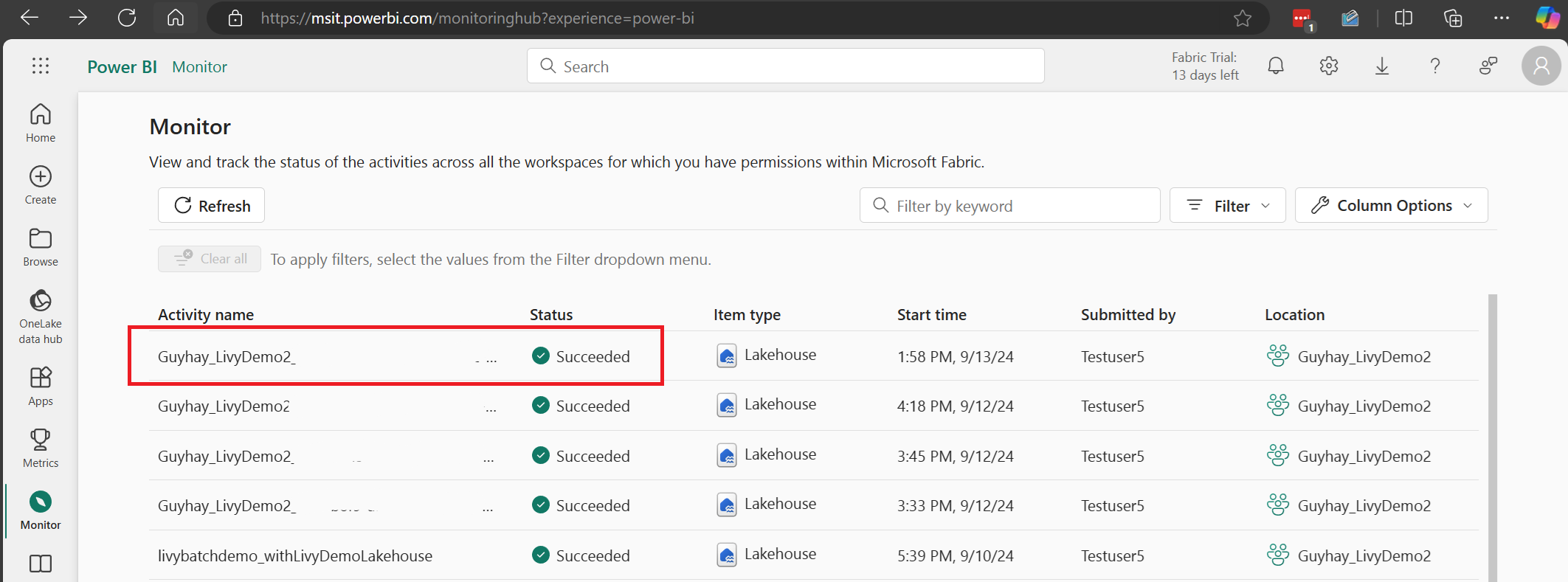
คุณสามารถเข้าถึงฮับการตรวจสอบเพื่อดูกิจกรรม Apache Spark ต่าง ๆ ได้โดยการเลือก การตรวจสอบ ในลิงก์การนําทางด้านซ้าย
เมื่อชุดงานเสร็จสมบูรณ์ คุณสามารถดูสถานะเซสชันโดยนําทางไปยัง การตรวจสอบ
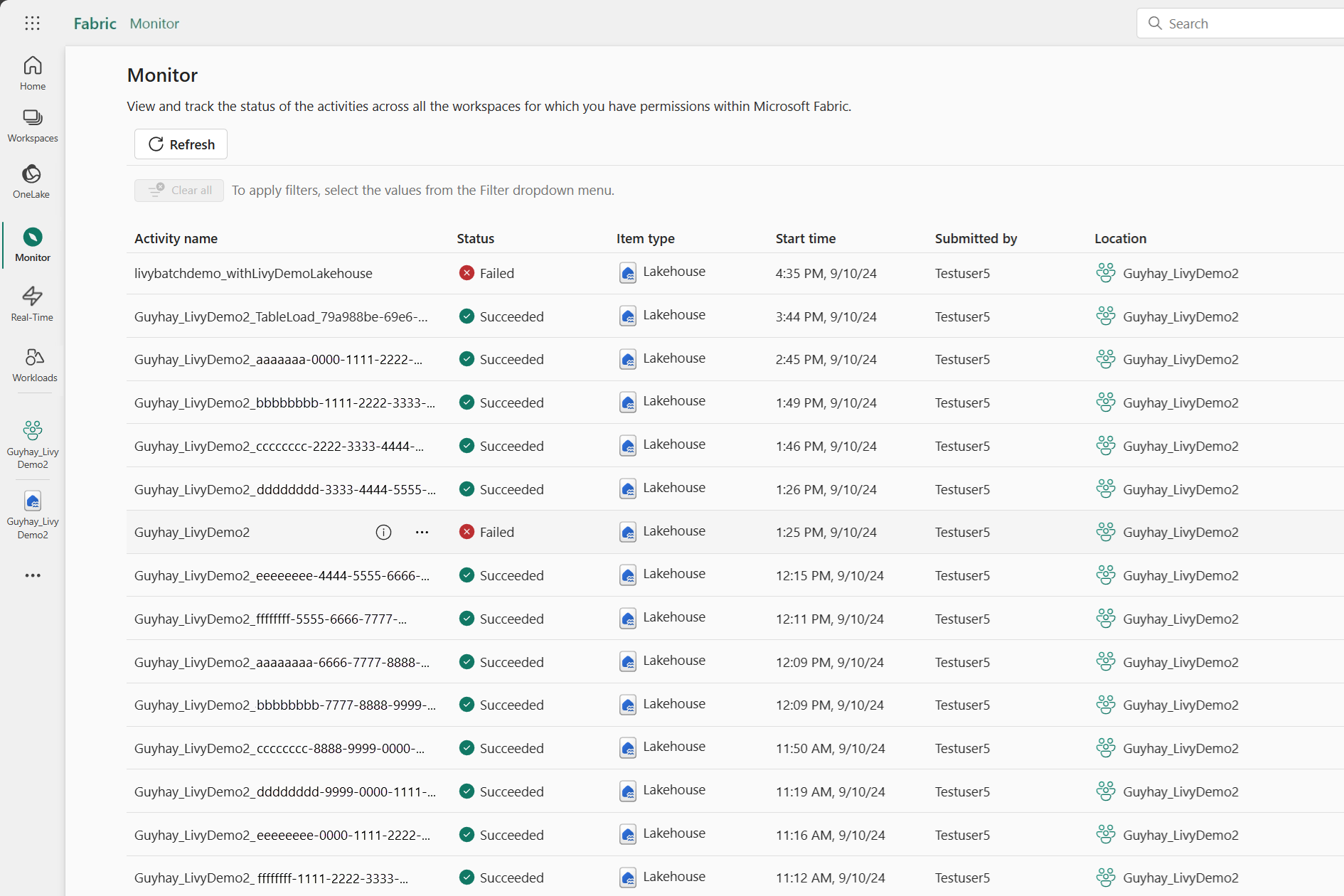
เลือกและเปิดชื่อกิจกรรมล่าสุด
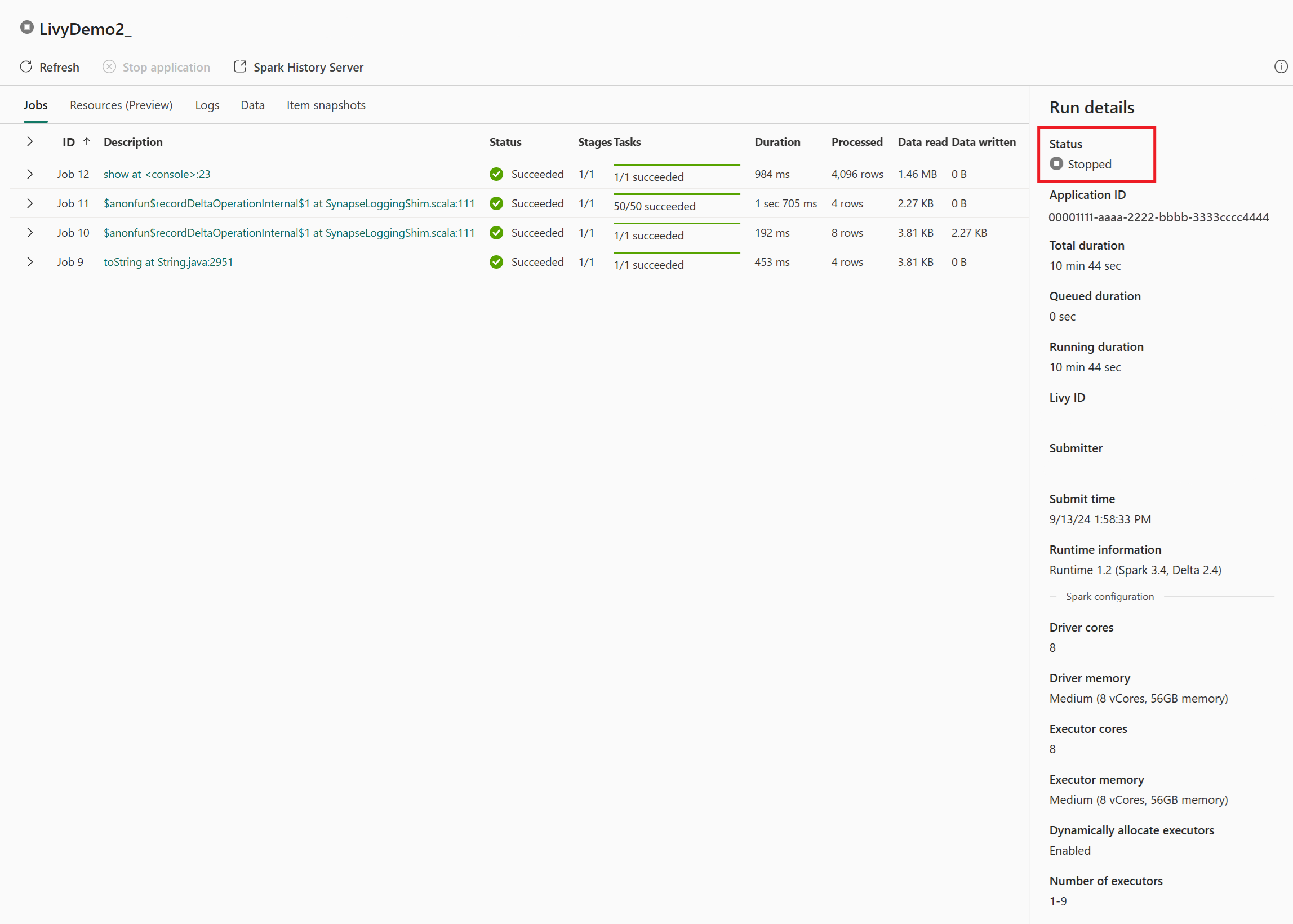
ในกรณีเซสชัน Livy API นี้ คุณสามารถดูการส่งชุดก่อนหน้า ของคุณ เรียกใช้รายละเอียด เวอร์ชัน Spark และการกําหนดค่าของคุณ สังเกตสถานะหยุดที่ด้านบนขวา
ในการสรุปกระบวนการทั้งหมด คุณต้องมีไคลเอ็นต์ระยะไกล เช่น Visual Studio Code, โทเค็นแอป Microsoft Entra, URL ปลายทาง Livy API, การรับรองความถูกต้องกับ Lakehouse ของคุณ, เพย์โหลด Spark ใน Lakehouse ของคุณ และสุดท้ายคือเซสชัน Livy API แบบแบทช์