หมายเหตุ
การเข้าถึงหน้านี้ต้องได้รับการอนุญาต คุณสามารถลอง ลงชื่อเข้าใช้หรือเปลี่ยนไดเรกทอรีได้
การเข้าถึงหน้านี้ต้องได้รับการอนุญาต คุณสามารถลองเปลี่ยนไดเรกทอรีได้
คุณเป็นมือใหม่กับ Agent 365 หรือไม่
หากคุณเพิ่งเริ่มต้น ให้เลือกเส้นทางที่เหมาะกับคุณที่สุด:
| ฉันต้องการที่จะ... | เริ่มต้นที่นี่ |
|---|---|
| เริ่มต้นใช้งานอย่างรวดเร็วด้วยความช่วยเหลือของ AI | การตั้งค่าที่แนะนำโดย AI — เอเจนต์การเขียนโค้ด AI (GitHub Copilot, Claude Code หรือ OpenAI Codex) จะนำคุณผ่านขั้นตอนการติดตั้ง การกำหนดค่า การปรับใช้ และการเผยแพร่จากไฟล์คำสั่งเดียว |
| ทำตามตัวอย่างภาคปฏิบัติทีละขั้นตอน | การเริ่มต้นใช้งานด่วน — เลือกตัวอย่างในภาษาของคุณ (Node.js, Python หรือ .NET) และสร้างเอเจนต์ที่ใช้งานได้ |
| ทำความเข้าใจเวิร์กโฟลว์ทั้งหมดก่อนลงมือทำ | เริ่มต้นพัฒนา Agent 365 — ประเภทเอเจนต์, ขั้นตอน, การตั้งค่า และการเผยแพร่ในคู่มือเดียว |
| ทำความเข้าใจประเภทของเอเจนต์ที่จะสร้าง | ชนิดของเอเจนต์ — อธิบายประเภทของเอเจนต์และโมเดลข้อมูลประจำตัวของแต่ละประเภท |
| เปิดใช้งานเอเจนต์ Google Vertex AI หรือ Amazon Bedrock | การลงทะเบียนสำหรับเอเจนต์เหล่านี้ไม่จำเป็นต้องมีงานพัฒนา — เอเจนต์จะถูกดึงโดยอัตโนมัติผ่าน API ของ Google และ Amazon ไม่ต้องผสานรวม SDK ไม่ต้องใช้พิมพ์เขียว และไม่ต้องเปลี่ยนแปลงโค้ด เมื่อคุณลงทะเบียนแล้ว คุณสามารถใช้ Agent 365 SDK เพื่อเพิ่มความสามารถในการสังเกตการณ์ การเข้าถึงเครื่องมือ Work IQ และคุณลักษณะเพิ่มเติมต่าง ๆ ได้ค่อย ๆ เพิ่มทีละขั้นตอน ดู การลงทะเบียนเอเจนต์ Google Vertex AI และ Amazon Bedrock เพื่อเริ่มต้นใช้งาน |
Agent 365 SDK
ใช้ Agent 365 SDK เพื่อขยายเอเจนต์ที่สร้างขึ้นโดยใช้ SDK หรือแพลตฟอร์มของเอเจนต์ใด ๆ ด้วยตัวตนระดับองค์กร การสังเกตการณ์ การแจ้งเตือน ความปลอดภัย และการเข้าถึงข้อมูล Microsoft 365 ที่อยู่ภายใต้การควบคุม
เคล็ดลับ
ต้องการเอเจนต์ที่สร้างไว้ล่วงหน้าอยู่หรือไม่ ดู เอเจนต์พันธมิตรระบบนิเวศที่พร้อมใช้งานใน Agent 365 สำหรับเอเจนต์ที่ผสานรวมไว้ล่วงหน้าตั้งแต่เริ่มต้น
เอเจนต์มีข้อมูลประจําตัวที่ไม่ซ้ำกัน ผู้คนเรียกใช้รูปแบบลายเส้นทั่วไป (เช่น @mentions) ในแอปที่ผู้ใช้ระดับองค์กรใช้งานโดยทั่วไป (เช่น Teams, Word, Outlook และอื่น ๆ) พวกเขาแสดงลักษณะการทำงานที่สังเกตได้ สร้างความไว้วางใจ ดำเนินการที่ตรวจสอบย้อนกลับได้ และดำเนินสิ่งเหล่านี้ผ่านการเข้าถึงเครื่องมือและข้อมูลอย่างปลอดภัย
เมื่อใช้ Agent 365 SDK เอเจนต์สามารถทำได้ดังนี้:
- ใช้ Agent Identity ที่รองรับโดย Entra ร่วมกับทรัพยากรส่วนตัว เช่น กล่องจดหมาย เพื่อการรับรองความถูกต้องที่ปลอดภัยและการเข้าถึงเครื่องมือและข้อมูลอย่างมีการควบคุม
- รับและตอบสนองต่อการแจ้งเตือนจาก Teams, Outlook, ความคิดเห็นใน Word และอีเมล เหมือนกับผู้ใช้งานจริงในแอป Microsoft 365
- รับความสามารถในการสังเกตการณ์เต็มรูปแบบผ่าน เปิดการวัดและส่งข้อมูลทางไกล ซึ่งช่วยให้สามารถตรวจสอบและติดตามการโต้ตอบของเอเจนต์ เหตุการณ์การสรุปผล และการใช้งานเครื่องมือได้
- เรียกใช้เซิร์ฟเวอร์โปรโตคอลบริบทของโมเดล (MCP) ที่มีการควบคุมเพื่อเข้าถึงฟีเจอร์ของ Microsoft 365 (เช่น จดหมาย, ปฏิทิน, SharePoint, Teams) ภายใต้การดูแลของผู้ดูแลระบบ
- ทํางานภายในระบบ Blueprint ที่ได้รับการอนุมัติจากฝ่ายไอที เพื่อให้แต่ละอินสแตนซ์ของเอเจนต์ได้รับนโยบายการปฏิบัติตามข้อบังคับ การกำกับดูแล และความปลอดภัย
เรียนรู้เพิ่มเติมเกี่ยวกับ Agent 365 SDK
Agent 365 CLI
Agent 365 CLI เป็นเครื่องมือบรรทัดคำสั่งหลักสำหรับ Agent 365 ตลอดวงจรการพัฒนาเอเจนต์ โดยช่วยในการตั้งค่าอัตโนมัติ, ข้อมูลประจำตัว, การผสานรวม MCP, การเผยแพร่ และการปรับใช้บน Azure สำหรับเอเจนต์ที่พร้อมใช้งานระดับองค์กร
ด้วย Agent 365 CLI นักพัฒนาสามารถดำเนินการดังต่อไปนี้
- สร้าง Blueprint ของเอเจนต์และทรัพยากรที่จำเป็นทั้งหมดสำหรับ Blueprint เหล่านั้น
- จัดการเครื่องมือ Work IQ แบบสำเร็จรูปและแบบกำหนดเอง รวมถึงสิทธิ์และเครื่องมือสำหรับเอเจนต์
- ปรับใช้โค้ดเอเจนต์กับ Azure
- เผยแพร่แพ็คเกจแอปพลิเคชันเอเจนต์ไปยังศูนย์การจัดการ Microsoft
- ลบ Blueprint เอเจนต์ ข้อมูลประจำตัว และทรัพยากร Azure อื่น ๆ ที่สร้างโดย CLI
เรียนรู้เพิ่มเติมเกี่ยวกับ Agent 365 CLI
วงจรชีวิตการพัฒนาเอเจนต์ Agent 365
Agent 365 ทำงานร่วมกับเอเจนต์ที่สร้างขึ้นบน SDK หรือแพลตฟอร์มใด ๆ ซึ่งรวมถึงแพลตฟอร์มแบบ low-code เช่น Copilot Studio และ Azure AI Foundry นอกจากนี้ยังรองรับตัวเลือกแบบ pro‑code เช่น Microsoft Agent Framework, Microsoft Agents SDK, OpenAI Agents SDK, Claude Code SDK และ LangChain SDK Agent 365 ยังทำงานร่วมกับโค้ดของเอเจนต์ที่โฮสต์บนเอนด์พอยต์ใด ๆ ไม่ว่าจะเป็น Azure, Amazon Web Services (AWS), Google Cloud Platform (GCP) หรือผู้ให้บริการคลาวด์รายอื่น ๆ
สำคัญ
เพื่อให้เข้าใจอย่างครบถ้วนถึงวิธีที่ Agent 365 SDK และ CLI ทำงานร่วมกัน โปรดตรวจสอบเวิร์กโฟลว์ที่อธิบายไว้ใน เริ่มต้นใช้งานการพัฒนา Agent 365
Blueprint เอเจนต์ Agent 365
ก่อนเริ่มใช้งานอินสแตนซ์ของเอเจนต์ Agent 365 ควรทำความเข้าใจว่า Blueprint ของเอเจนต์ Agent 365 หมายถึงอะไร สิ่งนี้มาจาก Blueprint เอเจนต์ Microsoft Entra และเป็นคําจํากัดความที่ได้รับการอนุมัติจากฝ่ายไอที และได้รับการกําหนดค่าประเภทเอเจนต์ไว้ล่วงหน้า โดยพื้นฐานแล้วเป็น "เทมเพลต" ขององค์กรที่สามารถสร้างเอเจนต์ที่สอดคล้องกันได้ มันกำหนดความสามารถของเอเจนต์ สิทธิ์การเข้าถึงเครื่องมือ Work IQ ที่จำเป็น ข้อจำกัดด้านความปลอดภัยและการปฏิบัติตามข้อบังคับ ข้อกำหนดการตรวจสอบ เมตาดาต้าของวงจรชีวิต และเทมเพลตนโยบายการกำกับดูแลที่เชื่อมโยง เช่น DLP ข้อจำกัดการเข้าถึงภายนอก หรือกฎการบันทึกข้อมูล เมื่อเปิดใช้งาน Blueprint เพื่อใช้ในผู้เช่า ผู้ใช้สามารถร้องขอผู้ดูแลระบบของตนสําหรับอินสแตนซ์เอเจนต์ใหม่ที่สร้างขึ้นจาก Blueprint เอเจนต์ในศูนย์การจัดการ Microsoft 365 อินสแตนซ์ของเอเจนต์แต่ละตัวจะสืบทอดกฎจาก Blueprint เพื่อให้มั่นใจว่ามีการกำกับดูแลที่สอดคล้องกันในอีเมล, ปฏิทิน, Teams, การเข้าถึง SharePoint และเวิร์กโหลดใน Microsoft 365 อื่น ๆ ที่เอเจนต์เกี่ยวข้อง สิ่งนี้ช่วยป้องกันเอเจนต์เงา/เอเจนต์ที่ไม่ได้รับอนุญาต บังคับใช้การสังเกตการณ์ และผูกแต่ละเอเจนต์กับข้อมูลประจำตัวที่รองรับโดย Entra และโมเดลสิทธิ์
Agent 365 SDK แตกต่างอย่างไร
Agent 365 SDK แตกต่างจาก Agent Framework เช่น Microsoft Agent Framework หรือ Microsoft Copilot Studio เนื่องจากไม่ได้สร้างหรือโฮสต์เอเจนต์ แต่จะเพิ่มขีดความสามารถให้กับเอเจนต์ที่คุณสร้างไว้แล้ว ไม่ขึ้นกับสแต็กพื้นฐาน โดยการเพิ่มความสามารถระดับองค์กร เช่น ข้อมูลประจำตัวของเอเจนต์ที่ใช้ Entra, การเข้าถึงเครื่องมือ Work IQ ที่มีการควบคุม, ความสามารถในการสังเกตตาม OpenTelemetry (OTel), การแจ้งเตือนผ่านโปรโตคอลกิจกรรม และการกำกับดูแลด้วยรหัสเอเจนต์
แม้ว่าจะมีชื่อคล้ายกันมาก แต่ก็ไม่ได้แทนที่ SDK เอเจนต์สำหรับ Microsoft 365 หรือฟังก์ชันการใช้งานที่เกี่ยวกับ Hosting, โปรโตคอลกิจกรรม และข้อมูลประจำตัว ตรงกันข้าม Agent 365 SDK จะเพิ่มชั้นการกํากับดูแล การปฏิบัติตามข้อกําหนด และการควบคุมวงจรชีวิตให้กับเอเจนต์ที่สร้างขึ้นด้วยมันหรือแพลตฟอร์มอื่น ๆ
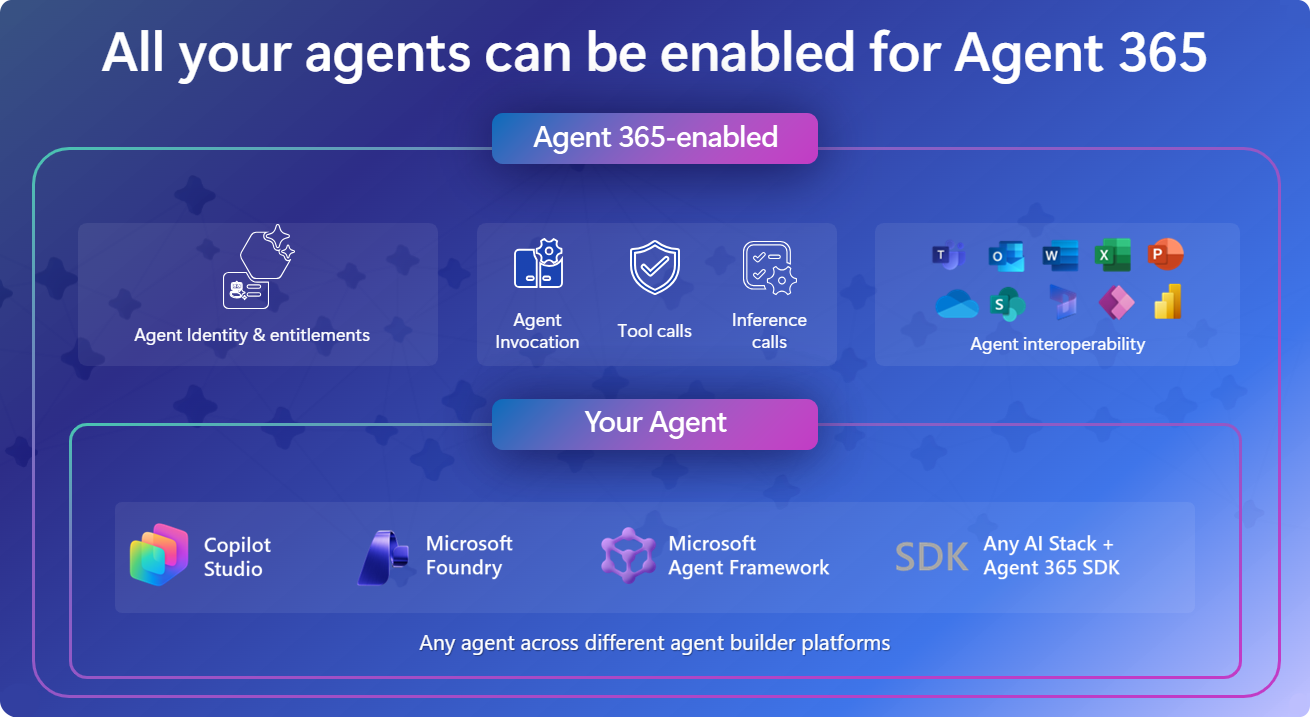
Agent 365 SDK และระบบนิเวศของเอเจนต์
ตารางนี้สรุปสถาปัตยกรรมแบบเลเยอร์ของเอเจนต์ โดยแสดงให้เห็นว่า Agent 365 SDK เพิ่มความสามารถขององค์กรเหนือชั้นตรรกะของเอเจนต์และแอปพลิเคชันประสานการทำงานของระบบ LLM ที่รันไทม์ซึ่งจัดเตรียมโดยเฟรมเวิร์กที่คุณเลือกใช้
| ชั้น | บทบาท | จัดทำโดย |
|---|---|---|
| ขีดความสามารถสำหรับองค์กร | ข้อมูลประจําตัว การแจ้งเตือน ความสามารถในการสังเกตการณ์ เครื่องมือ | Agent 365 SDK |
| ตรรกะการทำงานของเอเจนต์ | พร้อมท์ เวิร์กโฟลว์ การให้เหตุผล | การใช้งานของคุณในโค้ด |
| รันไทม์แอปพลิเคชันประสานการทำงานของระบบ LLM | การเรียกใช้โมเดลและการประสานการทำงานกับเครื่องมือ | SDK/Framework เอเจนต์ที่คุณต้องการ |