หมายเหตุ
การเข้าถึงหน้านี้ต้องได้รับการอนุญาต คุณสามารถลอง ลงชื่อเข้าใช้หรือเปลี่ยนไดเรกทอรีได้
การเข้าถึงหน้านี้ต้องได้รับการอนุญาต คุณสามารถลองเปลี่ยนไดเรกทอรีได้
The Zero Trust Assessment checks your tenant configuration and recommends ways to improve security as described in our overview.
Prerequisites
- PowerShell 7. To install it, see Install PowerShell on Windows, Linux, and macOS.
- To connect and consent to the required permissions the first time, you need to be a Global Administrator.
- Subsequent runs require a user with the following roles:
- If you installed a previous version of the Zero Trust Assessment, uninstall it before continuing.
Install the PowerShell modules
Follow these steps to install or update the assessment and connect to Microsoft Graph and your tenant.
Open a new PowerShell 7 window.
Run the following command to install the
ZeroTrustAssessmentmodule:Install-Module ZeroTrustAssessment -Scope CurrentUser
Connect to Microsoft Graph and Microsoft Azure
To run the Zero Trust Assessment module, you connect to multiple Microsoft cloud services including Microsoft Graph, Microsoft Azure, Microsoft Exchange, Microsoft SharePoint and Azure Information Protection.
Run this command to connect to all the services.
Connect-ZtAssessment
When you connect by using Microsoft Graph PowerShell, it requests these permissions:
- AuditLog.Read.All
- CrossTenantInformation.ReadBasic.All
- DeviceManagementApps.Read.All
- DeviceManagementConfiguration.Read.All
- DeviceManagementManagedDevices.Read.All
- DeviceManagementRBAC.Read.All
- DeviceManagementServiceConfig.Read.All
- Directory.Read.All
- DirectoryRecommendations.Read.All
- EntitlementManagement.Read.All
- IdentityRiskEvent.Read.All
- IdentityRiskyUser.Read.All
- IdentityRiskyServicePrincipal.Read.All
- NetworkAccess.Read.All
- Policy.Read.All
- Policy.Read.ConditionalAccess
- Policy.Read.PermissionGrant
- PrivilegedAccess.Read.AzureAD
- Reports.Read.All
- RoleManagement.Read.All
- UserAuthenticationMethod.Read.All
Note
The consent prompt appears only if the Microsoft Graph PowerShell app doesn't already have these permissions. The next time you connect, you don't need to consent to the permissions again.
Sign in to Microsoft Graph
- Sign in to Microsoft Graph as a Global Administrator.
- Select Accept.
Sign in to Microsoft Azure
A second window opens for the Microsoft Azure sign-in. When you're prompted, sign in to Microsoft Azure as a Global Administrator.
The Microsoft Azure sign-in is required to check for the export of audit and sign-in logs. If you don't have Microsoft Azure, close the window without signing in, and ignore the warning. The assessment skips the test that relies on Microsoft Azure.
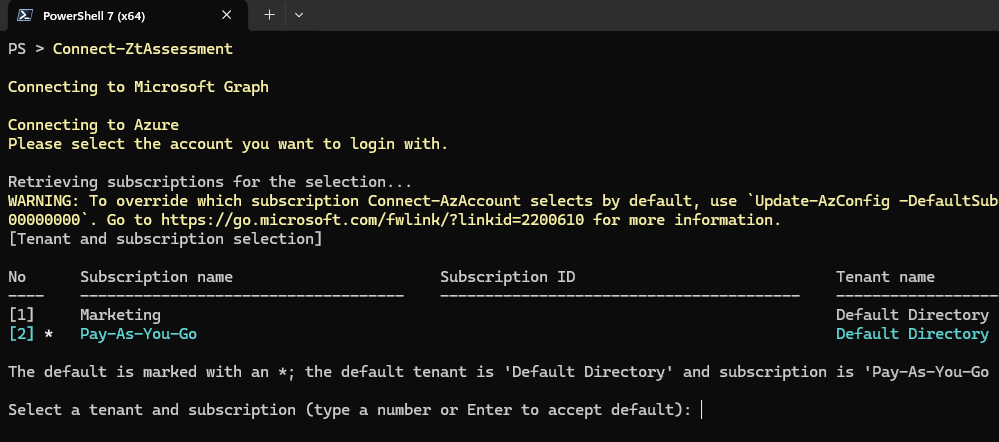
If you have multiple subscriptions, select a tenant and a subscription when prompted.
A sign-in prompt appears for each cloud service, including Microsoft SharePoint and Microsoft Exchange.
Run the assessment
The Zero Trust Assessment is read-only. It runs and stores all data locally on the desktop. It's a good practice to store the assessment report securely and delete the generated folder and its contents from the local drive once the assessment is complete.
After you provide Global Administrator consent to the permissions in the first run, subsequent runs can be performed as a Global Reader.
To run the assessment, use this command:
Invoke-ZtAssessment
The assessment saves the results in the current working folder .\ZeroTrustReport\ZeroTrustAssessmentReport.html. After the assessment completes, the report opens automatically in the default browser.
Caution
The report and the export folder contain sensitive tenant information that threat actors might use to their advantage. Share the report and folder only with authorized personnel in your organization.
Use the -Path parameter to provide a custom location to store the assessment report. For example, the following command saves the report in the folder C:/MyAssessment01/ZeroTrustAssessmentReport.html:
Invoke-ZtAssessment -Path C:\MyAssessment01
Tip
For large tenants, the Zero Trust Assessment might take more than 24 hours to run. Don't stop the assessment while it's running, even if the assessment logs warnings or errors.
Review assessment results
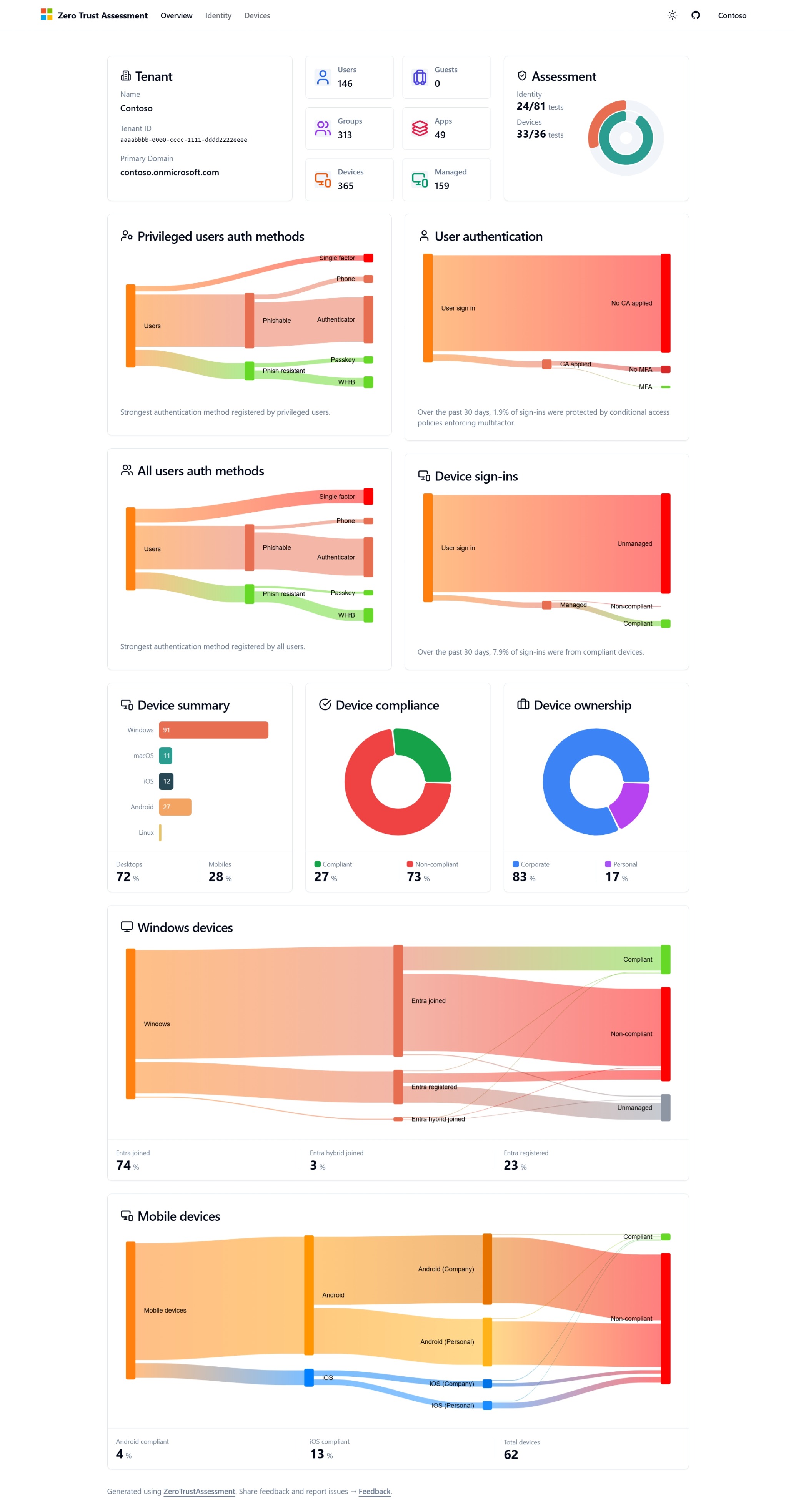
After the assessment runs, the report opens the Overview tab in your default browser. The Overview tab shows key Zero Trust information about the tenant.
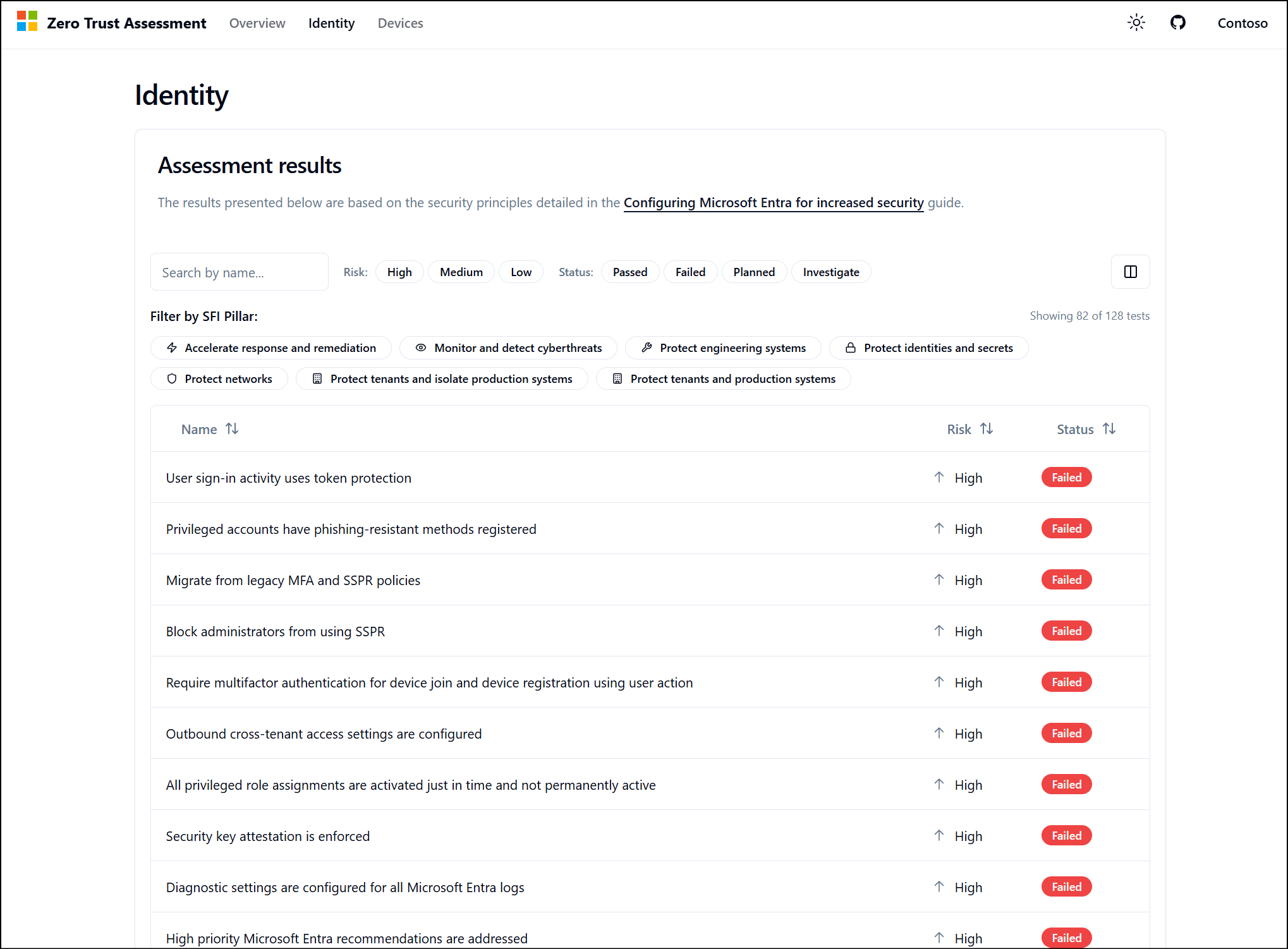
The Identity, Devices, Network, and Data tabs show a list of results from the tests run against the tenant. The results show the Risk and result Status of each test.
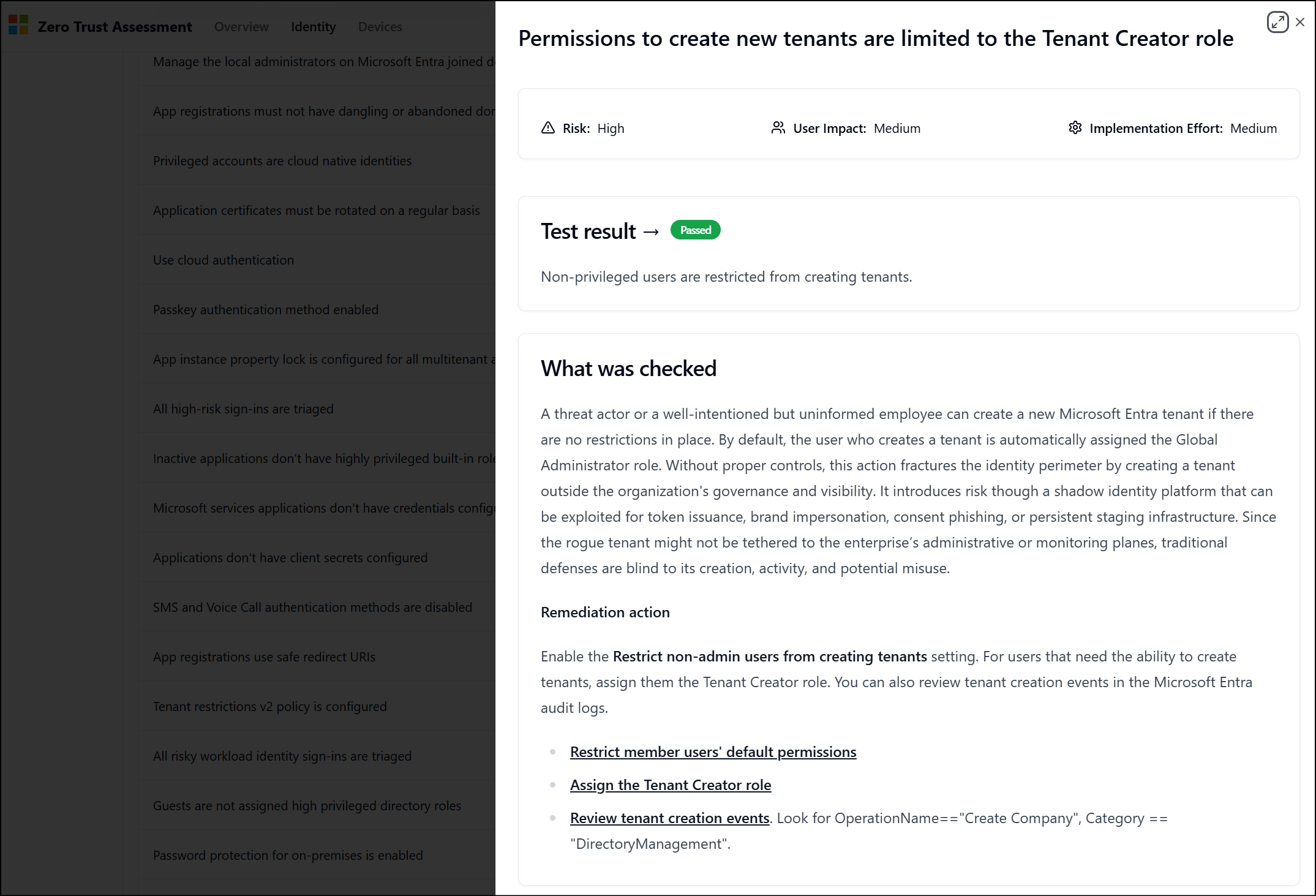
To see more details about a test, select a result. The details describe what was tested and list recommended remediation actions to address the tenant configuration. For more detail about some of the terms used in each check see our glossary.
Remove the Zero Trust Assessment module
To remove the Zero Trust Assessment module:
- Remove the PowerShell module.
- Delete the folder that the Zero Trust Assessment module created.
FAQs
Export troubleshooting logs
If an issue occurs, export a log using these instructions.
Run the following command in the same session where you ran the assessment to create the export package (update the date to reflect the date of your run).
New-PSFSupportPackage -Path C:\AssessmentLog_2025_01_01 -Force
Zip this folder along with the folder that was created by Invoke-ZtAssessment (default is ZeroTrustAssessment).
Viewing logs during test execution
To view the progress of long running tests, open the /zt-export/logs folder found inside your assessment folder.
Uninstall previous versions
Run the following commands to ensure all versions of the past modules are uninstalled
Uninstall-Module ZeroTrustAssessment -Force -AllVersions
Restart PowerShell and install the latest version.
Could not load file or assembly Microsoft.Graph.Authentication
This error happens when you have conflicting versions of Microsoft Graph PowerShell installed.
To fix this error we recommend uninstalling all Microsoft Graph PowerShell modules installed on your system. You can use a helper module like uninstall-graph.merill.net to run the cleanup.
When uninstalling Microsoft Graph you should also uninstall all versions of the Zero Trust Assessment, restart PowerShell and then install the latest version.
Install-Module Uninstall-Graph
Uninstall-Module ZeroTrustAssessment -Force -AllVersions
Uninstall-Graph
How can I know what the script does?
The code for this assessment is open source. Review it at https://github.com/microsoft/zerotrustassessment/tree/psnext/src/powershell.
Why did I get the exception error, "The type initializer for 'DuckDB.NET.Data.DuckDBConnectionStringBuilder' threw an exception."?
On a new installation of Windows, you might see the following error:
The type initializer for 'DuckDB.NET.Data.DuckDBConnectionStringBuilder' threw an exception. Inner exception: Unable to load DLL 'duckdb' or one of its dependencies: The specified module could not be found. (0x8007007E) Inner exception type: DllNotFoundException
This error occurs because you're running on a system that doesn't include Microsoft Visual C++ 2015-2022 Redistributable (x64) - Microsoft.VCRedist.2015+.x64. VCRedist usually installs when you install Microsoft products such as Microsoft Office or Microsoft Entra Connect Sync. If you're using a new device, you might need to install this component manually. See Latest Microsoft Visual C++ Redistributable version.
Support for Windows on ARM64 devices is not available at this time.
How do I get support?
Raise support issues on the Zero Trust Assessment GitHub repo.