Нотатка
Доступ до цієї сторінки потребує авторизації. Можна спробувати ввійти або змінити каталоги.
Доступ до цієї сторінки потребує авторизації. Можна спробувати змінити каталоги.
Windows Widgets are small UI containers that display text and graphics, associated with an app installed on the device. Installed widgets are displayed in a grid in the Widgets Board: a flyout plane that overlays the Windows desktop when the user clicks Widgets icon on the taskbar, uses the Windows+W shortcut, or swipes from the left edge of the screen. Widgets help people stay on top of what's important to them by aggregating personalized content and quick actions from the apps they use. They are quickly consumable and actionable. Widgets are not meant to replace apps and websites, but rather provide frictionless access to most-needed information or often-used functionalities that people can read/trigger right away. When designing your widget, consider the kind of value it will bring to your consumers.
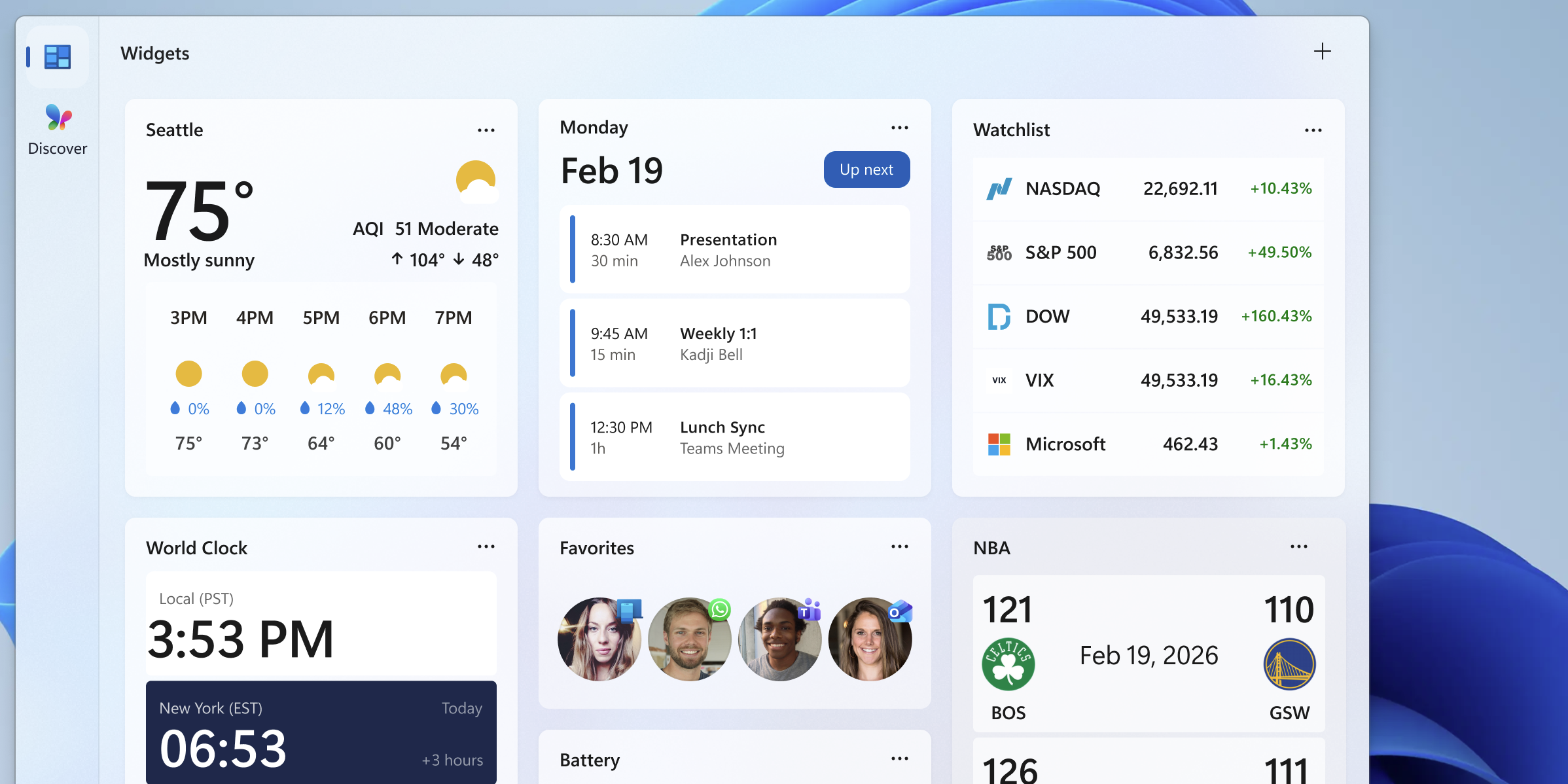
Widgets terminology
| Term | Definition |
|---|---|
| Widgets host | An application that displays and manages Windows widgets. The Widgets Board built into Windows 11 is a widget host. |
| Widgets Board | The Widgets Board is a Windows 11 system component that is displayed over the desktop when the user clicks the Widgets icon on the taskbar, uses the Windows+W shortcut, or swipes from the left edge of the screen. The Widgets Board displays widgets and manages their layout on the board. |
| Widget | A small UI container that presents content or actions from an app. You can define its content with an Adaptive Card or display HTML from a URL with a web widget provider. Widgets provide information and actions at a glance, with links to your app for more detailed tasks. |
| Widget provider | A widget provider is a Windows app that provides content to be displayed in the widget. The widget provider owns the content, layout, and interactive elements of the widget. |
Important
Web widgets are available only to users in the European Economic Area (EEA). Check the web widget requirements before selecting HTML content.
Widget design guidance
For an Adaptive Card widget, define the visual and interactive elements in an Adaptive Cards JSON template. Use the Adaptive Cards Designer to edit the card, then validate Windows-specific host properties, sizes, themes, and actions in the Widgets Board. The Designer's renderer and host options aren't a substitute for testing in Windows. For a web widget, design the HTML content for the widget's size, theme, and interaction requirements; the Adaptive Cards Designer doesn't edit that HTML.
Both rendering approaches should follow the widget design principles below. For web-content setup, resource requests, and messaging, see Web widget providers.
For a high-level walkthrough of the visual elements of a widget see Widget states and built-in UI components.
Widget principles
To create great Windows Widgets, consider the following principles as you design and develop your widgets:
Glanceable
A widget should immediately deliver its primary value to the user.
Focused & Useful
A widget should serve one clear, primary purpose.
Predictable & Calm
A widget's behaviors and patterns help users complete tasks predictably.
User-Anchored
A widget should reflect the user's needs, preferences and intents. Content should be based on the user's own data or explicitly stated interests.
Timely
A widget should surface relevant information at the right time and in the right context.
Planning your app's widget experience
- Based on your understanding of your customers, identify the most important content or most useful actions that your users would love to have quick access to without opening your app or website. Consider the principles enumerated in the Widget principles section and think about how they can apply to your app.
- Your app can support multiple individual widgets. Determine the number of separate widgets you want to support so that each widget focuses on a specific purpose.
- Determine the content you want to include for each widget. A single widget can support three different sizes; small, medium, and large. For each widget, think about what content would bring the most value to users and your business needs. For each size from small to large, the purpose of the widget should remain the same, but the amount of information displayed should expand with larger sizes. We recommend that widget providers implement all widget sizes to give users flexibility when customizing the widget layout.
- Think about the user interactions your widget will support. Users can click on the widget title or any click targets that you've defined on the widget. These interactions can activate deep-link shortcuts into your app or web site that take users directly to what they're interested in, so that they don't have to navigate from the root of your app. Consider the different navigational models offered.
- Choose your provider implementation and content format. A packaged Win32 desktop app can supply Adaptive Card content or use the web-widget APIs to display HTML. A Progressive Web App (PWA) uses widget definitions in its web app manifest and handles events in a service worker. See Widget providers, Web widget providers, or Build PWA-driven widgets for the corresponding implementation path.
In this section
Create a widget template with the Adaptive Cards Designer
Integrate with the widget picker
See also
Співпраця з нами на GitHub
Джерело цього вмісту можна знайти на GitHub, де також можна створювати й переглядати запитання та запити на внесення змін. Докладні відомості наведено в нашому посібнику для співавторів.

Windows developer