你当前正在访问 Microsoft Azure Global Edition 技术文档网站。 如果需要访问由世纪互联运营的 Microsoft Azure 中国技术文档网站,请访问 https://docs.azure.cn。
适用于: Azure 数据工厂 Azure Synapse Analytics
提示
在 Fabric 中,与“自定义活动”对应的是 Azure Batch 活动。 有关配置细节,请参见 Azure Batch 活动。
可以在 Azure 数据工厂 或 Synapse 管道中使用两种类型的活动。
- 数据移动活动:在支持的源与接收器数据存储之间移动数据。
- 数据转换活动使用计算服务(如Azure HDInsight和Azure Batch)转换数据。
若要将数据移入/移出该服务不支持的数据存储,或者要以该服务不支持的方式转换/处理数据,可以使用你自己的数据移动或转换逻辑创建“自定义活动”,并在管道中使用该活动。 自定义活动在虚拟机的 Azure Batch 池上运行自定义代码逻辑。
注意
建议使用 Azure Az PowerShell 模块与Azure交互。 若要开始,请参阅 Install Azure PowerShell。 若要了解如何迁移到 Az PowerShell 模块,请参阅 Migrate Azure PowerShell从 AzureRM 迁移到 Az。
如果不熟悉Azure Batch服务,请参阅以下文章:
- Azure Batch基础知识,提供Azure Batch服务的概述。
- New-AzBatchAccount cmdlet,用于创建Azure Batch帐户(或) Azure门户使用Azure门户创建Azure Batch帐户。 有关使用 cmdlet 的详细说明,请参阅 使用 PowerShell 管理Azure Batch帐户一文。
- New-AzBatchPool 命令用于创建Azure Batch池。
重要
创建新的Azure Batch池时,必须使用“VirtualMachineConfiguration”,而不是“CloudServiceConfiguration”。
使用 UI 将自定义活动添加到管道
若要在管道中使用自定义活动,请完成以下步骤:
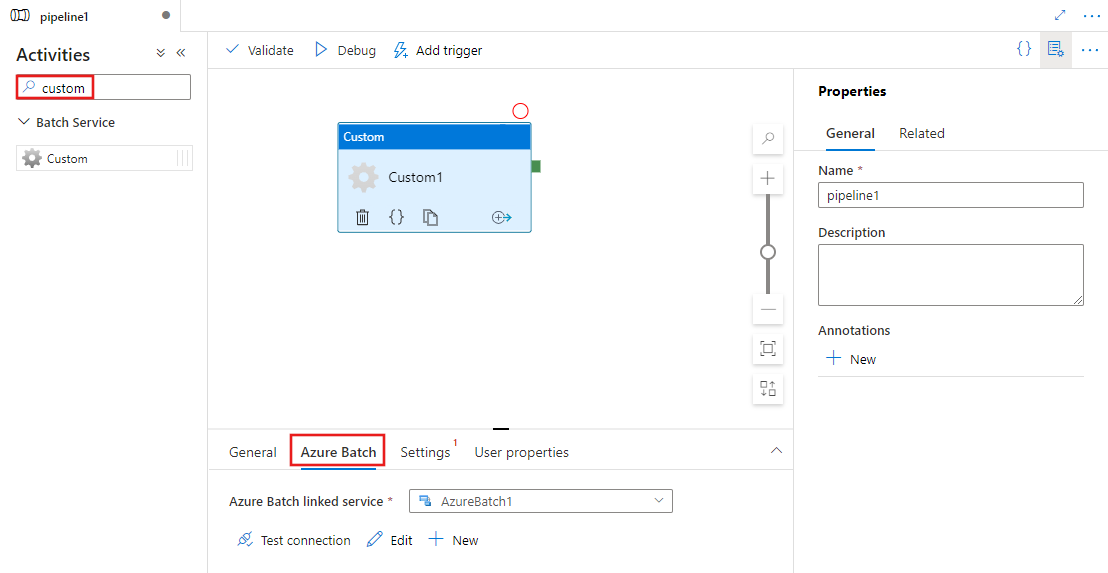
在管道“活动”窗格中搜索Custom,然后将Custom活动拖到管道画布上。
在画布上选择新的自定义活动(如果尚未选择)。
选择 Azure Batch 选项卡,以选择或创建将执行自定义活动的新Azure Batch链接服务。
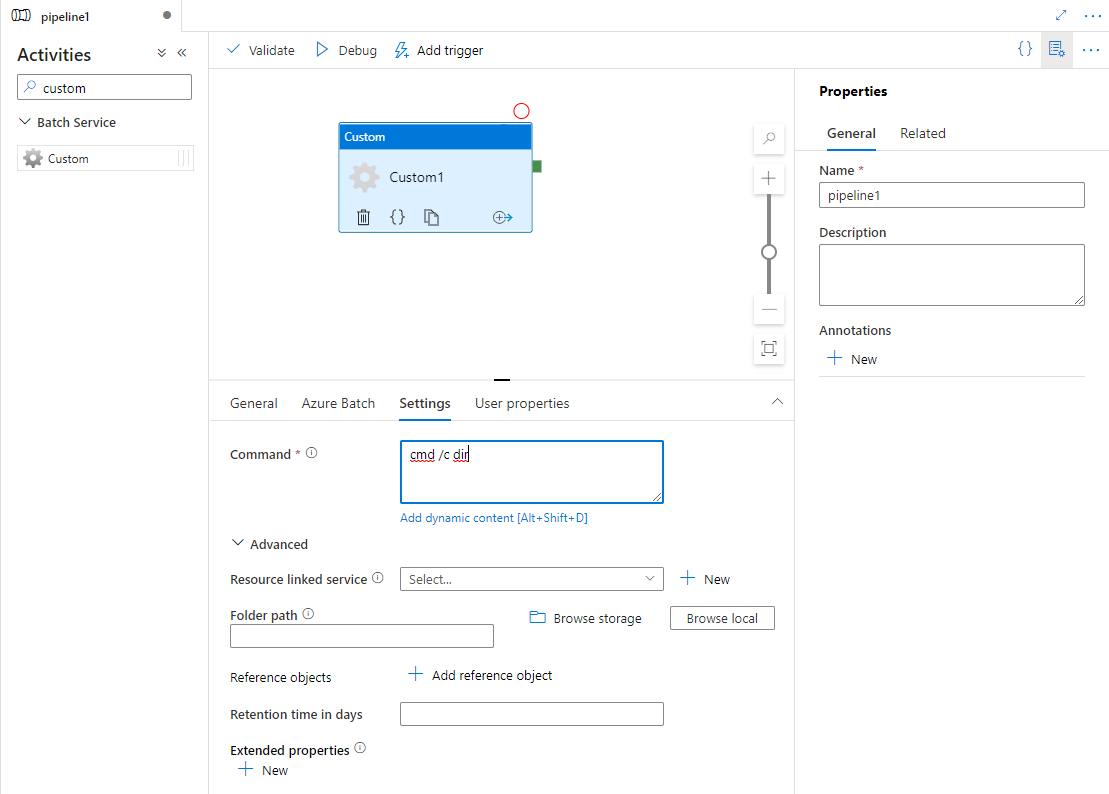
选择 Settings 选项卡,并指定要在Azure Batch上执行的命令,以及可选的高级详细信息。
Azure Batch 链接服务
以下 JSON 定义一个示例Azure Batch链接服务。 有关详细信息,请参阅支持的计算环境
{
    "name": "AzureBatchLinkedService",
    "properties": {
        "type": "AzureBatch",
        "typeProperties": {
            "accountName": "batchaccount",
            "accessKey": {
                "type": "SecureString",
                "value": "access key"
            },
            "batchUri": "https://batchaccount.region.batch.azure.com",
            "poolName": "poolname",
            "linkedServiceName": {
                "referenceName": "StorageLinkedService",
                "type": "LinkedServiceReference"
            }
        }
    }
}
若要详细了解Azure Batch链接服务,请参阅Compute 链接服务一文。
自定义活动
下面的 JSON 代码片段定义了具有简单自定义活动的管道。 活动定义具有对Azure Batch链接服务的引用。
{
  "name": "MyCustomActivityPipeline",
  "properties": {
    "description": "Custom activity sample",
    "activities": [{
      "type": "Custom",
      "name": "MyCustomActivity",
      "linkedServiceName": {
        "referenceName": "AzureBatchLinkedService",
        "type": "LinkedServiceReference"
      },
      "typeProperties": {
        "command": "helloworld.exe",
        "folderPath": "customactv2/helloworld",
        "resourceLinkedService": {
          "referenceName": "StorageLinkedService",
          "type": "LinkedServiceReference"
        }
      }
    }]
  }
}
在此示例中,helloworld.exe 是存储在 resourceLinkedService 中使用的 Azure 存储 帐户的 customactv2/helloworld 文件夹中的自定义应用程序。 自定义活动提交要在Azure Batch上执行的此自定义应用程序。 可以将命令替换为可在Azure Batch池节点的目标操作系统上执行的任何首选应用程序。
下表描述了此活动特有的属性的名称和描述。
| 属性 | 描述 | 必需 |
|---|---|---|
| 名称 | 管道中活动的名称 | 是 |
| 描述 | 描述活动用途的文本。 | 否 |
| 类型 | 对于自定义活动,活动类型为 Custom。 | 是 |
| 连接服务名称 (linkedServiceName) | 将服务链接到Azure Batch。 若要了解此链接服务,请参阅计算链接服务一文。 | 是 |
| 命令 | 要执行的自定义应用程序的命令。 如果应用程序已在 Azure Batch 池节点上可用,则可以跳过 resourceLinkedService 和 folderPath。 例如,您可以指定命令为cmd /c dir,此命令受 Windows Batch 池节点的本机支持。 |
是 |
| resourceLinkedService | 存储着自定义应用程序的存储帐户的 Azure 存储链接服务 | 否 * |
| 文件夹路径 | 自定义应用程序及其所有依赖项所在的文件夹的路径 如果依赖项存储在子文件夹中(即在 folderPath 下的层次结构的文件夹中),则在文件复制到 Azure Batch 时,文件夹结构会被平展。 也就是说,所有文件将复制到没有子文件夹的单个文件夹中。 若要解决此行为,请考虑压缩文件,复制压缩文件,然后在所需位置使用自定义代码解压缩文件。 |
否 * |
| 参考对象 | 现有关联服务和数据集的列表。 所引用的链接服务和数据集采用 JSON 格式传递到自定义应用程序,因此,自定义代码可以引用该服务的资源 | 否 |
| 扩展属性 | 可以采用 JSON 格式传递到自定义应用程序的用户定义属性,以便自定义代码可以引用更多属性 | 否 |
| 保留时间(以天计) | 为自定义活动提交的文件的保留时间。 默认值为 30 天。 | 否 |
* 属性 resourceLinkedService 和 folderPath 必须同时指定或同时省略。
注意
如果要在自定义活动中将链接服务作为 referenceObjects 传递,则传递已启用 Azure 密钥保管库 的链接服务(因为它不包含任何安全字符串)并使用机密名称直接通过代码从 密钥保管库 中提取凭据是一种很好的安全做法。 可以在此处找到一个示例,该示例引用启用了 AKV 的链接服务,从密钥保管库检索凭据,然后通过代码访问存储。
注意
目前,自定义活动中仅支持 resourceLinkedService Azure Blob 存储,它是默认创建的唯一链接服务,没有选择其他连接器(如 ADLS Gen2)的选项。
注意
该 retentionTimeInDays 物业支持最低保留期 为1天。
如果你需要清理频率超过一天一次,可以在自定义活动或相关脚本中实现自己的清理逻辑。
自定义活动权限
自定义活动将 Azure Batch 自动用户帐户设置为具有任务范围的非管理员访问权限(默认自动用户规范)。 无法更改自动用户帐户的权限级别。 有关详细信息,请参阅在 Batch 中的用户帐户下运行任务 | 自动用户帐户。
执行命令
可以直接使用自定义活动执行命令。 以下示例在目标 Azure Batch 池节点上运行“echo hello world”命令,并将输出传输到 stdout。
{
  "name": "MyCustomActivity",
  "properties": {
    "description": "Custom activity sample",
    "activities": [{
      "type": "Custom",
      "name": "MyCustomActivity",
      "linkedServiceName": {
        "referenceName": "AzureBatchLinkedService",
        "type": "LinkedServiceReference"
      },
      "typeProperties": {
        "command": "cmd /c echo hello world"
      }
    }]
  }
}
传递对象和属性
此示例展示了如何使用 referenceObjects 和 extendedProperties 将对象和用户定义的属性从该服务传递到自定义应用程序。
{
  "name": "MyCustomActivityPipeline",
  "properties": {
    "description": "Custom activity sample",
    "activities": [{
      "type": "Custom",
      "name": "MyCustomActivity",
      "linkedServiceName": {
        "referenceName": "AzureBatchLinkedService",
        "type": "LinkedServiceReference"
      },
      "typeProperties": {
        "command": "SampleApp.exe",
        "folderPath": "customactv2/SampleApp",
        "resourceLinkedService": {
          "referenceName": "StorageLinkedService",
          "type": "LinkedServiceReference"
        },
        "referenceObjects": {
          "linkedServices": [{
            "referenceName": "AzureBatchLinkedService",
            "type": "LinkedServiceReference"
          }]
        },
        "extendedProperties": {
          "connectionString": {
            "type": "SecureString",
            "value": "aSampleSecureString"
          },
          "PropertyBagPropertyName1": "PropertyBagValue1",
          "propertyBagPropertyName2": "PropertyBagValue2",
          "dateTime1": "2015-04-12T12:13:14Z"
        }
      }
    }]
  }
}
执行活动时,referenceObjects 和 extendedProperties 存储在以下文件中,这些文件部署到 SampleApp.exe 所在的同一执行文件夹中:
activity.json存储自定义活动的 extendedProperties 和属性。
linkedServices.json存储 referenceObjects 属性中定义的链接服务的数组。
datasets.json存储 referenceObjects 属性中定义的数据集的数组。
下面的示例代码演示了 SampleApp.exe 如何从 JSON 文件中访问所需的信息:
using Newtonsoft.Json;
using System;
using System.IO;

namespace SampleApp
{
    class Program
    {
        static void Main(string[] args)
        {
            //From Extend Properties
            dynamic activity = JsonConvert.DeserializeObject(File.ReadAllText("activity.json"));
            Console.WriteLine(activity.typeProperties.extendedProperties.connectionString.value);

            // From LinkedServices
            dynamic linkedServices = JsonConvert.DeserializeObject(File.ReadAllText("linkedServices.json"));
            Console.WriteLine(linkedServices[0].properties.typeProperties.accountName);
        }
    }
}
检索执行输出
可以使用以下 PowerShell 命令启动管道运行:
$runId = Invoke-AzDataFactoryV2Pipeline -DataFactoryName $dataFactoryName -ResourceGroupName $resourceGroupName -PipelineName $pipelineName
管道运行时,可以使用以下命令查看执行输出:
while ($True) {
    $result = Get-AzDataFactoryV2ActivityRun -DataFactoryName $dataFactoryName -ResourceGroupName $resourceGroupName -PipelineRunId $runId -RunStartedAfter (Get-Date).AddMinutes(-30) -RunStartedBefore (Get-Date).AddMinutes(30)

    if(!$result) {
        Write-Host "Waiting for pipeline to start..." -foregroundcolor "Yellow"
    }
    elseif (($result | Where-Object { $_.Status -eq "InProgress" } | Measure-Object).count -ne 0) {
        Write-Host "Pipeline run status: In Progress" -foregroundcolor "Yellow"
    }
    else {
        Write-Host "Pipeline '"$pipelineName"' run finished. Result:" -foregroundcolor "Yellow"
        $result
        break
    }
    ($result | Format-List | Out-String)
    Start-Sleep -Seconds 15
}

Write-Host "Activity `Output` section:" -foregroundcolor "Yellow"
$result.Output -join "`r`n"

Write-Host "Activity `Error` section:" -foregroundcolor "Yellow"
$result.Error -join "`r`n"
自定义应用程序的 stdout 和 stderr 保存到在使用任务的 GUID 创建 Azure Batch 链接服务时定义的 Azure 存储链接服务中的 adfjobs 容器。 可以从活动运行输出中获取详细路径,如以下代码片段中所示:
Pipeline ' MyCustomActivity' run finished. Result:

ResourceGroupName : resourcegroupname
DataFactoryName   : datafactoryname
ActivityName      : MyCustomActivity
PipelineRunId     : xxxxxxxx-xxxx-xxxx-xxxx-xxxxxxxxxxxx
PipelineName      : MyCustomActivity
Input             : {command}
Output            : {exitcode, outputs, effectiveIntegrationRuntime}
LinkedServiceName :
ActivityRunStart  : 10/5/2017 3:33:06 PM
ActivityRunEnd    : 10/5/2017 3:33:28 PM
DurationInMs      : 21203
Status            : Succeeded
Error             : {errorCode, message, failureType, target}

Activity Output section:
"exitcode": 0
"outputs": [
  "https://<container>.blob.core.windows.net/adfjobs/<GUID>/output/stdout.txt",
  "https://<container>.blob.core.windows.net/adfjobs/<GUID>/output/stderr.txt"
]
"effectiveIntegrationRuntime": "DefaultIntegrationRuntime (East US)"
Activity Error section:
"errorCode": ""
"message": ""
"failureType": ""
"target": "MyCustomActivity"
如果要在下游活动中使用 stdout.txt 的内容,则可以在表达式“@activity('MyCustomActivity').output.outputs[0]”中获取 stdout.txt 文件的路径。
重要
- activity.json、linkedServices.json 和 datasets.json 存储在 Batch 任务的 runtime 文件夹中。 在此示例中,activity.json、linkedServices.json 和 datasets.json 存储在
https://adfv2storage.blob.core.windows.net/adfjobs/<GUID>/runtime/路径中。 必要时需要单独清理它们。 - 对于使用 Self-Hosted Integration Runtime 的链接服务,密钥或密码等敏感信息由 Self-Hosted Integration Runtime 加密,以确保凭据保留在客户定义的专用网络环境中。 以此方式在自定义应用程序代码中进行引用时,可能会丢掉一些敏感字段。 如果需要,请在 extendedProperties 中使用 SecureString 而非使用链接服务引用。
将输出传递给另一个活动
可以通过在自定义活动中编写的代码将自定义值发送回服务。 可以通过从应用程序将自定义值写入 outputs.json 来完成此操作。 服务复制 outputs.json 的内容,并将其作为 customOutput 属性的值追加到活动输出中。 (大小限制为 2 MB。)若要在下游活动中使用 outputs.json 的内容,可以使用表达式 @activity('<MyCustomActivity>').output.customOutput 获取值。
检索 SecureString 输出
指定为 SecureString 类型的敏感属性值(如本文中的某些示例所示)在用户界面的“监视”选项卡中被屏蔽。 但是,在实际的管道执行中,SecureString 属性在 activity.json 文件中以纯文本形式序列化为 JSON。 例如:
"extendedProperties": {
  "connectionString": {
    "type": "SecureString",
    "value": "aSampleSecureString"
  }
}
此序列化并不是真正安全的,也不应是安全的。 其目的是提示该服务屏蔽“监视”选项卡中的值。
若要从自定义活动访问 SecureString 类型的属性,请读取 文件(该文件与 .EXE 放在同一个文件夹中),反序列化 JSON,然后访问 JSON 属性(extendedProperties =activity.json [propertyName] => 值)。
Azure Batch 的自动缩放
还可以创建启用 autoscale 功能的 Azure Batch 池。 例如,您可以创建一个包含 0 个专用虚拟机的 Azure 批处理池,并使用基于挂起任务数量的自动缩放公式。
示例公式可实现以下行为:最初创建池时,它开始时包含 1 个虚拟机。 $PendingTasks 度量值定义处于正在运行状态和活动(已排队)状态中的任务数。 该公式查找过去 180 秒内的平均挂起任务数,并相应地设置 TargetDedicated。 它确保 TargetDedicated 不会超过 25 台虚拟机 (VM)。 因此,随着新任务的提交,池会自动增长;随着任务的完成,VM 会逐个释放,并且自动缩放功能会收缩这些 VM。 可根据自己的需要调整 startingNumberOfVMs 和 maxNumberofVMs。
自动缩放公式:
startingNumberOfVMs = 1;
maxNumberofVMs = 25;
pendingTaskSamplePercent = $PendingTasks.GetSamplePercent(180 * TimeInterval_Second);
pendingTaskSamples = pendingTaskSamplePercent < 70 ? startingNumberOfVMs : avg($PendingTasks.GetSample(180 * TimeInterval_Second));
$TargetDedicated=min(maxNumberofVMs,pendingTaskSamples);
有关详细信息,请参阅 自动缩放Azure Batch池中的计算节点。
如果池使用默认 autoScaleEvaluationInterval,则在运行自定义活动之前,Batch 服务可能需要 15-30 分钟准备 VM。 如果池使用其他 autoScaleEvaluationInterval,则 Batch 服务可能需要 autoScaleEvaluationInterval + 10 分钟。
相关内容
参阅以下文章了解如何以其他方式转换数据: