TaskbarItemInfo 类
定义
重要
一些信息与预发行产品相关,相应产品在发行之前可能会进行重大修改。 对于此处提供的信息,Microsoft 不作任何明示或暗示的担保。
表示有关如何显示任务栏缩略图的信息。
public ref class TaskbarItemInfo sealed : System::Windows::Freezablepublic sealed class TaskbarItemInfo : System.Windows.Freezabletype TaskbarItemInfo = class
inherit FreezablePublic NotInheritable Class TaskbarItemInfo
Inherits Freezable- 继承
示例
以下示例演示如何在标记中创建一个 TaskbarItemInfo 。 包含 TaskbarItemInfo 一组 ThumbButtonInfo 对象,这些对象提供对任务栏项中的“播放”和“停止”命令的访问权限。
<Window.TaskbarItemInfo>
    <TaskbarItemInfo x:Name="taskBarItemInfo1"
                     Overlay="{StaticResource ResourceKey=StopImage}"
                     ThumbnailClipMargin="80,0,80,140"
                     Description="Taskbar Item Info Sample">
        <TaskbarItemInfo.ThumbButtonInfos>
            <ThumbButtonInfoCollection>
                <ThumbButtonInfo
                    DismissWhenClicked="False"
                    Command="MediaCommands.Play"
                    CommandTarget="{Binding ElementName=btnPlay}"
                    Description="Play"
                    ImageSource="{StaticResource ResourceKey=PlayImage}"/>
                <ThumbButtonInfo
                    DismissWhenClicked="True"
                    Command="MediaCommands.Stop"
                    CommandTarget="{Binding ElementName=btnStop}"
                    Description="Stop"
                    ImageSource="{StaticResource ResourceKey=StopImage}"/>
            </ThumbButtonInfoCollection>
        </TaskbarItemInfo.ThumbButtonInfos>
    </TaskbarItemInfo>
</Window.TaskbarItemInfo>
以下标记和代码在其完整上下文中显示了前面的示例。 应用程序使用从 BackgroundWorker 0 到 100 计数并在用户界面中显示其进度。 可以从任务栏预览启动和停止任务。 进度显示在任务栏按钮中。
<Window x:Class="Shell_TaskbarItemSample.MainWindow"
        xmlns="http://schemas.microsoft.com/winfx/2006/xaml/presentation"
        xmlns:x="http://schemas.microsoft.com/winfx/2006/xaml"
        Title="MainWindow" Height="300" Width="300">
    <Window.Resources>
        <DrawingImage x:Key="PlayImage">
            <DrawingImage.Drawing>
                <DrawingGroup>
                    <DrawingGroup.Children>
                        <GeometryDrawing Brush="Green" Geometry="F1 M 50,25L 0,0L 0,50L 50,25 Z "/>
                    </DrawingGroup.Children>
                </DrawingGroup>
            </DrawingImage.Drawing>
        </DrawingImage>
        <DrawingImage x:Key="StopImage">
            <DrawingImage.Drawing>
                <DrawingGroup>
                    <DrawingGroup.Children>
                        <GeometryDrawing Brush="Gray" Geometry="F1 M 0,0L 50,0L 50,50L 0,50L 0,0 Z "/>
                    </DrawingGroup.Children>
                </DrawingGroup>
            </DrawingImage.Drawing>
        </DrawingImage>
    </Window.Resources>
    <Window.CommandBindings>
        <CommandBinding Command="MediaCommands.Play"
                  Executed="StartCommand_Executed"
                  CanExecute="StartCommand_CanExecute"/>
        <CommandBinding Command="MediaCommands.Stop"
                  Executed="StopCommand_Executed"
                  CanExecute="StopCommand_CanExecute"/>
    </Window.CommandBindings>
    <Window.TaskbarItemInfo>
        <TaskbarItemInfo x:Name="taskBarItemInfo1"
                         Overlay="{StaticResource ResourceKey=StopImage}"
                         ThumbnailClipMargin="80,0,80,140"
                         Description="Taskbar Item Info Sample">
            <TaskbarItemInfo.ThumbButtonInfos>
                <ThumbButtonInfoCollection>
                    <ThumbButtonInfo
                        DismissWhenClicked="False"
                        Command="MediaCommands.Play"
                        CommandTarget="{Binding ElementName=btnPlay}"
                        Description="Play"
                        ImageSource="{StaticResource ResourceKey=PlayImage}"/>
                    <ThumbButtonInfo
                        DismissWhenClicked="True"
                        Command="MediaCommands.Stop"
                        CommandTarget="{Binding ElementName=btnStop}"
                        Description="Stop"
                        ImageSource="{StaticResource ResourceKey=StopImage}"/>
                </ThumbButtonInfoCollection>
            </TaskbarItemInfo.ThumbButtonInfos>
        </TaskbarItemInfo>
    </Window.TaskbarItemInfo>

    <Grid>
        <StackPanel>
            <TextBlock x:Name="tbCount" FontSize="72" HorizontalAlignment="Center"/>
            <StackPanel Orientation="Horizontal">
                <Button x:Name="btnPlay" Content="Play" Command="MediaCommands.Play" />
                <Button x:Name="btnStop" Content="Stop" Command="MediaCommands.Stop" />
            </StackPanel>
        </StackPanel>
    </Grid>
</Window>
// MainWindow.xaml.cs
using System.ComponentModel;
using System.Windows;
using System.Windows.Input;
using System.Windows.Media;
using System.Windows.Shell;

namespace Shell_TaskbarItemSample
{
    /// <summary>
    /// Interaction logic for MainWindow.xaml
    /// </summary>
    public partial class MainWindow : Window
    {
        private BackgroundWorker _backgroundWorker = new BackgroundWorker();

        public MainWindow()
        {
            InitializeComponent();

            // Set up the BackgroundWorker.
            this._backgroundWorker.WorkerReportsProgress = true;
            this._backgroundWorker.WorkerSupportsCancellation = true;
            this._backgroundWorker.DoWork += new DoWorkEventHandler(bw_DoWork);
            this._backgroundWorker.ProgressChanged += new ProgressChangedEventHandler(bw_ProgressChanged);
            this._backgroundWorker.RunWorkerCompleted += new RunWorkerCompletedEventHandler(bw_RunWorkerCompleted);
        }

        private void StartCommand_CanExecute(object sender, CanExecuteRoutedEventArgs e)
        {
            e.CanExecute = true;
            e.Handled = true;
        }

        private void StartCommand_Executed(object sender, ExecutedRoutedEventArgs e)
        {
            if (!this._backgroundWorker.IsBusy)
            {
                this._backgroundWorker.RunWorkerAsync();
                // When the task is started, change the ProgressState and Overlay
                // of the taskbar item to indicate an active task.
                this.taskBarItemInfo1.ProgressState = TaskbarItemProgressState.Normal;
                this.taskBarItemInfo1.Overlay = (DrawingImage)this.FindResource("PlayImage");
            }
            e.Handled = true;
        }

        private void StopCommand_CanExecute(object sender, CanExecuteRoutedEventArgs e)
        {
            e.CanExecute = this._backgroundWorker.WorkerSupportsCancellation;
            e.Handled = true;
        }

        private void StopCommand_Executed(object sender, ExecutedRoutedEventArgs e)
        {
            this._backgroundWorker.CancelAsync();
            e.Handled = true;
        }

        void bw_RunWorkerCompleted(object sender, RunWorkerCompletedEventArgs e)
        {
            // When the task ends, change the ProgressState and Overlay
            // of the taskbar item to indicate a stopped task.
            if (e.Cancelled)
            {
                // The task was stopped by the user. Show the progress indicator
                // in the paused state.
                this.taskBarItemInfo1.ProgressState = TaskbarItemProgressState.Paused;
            }
            else if (e.Error != null)
            {
                // The task ended with an error. Show the progress indicator
                // in the error state.
                this.taskBarItemInfo1.ProgressState = TaskbarItemProgressState.Error;
            }
            else
            {
                // The task completed normally. Remove the progress indicator.
                this.taskBarItemInfo1.ProgressState = TaskbarItemProgressState.None;
            }
            // In all cases, show the 'Stopped' overlay.
            this.taskBarItemInfo1.Overlay = (DrawingImage)this.FindResource("StopImage");
        }

        void bw_ProgressChanged(object sender, ProgressChangedEventArgs e)
        {
            this.tbCount.Text = e.ProgressPercentage.ToString();
            // Update the value of the task bar progress indicator.
            this.taskBarItemInfo1.ProgressValue = (double)e.ProgressPercentage / 100;
        }

        void bw_DoWork(object sender, DoWorkEventArgs e)
        {
            BackgroundWorker _worker = sender as BackgroundWorker;
            if (_worker != null)
            {
                for (int i = 1; i <= 100; i++)
                {
                    if (_worker.CancellationPending)
                    {
                        e.Cancel = true;
                        break;
                    }
                    else
                    {
                        System.Threading.Thread.Sleep(25);
                        _worker.ReportProgress(i);
                    }
                }
            }
        }
    }
}
' MainWindow.xaml.vb
Imports System.ComponentModel
Imports System.Windows.Shell

Class MainWindow
    Private _backgroundWorker As New BackgroundWorker

    Public Sub New()
        InitializeComponent()

        ' Set up the BackgroundWorker
        Me._backgroundWorker.WorkerReportsProgress = True
        Me._backgroundWorker.WorkerSupportsCancellation = True
        AddHandler Me._backgroundWorker.DoWork, AddressOf bw_DoWork
        AddHandler Me._backgroundWorker.ProgressChanged, AddressOf bw_ProgressChanged
        AddHandler Me._backgroundWorker.RunWorkerCompleted, AddressOf bw_RunWorkerCompleted
    End Sub

    Private Sub StartCommand_CanExecute(ByVal sender As System.Object, ByVal e As System.Windows.Input.CanExecuteRoutedEventArgs)
        e.CanExecute = True
        e.Handled = True
    End Sub

    Private Sub StartCommand_Executed(ByVal sender As System.Object, ByVal e As System.Windows.Input.ExecutedRoutedEventArgs)
        If Me._backgroundWorker.IsBusy = False Then
            Me._backgroundWorker.RunWorkerAsync()
            ' When the task is started, change the ProgressState and Overlay
            ' of the taskbar item to indicate an active task.
            Me.taskBarItemInfo1.ProgressState = Shell.TaskbarItemProgressState.Normal
            Me.taskBarItemInfo1.Overlay = Me.FindResource("PlayImage")
        End If
        e.Handled = True
    End Sub

    Private Sub StopCommand_CanExecute(ByVal sender As System.Object, ByVal e As System.Windows.Input.CanExecuteRoutedEventArgs)
        e.CanExecute = Me._backgroundWorker.WorkerSupportsCancellation
        e.Handled = True
    End Sub

    Private Sub StopCommand_Executed(ByVal sender As System.Object, ByVal e As System.Windows.Input.ExecutedRoutedEventArgs)
        Me._backgroundWorker.CancelAsync()
        e.Handled = True
    End Sub

    Private Sub bw_RunWorkerCompleted(ByVal sender As Object, ByVal e As RunWorkerCompletedEventArgs)
        ' When the task ends, change the ProgressState and Overlay
        ' of the taskbar item to indicate a stopped task.
        If e.Cancelled = True Then
            ' The task was stopped by the user. Show the progress indicator
            ' in the paused state.
            Me.taskBarItemInfo1.ProgressState = TaskbarItemProgressState.Paused
        ElseIf e.Error IsNot Nothing Then
            ' The task ended with an error. Show the progress indicator
            ' in the error state.
            Me.taskBarItemInfo1.ProgressState = TaskbarItemProgressState.Error
        Else
            ' The task completed normally. Remove the progress indicator.
            Me.taskBarItemInfo1.ProgressState = TaskbarItemProgressState.None
            ' In all cases, show the 'Stopped' overlay.
            Me.taskBarItemInfo1.Overlay = Me.FindResource("StopImage")
        End If
    End Sub

    Private Sub bw_ProgressChanged(ByVal sender As Object, ByVal e As ProgressChangedEventArgs)
        Me.tbCount.Text = e.ProgressPercentage.ToString()
        ' Update the value of the task bar progress indicator.
        Me.taskBarItemInfo1.ProgressValue = e.ProgressPercentage / 100
    End Sub

    Private Sub bw_DoWork(ByVal sender As Object, ByVal e As DoWorkEventArgs)
        Dim _worker As BackgroundWorker = CType(sender, BackgroundWorker)
        If _worker IsNot Nothing Then
            For i As Integer = 1 To 100 Step 1
                If _worker.CancellationPending = True Then
                    e.Cancel = True
                    Return
                Else
                    System.Threading.Thread.Sleep(25)
                    _worker.ReportProgress(i)
                End If
            Next
        End If
    End Sub
End Class
注解
该 TaskbarItemInfo 类为 Windows 7 任务栏功能提供托管包装器。 有关 Windows shell 和本机任务栏 API 的详细信息,请参阅 任务栏扩展。 TaskbarItemInfo作为依赖属性Window公开Window.TaskbarItemInfo的 。
Windows 7 任务栏提供了增强功能,使你能够使用任务栏项向用户传达状态,并在窗口最小化或隐藏时公开常见任务。 类公开 TaskbarItemInfo 的功能在早于 Windows 7 的 Windows 版本中不可用。 使用 TaskbarItemInfo 该类的应用程序仍可在早期版本的 Windows 中运行;但是,这些任务栏增强功能在早期版本中不可用。
在 Windows 7 中,某些任务栏功能可能不可用,具体取决于用户的设置。 例如,如果禁用 Windows Aero 或应用程序以提升的权限启动,则任务栏功能不可用。 应用程序应提供其他方式来与不依赖于 Windows 7 中增强的任务栏功能的用户进行交互。
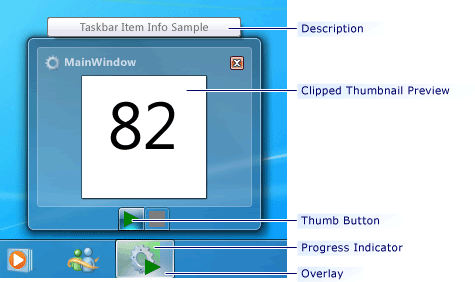
通知区域中的程序图标(位于任务栏最右侧)通常用于向用户传达应用程序状态。 默认情况下,Windows 7 任务栏隐藏通知区域中的程序图标。 但是,可以将属性设置为 Overlay 将图像添加到任务栏按钮以传达状态,例如消息应用程序中的联机状态。 覆盖图像允许用户查看应用程序状态,即使他们看不到通知区域中的程序图标。 还可以通过设置 ProgressState 和 ProgressValue 属性来显示任务栏按钮中正在运行的任务的进度。
将鼠标指针移到任务栏按钮上时,Windows 7 任务栏将显示应用程序的缩略图。 默认情况下,将显示整个应用程序窗口。 可以通过设置 ThumbnailClipMargin 属性指定要在缩略图中显示的窗口的特定部分。 还可以指定在任务栏缩略图上方的工具提示中显示的值 Description 。 即使由于用户设置而无法看到缩略图,也会显示工具提示。
可以将按钮添加到任务栏缩略图,以提供对常见任务的访问权限,而无需切换到应用程序窗口。 例如,窗口媒体播放器提供“播放”、“暂停”、“转发”和“后退”按钮,使你可以在应用程序最小化时从任务栏缩略图控制媒体播放。 任务栏缩略图中的按钮由 ThumbButtonInfo 对象表示,包含在集合中 ThumbButtonInfos 。
下图显示了 Windows 7 任务栏的增强功能。
 Windows 任务栏增强功能
构造函数
| 名称 | 说明 |
|---|---|
| TaskbarItemInfo() |
初始化 TaskbarItemInfo 类的新实例。 |
字段
| 名称 | 说明 |
|---|---|
| DescriptionProperty |
标识 Description 依赖属性。 |
| OverlayProperty |
标识 Overlay 依赖属性。 |
| ProgressStateProperty |
标识 ProgressState 依赖属性。 |
| ProgressValueProperty |
标识 ProgressValue 依赖属性。 |
| ThumbButtonInfosProperty |
标识 ThumbButtonInfos 依赖属性。 |
| ThumbnailClipMarginProperty |
标识 ThumbnailClipMargin 依赖属性。 |
属性
| 名称 | 说明 |
|---|---|
| CanFreeze |
获取一个值,该值指示是否可以使对象不可修改。 (继承自 Freezable) |
| DependencyObjectType |
获取包装 DependencyObjectType 此实例的 CLR 类型。 (继承自 DependencyObject) |
| Description |
获取或设置任务栏项工具提示的文本。 |
| Dispatcher |
获取与此DispatcherDispatcherObject关联的值。 (继承自 DispatcherObject) |
| IsFrozen |
获取一个值,该值指示对象当前是否可修改。 (继承自 Freezable) |
| IsSealed |
获取一个值,该值指示此实例当前是否密封(只读)。 (继承自 DependencyObject) |
| Overlay |
获取或设置在任务栏按钮中的程序图标上显示的图像。 |
| ProgressState |
获取或设置一个值,该值指示进度指示器如何在任务栏按钮中显示。 |
| ProgressValue |
获取或设置一个值,该值指示任务栏按钮中进度指示器的完整性。 |
| ThumbButtonInfos |
获取或设置与 Window.. 关联的对象的集合ThumbButtonInfo。 |
| ThumbnailClipMargin |
获取或设置一个值,该值指定在任务栏缩略图中显示的应用程序窗口工作区的一部分。 |
方法
活动
| 名称 | 说明 |
|---|---|
| Changed |
修改它包含的对象时 Freezable 发生。 (继承自 Freezable) |
