应用程序生命周期管理(ALM)是一种全面的方法,用于管理应用程序从初始概念到开发、测试、部署和持续维护的生命周期。 在以下 Power Platform情况下,将测试引擎的自动化测试纳入您的 ALM 流程可确保应用程序在开发的每个阶段都经过彻底测试,从而产生更高质量的版本。
了解 ALM 中的测试自动化
测试自动化通过以下方式在 ALM 流程中发挥着关键作用:
-
确保质量 - 在部署前验证应用程序是否按预期运行
-
降低风险 - 在问题到达生产环境之前及早发现问题
-
实现持续集成 - 支持自动化构建验证测试
-
实现受控部署 - 向发布管道添加质量关卡
使用Power Apps测试引擎,无论使用哪种 CI/CD 工具,都可以将自动化测试集成到现有的 Power Platform ALM 工作流中。
测试自动化生命周期
测试引擎支持与 ALM 流程集成的完整测试生命周期:
-
开发 - 在应用程序开发期间在本地创建和运行测试
-
生成验证 - 作为自动生成验证的一部分执行测试
-
发布入口 - 将测试结果用作受控部署的质量入口
-
生产验证 - 验证生产环境中的关键功能
ALM 中的测试自动化入门
要开始将测试引擎合并到 ALM 流程中,请执行以下作:
-
创建测试计划 - 为 Power Platform 解决方案设计 YAML 测试计划
-
在本地 运行测试 - 验证测试在开发环境中的工作
-
设置身份验证 - 为本地执行和管道环境配置 适当的身份验证
-
与管道 集成 - 将测试引擎连接到现有 ALM 管道
-
实施质量门控 ——利用测试结果控制解决方案的推广
Tip
从关键用户旅程开始,随着您对测试引擎的熟悉程度越来越高,逐渐扩大自动化测试覆盖范围。
测试引擎源码版本(可选)
如果您使用的是测试引擎的源代码版本,您还需要:
集成选项
测试引擎与各种 ALM 工具和流程无缝集成
您可以轻松地将 Test Engine 与 Power Platform 的内置管道集成,以获得原生集成体验。
-
解决方案管道 - 将自动化测试添加到解决方案管道 中 ,以确保每个阶段的质量
-
环境策略 - 在升级到生产环境之前,在开发和测试环境中 进行 测试
-
管道模板 - 使用管道模板来标准化整个组织的测试
使用自定义管道主机 时,可以触发自动测试的执行:
- 创建基于管道事件触发的 Power Automate 云端流
- 连接到 CI/CD 系统以运行测试
- 处理测试结果并更新管道状态
下图显示了此集成模式的示例:
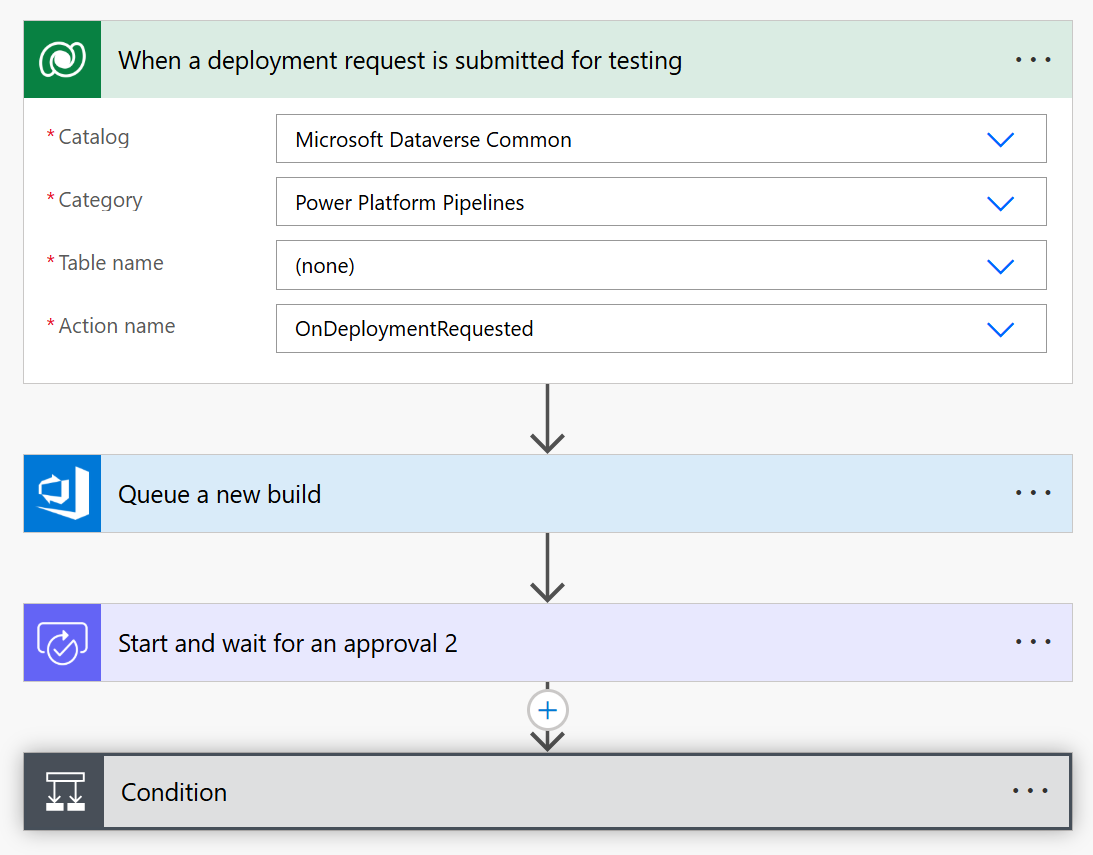
此流使用:
与 Power Automate 的自定义 CI/CD 集成
对于已有 CI/CD 工具的企业,测试引擎通过 Power Automate 利用 Power Platform 自定义主机 功能与自定义管道集成。 使用自定义主机方法,您可以:
- 定义 执行自动化测试的自定义管道主机
- 创建由部署事件自动触发的 Power Automate 云端流
- 直接从云端流执行
pac test run 命令,以运行存储在源代码管理中的测试
- 连接到首选的 CI/CD 系统(Azure DevOps、GitHub Actions等)
- 根据测试结果实施审批工作流
- 根据测试结果更新部署状态
通过这种集成,您可以维护现有的 CI/CD 投资,同时将 Test Engine 的功能添加到 ALM 流程中。 自定义主机在 Power Platform 的本地 ALM 功能与外部测试基础设施之间架起桥梁。
您可以使用自定义主机扩展您的 Power Platform 管道,或直接将 pac test run 命令集成到构建脚本的执行中。
下面是Azure DevOps管道 YAML 文件的示例,演示如何设置和运行Power Apps测试引擎测试:
trigger:
- main

pool:
  vmImage: 'windows-latest'

variables:
  - group: PowerPlatformTestVariables # Create a variable group with these variables
  # Required variables in the variable group:
  # ClientId - Service Principal App ID
  # ClientSecret - Service Principal Secret (mark as secret)
  # TenantId - Microsoft Entra Tenant ID
  # EnvironmentUrl - Power Platform Environment URL
  # EnvironmentId - Power Platform Environment ID

steps:
# Download the test plan file from secure files
- task: DownloadSecureFile@1
  name: testPlan
  displayName: 'Download Test Plan File'
  inputs:
    secureFile: 'testplan.te.yaml' # Upload your test plan to Secure Files in Azure DevOps

# Install Power Platform CLI
- task: PowerShell@2
  displayName: 'Install Power Platform CLI'
  inputs:
    targetType: 'inline'
    script: |
      Write-Host "Installing Power Platform CLI..."
      $pacUrl = "https://aka.ms/PowerAppsCLI"
      $pacZip = "$env:TEMP\pac.zip"
      $pacDestination = "$env:TEMP\pac"

      # Create the destination folder if it doesn't exist
      if (-not (Test-Path $pacDestination)) {
          New-Item -ItemType Directory -Path $pacDestination -Force | Out-Null
      }

      # Download PAC CLI
      Invoke-WebRequest -Uri $pacUrl -OutFile $pacZip

      # Extract PAC CLI
      Expand-Archive -Path $pacZip -DestinationPath $pacDestination -Force

      # Add PAC CLI to PATH
      $env:PATH = "$pacDestination;$env:PATH"

      # Verify installation
      pac help

# Install Azure CLI and authenticate with service principal
- task: PowerShell@2
  displayName: 'Install Azure CLI and Authenticate'
  inputs:
    targetType: 'inline'
    script: |
      Write-Host "Installing Azure CLI..."
      $azureCliUrl = "https://aka.ms/installazurecliwindows"
      $azureCliInstaller = "$env:TEMP\AzureCLI.msi"

      # Download Azure CLI installer
      Invoke-WebRequest -Uri $azureCliUrl -OutFile $azureCliInstaller

      # Install Azure CLI silently
      Start-Process -FilePath msiexec.exe -Args "/i $azureCliInstaller /quiet /norestart" -Wait

      # Reload PATH to include Azure CLI
      $env:PATH = [System.Environment]::GetEnvironmentVariable("PATH", "Machine") + ";" + [System.Environment]::GetEnvironmentVariable("PATH", "User")

      # Authenticate with service principal
      Write-Host "Authenticating with Azure CLI..."
      az login --service-principal -u "$(ClientId)" -p "$(ClientSecret)" --tenant "$(TenantId)" --allow-no-subscriptions

# Authenticate PAC CLI with service principal
- task: PowerShell@2
  displayName: 'Authenticate PAC CLI'
  inputs:
    targetType: 'inline'
    script: |
      Write-Host "Authenticating PAC CLI..."

      # Create authentication profile
      pac auth create --name TestEngineAuth --url "$(EnvironmentUrl)" --applicationId "$(ClientId)" --clientSecret "$(ClientSecret)" --tenant "$(TenantId)"

      # Select the authentication profile
      pac auth select --name TestEngineAuth

# Run the tests
- task: PowerShell@2
  displayName: 'Execute Test Engine Tests'
  inputs:
    targetType: 'inline'
    script: |
      Write-Host "Running Test Engine tests..."

      # Create output directory
      $outputDir = "$(Build.ArtifactStagingDirectory)\TestResults"
      New-Item -ItemType Directory -Path $outputDir -Force | Out-Null

      # Run the tests
      pac test run `
        --test-plan-file "$(testPlan.secureFilePath)" `
        --environment-id "$(EnvironmentId)" `
        --tenant "$(TenantId)" `
        --logConsole info `
        --trx `
        --outputDirectory $outputDir

      if ($LASTEXITCODE -ne 0) {
          Write-Error "Test execution failed with exit code $LASTEXITCODE"
          exit $LASTEXITCODE
      }

# Publish test results
- task: PublishTestResults@2
  displayName: 'Publish Test Results'
  inputs:
    testResultsFormat: 'VSTest'
    testResultsFiles: '$(Build.ArtifactStagingDirectory)\TestResults\*.trx'
    mergeTestResults: true
    testRunTitle: 'Power Apps Test Engine Results'
  condition: always() # Ensure results are published even if tests fail

# Publish test artifacts
- task: PublishBuildArtifacts@1
  displayName: 'Publish Test Artifacts'
  inputs:
    PathtoPublish: '$(Build.ArtifactStagingDirectory)\TestResults'
    ArtifactName: 'TestArtifacts'
    publishLocation: 'Container'
  condition: always()
参考组件
在生成自动化测试管道时,以下参考组件可能很有用。
下面是执行相同测试执行过程的GitHub Actions工作流的示例:
name: Test Engine Execution

on:
  push:
    branches: [ main ]
  pull_request:
    branches: [ main ]
  workflow_dispatch:  # Allow manual triggering

jobs:
  test:
    runs-on: windows-latest

    env:
      TENANT_ID: ${{ secrets.TENANT_ID }}
      CLIENT_ID: ${{ secrets.CLIENT_ID }}
      CLIENT_SECRET: ${{ secrets.CLIENT_SECRET }}
      ENVIRONMENT_URL: ${{ secrets.ENVIRONMENT_URL }}
      ENVIRONMENT_ID: ${{ secrets.ENVIRONMENT_ID }}

    steps:
    - name: Checkout repository
      uses: actions/checkout@v3

    - name: Install Power Platform CLI
      run: |
        Write-Host "Installing Power Platform CLI..."
        $pacUrl = "https://aka.ms/PowerAppsCLI"
        $pacZip = "$env:TEMP\pac.zip"
        $pacDestination = "$env:TEMP\pac"

        # Create the destination folder if it doesn't exist
        if (-not (Test-Path $pacDestination)) {
            New-Item -ItemType Directory -Path $pacDestination -Force | Out-Null
        }

        # Download PAC CLI
        Invoke-WebRequest -Uri $pacUrl -OutFile $pacZip

        # Extract PAC CLI
        Expand-Archive -Path $pacZip -DestinationPath $pacDestination -Force

        # Add PAC CLI to PATH
        $env:PATH = "$pacDestination;$env:PATH"
        echo "$pacDestination" >> $env:GITHUB_PATH

        # Verify installation
        pac help

    - name: Install Azure CLI
      run: |
        Write-Host "Installing Azure CLI..."
        $ProgressPreference = 'SilentlyContinue'
        Invoke-WebRequest -Uri https://aka.ms/installazurecliwindows -OutFile .\AzureCLI.msi
        Start-Process msiexec.exe -Wait -ArgumentList '/I AzureCLI.msi /quiet'
        rm .\AzureCLI.msi

    - name: Azure CLI Authentication
      run: |
        Write-Host "Authenticating with Azure CLI..."
        az login --service-principal -u "$env:CLIENT_ID" -p "$env:CLIENT_SECRET" --tenant "$env:TENANT_ID" --allow-no-subscriptions

    - name: PAC CLI Authentication
      run: |
        Write-Host "Authenticating PAC CLI..."
        # Create authentication profile
        pac auth create --name TestEngineAuth --url "$env:ENVIRONMENT_URL" --applicationId "$env:CLIENT_ID" --clientSecret "$env:CLIENT_SECRET" --tenant "$env:TENANT_ID"

        # Select the authentication profile
        pac auth select --name TestEngineAuth

    - name: Run Test Engine tests
      run: |
        Write-Host "Running Test Engine tests..."

        # Create output directory
        $outputDir = "./TestResults"
        New-Item -ItemType Directory -Path $outputDir -Force | Out-Null

        # Run the tests
        pac test run `
          --test-plan-file "./TestPlan/testplan.te.yaml" `
          --environment-id "$env:ENVIRONMENT_ID" `
          --tenant "$env:TENANT_ID" `
          --logConsole info `
          --trx `
          --outputDirectory $outputDir

        if ($LASTEXITCODE -ne 0) {
            Write-Error "Test execution failed with exit code $LASTEXITCODE"
            exit $LASTEXITCODE
        }

    - name: Upload test results
      uses: actions/upload-artifact@v3
      if: always()
      with:
        name: test-results
        path: ./TestResults

    - name: Publish Test Results
      uses: EnricoMi/publish-unit-test-result-action@v2
      if: always()
      with:
        files: ./TestResults/**/*.trx
相关文章
了解测试引擎 YAML 语法
为测试设置身份验证
测试画布应用程序、模型驱动应用程序或Dataverse 扩展功能
了解 Power Platform ALM