
若要以编程方式在 Windows 应用程序中移动焦点,可以使用 FocusManager.TryMoveFocus 方法或 FindNextElement 方法。
TryMoveFocus 尝试将当前焦点从一个元素移动到指定方向的下一个可聚焦元素,而 FindNextElement 则基于指定的导航方向检索将获得焦点的元素(作为 DependencyObject),仅支持定向导航,不能用于模拟选项卡导航。
注释
建议使用 FindNextElement 方法而不是 FindNextFocusableElement,因为 FindNextFocusableElement 检索 UIElement,如果下一个可聚焦元素不是 UIElement(如 Hyperlink 对象),则返回 null。
查找范围内的候选焦点
可以自定义 TryMoveFocus 和 FindNextElement 的焦点导航行为,包括搜索特定 UI 树中的下一个焦点候选项或从考虑中排除特定元素。
此示例使用 TicTacToe 游戏演示 TryMoveFocus 和 FindNextElement 方法。
<StackPanel Orientation="Horizontal"
                VerticalAlignment="Center"
                HorizontalAlignment="Center" >
    <Button Content="Start Game" />
    <Button Content="Undo Movement" />
    <Grid x:Name="TicTacToeGrid" KeyDown="OnKeyDown">
        <Grid.ColumnDefinitions>
            <ColumnDefinition Width="50" />
            <ColumnDefinition Width="50" />
            <ColumnDefinition Width="50" />
        </Grid.ColumnDefinitions>
        <Grid.RowDefinitions>
            <RowDefinition Height="50" />
            <RowDefinition Height="50" />
            <RowDefinition Height="50" />
        </Grid.RowDefinitions>
        <myControls:TicTacToeCell
            Grid.Column="0" Grid.Row="0"
            x:Name="Cell00" />
        <myControls:TicTacToeCell
            Grid.Column="1" Grid.Row="0"
            x:Name="Cell10"/>
        <myControls:TicTacToeCell
            Grid.Column="2" Grid.Row="0"
            x:Name="Cell20"/>
        <myControls:TicTacToeCell
            Grid.Column="0" Grid.Row="1"
            x:Name="Cell01"/>
        <myControls:TicTacToeCell
            Grid.Column="1" Grid.Row="1"
            x:Name="Cell11"/>
        <myControls:TicTacToeCell
            Grid.Column="2" Grid.Row="1"
            x:Name="Cell21"/>
        <myControls:TicTacToeCell
            Grid.Column="0" Grid.Row="2"
            x:Name="Cell02"/>
        <myControls:TicTacToeCell
            Grid.Column="1" Grid.Row="2"
            x:Name="Cell22"/>
        <myControls:TicTacToeCell
            Grid.Column="2" Grid.Row="2"
            x:Name="Cell32"/>
    </Grid>
</StackPanel>
private void OnKeyDown(object sender, KeyRoutedEventArgs e)
{
    DependencyObject candidate = null;

    var options = new FindNextElementOptions ()
    {
        SearchRoot = TicTacToeGrid,
        XYFocusNavigationStrategyOverride = XYFocusNavigationStrategyOverride.Projection
    };

    switch (e.Key)
    {
        case Windows.System.VirtualKey.Up:
            candidate =
                FocusManager.FindNextElement(
                    FocusNavigationDirection.Up, options);
            break;
        case Windows.System.VirtualKey.Down:
            candidate =
                FocusManager.FindNextElement(
                    FocusNavigationDirection.Down, options);
            break;
        case Windows.System.VirtualKey.Left:
            candidate = FocusManager.FindNextElement(
                FocusNavigationDirection.Left, options);
            break;
        case Windows.System.VirtualKey.Right:
            candidate =
                FocusManager.FindNextElement(
                    FocusNavigationDirection.Right, options);
            break;
    }
    // Also consider whether candidate is a Hyperlink, WebView, or TextBlock.
    if (candidate != null && candidate is Control)
    {
        (candidate as Control).Focus(FocusState.Keyboard);
    }
}
使用 FindNextElementOptions 进一步自定义确定焦点候选项的方式。 此对象提供以下属性:
- SearchRoot - 将搜索范围限定为此 DependencyObject 的子级的焦点导航候选项。 Null 表示从可视化树的根节点开始搜索。
重要
如果对 SearchRoot 的后代应用了一种或多种转换,因而将其放置在了定向区域之外,这些元素仍被视为候选项。
- ExclusionRect - 使用“虚构的”边界矩形标识焦点导航候选项,从导航焦点中排除所有重叠的对象。 此矩形仅用于计算,永远不会添加到可视化树中。
- HintRect - 使用“虚构的”边界矩形标识焦点导航候选项,标识最可能获得焦点的元素。 此矩形仅用于计算,永远不会添加到可视化树中。
- XYFocusNavigationStrategyOverride - 用于标识接收焦点的最佳候选元素的焦点导航策略。
下图说明了其中一些概念。
当元素 B 具有焦点时,FindNextElement 在导航到右侧时将我标识为候选焦点。 原因如下:
- 由于 A 上的 HintRect ,因此起始引用为 A,而不是 B
- C 不是候选项,因为 MyPanel 已被指定为 SearchRoot
- F 不是候选项,因为 ExclusionRect 与它重叠
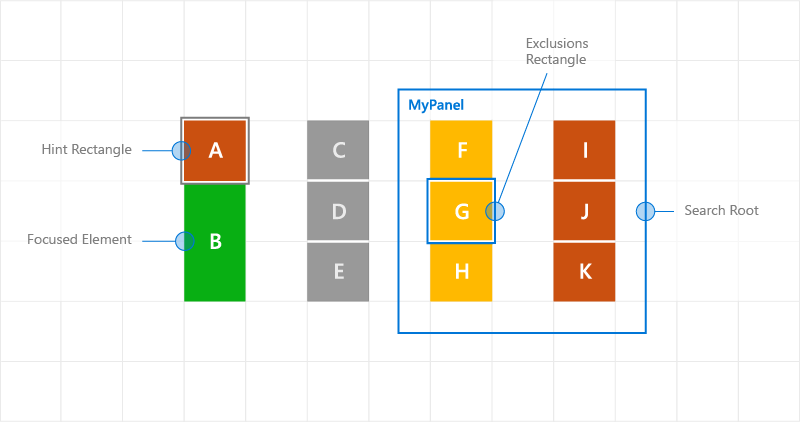
使用导航提示的自定义焦点导航行为
导航焦点事件
NoFocusCandidateFound 事件
按下 Tab 键或箭头键且指定方向上没有候选焦点时,将触发 UIElement.NoFocusCandidateFound 事件。 不会为 TryMoveFocus 触发此事件。
这是一个路由事件,因此,它将从连续父对象中的聚焦元素向上浮升到对象树的根。 这样就可以在适当情况下处理事件。
在这里,我们演示当用户尝试将焦点移动到最左侧的可聚焦控件左侧时,网格如何打开 SplitView (请参阅 Xbox 和电视设计)。
<Grid NoFocusCandidateFound="OnNoFocusCandidateFound">
...
</Grid>
private void OnNoFocusCandidateFound (
    UIElement sender, NoFocusCandidateFoundEventArgs args)
{
    if(args.NavigationDirection == FocusNavigationDirection.Left)
    {
        if(args.InputDevice == FocusInputDeviceKind.Keyboard ||
        args.InputDevice == FocusInputDeviceKind.GameController )
            {
                OpenSplitPaneView();
            }
        args.Handled = true;
    }
}
GotFocus 和 LostFocus 事件
当元素获取焦点或失去焦点时,将触发 UIElement.GotFocus 和 UIElement.LostFocus 事件。 不会为 TryMoveFocus 触发此事件。
由于这些是路由事件,因此它们从焦点元素向上冒泡,通过连续的父对象到达对象树的根。 这样就可以在适当情况下处理事件。
GettingFocus 和 LosingFocus 事件
UIElement.GettingFocus 和 UIElement.LosingFocus 事件在相应的 UIElement.GotFocus 和 UIElement.LostFocus 事件之前触发。
由于这些是路由事件,因此它们从焦点元素向上冒泡,通过连续的父对象到达对象树的根。 由于该事件在发生焦点更改之前发生,因此可以重定向或取消焦点更改。
GettingFocus 和 LosingFocus 是同步事件,因此在这些事件冒泡时,焦点不会被移动。 但是, GotFocus 和 LostFocus 是异步事件,这意味着无法保证焦点在执行处理程序之前不会再次移动。
如果焦点在对 Control.Focus 的调用中移动,则调用期间会引发 GettingFocus ,而在调用后引发 GotFocus 。
焦点导航目标可以在 GettingFocus 和 LosingFocus 事件(焦点移动前)通过 GettingFocusEventArgs.NewFocusedElement 属性进行更改。 即便目标已更改,事件仍会浮升并且可以再次更改目标。
为了避免出现重新进入问题,如果你尝试在这些事件浮升时移动焦点(使用 TryMoveFocus 或 Control.Focus),则会引发异常。
无论焦点移动的原因为何(包括 Tab 键导航、定向导航和编程导航),均会触发这些事件。
下面是焦点事件的执行顺序:
- LosingFocus 如果焦点重置回失去焦点元素或 TryCancel 成功,则不会触发进一步的事件。
- GettingFocus 如果焦点重置回失去焦点元素或 TryCancel 成功,则不会触发进一步的事件。
- LostFocus
- GotFocus
下图显示了从 A 移动到右侧时,XYFocus 如何选择 B4 作为候选项。 然后,B4 触发 GettingFocus 事件,其中 ListView 有机会将焦点重新分配给 B3。
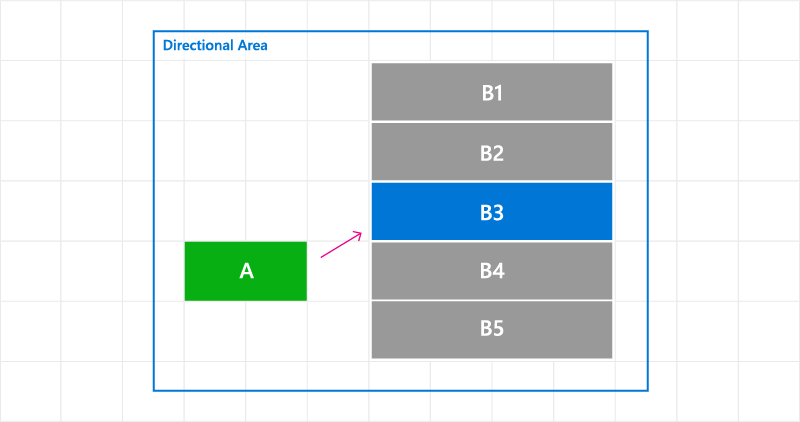
更改 GettingFocus 事件的焦点导航目标
在这里,我们将演示如何处理 GettingFocus 事件和重定向焦点。
<StackPanel Orientation="Horizontal">
    <Button Content="A" />
    <ListView x:Name="MyListView" SelectedIndex="2" GettingFocus="OnGettingFocus">
        <ListViewItem>LV1</ListViewItem>
        <ListViewItem>LV2</ListViewItem>
        <ListViewItem>LV3</ListViewItem>
        <ListViewItem>LV4</ListViewItem>
        <ListViewItem>LV5</ListViewItem>
    </ListView>
</StackPanel>
private void OnGettingFocus(UIElement sender, GettingFocusEventArgs args)
{
    //Redirect the focus only when the focus comes from outside of the ListView.
    // move the focus to the selected item
    if (MyListView.SelectedIndex != -1 &&
        IsNotAChildOf(MyListView, args.OldFocusedElement))
    {
        var selectedContainer =
            MyListView.ContainerFromItem(MyListView.SelectedItem);
        if (args.FocusState ==
            FocusState.Keyboard &&
            args.NewFocusedElement != selectedContainer)
        {
            args.TryRedirect(
                MyListView.ContainerFromItem(MyListView.SelectedItem));
            args.Handled = true;
        }
    }
}
在这里,我们将演示如何处理 CommandBar 的 LosingFocus 事件,并在菜单关闭时设置焦点。
<CommandBar x:Name="MyCommandBar" LosingFocus="OnLosingFocus">
     <AppBarButton Icon="Back" Label="Back" />
     <AppBarButton Icon="Stop" Label="Stop" />
     <AppBarButton Icon="Play" Label="Play" />
     <AppBarButton Icon="Forward" Label="Forward" />

     <CommandBar.SecondaryCommands>
         <AppBarButton Icon="Like" Label="Like" />
         <AppBarButton Icon="Share" Label="Share" />
     </CommandBar.SecondaryCommands>
 </CommandBar>
private void OnLosingFocus(UIElement sender, LosingFocusEventArgs args)
{
    if (MyCommandBar.IsOpen == true &&
        IsNotAChildOf(MyCommandBar, args.NewFocusedElement))
    {
        if (args.TryCancel())
        {
            args.Handled = true;
        }
    }
}
查找第一个和最后一个可聚焦元素
FocusManager.FindFirstFocusableElement 和 FocusManager.FindLastFocusableElement 方法将焦点移动到对象范围内的第一个或最后一个可聚焦元素(UIElement 的元素树或 TextElement 的文本树)。 在调用中指定范围(如果参数为 null,则范围为当前窗口)。
如果范围中无法识别任何焦点候选项,则返回 null。
下面介绍如何指定 CommandBar 的按钮具有环绕方向行为(请参阅 键盘交互)。
<CommandBar x:Name="MyCommandBar" LosingFocus="OnLosingFocus">
    <AppBarButton Icon="Back" Label="Back" />
    <AppBarButton Icon="Stop" Label="Stop" />
    <AppBarButton Icon="Play" Label="Play" />
    <AppBarButton Icon="Forward" Label="Forward" />

    <CommandBar.SecondaryCommands>
        <AppBarButton Icon="Like" Label="Like" />
        <AppBarButton Icon="ReShare" Label="Share" />
    </CommandBar.SecondaryCommands>
</CommandBar>
private void OnLosingFocus(UIElement sender, LosingFocusEventArgs args)
{
    if (IsNotAChildOf(MyCommandBar, args.NewFocussedElement))
    {
        DependencyObject candidate = null;
        if (args.Direction == FocusNavigationDirection.Left)
        {
            candidate = FocusManager.FindLastFocusableElement(MyCommandBar);
        }
        else if (args.Direction == FocusNavigationDirection.Right)
        {
            candidate = FocusManager.FindFirstFocusableElement(MyCommandBar);
        }
        if (candidate != null)
        {
            args.NewFocusedElement = candidate;
            args.Handled = true;
        }
    }
}
