若要使用 Microsoft Planetary Computer Pro 資料總管或 Tiler API 視覺化地理空間資料,您必須為每個時空資產目錄 (STAC) 集合定義一或多個 轉譯設定 。 渲染配置指定如何組合、處理和設計 STAC 項目內的資料資產,以創建地圖磚。
本指南會逐步引導您完成建立轉譯組態的程式,從瞭解必要條件到設定進階選項。 行星計算機專業版的轉譯功能是以開放原始碼 TiTiler 項目為基礎。
Prerequisites
設定轉譯之前,請確定下列必要條件步驟已完成:
- STAC 集合存在: 您在 行星電腦專業版中建立了 STAC 集合。
- 擷取資料:您已將包含要視覺化的地理空間資料資產的 STAC 項目新增至集合。
建置渲染配置的流程
| Step | Title | Description |
|---|---|---|
| 1 |
在集合 JSON 中定義item_assets |
首先,您必須確保您的 STAC 集合 JSON 包含定義完善的 item_assets 區段,以描述專案內的一般資產。 |
| 2 | 瞭解您的數據和視覺效果目標 | 接下來,決定您正在使用的數據類型,並決定您希望其以可視化方式顯示的方式(單一波段色彩圖、多波段 RGB)。 |
| 3 | 建構渲染設定物件 | 現在,建立一個基本的 JSON 結構,用來保存一或多個總管 UI 的轉譯設定。 |
| 4 |
options定義字串 - 核心參數 |
設定字串內 options 的基本 TiTiler 參數,以選取正確的資產或頻帶,並套用基本樣式,例如色彩圖或重新調整。 |
| 5 |
新增進階 options 參數 (視需要) |
或者,使用 options 字串新增運算式、演算法、色彩更正或自定義色彩圖等進階 TiTiler 功能,以增強視覺效果。 |
| 6 | 將轉譯組態新增至您的集合 | 最後,使用 Web 介面或 API,將您建立的轉譯組態清單套用至 STAC 集合。 |
步驟 1:在集合 JSON 中定義item_assets
集合 JSON 中的 item_assets 欄位對於轉譯至關重要,因為它提供集合專案中包含的資產的合併描述。 轉譯引擎和「探索者」Web 應用程式會使用 item_assets 欄位來了解可視化有關的可用資料,而無需檢查個別項目。 它會定義資產的索引鍵(名稱),例如 image、red、NIR 或 elevation,然後由渲染配置參考。 此外,item_assets 還可以包含 STAC 延伸模組中繼資料 (如用於多波段資產的 eo:bands),有助於選取特定波段來進行轉譯。 資源管理器會使用此資訊來填充選單,並理解整體數據結構。
4 波段 NAIP 資產的範例 item_assets :
{
  "item_assets": {
    "image": {
      "type": "image/tiff; application=geotiff; profile=cloud-optimized",
      "roles": [
        "data"
      ],
      "title": "RGBIR COG tile",
      "eo:bands": [
        {
          "name": "Red",
          "common_name": "red",
          "description": "Red band, 610-680 nm"
        },
        {
          "name": "Green",
          "common_name": "green",
          "description": "Green band, 510-600 nm"
        },
        {
          "name": "Blue",
          "common_name": "blue",
          "description": "Blue band, 420-530 nm"
        },
        {
          "name": "NIR",
          "common_name": "nir",
          "description": "Near-infrared band, 830-920 nm"
        }
      ]
    }
  },
  // ... other collection properties ...
}
如需 的詳細資訊 item_assets,請參閱 STAC 概觀中的專案資產一節。 另請參閱官方 STAC 項目資產延伸模組規格。
請確定您的 STAC 集合 JSON 包含本節,再繼續進行。 您可以透過 API 或 Web 介面來更新集合定義。
步驟 2:瞭解您的數據和視覺效果目標
在建置組態之前,請先決定您要如何將數據可視化:
| 數據類型 | Description | Example | 視覺化目標 |
|---|---|---|---|
| 單波段資料 | 每個圖元都有一個值。 | 海拔, 溫度, 土地覆蓋分類, 計算索引 | 使用 colormap 將這些單一值對應至色彩範圍或離散色彩。 |
| 多頻段資料 | 每個像素的數據有多個頻帶。 | RGB 衛星影像,多重光譜數據 | 結合三個特定波段來代表輸出影像的紅色、綠色和藍色通道。 |
| 衍生數據(表達式) | 從一或多個頻帶/資產計算新值。 | 紅光和近紅外線波段的歸一化差異植被指數 (NDVI) | 定義數學表達式,並將結果可視化(單一波段使用色彩圖或直接顯示多波段)。 |
| 衍生資料(演算法) | 計算跨像素的新值。 | 陰影地形圖 (Hillshade) 會顯示海拔資料的地形輪廓 | 使用數學 演算法 將數據轉換成視覺效果。 |
| 資料立方體 (GRIB/NetCDF) | 儲存在具有多個變數和維度之 GRIB 或 NetCDF 格式的數據。 | 時間,壓力水準 | 針對 2D 視覺化,選取特定變數,並可能透過其他維度(例如時間)進行切片呈現。 |
步驟 3:建構渲染配置物件
渲染設定定義為 JSON 物件的清單(如果使用 API,則為 Python 字典)。 清單中的每個物件都代表一個視覺化選項,該選項將顯示在 Explorer 下拉式清單中。
基本結構:
[
  {
    "id": "unique-render-id",
    "name": "Human-Readable Name for UI",
    "description": "Optional: More details about this render.",
    "type": "raster-tile", // Usually "raster-tile"
    "options": "key1=value1&key2=value2...", // The core TiTiler parameters
    "minZoom": 8 // Optional: Minimum map zoom level to display this layer
  },
  {
    // ... another render configuration object ...
  }
]
-
id:集合中這個轉譯選項的唯一計算機可讀取標識符。 -
name:Explorer UI 中顯示的顯示名稱。 -
description:提供更多內容的選擇性文字。 -
type:通常是"raster-tile"。 -
options:包含 URL 查詢參數的字串(由key=value配對,並以&分隔),這些參數控制 TiTiler 渲染引擎。 這是大部分自定義發生的地方。 -
minZoom:選擇性整數,指定此圖層可見的最小地圖縮放層級。 對於使用高解析度資料管理效能很有用。
使用相同的結構,可以有多個相同數據的轉譯組態,以便以多種方式將數據可視化。
步驟 4:定義 options 字串 - 核心參數
字串 options 是轉譯組態的核心。 它會使用 key=value&key=value 格式。 以下是最常見的參數:
1.識別資產/波段
| Parameter | Description | 用例 | Example |
|---|---|---|---|
assets={asset_key} |
指定要使用的資產,其中 {asset_key} 符合集合 item_assets中定義的索引鍵。 |
使用一個資產進行單波段轉譯 | assets=elevation |
| 使用三個個別的單波段資產進行三波段轉譯 (順序決定 R、G、B) | assets=B04&assets=B03&assets=B02 |
||
| 使用單一多波段資產進行轉譯 |
assets=image (常搭配 asset_bidx使用) |
||
asset_bidx={asset_key}\|{band_index1},{band_index2},... |
從 指定的單一多波段資產assets 選取特定的波段索引。 頻帶索引通常是以 1 為基礎。 |
從資產 的第 1、2、3 波段組成image的 RGB 彩色影像 |
assets=image&asset_bidx=image\|1,2,3 |
從資產 的第 4、1、2 波段組成image假彩色紅外影像 (NIR、紅光、綠光) |
assets=image&asset_bidx=image\|4,1,2 |
||
僅使用資產 的第 4 波段進行image轉譯 |
assets=image&asset_bidx=image\|4 |
2.設定單波段資料的樣式
| Parameter | Description | Example |
|---|---|---|
colormap_name={name} |
套用預先定義的命名色彩對照表。 常見範例:viridis、、plasmagray、 rdylgn。 請參閱 支援的色彩圖。 |
assets=elevation&colormap_name=viridis |
rescale={min_val},{max_val} |
延展或壓縮數據值,以符合色彩地圖的完整範圍。 超出此範圍的值會限制為最小值/最大色彩。 | 在完整色彩對照表上繪製呈現 100 公尺到 1500 公尺的海拔值:assets=elevation&colormap_name=viridis&rescale=100,1500 |
3.設定多波段 (RGB) 資料的樣式
| Parameter | Description | Example |
|---|---|---|
| RGB 頻帶順序 | RGB 頻帶是根據assets的順序(針對個別資產)或asset_bidx的順序(針對資產內的頻帶)隱含定義的。 |
請參閱識別資產/頻帶數據表中的範例 |
rescale={min_val},{max_val} |
(選擇性) 可用來調整 R、G、B 波段的輸入值,再將它們對應至 0-255 顯示範圍。 如果您的源數據還不是 8 位,則很有用。 | assets=B04&assets=B03&assets=B02&rescale=0,3000 |
color_formula={formula_string} |
(選擇性) 套用色彩更正公式。 | 請參閱下一節中的進階選項。 |
步驟 5:新增高級 options 參數(視需要)
除了基本概念之外,TiTiler 會透過 options 字串提供許多進階參數:
1. 表達式
| Parameter | Description | Format/Values | Example |
|---|---|---|---|
expression={formula} |
使用資產索引鍵作為變數來定義數學公式 | 標準運算子 (+、 、 -*/、 ) 和括弧 |
expression=(B08-B04)/(B08+B04) |
asset_as_band=true |
當運算式使用多個單波段資產時必要 |
true 或 false |
expression=(B08-B04)/(B08+B04)&asset_as_band=true |
Examples
- 單帶結果範例:
expression=(B08-B04)/(B08+B04)&asset_as_band=true&colormap_name=rdylgn&rescale=-1,1 - 多頻表示式使用分號:
expression=B04*1.5;B03*1.1;B02*1.3&asset_as_band=true - 使用
expression時,您通常不需要assets或asset_bidx
2. 演算法
| Parameter | Description | Format/Values | Example |
|---|---|---|---|
algorithm={name} |
套用預先定義的像素處理演算法 |
hillshade、contours、terrarium、terrainrgb、normalizedIndex |
algorithm=hillshade |
algorithm_params={json_string} |
演算法的參數 (URL 編碼的 JSON) | 依演算法而異 | algorithm_params=%7B%22azimuth%22%3A%20315%2C%20%22angle_altitude%22%3A%2045%7D |
buffer={integer} |
在磚周圍新增像素緩衝區(演算法通常需要) | 整數值 | buffer=3 |
範例assets=elevation&algorithm=hillshade&colormap_name=gray&buffer=3&algorithm_params=%7B%22azimuth%22%3A%20315%2C%20%22angle_altitude%22%3A%2045%7D
如需特定演算法的詳細資訊,請參閱 TiTiler 演算法文件 和 Mapbox Hillshade
3. 色彩更正 (針對 RGB / 三頻輸出)
| Parameter | Description | Format | Example |
|---|---|---|---|
color_formula={formula_string} |
套用色彩調整 | 具有 Gamma、Saturation 和/或 Sigmoidal 調整的空格分隔字串 | color_formula=Gamma RGB 2.5 Saturation 1.4 Sigmoidal RGB 15 0.35 |
賽制細節:
-
Gamma {BANDS} {VALUE}- 調整亮度 -
Saturation {PROPORTION}- 調整色彩強度 -
Sigmoidal {BANDS} {CONTRAST} {BIAS}- 調整對比
如需色彩更正的詳細資訊,請參閱 TiTiler 檔。
4. 自訂色彩映射(適用於單一頻帶輸出)
| Parameter | Description | Format | Example |
|---|---|---|---|
colormap={json_string} |
定義自訂色彩圖 | URL 編碼的 JSON 將數據值對應至 RGBA 清單 [R,G,B,Alpha] |
colormap={\"1\":[54,124,20,255],\"2\":[28,67,0,255],\"3\":[94, 91, 32, 255],\"4\":[234, 99, 32, 255],\"5\":[237, 232, 60, 255],\"6\":[236, 31, 175, 255],\"7\":[19, 0,239, 255], \"8\":[209, 3, 0, 255]} |
範例譯碼為: 地圖值 1 到深綠色,2 到非常深綠色,3 到橄欖綠色,4 到橙色-紅色,5 到黃色,6 到粉紅色/洋紅,7 到藍色紫羅蘭,8 到紅色。
5. 數據處理
| Parameter | Description | Example |
|---|---|---|
nodata={value} |
指定圖元值以讓透明 |
nodata=0、nodata=-9999 或 nodata=nan |
unscale={true\|false} |
套用來自 GeoTIFF 中繼資料的比例與偏移設定 | unscale=true |
6.效能表現/ 圖磚載入行為
| Parameter | Description | Format | Example |
|---|---|---|---|
maxItemsPerTile={integer} |
限制每個磚的 STAC 項目數目 | Integer | maxItemsPerTile=20 |
skipcovered={true\|false} |
略過其他人涵蓋的專案 |
true 或 false |
skipcovered=true |
exitwhenfull={true\|false} |
當磁磚被完全覆蓋時停止處理 |
true 或 false |
exitwhenfull=true |
time_limit={seconds} |
轉譯圖磚的時間上限 | 整數(秒) | time_limit=10 |
7. 資料立方體參數(GRIB/NetCDF)
| Parameter | 數據類型 | Description | Example |
|---|---|---|---|
subdataset_bands={band_index} |
GRIB | 選取特定訊息/頻帶 | assets=grib_data&subdataset_bands=1&colormap_name=jet&rescale=273,300 |
subdataset_name={variable_name} |
NetCDF | 選取要可視化的變數 | assets=netcdf_data&subdataset_name=temperature |
datetime={timestamp} |
NetCDF | 選取時間配量 (ISO 8601) | datetime=2023-10-26T12:00:00Z |
完整 NetCDF 範例:assets=netcdf_data&subdataset_name=temperature&datetime=2023-10-26T12:00:00Z&colormap_name=viridis&rescale=0,30
步驟 6:將渲染配置添加到您的集合中
建構轉譯組態清單(一或多個 JSON 物件)之後,請將它新增至您的 STAC 集合:
使用 Web 介面:
- 在 Planetary Computer Pro 入口網站中瀏覽至您的集合。
- 選取 [ 組態] 按鈕。
- 移至 [轉譯] 索引標籤。
- 將 JSON 清單貼到編輯器中。
- 選取 [更新] 來儲存變更。
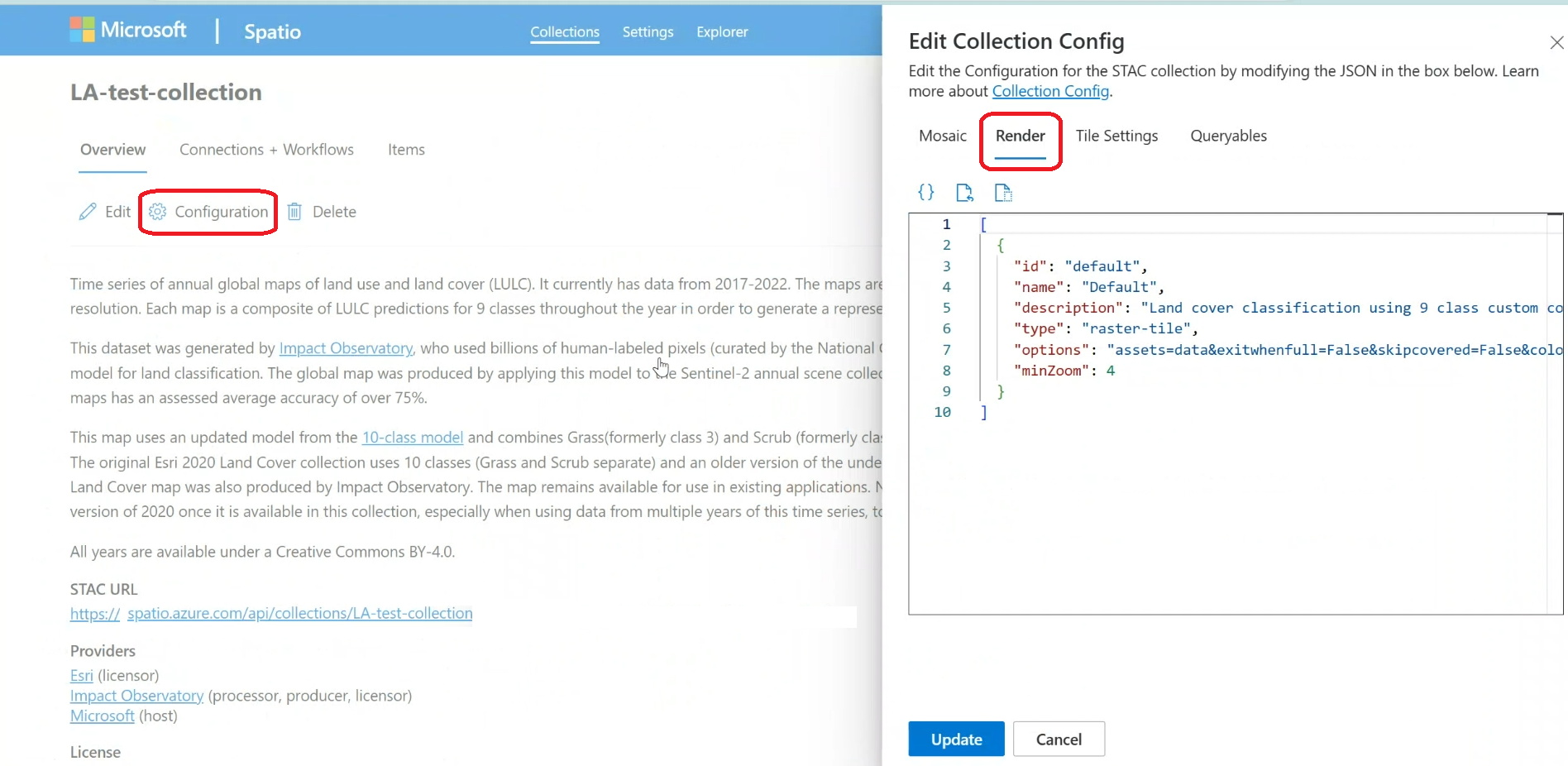
如需設定集合的詳細資訊,請參閱 使用 Web 介面設定集合。
使用 API:
使用 create stac 集合轉譯選項 端點定義集合轉譯組態。 以下是使用 REST API 搭配 Python 使用此端點的範例:
import requests
import json
import azure.identity

geocatalog_url = <your geocatalog url>
collection_id = <your collection id>

credential = azure.identity.AzureCliCredential()
token = credential.get_token("https://geocatalog.spatio.azure.com")
headers = {
    "Authorization": f"Bearer {token.token}"
}

response = requests.post(
    f"{geocatalog_url}/stac/collections/{collection_id}/configurations/render-options",
    json=render_config, # Your list of render config dicts
    headers=headers,
    params={"api-version": "2025-04-30-preview"} # Use the appropriate API version
)

if response.status_code == 200:
    print("Render configuration updated successfully.")
    print(response.json())
else:
    print(f"Error updating render configuration: {response.status_code}")
    print(response.text)
如需使用 STAC 集合 API 的詳細資訊,請參閱建立 STAC 集合(API 範例)。
Examples
以下是options字串和完整渲染配置對象的各種範例:
1. 使用色彩圖和重新縮放來表示 Single-Band 生物質的變化:
 {
    "id": "biomass-change",
    "name": "Biomass Change from prior year (tonnes)",
    "description": "Annual estimates of changes (gains and losses) in aboveground woody biomass.",
    "type": "raster-tile",
    "options": "assets=biomass_change_wm&colormap_name=spectral&rescale=-5000,5000",
    "minZoom": 2
  }
2.來自不同資產的三波段自然色 (RGB):
 {
    "id": "natural-color",
    "name": "Natural color",
    "description": "True color composite of visible bands (B04, B03, B02)",
    "type": "raster-tile",
    "options": "assets=B04&assets=B03&assets=B02&nodata=0&color_formula=Gamma RGB 3.2 Saturation 0.8 Sigmoidal RGB 25 0.35",
    "minZoom": 9
  }
3.來自單一資產內波段的三波段假彩色 (NIR、R、G):
{
    "id": "color-infrared",
    "name": "Color infrared",
    "description": "Highlights healthy (red) and unhealthy (blue/gray) vegetation.",
    "type": "raster-tile",
    "options": "assets=image&asset_bidx=image|4,1,2&color_formula=Sigmoidal RGB 15 0.35",
    "minZoom": 12
  }
4.使用運算式的 NDVI 計算:
{
    "id": "normalized-difference-veg-inde",
    "name": "Normalized Difference Veg. Index (NDVI)",
    "description": "Normalized Difference Vegetation Index (B08-B04)/(B08+B04), darker green indicates healthier vegetation.",
    "type": "raster-tile",
    "options": "nodata=0&expression=(B08-B04)/(B08+B04)&rescale=-1,1&colormap_name=rdylgn&asset_as_band=true",
    "minZoom": 9
  }
5. Hillshade 演算法:
{
    "id": "hillshade",
    "name": "Hillshade",
    "description": "Terrain visualization based on elevation.",
    "type": "raster-tile",
    "options": "assets=data&colormap_name=gray&algorithm=hillshade&buffer=3&algorithm_params=%7B%22azimuth%22%3A%20315%2C%20%22angle_altitude%22%3A%2045%7D",
    "minZoom": 7
  }
6. NetCDF 溫度視覺效果:
{
    "id": "pr-1950-07-07",
    "name": "Precipitation (1950-07-07)",
    "description": "Precipitation from NetCDF data.",
    "type": "raster-tile",
    "options": "assets=cmip&rescale=0,0.01&colormap_name=viridis&subdataset_name=pr&datetime=1950-07-07T00:00:00",
    "minZoom": 4
  }
參考:所有 options 參數
字串 options 接受下列索引鍵/值配對 (如需最新的詳細資料,請參閱 TiTiler 文件):
| Parameter | 類型 | Description | 範例使用方式 |
|---|---|---|---|
assets |
str | 來自 item_assets 的資產索引鍵。 針對多個資產重複使用相同的鍵。 |
assets=B04&assets=B03&assets=B02 |
expression |
str | 使用資產索引鍵的數學表達式。 | expression=(B08-B04)/(B08+B04) |
asset_bidx |
str | 多波段資產的波段索引。 格式:{asset_key}|{idx1},{idx2},... |
asset_bidx=image|4,1,2 |
asset_as_band |
bool | 將 expression 中的資產視為單波段。 當表達式使用多個資產時必需。 |
asset_as_band=true |
colormap_name |
str | 預先定義的 TiTiler 顏色映射名稱。 | colormap_name=viridis |
colormap |
str | 定義自訂色彩對照表的 URL 編碼 JSON。 | colormap=%7B%221%22%3A%5B...%5D%7D |
rescale |
str | 以逗號分隔的資料縮放的最小值和最大值。 | rescale=0,3000 |
color_formula |
str | 以空格分隔的顏色校正公式(Gamma、飽和度、Sigmoidal)。 | color_formula=Gamma RGB 2.2 Saturation 1.1 |
nodata |
str/float/int | 將像素值視為無數據(透明)。 |
nodata=0、nodata=-9999.0 或 nodata=nan |
unscale |
bool | 套用 GeoTIFF 中繼資料中的比例/偏移量。 | unscale=true |
algorithm |
str | TiTiler 處理演算法的名稱。 | algorithm=hillshade |
algorithm_params |
str | 具有演算法參數的 URL 編碼 JSON 字串。 | algorithm_params=%7B%22azimuth%22%3A315%7D |
buffer |
float | 磚周圍的像素緩衝區(通常需要演算法)。 | buffer=3 |
maxItemsPerTile |
int | 每個圖磚要處理的最大 STAC 項目數。 | maxItemsPerTile=20 |
skipcovered |
bool | 略過完全被其他項目遮蔽的項目。 | skipcovered=true |
exitwhenfull |
bool | 一旦圖磚完全被覆蓋,就停止處理該圖磚。 | exitwhenfull=true |
time_limit |
int | 每個磚的處理時間上限(秒)。 | time_limit=10 |
subdataset_bands |
int | GRIB 數據的頻帶/訊息索引。 | subdataset_bands=1 |
subdataset_name |
str | NetCDF 資料的變數名稱。 | subdataset_name=temperature |
datetime |
str | 在 NetCDF 中選取時間片段用的 ISO 8601 時間戳記。 | datetime=2023-10-26T12:00:00Z |
resampling |
str | 重新取樣方法 (nearest, bilinear)。 |
resampling=nearest |