注意
為了獲得更大的功能, PyTorch 也可以與 Windows 上的 DirectML 搭配使用。
在本教學課程的上一個階段中,我們使用 PyTorch 來建立機器學習模型。 不過,該模型是檔案 .pth 。 若要能夠將其與 Windows ML 應用程式整合,您必須將模型轉換成 ONNX 格式。
匯出模型
若要匯出模型,您將使用 函式 torch.onnx.export() 。 此函式會執行模型,並記錄用來計算輸出的運算符追蹤。
- 將下列程式代碼
PyTorchTraining.py複製到 Visual Studio 中的檔案,位於您的 main 函式上方。
import torch.onnx

#Function to Convert to ONNX
def Convert_ONNX():

    # set the model to inference mode
    model.eval()

    # Let's create a dummy input tensor
    dummy_input = torch.randn(1, input_size, requires_grad=True)

    # Export the model
    torch.onnx.export(model,         # model being run
         dummy_input,       # model input (or a tuple for multiple inputs)
         "ImageClassifier.onnx",       # where to save the model
         export_params=True,  # store the trained parameter weights inside the model file
         opset_version=10,    # the ONNX version to export the model to
         do_constant_folding=True,  # whether to execute constant folding for optimization
         input_names = ['modelInput'],   # the model's input names
         output_names = ['modelOutput'], # the model's output names
         dynamic_axes={'modelInput' : {0 : 'batch_size'},    # variable length axes
                                'modelOutput' : {0 : 'batch_size'}})
    print(" ")
    print('Model has been converted to ONNX')
請務必在導出模型之前呼叫 model.eval() 或 model.train(False) ,因為這會將模型設定為 推斷模式。 這是必要的,因為運算符類似 dropout 或 batchnorm 的行為在推斷和定型模式上不同。
- 若要執行對 ONNX 的轉換,請將對轉換函式的呼叫新增至 main 函式。 您不需要再次定型模型,因此我們會將不再需要執行的一些函式批注化。 您的主要函式如下所示。
if __name__ == "__main__":

    # Let's build our model
    #train(5)
    #print('Finished Training')

    # Test which classes performed well
    #testAccuracy()

    # Let's load the model we just created and test the accuracy per label
    model = Network()
    path = "myFirstModel.pth"
    model.load_state_dict(torch.load(path))

    # Test with batch of images
    #testBatch()
    # Test how the classes performed
    #testClassess()

    # Conversion to ONNX
    Convert_ONNX()
- 選取
Start Debugging工具列上的按鈕或按 ,再次執行F5專案。 不需要再次定型模型,只要從專案資料夾載入現有的模型即可。
輸出如下所示。
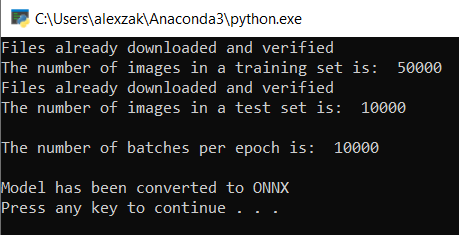
流覽至您的專案位置,並尋找模型旁邊的 .pth ONNX 模型。
注意
有興趣深入了解嗎? 檢閱 導出模型的 PyTorch 教學課程。
探索您的模型。
ImageClassifier.onnx使用 Netron 開啟模型檔案。選取數據節點以開啟模型屬性。
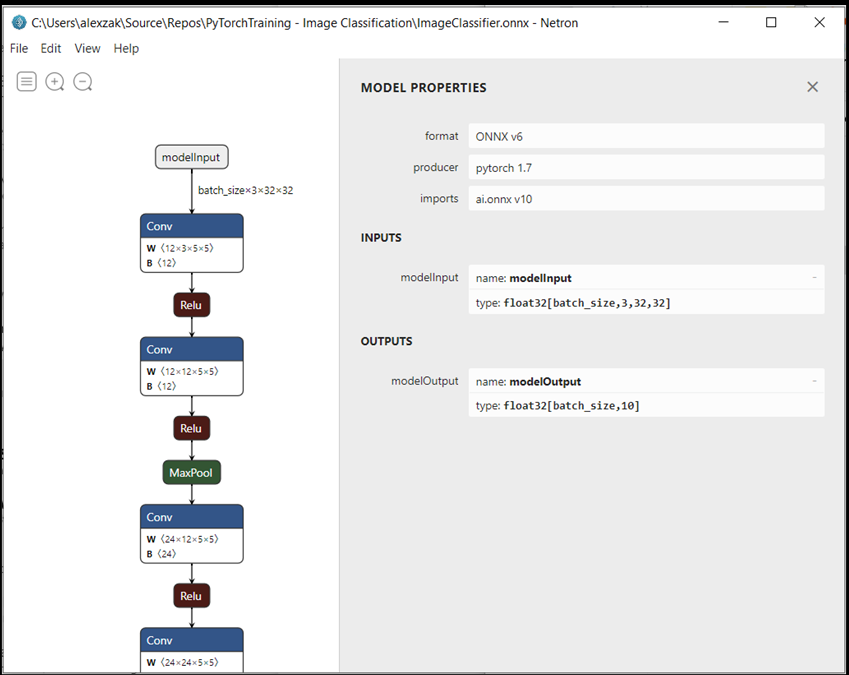
如您所見,模型需要 32 位張量(多維度陣列)float 物件做為輸入,並傳回 Tensor 浮點數做為輸出。 輸出數位會包含每個標籤的機率。 您建置模型的方式、標籤會以10個數位表示,而每個數位都代表物件的十個類別。
| 標籤 0 | 標籤 1 | 標籤 2 | 標籤 3 | 標籤 4 | 標籤 5 | 標籤 6 | 標籤 7 | 標籤 8 | 標籤 9 |
|---|---|---|---|---|---|---|---|---|---|
| 0 | 1 | 2 | 3 | 4 | 5 | 6 | 7 | 8 | 9 |
| 平面 | 汽車 | 鳥 | 貓 | 鹿 | 狗 | 青蛙 | 馬 | 船 | 卡車 |
您必須擷取這些值,才能使用Windows ML 應用程式顯示正確的預測。
後續步驟
我們的模型已準備好部署。 接下來,針對主要事件 - 讓我們 建置 Windows 應用程式,並在您的 Windows 裝置本機執行。