語言
本文介紹了 WinUI 3 利用 Microsoft.UI.Xaml.Data 命名空間中的 API 進行資料綁定功能。
備註
本主題詳細說明資料繫結功能。 如需簡短、實用的介紹,請參閱 資料繫結概觀。
重要 API
簡介
資料繫結是一種技術,可讓您的應用程式 UI 有效率地顯示和同步處理資料。 透過將資料問題與 UI 問題分開,它簡化了應用程式設計、增強了可讀性並提高了可維護性。
您可以使用資料繫結,在第一次顯示 UI 時只顯示資料來源中的值,但不回應這些值的變更。 這種繫結模式稱為 一次性,而且它適用於在執行階段期間不會變更的值。 或者,您可以選擇「觀察」值,並在值變更時更新 UI。 此模式稱為 單向,適用於唯讀資料。 最後,您可以選擇觀察和更新,讓使用者對 UI 中的值所做的變更會自動推送回資料來源。 這種模式稱為 雙向,它適用於讀寫資料。 以下是一些範例。
- 您可以使用一次性模式將 影像 繫結至目前使用者的相片。
- 您可以使用單向模式,將 ListView 繫結至依報紙區段分組的即時新聞文章集合。
- 您可以使用雙向模式,將 TextBox 繫結至表單中的客戶名稱。
與模式無關,有兩種繫結,而且您通常會在 UI 標記中宣告這兩種繫結。 您可以選擇使用 {x:Bind} 標記延伸模組 或 {Binding} 標記延伸模組。 您甚至可以在同一個應用程式中混合使用兩者,甚至在同一個 UI 元素上。
{x:Bind} 是在 Windows 10 的 UWP 中推出的新功能,具有更好的效能。 本主題中所述的所有詳細資料都適用於這兩種繫結,除非我們明確說明其他說明。
範例應用程式
-
WinUI 圖庫 — 資料綁定範例 示範兩者
{x:Bind}及{Binding}模式。
每個綁定都涉及這些部分
- 具有約束力的來源。 此來源提供繫結的資料。 它可以是任何類別的實例,其成員的值要在 UI 中顯示。
- 繫結目標。 此目標是您的 UI 中 FrameworkElement 的 DependencyProperty,負責顯示資料。
- 繫結物件。 此物件會將資料值從來源傳輸回目標,並選擇性地從目標傳輸回來源。 繫結的物件是在 XAML 載入時從 {x:Bind} 或 {Binding} 標記擴充建立。
在下列各節中,您將仔細查看繫結來源、繫結目標和繫結物件。 這些區段連結在一起,以及將按鈕內容繫結至名為 NextButtonText的字串屬性的範例,該屬性屬於名為 HostViewModel的類別。
繫結來源
以下是可用作繫結來源的類別的基本實作。
public class HostViewModel
{
    public HostViewModel()
    {
        NextButtonText = "Next";
    }

    public string NextButtonText { get; set; }
}
該實作 HostViewModel 及其屬性 NextButtonText ,僅適用於一次性繫結。 但單向和雙向綁定極為常見。 在這些類型的繫結中,UI 會自動更新,以回應繫結來源資料值的變更。 若要讓這些類型的繫結正常運作,您必須讓繫 結來源可供 繫結物件觀察。 因此,在我們的範例中,如果您想要單向或雙向繫結至 NextButtonText 屬性,則在執行階段對該屬性值發生的任何變更都需要對繫結物件進行觀察。
一種方法是從 DependencyObject 衍生出代表綁定來源的類別,並透過 DependencyProperty* 來公開一個資料值。 這就是 FrameworkElement 變成可觀察的方式。 A FrameworkElement 是即時可用的良好綁定來源。
使類別可觀察的一種更輕量級的方法(對於已經具有基類的類別來說是必要的方法)是實現 System.ComponentModel.INotifyPropertyChanged。 這種方法涉及實現名為 的單一事件 PropertyChanged。 以下程式碼顯示了使用 using HostViewModel 的範例。
...
using System.ComponentModel;
using System.Runtime.CompilerServices;
...
public class HostViewModel : INotifyPropertyChanged
{
    private string nextButtonText;

    public event PropertyChangedEventHandler PropertyChanged = delegate { };

    public HostViewModel()
    {
        NextButtonText = "Next";
    }

    public string NextButtonText
    {
        get { return nextButtonText; }
        set
        {
            nextButtonText = value;
            OnPropertyChanged();
        }
    }

    public void OnPropertyChanged([CallerMemberName] string propertyName = null)
    {
        // Raise the PropertyChanged event, passing the name of the property whose value has changed.
        PropertyChanged?.Invoke(this, new PropertyChangedEventArgs(propertyName));
    }
}
現在該 NextButtonText 屬性是可觀察的。 當您撰寫該屬性的單向或雙向繫結時 (稍後會示範如何),產生的繫結物件會訂閱事件 PropertyChanged 。 引發該事件時,繫結物件的處理常式會收到引數,其中包含已變更屬性的名稱。 這就是繫結物件知道要再次讀取哪個屬性值的方式。
若要在 C# 綁定來源間重複使用此模式,請在專案中定義一個 BindableBase 類別。 它的 SetProperty 方法會比較舊值和新值,只在值變更時更新欄位,然後引發 PropertyChanged。 以下範例定義基底類別,並將其與 HostViewModel 搭配使用。
using System.Collections.Generic;
using System.ComponentModel;

public abstract class BindableBase : INotifyPropertyChanged
{
    public event PropertyChangedEventHandler? PropertyChanged;

    protected bool SetProperty<T>(
        ref T storage,
        T value,
        [System.Runtime.CompilerServices.CallerMemberName] string? propertyName = null)
    {
        if (EqualityComparer<T>.Default.Equals(storage, value))
        {
            return false;
        }

        storage = value;
        OnPropertyChanged(propertyName);
        return true;
    }

    protected void OnPropertyChanged(
        [System.Runtime.CompilerServices.CallerMemberName] string? propertyName = null)
    {
        PropertyChanged?.Invoke(this, new PropertyChangedEventArgs(propertyName));
    }
}

public class HostViewModel : BindableBase
{
    private string nextButtonText = string.Empty;

    public HostViewModel()
    {
        NextButtonText = "Next";
    }

    public string NextButtonText
    {
        get { return nextButtonText; }
        set { SetProperty(ref nextButtonText, value); }
    }
}
引發 PropertyChanged 事件,若引數為 String.Empty 或 null,則表示應重新讀取物件上的所有非索引子屬性。 您可以針對特定索引子使用「Item[indexer]」引數 (其中 索引子 是索引值) ,或針對所有索引子使用 「Item[]」 值,來引發事件,以指出物件上的索引子屬性已變更。
您可以將繫結來源視為屬性包含資料的單一物件,或視為物件的集合。 在 C# 程式碼中,您可以一次性系結至實作 清單<T> 的物件,以顯示在執行階段不會變更的集合。 對於可觀察的集合 (觀察何時將項目新增至集合和從集合中移除),請改為單向繫結至 ObservableCollection<T> 。 若要系結至您自己的集合類別,請使用下表中的指引。
| Scenario | C# (CLR) | C++/WinRT |
|---|---|---|
| 繫結至物件。 | 可以是任何物件。 | 可以是任何物件。 |
| 從繫結物件取得屬性變更通知。 | 物件必須實作 INotifyPropertyChanged。 | 物件必須實作 INotifyPropertyChanged。 |
| 綁定至集合。 | 清單<T> | IInspectable 的 IVector 或 IBindableObservableVector。 請參閱 XAML 項目控制項;繫結至 C++/WinRT 集合 和 使用 C++/WinRT 的集合。 |
| 從繫結的集合取得集合變更通知。 | 可觀察集合<T> | IObservableVector 的 IInspectable。 例如, winrt::single_threaded_observable_vector<T>。 |
| 實作支援繫結的集合。 | 擴充 清單<T> 或實作 IList、 IList<物件>、 IEnumerable 或 IEnumerable<物件>。 繫結至泛型 IList<T> 和 IEnumerable<T> 不支援。 |
實作 IInspectable 的 IVector。 請參閱 XAML 項目控制項;繫結至 C++/WinRT 集合 和 使用 C++/WinRT 的集合。 |
| 實作一個支援集合變更通知的集合。 | 擴充 ObservableCollection<T> 或實作 (非泛型) IList 和 INotifyCollectionChanged。 | 實作 IInspectable 的 IObservableVector 或 IBindableObservableVector。 |
| 實作支援累加載入的集合。 | 擴充 ObservableCollection<T> 或實作 (非泛型) IList 和 INotifyCollectionChanged。 此外,實作 ISupportIncrementalLoading。 | 實作 IInspectable 的 IObservableVector 或 IBindableObservableVector。 此外,實作 ISupportIncrementalLoading |
您可以使用累加載入,將清單控制項繫結至任意大型資料來源,但仍能達到高效能。 例如,你可以將清單控制項綁定到 Bing 圖片查詢結果,而不必一次載入所有結果。 相反地,您可以立即只載入部分結果,並視需要載入其他結果。 若要支援累加載入,您必須在支援集合變更通知的資料來源上實作 ISupportIncrementalLoading 。 當資料繫結引擎要求更多資料時,您的資料來源必須提出適當的要求、整合結果,然後傳送適當的通知,才能更新 UI。
綁定目標
在下列兩個範例中, Button.Content 屬性是繫結目標。 其值會設定為宣告繫結物件的標記擴展。 第一個範例顯示 {x:Bind},第二個範例顯示 {Binding}。 在標記中宣告繫結是常見的情況,因為它方便、可讀且易於工具化。 但如果需要,您可以避免使用標記,而是以命令式(編程方式)改為建立 Binding 類別的實例。
<Button Content="{x:Bind ...}" ... />
<Button Content="{Binding ...}" ... />
如果您使用 C++/WinRT,則必須將 BindableAttribute 屬性新增至您想要使用 {Binding} 標記延伸模組的任何執行階段類別。
這很重要
如果你使用 C++/WinRT,Windows 應用程式 SDK 裡有 BindableAttribute 屬性。 如果沒有該屬性,您必須實作 ICustomPropertyProvider 和 ICustomProperty 介面,才能使用 {Binding} 標記延伸模組。
使用 {x:Bind} 宣告的繫結物件
撰寫 {x:Bind} 標記之前,您必須從代表標記頁面的類別公開繫結來源類別。 將屬性 (在本例中為類型 HostViewModel ) 新增至視窗 MainWindow 類別。
namespace DataBindingInDepth
{
    public sealed partial class MainWindow : Window
    {
        public MainWindow()
        {
            this.InitializeComponent();
            ViewModel = new HostViewModel();
        }

        public HostViewModel ViewModel { get; set; }
    }
}
新增屬性之後,您可以仔細查看宣告繫結物件的標記。 下列範例使用您在稍早的「繫結目標」一節中看到的相同 Button.Content 繫結目標。 它會顯示繫結目標已繫結至 HostViewModel.NextButtonText 屬性。
<!-- MainWindow.xaml -->
<Window x:Class="DataBindingInDepth.MainWindow" ... >
    <Button Content="{x:Bind Path=ViewModel.NextButtonText, Mode=OneWay}" ... />
</Window>
請注意您指定給Path的值。 視窗會在自己的內容中解譯此值。 在此情況下,路徑會從參考您剛新增至ViewModel頁面的MainWindow屬性開始。 該屬性回傳一個HostViewModel實例,因此你可以用點擊的方式訪問該物件中的HostViewModel.NextButtonText屬性。 您可以指定 Mode 置換一次性的 {x:Bind} 預設值。
Path 屬性支援各種語法選項,可系結至巢狀屬性、附加屬性,以及整數和字串索引子。 如需詳細資訊,請參閱 屬性路徑語法。 繫結至字串索引子可讓您取得系結至動態屬性的效果,而不需要實作 ICustomPropertyProvider。 如需其他設定,請參閱 {x:Bind} 標記延伸模組。
若要說明屬性是可觀察的,請將 HostViewModel.NextButtonText 事件處理常式新增至按鈕,並更新 Click 的值。 建置、執行,然後按一下按鈕,以查看按鈕更新 Content 的值。
// MainWindow.xaml.cs
private void Button_Click(object sender, RoutedEventArgs e)
{
    ViewModel.NextButtonText = "Updated Next button text";
}
備註
當 TextBox 失去焦點時,TextBox.Text 的變更會傳送至雙向系結來源,而不是在每次使用者按鍵之後。
DataTemplate 和 x:DataType
在 DataTemplate 內(無論您是將其用作項目範本、內容範本或標頭範本),Path 的值不會在視窗的內容中被解譯。 相反地,它會在您正在範本化的資料物件的相關環境中運作。 當您在資料範本中使用時 {x:Bind} ,您可以在編譯階段驗證其繫結,並為其產生有效率的程式碼。 為此,DataTemplate 需要使用 x:DataType 來宣告其資料物件的型別。 下列範例可用作繫結至ItemTemplate物件集合的項目控制SampleDataGroup。
<DataTemplate x:Key="SimpleItemTemplate" x:DataType="data:SampleDataGroup">
    <StackPanel Orientation="Vertical" Height="50">
      <TextBlock Text="{x:Bind Title}"/>
      <TextBlock Text="{x:Bind Description}"/>
    </StackPanel>
  </DataTemplate>
路徑中的弱型別物件
假設您有一個名為 SampleDataGroup 的類型,該類型實作名為 Title的字串屬性。 您還有一個屬性 MainWindow.SampleDataGroupAsObject,其類型為 object,但實際上返回的是 SampleDataGroup 的實例。 繫結<TextBlock Text="{x:Bind SampleDataGroupAsObject.Title}"/>會導致編譯錯誤,因為在類型Title上找不到屬性object。 若要修正此錯誤,請將型別轉換新增至您的 Path 語法,如下所示: <TextBlock Text="{x:Bind ((data:SampleDataGroup)SampleDataGroupAsObject).Title}"/>。 這是另一個範例,其中 Element 宣告為 object 但實際上是 TextBlock: <TextBlock Text="{x:Bind Element.Text}"/>。 鑄造可修正此問題: <TextBlock Text="{x:Bind ((TextBlock)Element).Text}"/>。
如果您的資料以非同步方式載入
Windows 的部分類別會產生程式碼,以便在編譯階段支援 {x:Bind} 。 您可以在資料夾中找到 obj 這些檔案,名稱類似於 (對於 C#) <view name>.g.cs。 產生的程式碼包含視窗 Loading 事件的處理常式。 該處理常式會在代表視窗繫結的產生類別上呼叫 Initialize 方法。
Initialize 呼叫 Update 開始在繫結來源和目標之間移動資料。
Loading 會在視窗或使用者控制項的第一個量值傳遞之前引發。 如果您的資料以非同步方式載入,則在呼叫時可能尚未準備就緒 Initialize 。 載入資料之後,您可以呼叫 this.Bindings.Update();來強制一次性繫結初始化。 如果您只需要針對非同步載入的資料進行一次性綁定,將它們初始化為這種方式會比使用單向綁定並監聽資料變更便宜得多。 如果您的資料未進行精細變更,而且可能會在特定動作中更新,您可以一次性進行繫結,並隨時呼叫 Update來強制手動更新。
備註
{x:Bind} 不適合延遲繫結案例,例如導覽 JSON 物件的字典結構,也不適合鴨子類型。 「鴨式類型」是一種基於屬性名稱字面匹配的弱類型,只要「它走路、游泳和發出鴨子叫聲,那麼它就是鴨子」。 使用鴨子類型時,Age 屬性的繫結會同樣適用於 Person 或 Wine 物件(假設這些類型各自都有一個 Age 屬性)。 針對這些情境,請使用 {Binding} 標記擴充功能。
使用 {Binding} 宣告的繫結物件
如果您使用 C++/WinRT,請將 BindableAttribute 屬性新增至您在使用 {Binding} 標記延伸模組時想要系結的任何執行階段類別。 若要使用 {x:Bind},您不需要該屬性。
// HostViewModel.idl
// Add this attribute:
[Microsoft.UI.Xaml.Data.Bindable]
runtimeclass HostViewModel : Microsoft.UI.Xaml.Data.INotifyPropertyChanged
{
    HostViewModel();
    String NextButtonText;
}
這很重要
如果你使用 C++/WinRT,Windows 應用程式 SDK 裡有 BindableAttribute 屬性。 如果沒有該屬性,您必須實作 ICustomPropertyProvider 和 ICustomProperty 介面,才能使用 {Binding} 標記延伸模組。
根據預設, {Binding} 會假設您要系結至標記視窗的 DataContext 。 因此,將你的視窗的 DataContext 設定為類型為 HostViewModel 的繫結來源類別的實例。 下列範例顯示宣告繫結物件的標記。 它會使用稍早「繫結目標」一節中使用的相同 Button.Content 繫結目標,而且會繫結至 HostViewModel.NextButtonText 屬性。
<Window xmlns:viewmodel="using:DataBindingInDepth" ... >
    <Window.DataContext>
        <viewmodel:HostViewModel x:Name="viewModelInDataContext"/>
    </Window.DataContext>
    ...
    <Button Content="{Binding Path=NextButtonText}" ... />
</Window>
// MainWindow.xaml.cs
private void Button_Click(object sender, RoutedEventArgs e)
{
    viewModelInDataContext.NextButtonText = "Updated Next button text";
}
請注意指定的Path值。 視窗的 DataContext 會解譯此值,在此範例中,該值會設定為 的 HostViewModel實例。 路徑參照HostViewModel.NextButtonText屬性。 您可以省略 Mode,因為單向的 {Binding} 預設值在這裡有效。
UI 元素的 DataContext 預設值是其父元素的繼承值。 您可以透過顯式設定 DataContext 來覆寫該預設值,且此設定預設會由子系繼承。 當您想要有多個使用相同來源的繫結時,明確設定 DataContext 元素會很有用。
繫結物件具有屬性 Source ,預設為宣告繫結之 UI 元素的 DataContext 。 您可以在繫結上明確設定 Source、 RelativeSource或 ElementName 來覆寫此預設值 (如需詳細資料,請參閱 {Binding} )。
在 DataTemplate 內, DataContext 會自動設定為要範本化的資料物件。 下列範例可用作繫結到任何具有名為 ItemTemplate 和 Title 的字串屬性的類型集合的項目控制項的Description。
<DataTemplate x:Key="SimpleItemTemplate">
    <StackPanel Orientation="Vertical" Height="50">
      <TextBlock Text="{Binding Title}"/>
      <TextBlock Text="{Binding Description"/>
    </StackPanel>
  </DataTemplate>
備註
根據預設,當 TextBox 失去焦點時,TextBox.Text 的變更會傳送至雙向系結來源。 若要在每次使用者按鍵之後傳送變更,請在標記中的綁定上將UpdateSourceTrigger設定為PropertyChanged。 您也可以透過將 UpdateSourceTrigger 設定為 Explicit 來完全掌控何時傳送變更至來源。 然後,您可以處理文字方塊上的事件 (通常是 TextBox.TextChanged) ,在目標上呼叫 GetBindingExpression 以取得 BindingExpression 物件,最後呼叫 BindingExpression.UpdateSource 以程式設計方式更新資料來源。
Path 屬性支援各種語法選項,可系結至巢狀屬性、附加屬性,以及整數和字串索引子。 如需詳細資訊,請參閱 屬性路徑語法。 繫結至字串索引子可讓您取得系結至動態屬性的效果,而不需要實作 ICustomPropertyProvider。 ElementName 屬性對於元素對元素繫結很有用。 RelativeSource 屬性有數個用途,其中一個是作為 ControlTemplate 內範本系結的更強大替代方案。 如需其他設定,請參閱 {Binding} 標記延伸模組 和 Binding 類別。
如果來源和目標不是相同的類型怎麼辦?
如果您想根據布林屬性的值控制 UI 元素的可見度,或是根據數值範圍或趨勢,為 UI 元素設置具有函數特徵的顏色,或者您想要在需要字串的 UI 元素屬性中顯示日期和/或時間值,那麼您需要將這些值從一種類型轉換為另一種類型。 在某些情況下,正確的解決方案是從繫結來源類的屬性中公開另一個正確類型的屬性,並將轉換邏輯封裝在那裡,使其可測試。 但是,當您面臨大量的來源和目標屬性,或是這些屬性的複雜組合時,該解決方案並不靈活或具可擴展性。 在這種情況下,您有幾個選擇:
- 如果使用
{x:Bind},那麼你可以直接呼叫一個函式來進行轉換。 - 或者,您可以指定值轉換器,這是設計用來執行轉換的物件
價值轉換器
這是一個值轉換器,適用於一次性或單向繫結,可將 DateTime 值 string 轉換為包含月份的值。 類別會實作 IValueConverter。
public class DateToStringConverter : IValueConverter
{
    // Define the Convert method to convert a DateTime value to
    // a month string.
    public object Convert(object value, Type targetType,
        object parameter, string language)
    {
        // value is the data from the source object.
        DateTime thisDate = (DateTime)value;
        int monthNum = thisDate.Month;
        string month;
        switch (monthNum)
        {
            case 1:
                month = "January";
                break;
            case 2:
                month = "February";
                break;
            default:
                month = "Month not found";
                break;
        }
        // Return the value to pass to the target.
        return month;
    }

    // ConvertBack is not implemented for a OneWay binding.
    public object ConvertBack(object value, Type targetType,
        object parameter, string language)
    {
        throw new NotImplementedException();
    }
}
以下是您在繫結物件標記中使用該值轉換器的方式。
<UserControl.Resources>
  <local:DateToStringConverter x:Key="Converter1"/>
</UserControl.Resources>
...
<TextBlock Grid.Column="0"
  Text="{x:Bind ViewModel.Month, Converter={StaticResource Converter1}}"/>
<TextBlock Grid.Column="0"
  Text="{Binding Month, Converter={StaticResource Converter1}}"/>
如果繫結已定義 Converter 參數,繫結引擎會呼叫 Convert 和 ConvertBack 方法。 當資料從來源傳遞時,繫結引擎會呼叫 Convert,然後將返回的資料傳遞至目標。 當資料從目標傳遞(針對雙向繫結)時,繫結引擎會呼叫 ConvertBack,並將傳回的資料傳遞至來源。
轉換器也有可選參數: ConverterLanguage,允許指定轉換中使用的語言,以及 ConverterParameter,允許傳遞轉換邏輯的參數。 如需使用轉換器參數的範例,請參閱 IValueConverter。
備註
如果轉換中發生錯誤,請勿拋出例外狀況。 相反地,傳回 DependencyProperty.UnsetValue,這會停止資料傳輸。
若要顯示在無法解析繫結來源時要使用的預設值,請在標記中設定 FallbackValue 繫結物件的屬性。 這對於處理轉換和格式錯誤很有用。 將資料繫結至異質類型的集合中,即使某些來源屬性可能不存在於所有物件上,這樣的繫結仍然很有用。
如果您將文字控制項繫結至非字串的值,資料繫結引擎會將值轉換成字串。 如果值是參考類型,資料繫結引擎會呼叫 ICustomPropertyProvider.GetStringRepresentation 或 IStringable.ToString (如果有的話) 來擷取字串值,否則會呼叫 Object.ToString。 不過請注意,繫結引擎會忽略任何 ToString 隱藏基底類別實作的實作。 子類別實作應該改為覆寫基底類別 ToString 方法。 同樣地,在原生語言中,所有 Managed 物件似乎都會實作 ICustomPropertyProvider 和 IStringable。 不過,所有對GetStringRepresentation和IStringable.ToString的呼叫都會路由傳送至Object.ToString或該方法的覆寫,而且永遠不會路由至隱藏基底類別實作的新ToString實作。
備註
Windows 社群工具組提供 BoolToVisibilityConverter。 轉換器會將 true 對應到 Visible 列舉值,並將 false 對應到 Collapsed,這樣您可以將 Visibility 屬性繫結至布林值,而不需要再建立轉換器。 要使用轉換器,你的project必須新增 CommunityToolkit.WinUI.Converters NuGet 套件。
{x:Bind} 中的函式繫結
{x:Bind} 讓繫結路徑中的最後一個步驟成為函式。 使用此功能來執行轉換,或建立相依於多個屬性的繫結。 如需詳細資訊,請參閱 x:Bind 中的函式。
元素對元素繫結
您可以將一個 XAML 元素的屬性系結至另一個 XAML 元素的屬性。 以下是該繫結在標記中的外觀範例。
<TextBox x:Name="myTextBox" />
<TextBlock Text="{x:Bind myTextBox.Text, Mode=OneWay}" />
具有 {x:Bind} 的資源字典
{x:Bind} 標記延伸模組取決於程式碼產生,因此它需要程式碼後置檔案,其中包含呼叫 InitializeComponent (初始化產生程式碼) 的建構函式。 若要重複使用資源字典,請具現化其類型 (以便 InitializeComponent 呼叫) ,而不是參考其檔案名稱。 這裡有一個範例,說明如果你已有資源字典,並想在其中使用 {x:Bind} 時,該怎麼做。
<!-- TemplatesResourceDictionary.xaml -->
<ResourceDictionary
    x:Class="ExampleNamespace.TemplatesResourceDictionary"
    .....
    xmlns:examplenamespace="using:ExampleNamespace">

    <DataTemplate x:Key="EmployeeTemplate" x:DataType="examplenamespace:IEmployee">
        <Grid>
            <TextBlock Text="{x:Bind Name}"/>
        </Grid>
    </DataTemplate>
</ResourceDictionary>
// TemplatesResourceDictionary.xaml.cs
using Microsoft.UI.Xaml.Data;

namespace ExampleNamespace
{
    public partial class TemplatesResourceDictionary
    {
        public TemplatesResourceDictionary()
        {
            InitializeComponent();
        }
    }
}
<!-- MainWindow.xaml -->
<Window x:Class="ExampleNamespace.MainWindow"
    ....
    xmlns:examplenamespace="using:ExampleNamespace">

    <Grid>
        <Grid.Resources>
            <ResourceDictionary>
                ....
                <ResourceDictionary.MergedDictionaries>
                    <examplenamespace:TemplatesResourceDictionary/>
                </ResourceDictionary.MergedDictionaries>
            </ResourceDictionary>
        </Grid.Resources>
        ...
    </Grid>
</Window>
在可重複使用的樣式中混合 {x:Bind} 和 {Binding}
上一個範例示範如何在 {x:Bind} DataTemplates 中使用。 您也可以建立可重複使用的樣式,以結合{x:Bind}和{Binding}兩個標記延伸模組。 當您想要使用 將 {x:Bind} 某些屬性繫結至編譯階段已知值,並使用 {Binding}將其他屬性繫結至執行階段 DataContext 值時,此組合很有用。
下列範例示範如何建立使用這兩種繫結方法的可重複使用的 Button 樣式:
TemplatesResourceDictionary.xaml
<!-- TemplatesResourceDictionary.xaml -->
<ResourceDictionary
    x:Class="ExampleNamespace.TemplatesResourceDictionary"
    .....
    xmlns:examplenamespace="using:ExampleNamespace">

    <!-- DataTemplate using x:Bind -->
    <DataTemplate x:Key="EmployeeTemplate" x:DataType="examplenamespace:IEmployee">
        <Grid>
            <TextBlock Text="{x:Bind Name}"/>
        </Grid>
    </DataTemplate>

    <!-- Style that mixes x:Bind and Binding -->
    <Style x:Key="CustomButtonStyle" TargetType="Button">
        <Setter Property="Background" Value="{Binding ButtonBackgroundBrush}"/>
        <Setter Property="Foreground" Value="{Binding ButtonForegroundBrush}"/>
        <Setter Property="FontSize" Value="16"/>
        <Setter Property="Margin" Value="4"/>
        <Setter Property="Template">
            <Setter.Value>
                <ControlTemplate TargetType="Button">
                    <Border x:Name="RootBorder"
                            Background="{TemplateBinding Background}"
                            BorderBrush="{TemplateBinding BorderBrush}"
                            BorderThickness="{TemplateBinding BorderThickness}"
                            CornerRadius="4">
                        <StackPanel Orientation="Horizontal"
                                    HorizontalAlignment="Center"
                                    VerticalAlignment="Center">
                            <!-- x:Bind to a static property or page-level property -->
                            <Ellipse Width="8" Height="8"
                                     Fill="{x:Bind DefaultIndicatorBrush}"
                                     Margin="0,0,8,0"/>
                            <!-- Binding to DataContext -->
                            <ContentPresenter x:Name="ContentPresenter"
                                              Content="{TemplateBinding Content}"
                                              Foreground="{TemplateBinding Foreground}"
                                              FontSize="{TemplateBinding FontSize}"/>
                        </StackPanel>
                        <VisualStateManager.VisualStateGroups>
                            <VisualStateGroup x:Name="CommonStates">
                                <VisualState x:Name="Normal"/>
                                <VisualState x:Name="PointerOver">
                                    <VisualState.Setters>
                                        <!-- Binding to DataContext for hover color -->
                                        <Setter Target="RootBorder.Background"
                                                Value="{Binding ButtonHoverBrush}"/>
                                    </VisualState.Setters>
                                </VisualState>
                                <VisualState x:Name="Pressed">
                                    <VisualState.Setters>
                                        <!-- x:Bind to a compile-time known resource -->
                                        <Setter Target="RootBorder.Background"
                                                Value="{x:Bind DefaultPressedBrush}"/>
                                    </VisualState.Setters>
                                </VisualState>
                            </VisualStateGroup>
                        </VisualStateManager.VisualStateGroups>
                    </Border>
                </ControlTemplate>
            </Setter.Value>
        </Setter>
    </Style>
</ResourceDictionary>
TemplatesResourceDictionary.xaml.cs
// TemplatesResourceDictionary.xaml.cs
using Microsoft.UI;
using Microsoft.UI.Xaml;
using Microsoft.UI.Xaml.Data;
using Microsoft.UI.Xaml.Media;

namespace ExampleNamespace
{
    public partial class TemplatesResourceDictionary
    {
        public TemplatesResourceDictionary()
        {
            InitializeComponent();
        }

        // Properties for x:Bind - these are compile-time bound
        public SolidColorBrush DefaultIndicatorBrush { get; } =
            new SolidColorBrush(Colors.Green);

        public SolidColorBrush DefaultPressedBrush { get; } =
            new SolidColorBrush(Colors.DarkGray);
    }
}
在 MainWindow.xaml 中使用提供執行時期值的 ViewModel:
<!-- MainWindow.xaml -->
<Window x:Class="ExampleNamespace.MainWindow"
    ....
    xmlns:examplenamespace="using:ExampleNamespace">

    <Grid>
        <Grid.Resources>
            <ResourceDictionary>
                <ResourceDictionary.MergedDictionaries>
                    <examplenamespace:TemplatesResourceDictionary/>
                </ResourceDictionary.MergedDictionaries>
            </ResourceDictionary>
        </Grid.Resources>

        <Grid.DataContext>
            <examplenamespace:ButtonThemeViewModel/>
        </Grid.DataContext>

        <StackPanel Margin="20">
            <!-- These buttons use the mixed binding style -->
            <Button Content="Save" Style="{StaticResource CustomButtonStyle}"/>
            <Button Content="Cancel" Style="{StaticResource CustomButtonStyle}"/>
        </StackPanel>
    </Grid>
</Window>
ButtonThemeViewModel.cs (提供執行階段繫結值的 DataContext):
using System.ComponentModel;
using Microsoft.UI;
using Microsoft.UI.Xaml.Media;

namespace ExampleNamespace
{
    public class ButtonThemeViewModel : INotifyPropertyChanged
    {
        private SolidColorBrush _buttonBackgroundBrush = new SolidColorBrush(Colors.LightBlue);
        private SolidColorBrush _buttonForegroundBrush = new SolidColorBrush(Colors.DarkBlue);
        private SolidColorBrush _buttonHoverBrush = new SolidColorBrush(Colors.LightCyan);

        public SolidColorBrush ButtonBackgroundBrush
        {
            get => _buttonBackgroundBrush;
            set
            {
                _buttonBackgroundBrush = value;
                PropertyChanged?.Invoke(this, new PropertyChangedEventArgs(nameof(ButtonBackgroundBrush)));
            }
        }

        public SolidColorBrush ButtonForegroundBrush
        {
            get => _buttonForegroundBrush;
            set
            {
                _buttonForegroundBrush = value;
                PropertyChanged?.Invoke(this, new PropertyChangedEventArgs(nameof(ButtonForegroundBrush)));
            }
        }

        public SolidColorBrush ButtonHoverBrush
        {
            get => _buttonHoverBrush;
            set
            {
                _buttonHoverBrush = value;
                PropertyChanged?.Invoke(this, new PropertyChangedEventArgs(nameof(ButtonHoverBrush)));
            }
        }

        public event PropertyChangedEventHandler PropertyChanged;
    }
}
在此範例中:
-
{Binding}用於取決於 DataContext 的屬性:ButtonBackgroundBrush、ButtonForegroundBrush、ButtonHoverBrush -
{x:Bind}用於編譯階段已知且屬於 ResourceDictionary 本身的屬性 (DefaultIndicatorBrush、DefaultPressedBrush) - 該樣式是可重複使用的,您可以將其應用於任何按鈕
- 透過 DataContext,可以在執行時實現主題化,同時仍然受益於靜態元素的
{x:Bind}效能。
事件綁定和 ICommand
{x:Bind} 支援稱為事件繫結的功能。 透過這項功能,您可以使用繫結來指定事件的處理常式。 此功能是處理事件的附加選項,除了使用程式碼後置檔案中的方法處理事件之外。 假設您的ListViewDoubleTapped類別中有一個MainWindow事件處理器。
public sealed partial class MainWindow : Window
{
    ...
    public void ListViewDoubleTapped()
    {
        // Handle double-tapped logic
    }
}
您可以將 ListView 的 DoubleTapped 事件繫結至 MainWindow 中的方法,如下所示。
<ListView DoubleTapped="{x:Bind ListViewDoubleTapped}" />
您無法使用此技術處理事件的重載方法。 此外,如果處理事件的方法具有參數,則所有參數都必須分別從所有事件參數的類型中指派。 在此情況下, ListViewDoubleTapped 不會重載,也沒有參數 (但即使採用兩個 object 參數,它仍然有效)。
事件繫結技術類似於實現和使用命令。 在 WinUI 3 的 .NET 應用程式中,命令是一種屬性,會傳回實作 System.Windows.Input.ICommand 介面的物件。
{x:Bind} 和 {Binding} 都適用於命令。 你可以使用以下可重複使用的 DelegateCommand 實作,將檢視模型動作連接到命令繫結。
using System;

public sealed class DelegateCommand : System.Windows.Input.ICommand
{
    private readonly Action<object?> execute;
    private readonly Func<object?, bool>? canExecute;

    public DelegateCommand(
        Action<object?> execute,
        Func<object?, bool>? canExecute = null)
    {
        this.execute = execute ?? throw new ArgumentNullException(nameof(execute));
        this.canExecute = canExecute;
    }

    public event EventHandler? CanExecuteChanged;

    public bool CanExecute(object? parameter) =>
        canExecute?.Invoke(parameter) ?? true;

    public void Execute(object? parameter) => execute(parameter);

    public void RaiseCanExecuteChanged() =>
        CanExecuteChanged?.Invoke(this, EventArgs.Empty);
}
當 can-execute 代理所使用的狀態改變時,呼叫 RaiseCanExecuteChanged ,使綁定控制重新評估指令是否可執行。
綁定到一組資料夾或檔案
你可以使用 Windows.Storage 命名空間中的 API 來檢索打包的 Windows 應用程式 SDK 應用程式中的資料夾和檔案資料。 不過,各種 GetFilesAsync、 GetFoldersAsync和 GetItemsAsync 方法不會傳回適合系結至清單控制項的值。 相反地,您必須綁定到 GetVirtualizedFilesVector、GetVirtualizedFoldersVector 和 GetVirtualizedItemsVector 方法的回傳值,這些方法屬於 FileInformationFactory 類別。 以下範例來自 StorageDataSource 與 GetVirtualizedFilesVector UWP 範例,展示了典型的使用模式。 請記得在應用程式套件資訊清單中宣告 picturesLibrary 功能,並確認 Pictures 文件庫資料夾中有圖片。
protected override void OnNavigatedTo(NavigationEventArgs e)
{
    var library = Windows.Storage.KnownFolders.PicturesLibrary;
    var queryOptions = new Windows.Storage.Search.QueryOptions();
    queryOptions.FolderDepth = Windows.Storage.Search.FolderDepth.Deep;
    queryOptions.IndexerOption = Windows.Storage.Search.IndexerOption.UseIndexerWhenAvailable;

    var fileQuery = library.CreateFileQueryWithOptions(queryOptions);

    var fif = new Windows.Storage.BulkAccess.FileInformationFactory(
        fileQuery,
        Windows.Storage.FileProperties.ThumbnailMode.PicturesView,
        190,
        Windows.Storage.FileProperties.ThumbnailOptions.UseCurrentScale,
        false
        );

    var dataSource = fif.GetVirtualizedFilesVector();
    this.PicturesListView.ItemsSource = dataSource;
}
您通常會使用此方法來建立檔案和資料夾資訊的唯讀檢視。 您可以建立檔案和資料夾屬性的雙向繫結,例如讓使用者在音樂檢視中對歌曲進行評分。 然而,任何變更都不會持續存在,除非你呼叫適當的 SavePropertiesAsync方法(例如 MusicProperties.SavePropertiesAsync)。 當項目失去焦點時,您應該提交變更,因為此動作會觸發重設選擇。
請注意,使用此技術的雙向繫結僅適用於索引位置,例如 音樂。 你可以透過呼叫 FolderInformation.GetIndexedStateAsync 方法來判斷某個位置是否被索引。
請注意,虛擬化向量在填入某些項目的值之前,可能會先傳回 null 。 例如,您應該先檢查 null 然後才能使用繫結至虛擬向量的清單控制項的 SelectedItem 值,或改用 SelectedIndex。
繫結至依索引鍵分組的資料
如果您採用平面的項目集合(例如由 BookSku 類別表示的書籍),並使用通用屬性作為索引鍵(例如 BookSku.AuthorName 屬性)來將項目分組,則結果稱為分組資料。 當您將資料分組時,它不再是平面集合。 分組資料是群組物件的集合,其中每個群組物件都有:
- 一個鍵,以及
- 屬性符合該索引鍵的項目集合。
再次以書籍為例,依作者姓名將書籍分組的結果會產生作者姓名群組的集合,其中每個群組具有:
- 關鍵,即作者名稱,以及
- 符合群組的索引鍵之
BookSku屬性的AuthorName物件集合。
一般而言,若要顯示集合,您可以將專案控制項的 ItemsSource (例如 ListView 或 GridView) 直接系結至傳回集合的屬性。 如果那是一個平面的項目集合,那麼你不需要做任何特別的處理。 但是,如果它是群組物件的集合 (,就像繫結至群組資料時一樣),則您需要稱為 CollectionViewSource 的中繼物件的服務,該物件位於專案控制項和繫結來源之間。 您可以將 CollectionViewSource 繫結至傳回分組資料的屬性,並將 items 控制項繫結至 CollectionViewSource。 a CollectionViewSource 的額外增值是它會追蹤目前的項目,因此您可以將多個項目控制項都綁定到相同的 CollectionViewSource來保持同步。 你也可以透過 CollectionViewSource.View 屬性的物件,程式化地訪問 ICollectionView.CurrentItem 屬性來取得當前項目。
若要啟用 CollectionViewSource 的分組工具,請將 IsSourceGrouped 設定為 true。 您是否也需要設定 ItemsPath 屬性,取決於您撰寫群組物件的確切方式。 有兩種方式可以編寫群組物件:「is-a-group」模式和「has-a-group」模式。 在「is-a-group」模式中,群組物件衍生自集合類型(例如,List<T>),因此群組物件本身就是項目群組。 使用此模式,您不需要設定 ItemsPath。 在「has-a-group」模式中,群組物件具備一個或多個集合類型的屬性(例如 List<T>),因此群組在屬性形式中「擁有」一組項目(或在多個屬性形式中擁有多組項目)。 使用此模式時,您必須設定 ItemsPath 為包含專案群組的屬性名稱。
下列範例說明「has-a-group」模式。 視窗類別有一個 ViewModel 屬性,可以回傳我們檢視模型的一個實例。
CollectionViewSource 綁定到檢視模型的Authors屬性 (Authors是群組物件的集合),並且指定為包含群組專案的Author.BookSkus屬性。 最後, GridView 系結至 CollectionViewSource,並定義其群組樣式,讓它可以轉譯群組中的專案。
<Grid>
    <Grid.Resources>
        <CollectionViewSource
            x:Name="AuthorHasACollectionOfBookSku"
            Source="{x:Bind ViewModel.Authors}"
            IsSourceGrouped="true"
            ItemsPath="BookSkus"/>
    </Grid.Resources>
    <GridView ItemsSource="{x:Bind AuthorHasACollectionOfBookSku}" ...>
        <GridView.GroupStyle>
            <GroupStyle
                HeaderTemplate="{StaticResource AuthorGroupHeaderTemplateWide}" ... />
        </GridView.GroupStyle>
    </GridView>
</Grid>
您可以使用兩種方式之一來實作「is-a-group」模式。 一種方法是編寫您自己的小組課程。 衍生類別 List<T> (其中 T 是項目的類型)。 例如: public class Author : List<BookSku> 。 第二種方式是使用 LINQ 運算式,從 BookSku 專案的類似屬性值動態建立群組物件 (和群組類別) 。 這種方法(僅維護項目的平面清單並將它們動態分組在一起)是從雲端服務存取資料的應用程式的典型做法。 您可以靈活地按作者或類型(例如)對書籍進行分組,而無需特殊的組類別,例如 作者 和 流派。
下列範例說明使用 LINQ 的「is-a-group」模式。 這次我們按類型對書籍進行分組,並在組標題中顯示類型名稱。 此群組由參考群組 Key 值的 “Key” 屬性路徑指示。
using System.Linq;
...
private IOrderedEnumerable<IGrouping<string, BookSku>> genres;

public IOrderedEnumerable<IGrouping<string, BookSku>> Genres
{
    get
    {
        if (genres == null)
        {
            genres = from book in bookSkus
                     group book by book.genre into grp
                     orderby grp.Key
                     select grp;
        }
        return genres;
    }
}
請記住,當將 {x:Bind} 與資料範本搭配使用時,您需要透過設定 x:DataType 值來指示要綁定的類型。 如果類型是泛型,則您無法在標記中表達,因此您需要在群組樣式標頭範本中使用 {Binding} 來代替。
<Grid>
    <Grid.Resources>
        <CollectionViewSource x:Name="GenreIsACollectionOfBookSku"
            Source="{x:Bind Genres}"
            IsSourceGrouped="true"/>
    </Grid.Resources>
    <GridView ItemsSource="{x:Bind GenreIsACollectionOfBookSku}">
        <GridView.ItemTemplate x:DataType="local:BookTemplate">
            <DataTemplate>
                <TextBlock Text="{x:Bind Title}"/>
            </DataTemplate>
        </GridView.ItemTemplate>
        <GridView.GroupStyle>
            <GroupStyle>
                <GroupStyle.HeaderTemplate>
                    <DataTemplate>
                        <TextBlock Text="{Binding Key}"/>
                    </DataTemplate>
                </GroupStyle.HeaderTemplate>
            </GroupStyle>
        </GridView.GroupStyle>
    </GridView>
</Grid>
SemanticZoom 控制項是使用者檢視和流覽分組資料的絕佳方式。
Bookstore2 範例應用程式說明如何使用 SemanticZoom. 在該應用程式中,您可以查看依作者分組的書籍清單(放大視圖),也可以縮小以查看作者快速清單(縮小視圖)。 跳轉列表提供的導航速度比滾動瀏覽書籍列表要快得多。 放大和縮小的視圖實際上是綁定到相同ListView的GridView或CollectionViewSource控制項。
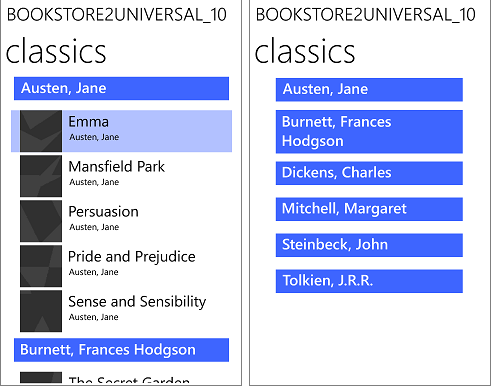
當您繫結至階層式資料(例如類別內的子類別)時,您可以選擇在 UI 中顯示其階層,其中包含一系列項目控制項。 一個項目控制項中的選取範圍會決定後續項目控制項的內容。 您可以藉由將每個清單繫結至自己的 CollectionViewSource,並將 CollectionViewSource 實例串成鏈結,以保持清單同步處理。 此設定稱為主要/詳細資料 (或清單/詳細資料) 檢視。 如需詳細資訊,請參閱 如何系結至階層式資料並建立主要/詳細資料檢視。
診斷及除錯資料繫結問題
繫結標記包含屬性名稱 (對於 C#,有時還包含欄位和方法)。 因此,當您重新命名屬性時,您也需要變更參考它的任何繫結。 如果你忘記做這件事,就會造成資料綁定的錯誤,導致你的應用程式無法編譯或正常執行。
{x:Bind} 和 {Binding} 建立的繫結物件在功能上大致相同。 但 {x:Bind} 具有繫結來源的類型資訊,而且會在編譯階段產生原始程式碼。 使用 {x:Bind},您可以獲得與其餘程式碼相同的問題偵測。 偵測過程包括對繫結運算式的編譯時期驗證,以及透過在生成為頁面部分類別的原始程式碼中設定中斷點來進行偵錯。 您可以在資料夾中的 obj 檔案中找到這些類別,名稱類似於 (對於 C#) <view name>.g.cs)。 如果你在綁定上遇到問題,請在Microsoft Visual Studio除錯器中開啟 Break On Unhandled Exceptions。 偵錯工具會在該點中斷執行,然後您可以偵錯發生的問題。 所 {x:Bind} 產生的程式碼會針對系結來源節點圖形的每個部分遵循相同的模式,而且您可以使用 [呼叫堆疊 ] 視窗中的資訊來協助判斷導致問題的呼叫順序。
{Binding} 沒有繫結來源的類型資訊。 但當你在連接除錯器的情況下執行應用程式時,任何綁定錯誤都會出現在Visual Studio的
在程式碼中建立繫結
您也可以使用程序程式碼 (而非 XAML) 將 UI 元素連線到資料。 要這麼做,請建立一個新的 Binding 物件,設定適當的屬性,然後呼叫 FrameworkElement.SetBinding 或 BindingOperations.SetBinding。 當您想要在執行階段選擇繫結屬性值,或在多個控制項之間共用單一繫結時,以程式設計方式建立繫結很有用。 不過,您無法在呼叫 SetBinding之後變更繫結屬性值。
下列範例示範如何在程式碼中實作繫結。
<TextBox x:Name="MyTextBox" Text="Text"/>
// Create an instance of the MyColors class
// that implements INotifyPropertyChanged.
var textcolor = new MyColors();

// Brush1 is set to be a SolidColorBrush with the value Red.
textcolor.Brush1 = new SolidColorBrush(Colors.Red);

// Set the DataContext of the TextBox MyTextBox.
MyTextBox.DataContext = textcolor;

// Create the binding and associate it with the text box.
var binding = new Binding { Path = new PropertyPath("Brush1") };
MyTextBox.SetBinding(TextBox.ForegroundProperty, binding);
{x:Bind} 和 {Binding} 功能比較
| 特徵 / 功能 | {x:Bind} 與 {Binding} | 註釋 |
|---|---|---|
| 路徑是預設屬性 | {x:Bind a.b.c}- {Binding a.b.c} |
|
| Path 屬性 | {x:Bind Path=a.b.c}- {Binding Path=a.b.c} |
在 x:Bind中, Path 預設以 Window 為根目錄,而不是 DataContext。 |
| Indexer | {x:Bind Groups[2].Title}- {Binding Groups[2].Title} |
綁定至集合中的指定項目。 僅支援整數型索引。 |
| 附加屬性 | {x:Bind Button22.(Grid.Row)}- {Binding Button22.(Grid.Row)} |
附加屬性是使用括弧指定。 如果未在 XAML 命名空間中宣告屬性,請以 XML 命名空間為前置詞,該命名空間應該對應至文件頭頭的程式碼命名空間。 |
| 選角 | {x:Bind groups[0].(data:SampleDataGroup.Title)}- 不需要 {Binding}。 |
使用括號指定類型轉換。 如果未在 XAML 命名空間中宣告屬性,請以 XML 命名空間為前置詞,該命名空間應該對應至文件頭頭的程式碼命名空間。 |
| 轉換器 | {x:Bind IsShown, Converter={StaticResource BoolToVisibility}}- {Binding IsShown, Converter={StaticResource BoolToVisibility}} |
在 Window、Control、ResourceDictionary 的根目錄或 App.xaml 中宣告轉換器。 |
| 轉換器參數、轉換器語言 | {x:Bind IsShown, Converter={StaticResource BoolToVisibility}, ConverterParameter=One, ConverterLanguage=fr-fr}- {Binding IsShown, Converter={StaticResource BoolToVisibility}, ConverterParameter=One, ConverterLanguage=fr-fr} |
在 Window、Control、ResourceDictionary 的根目錄或 App.xaml 中宣告轉換器。 |
| 目標空值 | {x:Bind Name, TargetNullValue=0}- {Binding Name, TargetNullValue=0} |
當繫結運算式的分葉為 null 時使用。 對字串值使用單引號。 |
| 後援值 | {x:Bind Name, FallbackValue='empty'}- {Binding Name, FallbackValue='empty'} |
當繫結路徑的任何部分 (分葉除外) 為 Null 時使用。 |
| 元素名稱 | {x:Bind slider1.Value}- {Binding Value, ElementName=slider1} |
用 {x:Bind} 綁定到一個字段,Path 預設根於 Window,因此你可以透過其字段存取任何命名元素。 |
| RelativeSource:自我 | <Rectangle x:Name="rect1" Width="200" Height="{x:Bind rect1.Width}" ... />- <Rectangle Width="200" Height="{Binding Width, RelativeSource={RelativeSource Self}}" ... /> |
使用 {x:Bind},命名該元素,並在 Path中使用該名稱。 |
| RelativeSource:TemplatedParent | 不需要使用 {x:Bind}- {Binding <path>, RelativeSource={RelativeSource TemplatedParent}} |
搭配 {x:Bind},TargetType 在 ControlTemplate 表示繫結至範本父級。 對於 {Binding},一般範本繫結可用於大部分用途的控制項範本中。 但請在需要使用轉換器或雙向綁定的地方使用 TemplatedParent 。 |
| 來源 | 不需要使用 {x:Bind}- <ListView ItemsSource="{Binding Orders, Source={StaticResource MyData}}"/> |
因為 {x:Bind} 你可以直接使用命名元素,使用屬性,或者靜態路徑。 |
| Mode | {x:Bind Name, Mode=OneWay}- {Binding Name, Mode=TwoWay} |
Mode 可以是 OneTime、 OneWay或 TwoWay。
{x:Bind} 預設為 OneTime; {Binding} 預設為 OneWay。 |
| UpdateSource 觸發器 | {x:Bind Name, Mode=TwoWay, UpdateSourceTrigger=PropertyChanged}- {Binding UpdateSourceTrigger=PropertyChanged} |
UpdateSourceTrigger 可以是 Default、 LostFocus或 PropertyChanged。
{x:Bind} 不支援 UpdateSourceTrigger=Explicit。
{x:Bind}對所有情況使用PropertyChanged行為,但TextBox.Text除外,屆時將使用LostFocus行為。 |
