Important
InkCanvas、 InkToolbar、 InkPresenter 以及 InkPresenter 都是實驗性的 API。 墨跡支援則是在 Windows 應用程式 SDK 2.4.1-experimental 中加入的。 本文介紹了 Windows 應用程式 SDK 2.5.4-experimental,其變更了連線 InkToolbar 的方式。 這些 API 在穩定頻道中無法使用。 它們可能會在未來版本中變更,或遭到移除。 不要在生產應用程式中使用它們。
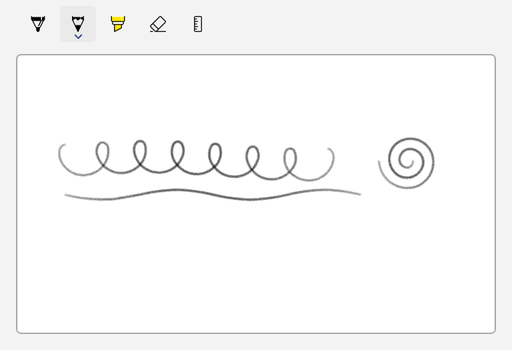
使用實驗性 InkCanvas 控制項,讓使用者用筆、滑鼠或觸控繪製筆跡。 新增 InkToolbar,供使用者使用原子筆、鉛筆、螢光筆和橡皮擦,並提供顏色和大小的選項。 每幅畫布都有一個墨跡收集器InkPresenter,負責收集並渲染墨水輸入。 呈現器的 InkStrokeContainer 會儲存筆劃,所以你可以儲存、載入、複製,並用程式碼建立墨跡。
要嘗試控制項,請安裝 Windows 應用程式 SDK 2.5.4-experimental 套件及相應的執行環境。 如需下載連結與安裝資訊,請參閱最新 Windows 應用程式 SDK 下載。
這是正確的控制嗎?
當使用者需要以下操作時,請使用手寫畫布:
- 做手寫筆記或為內容加上註解。
- 畫草圖、繪製圖表,或簿名。
- 建立手寫內容,讓你的應用程式儲存,並可稍後再編輯。
實驗性的墨跡 API 不包含手寫或形狀辨識。 要收集文字,請使用 文字框。
如果你需要在生產應用程式中使用墨跡功能,請參閱 已知控制項缺少的功能,了解這些控制項在穩定通道中的狀態及替代方案。
了解墨跡模型
這些數位墨跡 API 是協同運作的:
| API | Role |
|---|---|
InkCanvas |
顯示筆跡並接收筆跡輸入的 XAML 元素。 其 InkPresenter 性質會回傳畫布的呈現者。 |
InkPresenter |
收集墨水輸入、渲染筆觸,並持有輸入設定和預設繪圖屬性。 你無法自己建立一個InkPresenter。 可從 InkCanvas.InkPresenter 取得。 |
InkStrokeContainer |
儲存筆劃。 用它來儲存、載入、選取、複製並貼上墨水。 可從 InkPresenter.StrokeContainer 取得它。 |
InkToolbar |
一個可選的工具列,讓使用者選擇筆、鉛筆、螢光筆或橡皮擦,並可更改墨水顏色與大小。 |
InkCanvas 沒有 Background 屬性。 為了讓繪圖區域有背景和邊框,將畫布放在像 Border 這樣的容器中,並在容器上設定大小。 預設墨水顏色是黑色,因此本文範例使用白色背景。
其中有幾個類型與 Windows 執行階段 Windows.UI.Input.Inking 命名空間中的類型名稱相同,例如 InkPresenter、InkStrokeContainer 和 InkHighContrastAdjustment。 手寫筆跡控制項則使用 Microsoft.UI.Xaml.Controls 版本。 筆劃與繪圖屬性仍使用 Windows 執行階段 類型,如 InkStroke、InkDrawingAttributes 和 InkStrokeBuilder。 如果你匯入兩個命名空間並使用模糊名稱,C# 編譯器會回報錯誤 CS0104。
本文的範例是匯入 Microsoft.UI.Xaml.Controls 並為他們需要的 Windows.UI.Input.Inking 類型使用別名指示詞:
using Microsoft.UI.Xaml.Controls;
using InkDrawingAttributes = Windows.UI.Input.Inking.InkDrawingAttributes;
using InkStroke = Windows.UI.Input.Inking.InkStroke;
你也可以匯入兩個命名空間,並像 WinUI 3 圖庫範例一樣,使用完全限定的名稱來處理模糊型別。
InkPresenter 也提供本文未涵蓋的較低階 API:
-
StrokeInput當筆劃開始、持續、結束或取消時,會引發事件。 -
UnprocessedInput會針對呈現器未當作墨跡處理的輸入引發指標事件。 -
InputConfiguration設定簡報器是否處理筆橡皮擦與主筆筒按鈕的輸入。 -
InputProcessingConfiguration設定輸入是否會畫墨水、擦除墨水或不處理,以及呈現者如何處理右拖輸入。 -
ActivateCustomDrying會回傳一個InkSynchronizer,供自行轉譯已確認筆跡的應用程式使用。
設定你的專案
這些手寫筆跡 API 標示為實驗性。 當你在 C# 專案中使用它們時,C# 編譯器會回報 CS8305 警告,XAML 編譯器則會報告警告 WMC1501。 如果你的專案把警告當成錯誤,這些警告會導致建置停止。
當你決定使用實驗性 API 後,就可以抑制這些警告。 在您的 C# 專案檔案(.csproj)中新增以下屬性:
<PropertyGroup>
  <NoWarn>$(NoWarn);CS8305</NoWarn>
  <MSBuildWarningsAsMessages>$(MSBuildWarningsAsMessages);WMC1501</MSBuildWarningsAsMessages>
</PropertyGroup>
本文中的範例使用 C#。 每個完整範例都顯示該頁面的 XAML 以及頁面的程式碼後置類別 MainPage。
建立墨跡畫布

WinUI 3 圖庫應用程式包含互動式的 WinUI 控制項與功能範例。 你可以從 Microsoft Store 下載應用程式,或瀏覽 GitHub 的原始碼。
以下範例將畫布置於白色容器Border內。 程式碼背後設定輸入裝置類型,讓使用者可以用筆、滑鼠或觸控繪圖。
<Border
    Height="300"
    Background="White"
    BorderBrush="{ThemeResource SystemControlForegroundChromeHighBrush}"
    BorderThickness="1">
    <InkCanvas x:Name="inkCanvas" AutomationProperties.Name="Drawing surface" />
</Border>
using Microsoft.UI.Xaml.Controls;
using Windows.UI.Core;

public sealed partial class MainPage : Page
{
    public MainPage()
    {
        InitializeComponent();

        // Mouse input doesn't draw ink by default. Choose every device type that can draw ink.
        inkCanvas.InkPresenter.InputDeviceTypes =
            CoreInputDeviceTypes.Pen | CoreInputDeviceTypes.Mouse | CoreInputDeviceTypes.Touch;
    }
}
簡短起見,後面的一些範例並未重複這段程式碼。 在每個使用者可用滑鼠繪圖的頁面中設定 InputDeviceTypes。
連線到手寫筆工具列
將元件放在 InkToolbar 畫布附近,並設定其 TargetInkCanvas 屬性以連接兩者:
<StackPanel Spacing="8">
    <InkToolbar
        x:Name="inkToolbar"
        AutomationProperties.Name="Drawing tools"
        TargetInkCanvas="{x:Bind inkCanvas}" />
    <Border
        Height="300"
        Background="White"
        BorderBrush="{ThemeResource SystemControlForegroundChromeHighBrush}"
        BorderThickness="1">
        <InkCanvas x:Name="inkCanvas" AutomationProperties.Name="Drawing surface" />
    </Border>
</StackPanel>
從 Windows 應用程式 SDK 2.5.4-experimental 開始,你可以透過設定 InkPresenter 屬性,直接將工具列連接到 TargetInkPresenter。 用程式碼設定:
inkToolbar.TargetInkPresenter = inkCanvas.InkPresenter;
你也可以用 XAML 設定: TargetInkPresenter="{x:Bind inkCanvas.InkPresenter}"。 只設定兩個目標屬性中的一個。
預設情況下,工具列會顯示原子筆、鉛筆、螢光筆、橡皮擦和形板(尺)按鈕。 要更改顯示的按鈕,請參見 「自訂墨水工具列」。
選擇輸入裝置
該 InputDeviceTypes 屬性使用來自 Windows.UI.Core 命名空間的 CoreInputDeviceTypes 旗標列舉。 滑鼠輸入預設不會繪製手寫筆跡。 合併數值以選擇哪些裝置會出墨:
// Add mouse input and keep the other device types.
inkCanvas.InkPresenter.InputDeviceTypes |= CoreInputDeviceTypes.Mouse;

// Stop accepting ink from touch input.
inkCanvas.InkPresenter.InputDeviceTypes &= ~CoreInputDeviceTypes.Touch;

// Check whether pen input is enabled.
bool isPenEnabled = inkCanvas.InkPresenter.InputDeviceTypes.HasFlag(CoreInputDeviceTypes.Pen);
例如,若要停止從每個裝置收集數位墨跡,例如顯示使用者無法更改的繪圖,請設定 IsInputEnabled 為 false:
inkCanvas.InkPresenter.IsInputEnabled = false;
若要讓使用者從工具列開啟或關閉輸入裝置,請參見 新增自訂切換按鈕。
設定繪圖屬性
繪畫屬性,如顏色、大小和筆尖形狀,控制筆劃的外觀。 它們使用 Windows 執行階段 InkDrawingAttributes 類別。 若要更改新筆劃的屬性,請呼叫 CopyDefaultDrawingAttributes, 更改副本,並傳給 UpdateDefaultDrawingAttributes:
InkDrawingAttributes attributes = inkCanvas.InkPresenter.CopyDefaultDrawingAttributes();
attributes.Color = Colors.DarkBlue;
attributes.Size = new Size(4, 4);
inkCanvas.InkPresenter.UpdateDefaultDrawingAttributes(attributes);
Colors 位於 Microsoft.UI 命名空間中,且 Size 位於 Windows.Foundation 命名空間中。 這些新屬性適用於使用者在通話呼叫後所繪製的筆劃。 現有的筆劃會保留其屬性。
當你連接InkToolbar時,主動工具及其顏色和大小設定決定繪圖屬性。 要讀取目前屬性,請使用工具列的 InkDrawingAttributes 屬性。
建立畫筆預設
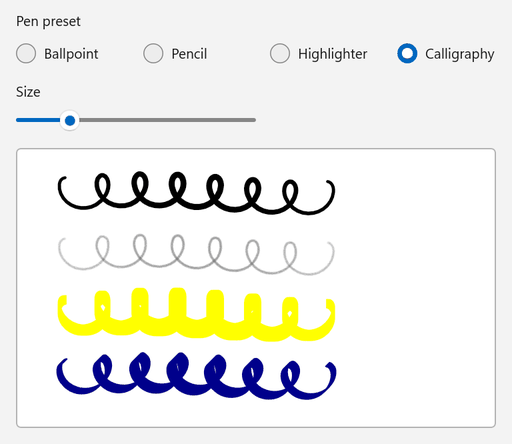
如果你不用工具列,也可以提供自己的筆預設。 以下範例在使用者選擇預設或更改尺寸時,會套用原子筆、鉛筆、螢光筆或書法屬性。
<StackPanel Spacing="12">
    <RadioButtons
        x:Name="presetButtons"
        Header="Pen preset"
        MaxColumns="4"
        SelectedIndex="0"
        SelectionChanged="PresetButtons_SelectionChanged">
        <x:String>Ballpoint</x:String>
        <x:String>Pencil</x:String>
        <x:String>Highlighter</x:String>
        <x:String>Calligraphy</x:String>
    </RadioButtons>
    <Slider
        x:Name="sizeSlider"
        Width="240"
        HorizontalAlignment="Left"
        Header="Size"
        Maximum="16"
        Minimum="1"
        Value="4"
        ValueChanged="SizeSlider_ValueChanged" />
    <Border
        Width="480"
        Height="280"
        HorizontalAlignment="Left"
        Background="White"
        BorderBrush="{ThemeResource SystemControlForegroundChromeHighBrush}"
        BorderThickness="1">
        <InkCanvas x:Name="inkCanvas" AutomationProperties.Name="Drawing surface" />
    </Border>
</StackPanel>
using System;
using System.Numerics;
using Microsoft.UI;
using Microsoft.UI.Xaml.Controls;
using Microsoft.UI.Xaml.Controls.Primitives;
using Windows.Foundation;
using Windows.UI.Core;
using InkDrawingAttributes = Windows.UI.Input.Inking.InkDrawingAttributes;
using PenTipShape = Windows.UI.Input.Inking.PenTipShape;

public sealed partial class MainPage : Page
{
    public MainPage()
    {
        InitializeComponent();

        inkCanvas.InkPresenter.InputDeviceTypes =
            CoreInputDeviceTypes.Pen | CoreInputDeviceTypes.Mouse | CoreInputDeviceTypes.Touch;
        ApplyPreset();
    }

    private void PresetButtons_SelectionChanged(object sender, SelectionChangedEventArgs e) => ApplyPreset();

    private void SizeSlider_ValueChanged(object sender, RangeBaseValueChangedEventArgs e) => ApplyPreset();

    private void ApplyPreset()
    {
        // SelectionChanged and ValueChanged can occur while the page is still loading.
        if (inkCanvas is null || presetButtons is null || sizeSlider is null)
        {
            return;
        }

        double size = sizeSlider.Value;
        InkDrawingAttributes attributes;

        switch (presetButtons.SelectedItem as string)
        {
            case "Pencil":
                // CreateForPencil returns attributes for pencil-style strokes.
                attributes = InkDrawingAttributes.CreateForPencil();
                attributes.Color = Colors.DimGray;
                attributes.Size = new Size(size, size);
                break;

            case "Highlighter":
                attributes = new InkDrawingAttributes
                {
                    Color = Colors.Yellow,
                    DrawAsHighlighter = true,
                    PenTip = PenTipShape.Rectangle,
                    Size = new Size(size, size * 3),
                };
                break;

            case "Calligraphy":
                attributes = new InkDrawingAttributes
                {
                    Color = Colors.DarkBlue,
                    PenTip = PenTipShape.Rectangle,
                    Size = new Size(Math.Max(1, size / 2), size * 2),
                    // Rotate the nib 45 degrees so the stroke width changes with the stroke direction.
                    PenTipTransform = Matrix3x2.CreateRotation(MathF.PI / 4),
                };
                break;

            default:
                attributes = new InkDrawingAttributes
                {
                    Color = Colors.Black,
                    PenTip = PenTipShape.Circle,
                    Size = new Size(size, size),
                };
                break;
        }

        // The new attributes apply to strokes that the user draws after this call.
        inkCanvas.InkPresenter.UpdateDefaultDrawingAttributes(attributes);
    }
}
-
InkDrawingAttributes.CreateForPencil回傳鉛筆筆劃的屬性。 這個Kind屬性是唯讀的,因此請使用這個方法來建立鉛筆屬性。 -
DrawAsHighlighter將筆劃渲染成螢光筆的疊加層。 -
PenTip設定筆尖形狀,並PenTipTransform旋轉或縮放筆尖。 旋轉的長方形筆尖可產生書法風格的筆觸。
回應墨水變更
使用者畫出筆劃後,呈現器會引發 StrokesCollected;使用者擦除筆劃後,會引發 StrokesErased。 每個事件參數的 Strokes 屬性包含受影響的筆劃。 以下程式碼會使名為 strokeCountText 的 TextBlock 中的筆劃數保持最新:
inkCanvas.InkPresenter.StrokesCollected += (sender, args) => UpdateStrokeCount();
inkCanvas.InkPresenter.StrokesErased += (sender, args) => UpdateStrokeCount();
private void UpdateStrokeCount()
{
    int count = inkCanvas.InkPresenter.StrokeContainer.GetStrokes().Count;
    strokeCountText.Text = $"{count} strokes";
}
這些事件發生在使用者繪製或擦除墨水時。 當你在程式碼中更改筆畫,例如用 Clear、LoadAsync 或 AddStroke,在呼叫後更新你的 UI。
儲存與載入墨水
InkStrokeContainer 以墨水序列化格式(ISF)儲存墨水。 要選擇資料儲存方式,請將一個 InkPersistenceFormat 值傳遞給 SaveAsync:
| Format | Output |
|---|---|
GifWithEmbeddedIsf |
一張包含墨水資料的GIF圖片。 影像檢視器可以顯示檔案,你的應用程式也能重新載入筆跡進行編輯。 |
Isf |
只提供墨水資料,沒有圖片。 這是最精簡的格式。 |
在包含名為 inkCanvas 的 InkCanvas 的頁面後置程式碼中,加入以下方法。
SaveInkAsync 將墨水寫入檔案,然後 LoadInkAsync 用檔案中的墨水替換畫布上的墨水。
LoadAsync 先移除現有筆劃,再加上載入筆劃,所以你不需要先呼叫 Clear 。
using System;
using System.IO;
using System.Threading.Tasks;
using Microsoft.UI.Xaml.Controls;
using Windows.Storage.Streams;
using InkPersistenceFormat = Windows.UI.Input.Inking.InkPersistenceFormat;

public sealed partial class MainPage : Page
{
    private async Task SaveInkAsync(string path)
    {
        InkStrokeContainer container = inkCanvas.InkPresenter.StrokeContainer;

        // File.Create replaces any existing file, so the file contains only the new ink.
        using FileStream fileStream = File.Create(path);
        using IOutputStream output = fileStream.AsOutputStream();

        // GifWithEmbeddedIsf writes a GIF image that also contains the editable ink data.
        await container.SaveAsync(output, InkPersistenceFormat.GifWithEmbeddedIsf);
        await output.FlushAsync();
    }

    private async Task LoadInkAsync(string path)
    {
        InkStrokeContainer container = inkCanvas.InkPresenter.StrokeContainer;

        using FileStream fileStream = File.OpenRead(path);
        using IInputStream input = fileStream.AsInputStream();

        // LoadAsync removes the current strokes before it adds the loaded strokes.
        await container.LoadAsync(input);
    }
}
AsOutputStream 和 AsInputStream 會將 .NET 串流轉換為 SaveAsync 和 LoadAsync 使用的 Windows 執行階段 串流類型。 若要 await 這些 Windows 執行階段 方法,檔案需要 using System; 指示詞。 若無此項,編譯器會回報錯誤 CS4036。
要讓使用者選擇檔案,可以使用 Windows 應用程式 SDK 的檔案選擇器,它會回傳所選檔案的路徑。 更多資訊請參閱「用 Windows 應用程式 SDK 選擇器儲存檔案」以及「用 Windows 應用程式 SDK 選擇器開啟檔案與資料夾」。
為了讓墨跡留在記憶體中,例如在同一個會話中稍後還原墨跡,可以儲存到一個 InMemoryRandomAccessStream。 將串流 GetOutputStreamAt(0) 的結果傳遞給 SaveAsync,並將其 GetInputStreamAt(0) 的結果傳遞給 LoadAsync。 WinUI 3 圖庫範例採用了這種方法。
複製貼上筆跡
InkStrokeContainer 可以把筆劃複製到剪貼簿上,並從剪貼簿貼上手寫筆跡。
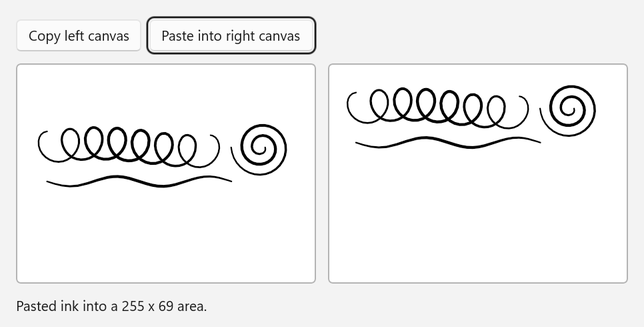
CopySelectedToClipboard 只複製選取的筆觸,因此以下範例會先選取左側畫布上所有已選取的筆觸,然後再複製它們。
CanPasteFromClipboard 檢查剪貼簿中是否有墨跡。
PasteFromClipboard 在你傳入的位置加上墨水,並回傳變更區域的邊界矩形。
<StackPanel Spacing="12">
    <StackPanel Orientation="Horizontal" Spacing="8">
        <Button Click="CopyButton_Click" Content="Copy left canvas" />
        <Button
            x:Name="pasteButton"
            Click="PasteButton_Click"
            Content="Paste into right canvas"
            IsEnabled="False" />
    </StackPanel>
    <StackPanel Orientation="Horizontal" Spacing="12">
        <Border
            Width="300"
            Height="220"
            Background="White"
            BorderBrush="{ThemeResource SystemControlForegroundChromeHighBrush}"
            BorderThickness="1">
            <InkCanvas x:Name="sourceCanvas" AutomationProperties.Name="Source drawing surface" />
        </Border>
        <Border
            Width="300"
            Height="220"
            Background="White"
            BorderBrush="{ThemeResource SystemControlForegroundChromeHighBrush}"
            BorderThickness="1">
            <InkCanvas x:Name="targetCanvas" AutomationProperties.Name="Target drawing surface" />
        </Border>
    </StackPanel>
    <TextBlock x:Name="statusText" Text="Draw on the left canvas, then copy it." TextWrapping="Wrap" />
</StackPanel>
using System.Collections.Generic;
using Microsoft.UI.Xaml;
using Microsoft.UI.Xaml.Controls;
using Windows.Foundation;
using Windows.UI.Core;
using InkStroke = Windows.UI.Input.Inking.InkStroke;

public sealed partial class MainPage : Page
{
    public MainPage()
    {
        InitializeComponent();

        foreach (InkCanvas canvas in new[] { sourceCanvas, targetCanvas })
        {
            canvas.InkPresenter.InputDeviceTypes =
                CoreInputDeviceTypes.Pen | CoreInputDeviceTypes.Mouse | CoreInputDeviceTypes.Touch;
        }
    }

    private void CopyButton_Click(object sender, RoutedEventArgs e)
    {
        InkStrokeContainer source = sourceCanvas.InkPresenter.StrokeContainer;
        IReadOnlyList<InkStroke> strokes = source.GetStrokes();
        if (strokes.Count == 0)
        {
            statusText.Text = "Draw on the left canvas first.";
            return;
        }

        // CopySelectedToClipboard copies only selected strokes, so select all strokes first.
        foreach (InkStroke stroke in strokes)
        {
            stroke.Selected = true;
        }

        source.CopySelectedToClipboard();

        foreach (InkStroke stroke in strokes)
        {
            stroke.Selected = false;
        }

        pasteButton.IsEnabled = targetCanvas.InkPresenter.StrokeContainer.CanPasteFromClipboard();
        statusText.Text = $"Copied {strokes.Count} stroke(s) to the clipboard.";
    }

    private void PasteButton_Click(object sender, RoutedEventArgs e)
    {
        InkStrokeContainer target = targetCanvas.InkPresenter.StrokeContainer;
        if (!target.CanPasteFromClipboard())
        {
            statusText.Text = "The clipboard doesn't contain ink.";
            return;
        }

        // Place the pasted ink near the upper-left corner of the target canvas.
        Rect pasted = target.PasteFromClipboard(new Point(16, 16));
        statusText.Text = $"Pasted ink into a {pasted.Width:0} x {pasted.Height:0} area.";
    }
}
若要操作某些筆劃,可以設定你想要的每一筆劃的 Selected 屬性,或呼叫 SelectWithLine 或 SelectWithPolyLine。 若要刪除或移動選取的筆劃,請呼叫 DeleteSelected 或 MoveSelected。
在程式碼中建立筆畫
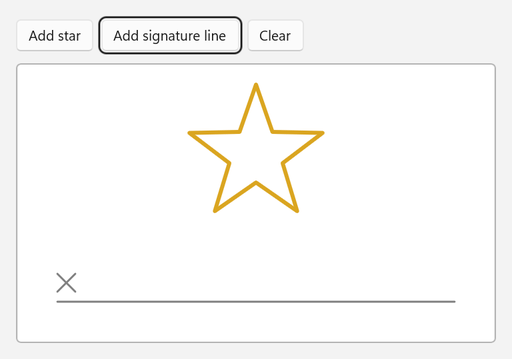
使用 Windows 執行階段 InkStrokeBuilder 類別從點建立筆觸,並使用 AddStroke 將它們加入畫布。 以下範例新增了一顆星和一條簽名線。
<StackPanel Spacing="12">
    <StackPanel Orientation="Horizontal" Spacing="8">
        <Button Click="AddStarButton_Click" Content="Add star" />
        <Button Click="AddSignatureLineButton_Click" Content="Add signature line" />
        <Button Click="ClearButton_Click" Content="Clear" />
    </StackPanel>
    <Border
        Width="480"
        Height="280"
        HorizontalAlignment="Left"
        Background="White"
        BorderBrush="{ThemeResource SystemControlForegroundChromeHighBrush}"
        BorderThickness="1">
        <InkCanvas x:Name="inkCanvas" AutomationProperties.Name="Drawing surface" />
    </Border>
</StackPanel>
using System;
using System.Collections.Generic;
using System.Linq;
using System.Numerics;
using Microsoft.UI;
using Microsoft.UI.Xaml;
using Microsoft.UI.Xaml.Controls;
using Windows.Foundation;
using Windows.UI;
using InkDrawingAttributes = Windows.UI.Input.Inking.InkDrawingAttributes;
using InkPoint = Windows.UI.Input.Inking.InkPoint;
using InkStroke = Windows.UI.Input.Inking.InkStroke;
using InkStrokeBuilder = Windows.UI.Input.Inking.InkStrokeBuilder;

public sealed partial class MainPage : Page
{
    public MainPage()
    {
        InitializeComponent();
    }

    private void AddStarButton_Click(object sender, RoutedEventArgs e)
    {
        // Alternate between outer and inner points to draw a five-pointed star.
        Point center = new(inkCanvas.ActualWidth / 2, 90);
        List<Point> points = new();
        for (int i = 0; i <= 10; i++)
        {
            double radius = i % 2 == 0 ? 70 : 28;
            double angle = -Math.PI / 2 + i * Math.PI / 5;
            points.Add(new Point(center.X + radius * Math.Cos(angle), center.Y + radius * Math.Sin(angle)));
        }

        AddStroke(points, Colors.Goldenrod, 4);
    }

    private void AddSignatureLineButton_Click(object sender, RoutedEventArgs e)
    {
        double left = 40;
        double right = inkCanvas.ActualWidth - 40;
        double baseline = inkCanvas.ActualHeight - 40;

        AddStroke(new[] { new Point(left, baseline), new Point(right, baseline) }, Colors.Gray, 2);
        AddStroke(new[] { new Point(left, baseline - 28), new Point(left + 18, baseline - 10) }, Colors.Gray, 2);
        AddStroke(new[] { new Point(left + 18, baseline - 28), new Point(left, baseline - 10) }, Colors.Gray, 2);
    }

    private void ClearButton_Click(object sender, RoutedEventArgs e)
    {
        inkCanvas.InkPresenter.StrokeContainer.Clear();
    }

    private void AddStroke(IEnumerable<Point> points, Color color, double size)
    {
        InkStrokeBuilder builder = new();
        builder.SetDefaultDrawingAttributes(new InkDrawingAttributes
        {
            Color = color,
            Size = new Size(size, size),
            // Keep straight segments and sharp corners instead of smoothing them into curves.
            FitToCurve = false,
        });

        // Give every point the same pressure so that the stroke has a uniform width.
        IEnumerable<InkPoint> inkPoints = points.Select(point => new InkPoint(point, 0.5f));
        InkStroke stroke = builder.CreateStrokeFromInkPoints(inkPoints, Matrix3x2.Identity);
        inkCanvas.InkPresenter.StrokeContainer.AddStroke(stroke);
    }
}
-
CreateStrokeFromInkPoints會根據InkPoint數值建立筆劃。 每個點都包含畫布上的位置和壓力值。 - Windows 執行階段 文件建議,對於新增至筆跡呈現器的筆劃,應使用
CreateStrokeFromInkPoints而非CreateStroke。 - 當
FitToCurve為false時,筆劃使用點與點之間的直線段而非曲線。
描邊只能屬於一個容器。 要將筆觸複製到另一個畫布,請加入筆觸的複本:
private void CopyStrokesTo(InkCanvas target)
{
    foreach (InkStroke stroke in inkCanvas.InkPresenter.StrokeContainer.GetStrokes())
    {
        target.InkPresenter.StrokeContainer.AddStroke(stroke.Clone());
    }
}
自訂墨水工具列
選擇初始控制項
此 InitialControls 屬性決定工具列會建立哪些內建按鈕:
| Value | 內建按鈕 |
|---|---|
All (預設值) |
原子筆、鉛筆、螢光筆、橡皮擦與字模板(尺規) |
PensOnly |
原子筆、鉛筆和螢光筆 |
AllExceptPens |
橡皮擦與型板(尺規) |
None |
None. 把你想要的按鈕指定為工具列的子項。 |
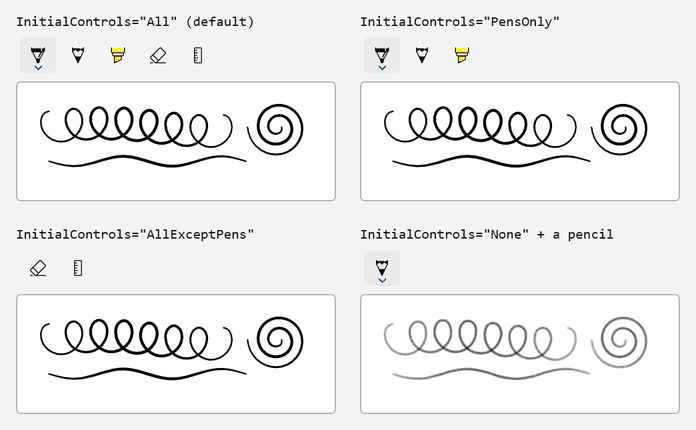
以下範例宣告與 WinUI 3 Gallery 範例相同的四個按鈕,為每個按鈕命名,並在工具列載入時選擇原子筆:
<StackPanel Spacing="8">
    <InkToolbar
        x:Name="inkToolbar"
        AutomationProperties.Name="Drawing tools"
        InitialControls="None"
        TargetInkCanvas="{x:Bind inkCanvas}">
        <InkToolbarBallpointPenButton x:Name="ballpointButton" AutomationProperties.Name="Ballpoint pen" />
        <InkToolbarPencilButton AutomationProperties.Name="Pencil" />
        <InkToolbarHighlighterButton AutomationProperties.Name="Highlighter" />
        <InkToolbarEraserButton AutomationProperties.Name="Eraser" />
    </InkToolbar>
    <Border
        Height="300"
        Background="White"
        BorderBrush="{ThemeResource SystemControlForegroundChromeHighBrush}"
        BorderThickness="1">
        <InkCanvas x:Name="inkCanvas" AutomationProperties.Name="Drawing surface" />
    </Border>
</StackPanel>
using Microsoft.UI.Xaml.Controls;

public sealed partial class MainPage : Page
{
    public MainPage()
    {
        InitializeComponent();

        // Select a starting tool after the toolbar loads.
        inkToolbar.Loaded += (sender, args) =>
        {
            if (inkToolbar.ActiveTool is null)
            {
                inkToolbar.ActiveTool = ballpointButton;
            }
        };
    }
}
要顯示一個能擦掉所有墨水的指令,請將橡皮擦按鈕的 IsClearAllVisible 屬性設為 true。 當使用者選擇指令時,工具列會觸發 EraseAllClicked 事件。
自訂筆的顏色和寬度
每個筆按鈕都有 Palette 一組筆刷和筆劃寬度設定。 在程式碼中設定 Palette。 如需詳細資料,請參閱已知限制。 以下範例將原子筆的調色盤替換為四種品牌顏色,限制筆劃寬度,並展示作用中原子筆的特性。
<StackPanel Spacing="12">
    <InkToolbar
        x:Name="inkToolbar"
        AutomationProperties.Name="Drawing tools"
        InitialControls="AllExceptPens"
        TargetInkCanvas="{x:Bind inkCanvas}">
        <InkToolbarBallpointPenButton
            x:Name="brandPen"
            AutomationProperties.Name="Brand pen"
            MaxStrokeWidth="16"
            MinStrokeWidth="2"
            SelectedStrokeWidth="6" />
    </InkToolbar>
    <RadioButtons
        x:Name="colorButtons"
        Header="Pen color"
        MaxColumns="4"
        SelectedIndex="0"
        SelectionChanged="ColorButtons_SelectionChanged">
        <x:String>Blue</x:String>
        <x:String>Green</x:String>
        <x:String>Orange</x:String>
        <x:String>Purple</x:String>
    </RadioButtons>
    <TextBlock x:Name="penInfo" />
    <Border
        Width="480"
        Height="240"
        HorizontalAlignment="Left"
        Background="White"
        BorderBrush="{ThemeResource SystemControlForegroundChromeHighBrush}"
        BorderThickness="1">
        <InkCanvas x:Name="inkCanvas" AutomationProperties.Name="Drawing surface" />
    </Border>
</StackPanel>
using System.Linq;
using Microsoft.UI.Xaml.Controls;
using Microsoft.UI.Xaml.Media;
using Windows.UI;

public sealed partial class MainPage : Page
{
    private static readonly Color[] BrandColors =
    {
        Color.FromArgb(0xFF, 0x00, 0x78, 0xD4), // Blue
        Color.FromArgb(0xFF, 0x10, 0x7C, 0x10), // Green
        Color.FromArgb(0xFF, 0xD8, 0x3B, 0x01), // Orange
        Color.FromArgb(0xFF, 0x5C, 0x2D, 0x91), // Purple
    };

    public MainPage()
    {
        InitializeComponent();

        // Replace the pen's default palette and select the first color.
        brandPen.Palette = BrandColors.Select(color => (Brush)new SolidColorBrush(color)).ToList();
        brandPen.SelectedBrushIndex = 0;

        inkToolbar.InkDrawingAttributesChanged += (sender, args) => ShowPenInfo();

        // The toolbar sets up its buttons when it loads, so select the starting tool then.
        inkToolbar.Loaded += (sender, args) =>
        {
            inkToolbar.ActiveTool = brandPen;
            ShowPenInfo();
        };
    }

    private void ColorButtons_SelectionChanged(object sender, SelectionChangedEventArgs e)
    {
        // SelectionChanged can occur while the page is still loading.
        if (brandPen is null || colorButtons is null || penInfo is null || colorButtons.SelectedIndex < 0)
        {
            return;
        }

        // SelectedBrushIndex selects an entry in Palette, like choosing a color in the pen flyout.
        brandPen.SelectedBrushIndex = colorButtons.SelectedIndex;
        inkToolbar.ActiveTool = brandPen;
        ShowPenInfo();
    }

    private void ShowPenInfo()
    {
        // InkDrawingAttributes describes the ink that the active tool draws.
        if (inkToolbar.InkDrawingAttributes is { } attributes)
        {
            penInfo.Text = $"Color {attributes.Color}, width {attributes.Size.Width:0} (range {brandPen.MinStrokeWidth:0}-{brandPen.MaxStrokeWidth:0})";
        }
    }
}
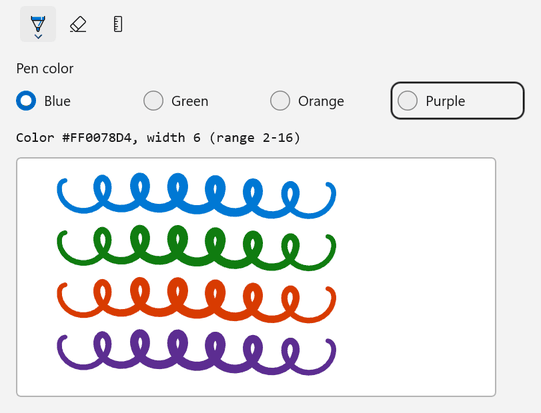
SelectedBrushIndex 會從 Palette 中選取一種顏色。
SelectedStrokeWidth、MinStrokeWidth 和 MaxStrokeWidth 會設定目前的筆畫寬度以及使用者可選擇的範圍。 當啟用工具的屬性改變時,工具列會觸發 InkDrawingAttributesChanged。
選擇作用中的工具
設定 ActiveTool 以選取工具,並處理 ActiveToolChanged,以便在使用者選取另一個工具時作出回應。
GetToolButton 會回傳一個內建的工具按鈕,其類型為你所傳入的。 內建按鈕可能要等工具列載入後才會出現,所以請在工具列的 Loaded 事件處理程式中選擇起始工具。
<StackPanel Spacing="12">
    <InkToolbar
        x:Name="inkToolbar"
        AutomationProperties.Name="Drawing tools"
        TargetInkCanvas="{x:Bind inkCanvas}" />
    <TextBlock x:Name="toolInfo" />
    <Border
        Width="480"
        Height="280"
        HorizontalAlignment="Left"
        Background="White"
        BorderBrush="{ThemeResource SystemControlForegroundChromeHighBrush}"
        BorderThickness="1">
        <InkCanvas x:Name="inkCanvas" AutomationProperties.Name="Drawing surface" />
    </Border>
</StackPanel>
using Microsoft.UI.Xaml.Controls;

public sealed partial class MainPage : Page
{
    public MainPage()
    {
        InitializeComponent();

        inkToolbar.ActiveToolChanged += (sender, args) => ShowToolInfo();
        inkToolbar.InkDrawingAttributesChanged += (sender, args) => ShowToolInfo();

        // The toolbar creates its built-in buttons when it loads, so select the starting tool then.
        inkToolbar.Loaded += (sender, args) =>
        {
            inkToolbar.ActiveTool = inkToolbar.GetToolButton(InkToolbarTool.Pencil);
            ShowToolInfo();
        };
    }

    private void ShowToolInfo()
    {
        if (inkToolbar.ActiveTool is not { } tool)
        {
            toolInfo.Text = "No active tool";
            return;
        }

        toolInfo.Text = inkToolbar.InkDrawingAttributes is { } attributes
            ? $"{tool.ToolKind}: {attributes.Kind} ink, color {attributes.Color}, size {attributes.Size.Width:0}"
            : $"{tool.ToolKind}";
    }
}
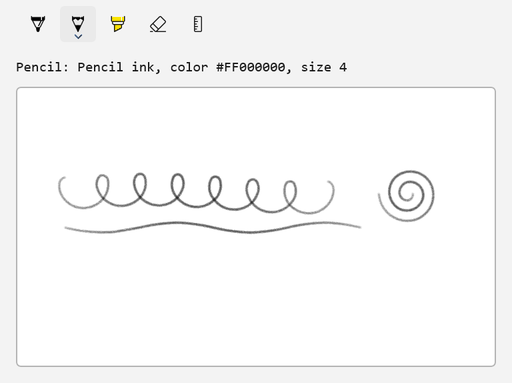
變更螢幕方向
要垂直顯示工具列,例如在畫布旁邊,請設 Orientation 為 Vertical:
<Grid HorizontalAlignment="Left" ColumnSpacing="8">
    <Grid.ColumnDefinitions>
        <ColumnDefinition Width="Auto" />
        <ColumnDefinition Width="Auto" />
    </Grid.ColumnDefinitions>
    <InkToolbar
        VerticalAlignment="Top"
        AutomationProperties.Name="Drawing tools"
        Orientation="Vertical"
        TargetInkCanvas="{x:Bind inkCanvas}" />
    <Border
        Grid.Column="1"
        Width="440"
        Height="320"
        VerticalAlignment="Top"
        Background="White"
        BorderBrush="{ThemeResource SystemControlForegroundChromeHighBrush}"
        BorderThickness="1">
        <InkCanvas x:Name="inkCanvas" AutomationProperties.Name="Drawing surface" />
    </Border>
</Grid>
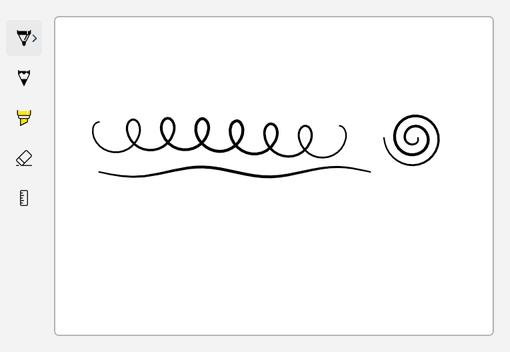
這個 ButtonFlyoutPlacement 屬性設定按鈕飛出相對於工具列開啟的位置。 預設值 Auto 會讓工具列選擇位置。
新增自訂切換按鈕
使用InkToolbarCustomToggleButton新增一個讓使用者可從工具列開啟和關閉的設定。 以下範例新增了一個控制觸控輸入的開關。 筆和滑鼠的操作總是會產生墨跡。
<StackPanel Spacing="12">
    <InkToolbar AutomationProperties.Name="Drawing tools" TargetInkCanvas="{x:Bind inkCanvas}">
        <InkToolbarCustomToggleButton
            x:Name="touchWritingToggle"
            AutomationProperties.Name="Touch writing"
            Checked="TouchWritingToggle_Changed"
            ToolTipService.ToolTip="Touch writing"
            Unchecked="TouchWritingToggle_Changed">
            <SymbolIcon Symbol="TouchPointer" />
        </InkToolbarCustomToggleButton>
    </InkToolbar>
    <TextBlock x:Name="deviceInfo" />
    <Border
        Width="480"
        Height="280"
        HorizontalAlignment="Left"
        Background="White"
        BorderBrush="{ThemeResource SystemControlForegroundChromeHighBrush}"
        BorderThickness="1">
        <InkCanvas x:Name="inkCanvas" AutomationProperties.Name="Drawing surface" />
    </Border>
</StackPanel>
using Microsoft.UI.Xaml;
using Microsoft.UI.Xaml.Controls;
using Windows.UI.Core;

public sealed partial class MainPage : Page
{
    public MainPage()
    {
        InitializeComponent();

        // Pen and mouse input always draw ink. The custom toggle controls touch input.
        inkCanvas.InkPresenter.InputDeviceTypes = CoreInputDeviceTypes.Pen | CoreInputDeviceTypes.Mouse;
        ShowDevices();
    }

    private void TouchWritingToggle_Changed(object sender, RoutedEventArgs e)
    {
        if (touchWritingToggle.IsChecked == true)
        {
            inkCanvas.InkPresenter.InputDeviceTypes |= CoreInputDeviceTypes.Touch;
        }
        else
        {
            inkCanvas.InkPresenter.InputDeviceTypes &= ~CoreInputDeviceTypes.Touch;
        }

        ShowDevices();
    }

    private void ShowDevices()
    {
        deviceInfo.Text = $"InputDeviceTypes = {inkCanvas.InkPresenter.InputDeviceTypes}";
    }
}
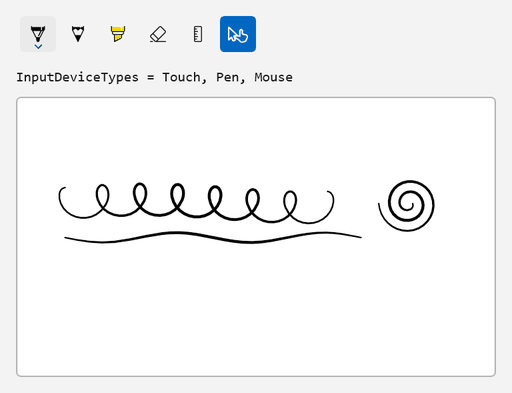
切換器只顯示一個圖示,因此範例給了它一個無障礙名稱和提示。 在這個例子中,工具列也會建立預設按鈕,自訂切換按鈕會出現在這些按鈕之後。
工具列支援其他自訂按鈕:
-
InkToolbarCustomToolButton新增你自己的工具。 -
InkToolbarCustomPenButton新增一支筆,具有其本身的繪圖屬性。 將其CustomPen屬性設為衍生自InkToolbarCustomPen並覆寫CreateInkDrawingAttributesCore方法的類別執行個體。
用程式碼建立工具列
你也可以用程式碼建立畫布和工具列。 以下範例將這些資料加入名為 inkHost 的 Border,將工具列與 TargetInkPresenter 連接,並在工具列載入時選擇鉛筆。
<Border x:Name="inkHost" HorizontalAlignment="Left" />
using Microsoft.UI;
using Microsoft.UI.Xaml;
using Microsoft.UI.Xaml.Automation;
using Microsoft.UI.Xaml.Controls;
using Microsoft.UI.Xaml.Media;
using Windows.UI.Core;

public sealed partial class MainPage : Page
{
    public MainPage()
    {
        InitializeComponent();
        CreateInkingUI();
    }

    private void CreateInkingUI()
    {
        InkCanvas canvas = new();
        AutomationProperties.SetName(canvas, "Drawing surface");
        canvas.InkPresenter.InputDeviceTypes =
            CoreInputDeviceTypes.Pen | CoreInputDeviceTypes.Mouse | CoreInputDeviceTypes.Touch;

        InkToolbar toolbar = new() { TargetInkPresenter = canvas.InkPresenter };
        AutomationProperties.SetName(toolbar, "Drawing tools");

        // The toolbar creates its built-in buttons when it loads.
        toolbar.Loaded += (sender, args) => toolbar.ActiveTool = toolbar.GetToolButton(InkToolbarTool.Pencil);

        Border canvasFrame = new()
        {
            Width = 480,
            Height = 280,
            Background = new SolidColorBrush(Colors.White),
            BorderBrush = new SolidColorBrush(Colors.DarkGray),
            BorderThickness = new Thickness(1),
            Child = canvas,
        };

        StackPanel layout = new() { Spacing = 8 };
        layout.Children.Add(toolbar);
        layout.Children.Add(canvasFrame);

        inkHost.Child = layout;
    }
}
已知的限制
- 這些手寫筆跡控制項僅在 Windows 應用程式 SDK 的實驗版本中提供。 它們在穩定版頻道中沒有提供。
- 這些墨跡 API 不包含手寫或形狀辨識。
- 滑鼠輸入在您將
CoreInputDeviceTypes.Mouse新增到InputDeviceTypes之前,不會繪製墨跡。
以下問題是在 Windows 應用程式 SDK 2.4.1-experimental 中報告的。 2.5.4 實驗性版本的說明並未將它們列為已修正:
- 尺子和量角器的尺規都無法運作。
-
RenderTargetBitmap無法擷取筆跡。 若要建立手寫筆跡影像,請將其儲存為GifWithEmbeddedIsf格式。 - 在 XAML 中設定筆按鈕
Palette屬性會造成 XAML 解析錯誤。 而是改用程式碼設定Palette,如 自訂筆的顏色與寬度。 - 按鈕跳出視窗可能看起來是空的,且更改
ButtonFlyoutPlacement不一定能改變它們的開啟位置。
2.4.1-experimental 的變更
如果你在 Windows 應用程式 SDK 2.4.1-experimental 中使用了數位墨水 API,請在 2.5.4-experimental 中更新你的程式碼以符合以下變更:
| 2.4.1-experimental 中的 API | 2.5.4-experimental 的變更 |
|---|---|
InkToolbar.TargetInkPresenter (類型 Object) |
屬性類型為 InkPresenter。 |
InkPresenter.GetHighContrastAdjustment 和 InkPresenter.SetHighContrastAdjustment 方法 |
已由 InkPresenter.HighContrastAdjustment 屬性取代。 |
InkStrokeInput.GetInkPresenter 和 InkUnprocessedInput.GetInkPresenter 方法 |
已由每個類別上的一個 InkPresenter 屬性取代。 |
InkToolbarEraserButton.SelectedEraser、 IsStrokeEraserVisible、 以及 ArePrecisionErasersVisible 屬性; InkToolbar.EraserFlyoutItemClicked 事件; InkToolbarEraserKind、 InkToolbarEraserFlyoutItemKind、 以及 InkToolbarEraserFlyoutItemClickedEventArgs 類型 |
已刪除。 |
| 無法提供 |
InkPresenter.ActivateCustomDrying 方法和 InkSynchronizer 類別都加了。 |
協助工具與高對比度
筆跡是視覺內容,所以請規劃所有使用者如何使用你的筆跡功能:
- 請像本文範例中那樣,使用
AutomationProperties.Name為每個畫布和工具列指定可存取的名稱。 給只顯示圖示的自訂按鈕命名並加上工具提示。 -
InkCanvasAutomationPeer它會讓畫布暴露給 使用者介面自動化,但不會描述筆觸。 如果墨跡有意義,例如簽名或附有標籤的圖表,請提供文字替代。 - 墨跡繪製需要指向裝置輸入。 不要讓墨水成為完成任務的唯一方式。 例如,讓使用者輸入自己的名字,作為簽名的替代方案。
- 內建工具按鈕的自動化對等項目支援 SelectionItem 和 ExpandCollapse 控制模式。 測試鍵盤導航和按鈕跳出功能,搭配你應用程式使用的工具列配置。
當高對比佈景主題啟動時,簡報者可以用系統顏色替換手寫筆跡色彩。 要選擇此行為,請將 HighContrastAdjustment 屬性設定為來自 InkHighContrastAdjustment 命名空間的 Microsoft.UI.Xaml.Controls 值。 同名枚舉的 Windows 執行階段 文件中,這些值的描述如下:
| Value | 對比主題中的墨跡色彩 |
|---|---|
UseSystemColorsWhenNecessary |
如果墨水本身的顏色與背景有足夠的對比。 否則,就用系統顏色。 |
UseSystemColors |
系統色。 螢光墨水使用系統的醒目提示色彩。 |
UseOriginalColors |
墨水本身的顏色。 |
inkCanvas.InkPresenter.HighContrastAdjustment = InkHighContrastAdjustment.UseSystemColorsWhenNecessary;
為了讓範例保持簡短,本文範例直接設定為白色背景。 在你的應用程式中,將畫布背景定義為主題字典,使其跟隨活躍主題,如 對比主題所述。 接著用每個對比主題測試你的應用程式,並檢查前景色、背景和邊框是否能明顯區分。
欲了解更多資訊,請參閱 「揭露基本無障礙資訊 」及 「鍵盤無障礙」。
