Poznámka:
Přístup k této stránce vyžaduje autorizaci. Můžete se zkusit přihlásit nebo změnit adresáře.
Přístup k této stránce vyžaduje autorizaci. Můžete zkusit změnit adresáře.
Tento článek popisuje, jak nakonfigurovat Microsoft Azure Backup Server (MABS) pro ochranu databází SQL Serveru ve službě Azure Stack.
Pracovní postup ochrany databází SQL Serveru
Správa zálohování databáze SQL Serveru do Azure a obnovení z Azure zahrnuje:
- Vytvoření zásady zálohování pro ochranu databází SQL Serveru
- Vytvoření záložních kopií na vyžádání
- Obnovení databáze z disků a z Azure
Podporované scénáře a omezení zálohování SQL Serveru ve službě Azure Stack
Před zálohováním SQL Serveru ve službě Azure Stack si projděte následující podporované scénáře a omezení:
- Pokud máte databázi se soubory ve vzdálené sdílené složce, ochrana selže s ID chyby 104. MABS nepodporuje ochranu dat SQL Serveru ve vzdálené sdílené složce.
- MABS nemůže chránit databáze uložené ve vzdálených sdílených složkách SMB.
- Ujistěte se, že repliky dostupnostní skupiny jsou nakonfigurované pouze ke čtení.
- Musíte explicitně přidat systémový účet NTAuthority\System do skupiny Sysadmin na SQL Serveru.
- Při provádění obnovení alternativního umístění pro částečně obsaženou databázi je nutné zajistit, aby cílová instance SQL má povolenou funkci Obsažené databáze .
- Pokud provádíte obnovení alternativního umístění pro databázi streamu souborů, musíte zajistit, aby cílová instance SQL má povolenou funkci databáze streamu souborů.
- Ochrana sql Serveru AlwaysOn:
- MABS detekuje skupiny dostupnosti při spuštění dotazu při vytváření skupiny ochrany.
- MABS detekuje selhání a pokračuje v ochraně databáze.
- MABS podporuje konfigurace clusteru s více lokalitami pro instanci SQL Serveru.
- Když chráníte databáze, které používají funkci AlwaysOn, má MABS následující omezení:
- MABS bude dodržovat zásady zálohování pro skupiny dostupnosti nastavené v SQL Serveru na základě předvoleb zálohování následujícím způsobem:
- Upřednostňovat sekundární – Zálohy by měly na sekundární replice nastat s výjimkou případů, kdy je primární replika jedinou online replikou. Pokud je k dispozici více sekundárních replik, bude pro zálohování vybrán uzel s nejvyšší prioritou zálohování. Pokud je k dispozici pouze primární replika, měla by záloha na primární replice proběhnout.
- Pouze sekundární – Zálohování by se nemělo provádět na primární replice. Pokud je primární replika jedinou online replikou, nemělo by dojít k zálohování.
- Primární – Zálohy by měly vždy probíhat na primární replice.
- Jakákoli replika – Zálohy mohou probíhat na některé z replik ve skupině dostupnosti. Uzel, ze který se má zálohovat, bude založený na prioritách zálohování pro každý z uzlů.
-
Poznámka:
- Zálohy mohou být prováděny z libovolné čitelné repliky – tzn. z primární, synchronní sekundární a asynchronní sekundární repliky.
- Pokud je některá replika vyloučená ze zálohy, například je povolená možnost Vyloučit repliku nebo je označena jako nečitelná, nebude tato replika vybrána pro zálohování v rámci žádné z možností.
- Pokud je k dispozici a čitelných více replik, bude uzel s nejvyšší prioritou zálohování vybrán pro zálohování.
- Pokud zálohování na vybraném uzlu selže, operace zálohování selže.
- Obnovení do původního umístění se nepodporuje.
- MABS bude dodržovat zásady zálohování pro skupiny dostupnosti nastavené v SQL Serveru na základě předvoleb zálohování následujícím způsobem:
- Problémy se zálohováním SQL Serveru 2014 nebo novějším:
- SQL Server 2014 přidal novou funkci pro vytvoření databáze pro místní SQL Server v Microsoft Azure Blob Storage. MaBS se nedá použít k ochraně této konfigurace.
- U možnosti SQL AlwaysOn existují některé známé problémy s předvolbou preferování sekundárního zálohování. MABS vždy provádí zálohování ze sekundárního serveru. Pokud není nalezena žádná sekundární, zálohování se nezdaří.
Požadavky
Před zálohováním SQL Serveru ve službě Azure Stack nainstalujte a připravte Azure Backup Server.
Vytvoření zásad zálohování pro databáze SQL Serveru ve službě Azure Stack
Pokud chcete vytvořit zásadu zálohování pro ochranu databází SQL Serveru do Azure, postupujte takto:
Na Azure Backup Serveru vyberte pracovní prostor Ochrany .
V nabídce nástrojů vyberte Nový a vytvořte novou skupinu ochrany.
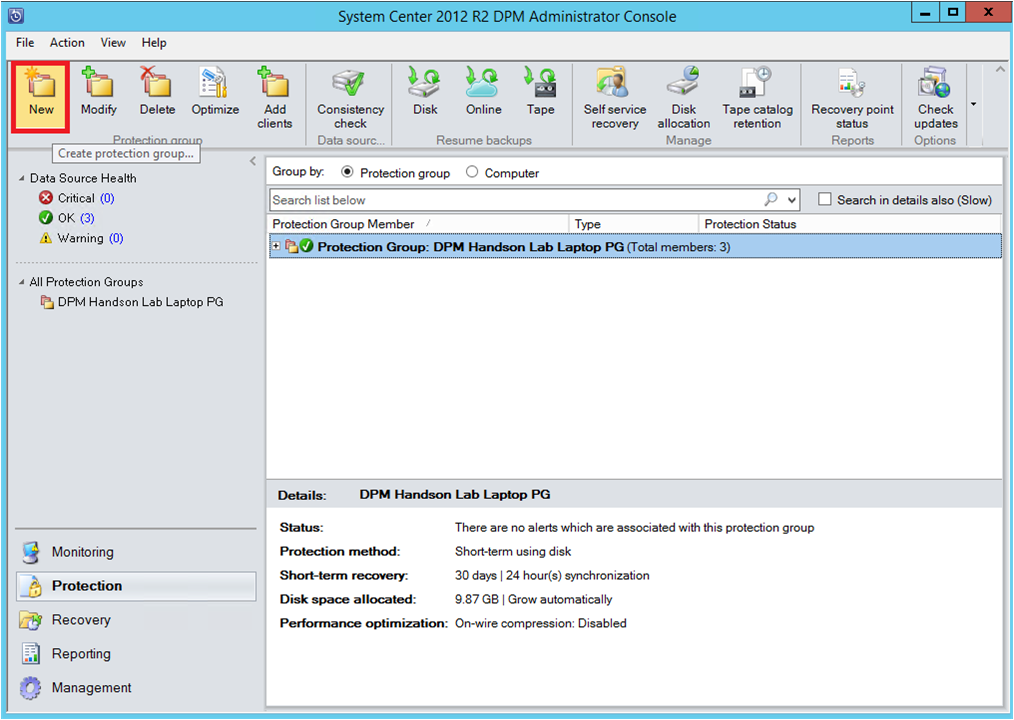
Azure Backup Server spustí průvodce skupinou ochrany, který vás provede vytvořením skupiny ochrany. Vyberte Další.
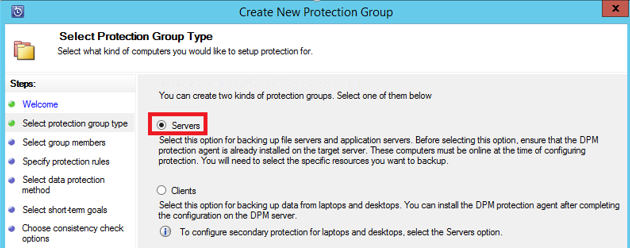
V okně Vybrat typ skupiny ochrany vyberte Servery.
V okně Vybrat členy skupiny se v seznamu Dostupné členy zobrazí různé zdroje dat. Výběrem + rozbalíte složku a zobrazíte podsložky. Zaškrtněte políčko a vyberte položku.
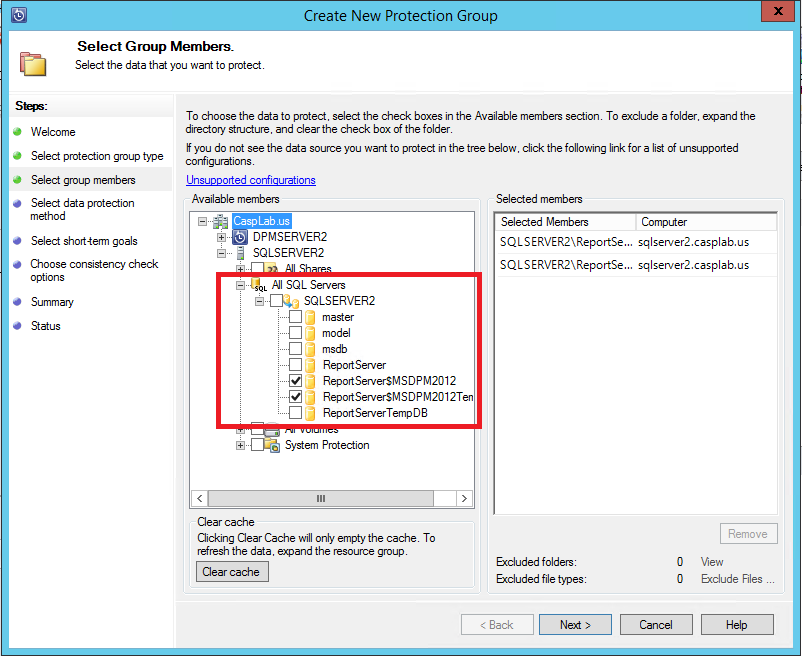
Všechny vybrané položky se zobrazí v seznamu vybraných členů. Po výběru serverů nebo databází, které chcete chránit, vyberte Další.
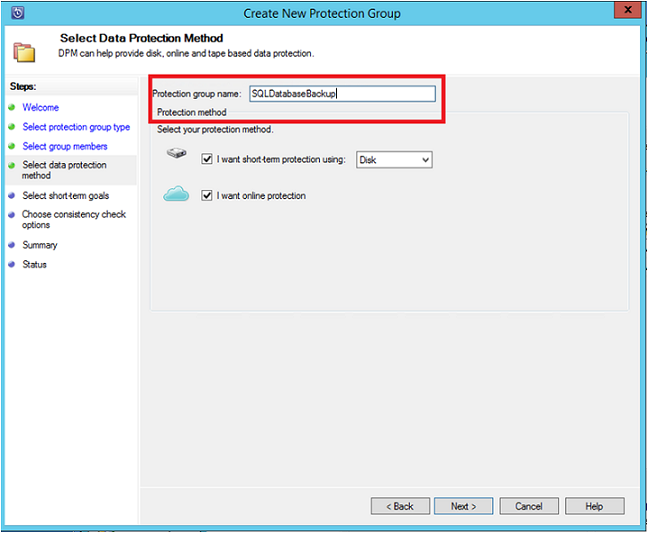
V okně Vybrat metodu ochrany dat zadejte název skupiny ochrany a zaškrtněte políčko Chci online ochranu .
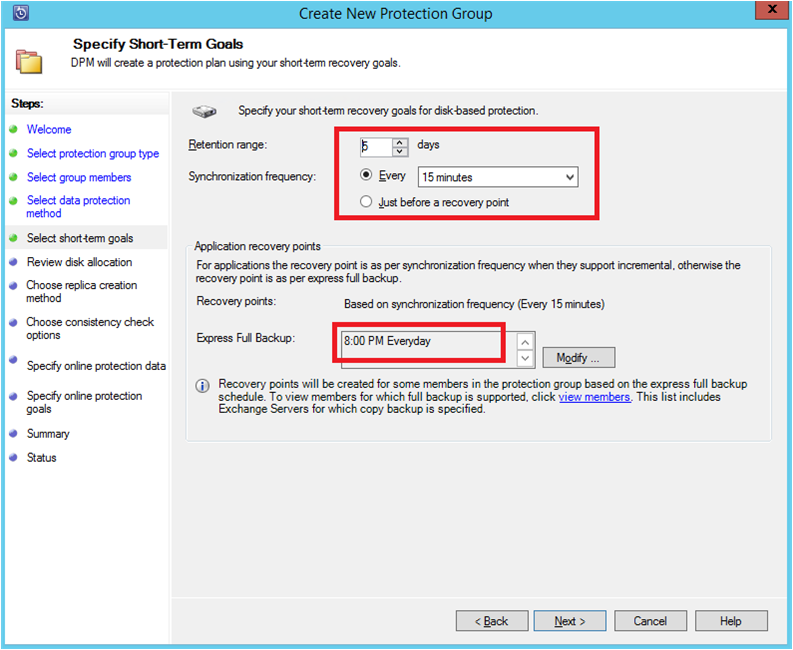
V okně Zadat Krátkodobé Cíle zadejte potřebné vstupy pro vytvoření záložních bodů na disku a vyberte Další.
V tomto příkladu je rozsah uchovávání5 dnů, frekvence synchronizace je jednou za 15 minut, což je frekvence zálohování. Expresní úplné zálohování je nastavené na 20:00.
Poznámka:
V uvedeném příkladu se v 18:00 každý den vytvoří záložní bod přenosem upravených dat z zálohovacího bodu 18:00 předchozího dne. Tento proces se nazývá Expresní úplné zálohování. Transakční protokoly se synchronizují každých 15 minut. Pokud potřebujete obnovit databázi ve 21:00, bod se vytvoří z protokolů z posledního kompletního záložního bodu (v tomto případě ve 20:00).
V okně Zkontrolovat přidělení disku ověřte, jestli je k dispozici celkový prostor úložiště a potenciální místo na disku. Vyberte Další.
V části Zvolit metodu vytvoření repliky zvolte, jak vytvořit první bod obnovení. Počáteční zálohu můžete přenést ručně (mimo síť), abyste se vyhnuli zahlcení šířky pásma nebo přes síť. Pokud se rozhodnete počkat na přenos první zálohy, můžete zadat čas počátečního přenosu. Vyberte Další.
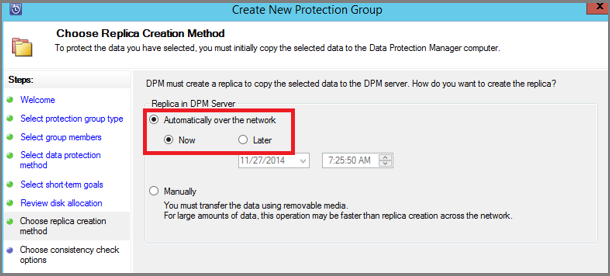
Počáteční záložní kopie vyžaduje přenos celého zdroje dat (databáze SQL Serveru) z produkčního serveru (počítače s SQL Serverem) do Azure Backup Serveru. Tato data můžou být velká a přenos dat přes síť může překročit šířku pásma. Z tohoto důvodu se můžete rozhodnout přenést počáteční zálohu: Ručně (pomocí vyměnitelného média), abyste se vyhnuli zahlcení šířky pásma, nebo automaticky přes síť (v zadaném čase).
Po dokončení počáteční zálohy jsou zbývající zálohy přírůstkové zálohy v počáteční záložní kopii. Přírůstkové zálohy jsou obvykle malé a snadno se přenášejí přes síť.
Zvolte, kdy má kontrola konzistence běžet, a vyberte Další.
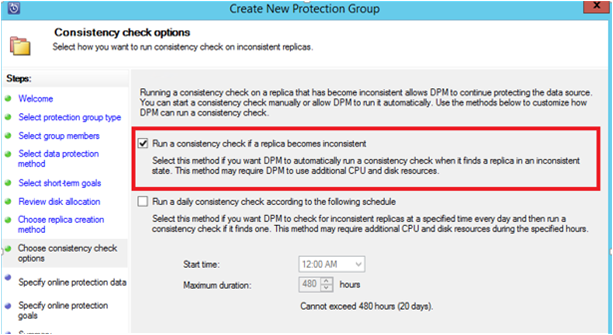
Azure Backup Server provádí kontrolu konzistence na integritě bodu zálohování. Azure Backup Server vypočítá kontrolní součet záložního souboru na produkčním serveru (počítač s SQL Serverem v tomto scénáři) a zálohovaná data pro tento soubor. Pokud dojde ke konfliktu, předpokládá se, že zálohovaný soubor na Azure Backup Serveru je poškozený. Azure Backup Server opraví zálohovaná data odesláním bloků odpovídajících neshodě kontrolního součtu. Vzhledem k tomu, že kontroly konzistence jsou náročné na výkon, můžete naplánovat kontrolu konzistence nebo ji spustit automaticky.
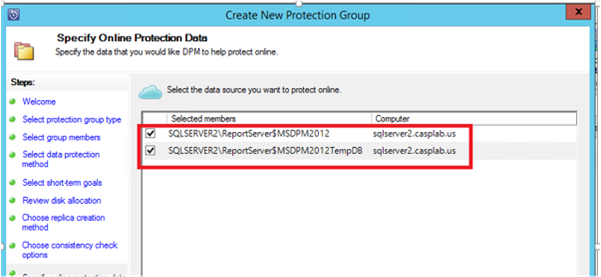
Pokud chcete určit online ochranu zdrojů dat, vyberte databáze, které se mají chránit v Azure, a vyberte Další.
Zvolte plány zálohování a zásady uchovávání informací, které vyhovují zásadám organizace.
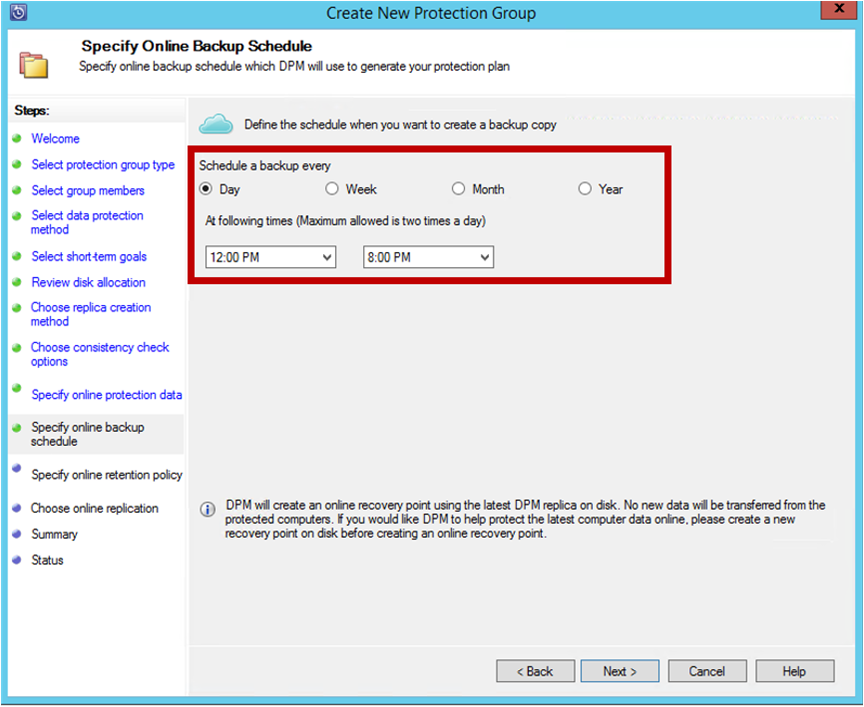
V tomto příkladu se zálohy pořídí jednou denně ve 12:00 a ve 20:00.
Poznámka:
Pro rychlé obnovení je vhodné mít na disku několik krátkodobých bodů obnovení. Tyto body obnovení se používají k provoznímu zotavení. Azure slouží jako dobrá lokalita mimo pracoviště s vyššími smlouvami SLA a garantovanou dostupností.
Osvědčený postup: Pokud plánujete, aby se zálohování do Azure spustilo po dokončení zálohování místních disků, nejnovější zálohy disků se vždy zkopírují do Azure.
Zvolte plán zásad uchovávání informací. Podrobnosti o tom, jak zásady uchovávání informací fungují, najdete v článku Použití služby Azure Backup k nahrazení vaší páskové infrastruktury.
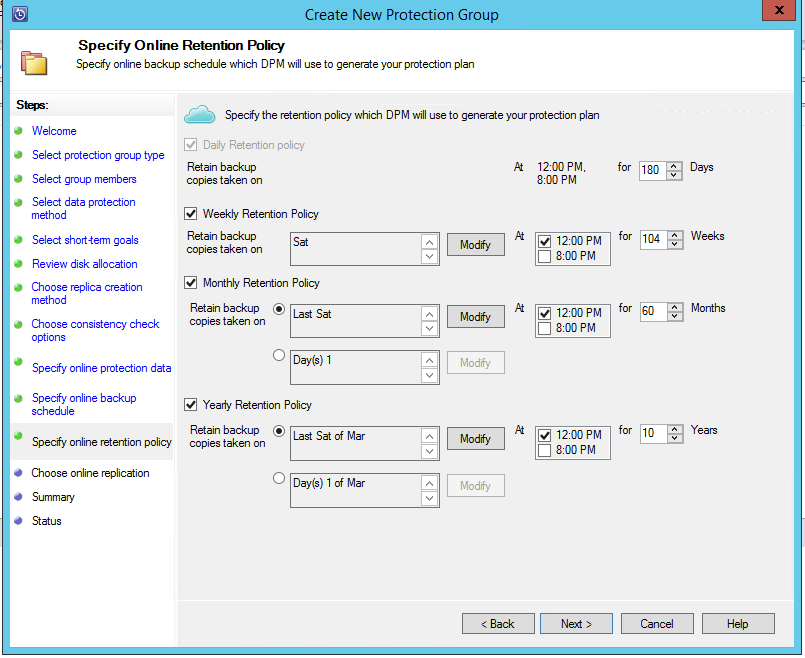
V tomto příkladu:
- Zálohy se provádějí každý den ve 12:00 a ve 20:00 a uchovávají se po dobu 180 dnů.
- Kopie zálohy vytvářená v sobotu ve 12:00 se uchovává po dobu 104 týdnů.
- Záloha v poslední sobotu v 12:00 se uchovává po dobu 60 měsíců.
- Záloha ze poslední soboty v březnu ve 12:00 hodin je uchována po dobu 10 let.
Vyberte Další a vyberte příslušnou možnost pro přenos počáteční záložní kopie do Azure. Můžete zvolit automaticky přes síť.
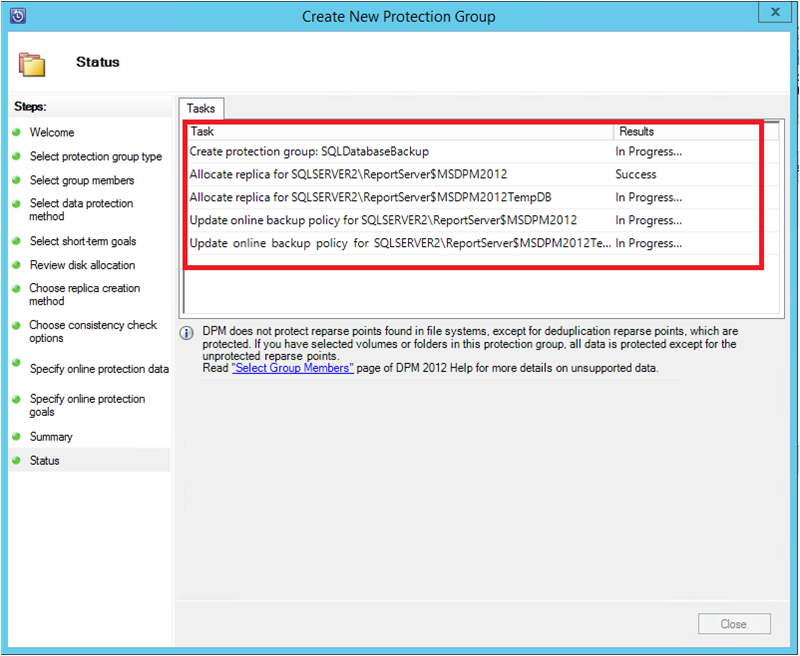
Po kontrole podrobností o zásadách v okně Souhrn vyberte Vytvořit skupinu a dokončete pracovní postup. V pracovním prostoru Monitorování můžete zvolit Zavřít a sledovat postup úlohy.
Spuštění zálohy na vyžádání pro databáze SQL Serveru ve službě Azure Stack
Bod obnovení se vytvoří pouze v případě, že dojde k prvnímu zálohování. Po vytvoření zásady zálohování můžete vytvoření bodu obnovení aktivovat ručně, a nečekat, až plánovač provede zálohování.
Pokud chcete spustit zálohu databáze SQL Serveru na vyžádání, postupujte takto:
Před vytvořením bodu obnovení počkejte, než se stav skupiny ochrany pro databázi zobrazí jako OK.
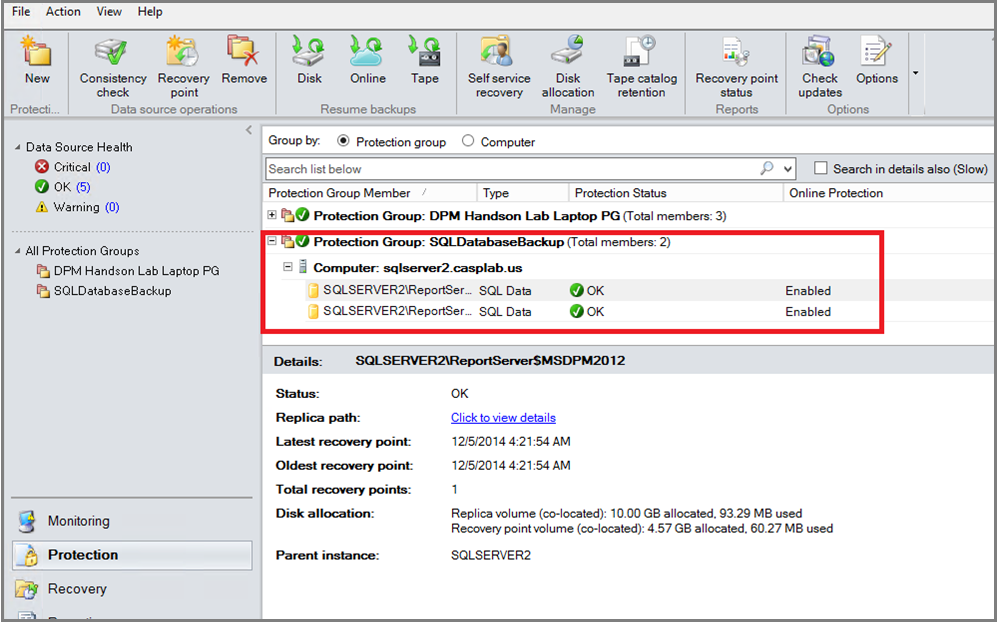
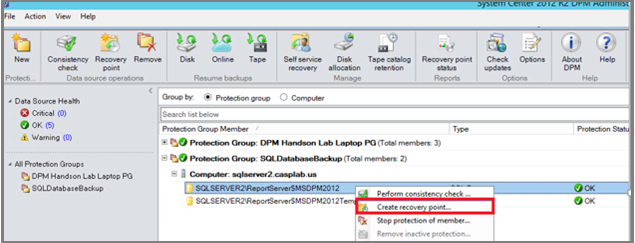
Klikněte pravým tlačítkem myši na databázi a vyberte Vytvořit bod obnovení.
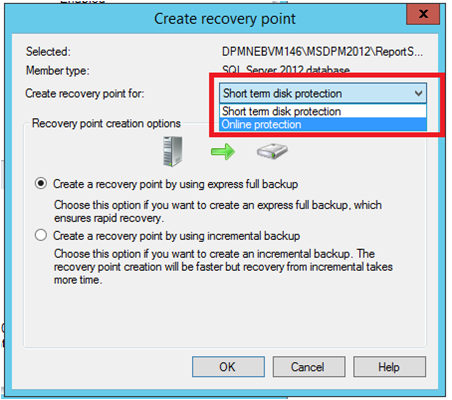
V rozevírací nabídce zvolte Online Protection a výběrem možnosti OK začněte vytvářet bod obnovení v Azure.
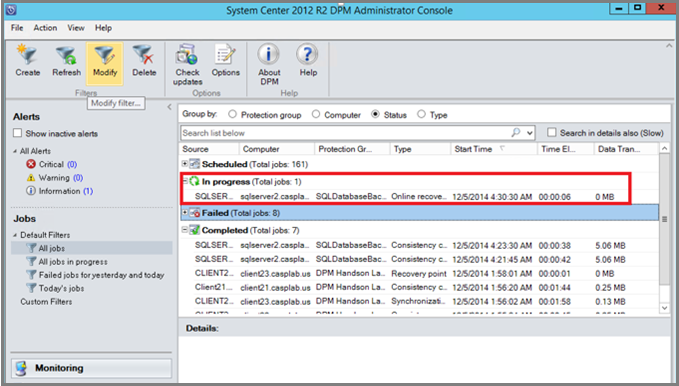
Zobrazte průběh úlohy v pracovním prostoru Monitorování .
Obnovení databáze SQL Serveru ve službě Azure Stack z Azure
Pokud chcete obnovit chráněnou entitu (databázi SQL Serveru) z Azure, postupujte takto:
Otevřete konzolu pro správu Azure Backup Serveru. Přejděte do pracovního prostoru Obnovení , kde uvidíte chráněné servery. Projděte požadovanou databázi (v tomto případě ReportServer$MSDPM2012). Vyberte okamžik obnovení od, který je zadaný jako online bod.
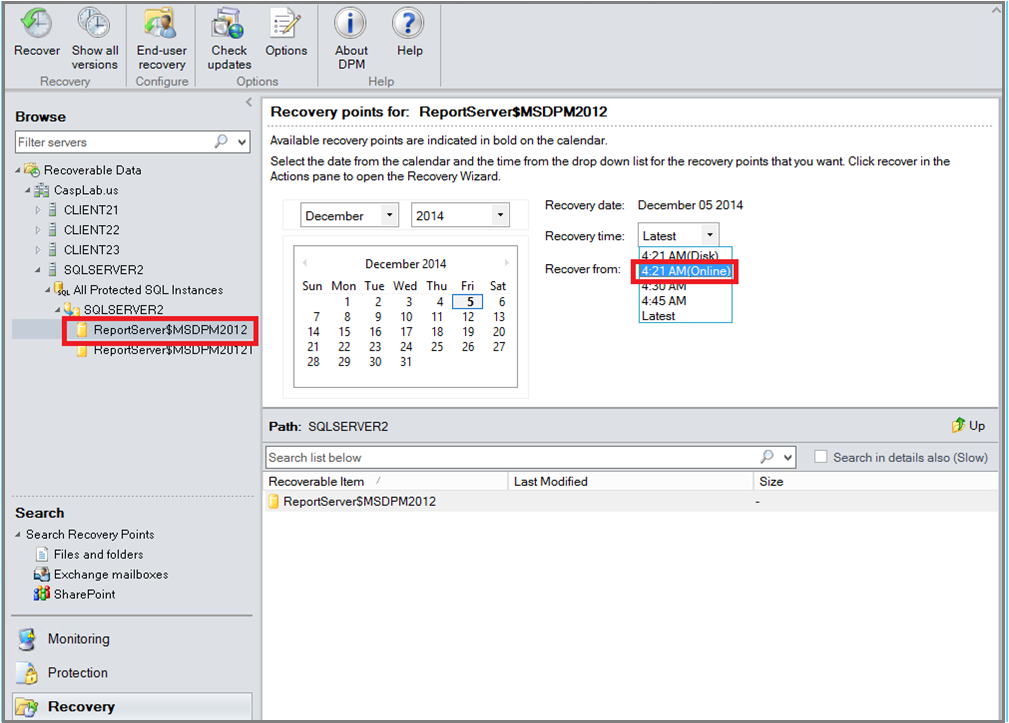
Klikněte pravým tlačítkem myši na název databáze a vyberte Obnovit.
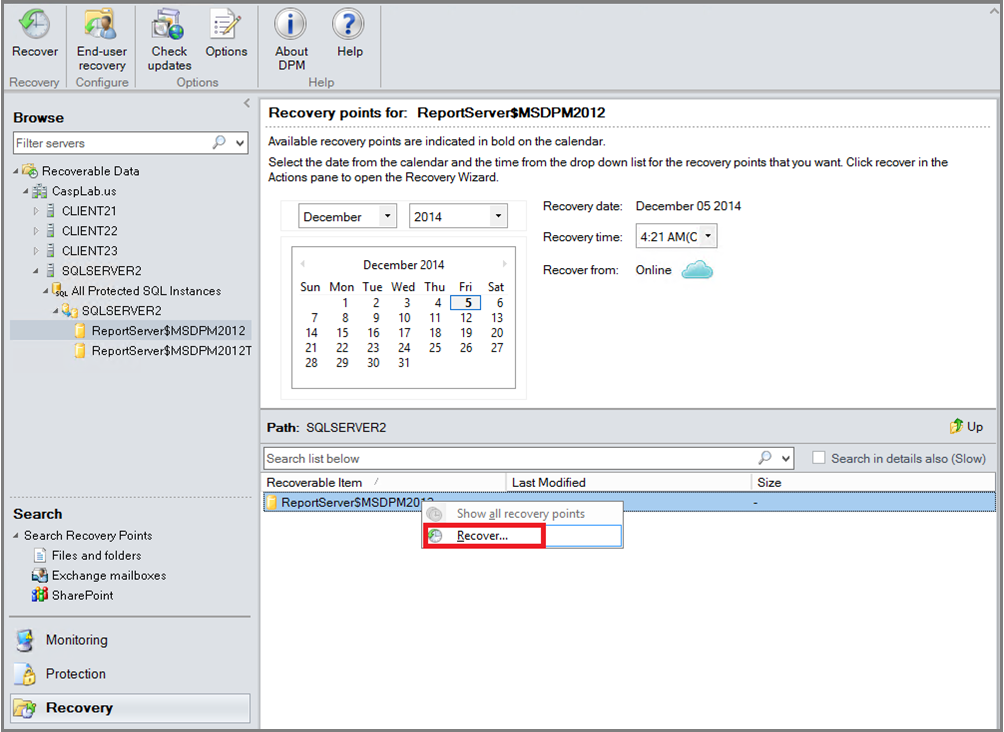
MABS zobrazuje podrobnosti o bodu obnovení. Vyberte Další. Chcete-li přepsat databázi, vyberte typ obnovení do původní instance SQL Serveru. Vyberte Další.
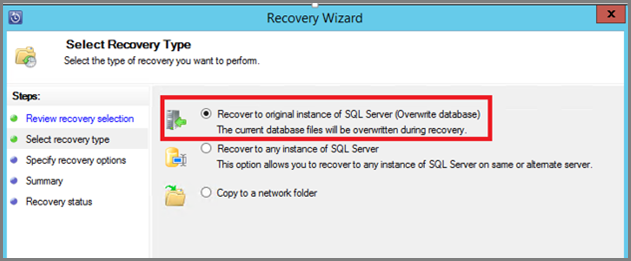
V tomto příkladu MABS obnoví databázi do jiné instance SQL Serveru nebo do samostatné síťové složky.
V okně Zadat možnosti obnovení můžete vybrat možnosti obnovení, jako je omezování využití šířky pásma sítě, abyste omezili šířku pásma používanou obnovením. Vyberte Další.
V okně Souhrn se zobrazí všechny dosud poskytnuté konfigurace obnovení. Vyberte Obnovit.
Stav obnovení zobrazuje obnovenou databázi. Výběrem možnosti Zavřít můžete průvodce zavřít a zobrazit průběh v pracovním prostoru Monitorování .
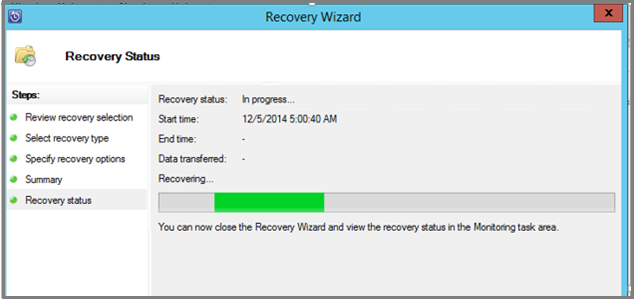
Po dokončení obnovení je obnovená databáze konzistentní vzhledem k aplikacím.